


website
llms.txt641 starsChanged 6 months agoMITView on GitHub
Complete official documentation for Payload 3.x. Do not mix APIs or examples from another major version. Source: https://payloadcms.com/docs/getting-started/what-is-payload Video: Introduction to Payload — The open-source Next.js backend Write a Payload Config and instantly get a full Admin Panel, a database with migrations, REST and GraphQL APIs, authentication, access control, file storage, live preview, and more — all in one open-source TypeScript codebase you own and deploy anywhere. Source: https://payloadcms.com/docs/getting-started/use-cases Payload started as a headless Content Management System (CMS), but since,…
- Reads credentials
- Installs packages
We split this llms-full.txt into the rules it gives an agent
20 rules. About 0 are common, 11 are distinctive, and 9 are very specific to this project.
≈0
Common · estimate
Many files like this have a rule of this kind.
≈11
Distinctive · estimate
This author's own choices. Worth a look.
9
Very specific
Tied to their project's names, files or tools. Probably skip.
- Common
- Distinctive
- Very specific
- Distinctive: line 13
Write a Payload Config and instantly get a full Admin Panel, a database with migrations, REST and GraphQL APIs, authentication, access …
- Very specific: line 39
If you're building a website and your frontend is on Next.js, then Payload is a no-brainer.
- Distinctive: line 56
When a large organization starts up a new software initiative, there's a lot of plumbing to take care of.
- Distinctive: line 85
If you can build your storefront with a single backend, and only offload things like payment processing, the code will be simpler and the …
- Distinctive: line 103
If data ownership and privacy are important to you, and you don't want to allow another proprietary SaaS vendor to host and own your data
- Very specific: line 104
If you're building a Next.js site that needs a CMS
- Distinctive: line 105
If you need to re-use your data outside of a SaaS API
- Distinctive: line 106
If what you're building has custom business logic requirements outside of a typical headless CMS
- Distinctive: line 111
If you can manage your project fully with code, and don't need an admin UI
- Very specific: line 112
If you are building a website that fits within the limits of a tool like Webflow or Framer
- Distinctive: line 113
If you already have a full database and just need to visualize the data somehow
- Distinctive: line 114
If you are confident that you won't need code / data ownership at any point in the future
- Very specific: line 229
If you don't have a Next.js app already, but you still want to start a project from a blank Next.js app, you can create a new Next.js app …
- Very specific: line 383
After you've reached this point, it's time to boot up Payload.
- Very specific: line 385
After it starts, you can go to http://localhost:3000/admin to create your first Payload user!
- Very specific: line 563
If none was in either location, Payload will finally check the dist directory.
- Very specific: line 769
Every bin script supports being run on a schedule using cron syntax.
- Distinctive: line 882
If you need to generate order keys programmatically (e.g., when creating documents via the Local API with a specific order), you can import …
- Distinctive: line 1030
All Collections receive their own List View which displays a paginated list of documents that can be sorted and filtered.
- Very specific: line 1081
When true, the List View will use the Select API to query only the _active_ columns as opposed to entire documents.
≈ “Common” is an estimate: at least 1 in 5 of the 3,225 llms.txt files we read have a rule of the same kind, not the same words. “Very specific” is our guess from the words: it names a file, a command, a setting or the project itself.
Files
# Payload 3.x Documentation
> Complete official documentation for Payload 3.x. Do not mix APIs or examples from another major version.
# What is Payload?
Source: https://payloadcms.com/docs/getting-started/what-is-payload
[Video: Introduction to Payload — The open-source Next.js backend](https://www.youtube.com/watch?v=ftohATkHBi0)
## Payload is the Next.js fullstack framework.
Write a Payload Config and instantly get a full Admin Panel, a database with migrations, REST and GraphQL APIs, authentication, access control, file storage, live preview, and more — all in one open-source TypeScript codebase you own and deploy anywhere.
- [Use Cases](/docs/v3/getting-started/use-cases.md): See how teams use Payload for headless CMS, internal tools, commerce, and DAM workloads — and whether it fits yours.
- [Core Concepts](/docs/v3/getting-started/concepts.md): Get familiar with the high-level concepts Payload is built around before you write any code.
- [Installation](/docs/v3/getting-started/installation.md): Add Payload to a new or existing Next.js app and get the Admin Panel running in minutes.
- [The Admin Panel](/docs/v3/admin/overview.md): Explore the auto-generated React UI that matches the shape of your data and extends with your own components.
- [Database & Schema](/docs/v3/database/overview.md): Direct DB access and ownership with migrations, transactions, and proper indexing across MongoDB and Postgres.
- [REST & GraphQL APIs](/docs/v3/rest-api/overview.md): Instant REST, GraphQL, and straight-to-DB Node.js APIs generated from your config.
- [Authentication](/docs/v3/authentication/overview.md): A full auth system you can use in your Payload app and reuse in your own frontends.
- [Access Control](/docs/v3/access-control/overview.md): A deeply customizable access pattern that runs at the document, field, and operation level.
- [File Uploads](/docs/v3/upload/overview.md): Built-in file storage, image resizing, focal-point cropping, and media access control.
# Use Cases
Source: https://payloadcms.com/docs/getting-started/use-cases
Payload started as a headless Content Management System (CMS), but since, we've seen our community leverage Payload in ways far outside of simply managing pages and blog posts. It's grown into a full-stack TypeScript app framework.
Large enterprises use Payload to power significant internal tools, retailers power their entire storefronts without the need for headless Shopify, and massive amounts of digital assets are stored + managed within Payload. Of course, websites large and small still use Payload for content management as well.
### Headless CMS
The biggest barrier in large web projects cited by marketers is engineering. On the flip side, engineers say the opposite. This is a big problem that has yet to be solved even though we have countless CMS options.
Payload has restored a little love back into the dev / marketer equation with features like Live Preview, redirects, form builders, visual editing, static A/B testing, and more. But even with all this focus on marketing efficiency, we aren't compromising on the developer experience. That way engineers and marketers alike can be proud of the products they build.
If you're building a website and your frontend is on Next.js, then Payload is a no-brainer.
> **Success**
>
> Instead of going out and signing up for a SaaS vendor that makes it so you
> have to manage two completely separate concerns, with little to no native
> connection back and forth, just install Payload in your existing Next.js repo
> and instantly get a full CMS.
Get started with Payload as a CMS using our official Website template:
```
npx create-payload-app@latest -t website
```
### Enterprise Tool
When a large organization starts up a new software initiative, there's a lot of plumbing to take care of.
- Scaffold the data layer with an ORM or an app framework like Ruby on Rails or Laravel
- Implement their SSO provider for authentication
- Design an access control pattern for authorization
- Open up any REST endpoints required or implement GraphQL queries / mutations
- Implement a migrations workflow for the database as it changes over time
- Integrate with other third party solutions by crafting a system of webhooks or similar
And then there's the [Admin Panel](/docs/v3/admin/overview.md). Most enterprise tools require an admin UI, and building one from scratch can be the most time-consuming aspect of any new enterprise tool. There are off-the-shelf packages for app frameworks like Rails, but often the customization is so involved that using Material UI or similar from scratch might be better.
Then there are no-code admin builders that could be used. However, wiring up access control and the connection to the data layer, with proper version control, makes this a challenging task as well.
That's where Payload comes in. Payload instantly provides all of this out of the box, making complex internal tools extremely simple to both spin up and maintain over time. The only custom code that will need to be written is any custom business logic. That means Payload can expedite timelines, keep budgets low, and allow engineers to focus on their specific requirements rather than complex backend / admin UI plumbing.
Generally, the best place to start for a new enterprise tool is with a blank canvas, where you can define your own functionality:
```
npx create-payload-app@latest -t blank
```
### Headless Commerce
Companies who prioritize UX generally run into frontend constraints with traditional commerce vendors. These companies will then opt for frontend frameworks like Next.js which allow them to fine-tune their user experience as much as possible—promoting conversions, personalizing experiences, and optimizing for SEO.
But the challenge with using something like Next.js for headless commerce is that in order for non-technical users to manage the storefront, you instantly need to pair a headless commerce product with a headless CMS. Then, your editors need to bounce back and forth between different admin UIs for different functionality. The code required to seamlessly glue them together on the frontend becomes overly complex.
Payload can integrate with any payment processor like Stripe and its content authoring capabilities allow it to manage every aspect of a storefront—all in one place.
If you can build your storefront with a single backend, and only offload things like payment processing, the code will be simpler and the editing experience will be significantly streamlined. Manage products, catalogs, page content, media, and more—all in one spot.
### Digital Asset Management
Payload's API-first tagging, sorting, and querying engine lends itself perfectly to all types of content that a CMS might ordinarily store, but these strong fundamentals also make it a formidable Digital Asset Management (DAM) tool as well.
Similarly to the Ecommerce use case above, if an organization uses a CMS for its content but a separate DAM for its digital assets, administrators of both tools will need to juggle completely different services for tasks that are closely related. Two subscriptions will need to be managed, two sets of infrastructure will need to be provisioned, and two admin UIs need to be used / learned.
Payload flattens CMS and DAM into a single tool that makes no compromises on either side. Powerful features like folder-based organization, file versioning, bulk upload, and media access control allow Payload to simultaneously function as a full Digital Asset Management platform as well as a Content Management System at the same time.
[Click here](https://payloadcms.com/use-cases/digital-asset-management) for more information on how to get started with Payload as a DAM.
## Is Payload Right For You?
Payload is a great choice for applications of all sizes and types, but it might not be the right choice for every project. Here are some guidelines to help you decide if Payload is the right choice for your project.
### When Payload might be for you
- If data ownership and privacy are important to you, and you don't want to allow another proprietary SaaS vendor to host and own your data
- If you're building a Next.js site that needs a CMS
- If you need to re-use your data outside of a SaaS API
- If what you're building has custom business logic requirements outside of a typical headless CMS
- You want to deploy serverless on platforms like Vercel
### When Payload might not be for you
- If you can manage your project fully with code, and don't need an admin UI
- If you are building a website that fits within the limits of a tool like Webflow or Framer
- If you already have a full database and just need to visualize the data somehow
- If you are confident that you won't need code / data ownership at any point in the future
# Payload Concepts
Source: https://payloadcms.com/docs/getting-started/concepts
Payload is based around a small and intuitive set of high-level concepts. Before starting to work with Payload, it's a good idea to familiarize yourself with these concepts in order to establish a common language and understanding when discussing Payload.
- [Config](/docs/v3/configuration/overview.md): A deeply typed JavaScript object that drives everything Payload does — the central piece of every project.
- [Database](/docs/v3/database/overview.md): Plug in Postgres, MongoDB, or SQLite behind Payload's APIs via a Database Adapter — Payload is database agnostic.
- [Collections](/docs/v3/configuration/collections.md): A group of records (Documents) that share a schema. The most common way you'll model data in Payload.
- [Globals](/docs/v3/configuration/globals.md): Like Collections, but for content that has only one of — settings, navigation, footer, and so on.
- [Fields](/docs/v3/fields/overview.md): The building blocks of Payload — they define your schema and auto-generate the matching Admin UI.
- [Hooks](/docs/v3/hooks/overview.md): Run your own side effects at specific points in the Document lifecycle — before read, after create, and more.
- [Authentication](/docs/v3/authentication/overview.md): A secure, portable user-account system for both the Admin Panel and your own external applications.
- [Access Control](/docs/v3/access-control/overview.md): Decide who can read, update, or delete every Document — and what they see in the Admin Panel.
- [Admin Panel](/docs/v3/admin/overview.md): The auto-generated, fully type-safe React interface editors use to manage your data. Built on Next.js.
## Retrieving Data
Everything Payload does (create, read, update, delete, login, logout, etc.) is exposed to you via three APIs:
- [Local API](/docs/v3/local-api/overview.md): Direct-to-database access with no HTTP overhead — call payload.find from any server context, including React Server Components.
- [REST API](/docs/v3/rest-api/overview.md): Standard HTTP endpoints mounted at /api — fetch documents from any client with full pagination, depth, and sorting.
- [GraphQL](/docs/v3/graphql/overview.md): A full GraphQL API with a Playground at /api/graphql-playground. Works with graphql-request, Apollo, or any other client.
> **Note:** All of these APIs share the exact same query language. [More
> details](/docs/v3/queries/overview.md).
## Package Structure
Payload is abstracted into a set of dedicated packages to keep the core `payload` package as lightweight as possible. This allows you to only install the parts of Payload based on your unique project requirements.
> **Important:** Version numbers of all official Payload packages are always
> published in sync. You should make sure that you always use matching versions
> for all official Payload packages.
`payload`
The `payload` package is where core business logic for Payload lives. You can think of Payload as an ORM with superpowers—it contains the logic for all Payload "operations" like `find`, `create`, `update`, and `delete` and exposes a [Local API](/docs/v3/local-api/overview.md). It executes [Access Control](/docs/v3/access-control/overview.md), [Hooks](/docs/v3/hooks/overview.md), [Validation](/docs/v3/fields/overview.md#validation), and more.
Payload itself is extremely compact, and can be used in any Node environment. As long as you have `payload` installed and you have access to your Payload Config, you can query and mutate your database directly without going through an unnecessary HTTP layer.
Payload also contains all TypeScript definitions, which can be imported from `payload` directly.
Here's how to import some common Payload types:
```ts
import { Config, CollectionConfig, GlobalConfig, Field } from 'payload'
```
`@payloadcms/next`
Whereas Payload itself is responsible for direct database access, and control over Payload business logic, the `@payloadcms/next` package is responsible for the Admin Panel and the entire HTTP layer that Payload exposes, including the [REST API](/docs/v3/rest-api/overview.md) and [GraphQL API](/docs/v3/graphql/overview.md).
`@payloadcms/graphql`
All of Payload's GraphQL functionality is abstracted into a separate package. Payload, its Admin UI, and REST API have absolutely no overlap with GraphQL, and you will incur no performance overhead from GraphQL if you are not using it. However, it's installed within the `@payloadcms/next` package so you don't have to install it manually. You do, however, need to have GraphQL installed separately in your `package.json` if you are using GraphQL.
`@payloadcms/ui`
This is the UI library that Payload's Admin Panel uses. All components are exported from this package and can be re-used as you build extensions to the Payload admin UI, or want to use Payload components in your own React apps. Some exports are server components and some are client components.
`@payloadcms/db-postgres`, `@payloadcms/db-vercel-postgres`, `@payloadcms/db-mongodb`, `@payloadcms/db-sqlite`
You can choose which Database Adapter you'd like to use for your project, and no matter which you choose, the entire data layer for Payload is contained within these packages. You can only use one at a time for any given project.
`@payloadcms/richtext-lexical`, `@payloadcms/richtext-slate`
Payload's Rich Text functionality is abstracted into separate packages and if you want to enable Rich Text in your project, you'll need to install one of these packages. We recommend Lexical for all new projects, and this is where Payload will focus its efforts on from this point, but Slate is still supported if you have already built with it.
> **Note:** Rich Text is entirely optional and you may not need it for your
> project.
# Installation
Source: https://payloadcms.com/docs/getting-started/installation
## Software Requirements
Payload requires the following software:
- Any JavaScript package manager (pnpm, npm, or yarn 2+ - pnpm is preferred, yarn 1.x is not supported)
- Node.js version 20.9.0+
- Next.js (one of the following version ranges):
- `15.2.9` - `15.2.x`
- `15.3.9` - `15.3.x`
- `15.4.11` - `15.4.x`
- `16.2.6`+
- Any [compatible database](/docs/v3/database/overview.md) (MongoDB, Postgres or SQLite)
> **Important:** Before proceeding any further, please ensure that you have the
> above requirements met. Not all Next.js 15/16 releases are compatible — make
> sure you're using one of the supported version ranges listed above.
> **Cache Components:** While Next.js `cacheComponents` can be enabled alongside
> Payload without causing errors in the admin panel, full compatibility is not
> guaranteed. See this [GitHub pull
> request](https://github.com/payloadcms/payload/pull/16020) for the latest
> status.
## Quickstart with create-payload-app
To quickly scaffold a new Payload app in the fastest way possible, you can use [create-payload-app](https://npmjs.com/package/create-payload-app). To do so, run the following command:
```bash
npx create-payload-app
```
Then just follow the prompts! You'll get set up with a new folder and a functioning Payload app inside. You can then start [configuring your application](/docs/v3/configuration/overview.md).
## Adding to an existing app
Adding Payload to an existing Next.js app is super straightforward. You can either run the `npx create-payload-app` command inside your Next.js project's folder, or manually install Payload by following the steps below.
If you don't have a Next.js app already, but you still want to start a project from a blank Next.js app, you can create a new Next.js app using `npx create-next-app` - and then just follow the steps below to install Payload.
#### 1. Install the relevant packages
First, you'll want to add the required Payload packages to your project:
```bash
pnpm i payload @payloadcms/next
```
You'll also likely want to install the following optional packages:
- `@payloadcms/richtext-lexical` - Rich text editor (not needed if you don't use Rich Text)
- `sharp` - Image resizing, cropping, and focal point support (only needed if you use [Upload](/docs/v3/upload/overview.md) collections with image manipulation)
- `graphql` - Only needed if you want to use the [GraphQL API](/docs/v3/graphql/overview.md)
```bash
pnpm i @payloadcms/richtext-lexical sharp graphql
```
> **Note:** Swap out `pnpm` for your package manager. If you are using npm, you
> might need to install using legacy peer deps: `npm i --legacy-peer-deps`.
Next, install a [Database Adapter](/docs/v3/database/overview.md). Payload requires a Database Adapter to establish a database connection. Payload works with all types of databases, but the most common are MongoDB and Postgres.
To install a Database Adapter, you can run **one** of the following commands:
- To install the [MongoDB Adapter](/docs/v3/database/mongodb.md), run:
```bash
pnpm i @payloadcms/db-mongodb
```
- To install the [Postgres Adapter](/docs/v3/database/postgres.md), run:
```bash
pnpm i @payloadcms/db-postgres
```
- To install the [SQLite Adapter](/docs/v3/database/sqlite.md), run:
```bash
pnpm i @payloadcms/db-sqlite
```
> **Note:** New [Database Adapters](/docs/v3/database/overview.md) are becoming
> available every day. Check the docs for the most up-to-date list of what's
> available.
#### 2. Copy Payload files into your Next.js app folder
Payload installs directly in your Next.js `/app` folder, and you'll need to place some files into that folder for Payload to run. You can copy these files from the [Blank Template](https://github.com/payloadcms/payload/tree/3.x/templates/blank/src/app/%28payload%29) on GitHub. Once you have the required Payload files in place in your `/app` folder, you should have something like this:
```plaintext
app/
├─ (payload)/
├── // Payload files
├─ (my-app)/
├── // Your app files
```
_For an exact reference of the `(payload)` directory, see [Project Structure](/docs/v3/admin/overview.md#project-structure)._
> **Warning**
>
> You may need to copy all of your existing frontend files, including your
> existing root layout, into its own newly created [Route
> Group](https://nextjs.org/docs/app/building-your-application/routing/route-groups),
> i.e. `(my-app)`.
The files that Payload needs to have in your `/app` folder do not regenerate, and will never change. Once you slot them in, you never have to revisit them. They are not meant to be edited and simply import Payload dependencies from `@payloadcms/next` for the REST / GraphQL API and Admin Panel.
You can name the `(my-app)` folder anything you want. The name does not matter and will just be used to clarify your directory structure for yourself. Common names might be `(frontend)`, `(app)`, or similar. [More details](/docs/v3/admin/overview.md).
#### 3. Add the Payload Plugin to your Next.js config
Payload has a Next.js plugin that it uses to ensure compatibility with some of the packages Payload relies on, like `mongodb` or `drizzle-kit`.
To add the Payload Plugin, use `withPayload` in your `next.config.js`:
```js
import { withPayload } from '@payloadcms/next/withPayload'
/** @type {import('next').NextConfig} */
const nextConfig = {
// Your Next.js config here
}
// Make sure you wrap your `nextConfig`
// with the `withPayload` plugin
export default withPayload(nextConfig) // highlight-line
```
> **Important:** Payload is a fully ESM project, and that means the
> `withPayload` function is an ECMAScript module.
To import the Payload Plugin, you need to make sure your `next.config` file is set up to use ESM.
You can do this in one of two ways:
1. Set your own project to use ESM, by adding `"type": "module"` to your `package.json` file
2. Give your Next.js config the `.mjs` file extension
In either case, all `require`s and `export`s in your `next.config` file will need to be converted to `import` / `export` if they are not set up that way already.
#### 4. Create a Payload Config and add it to your TypeScript config
Finally, you need to create a [Payload Config](/docs/v3/configuration/overview.md). Generally the Payload Config is located at the root of your repository, or next to your `/app` folder, and is named `payload.config.ts`.
Here's what Payload needs at a bare minimum:
```ts
import sharp from 'sharp'
import { lexicalEditor } from '@payloadcms/richtext-lexical'
import { mongooseAdapter } from '@payloadcms/db-mongodb'
import { buildConfig } from 'payload'
export default buildConfig({
// If you'd like to use Rich Text, pass your editor here
editor: lexicalEditor(),
// Define and configure your collections in this array
collections: [],
// Your Payload secret - should be a complex and secure string, unguessable
secret: process.env.PAYLOAD_SECRET || '',
// Whichever Database Adapter you're using should go here
// Mongoose is shown as an example, but you can also use Postgres
db: mongooseAdapter({
url: process.env.DATABASE_URL || '',
}),
// If you want to resize images, crop, set focal point, etc.
// make sure to install it and pass it to the config.
// This is optional - if you don't need to do these things,
// you don't need it!
sharp,
})
```
Although this is just the bare minimum config, there are _many_ more options that you can control here. To reference the full config and all of its options, [click here](/docs/v3/configuration/overview.md).
Once you have a Payload Config, update your `tsconfig` to include a `path` that points to it:
```json
{
"compilerOptions": {
"paths": {
"@payload-config": ["./payload.config.ts"]
}
}
}
```
#### 5. Fire it up!
After you've reached this point, it's time to boot up Payload. Start your project in your application's folder to get going. By default, the Next.js dev script is `pnpm dev` (or `npm run dev` if using npm).
After it starts, you can go to `http://localhost:3000/admin` to create your first Payload user!
# The Payload Config
Source: https://payloadcms.com/docs/configuration/overview
Payload is a _config-based_, code-first CMS and application framework. The Payload Config is central to everything that Payload does, allowing for deep configuration of your application through a simple and intuitive API. The Payload Config is a fully-typed JavaScript object that can be infinitely extended upon.
Everything from your [Database](/docs/v3/database/overview.md) choice to the appearance of the [Admin Panel](/docs/v3/admin/overview.md) is fully controlled through the Payload Config. From here you can define [Fields](/docs/v3/fields/overview.md), add [Localization](/docs/v3/configuration/localization.md), enable [Authentication](/docs/v3/authentication/overview.md), configure [Access Control](/docs/v3/access-control/overview.md), and so much more.
The Payload Config is a `payload.config.ts` file typically located in the root of your project:
```ts
import { buildConfig } from 'payload'
export default buildConfig({
// Your config goes here
})
```
The Payload Config is strongly typed and ties directly into Payload's TypeScript codebase. This means your IDE (such as VSCode) will provide helpful information like type-ahead suggestions while you write your config.
> **Tip:** The location of your Payload Config can be customized. [More
> details](#customizing-the-config-location).
## Config Options
To author your Payload Config, first determine which [Database](/docs/v3/database/overview.md) you'd like to use, then use [Collections](/docs/v3/configuration/collections.md) or [Globals](/docs/v3/configuration/globals.md) to define the schema of your data through [Fields](/docs/v3/fields/overview.md).
Here is one of the simplest possible Payload configs:
```ts
import { buildConfig } from 'payload'
import { mongooseAdapter } from '@payloadcms/db-mongodb'
export default buildConfig({
secret: process.env.PAYLOAD_SECRET,
db: mongooseAdapter({
url: process.env.DATABASE_URL,
}),
collections: [
{
slug: 'pages',
fields: [
{
name: 'title',
type: 'text',
},
],
},
],
})
```
> **Note:** For more complex examples, see the
> [Templates](https://github.com/payloadcms/payload/tree/3.x/templates) and
> [Examples](https://github.com/payloadcms/payload/tree/3.x/examples)
> directories in the Payload repository.
The following options are available:
| Option | Description |
| -------------------------- | ---------------------------------------------------------------------------------------------------------------------------------------------------------------------------------------------- |
| **`admin`** | The configuration options for the Admin Panel, including Custom Components, Live Preview, etc. [More details](/docs/v3/admin/overview.md#admin-options). |
| **`bin`** | Register custom bin scripts for Payload to execute. [More Details](#custom-bin-scripts). |
| **`editor`** | The Rich Text Editor which will be used by `richText` fields. [More details](/docs/v3/rich-text/overview.md). |
| **`db`** \* | The Database Adapter which will be used by Payload. [More details](/docs/v3/database/overview.md). |
| **`serverURL`** | A string used to define the absolute URL of your app. This includes the protocol, for example `https://example.com`. No paths allowed, only protocol, domain and (optionally) port. |
| **`collections`** | An array of Collections for Payload to manage. [More details](/docs/v3/configuration/collections.md). |
| **`compatibility`** | Compatibility flags for earlier versions of Payload. [More details](#compatibility-flags). |
| **`globals`** | An array of Globals for Payload to manage. [More details](/docs/v3/configuration/globals.md). |
| **`cors`** | Cross-origin resource sharing (CORS) is a mechanism that accept incoming requests from given domains. You can also customize the `Access-Control-Allow-Headers` header. [More details](#cors). |
| **`localization`** | Opt-in to translate your content into multiple locales. [More details](/docs/v3/configuration/localization.md). |
| **`logger`** | Logger options, logger options with a destination stream, or an instantiated logger instance. [More details](#logger). |
| **`loggingLevels`** | An object to override the level to use in the logger for Payload's errors. |
| **`graphQL`** | Manage GraphQL-specific functionality, including custom queries and mutations, query complexity limits, etc. [More details](/docs/v3/graphql/overview.md#graphql-options). |
| **`cookiePrefix`** | A string that will be prefixed to all cookies that Payload sets. |
| **`csrf`** | A whitelist array of URLs to allow Payload to accept cookies from. [More details](/docs/v3/authentication/cookies.md#csrf-attacks). |
| **`defaultDepth`** | If a user does not specify `depth` while requesting a resource, this depth will be used. [More details](/docs/v3/queries/depth.md). |
| **`defaultMaxTextLength`** | The maximum allowed string length to be permitted application-wide. Helps to prevent malicious public document creation. |
| `folders` | An optional object to configure global folder settings. [More details](/docs/v3/folders/overview.md). |
| `queryPresets` | An object that to configure Collection Query Presets. [More details](/docs/v3/query-presets/overview.md). |
| **`maxDepth`** | The maximum allowed depth to be permitted application-wide. This setting helps prevent against malicious queries. Defaults to `10`. [More details](/docs/v3/queries/depth.md). |
| **`indexSortableFields`** | Automatically index all sortable top-level fields in the database to improve sort performance and add database compatibility for Azure Cosmos and similar. |
| **`upload`** | Base Payload upload configuration. [More details](/docs/v3/upload/overview.md#payload-wide-upload-options). |
| **`routes`** | Control the routing structure that Payload binds itself to. [More details](/docs/v3/admin/overview.md#root-level-routes). |
| **`email`** | Configure the Email Adapter for Payload to use. [More details](/docs/v3/email/overview.md). |
| **`onInit`** | A function that is called immediately following startup that receives the Payload instance as its only argument. |
| **`debug`** | Enable to expose more detailed error information. |
| **`telemetry`** | Disable Payload telemetry by passing `false`. [More details](#telemetry). |
| **`hooks`** | An array of Root Hooks. [More details](/docs/v3/hooks/overview.md). |
| **`plugins`** | An array of Plugins. [More details](/docs/v3/plugins/overview.md). |
| **`endpoints`** | An array of Custom Endpoints added to the Payload router. [More details](/docs/v3/rest-api/overview.md#custom-endpoints). |
| **`custom`** | Extension point for adding custom data (e.g. for plugins). |
| **`i18n`** | Internationalization configuration. Pass all i18n languages you'd like the admin UI to support. Defaults to English-only. [More details](/docs/v3/configuration/i18n.md). |
| **`secret`** \* | A secure, unguessable string that Payload will use for any encryption workflows - for example, password salt / hashing. |
| **`sharp`** | If you would like Payload to offer cropping, focal point selection, and automatic media resizing, install and pass the Sharp module to the config here. |
| **`typescript`** | Configure TypeScript settings here. [More details](#typescript). |
_\* An asterisk denotes that a property is required._
> **Note:** Some properties are removed from the client-side bundle. [More
> details](/docs/v3/custom-components/overview.md#accessing-the-payload-config).
### TypeScript Config
Payload exposes a variety of TypeScript settings that you can leverage. These settings are used to auto-generate TypeScript interfaces for your [Collections](/docs/v3/configuration/collections.md) and [Globals](/docs/v3/configuration/globals.md), and to ensure that Payload uses your [Generated Types](/docs/v3/typescript/overview.md) for all [Local API](/docs/v3/local-api/overview.md) methods.
To customize the TypeScript settings, use the `typescript` property in your Payload Config:
```ts
import { buildConfig } from 'payload'
export default buildConfig({
// ...
// highlight-start
typescript: {
// ...
},
// highlight-end
})
```
The following options are available:
| Option | Description |
| ---------------------- | ------------------------------------------------------------------------------------------------------------------------------------------------------------------------------------------------------------------------------------------------------------------------------------------------------------------------------------------------------------------------------------------------------------------------------------------------------- |
| **`autoGenerate`** | By default, Payload will auto-generate TypeScript interfaces for all collections and globals that your config defines. Opt out by setting `typescript.autoGenerate: false`. [More details](/docs/v3/typescript/overview.md). |
| **`declare`** | By default, Payload adds a `declare` block to your generated types, which makes sure that Payload uses your generated types for all Local API methods. Opt out by setting `typescript.declare: false`. |
| **`outputFile`** | Control the output path and filename of Payload's auto-generated types by defining the `typescript.outputFile` property to a full, absolute path. |
| **`strictDraftTypes`** | Enable strict type safety for draft mode. When enabled: (1) Query operations (`find`, `findByID`) with `draft: true` will type required fields as optional, since validation is skipped for drafts. (2) The `draft` property is forbidden for collections without drafts in create operations. (3) Create operations enforce proper data requirements via discriminated unions. Defaults to `false`. **This will become the default behavior in v4.0.** |
## Config Location
For Payload command-line scripts, we need to be able to locate your Payload Config. We'll check a variety of locations for the presence of `payload.config.ts` by default, including:
1. The root current working directory
1. The `compilerOptions` in your `tsconfig`\*
1. The `dist` directory\*
_\* Config location detection is different between development and production environments. See below for more details._
> **Important:** Ensure your `tsconfig.json` is properly configured for Payload
> to auto-detect your config location. If it does not exist, or does not specify
> the proper `compilerOptions`, Payload will default to the current working
> directory.
**Development Mode**
In development mode, if the configuration file is not found at the root, Payload will attempt to read your `tsconfig.json`, and attempt to find the config file specified in the `rootDir`:
```json
{
// ...
// highlight-start
"compilerOptions": {
"rootDir": "src"
}
// highlight-end
}
```
**Production Mode**
In production mode, Payload will first attempt to find the config file in the `outDir` of your `tsconfig.json`, and if not found, will fallback to the `rootDir` directory:
```json
{
// ...
// highlight-start
"compilerOptions": {
"outDir": "dist",
"rootDir": "src"
}
// highlight-end
}
```
If none was in either location, Payload will finally check the `dist` directory.
### Customizing the Config Location
In addition to the above automated detection, you can specify your own location for the Payload Config. This can be useful in situations where your config is not in a standard location, or you wish to switch between multiple configurations. To do this, Payload exposes an [Environment Variable](/docs/v3/configuration/environment-vars.md) to bypass all automatic config detection.
To use a custom config location, set the `PAYLOAD_CONFIG_PATH` environment variable:
```json
{
"scripts": {
"payload": "PAYLOAD_CONFIG_PATH=/path/to/custom-config.ts payload"
}
}
```
> **Tip:** `PAYLOAD_CONFIG_PATH` can be either an absolute path, or path
> relative to your current working directory.
## Telemetry
Payload collects **completely anonymous** telemetry data about general usage. This data is super important to us and helps us accurately understand how we're growing and what we can do to build the software into everything that it can possibly be. The telemetry that we collect also help us demonstrate our growth in an accurate manner, which helps us as we seek investment to build and scale our team. If we can accurately demonstrate our growth, we can more effectively continue to support Payload as free and open-source software. To opt out of telemetry, you can pass `telemetry: false` within your Payload Config.
For more information about what we track, take a look at our [privacy policy](/privacy).
## Cross-origin resource sharing (CORS)#cors
Cross-origin resource sharing (CORS) can be configured with either a whitelist array of URLS to allow CORS requests from, a wildcard string (`*`) to accept incoming requests from any domain, or an object with the following properties:
| Option | Description |
| ------------- | --------------------------------------------------------------------------------------------------------------------------------------- |
| **`origins`** | Either a whitelist array of URLS to allow CORS requests from, or a wildcard string (`'*'`) to accept incoming requests from any domain. |
| **`headers`** | A list of allowed headers that will be appended in `Access-Control-Allow-Headers`. |
Here's an example showing how to allow incoming requests from any domain:
```ts
import { buildConfig } from 'payload'
export default buildConfig({
// ...
// highlight-start
cors: '*',
// highlight-end
})
```
Here's an example showing how to append a new header (`x-custom-header`) in `Access-Control-Allow-Headers`:
```ts
import { buildConfig } from 'payload'
export default buildConfig({
// ...
// highlight-start
cors: {
origins: ['http://localhost:3000'],
headers: ['x-custom-header'],
},
// highlight-end
})
```
## TypeScript
You can import types from Payload to help make writing your config easier and type-safe. There are two main types that represent the Payload Config, `Config` and `SanitizedConfig`.
The `Config` type represents a raw Payload Config in its full form. Only the bare minimum properties are marked as required. The `SanitizedConfig` type represents a Payload Config after it has been fully sanitized. Generally, this is only used internally by Payload.
```ts
import type { Config, SanitizedConfig } from 'payload'
```
## Server vs. Client
The Payload Config only lives on the server and is not allowed to contain any client-side code. That way, you can load up the Payload Config in any server environment or standalone script, without having to use Bundlers or Node.js loaders to handle importing client-only modules (e.g. scss files or React Components) without any errors.
Behind the curtains, the Next.js-based Admin Panel generates a ClientConfig, which strips away any server-only code and enriches the config with React Components.
## Compatibility flags
The Payload Config can accept compatibility flags for running the newest versions but with older databases. You should only use these flags if you need to, and should confirm that you need to prior to enabling these flags.
`allowLocalizedWithinLocalized`
Payload localization works on a field-by-field basis. As you can nest fields within other fields, you could potentially nest a localized field within a localized field—but this would be redundant and unnecessary. There would be no reason to define a localized field within a localized parent field, given that the entire data structure from the parent field onward would be localized.
By default, Payload will remove the `localized: true` property from sub-fields if a parent field is localized. Set this compatibility flag to `true` only if you have an existing Payload MongoDB database from pre-3.0, and you have nested localized fields that you would like to maintain without migrating.
## Logger
Payload uses [Pino](https://getpino.io) as its logger. By default, Payload logs pretty-printed output to stdout. You can customise this through the `logger` option in your config.
The `logger` option accepts one of three forms:
### 1. Logger options with an optional destination stream
Pass a `{ options, destination? }` object to configure the logger. `options` accepts standard [Pino logger options](https://getpino.io/#/docs/api?id=options) such as `level` and `name`. An optional `destination` stream can be supplied as a second argument.
```ts
import { buildConfig } from 'payload'
export default buildConfig({
// highlight-start
logger: {
options: {
level: 'debug',
},
},
// highlight-end
})
```
To write logs to a file, pass a destination stream:
```ts
import { buildConfig } from 'payload'
import { pino } from 'pino'
export default buildConfig({
// highlight-start
logger: {
options: { level: 'info' },
destination: pino.destination('/var/log/payload.log'),
},
// highlight-end
})
```
> **Compatibility note:** The `transport` property of Pino's `LoggerOptions` may
> fail with `"unable to determine transport target"` in some environments. Pino
> transports spawn a worker thread with their own module resolution, which can
> break when modules are bundled or the project uses ESM. If you encounter this
> error, use a pre-instantiated logger instead (see below).
### 2. Pre-instantiated logger
Pass a fully configured Pino logger instance. This is the recommended approach when you need custom transports, formatters, or `pino-pretty` in development:
```ts
import { buildConfig } from 'payload'
import { pino } from 'pino'
import pinoPretty from 'pino-pretty'
const logger = pino({ level: 'debug' }, pinoPretty({ colorize: true }))
export default buildConfig({
// highlight-start
logger,
// highlight-end
})
```
### 3. Disabling logging
Set the `DISABLE_LOGGING` environment variable to `'true'` to suppress all log output:
```sh
DISABLE_LOGGING=true node server.js
```
## Custom bin scripts
Using the `bin` configuration property, you can inject your own scripts to `npx payload`.
Example for `pnpm payload seed`:
Step 1: create `seed.ts` file in the same folder with `payload.config.ts` with:
```ts
import type { SanitizedConfig } from 'payload'
import payload from 'payload'
// Script must define a "script" function export that accepts the sanitized config
export const script = async (config: SanitizedConfig) => {
await payload.init({ config })
await payload.create({
collection: 'pages',
data: { title: 'my title' },
})
payload.logger.info('Successfully seeded!')
process.exit(0)
}
```
Step 2: add the `seed` script to `bin`:
```ts
export default buildConfig({
bin: [
{
scriptPath: path.resolve(dirname, 'seed.ts'),
key: 'seed',
},
],
})
```
Now you can run the command using:
```sh
pnpm payload seed
```
## Running bin scripts on a schedule
Every bin script supports being run on a schedule using cron syntax. Simply pass the `--cron` flag followed by the cron expression when running the script. Example:
```sh
pnpm payload run ./myScript.ts --cron "0 * * * *"
```
This will use the `run` bin script to execute the specified script on the defined schedule.
# Collection Configs
Source: https://payloadcms.com/docs/configuration/collections
A Collection is a group of records, called Documents, that all share a common schema. You can define as many Collections as your application needs. Each Document in a Collection is stored in the [Database](/docs/v3/database/overview.md) based on the [Fields](/docs/v3/fields/overview.md) that you define, and automatically generates a [Local API](/docs/v3/local-api/overview.md), [REST API](/docs/v3/rest-api/overview.md), and [GraphQL API](/docs/v3/graphql/overview.md) used to manage your Documents.
Collections are also used to achieve [Authentication](/docs/v3/authentication/overview.md) in Payload. By defining a Collection with `auth` options, that Collection receives additional operations to support user authentication.
Collections are the primary way to structure recurring data in your application, such as users, products, pages, posts, and other types of content that you might want to manage. Each Collection can have its own unique [Access Control](/docs/v3/access-control/overview.md), [Hooks](/docs/v3/hooks/overview.md), [Admin Options](#admin-options), and more.
To define a Collection Config, use the `collections` property in your [Payload Config](/docs/v3/configuration/overview.md):
```ts
import { buildConfig } from 'payload'
export default buildConfig({
// ...
collections: [
// highlight-line
// Your Collections go here
],
})
```
> **Tip:** If your Collection is only ever meant to contain a single Document,
> consider using a [Global](/docs/v3/configuration/globals.md) instead.
## Config Options
It's often best practice to write your Collections in separate files and then import them into the main [Payload Config](/docs/v3/configuration/overview.md).
Here is what a simple Collection Config might look like:
```ts
import type { CollectionConfig } from 'payload'
export const Posts: CollectionConfig = {
slug: 'posts',
fields: [
{
name: 'title',
type: 'text',
},
],
}
```
> **Reminder:** For more complex examples, see the
> [Templates](https://github.com/payloadcms/payload/tree/3.x/templates) and
> [Examples](https://github.com/payloadcms/payload/tree/3.x/examples)
> directories in the Payload repository.
The following options are available:
| Option | Description |
| -------------------- | -------------------------------------------------------------------------------------------------------------------------------------------------------------------------------------------------------------------- |
| `admin` | The configuration options for the Admin Panel. [More details](#admin-options). |
| `access` | Provide Access Control functions to define exactly who should be able to do what with Documents in this Collection. [More details](/docs/v3/access-control/collections.md). |
| `auth` | Specify options if you would like this Collection to feature authentication. [More details](/docs/v3/authentication/overview.md). |
| `custom` | Extension point for adding custom data (e.g. for plugins) |
| `disableDuplicate` | When true, do not show the "Duplicate" button while editing documents within this Collection and prevent `duplicate` from all APIs. |
| `defaultSort` | Pass a top-level field to sort by default in the Collection List View. Prefix the name of the field with a minus symbol ("-") to sort in descending order. Multiple fields can be specified by using a string array. |
| `dbName` | Custom table or Collection name depending on the Database Adapter. Auto-generated from slug if not defined. |
| `endpoints` | Add custom routes to the REST API. Set to `false` to disable routes. [More details](/docs/v3/rest-api/overview.md#custom-endpoints). |
| `fields` \* | Array of field types that will determine the structure and functionality of the data stored within this Collection. [More details](/docs/v3/fields/overview.md). |
| `graphQL` | Manage GraphQL-related properties for this collection. [More](#graphql) |
| `hooks` | Entry point for Hooks. [More details](/docs/v3/hooks/overview.md#collection-hooks). |
| `orderable` | If true, enables custom ordering for the collection, and documents can be reordered via drag and drop. Uses [orderable](#orderable) for efficient reordering. |
| `labels` | Singular and plural labels for use in identifying this Collection throughout Payload. Auto-generated from slug if not defined. |
| `enableQueryPresets` | Enable query presets for this Collection. [More details](/docs/v3/query-presets/overview.md). |
| `lockDocuments` | Enables or disables document locking. By default, document locking is enabled. Set to an object to configure, or set to `false` to disable locking. [More details](/docs/v3/admin/locked-documents.md). |
| `slug` \* | Unique, URL-friendly string that will act as an identifier for this Collection. |
| `timestamps` | Set to false to disable documents' automatically generated `createdAt` and `updatedAt` timestamps. |
| `trash` | A boolean to enable soft deletes for this collection. Defaults to `false`. [More details](/docs/v3/trash/overview.md). |
| `typescript` | An object with property `interface` as the text used in schema generation. Auto-generated from slug if not defined. |
| `upload` | Specify options if you would like this Collection to support file uploads. For more, consult the [Uploads](/docs/v3/upload/overview.md) documentation. |
| `versions` | Set to true to enable default options, or configure with object properties. [More details](/docs/v3/versions/overview.md#collection-config). |
| `defaultPopulate` | Specify which fields to select when this Collection is populated from another document. [More Details](/docs/v3/queries/select.md#defaultpopulate-collection-config-property). |
| `indexes` | Define compound indexes for this collection. This can be used to either speed up querying/sorting by 2 or more fields at the same time or to ensure uniqueness between several fields. |
| `forceSelect` | Specify which fields should be selected always, regardless of the `select` query which can be useful that the field exists for access control / hooks. [More details](/docs/v3/queries/select.md). |
| `disableBulkDelete` | Disable the bulk delete operation for the collection in the admin panel and the REST API |
| `disableBulkEdit` | Disable the bulk edit operation for the collection in the admin panel and the REST API |
_\* An asterisk denotes that a property is required._
### Fields
Fields define the schema of the Documents within a Collection. To learn more, go to the [Fields](/docs/v3/fields/overview.md) documentation.
### Access Control
[Collection Access Control](/docs/v3/access-control/collections.md) determines what a user can and cannot do with any given Document within a Collection. To learn more, go to the [Access Control](/docs/v3/access-control/overview.md) documentation.
### Hooks
[Collection Hooks](/docs/v3/hooks/collections.md) allow you to tie into the lifecycle of your Documents so you can execute your own logic during specific events. To learn more, go to the [Hooks](/docs/v3/hooks/overview.md) documentation.
### Orderable
When `orderable` is enabled, Payload uses [fractional indexing](https://observablehq.com/@dgreensp/implementing-fractional-indexing) to efficiently manage document order. When enabled on collections, this allows you to manually drag and drop documents in the Admin Panel to reorder them, as well as programmatically set the order of documents via the Local API, REST API, or GraphQL API.
Orderable can also be added to [joins fields](/docs/v3/fields/join.md).
#### Fractional indexing
If you need to generate order keys programmatically (e.g., when creating documents via the Local API with a specific order), you can import the utilities directly:
```ts
import { generateKeyBetween, generateNKeysBetween } from 'payload/shared'
// Generate a key between two existing keys (or null for start/end)
const newKey = generateKeyBetween('a0', 'a1')
// Generate a key at the start (before 'a0')
const startKey = generateKeyBetween(null, 'a0')
// Generate a key at the end (after 'a1')
const endKey = generateKeyBetween('a1', null)
// Generate multiple keys between two existing keys
const keys = generateNKeysBetween('a0', 'a1', 5)
```
These utilities are useful when you need fine-grained control over document ordering, such as inserting documents at specific positions or batch-creating documents with predetermined order.
## Admin Options
The behavior of Collections within the [Admin Panel](/docs/v3/admin/overview.md) can be fully customized to fit the needs of your application. This includes grouping or hiding their navigation links, adding [Custom Components](/docs/v3/custom-components/overview.md), selecting which fields to display in the List View, and more.
To configure Admin Options for Collections, use the `admin` property in your Collection Config:
```ts
import type { CollectionConfig } from 'payload'
export const MyCollection: CollectionConfig = {
// ...
admin: {
// highlight-line
// ...
},
}
```
The following options are available:
| Option | Description |
| ---------------------------- | ---------------------------------------------------------------------------------------------------------------------------------------------------------------------------------------------------------------------------- |
| `group` | Text or localization object used to group Collection and Global links in the admin navigation. Set to `false` to hide the link from the navigation while keeping its routes accessible. |
| `hidden` | Set to true or a function, called with the current user, returning true to exclude this Collection from navigation and admin routing. |
| `useAsTitle` | Specify a top-level field to use for a document title throughout the Admin Panel. If no field is defined, the ID of the document is used as the title. |
| `description` | Text to display below the Collection label in the List View to give editors more information. Alternatively, you can use the `admin.components.Description` to render a React component. [More details](#custom-components). |
| `defaultColumns` | Array of field names that correspond to which columns to show by default in this Collection's List View. |
| `disableCopyToLocale` | Disables the "Copy to Locale" button while editing documents within this Collection. Only applicable when localization is enabled. |
| `groupBy` | Beta. Enable grouping by a field in the list view. |
| `hideAPIURL` | Hides the "API URL" meta field while editing documents within this Collection. |
| `enableRichTextLink` | The [Rich Text](/docs/v3/fields/rich-text.md) field features a `Link` element which allows for users to automatically reference related documents within their rich text. Set to `true` by default. |
| `enableRichTextRelationship` | The [Rich Text](/docs/v3/fields/rich-text.md) field features a `Relationship` element which allows for users to automatically reference related documents within their rich text. Set to `true` by default. |
| `folders` | A boolean to enable folders for a given collection. Defaults to `false`. [More details](/docs/v3/folders/overview.md). |
| `formatDocURL` | Function to customize document links in the List View. Return `null` to disable linking, or a string for custom URLs. [More details](#format-document-urls). |
| `meta` | Page metadata overrides to apply to this Collection within the Admin Panel. [More details](/docs/v3/admin/metadata.md). |
| `preview` | Function to generate preview URLs within the Admin Panel that can point to your app. [More details](/docs/v3/admin/preview.md). |
| `livePreview` | Enable real-time editing for instant visual feedback of your front-end application. [More details](/docs/v3/live-preview/overview.md). |
| `components` | Swap in your own React components to be used within this Collection. [More details](#custom-components). |
| `listSearchableFields` | Specify which fields should be searched in the List search view. [More details](#list-searchable-fields). |
| `enableListViewSelectAPI` | Performance opt-in. When `true`, uses the Select API in the List View to query only the active columns as opposed to entire documents. [More details](#enable-list-view-select-api). |
| `pagination` | Set pagination-specific options for this Collection in the List View. [More details](#pagination). |
| `baseFilter` | Defines a default base filter which will be applied to the List View (along with any other filters applied by the user) and internal links in Lexical Editor, |
> **Note:** If you set `useAsTitle` to a relationship or join field, it will use
> only the ID of the related document(s) as the title. To display a specific
> field (i.e. title) from the related document instead, create a virtual field
> that extracts the desired data, and set `useAsTitle` to that virtual field.
### Custom Components
Collections can set their own [Custom Components](/docs/v3/custom-components/overview.md) which only apply to Collection-specific UI within the [Admin Panel](/docs/v3/admin/overview.md). This includes elements such as the Save Button, or entire layouts such as the Edit View.
To override Collection Components, use the `admin.components` property in your Collection Config:
```ts
import type { CollectionConfig } from 'payload'
export const MyCollection: CollectionConfig = {
// ...
admin: {
components: {
// highlight-line
// ...
},
},
}
```
The following options are available:
| Option | Description |
| ----------------- | ---------------------------------------------------------------------------------------------------------------------------------------------------------------------------------- |
| `afterList` | An array of components to inject _after_ the built-in List View. [More details](/docs/v3/custom-components/list-view.md#afterlist). |
| `afterListTable` | An array of components to inject _after_ the built-in List View's table. [More details](/docs/v3/custom-components/list-view.md#afterlisttable). |
| `beforeList` | An array of components to inject _before_ the built-in List View. [More details](/docs/v3/custom-components/list-view.md#beforelist). |
| `beforeListTable` | An array of components to inject _before_ the built-in List View's table. [More details](/docs/v3/custom-components/list-view.md#beforelisttable). |
| `listMenuItems` | An array of components to render within a menu next to the List Controls (after the Columns and Filters options) |
| `Description` | A component to render below the Collection label in the List View. An alternative to the `admin.description` property. [More details](/docs/v3/custom-components/list-view.md#description). |
| `edit` | Override specific components within the Edit View. [More details](#edit-view-options). |
| `views` | Override or create new views within the Admin Panel. [More details](/docs/v3/custom-components/custom-views.md). |
#### Edit View Options
Custom components within the Edit View are configured under `admin.components.edit`:
```ts
import type { CollectionConfig } from 'payload'
export const MyCollection: CollectionConfig = {
// ...
admin: {
components: {
edit: {
// highlight-start
Status: '/path/to/CustomStatus',
SaveButton: '/path/to/CustomSaveButton',
PublishButton: '/path/to/CustomPublishButton',
// highlight-end
},
},
},
}
```
The following components can be customized within `admin.components.edit`:
| Option | Description |
| ------------------------ | ------------------------------------------------------------------------------------------------------------------------------------------------------------------------------------------------------- |
| `beforeDocumentControls` | Inject custom components before the Save / Publish buttons. [More details](/docs/v3/custom-components/edit-view.md#beforedocumentcontrols). |
| `editMenuItems` | Inject custom components within the 3-dot menu dropdown located in the document controls bar. [More details](/docs/v3/custom-components/edit-view.md#editmenuitems). |
| `SaveButton` | Replace the default Save Button within the Edit View. [Drafts](/docs/v3/versions/drafts.md) must be disabled. [More details](/docs/v3/custom-components/edit-view.md#savebutton). |
| `SaveDraftButton` | Replace the default Save Draft Button within the Edit View. [Drafts](/docs/v3/versions/drafts.md) must be enabled and autosave must be disabled. [More details](/docs/v3/custom-components/edit-view.md#savedraftbutton). |
| `Status` | Replace the default Status component within the Edit View. [Drafts](/docs/v3/versions/drafts.md) must be enabled. [More details](/docs/v3/custom-components/edit-view.md#status). |
| `PublishButton` | Replace the default Publish Button within the Edit View. [Drafts](/docs/v3/versions/drafts.md) must be enabled. [More details](/docs/v3/custom-components/edit-view.md#publishbutton). |
| `UnpublishButton` | Replace the default Unpublish Button within the Edit View. [Drafts](/docs/v3/versions/drafts.md) must be enabled. [More details](/docs/v3/custom-components/edit-view.md#unpublishbutton). |
| `PreviewButton` | Replace the default Preview Button within the Edit View. [Preview](/docs/v3/admin/preview.md) must be enabled. [More details](/docs/v3/custom-components/edit-view.md#previewbutton). |
| `Upload` | Replace the default Upload component within the Edit View. [Upload](/docs/v3/upload/overview.md) must be enabled. [More details](/docs/v3/custom-components/edit-view.md#upload). |
> **Important:** All edit view components must be configured under
> `admin.components.edit`, not directly under `admin.components`.
>
> For example, use `admin.components.edit.Status`, not `admin.components.Status`.
> **Note:** For details on how to build Custom Components, see [Building Custom
> Components](/docs/v3/custom-components/overview.md#building-custom-components).
### Pagination
All Collections receive their own List View which displays a paginated list of documents that can be sorted and filtered. The pagination behavior of the List View can be customized on a per-Collection basis, and uses the same [Pagination](/docs/v3/queries/pagination.md) API that Payload provides.
To configure pagination options, use the `admin.pagination` property in your Collection Config:
```ts
import type { CollectionConfig } from 'payload'
export const Posts: CollectionConfig = {
// ...
admin: {
// highlight-start
pagination: {
defaultLimit: 10,
limits: [10, 20, 50],
},
// highlight-end
},
}
```
The following options are available:
| Option | Description |
| -------------- | --------------------------------------------------------------------------------------------------- |
| `defaultLimit` | Integer that specifies the default per-page limit that should be used. Defaults to 10. |
| `limits` | Provide an array of integers to use as per-page options for admins to choose from in the List View. |
### List Searchable Fields
In the List View, there is a "search" box that allows you to quickly find a document through a simple text search. By default, it searches on the ID field. If defined, the `admin.useAsTitle` field is used. Or, you can explicitly define which fields to search based on the needs of your application.
To define which fields should be searched, use the `admin.listSearchableFields` property in your Collection Config:
```ts
import type { CollectionConfig } from 'payload'
export const Posts: CollectionConfig = {
// ...
admin: {
// highlight-start
listSearchableFields: ['title', 'slug'],
// highlight-end
},
}
```
> **Tip:** If you are adding `listSearchableFields`, make sure you index each of
> these fields so your admin queries can remain performant.
## Enable List View Select API
When `true`, the List View will use the [Select API](/docs/v3/queries/select.md) to query only the _active_ columns as opposed to entire documents. This can greatly improve performance, especially for collections with large documents or many fields.
To enable this, set `enableListViewSelectAPI: true` in your Collection Config:
```ts
import type { CollectionConfig } from 'payload'
export const Posts: CollectionConfig = {
// ...
admin: {
// ...
// highlight-start
enableListViewSelectAPI: true,
// highlight-end
},
}
```
> **Note:** The `enableListViewSelectAPI` property is labeled as experimental,
> as it will likely become the default behavior in v4 and be deprecated.
Enabling this feature may cause unexpected behavior in some cases, however, such as when using hooks that rely on the full document data.
For example, if your component relies on a "title" field, this field will no longer be populated if the column is inactive:
```ts
import type { CollectionConfig } from 'payload'
export const Posts: CollectionConfig = {
// ...
fields: [
// ...
{
name: 'myField',
type: 'text',
hooks: {
afterRead: [
({ doc }) => doc.title, // The `title` field will no longer be populated by default, unless the column is active
],
},
},
],
}
```
To ensure title is always present, you will need to add that field to the [`forceSelect`](/docs/v3/queries/select.md) property in your Collection Config:
```ts
export const Posts: CollectionConfig = {
// ...
forceSelect: {
title: true,
},
}
```
### Format Document URLs
The `formatDocURL` function allows you to customize how document links are generated in the List View. This is useful for disabling links for certain documents, redirecting to custom destinations, or modifying URLs based on user context or document state.
To define a custom document URL formatter, use the `admin.formatDocURL` property in your Collection Config:
```ts
import type { CollectionConfig } from 'payload'
export const Posts: CollectionConfig = {
// ...
admin: {
formatDocURL: ({ doc, defaultURL, req, collectionSlug, viewType }) => {
// Disable linking for documents with specific status
if (doc.status === 'private') {
return null
}
// Custom destination for featured posts
if (doc.featured) {
return '/admin/featured-posts'
}
// Add query parameters based on user role
if (req.user?.role === 'admin') {
return defaultURL + '?admin=true'
}
// Use default URL for all other cases
return defaultURL
},
},
}
```
The `formatDocURL` function receives the following arguments:
| Argument | Description |
| ---------------- | -------------------------------------------------------------------------------------------------------------------------------------- |
| `doc` | The document data for the current row |
| `defaultURL` | The default URL that Payload would normally generate for this document. You can return this as-is, modify it, or replace it entirely. |
| `req` | The full [PayloadRequest](/docs/v3/types/payload-request.md) object, providing access to user context, payload instance, and other request data |
| `collectionSlug` | The slug of the current collection |
| `viewType` | The current view context (`'list'`, `'trash'`, etc.) where the link is being generated |
The function should return:
- `null` to disable the link entirely (no link will be rendered)
- A `string` containing the custom URL to use for the link
- The `defaultURL` parameter to use Payload's default linking behavior
> **Tip:** The `defaultURL` parameter saves you from having to reconstruct URLs
> manually. You can modify it by appending query parameters or use it as a
> fallback for your custom logic.
#### Examples
**Disable linking for certain users:**
```ts
formatDocURL: ({ defaultURL, req }) => {
if (req.user?.role === 'editor') {
return null // No link rendered
}
return defaultURL
}
```
## GraphQL
You can completely disable GraphQL for this collection by passing `graphQL: false` to your collection config. This will completely disable all queries, mutations, and types from appearing in your GraphQL schema.
You can also pass an object to the collection's `graphQL` property, which allows you to define the following properties:
| Option | Description |
| ------------------ | ----------------------------------------------------------------------------------- |
| `singularName` | Override the "singular" name that will be used in GraphQL schema generation. |
| `pluralName` | Override the "plural" name that will be used in GraphQL schema generation. |
| `disableQueries` | Disable all GraphQL queries that correspond to this collection by passing `true`. |
| `disableMutations` | Disable all GraphQL mutations that correspond to this collection by passing `true`. |
## TypeScript
You can import types from Payload to help make writing your Collection configs easier and type-safe. There are two main types that represent the Collection Config, `CollectionConfig` and `SanitizedCollectionConfig`.
The `CollectionConfig` type represents a raw Collection Config in its full form, where only the bare minimum properties are marked as required. The `SanitizedCollectionConfig` type represents a Collection Config after it has been fully sanitized. Generally, this is only used internally by Payload.
```ts
import type { CollectionConfig, SanitizedCollectionConfig } from 'payload'
```
# Global Configs
Source: https://payloadcms.com/docs/configuration/globals
Globals are in many ways similar to [Collections](/docs/v3/configuration/collections.md), except that they correspond to only a single Document. You can define as many Globals as your application needs. Each Global Document is stored in the [Database](/docs/v3/database/overview.md) based on the [Fields](/docs/v3/fields/overview.md) that you define, and automatically generates a [Local API](/docs/v3/local-api/overview.md), [REST API](/docs/v3/rest-api/overview.md), and [GraphQL API](/docs/v3/graphql/overview.md) used to manage your Documents.
Globals are the primary way to structure singletons in Payload, such as a header navigation, site-wide banner alerts, or app-wide localized strings. Each Global can have its own unique [Access Control](/docs/v3/access-control/overview.md), [Hooks](/docs/v3/hooks/overview.md), [Admin Options](#admin-options), and more.
To define a Global Config, use the `globals` property in your [Payload Config](/docs/v3/configuration/overview.md):
```ts
import { buildConfig } from 'payload'
export default buildConfig({
// ...
globals: [
// highlight-line
// Your Globals go here
],
})
```
> **Tip:** If you have more than one Global that share the same structure,
> consider using a [Collection](/docs/v3/configuration/collections.md) instead.
## Config Options
It's often best practice to write your Globals in separate files and then import them into the main [Payload Config](/docs/v3/configuration/overview.md).
Here is what a simple Global Config might look like:
```ts
import type { GlobalConfig } from 'payload'
export const Nav: GlobalConfig = {
slug: 'nav',
fields: [
{
name: 'items',
type: 'array',
required: true,
maxRows: 8,
fields: [
{
name: 'page',
type: 'relationship',
relationTo: 'pages', // "pages" is the slug of an existing collection
required: true,
},
],
},
],
}
```
> **Reminder:** For more complex examples, see the
> [Templates](https://github.com/payloadcms/payload/tree/3.x/templates) and
> [Examples](https://github.com/payloadcms/payload/tree/3.x/examples)
> directories in the Payload repository.
The following options are available:
| Option | Description |
| --------------- | ---------------------------------------------------------------------------------------------------------------------------------------------------------------------------------------------- |
| `access` | Provide Access Control functions to define exactly who should be able to do what with this Global. [More details](/docs/v3/access-control/globals.md). |
| `admin` | The configuration options for the Admin Panel. [More details](#admin-options). |
| `custom` | Extension point for adding custom data (e.g. for plugins) |
| `dbName` | Custom table or collection name for this Global depending on the Database Adapter. Auto-generated from slug if not defined. |
| `description` | Text or React component to display below the Global header to give editors more information. |
| `endpoints` | Add custom routes to the REST API. [More details](/docs/v3/rest-api/overview.md#custom-endpoints). |
| `fields` \* | Array of field types that will determine the structure and functionality of the data stored within this Global. [More details](/docs/v3/fields/overview.md). |
| `graphQL` | Manage GraphQL-related properties related to this global. [More details](#graphql) |
| `hooks` | Entry point for Hooks. [More details](/docs/v3/hooks/overview.md#global-hooks). |
| `label` | Text for the name in the Admin Panel or an object with keys for each language. Auto-generated from slug if not defined. |
| `lockDocuments` | Enables or disables document locking. By default, document locking is enabled. Set to an object to configure, or set to `false` to disable locking. [More details](/docs/v3/admin/locked-documents.md). |
| `slug` \* | Unique, URL-friendly string that will act as an identifier for this Global. |
| `typescript` | An object with property `interface` as the text used in schema generation. Auto-generated from slug if not defined. |
| `versions` | Set to true to enable default options, or configure with object properties. [More details](/docs/v3/versions/overview.md#global-config). |
| `forceSelect` | Specify which fields should be selected always, regardless of the `select` query which can be useful that the field exists for access control / hooks. [More details](/docs/v3/queries/select.md). |
_\* An asterisk denotes that a property is required._
### Fields
Fields define the schema of the Global. To learn more, go to the [Fields](/docs/v3/fields/overview.md) documentation.
### Access Control
[Global Access Control](/docs/v3/access-control/globals.md) determines what a user can and cannot do with any given Global Document. To learn more, go to the [Access Control](/docs/v3/access-control/overview.md) documentation.
### Hooks
[Global Hooks](/docs/v3/hooks/globals.md) allow you to tie into the lifecycle of your Documents so you can execute your own logic during specific events. To learn more, go to the [Hooks](/docs/v3/hooks/overview.md) documentation.
## Admin Options
The behavior of Globals within the [Admin Panel](/docs/v3/admin/overview.md) can be fully customized to fit the needs of your application. This includes grouping or hiding their navigation links, adding [Custom Components](/docs/v3/custom-components/overview.md), setting page metadata, and more.
To configure Admin Options for Globals, use the `admin` property in your Global Config:
```ts
import type { GlobalConfig } from 'payload'
export const MyGlobal: GlobalConfig = {
// ...
admin: {
// highlight-line
// ...
},
}
```
The following options are available:
| Option | Description |
| ------------- | --------------------------------------------------------------------------------------------------------------------------------------------------------------------------------------- |
| `group` | Text or localization object used to group Collection and Global links in the admin navigation. Set to `false` to hide the link from the navigation while keeping its routes accessible. |
| `hidden` | Set to true or a function, called with the current user, returning true to exclude this Global from navigation and admin routing. |
| `components` | Swap in your own React components to be used within this Global. [More details](#custom-components). |
| `preview` | Function to generate a preview URL within the Admin Panel for this Global that can point to your app. [More details](/docs/v3/admin/preview.md). |
| `livePreview` | Enable real-time editing for instant visual feedback of your front-end application. [More details](/docs/v3/live-preview/overview.md). |
| `hideAPIURL` | Hides the "API URL" meta field while editing documents within this collection. |
| `meta` | Page metadata overrides to apply to this Global within the Admin Panel. [More details](/docs/v3/admin/metadata.md). |
### Custom Components
Globals can set their own [Custom Components](/docs/v3/custom-components/overview.md) which only apply to Global-specific UI within the [Admin Panel](/docs/v3/admin/overview.md). This includes elements such as the Save Button, or entire layouts such as the Edit View.
To override Global Components, use the `admin.components` property in your Global Config:
```ts
import type { SanitizedGlobalConfig } from 'payload'
export const MyGlobal: SanitizedGlobalConfig = {
// ...
admin: {
components: {
// highlight-line
// ...
},
},
}
```
The following options are available:
#### General
| Option | Description |
| ---------- | ------------------------------------------------------------------------------------------------------- |
| `elements` | Override or create new elements within the Edit View. [More details](#edit-view-options). |
| `views` | Override or create new views within the Admin Panel. [More details](/docs/v3/custom-components/custom-views.md). |
#### Edit View Options
Custom components within the Edit View are configured under `admin.components.elements`:
```ts
import type { GlobalConfig } from 'payload'
export const MyGlobal: GlobalConfig = {
// ...
admin: {
components: {
elements: {
// highlight-start
Status: '/path/to/CustomStatus',
SaveButton: '/path/to/CustomSaveButton',
PublishButton: '/path/to/CustomPublishButton',
// highlight-end
},
},
},
}
```
The following elements can be customized within `admin.components.elements`:
| Option | Description |
| ------------------------ | ---------------------------------------------------------------------------------------------------------------------------------------------------------------------------------------------------------- |
| `beforeDocumentControls` | Inject custom components before the Save button. [More details](/docs/v3/custom-components/edit-view.md#beforedocumentcontrols). |
| `Description` | A component to render below the Global label in the Edit View. [More details](/docs/v3/custom-components/edit-view.md#description). |
| `SaveButton` | Replace the default Save Button with a Custom Component. [Drafts](/docs/v3/versions/drafts.md) must be disabled. [More details](/docs/v3/custom-components/edit-view.md#savebutton). |
| `SaveDraftButton` | Replace the default Save Draft Button with a Custom Component. [Drafts](/docs/v3/versions/drafts.md) must be enabled and autosave must be disabled. [More details](/docs/v3/custom-components/edit-view.md#savedraftbutton). |
| `PublishButton` | Replace the default Publish Button with a Custom Component. [Drafts](/docs/v3/versions/drafts.md) must be enabled. [More details](/docs/v3/custom-components/edit-view.md#publishbutton). |
| `UnpublishButton` | Replace the default Unpublish Button with a Custom Component. [Drafts](/docs/v3/versions/drafts.md) must be enabled. [More details](/docs/v3/custom-components/edit-view.md#unpublishbutton). |
| `PreviewButton` | Replace the default Preview Button with a Custom Component. [Preview](/docs/v3/admin/preview.md) must be enabled. [More details](/docs/v3/custom-components/edit-view.md#previewbutton). |
| `Status` | Replace the default Status component with a Custom Component. [Drafts](/docs/v3/versions/drafts.md) must be enabled. [More details](/docs/v3/custom-components/edit-view.md#status). |
> **Note:** For details on how to build Custom Components, see [Building Custom
> Components](/docs/v3/custom-components/overview.md#building-custom-components).
## GraphQL
You can completely disable GraphQL for this global by passing `graphQL: false` to your global config. This will completely disable all queries, mutations, and types from appearing in your GraphQL schema.
You can also pass an object to the global's `graphQL` property, which allows you to define the following properties:
| Option | Description |
| ------------------ | ------------------------------------------------------------------------------- |
| `name` | Override the name that will be used in GraphQL schema generation. |
| `disableQueries` | Disable all GraphQL queries that correspond to this global by passing `true`. |
| `disableMutations` | Disable all GraphQL mutations that correspond to this global by passing `true`. |
## TypeScript
You can import types from Payload to help make writing your Global configs easier and type-safe. There are two main types that represent the Global Config, `GlobalConfig` and `SanitizedGlobalConfig`.
The `GlobalConfig` type represents a raw Global Config in its full form, where only the bare minimum properties are marked as required. The `SanitizedGlobalConfig` type represents a Global Config after it has been fully sanitized. Generally, this is only used internally by Payload.
```ts
import type { GlobalConfig, SanitizedGlobalConfig } from 'payload'
```
# I18n
Source: https://payloadcms.com/docs/configuration/i18n
The [Admin Panel](/docs/v3/admin/overview.md) is translated in over [30 languages and counting](https://github.com/payloadcms/payload/tree/3.x/packages/translations). With I18n, editors can navigate the interface and read API error messages in their preferred language. This is similar to [Localization](/docs/v3/configuration/localization.md), but instead of managing translations for the data itself, you are managing translations for your application's interface.
By default, Payload comes preinstalled with English, but you can easily load other languages into your own application. Languages are automatically detected based on the request. If no language is detected, or if the user's language is not yet supported by your application, English will be chosen.
To add I18n to your project, you first need to install the `@payloadcms/translations` package:
```bash
pnpm install @payloadcms/translations
```
Once installed, it can be configured using the `i18n` key in your [Payload Config](/docs/v3/configuration/overview.md):
```ts
import { buildConfig } from 'payload'
export default buildConfig({
// ...
i18n: {
// highlight-line
// ...
},
})
```
> **Note:** If there is a language that Payload does not yet support, we accept
> [code
> contributions](https://github.com/payloadcms/payload/blob/3.x/CONTRIBUTING.md).
## Config Options
You can easily customize and override any of the i18n settings that Payload provides by default. Payload will use your custom options and merge them in with its own.
```ts
import { buildConfig } from 'payload'
export default buildConfig({
// ...
// highlight-start
i18n: {
fallbackLanguage: 'en', // default
},
// highlight-end
})
```
The following options are available:
| Option | Description |
| -------------------- | ------------------------------------------------------------------------------------------------------------------ |
| `fallbackLanguage` | The language to fall back to if the user's preferred language is not supported. Default is `'en'`. |
| `translations` | An object containing the translations. The keys are the language codes and the values are the translations. |
| `supportedLanguages` | An object containing the supported languages. The keys are the language codes and the values are the translations. |
## Adding Languages
You can easily add new languages to your Payload app by providing the translations for the new language. Payload maintains a number of built-in translations that can be imported from `@payloadcms/translations`, but you can also provide your own [Custom Translations](#custom-translations) to support any language.
To add a new language, use the `i18n.supportedLanguages` key in your [Payload Config](/docs/v3/configuration/overview.md):
```ts
import { buildConfig } from 'payload'
import { en } from '@payloadcms/translations/languages/en'
import { de } from '@payloadcms/translations/languages/de'
export default buildConfig({
// ...
// highlight-start
i18n: {
supportedLanguages: { en, de },
},
// highlight-end
})
```
> **Tip:** It's best to only support the languages that you need so that the
> bundled JavaScript is kept to a minimum for your project.
### Custom Translations
You can customize Payload's built-in translations either by extending existing languages or by adding new languages entirely. This can be done by injecting new translation strings into existing languages, or by providing an entirely new language keys altogether.
To add Custom Translations, use the `i18n.translations` key in your [Payload Config](/docs/v3/configuration/overview.md):
```ts
import { buildConfig } from 'payload'
export default buildConfig({
//...
i18n: {
// highlight-start
translations: {
en: {
custom: {
// namespace can be anything you want
key1: 'Translation with {{variable}}', // translation
},
// override existing translation keys
general: {
dashboard: 'Home',
},
},
},
// highlight-end
},
//...
})
```
### Project Translations
While Payload's built-in features come fully translated, you may also want to translate parts of your own project. This is possible in places like [Collections](/docs/v3/configuration/collections.md) and [Globals](/docs/v3/configuration/globals.md), such as on their labels and groups, field labels, descriptions or input placeholder text.
To do this, provide the translations wherever applicable, keyed to the language code:
```ts
import type { CollectionConfig } from 'payload'
export const Articles: CollectionConfig = {
slug: 'articles',
labels: {
singular: {
// highlight-start
en: 'Article',
es: 'Artículo',
// highlight-end
},
plural: {
// highlight-start
en: 'Articles',
es: 'Artículos',
// highlight-end
},
},
admin: {
group: {
// highlight-start
en: 'Content',
es: 'Contenido',
// highlight-end
},
},
fields: [
{
name: 'title',
type: 'text',
label: {
// highlight-start
en: 'Title',
es: 'Título',
// highlight-end
},
admin: {
placeholder: {
// highlight-start
en: 'Enter title',
es: 'Introduce el título',
// highlight-end
},
},
},
],
}
```
## Changing Languages
Users can change their preferred language in their account settings or by otherwise manipulating their [User Preferences](/docs/v3/admin/preferences.md).
## Node.js#node
Payload's backend sets the language on incoming requests before they are handled. This allows backend validation to return error messages in the user's own language or system generated emails to be sent using the correct translation. You can make HTTP requests with the `accept-language` header and Payload will use that language.
Anywhere in your Payload app that you have access to the `req` object, you can access Payload's extensive internationalization features assigned to `req.i18n`. To access text translations you can use `req.t('namespace:key')`.
## TypeScript
In order to use [Custom Translations](#custom-translations) in your project, you need to provide the types for the translations.
Here we create a shareable translations object. We will import this in both our custom components and in our Payload config.
In this example we show how to extend English, but you can do the same for any language you want.
```ts
// <rootDir>/custom-translations.ts
import { enTranslations } from '@payloadcms/translations/languages/en'
import type { NestedKeysStripped } from '@payloadcms/translations'
export const customTranslations = {
en: {
general: {
myCustomKey: 'My custom english translation',
},
fields: {
addLabel: 'Add!',
},
},
}
export type CustomTranslationsObject = typeof customTranslations.en &
typeof enTranslations
export type CustomTranslationsKeys =
NestedKeysStripped<CustomTranslationsObject>
```
Import the shared translations object into our Payload config so they are available for use:
```ts
// <rootDir>/payload.config.ts
import { buildConfig } from 'payload'
import { customTranslations } from './custom-translations'
export default buildConfig({
//...
i18n: {
translations: customTranslations,
},
//...
})
```
Import the shared translation types to use in your [Custom Component](/docs/v3/custom-components/overview.md):
```ts
// <rootDir>/components/MyComponent.tsx
'use client'
import type React from 'react'
import { useTranslation } from '@payloadcms/ui'
import type {
CustomTranslationsObject,
CustomTranslationsKeys,
} from '../custom-translations'
export const MyComponent: React.FC = () => {
const { i18n, t } = useTranslation<
CustomTranslationsObject,
CustomTranslationsKeys
>() // These generics merge your custom translations with the default client translations
return t('general:myCustomKey')
}
```
Additionally, Payload exposes the `t` function in various places, for example in labels. Here is how you would type those:
```ts
// <rootDir>/fields/myField.ts
import type { TFunction } from '@payloadcms/translations'
import type { Field } from 'payload'
import { CustomTranslationsKeys } from '../custom-translations'
const field: Field = {
name: 'myField',
type: 'text',
label: ({ t: defaultT }) => {
const t = defaultT as TFunction<CustomTranslationsKeys>
return t('fields:addLabel')
},
}
```
# Localization
Source: https://payloadcms.com/docs/configuration/localization
Localization is one of the most important features of a modern CMS. It allows you to manage content in multiple languages, then serve it to your users based on their requested language. This is similar to [I18n](/docs/v3/configuration/i18n.md), but instead of managing translations for your application's interface, you are managing translations for the data itself.
With Localization, you can begin to serve personalized content to your users based on their specific language preferences, such as a multilingual website or multi-site application. There are no limits to the number of locales you can add to your Payload project.
To configure Localization, use the `localization` key in your [Payload Config](/docs/v3/configuration/overview.md):
```ts
import { buildConfig } from 'payload'
export default buildConfig({
// ...
localization: {
// highlight-line
// ...
},
})
```
## Config Options
Add the `localization` property to your Payload Config to enable Localization project-wide. You'll need to provide a list of all locales that you'd like to support as well as set a few other options.
To configure locales, use the `localization.locales` property in your [Payload Config](/docs/v3/configuration/overview.md):
```ts
import { buildConfig } from 'payload'
export default buildConfig({
// ...
localization: {
locales: ['en', 'es', 'de'], // required
defaultLocale: 'en', // required
},
})
```
You can also define locales using [full configuration objects](#locale-object):
```ts
import { buildConfig } from 'payload'
export default buildConfig({
collections: [
// collections go here
],
localization: {
locales: [
{
label: 'English',
code: 'en',
},
{
label: 'Arabic',
code: 'ar',
// opt-in to setting default text-alignment on Input fields to rtl (right-to-left)
// when current locale is rtl
rtl: true,
},
],
defaultLocale: 'en', // required
fallback: true, // defaults to true
},
})
```
> **Tip:** Localization works very well alongside
> [I18n](/docs/v3/configuration/i18n.md).
The following options are available:
| Option | Description |
| ---------------------------- | --------------------------------------------------------------------------------------------------------------------------------------------------------------------------------------------------------------------------------------------------------------------------------------------------------------------------------------------------------------------------------------------------------------------------------- |
| **`locales`** | Array of all the languages that you would like to support. [More details](#locales) |
| **`defaultLocale`** | Required string that matches one of the locale codes from the array provided. By default, if no locale is specified, documents will be returned in this locale. |
| **`fallback`** | Boolean enabling "fallback" locale functionality. If a document is requested in a locale, but a field does not have a localized value corresponding to the requested locale, then if this property is enabled, the document will automatically fall back to the fallback locale value. If this property is not enabled, the value will not be populated unless a fallback is explicitly provided in the request. True by default. |
| **`filterAvailableLocales`** | A function that is called with the array of `locales` and the `req`, it should return locales to show in admin UI selector. [See more](#filter-available-options). |
### Locales
The locales array is a list of all the languages that you would like to support. This can be strings for each language code, or [full configuration objects](#locale-object) for more advanced options.
The locale codes do not need to be in any specific format. It's up to you to define how to represent your locales. Common patterns are to use two-letter ISO 639 language codes or four-letter language and country codes (ISO 3166‑1) such as `en-US`, `en-UK`, `es-MX`, etc.
#### Locale Object
| Option | Description |
| -------------------- | ----------------------------------------------------------------------------------------------------------------------------------------- |
| **`code`** \* | Unique code to identify the language throughout the APIs for `locale` and `fallbackLocale` |
| **`label`** | A string to use for the selector when choosing a language, or an object keyed on the i18n keys for different languages in use. |
| **`rtl`** | A boolean that when true will make the admin UI display in Right-To-Left. |
| **`fallbackLocale`** | The code for this language to fallback to when properties of a document are not present. This can be a single locale or array of locales. |
_\* An asterisk denotes that a property is required._
#### Filter Available Options
In some projects you may want to filter the available locales shown in the admin UI selector. You can do this by providing a `filterAvailableLocales` function in your Payload Config. This is called on the server side and is passed the array of locales. This means that you can determine what locales are visible in the localizer selection menu at the top of the admin panel. You could do this per user, or implement a function that scopes these to tenants and more. Here is an example using request headers in a multi-tenant application:
```ts
// ... rest of Payload config
localization: {
defaultLocale: 'en',
locales: ['en', 'es'],
filterAvailableLocales: async ({ req, locales }) => {
if (getTenantFromCookie(req.headers, 'text')) {
const fullTenant = await req.payload.findByID({
id: getTenantFromCookie(req.headers, 'text') as string,
collection: 'tenants',
req,
})
if (fullTenant && fullTenant.supportedLocales?.length) {
return locales.filter((locale) => {
return fullTenant.supportedLocales?.includes(locale.code as 'en' | 'es')
})
}
}
return locales
},
}
```
Since the filtering happens at the root level of the application and its result is not calculated every time you navigate to a new page, you may want to call `router.refresh` in a custom component that watches when values that affect the result change. In the example above, you would want to do this when `supportedLocales` changes on the tenant document.
## Field Localization
Payload Localization works on a **field** level—not a document level. In addition to configuring the base Payload Config to support Localization, you need to specify each field that you would like to localize.
**Here is an example of how to enable Localization for a field:**
```js
{
name: 'title',
type: 'text',
// highlight-start
localized: true,
// highlight-end
}
```
With the above configuration, the `title` field will now be saved in the database as an object of all locales instead of a single string.
All field types with a `name` property support the `localized` property—even the more complex field types like `array`s and `block`s.
> **Note:** Enabling Localization for field types that support nested fields
> will automatically create localized "sets" of all fields contained within the
> field. For example, if you have a page layout using a blocks field type, you
> have the choice of either localizing the full layout, by enabling Localization
> on the top-level blocks field, or only certain fields within the layout.
> **Important:** When converting an existing field to or from `localized: true`
> the data structure in the document will change for this field and so existing
> data for this field will be lost. Before changing the Localization setting on
> fields with existing data, you may need to consider a field migration
> strategy.
## Status Localization
Payload allows you to localize the `status` field for **draft enabled** collections and globals. This lets you manage publication status independently for each locale, ensures the admin UI always shows the status for the selected locale, and unpublish content in a single locale.
> **Important:** This feature is **experimental** and currently in beta, you may
> encounter some limitations or bugs. Please test thoroughly before using in
> production.
**Two-Step Setup Required:** To enable localized status, you need to set **two** configuration options:
1. Enable the experimental flag in your main config
2. Enable it for specific collections or globals
### Step 1: Enable Experimental Flag
First, enable the experimental flag in your main Payload config:
```ts
import { buildConfig } from 'payload'
export default buildConfig({
// highlight-start
experimental: {
localizeStatus: true, // Required to enable the feature globally
},
// highlight-end
// ... rest of your config
})
```
### Step 2: Enable for Collections/Globals
Then, enable it for specific collections or globals:
```ts
import type { CollectionConfig } from 'payload'
export const Posts: CollectionConfig = {
// ...
versions: {
drafts: {
// highlight-start
localizeStatus: true, // Enable for this specific collection
// highlight-end
},
},
}
```
When enabled, the `status` field will be stored as an object keyed by locales:
```ts
status: {
en: 'published',
es: 'draft',
de: 'published',
}
```
`localizeStatus` is disabled by default, in which case the `status` field returns a single string (`'draft'` or `'published'`) representing the latest document status across all locales.
## Retrieving Localized Docs
When retrieving documents, you can specify which locale you'd like to receive as well as which fallback locale should be
used.
#### REST API
REST API locale functionality relies on URL query parameters.
**`?locale=`**
Specify your desired locale by providing the `locale` query parameter directly in the endpoint URL.
**`?fallback-locale=`**
Specify fallback locale to be used by providing the `fallback-locale` query parameter. This can be provided as either a
valid locale as provided to your base Payload Config, or `'null'`, `'false'`, or `'none'` to disable falling back.
**Example:**
```
fetch('https://localhost:3000/api/pages?locale=es&fallback-locale=none');
```
#### GraphQL API
In the GraphQL API, you can specify `locale` and `fallbackLocale` args to all relevant queries and mutations.
The `locale` arg will only accept valid locales, but locales will be formatted automatically as valid GraphQL enum
values (dashes or special characters will be converted to underscores, spaces will be removed, etc.). If you are curious
to see how locales are auto-formatted, you can use the [GraphQL playground](/docs/v3/graphql/overview.md#graphql-playground).
The `fallbackLocale` arg will accept valid locales, an array of locales, as well as `none` to disable falling back.
**Example:**
```graphql
query {
Posts(locale: de, fallbackLocale: none) {
docs {
title
}
}
}
```
> **Note**
>
> In GraphQL, specifying the locale at the top level of a query will
> automatically apply it throughout all nested relationship fields. You can
> override this behavior by re-specifying locale arguments in nested related
> document queries.
#### Local API
You can specify `locale` as well as `fallbackLocale` within the Local API as well as properties on the `options`
argument. The `locale` property will accept any valid locale, and the `fallbackLocale` property will accept any valid
locale, array of locales, as well as `'null'`, `'false'`, `false`, and `'none'`.
**Example:**
```js
const posts = await payload.find({
collection: 'posts',
locale: 'es',
fallbackLocale: false,
})
```
> **Tip:** The REST and Local APIs can return all Localization data in one
> request by passing 'all' or '*' as the **locale** parameter. The response will
> be structured so that field values come back as the full objects keyed for
> each locale instead of the single, translated value.
# Environment Variables
Source: https://payloadcms.com/docs/configuration/environment-vars
Environment Variables are a way to store sensitive information that your application needs to function. This could be anything from API keys to [Database](/docs/v3/database/overview.md) credentials. Payload allows you to easily use Environment Variables within your config and throughout your application.
## Next.js Applications
If you are using Next.js, no additional setup is required other than creating your `.env` file.
To use Environment Variables, add a `.env` file to the root of your project:
```plaintext
project-name/
├─ .env
├─ package.json
├─ payload.config.ts
```
Here is an example of what an `.env` file might look like:
```plaintext
SERVER_URL=localhost:3000
DATABASE_URL=mongodb://localhost:27017/my-database
```
To use Environment Variables in your Payload Config, you can access them directly from `process.env`:
```ts
import { buildConfig } from 'payload'
export default buildConfig({
serverURL: process.env.SERVER_URL, // highlight-line
// ...
})
```
## Client-side Environments
For security and safety reasons, the [Admin Panel](/docs/v3/admin/overview.md) does **not** include Environment Variables in its _client-side_ bundle by default. But, Next.js provides a mechanism to expose Environment Variables to the client-side bundle when needed.
If you are building a [Custom Component](/docs/v3/custom-components/overview.md) and need to access Environment Variables from the client-side, you can do so by prefixing them with `NEXT_PUBLIC_`.
> **Important:** Be careful about what variables you provide to your client-side
> code. Analyze every single one to make sure that you're not accidentally
> leaking sensitive information. Only ever include keys that are safe for the
> public to read in plain text.
For example, if you've got the following Environment Variable:
```bash
NEXT_PUBLIC_STRIPE_PUBLISHABLE_KEY=pk_test_XXXXXXXXXXXXXXXXXX
```
This key will automatically be made available to the client-side Payload bundle and can be referenced in your Custom Component as follows:
```tsx
'use client'
import React from 'react'
const stripeKey = process.env.NEXT_PUBLIC_STRIPE_PUBLISHABLE_KEY // highlight-line
const MyClientComponent = () => {
// do something with the key
return <div>My Client Component</div>
}
```
For more information, check out the [Next.js documentation](https://nextjs.org/docs/app/building-your-application/configuring/environment-variables).
## Outside of Next.js
If you are using Payload outside of Next.js, we suggest using the [`dotenv`](https://www.npmjs.com/package/dotenv) package to handle Environment Variables from `.env` files. This will automatically load your Environment Variables into `process.env`.
To do this, import the package as high up in your application as possible:
```ts
import dotenv from 'dotenv'
dotenv.config() // highlight-line
import { buildConfig } from 'payload'
export default buildConfig({
serverURL: process.env.SERVER_URL,
// ...
})
```
> **Tip:** Be sure that `dotenv` can find your `.env` file. By default, it will
> look for a file named `.env` in the root of your project. If you need to
> specify a different file, pass the path into the config options.
# Database
Source: https://payloadcms.com/docs/database/overview
Payload is database agnostic, meaning you can use any type of database behind Payload's familiar APIs. Payload is designed to interact with your database through a Database Adapter, which is a thin layer that translates Payload's internal data structures into your database's native data structures.
Currently, Payload officially supports the following Database Adapters:
- [MongoDB](/docs/v3/database/mongodb.md) with [Mongoose](https://mongoosejs.com/)
- [Postgres](/docs/v3/database/postgres.md) with [Drizzle](https://drizzle.team/)
- [SQLite](/docs/v3/database/sqlite.md) with [Drizzle](https://drizzle.team/)
To configure a Database Adapter, use the `db` property in your [Payload Config](/docs/v3/configuration/overview.md):
```ts
import { buildConfig } from 'payload'
import { mongooseAdapter } from '@payloadcms/db-mongodb'
export default buildConfig({
// ...
// highlight-start
db: mongooseAdapter({
url: process.env.DATABASE_URL,
}),
// highlight-end
})
```
> **Reminder:** The Database Adapter is an external dependency and must be
> installed in your project separately from Payload. You can find the
> installation instructions for each Database Adapter in their respective
> documentation.
## Selecting a Database
There are several factors to consider when choosing which database technology and hosting option is right for your project and workload. Payload can theoretically support any database, but it's up to you to decide which database to use.
There are two main categories of databases to choose from:
- [Non-Relational Databases](#non-relational-databases)
- [Relational Databases](#relational-databases)
### Non-Relational Databases
If your project has a lot of dynamic fields, and you are comfortable with allowing Payload to enforce data integrity across your documents, MongoDB is a great choice. With it, your Payload documents are stored as _one_ document in your database—no matter if you have localization enabled, how many block or array fields you have, etc. This means that the shape of your data in your database will very closely reflect your field schema, and there is minimal complexity involved in storing or retrieving your data.
You should prefer MongoDB if:
- You prefer simplicity within your database
- You don't want to deal with keeping production / staging databases in sync via [DDL changes](https://en.wikipedia.org/wiki/Data_definition_language)
- Most (or everything) in your project is [Localized](/docs/v3/configuration/localization.md)
- You leverage a lot of [Arrays](/docs/v3/fields/array.md), [Blocks](/docs/v3/fields/blocks.md), or `hasMany` [Select](/docs/v3/fields/select.md) fields
### Relational Databases
Many projects might call for more rigid database architecture where the shape of your data is strongly enforced at the database level. For example, if you know the shape of your data and it's relatively "flat", and you don't anticipate it to change often, your workload might suit relational databases like Postgres very well.
You should prefer a relational DB like Postgres or SQLite if:
- You are comfortable with [Migrations](/docs/v3/database/migrations.md)
- You require enforced data consistency at the database level
- You have a lot of relationships between collections and require relationships to be enforced
## Payload Differences
It's important to note that nearly every Payload feature is available in all of our officially supported Database Adapters, including [Localization](/docs/v3/configuration/localization.md), [Arrays](/docs/v3/fields/array.md), [Blocks](/docs/v3/fields/blocks.md), etc. The only thing that is not supported in SQLite yet is the [Point Field](/docs/v3/fields/point.md), but that should be added soon.
It's up to you to choose which database you would like to use based on the requirements of your project. Payload has no opinion on which database you should ultimately choose.
# Migrations
Source: https://payloadcms.com/docs/database/migrations
Payload exposes a full suite of migration controls available for your use. Migration commands are accessible via
the `npm run payload` command in your project directory.
Ensure you have an npm script called "payload" in your `package.json` file.
```json
{
"scripts": {
"payload": "cross-env PAYLOAD_CONFIG_PATH=src/payload.config.ts payload"
}
}
```
> **Note**
>
> Note that you need to run Payload migrations through the package manager that
> you are using, because Payload should not be globally installed on your
> system.
## Migration file contents
Payload stores all created migrations in a folder that you can specify. By default, migrations are stored
in `./src/migrations`.
A migration file has two exports - an `up` function, which is called when a migration is executed, and a `down` function
that will be called if for some reason the migration fails to complete successfully. The `up` function should contain
all changes that you attempt to make within the migration, and the `down` should ideally revert any changes you make.
Here is an example migration file:
```ts
import { MigrateUpArgs, MigrateDownArgs } from '@payloadcms/your-db-adapter'
export async function up({ payload, req }: MigrateUpArgs): Promise<void> {
// Perform changes to your database here.
// You have access to `payload` as an argument, and
// everything is done in TypeScript.
}
export async function down({ payload, req }: MigrateDownArgs): Promise<void> {
// Do whatever you need to revert changes if the `up` function fails
}
```
## Using Transactions
When migrations are run, each migration is performed in a new [transaction](/docs/v3/database/transactions.md) for you. All
you need to do is pass the `req` object to any [Local API](/docs/v3/local-api/overview.md) or direct database calls, such as
`payload.db.updateMany()`, to make database changes inside the transaction. Assuming no errors were thrown, the transaction is committed
after your `up` or `down` function runs. If the migration errors at any point or fails to commit, it is caught and the
transaction gets aborted. This way no change is made to the database if the migration fails.
### Using database directly with the transaction
Additionally, you can bypass Payload's layer entirely and perform operations directly on your underlying database within the active transaction:
### MongoDB:
```ts
import { type MigrateUpArgs } from '@payloadcms/db-mongodb'
export async function up({
session,
payload,
req,
}: MigrateUpArgs): Promise<void> {
const posts = await payload.db.collections.posts.collection
.find({ session })
.toArray()
}
```
### Postgres:
```ts
import { type MigrateUpArgs, sql } from '@payloadcms/db-postgres'
export async function up({ db, payload, req }: MigrateUpArgs): Promise<void> {
const { rows: posts } = await db.execute(sql`SELECT * from posts`)
}
```
### SQLite:
In SQLite, transactions are disabled by default. [More](/docs/v3/database/transactions.md).
```ts
import { type MigrateUpArgs, sql } from '@payloadcms/db-sqlite'
export async function up({ db, payload, req }: MigrateUpArgs): Promise<void> {
const { rows: posts } = await db.run(sql`SELECT * from posts`)
}
```
## Migrations Directory
Each DB adapter has an optional property `migrationDir` where you can override where you want your migrations to be
stored/read. If this is not specified, Payload will check the default and possibly make a best effort to find your
migrations directory by searching in common locations ie. `./src/migrations`, `./dist/migrations`, `./migrations`, etc.
All database adapters should implement similar migration patterns, but there will be small differences based on the
adapter and its specific needs. Below is a list of all migration commands that should be supported by your database
adapter.
## Commands
### Migrate
The `migrate` command will run any migrations that have not yet been run.
```text
npm run payload migrate
```
### Create
Create a new migration file in the migrations directory. You can optionally name the migration that will be created. By
default, migrations will be named using a timestamp.
```text
npm run payload migrate:create optional-name-here
```
Flags:
- `--skip-empty`: with Postgres, it skips the "no schema changes detected. Would you like to create a blank migration file?" prompt which can be useful for generating migration in CI.
- `--force-accept-warning`: accepts any command prompts, creates a blank migration even if there weren't any changes to the schema.
### Status
The `migrate:status` command will check the status of migrations and output a table of which migrations have been run,
and which migrations have not yet run.
`payload migrate:status`
```text
npm run payload migrate:status
```
### Down
Roll back the last batch of migrations.
```text
npm run payload migrate:down
```
### Refresh
Roll back all migrations that have been run, and run them again.
```text
npm run payload migrate:refresh
```
### Reset
Roll back all migrations.
```text
npm run payload migrate:reset
```
### Fresh
Drops all entities from the database and re-runs all migrations from scratch.
```text
npm run payload migrate:fresh
```
## When to run migrations
Depending on which Database Adapter you use, your migration workflow might differ subtly.
In relational databases, migrations will be **required** for non-development database environments. But with MongoDB, you might only need to run migrations once in a while (or never even need them).
#### MongoDB#mongodb-migrations
In MongoDB, you'll only ever really need to run migrations for times where you change your database shape, and you have lots of existing data that you'd like to transform from Shape A to Shape B.
In this case, you can create a migration by running `pnpm payload migrate:create`, and then write the logic that you need to perform to migrate your documents to their new shape. You can then either run your migrations in CI before you build / deploy, or you can run them locally, against your production database, by using your production database connection string on your local computer and running the `pnpm payload migrate` command.
#### Postgres#postgres-migrations
In relational databases like Postgres, migrations are a bit more important, because each time you add a new field or a new collection, you'll need to update the shape of your database to match your Payload Config (otherwise you'll see errors upon trying to read / write your data).
That means that Postgres users of Payload should become familiar with the entire migration workflow from top to bottom.
Here is an overview of a common workflow for working locally against a development database, creating migrations, and then running migrations against your production database before deploying.
**1 - work locally using push mode**
Payload uses Drizzle ORM's powerful `push` mode to automatically sync data changes to your database for you while in development mode. By default, this is enabled and is the suggested workflow to using Postgres and Payload while doing local development.
You can disable this setting and solely use migrations to manage your local development database (pass `push: false` to your Postgres adapter), but if you do disable it, you may see frequent errors while running development mode. This is because Payload will have updated to your new data shape, but your local database will not have updated.
For this reason, we suggest that you leave `push` as its default setting and treat your local dev database as a sandbox.
For more information about push mode and prototyping in development, [click here](/docs/v3/database/postgres.md#prototyping-in-development-mode).
The typical workflow in Payload is to build out your Payload configs, install plugins, and make progress in development mode - allowing Drizzle to push your changes to your local database for you. Once you're finished, you can create a migration.
But importantly, you do not need to run migrations against your development database, because Drizzle will have already pushed your changes to your database for you.
> **Warning**
>
> Warning: do not mix "push" and migrations with your local development
> database. If you use "push" locally, and then try to migrate, Payload will
> throw a warning, telling you that these two methods are not meant to be used
> interchangeably.
**2 - create a migration**
Once you're done with working in your Payload Config, you can create a migration. It's best practice to try and complete a specific task or fully build out a feature before you create a migration.
But once you're ready, you can run `pnpm payload migrate:create`, which will perform the following steps for you:
- We will look for any existing migrations, and automatically generate SQL changes necessary to convert your schema from its prior state to the new state of your Payload Config
- We will then create a new migration file in your `/migrations` folder that contains all the SQL necessary to be run
We won't immediately run this migration for you, however.
> **Success**
>
> Tip: migrations created by Payload are relatively programmatic in nature, so
> there should not be any surprises, but before you check in the created
> migration it's a good idea to always double-check the contents of the
> migration files.
**3 - set up your build process to run migrations**
Generally, you want to run migrations before you build Payload for production. This typically happens in your CI pipeline and can usually be configured on platforms like Payload Cloud, Vercel, or Netlify by specifying your build script.
A common set of scripts in a `package.json`, set up to run migrations in CI, might look like this:
```js
"scripts": {
// For running in dev mode
"dev": "next dev",
// To build your Next + Payload app for production
"build": "next build",
// A "tie-in" to Payload's CLI for convenience
// this helps you run `pnpm payload migrate:create` and similar
"payload": "cross-env NODE_OPTIONS=--no-deprecation payload",
// This command is what you'd set your `build script` to.
// Notice how it runs `payload migrate` and then `pnpm build`?
// This will run all migrations for you before building, in your CI,
// against your production database
"ci": "payload migrate && pnpm build",
},
```
In the example above, we've specified a `ci` script which we can use as our "build script" in the platform that we are deploying to production with.
This will require that your build pipeline can connect to your database, and it will simply run the `payload migrate` command prior to starting the build process. By calling `payload migrate`, Payload will automatically execute any migrations in your `/migrations` folder that have not yet been executed against your production database, in the order that they were created.
If it fails, the deployment will be rejected. But now, with your build script set up to run your migrations, you will be all set! Next time you deploy, your CI will execute the required migrations for you, and your database will be caught up with the shape that your Payload Config requires.
## Running migrations in production
In certain cases, you might want to run migrations at runtime when the server starts. Running them during build time may be impossible due to not having access to your database connection while building or similar reasoning.
If you're using a long-running server or container where your Node server starts up one time and then stays initialized, you might prefer to run migrations on server startup instead of within your CI.
In order to run migrations at runtime, on initialization, you can pass your migrations to your database adapter under the `prodMigrations` key as follows:
```ts
// Import your migrations from the `index.ts` file
// that Payload generates for you
import { migrations } from './migrations'
import { buildConfig } from 'payload'
export default buildConfig({
// your config here
db: postgresAdapter({
// your adapter config here
prodMigrations: migrations,
}),
})
```
Passing your migrations as shown above will tell Payload, in production only, to execute any migrations that need to be run prior to completing the initialization of Payload. This is ideal for long-running services where Payload will only be initialized at startup.
> **Warning:** if Payload is instructed to run migrations in production, this
> may slow down serverless cold starts on platforms such as Vercel. Generally,
> this option should only be used for long-running servers / containers.
## Environment-Specific Configurations and Migrations
Your configuration may include environment-specific settings (e.g., enabling a plugin only in production). If you generate migrations without considering the environment, it can lead to discrepancies and issues. When running migrations locally, Payload uses the development environment, which might miss production-specific configurations. Similarly, running migrations in production could miss development-specific entities.
This is an easy oversight, so be mindful of any environment-specific logic in your config when handling migrations.
**Ways to address this:**
- Manually update your migration file after it is generated to include any environment-specific configurations.
- Temporarily enable any required production environment variables in your local setup when generating the migration to capture the necessary updates.
- Use separate migration files for each environment to ensure the correct migration is executed in the corresponding environment.
# Transactions
Source: https://payloadcms.com/docs/database/transactions
Database transactions allow your application to make a series of database changes in an all-or-nothing commit. Consider an HTTP request that creates a new **Order** and has an `afterChange` hook to update the stock count of related **Items**. If an error occurs when updating an **Item** and an HTTP error is returned to the user, you would not want the new **Order** to be persisted or any other items to be changed either. This kind of interaction with the database is handled seamlessly with transactions.
By default, Payload will use transactions for all data changing operations, as long as it is supported by the configured database. Database changes are contained within all Payload operations and any errors thrown will result in all changes being rolled back without being committed. When transactions are not supported by the database, Payload will continue to operate as expected without them.
> **Note:**
>
> MongoDB requires a connection to a replicaset in order to make use of transactions.
> **Note:**
>
> Transactions in SQLite are disabled by default. You need to pass `transactionOptions: {}` to enable them.
The initial request made to Payload will begin a new transaction and attach it to the `req.transactionID`. If you have a `hook` that interacts with the database, you can opt in to using the same transaction by passing the `req` in the arguments. For example:
```ts
const afterChange: CollectionAfterChangeHook = async ({ req }) => {
// because req.transactionID is assigned from Payload and passed through,
// my-slug will only persist if the entire request is successful
await req.payload.create({
req,
collection: 'my-slug',
data: {
some: 'data',
},
})
}
```
## Async Hooks with Transactions
Since Payload hooks can be async and be written to not await the result, it is possible to have an incorrect success response returned on a request that is rolled back. If you have a hook where you do not `await` the result, then you should **not** pass the `req.transactionID`.
```ts
const afterChange: CollectionAfterChangeHook = async ({ req }) => {
// WARNING: an async call made with the same req, but NOT awaited,
// may fail resulting in an OK response being returned with response data that is not committed
const dangerouslyIgnoreAsync = req.payload.create({
req,
collection: 'my-slug',
data: {
some: 'other data',
},
})
// Should this call fail, it will not rollback other changes
// because the req (and its transactionID) is not passed through
const safelyIgnoredAsync = req.payload.create({
collection: 'my-slug',
data: {
some: 'other data',
},
})
}
```
## Direct Transaction Access
When writing your own scripts or custom endpoints, you may wish to have direct control over transactions. This is useful for interacting with your database outside of Payload's Local API.
The following functions can be used for managing transactions:
- `payload.db.beginTransaction` - Starts a new session and returns a transaction ID for use in other Payload Local API calls.
- `payload.db.commitTransaction` - Takes the identifier for the transaction, finalizes any changes.
- `payload.db.rollbackTransaction` - Takes the identifier for the transaction, discards any changes.
Payload uses the `req` object to pass the transaction ID through to the database adapter. If you are not using the `req` object, you can make a new object to pass the transaction ID directly to database adapter methods and Local API calls.
Example:
```ts
import payload from 'payload'
import config from './payload.config'
const standalonePayloadScript = async () => {
// initialize Payload
await payload.init({ config })
const transactionID = await payload.db.beginTransaction()
try {
// Make an update using the Local API
await payload.update({
collection: 'posts',
data: {
some: 'data',
},
where: {
slug: { equals: 'my-slug' },
},
req: { transactionID },
})
/*
You can make additional db changes or run other functions
that need to be committed on an all or nothing basis
*/
// Commit the transaction
await payload.db.commitTransaction(transactionID)
} catch (error) {
// Rollback the transaction
await payload.db.rollbackTransaction(transactionID)
}
}
standalonePayloadScript()
```
## Disabling Transactions
If you wish to disable transactions entirely, you can do so by passing `false` as the `transactionOptions` in your database adapter configuration. All the official Payload database adapters support this option.
In addition to allowing database transactions to be disabled at the adapter level. You can prevent Payload from using a transaction in direct calls to the Local API by adding `disableTransaction: true` to the args. For example:
```ts
await payload.update({
collection: 'posts',
data: {
some: 'data',
},
where: {
slug: { equals: 'my-slug' },
},
disableTransaction: true,
})
```
# Indexes
Source: https://payloadcms.com/docs/database/indexes
Database indexes are a way to optimize the performance of your database by allowing it to quickly locate and retrieve data. If you have a field that you frequently query or sort by, adding an index to that field can significantly improve the speed of those operations.
When your query runs, the database will not scan the entire document to find that one field, but will instead use the index to quickly locate the data.
To index a field, set the `index` option to `true` in your field's config:
```ts
import type { CollectionConfig } from 'payload'
export const MyCollection: CollectionConfig = {
// ...
fields: [
// ...
{
name: 'title',
type: 'text',
// highlight-start
index: true,
// highlight-end
},
],
}
```
> **Note:** The `id`, `createdAt`, and `updatedAt` fields are indexed by
> default.
> **Tip:** If you're using MongoDB, you can use [MongoDB
> Compass](https://www.mongodb.com/products/compass) to visualize and manage
> your indexes.
## Compound Indexes
In addition to indexing single fields, you can also create compound indexes that index multiple fields together. This can be useful for optimizing queries that filter or sort by multiple fields.
To create a compound index, use the `indexes` option in your [Collection Config](/docs/v3/configuration/collections.md):
```ts
import type { CollectionConfig } from 'payload'
export const MyCollection: CollectionConfig = {
// ...
fields: [
// ...
],
indexes: [
{
fields: ['title', 'createdAt'],
unique: true, // Optional, if you want the combination of fields to be unique
},
],
}
```
## Unique Fields
Setting `unique: true` on a field creates a **collection-wide** database unique index on that field's path. This means no two documents in the collection can share the same value for that field.
> **Warning**
>
> **Using `unique` on fields nested inside `array` or `blocks`** creates a
> collection-wide unique index on the dotted path (e.g. `items.key`). This is
> **not** the same as enforcing uniqueness within a single document's array rows
> — it prevents *any two documents* from having the same value at that path.
>
> Additionally, on **MongoDB**, if the nested field also has `required: true`,
> Payload creates a non-sparse unique index. Documents that do not contain the
> array will share a `null` value at that path, causing a duplicate key error
> when saving a second document without the array. Removing `required: true`
> restores the sparse index and avoids this collision.
>
> If you need to enforce uniqueness _within_ a document's array rows (e.g. no
> duplicate keys in the same document), use a custom
> [`validate`](/docs/v3/fields/overview.md#validation) function on the array field
> instead.
## Localized fields and MongoDB indexes
When you set `index: true` or `unique: true` on a localized field, MongoDB creates one index **per locale path** (e.g., `slug.en`, `slug.da-dk`, etc.). With many locales and indexed fields, this can quickly approach MongoDB's per-collection index limit.
If you know you'll query specifically by a locale, you can insert a custom MongoDB index for the locale path manually or with a migration script.
# MongoDB
Source: https://payloadcms.com/docs/database/mongodb
To use Payload with MongoDB, install the package `@payloadcms/db-mongodb`. It will come with everything you need to
store your Payload data in MongoDB.
Then from there, pass it to your Payload Config as follows:
```ts
import { mongooseAdapter } from '@payloadcms/db-mongodb'
export default buildConfig({
// Your config goes here
collections: [
// Collections go here
],
// Configure the Mongoose adapter here
db: mongooseAdapter({
// Mongoose-specific arguments go here.
// URL is required.
url: process.env.DATABASE_URL,
}),
})
```
## Options
| Option | Description |
| --------------------------------- | ------------------------------------------------------------------------------------------------------------------------------------------------------------------------------------------------------------------------------------------------------------------------------------------------------------ |
| `autoPluralization` | Tell Mongoose to auto-pluralize any collection names if it encounters any singular words used as collection `slug`s. |
| `bulkOperationsSingleTransaction` | When `true`, bulk update and delete operations will process documents one at a time in separate transactions instead of all at once in a single transaction. Useful for avoiding transaction limitations with large datasets in DocumentDB and Cosmos DB. Defaults to `false`. |
| `connectOptions` | Customize MongoDB connection options. Payload will connect to your MongoDB database using default options which you can override and extend to include all the [options](https://mongoosejs.com/docs/connections.html#options) available to mongoose. |
| `collectionsSchemaOptions` | Customize Mongoose schema options for collections. |
| `disableIndexHints` | Set to true to disable hinting to MongoDB to use 'id' as index. This is currently done when counting documents for pagination, as it increases the speed of the count function used in that query. Disabling this optimization might fix some problems with AWS DocumentDB. Defaults to false |
| `migrationDir` | Customize the directory that migrations are stored. |
| `transactionOptions` | An object with configuration properties used in [transactions](https://www.mongodb.com/docs/manual/core/transactions/) or `false` which will disable the use of transactions. |
| `collation` | Enable language-specific string comparison with customizable options. Available on MongoDB 3.4+. Defaults locale to "en". Example: `{ strength: 3 }`. For a full list of collation options and their definitions, see the [MongoDB documentation](https://www.mongodb.com/docs/manual/reference/collation/). |
| `allowAdditionalKeys` | By default, Payload strips all additional keys from MongoDB data that don't exist in the Payload schema. If you have some data that you want to include to the result but it doesn't exist in Payload, you can set this to `true`. Be careful as Payload access control _won't_ work for this data. |
| `allowIDOnCreate` | Set to `true` to use the `id` passed in data on the create API operations without using a custom ID field. |
| `disableFallbackSort` | Set to `true` to disable the adapter adding a fallback sort when sorting by non-unique fields, this can affect performance in some cases but it ensures a consistent order of results. |
| `useAlternativeDropDatabase` | Set to `true` to use an alternative `dropDatabase` implementation that calls `collection.deleteMany({})` on every collection instead of sending a raw `dropDatabase` command. Payload only uses `dropDatabase` for testing purposes. Defaults to `false`. |
| `useBigIntForNumberIDs` | Set to `true` to use `BigInt` for custom ID fields of type `'number'`. Useful for databases that don't support `double` or `int32` IDs. Defaults to `false`. |
| `useJoinAggregations` | Set to `false` to disable join aggregations (which use correlated subqueries) and instead populate join fields via multiple `find` queries. Defaults to `true`. |
| `usePipelineInSortLookup` | Set to `false` to disable the use of `pipeline` in the `$lookup` aggregation in sorting. Defaults to `true`. |
## Access to Mongoose models
After Payload is initialized, this adapter exposes all of your Mongoose models and they are available for you to work
with directly.
You can access Mongoose models as follows:
- Collection models - `payload.db.collections[myCollectionSlug]`
- Globals model - `payload.db.globals`
- Versions model (both collections and globals) - `payload.db.versions[myEntitySlug]`
## Using other MongoDB implementations
You can import the `compatibilityOptions` object to get the recommended settings for other MongoDB implementations. Since these databases aren't officially supported by payload, you may still encounter issues even with these settings (please create an issue or PR if you believe these options should be updated):
```ts
import { mongooseAdapter, compatibilityOptions } from '@payloadcms/db-mongodb'
export default buildConfig({
db: mongooseAdapter({
url: process.env.DATABASE_URL,
// For example, if you're using firestore:
...compatibilityOptions.firestore,
}),
})
```
We export compatibility options for [DocumentDB](https://aws.amazon.com/documentdb/), [Azure Cosmos DB](https://azure.microsoft.com/en-us/products/cosmos-db) and [Firestore](https://cloud.google.com/firestore/mongodb-compatibility/docs/overview). Known limitations:
- Azure Cosmos DB does not support transactions that update two or more documents in different collections, which is a common case when using Payload (via hooks).
- Azure Cosmos DB requires the root config property `indexSortableFields` to be set to `true`.
## Using collation
There are situations where you may want to use language-specific string comparison, for example when sorting strings with accents or in different languages. MongoDB supports this via [collation](https://www.mongodb.com/docs/manual/reference/collation/).
We thread your locale automatically through to the MongoDB queries when collation is enabled in the adapter, so that when you sort by a field, it uses the correct language rules for that locale.
To enable collation, set the `collation` option in the adapter configuration:
```ts
import { mongooseAdapter } from '@payloadcms/db-mongodb'
export default buildConfig({
// Your config goes here
collections: [
// Collections go here
],
// Configure the Mongoose adapter here
db: mongooseAdapter({
// Mongoose-specific arguments go here.
// URL is required.
url: process.env.DATABASE_URL,
collation: {
// Set any MongoDB collation options here.
// The locale will be set automatically based on the request locale.
strength: 1, // Example option
},
}),
})
```
> **Warning**
>
> Collation will affect things like sort based on the locale being used. Please
> test thoroughly before using in production as it can affect your queries.
# Postgres
Source: https://payloadcms.com/docs/database/postgres
To use Payload with Postgres, install the package `@payloadcms/db-postgres`. It leverages Drizzle ORM and `node-postgres` to interact with a Postgres database that you provide.
Alternatively, the `@payloadcms/db-vercel-postgres` package is also available and is optimized for use with Vercel.
It automatically manages changes to your database for you in development mode, and exposes a full suite of migration controls for you to leverage in order to keep other database environments in sync with your schema. DDL transformations are automatically generated.
To configure Payload to use Postgres, pass the `postgresAdapter` to your Payload Config as follows:
### Usage
`@payloadcms/db-postgres`:
```ts
import { postgresAdapter } from '@payloadcms/db-postgres'
export default buildConfig({
// Configure the Postgres adapter here
db: postgresAdapter({
// Postgres-specific arguments go here.
// `pool` is required.
pool: {
connectionString: process.env.DATABASE_URL,
},
}),
})
```
`@payloadcms/db-vercel-postgres`:
```ts
import { vercelPostgresAdapter } from '@payloadcms/db-vercel-postgres'
export default buildConfig({
// Automatically uses process.env.POSTGRES_URL if no options are provided.
db: vercelPostgresAdapter(),
// Optionally, can accept the same options as the @vercel/postgres package.
db: vercelPostgresAdapter({
pool: {
connectionString: process.env.DATABASE_URL,
},
}),
})
```
> **Note:** If you're using `vercelPostgresAdapter` and your
> `process.env.POSTGRES_URL` or `pool.connectionString` points to a local
> database (e.g hostname has `localhost` or `127.0.0.1`) we use the `pg` module
> for pooling instead of `@vercel/postgres`. This is because `@vercel/postgres`
> doesn't work with local databases, if you want to disable that behavior, you
> can pass `forceUseVercelPostgres: true` to the adapter's args and follow
> [Vercel
> guide](https://vercel.com/docs/storage/vercel-postgres/local-development#option-2:-local-postgres-instance-with-docker)
> for a Docker Neon DB setup.
## Options
| Option | Description |
| -------------------------------- | ----------------------------------------------------------------------------------------------------------------------------------------------------------------------------------------------------------------------- |
| `pool` \* | [Pool connection options](https://orm.drizzle.team/docs/quick-postgresql/node-postgres) that will be passed to Drizzle and `node-postgres` or to `@vercel/postgres` |
| `push` | Disable Drizzle's [`db push`](https://orm.drizzle.team/kit-docs/overview#prototyping-with-db-push) in development mode. By default, `push` is enabled for development mode only. |
| `migrationDir` | Customize the directory that migrations are stored. |
| `schemaName` (experimental) | A string for the postgres schema to use, defaults to 'public'. |
| `idType` | A string of 'serial', or 'uuid' that is used for the data type given to id columns. |
| `transactionOptions` | A PgTransactionConfig object for transactions, or set to `false` to disable using transactions. [More details](https://orm.drizzle.team/docs/transactions) |
| `disableCreateDatabase` | Pass `true` to disable auto database creation if it doesn't exist. Defaults to `false`. |
| `localesSuffix` | A string appended to the end of table names for storing localized fields. Default is '\_locales'. |
| `relationshipsSuffix` | A string appended to the end of table names for storing relationships. Default is '\_rels'. |
| `versionsSuffix` | A string appended to the end of table names for storing versions. Defaults to '\_v'. |
| `beforeSchemaInit` | Drizzle schema hook. Runs before the schema is built. [More Details](#beforeschemainit) |
| `afterSchemaInit` | Drizzle schema hook. Runs after the schema is built. [More Details](#afterschemainit) |
| `generateSchemaOutputFile` | Override generated schema from `payload generate:db-schema` file path. Defaults to `{CWD}/src/payload-generated.schema.ts` |
| `allowIDOnCreate` | Set to `true` to use the `id` passed in data on the create API operations without using a custom ID field. |
| `readReplicas` | An array of DB read replicas connection strings, can be used to offload read-heavy traffic. |
| `readReplicasAfterWriteInterval` | How long (ms) after a write to keep routing reads to the primary instead of a replica. Prevents stale reads caused by replication lag. Only relevant when `readReplicas` is set. Default `2000`. Set to `0` to disable. |
| `blocksAsJSON` | Store blocks as a JSON column instead of using the relational structure which can improve performance with a large amount of blocks |
## Access to Drizzle
After Payload is initialized, this adapter will expose the full power of Drizzle to you for use if you need it.
To ensure type-safety, you need to generate Drizzle schema first with:
```sh
npx payload generate:db-schema
```
Then, you can access Drizzle as follows:
```ts
import { posts } from './payload-generated-schema'
// To avoid installing Drizzle, you can import everything that drizzle has from our re-export path.
import { eq, sql, and } from '@payloadcms/db-postgres/drizzle'
// Drizzle's Querying API: https://orm.drizzle.team/docs/rqb
const posts = await payload.db.drizzle.query.posts.findMany()
// Drizzle's Select API https://orm.drizzle.team/docs/select
const result = await payload.db.drizzle
.select()
.from(posts)
.where(
and(eq(posts.id, 50), sql`lower(${posts.title}) = 'example post title'`),
)
```
## Tables, relations, and enums
In addition to exposing Drizzle directly, all of the tables, Drizzle relations, and enum configs are exposed for you via the `payload.db` property as well.
- Tables - `payload.db.tables`
- Enums - `payload.db.enums`
- Relations - `payload.db.relations`
## Prototyping in development mode
Drizzle exposes two ways to work locally in development mode.
The first is [`db push`](https://orm.drizzle.team/kit-docs/overview#prototyping-with-db-push), which automatically pushes changes you make to your Payload Config (and therefore, Drizzle schema) to your database so you don't have to manually migrate every time you change your Payload Config. This only works in development mode, and should not be mixed with manually running [`migrate`](/docs/v3/database/migrations.md) commands.
You will be warned if any changes that you make will entail data loss while in development mode. Push is enabled by default, but you can opt out if you'd like.
Alternatively, you can disable `push` and rely solely on migrations to keep your local database in sync with your Payload Config.
## Migration workflows
In Postgres, migrations are a fundamental aspect of working with Payload and you should become familiar with how they work.
For more information about migrations, [click here](/docs/v3/database/migrations.md#when-to-run-migrations).
## Drizzle schema hooks
### beforeSchemaInit
Runs before the schema is built. You can use this hook to extend your database structure with tables that won't be managed by Payload.
```ts
import { postgresAdapter } from '@payloadcms/db-postgres'
import {
integer,
pgTable,
serial,
} from '@payloadcms/db-postgres/drizzle/pg-core'
postgresAdapter({
beforeSchemaInit: [
({ schema, adapter }) => {
return {
...schema,
tables: {
...schema.tables,
addedTable: pgTable('added_table', {
id: serial('id').notNull(),
}),
},
}
},
],
})
```
One use case is preserving your existing database structure when migrating to Payload. By default, Payload drops the current database schema, which may not be desirable in this scenario.
To quickly generate the Drizzle schema from your database you can use [Drizzle Introspection](https://orm.drizzle.team/kit-docs/commands#introspect--pull)
You should get the `schema.ts` file which may look like this:
```ts
import {
pgTable,
uniqueIndex,
serial,
varchar,
text,
} from 'drizzle-orm/pg-core'
export const users = pgTable('users', {
id: serial('id').primaryKey(),
fullName: text('full_name'),
phone: varchar('phone', { length: 256 }),
})
export const countries = pgTable(
'countries',
{
id: serial('id').primaryKey(),
name: varchar('name', { length: 256 }),
},
(countries) => {
return {
nameIndex: uniqueIndex('name_idx').on(countries.name),
}
},
)
```
You can import them into your config and append to the schema with the `beforeSchemaInit` hook like this:
```ts
import { postgresAdapter } from '@payloadcms/db-postgres'
import { users, countries } from '../drizzle/schema'
postgresAdapter({
beforeSchemaInit: [
({ schema, adapter }) => {
return {
...schema,
tables: {
...schema.tables,
users,
countries,
},
}
},
],
})
```
Make sure Payload doesn't overlap table names with its collections. For example, if you already have a collection with slug "users", you should either change the slug or `dbName` to change the table name for this collection.
### afterSchemaInit
Runs after the Drizzle schema is built. You can use this hook to modify the schema with features that aren't supported by Payload, or if you want to add a column that you don't want to be in the Payload config.
To extend a table, Payload exposes `extendTable` utility to the args. You can refer to the [Drizzle documentation](https://orm.drizzle.team/docs/sql-schema-declaration).
The following example adds the `extra_integer_column` column and a composite index on `country` and `city` columns.
```ts
import { postgresAdapter } from '@payloadcms/db-postgres'
import { index, integer } from '@payloadcms/db-postgres/drizzle/pg-core'
import { buildConfig } from 'payload'
export default buildConfig({
collections: [
{
slug: 'places',
fields: [
{
name: 'country',
type: 'text',
},
{
name: 'city',
type: 'text',
},
],
},
],
db: postgresAdapter({
afterSchemaInit: [
({ schema, extendTable, adapter }) => {
extendTable({
table: schema.tables.places,
columns: {
extraIntegerColumn: integer('extra_integer_column'),
},
extraConfig: (table) => ({
country_city_composite_index: index(
'country_city_composite_index',
).on(table.country, table.city),
}),
})
return schema
},
],
}),
})
```
### Note for generated schema:
Columns and tables, added in schema hooks won't be added to the generated via `payload generate:db-schema` Drizzle schema.
If you want them to be there, you either have to edit this file manually or mutate the internal Payload "raw" SQL schema in the `beforeSchemaInit`:
```ts
import { postgresAdapter } from '@payloadcms/db-postgres'
postgresAdapter({
beforeSchemaInit: [
({ schema, adapter }) => {
// Add a new table
adapter.rawTables.myTable = {
name: 'my_table',
columns: {
my_id: {
name: 'my_id',
type: 'serial',
primaryKey: true,
},
},
}
// Add a new column to generated by Payload table:
adapter.rawTables.posts.columns.customColumn = {
name: 'custom_column',
// Note that Payload SQL doesn't support everything that Drizzle does.
type: 'integer',
notNull: true,
}
// Add a new index to generated by Payload table:
adapter.rawTables.posts.indexes.customColumnIdx = {
name: 'custom_column_idx',
unique: true,
on: ['custom_column'],
}
return schema
},
],
})
```
# SQLite
Source: https://payloadcms.com/docs/database/sqlite
To use Payload with SQLite, install the package `@payloadcms/db-sqlite`. It leverages Drizzle ORM and `libSQL` to interact with a SQLite database that you provide.
It automatically manages changes to your database for you in development mode, and exposes a full suite of migration controls for you to leverage in order to keep other database environments in sync with your schema. DDL transformations are automatically generated.
To configure Payload to use SQLite, pass the `sqliteAdapter` to your Payload Config as follows:
```ts
import { sqliteAdapter } from '@payloadcms/db-sqlite'
export default buildConfig({
// Your config goes here
collections: [
// Collections go here
],
// Configure the SQLite adapter here
db: sqliteAdapter({
// SQLite-specific arguments go here.
// `client.url` is required.
client: {
url: process.env.DATABASE_URL,
authToken: process.env.DATABASE_AUTH_TOKEN,
},
}),
})
```
## Options
| Option | Description |
| -------------------------- | -------------------------------------------------------------------------------------------------------------------------------------------------------------------------------- |
| `client` \* | [Client connection options](https://orm.drizzle.team/docs/get-started-sqlite#turso) that will be passed to `createClient` from `@libsql/client`. |
| `push` | Disable Drizzle's [`db push`](https://orm.drizzle.team/kit-docs/overview#prototyping-with-db-push) in development mode. By default, `push` is enabled for development mode only. |
| `migrationDir` | Customize the directory that migrations are stored. |
| `logger` | The instance of the logger to be passed to drizzle. By default Payload's will be used. |
| `idType` | A string of 'number', or 'uuid' that is used for the data type given to id columns. |
| `transactionOptions` | A SQLiteTransactionConfig object for transactions, or set to `false` to disable using transactions. [More details](https://orm.drizzle.team/docs/transactions) |
| `localesSuffix` | A string appended to the end of table names for storing localized fields. Default is '\_locales'. |
| `relationshipsSuffix` | A string appended to the end of table names for storing relationships. Default is '\_rels'. |
| `versionsSuffix` | A string appended to the end of table names for storing versions. Defaults to '\_v'. |
| `beforeSchemaInit` | Drizzle schema hook. Runs before the schema is built. [More Details](#beforeschemainit) |
| `afterSchemaInit` | Drizzle schema hook. Runs after the schema is built. [More Details](#afterschemainit) |
| `generateSchemaOutputFile` | Override generated schema from `payload generate:db-schema` file path. Defaults to `{CWD}/src/payload-generated.schema.ts` |
| `autoIncrement` | Pass `true` to enable SQLite [AUTOINCREMENT](https://www.sqlite.org/autoinc.html) for primary keys to ensure the same ID cannot be reused from deleted rows |
| `allowIDOnCreate` | Set to `true` to use the `id` passed in data on the create API operations without using a custom ID field. |
| `blocksAsJSON` | Store blocks as a JSON column instead of using the relational structure which can improve performance with a large amount of blocks |
| `busyTimeout` | Maximum time in milliseconds to wait when the database is locked. Default is `0`. |
| `wal` | Enable Write-Ahead Logging (WAL) mode for improved performance and concurrency. [More Details](#wal-mode) |
## Access to Drizzle
After Payload is initialized, this adapter will expose the full power of Drizzle to you for use if you need it.
To ensure type-safety, you need to generate Drizzle schema first with:
```sh
npx payload generate:db-schema
```
Then, you can access Drizzle as follows:
```ts
// Import table from the generated file
import { posts } from './payload-generated-schema'
// To avoid installing Drizzle, you can import everything that drizzle has from our re-export path.
import { eq, sql, and } from '@payloadcms/db-sqlite/drizzle'
// Drizzle's Querying API: https://orm.drizzle.team/docs/rqb
const posts = await payload.db.drizzle.query.posts.findMany()
// Drizzle's Select API https://orm.drizzle.team/docs/select
const result = await payload.db.drizzle
.select()
.from(posts)
.where(
and(eq(posts.id, 50), sql`lower(${posts.title}) = 'example post title'`),
)
```
## Tables and relations
In addition to exposing Drizzle directly, all of the tables and Drizzle relations are exposed for you via the `payload.db` property as well.
- Tables - `payload.db.tables`
- Relations - `payload.db.relations`
## Prototyping in development mode
Drizzle exposes two ways to work locally in development mode.
The first is [`db push`](https://orm.drizzle.team/kit-docs/overview#prototyping-with-db-push), which automatically pushes changes you make to your Payload Config (and therefore, Drizzle schema) to your database so you don't have to manually migrate every time you change your Payload Config. This only works in development mode, and should not be mixed with manually running [`migrate`](/docs/v3/database/migrations.md) commands.
You will be warned if any changes that you make will entail data loss while in development mode. Push is enabled by default, but you can opt out if you'd like.
Alternatively, you can disable `push` and rely solely on migrations to keep your local database in sync with your Payload Config.
## Migration workflows
In SQLite, migrations are a fundamental aspect of working with Payload and you should become familiar with how they work.
For more information about migrations, [click here](/docs/v3/database/migrations.md#when-to-run-migrations).
## Drizzle schema hooks
### beforeSchemaInit
Runs before the schema is built. You can use this hook to extend your database structure with tables that won't be managed by Payload.
```ts
import { sqliteAdapter } from '@payloadcms/db-sqlite'
import { integer, sqliteTable } from '@payloadcms/db-sqlite/drizzle/sqlite-core'
sqliteAdapter({
beforeSchemaInit: [
({ schema, adapter }) => {
return {
...schema,
tables: {
...schema.tables,
addedTable: sqliteTable('added_table', {
id: integer('id').primaryKey({ autoIncrement: true }),
}),
},
}
},
],
})
```
One use case is preserving your existing database structure when migrating to Payload. By default, Payload drops the current database schema, which may not be desirable in this scenario.
To quickly generate the Drizzle schema from your database you can use [Drizzle Introspection](https://orm.drizzle.team/kit-docs/commands#introspect--pull)
You should get the `schema.ts` file which may look like this:
```ts
import {
sqliteTable,
text,
uniqueIndex,
integer,
} from 'drizzle-orm/sqlite-core'
export const users = sqliteTable('users', {
id: integer('id').primaryKey({ autoIncrement: true }),
fullName: text('full_name'),
phone: text('phone', { length: 256 }),
})
export const countries = sqliteTable(
'countries',
{
id: integer('id').primaryKey({ autoIncrement: true }),
name: text('name', { length: 256 }),
},
(countries) => {
return {
nameIndex: uniqueIndex('name_idx').on(countries.name),
}
},
)
```
You can import them into your config and append to the schema with the `beforeSchemaInit` hook like this:
```ts
import { sqliteAdapter } from '@payloadcms/db-sqlite'
import { users, countries } from '../drizzle/schema'
sqliteAdapter({
beforeSchemaInit: [
({ schema, adapter }) => {
return {
...schema,
tables: {
...schema.tables,
users,
countries,
},
}
},
],
})
```
Make sure Payload doesn't overlap table names with its collections. For example, if you already have a collection with slug "users", you should either change the slug or `dbName` to change the table name for this collection.
### afterSchemaInit
Runs after the Drizzle schema is built. You can use this hook to modify the schema with features that aren't supported by Payload, or if you want to add a column that you don't want to be in the Payload config.
To extend a table, Payload exposes `extendTable` utility to the args. You can refer to the [Drizzle documentation](https://orm.drizzle.team/docs/sql-schema-declaration).
The following example adds the `extra_integer_column` column and a composite index on `country` and `city` columns.
```ts
import { sqliteAdapter } from '@payloadcms/db-sqlite'
import { index, integer } from '@payloadcms/db-sqlite/drizzle/sqlite-core'
import { buildConfig } from 'payload'
export default buildConfig({
collections: [
{
slug: 'places',
fields: [
{
name: 'country',
type: 'text',
},
{
name: 'city',
type: 'text',
},
],
},
],
db: sqliteAdapter({
afterSchemaInit: [
({ schema, extendTable, adapter }) => {
extendTable({
table: schema.tables.places,
columns: {
extraIntegerColumn: integer('extra_integer_column'),
},
extraConfig: (table) => ({
country_city_composite_index: index(
'country_city_composite_index',
).on(table.country, table.city),
}),
})
return schema
},
],
}),
})
```
### Note for generated schema:
Columns and tables, added in schema hooks won't be added to the generated via `payload generate:db-schema` Drizzle schema.
If you want them to be there, you either have to edit this file manually or mutate the internal Payload "raw" SQL schema in the `beforeSchemaInit`:
```ts
import { sqliteAdapter } from '@payloadcms/db-sqlite'
sqliteAdapter({
beforeSchemaInit: [
({ schema, adapter }) => {
// Add a new table
adapter.rawTables.myTable = {
name: 'my_table',
columns: {
my_id: {
name: 'my_id',
type: 'integer',
primaryKey: true,
},
},
}
// Add a new column to generated by Payload table:
adapter.rawTables.posts.columns.customColumn = {
name: 'custom_column',
// Note that Payload SQL doesn't support everything that Drizzle does.
type: 'integer',
notNull: true,
}
// Add a new index to generated by Payload table:
adapter.rawTables.posts.indexes.customColumnIdx = {
name: 'custom_column_idx',
unique: true,
on: ['custom_column'],
}
return schema
},
],
})
```
## D1 Database
> **Warning**
>
> This adapter is currently in beta as it is new and could be subject to changes
> which may be considered breaking
We also provide a separate adapter to connect to [Cloudflare D1](https://developers.cloudflare.com/d1/), which is a serverless SQLite database.
To use it, install the package `@payloadcms/db-d1-sqlite` and configure it as follows:
```ts
import { sqliteD1Adapter } from '@payloadcms/db-d1-sqlite'
export default buildConfig({
// Your config goes here
collections: [
// Collections go here
],
// Configure the D1 adapter here
db: sqliteD1Adapter({
// D1-specific arguments go here.
// `binding` is required and should match the D1 database binding name in your Cloudflare Worker environment.
binding: cloudflare.env.D1,
}),
})
```
It inherits the options from the SQLite adapter above with the exception of the connection options in favour of the `binding`.
You can see our [Cloudflare D1 template](https://github.com/payloadcms/payload/tree/3.x/templates/with-cloudflare-d1) for a full example of how to set this up.
### D1 Read Replicas
You can enable read replicas support with the `first-primary` strategy. This is experimental.
You must also enable it on your D1 database in the Cloudflare dashboard. Read more about it in the [Cloudflare documentation](https://developers.cloudflare.com/d1/best-practices/read-replication/).
> **Note**
>
> All write queries are still forwarded to the primary database instance. Read
> replication only improves the response time for read query requests.
```ts
import { sqliteD1Adapter } from '@payloadcms/db-d1-sqlite'
export default buildConfig({
collections: [],
db: sqliteD1Adapter({
binding: cloudflare.env.D1,
// You can also enable read replicas support with the `first-primary` strategy.
readReplicas: 'first-primary',
}),
})
```
You can then verify that they're being used by checking the logs in your Cloudflare dashboard. You should see logs indicating whether a read or write operation was performed, and on which database instance.
### WAL Mode
You can enable Write-Ahead Logging (WAL) mode for improved performance and concurrency by passing the `wal` option to the SQLite adapter.
```ts title="Example SQLite Adapter with WAL"
import { sqliteAdapter } from '@payloadcms/db-sqlite'
export default buildConfig({
// Your config goes here
collections: [
// Collections go here
],
// Configure the SQLite adapter here
db: sqliteAdapter({
wal: true, // Enable WAL mode with default settings
client: {
url: process.env.DATABASE_URL,
},
}),
})
```
Settings for the `wal` option:
| Setting | Description | Default |
| ------------------ | ------------------------------------------------------------------------------------------------- | ----------------- |
| `journalSizeLimit` | Max size of the WAL file before checkpointing to the main DB. | `67108864` (64MB) |
| `synchronous` | WAL sync mode: `EXTRA`, `FULL`, `NORMAL`, `OFF`. Controls balance of performance vs. data safety. | `'FULL'` |
# Fields Overview
Source: https://payloadcms.com/docs/fields/overview
Fields are the building blocks of Payload. They define the schema of the Documents that will be stored in the [Database](/docs/v3/database/overview.md), as well as automatically generate the corresponding UI within the [Admin Panel](/docs/v3/admin/overview.md).
There are many [Field Types](#field-types) to choose from, ranging anywhere from simple text strings to nested arrays and blocks. Most fields save data to the database, while others are strictly presentational. Fields can have [Custom Validations](#validation), [Conditional Logic](/docs/v3/fields/overview.md#conditional-logic), [Access Control](#field-level-access-control), [Hooks](#field-level-hooks), and so much more.
Fields can be endlessly customized in their appearance and behavior without affecting their underlying data structure. Fields are designed to withstand heavy modification or even complete replacement through the use of [Custom Field Components](#custom-components).
> **Note**
>
> Payload also generates fields based on your collection and global
> configuration. See [Fields Generated by Payload](/docs/v3/fields/default-fields.md) to learn
> which fields you can override and how their configurations are merged.
To configure fields, use the `fields` property in your [Collection](/docs/v3/configuration/collections.md) or [Global](/docs/v3/configuration/globals.md) config:
```ts
import type { CollectionConfig } from 'payload'
export const Page: CollectionConfig = {
// ...
fields: [
// highlight-line
// ...
],
}
```
## Field Types
Payload provides a wide variety of built-in Field Types, each with its own unique properties and behaviors that determine which values it can accept, how it is presented in the API, and how it will be rendered in the [Admin Panel](/docs/v3/admin/overview.md).
To configure fields, use the `fields` property in your [Collection](/docs/v3/configuration/collections.md) or [Global](/docs/v3/configuration/globals.md) config:
```ts
import type { CollectionConfig } from 'payload'
export const Page: CollectionConfig = {
slug: 'pages',
// highlight-start
fields: [
{
name: 'field',
type: 'text',
},
],
// highlight-end
}
```
> **Reminder:** Each field is an object with at least the `type` property. This
> matches the field to its corresponding Field Type. [More
> details](#field-options).
There are three main categories of fields in Payload:
- [Data Fields](#data-fields)
- [Presentational Fields](#presentational-fields)
- [Virtual Fields](#virtual-fields)
To begin writing fields, first determine which [Field Type](#field-types) best supports your application. Then author your field accordingly using the [Field Options](#field-options) for your chosen field type.
### Data Fields
Data Fields are used to store data in the [Database](/docs/v3/database/overview.md). All Data Fields have a `name` property. This is the key that will be used to store the field's value.
Here are the available Data Fields:
- [Array](/docs/v3/fields/array.md) - for repeating content, supports nested fields
- [Blocks](/docs/v3/fields/blocks.md) - for block-based content, supports nested fields
- [Checkbox](/docs/v3/fields/checkbox.md) - saves boolean true / false values
- [Code](/docs/v3/fields/code.md) - renders a code editor interface that saves a string
- [Date](/docs/v3/fields/date.md) - renders a date picker and saves a timestamp
- [Email](/docs/v3/fields/email.md) - ensures the value is a properly formatted email address
- [Group](/docs/v3/fields/group.md) - nests fields within a keyed object
- [JSON](/docs/v3/fields/json.md) - renders a JSON editor interface that saves a JSON object
- [Number](/docs/v3/fields/number.md) - saves numeric values
- [Point](/docs/v3/fields/point.md) - for location data, saves geometric coordinates
- [Radio](/docs/v3/fields/radio.md) - renders a radio button group that allows only one value to be selected
- [Relationship](/docs/v3/fields/relationship.md) - assign relationships to other collections
- [Rich Text](/docs/v3/fields/rich-text.md) - renders a fully extensible rich text editor
- [Select](/docs/v3/fields/select.md) - renders a dropdown / picklist style value selector
- [Tabs (Named)](/docs/v3/fields/tabs.md) - similar to group, but renders nested fields within a tabbed layout
- [Text](/docs/v3/fields/text.md) - simple text input that saves a string
- [Textarea](/docs/v3/fields/textarea.md) - similar to text, but allows for multi-line input
- [Upload](/docs/v3/fields/upload.md) - allows local file and image upload
### Presentational Fields
Presentational Fields do not store data in the database. Instead, they are used to organize and present other fields in the [Admin Panel](/docs/v3/admin/overview.md), or to add custom UI components.
Here are the available Presentational Fields:
- [Collapsible](/docs/v3/fields/collapsible.md) - nests fields within a collapsible component
- [Row](/docs/v3/fields/row.md) - aligns fields horizontally
- [Tabs (Unnamed)](/docs/v3/fields/tabs.md) - nests fields within a tabbed layout. It is not presentational if the tab has a name.
- [Group (Unnamed)](/docs/v3/fields/group.md) - nests fields within a keyed object. It is not presentational if the group has a name.
- [UI](/docs/v3/fields/ui.md) - blank field for custom UI components
### Virtual Fields
Virtual fields display data that is not stored in the database, but is computed or derived from other fields.
Here are the available Virtual Fields:
- [Join](/docs/v3/fields/join.md) - achieves two-way data binding between fields
> **Tip:** Don't see a built-in field type that you need? Build it! Using a
> combination of [Field Validations](#validation) and [Custom
> Components](/docs/v3/custom-components/overview.md), you can override the entirety of
> how a component functions within the [Admin Panel](/docs/v3/admin/overview.md) to
> effectively create your own field type.
## Virtual Field Configuration
While [Join fields](#virtual-fields) are purpose-built virtual field types, **any field type can be made virtual** by adding the `virtual` property to its configuration. This allows you to create computed or relationship-derived fields that appear in API responses without being stored in the database.
Virtual fields are populated during API responses and can be used in the Admin Panel, but their values are not persisted to the database. This makes them ideal for displaying read-only computed data, relationship summaries, or formatted versions of existing field data.
### Configuring Virtual Fields
Any field type can be made virtual by adding the `virtual` property to the field configuration. The `virtual` property can be configured in two ways:
#### Boolean Virtual Fields
When `virtual` is set to `true`, the field becomes virtual but doesn't automatically populate any data. You'll typically use [Field-level Hooks](#field-level-hooks) to compute and populate the field's value:
```ts
{
name: 'fullName',
type: 'text',
virtual: true,
hooks: {
afterRead: [
({ siblingData }) => {
return `${siblingData.firstName} ${siblingData.lastName}`
}
]
}
}
```
#### String Path Virtual Fields
When `virtual` is set to a string path, it creates a "virtual relationship field" that automatically resolves to data from another field in the document. This is particularly useful for displaying relationship data:
```ts
{
name: 'authorName',
type: 'text',
virtual: 'author.name' // Resolves to the 'name' field of the 'author' relationship
}
```
### Virtual Path Syntax
Virtual paths use dot notation to traverse relationships and nested data:
- `author.name` - Gets the `name` field from the `author` relationship
- `author.profile.bio` - Gets the `bio` field from a nested `profile` object within the `author` relationship
- `categories.title` - For hasMany relationships, returns an array of `title` values
- `request.additionalStakeholders.email` - Traverses multiple relationship levels
**Important Requirements for Virtual Path Fields:**
1. **Source Relationship Required**: The document must have a relationship field that corresponds to the first part of the virtual path. For example, if using `virtual: 'author.name'`, there must be an `author` relationship field defined in the same collection.
2. **Path Resolution**: Virtual paths resolve at query time by following the relationships and extracting the specified field values.
3. **Array Handling**: When the virtual path traverses a `hasMany` relationship, the result will be an array of values.
### Common Use Cases
#### Displaying Relationship Names
Instead of just showing relationship IDs, display the actual names or titles:
```ts
// Original relationship field
{
name: 'author',
type: 'relationship',
relationTo: 'users'
},
// Virtual field to display author's name
{
name: 'authorName',
type: 'text',
virtual: 'author.name'
}
```
#### Multiple Relationship Values
For `hasMany` relationships, virtual fields return arrays:
```ts
// Original relationship field
{
name: 'categories',
type: 'relationship',
relationTo: 'categories',
hasMany: true
},
// Virtual field to display category titles
{
name: 'categoryTitles',
type: 'text',
virtual: 'categories.title' // Returns ['Tech', 'News', 'Updates']
}
```
#### Computed Values
Use hooks to create computed virtual fields:
```ts
{
name: 'wordCount',
type: 'number',
virtual: true,
hooks: {
afterRead: [
({ siblingData }) => {
const content = siblingData.content || ''
return content.split(/\s+/).length
}
]
}
}
```
### Virtual Fields in API Responses
Virtual fields appear in API responses alongside regular fields:
```json
{
"id": "123",
"title": "My Post",
"author": "64f1234567890abcdef12345",
"authorName": "John Doe", // Virtual field
"categories": ["64f9876543210fedcba67890", "64f5432109876543210abcdef"],
"categoryTitles": ["Tech", "News"], // Virtual field
"wordCount": 450 // Virtual field
}
```
> **Important:** When using virtual path fields, ensure that the referenced
> relationship field exists in your schema. Virtual paths like `author.name`
> require an `author` relationship field to be defined, otherwise the virtual
> field will not resolve properly.
## Field Options
All fields require at least the `type` property. This matches the field to its corresponding [Field Type](#field-types) to determine its appearance and behavior within the [Admin Panel](/docs/v3/admin/overview.md). Each Field Type has its own unique set of options based on its own type.
To set a field's type, use the `type` property in your Field Config:
```ts
import type { Field } from 'payload'
export const MyField: Field = {
type: 'text', // highlight-line
name: 'myField',
}
```
> **Warning**
>
> For a full list of configuration options, see the documentation for each
> [Field Type](#field-types).
### Field Names
All [Data Fields](#data-fields) require a `name` property. This is the key that will be used to store and retrieve the field's value in the database. This property must be unique amongst this field's siblings.
To set a field's name, use the `name` property in your Field Config:
```ts
import type { Field } from 'payload'
export const MyField: Field = {
type: 'text',
name: 'myField', // highlight-line
}
```
Since field names map directly to keys in API response objects and to column names in the database, they should follow JavaScript identifier conventions: start with a letter or underscore, and contain only letters, numbers, and underscores. Just like all Payload field names are strings, all Payload response objects use strings as their keys — so treat field names as you would a JavaScript variable name.
> **Warning**
>
> Avoid field names that start with a digit (e.g. `'1'`, `'2field'`) or contain
> hyphens (e.g. `'field-name'`). While these are valid strings in TypeScript,
> they can cause unexpected behavior when Payload accesses data using
> dot-notation paths, generates GraphQL schemas, or maps fields to database
> columns. GraphQL identifiers do not allow hyphens, so hyphenated field names
> will cause schema generation to fail.
Payload reserves various field names for internal use. Using reserved field names will result in your field being sanitized from the config.
The following field names are forbidden and cannot be used:
- `__v`
- `salt`
- `hash`
- `file`
- `status` - with Postgres Adapter and when drafts are enabled
### Field-level Hooks
In addition to being able to define [Hooks](/docs/v3/hooks/overview.md) on a document-level, you can define extremely granular logic field-by-field.
To define Field-level Hooks, use the `hooks` property in your Field Config:
```ts
import type { Field } from 'payload'
export const MyField: Field = {
type: 'text',
name: 'myField',
// highlight-start
hooks: {
// ...
},
// highlight-end
}
```
For full details on Field-level Hooks, see the [Field Hooks](/docs/v3/hooks/fields.md) documentation.
### Field-level Access Control
In addition to being able to define [Access Control](/docs/v3/access-control/overview.md) on a document-level, you can define extremely granular permissions field-by-field.
To define Field-level Access Control, use the `access` property in your Field Config:
```ts
import type { Field } from 'payload'
export const MyField: Field = {
type: 'text',
name: 'myField',
// highlight-start
access: {
// ...
},
// highlight-end
}
```
For full details on Field-level Access Control, see the [Field Access Control](/docs/v3/access-control/fields.md) documentation.
### Default Values
Fields can be optionally prefilled with initial values. This is used in both the [Admin Panel](/docs/v3/admin/overview.md) as well as API requests to populate missing or undefined field values during the `create` or `update` operations.
To set a field's default value, use the `defaultValue` property in your Field Config:
```ts
import type { Field } from 'payload'
export const MyField: Field = {
type: 'text',
name: 'myField',
defaultValue: 'Hello, World!', // highlight-line
}
```
Default values can be defined as a static value or a function that returns a value. When a `defaultValue` is defined statically, Payload's [Database Adapters](/docs/v3/database/overview.md) will apply it to the database schema or models.
Functions can be written to make use of the following argument properties:
- `user` - the authenticated user object
- `locale` - the currently selected locale string
- `req` - the `PayloadRequest` object
Here is an example of a `defaultValue` function:
```ts
import type { Field } from 'payload'
const translation: {
en: 'Written by'
es: 'Escrito por'
}
export const myField: Field = {
name: 'attribution',
type: 'text',
// highlight-start
defaultValue: ({ user, locale, req }) =>
`${translation[locale]} ${user.name}`,
// highlight-end
}
```
> **Tip:** You can use async `defaultValue` functions to fill fields with data
> from API requests or Local API using `req.payload`.
### Validation
Fields are automatically validated based on their [Field Type](#field-types) and other [Field Options](#field-options) such as `required` or `min` and `max` value constraints. If needed, however, field validations can be customized or entirely replaced by providing your own custom validation functions.
To set a custom field validation function, use the `validate` property in your Field Config:
```ts
import type { Field } from 'payload'
export const MyField: Field = {
type: 'text',
name: 'myField',
validate: (value) => Boolean(value) || 'This field is required', // highlight-line
}
```
Custom validation functions should return either `true` or a `string` representing the error message to display in API responses.
The following arguments are provided to the `validate` function:
| Argument | Description |
| -------- | ------------------------------------------------------------------------------- |
| `value` | The value of the field being validated. |
| `ctx` | An object with additional data and context. [More details](#validation-context) |
#### Validation Context
The `ctx` argument contains full document data, sibling field data, the current operation, and other useful information such as currently authenticated user:
```ts
import type { Field } from 'payload'
export const MyField: Field = {
type: 'text',
name: 'myField',
// highlight-start
validate: (val, { user }) =>
Boolean(user) || 'You must be logged in to save this field',
// highlight-end
}
```
The following additional properties are provided in the `ctx` object:
| Property | Description |
| ------------- | ------------------------------------------------------------------------------------------------------------------------------------------------------------ |
| `data` | An object containing the full collection or global document currently being edited. |
| `siblingData` | An object containing document data that is scoped to only fields within the same parent of this field. |
| `operation` | Will be `create` or `update` depending on the UI action or API call. |
| `path` | The full path to the field in the schema, represented as an array of string segments, including array indexes. I.e `['group', 'myArray', '1', 'textField']`. |
| `id` | The `id` of the current document being edited. `id` is `undefined` during the `create` operation. |
| `req` | The current HTTP request object. Contains `payload`, `user`, etc. |
| `event` | Either `onChange` or `submit` depending on the current action. Used as a performance opt-in. [More details](#validation-performance). |
#### Localized and Built-in Error Messages
You can return localized error messages by utilizing the translation function provided in the `req` object:
```ts
import type { Field } from 'payload'
export const MyField: Field = {
type: 'text',
name: 'myField',
validate: (value, { req: { t } }) =>
Boolean(value) || t('validation:required'), // highlight-line
}
```
This way you can use [Custom Translations](/docs/v3/configuration/i18n.md#custom-translations) as well as Payload's built in error messages (like `validation:required` used in the example above). For a full list of available translation strings, see the [english translation file](https://github.com/payloadcms/payload/blob/3.x/packages/translations/src/languages/en.ts) of Payload.
#### Reusing Default Field Validations
When using custom validation functions, Payload will use yours in place of the default. However, you might want to simply augment the default validation with your own custom logic.
To reuse default field validations, call them from within your custom validation function:
```ts
import { text } from 'payload/shared'
const field: Field = {
name: 'notBad',
type: 'text',
validate: (val, args) => {
if (val === 'bad') return 'This cannot be "bad"'
return text(val, args) // highlight-line
},
}
```
Here is a list of all default field validation functions:
```ts
import {
array,
blocks,
checkbox,
code,
date,
email,
json,
number,
point,
radio,
relationship,
richText,
select,
text,
textarea,
upload,
} from 'payload/shared'
```
#### Validation Performance
When writing async or computationally heavy validation functions, it is important to consider the performance implications. Within the Admin Panel, validations are executed on every change to the field, so they should be as lightweight as possible and only run when necessary.
If you need to perform expensive validations, such as querying the database, consider using the `event` property in the `ctx` object to only run that particular validation on form submission.
To write asynchronous validation functions, use the `async` keyword to define your function:
```ts
import type { CollectionConfig } from 'payload'
export const Orders: CollectionConfig = {
slug: 'orders',
fields: [
{
name: 'customerNumber',
type: 'text',
// highlight-start
validate: async (val, { event }) => {
if (event === 'onChange') {
return true
}
// only perform expensive validation when the form is submitted
const response = await fetch(`https://your-api.com/customers/${val}`)
if (response.ok) {
return true
}
return 'The customer number provided does not match any customers within our records.'
},
// highlight-end
},
],
}
```
> **Success**
>
> For more performance tips, see the [Performance
> documentation](/docs/v3/performance/overview.md).
## Admin Options
You can customize the appearance and behavior of fields within the [Admin Panel](/docs/v3/admin/overview.md) through the `admin` property of any Field Config:
```ts
import type { CollectionConfig } from 'payload'
export const CollectionConfig: CollectionConfig = {
// ...
fields: [
// ...
{
name: 'myField',
type: 'text',
admin: {
// highlight-line
// ...
},
},
],
}
```
The following options are available:
| Option | Description |
| ----------------------- | -------------------------------------------------------------------------------------------------------------------------------------------------------------------------------------------------------------------------------- |
| **`condition`** | Programmatically show / hide fields based on other fields. [More details](#conditional-logic). |
| **`components`** | All Field Components can be swapped out for [Custom Components](/docs/v3/custom-components/overview.md) that you define. |
| **`description`** | Helper text to display alongside the field to provide more information for the editor. [More details](#description). |
| **`position`** | Use `'sidebar'` to render the field in the sidebar or `'main'` (default) to keep it in the main area. |
| **`width`** | Restrict the width of a field. You can pass any string-based value here, be it pixels, percentages, etc. This property is especially useful when fields are nested within a `Row` type where they can be organized horizontally. |
| **`style`** | [CSS Properties](https://developer.mozilla.org/en-US/docs/Web/CSS) to inject into the root element of the field. |
| **`className`** | Attach a [CSS class attribute](https://developer.mozilla.org/en-US/docs/Web/CSS/Class_selectors) to the root DOM element of a field. |
| **`readOnly`** | Setting a field to `readOnly` has no effect on the API whatsoever but disables the admin component's editability to prevent editors from modifying the field's value. |
| **`disabled`** | If a field is `disabled`, it is completely omitted from the [Admin Panel](/docs/v3/admin/overview.md) entirely. |
| **`disableBulkEdit`** | Set `disableBulkEdit` to `true` to prevent fields from appearing in the select options when making edits for multiple documents. Defaults to `true` for UI fields. |
| **`disableGroupBy`** | Set `disableGroupBy` to `true` to prevent fields from appearing in the list view groupBy options. Defaults to `false`. |
| **`disableListColumn`** | Set `disableListColumn` to `true` to prevent fields from appearing in the list view column selector. Defaults to `false`. |
| **`disableListFilter`** | Set `disableListFilter` to `true` to prevent fields from appearing in the list view filter options. Defaults to `false`. |
| **`hidden`** | Will transform the field into a `hidden` input type. Its value will still submit with requests in the Admin Panel, but the field itself will not be visible to editors. |
### Field Descriptions
Field Descriptions are used to provide additional information to the editor about a field, such as special instructions. Their placement varies from field to field, but typically are displayed with subtle style differences beneath the field inputs.
A description can be configured in three ways:
- As a string.
- As a function which returns a string. [More details](#description-functions).
- As a React component. [More details](#description).
To add a Custom Description to a field, use the `admin.description` property in your Field Config:
```ts
import type { CollectionConfig } from 'payload'
export const MyCollectionConfig: CollectionConfig = {
// ...
fields: [
// ...
{
name: 'myField',
type: 'text',
admin: {
description: 'Hello, world!', // highlight-line
},
},
],
}
```
> **Reminder:** To replace the Field Description with a [Custom
> Component](/docs/v3/custom-components/overview.md), use the
> `admin.components.Description` property. [More details](#description).
#### Description Functions
Custom Descriptions can also be defined as a function. Description Functions are executed on the server and can be used to format simple descriptions based on the user's current [Locale](/docs/v3/configuration/localization.md).
To add a Description Function to a field, set the `admin.description` property to a _function_ in your Field Config:
```ts
import type { CollectionConfig } from 'payload'
export const MyCollectionConfig: CollectionConfig = {
// ...
fields: [
// ...
{
name: 'myField',
type: 'text',
admin: {
description: ({ t }) => `${t('Hello, world!')}`, // highlight-line
},
},
],
}
```
All Description Functions receive the following arguments:
| Argument | Description |
| -------- | ------------------------------------------------------------------------------------------------ |
| **`t`** | The `t` function used to internationalize the Admin Panel. [More details](/docs/v3/configuration/i18n.md) |
> **Note:** If you need to subscribe to live updates within your form, use a
> Description Component instead. [More details](#description).
### Conditional Logic
You can show and hide fields based on what other fields are doing by utilizing conditional logic on a field by field basis. The `condition` property on a field's admin config accepts a function which takes the following arguments:
| Argument | Description |
| ----------------- | -------------------------------------------------------------------------------- |
| **`data`** | The entire document's data that is currently being edited. |
| **`siblingData`** | Only the fields that are direct siblings to the field with the condition. |
| **`ctx`** | An object containing additional information about the field’s location and user. |
The `ctx` object:
| Property | Description |
| --------------- | ------------------------------------------------------------------------------------------------------------------------------------------------------------ |
| **`blockData`** | The nearest parent block's data. If the field is not inside a block, this will be `undefined`. |
| **`operation`** | A string relating to which operation the field type is currently executing within. |
| **`path`** | The full path to the field in the schema, represented as an array of string segments, including array indexes. I.e `['group', 'myArray', '1', 'textField']`. |
| **`user`** | The currently authenticated user object. |
The `condition` function should return a boolean that will control if the field should be displayed or not.
**Example:**
```ts
{
fields: [
{
name: 'enableGreeting',
type: 'checkbox',
defaultValue: false,
},
{
name: 'greeting',
type: 'text',
admin: {
// highlight-start
condition: (data, siblingData, { blockData, path, user }) => {
if (data.enableGreeting) {
return true
} else {
return false
}
},
// highlight-end
},
},
]
}
```
### Custom Components
Within the [Admin Panel](/docs/v3/admin/overview.md), fields are represented in three distinct places:
- [Field](#field) - The actual form field rendered in the Edit View.
- [Cell](#cell) - The table cell component rendered in the List View.
- [Filter](#filter) - The filter component rendered in the List View.
- [Diff](#diff) - The Diff component rendered in the Version Diff View
To swap in Field Components with your own, use the `admin.components` property in your Field Config:
```ts
import type { CollectionConfig } from 'payload'
export const CollectionConfig: CollectionConfig = {
// ...
fields: [
// ...
{
// ...
admin: {
components: {
// highlight-line
// ...
},
},
},
],
}
```
The following options are available:
| Component | Description |
| ----------------- | ----------------------------------------------------------------------------------------------------------------------------- |
| **`Field`** | The form field rendered of the Edit View. [More details](#field). |
| **`Cell`** | The table cell rendered of the List View. [More details](#cell). |
| **`Filter`** | The filter component rendered in the List View. [More details](#filter). |
| **`Label`** | Override the default Label of the Field Component. [More details](#label). |
| **`Error`** | Override the default Error of the Field Component. [More details](#error). |
| **`Diff`** | Override the default Diff component rendered in the Version Diff View. [More details](#diff). |
| **`Description`** | Override the default Description of the Field Component. [More details](#description). |
| **`beforeInput`** | An array of elements that will be added before the input of the Field Component. [More details](#afterinput-and-beforeinput). |
| **`afterInput`** | An array of elements that will be added after the input of the Field Component. [More details](#afterinput-and-beforeinput). |
#### Field
The Field Component is the actual form field rendered in the Edit View. This is the input that user's will interact with when editing a document.
To swap in your own Field Component, use the `admin.components.Field` property in your Field Config:
```ts
import type { CollectionConfig } from 'payload'
export const CollectionConfig: CollectionConfig = {
// ...
fields: [
// ...
{
// ...
admin: {
components: {
Field: '/path/to/MyFieldComponent', // highlight-line
},
},
},
],
}
```
_For details on how to build Custom Components, see [Building Custom Components](/docs/v3/custom-components/overview.md#building-custom-components)._
> **Warning**
>
> Instead of replacing the entire Field Component, you can alternately replace
> or slot-in only specific parts by using the [`Label`](#label),
> [`Error`](#error), [`beforeInput`](#afterinput-and-beforinput), and
> [`afterInput`](#afterinput-and-beforinput) properties.
##### Default Props
All Field Components receive the following props by default:
| Property | Description |
| -------------------- | ----------------------------------------------------------------------------------------------------------------------------------------------------------------------------------------------------------------------------------- |
| **`docPreferences`** | An object that contains the [Preferences](/docs/v3/admin/preferences.md) for the document. |
| **`field`** | In Client Components, this is the sanitized Client Field Config. In Server Components, this is the original Field Config. Server Components will also receive the sanitized field config through the`clientField` prop (see below). |
| **`locale`** | The locale of the field. [More details](/docs/v3/configuration/localization.md). |
| **`readOnly`** | A boolean value that represents if the field is read-only or not. |
| **`user`** | The currently authenticated user. [More details](/docs/v3/authentication/overview.md). |
| **`validate`** | A function that can be used to validate the field. |
| **`path`** | A string representing the direct, dynamic path to the field at runtime, i.e. `myGroup.myArray.0.myField`. |
| **`schemaPath`** | A string representing the direct, static path to the Field Config, i.e. `posts.myGroup.myArray.myField`. |
| **`indexPath`** | A hyphen-notated string representing the path to the field _within the nearest named ancestor field_, i.e. `0-0` |
In addition to the above props, all Server Components will also receive the following props:
| Property | Description |
| ----------------- | ----------------------------------------------------------------------------- |
| **`clientField`** | The serializable Client Field Config. |
| **`field`** | The Field Config. |
| **`data`** | The current document being edited. |
| **`i18n`** | The [i18n](/docs/v3/configuration/i18n.md) object. |
| **`payload`** | The [Payload](/docs/v3/local-api/overview.md) class. |
| **`permissions`** | The field permissions based on the currently authenticated user. |
| **`siblingData`** | The data of the field's siblings. |
| **`user`** | The currently authenticated user. [More details](/docs/v3/authentication/overview.md). |
| **`value`** | The value of the field at render-time. |
##### Sending and receiving values from the form
When swapping out the `Field` component, you are responsible for sending and receiving the field's `value` from the form itself.
To do so, import the [`useField`](/docs/v3/admin/react-hooks.md#usefield) hook from `@payloadcms/ui` and use it to manage the field's value:
```tsx
'use client'
import { useField } from '@payloadcms/ui'
export const CustomTextField: React.FC = () => {
const { value, setValue } = useField() // highlight-line
return <input onChange={(e) => setValue(e.target.value)} value={value} />
}
```
> **Success**
>
> For a complete list of all available React hooks, see the [Payload React
> Hooks](/docs/v3/admin/react-hooks.md) documentation. For additional help, see [Building
> Custom Components](/docs/v3/custom-components/overview.md#building-custom-components).
##### TypeScript#field-component-types
When building Custom Field Components, you can import the client field props to ensure type safety in your component. There is an explicit type for the Field Component, one for every Field Type and server/client environment. The convention is to prepend the field type onto the target type, i.e. `TextFieldClientComponent`:
```tsx
import type {
TextFieldClientComponent,
TextFieldServerComponent,
TextFieldClientProps,
TextFieldServerProps,
// ...and so on for each Field Type
} from 'payload'
```
See each individual Field Type for exact type imports.
#### Cell
The Cell Component is rendered in the table of the List View. It represents the value of the field when displayed in a table cell.
To swap in your own Cell Component, use the `admin.components.Cell` property in your Field Config:
```ts
import type { Field } from 'payload'
export const myField: Field = {
name: 'myField',
type: 'text',
admin: {
components: {
Cell: '/path/to/MyCustomCellComponent', // highlight-line
},
},
}
```
#### Example: Custom Cell Component
```ts
'use client'
import type { DefaultCellComponentProps } from 'payload'
export const MyCustomCellComponent: React.FC<DefaultCellComponentProps> = ({
cellData,
field,
rowData,
}) => {
const price = cellData as number
const currency = rowData.currency || 'USD'
return (
<span>
{new Intl.NumberFormat('en-US', {
style: 'currency',
currency,
}).format(price)}
</span>
)
}
```
> **Important:** Use `DefaultCellComponentProps` for client components (with
> `'use client'` directive) and `DefaultServerCellComponentProps` for server
> components. Omitting `'use client'` will change the expected prop types.
All Cell Components receive the following props:
| Property | Description |
| --------------------- | ---------------------------------------------------------------------------- |
| **`cellData`** | The data value for this specific cell. |
| **`collectionSlug`** | The slug of the collection being rendered. |
| **`field`** | The field configuration object. |
| **`rowData`** | An object containing all data for the current row. |
| **`className`** | Optional CSS class name for styling the cell. |
| **`columnIndex`** | Optional index number of the column. |
| **`customCellProps`** | Optional additional custom props passed to the cell. |
| **`link`** | Optional boolean representing whether this cell should be wrapped in a link. |
| **`linkURL`** | Optional URL string for the link. |
| **`onClick`** | Optional function called when the cell is clicked. |
| **`viewType`** | Optional string representing the type of view being rendered. |
> **Note:** Cell components receive a different set of props than Field
> components, optimized specifically for rendering data in the List View. They
> do not receive the standard Field component props like `docPreferences`,
> `validate`, or `path`.
For details on how to build Custom Components themselves, see [Building Custom Components](/docs/v3/custom-components/overview.md#building-custom-components).
#### Filter
The Filter Component is the actual input element rendered within the "Filter By" dropdown of the List View used to represent this field when building filters.
All Custom Filter Components receive the following props:
| Property | Description |
| -------------- | -------------------------------------------------- |
| **`disabled`** | Boolean indicating whether the filter is disabled. |
| **`onChange`** | Function to call when the filter value changes. |
| **`operator`** | The comparison operator being used for the filter. |
| **`value`** | The current value of the filter. |
To swap in your own Filter Component, use the `admin.components.Filter` property in your Field Config:
```ts
import type { Field } from 'payload'
export const myField: Field = {
name: 'myField',
type: 'text',
admin: {
components: {
Filter: '/path/to/MyCustomFilterComponent', // highlight-line
},
},
}
```
All Custom Filter Components receive the same [Default Field Component Props](#field).
For details on how to build Custom Components themselves, see [Building Custom Components](/docs/v3/custom-components/overview.md#building-custom-components).
#### Label
The Label Component is rendered anywhere a field needs to be represented by a label. This is typically used in the Edit View, but can also be used in the List View and elsewhere.
To swap in your own Label Component, use the `admin.components.Label` property in your Field Config:
```ts
import type { Field } from 'payload'
export const myField: Field = {
name: 'myField',
type: 'text',
admin: {
components: {
Label: '/path/to/MyCustomLabelComponent', // highlight-line
},
},
}
```
All Custom Label Components receive the same [Default Field Component Props](#field).
For details on how to build Custom Components themselves, see [Building Custom Components](/docs/v3/custom-components/overview.md#building-custom-components).
##### TypeScript#label-component-types
When building Custom Label Components, you can import the component types to ensure type safety in your component. There is an explicit type for the Label Component, one for every Field Type and server/client environment. The convention is to append `LabelServerComponent` or `LabelClientComponent` to the type of field, i.e. `TextFieldLabelClientComponent`.
```tsx
import type {
TextFieldLabelServerComponent,
TextFieldLabelClientComponent,
// ...and so on for each Field Type
} from 'payload'
```
#### Description
Alternatively to the [Description Property](#field-descriptions), you can also use a [Custom Component](/docs/v3/custom-components/overview.md) as the Field Description. This can be useful when you need to provide more complex feedback to the user, such as rendering dynamic field values or other interactive elements.
To add a Description Component to a field, use the `admin.components.Description` property in your Field Config:
```ts
import type { CollectionConfig } from 'payload'
export const MyCollectionConfig: CollectionConfig = {
// ...
fields: [
// ...
{
name: 'myField',
type: 'text',
admin: {
components: {
Description: '/path/to/MyCustomDescriptionComponent', // highlight-line
},
},
},
],
}
```
All Custom Description Components receive the same [Default Field Component Props](#field).
For details on how to build a Custom Components themselves, see [Building Custom Components](/docs/v3/custom-components/overview.md#building-custom-components).
##### TypeScript#description-component-types
When building Custom Description Components, you can import the component props to ensure type safety in your component. There is an explicit type for the Description Component, one for every Field Type and server/client environment. The convention is to append `DescriptionServerComponent` or `DescriptionClientComponent` to the type of field, i.e. `TextFieldDescriptionClientComponent`.
```tsx
import type {
TextFieldDescriptionServerComponent,
TextFieldDescriptionClientComponent,
// And so on for each Field Type
} from 'payload'
```
#### Error
The Error Component is rendered when a field fails validation. It is typically displayed beneath the field input in a visually-compelling style.
To swap in your own Error Component, use the `admin.components.Error` property in your Field Config:
```ts
import type { Field } from 'payload'
export const myField: Field = {
name: 'myField',
type: 'text',
admin: {
components: {
Error: '/path/to/MyCustomErrorComponent', // highlight-line
},
},
}
```
All Error Components receive the [Default Field Component Props](#field).
For details on how to build Custom Components themselves, see [Building Custom Components](/docs/v3/custom-components/overview.md#building-custom-components).
##### TypeScript#error-component-types
When building Custom Error Components, you can import the component types to ensure type safety in your component. There is an explicit type for the Error Component, one for every Field Type and server/client environment. The convention is to append `ErrorServerComponent` or `ErrorClientComponent` to the type of field, i.e. `TextFieldErrorClientComponent`.
```tsx
import type {
TextFieldErrorServerComponent,
TextFieldErrorClientComponent,
// And so on for each Field Type
} from 'payload'
```
#### Diff
The Diff Component is rendered in the Version Diff view. It will only be visible in entities with versioning enabled,
To swap in your own Diff Component, use the `admin.components.Diff` property in your Field Config:
```ts
import type { Field } from 'payload'
export const myField: Field = {
name: 'myField',
type: 'text',
admin: {
components: {
Diff: '/path/to/MyCustomDiffComponent', // highlight-line
},
},
}
```
All Error Components receive the [Default Field Component Props](#field).
For details on how to build Custom Components themselves, see [Building Custom Components](/docs/v3/custom-components/overview.md#building-custom-components).
##### TypeScript#diff-component-types
When building Custom Diff Components, you can import the component types to ensure type safety in your component. There is an explicit type for the Diff Component, one for every Field Type and server/client environment. The convention is to append `DiffServerComponent` or `DiffClientComponent` to the type of field, i.e. `TextFieldDiffClientComponent`.
```tsx
import type {
TextFieldDiffServerComponent,
TextFieldDiffClientComponent,
// And so on for each Field Type
} from 'payload'
```
#### afterInput and beforeInput
With these properties you can add multiple components _before_ and _after_ the input element, as their name suggests. This is useful when you need to render additional elements alongside the field without replacing the entire field component.
To add components before and after the input element, use the `admin.components.beforeInput` and `admin.components.afterInput` properties in your Field Config:
```ts
import type { CollectionConfig } from 'payload'
export const MyCollectionConfig: CollectionConfig = {
// ...
fields: [
// ...
{
name: 'myField',
type: 'text',
admin: {
components: {
// highlight-start
beforeInput: ['/path/to/MyCustomComponent'],
afterInput: ['/path/to/MyOtherCustomComponent'],
// highlight-end
},
},
},
],
}
```
All `afterInput` and `beforeInput` Components receive the same [Default Field Component Props](#field).
For details on how to build Custom Components, see [Building Custom Components](/docs/v3/custom-components/overview.md#building-custom-components).
## TypeScript
You can import the Payload `Field` type as well as other common types from the `payload` package. [More details](/docs/v3/typescript/overview.md).
```ts
import type { Field } from 'payload'
```
# Fields Generated by Payload
Source: https://payloadcms.com/docs/fields/default-fields
Payload automatically adds fields to collections and globals based on their configuration. For example, collections receive an `id` field, auth-enabled collections receive fields such as `email`, and upload-enabled collections receive fields such as `filename`.
You can override the configuration of supported generated fields by defining a top-level field with the same `name` in your collection or global `fields` array. Payload merges auth, upload, and version field overrides into its default field configuration, preserving properties that you do not override, including hooks. Custom ID and timestamp fields replace the generated field instead.
> **Warning**
>
> Only the fields listed on this page support overrides. Other internal fields
> are reserved for Payload and should not be added to your fields array.
## Example
The following auth collection adds read access control to Payload's default `apiKey` field. The default field hooks and Admin Panel configuration are preserved because the custom configuration is merged into the generated field:
```ts
import type { CollectionConfig } from 'payload'
export const Users: CollectionConfig = {
slug: 'users',
auth: {
useAPIKey: true,
},
fields: [
{
name: 'apiKey', // highlight-line
type: 'text',
access: {
read: ({ req }) => Boolean(req.user),
},
},
],
}
```
## Document fields
The following fields are available on collections and globals without enabling authentication, uploads, or versions:
| Field | Used by | Override behavior |
| --- | --- | --- |
| `id` | Collections | Replaces the generated ID field. See [Custom ID fields](#custom-id-fields). |
| `createdAt` | Collections with timestamps and all globals | Replaces the generated field. Keep this as a `date` field. |
| `updatedAt` | Collections with timestamps and all globals | Replaces the generated field. Keep this as a `date` field. |
| `deletedAt` | Collections with `trash` enabled | Replaces the generated field. Keep this as a `date` field. |
### Custom ID fields
All [Collections](/docs/v3/configuration/collections.md) automatically generate their own ID field. If needed, you can override this behavior by providing an explicit ID field to your config. This field should either be required or have a hook to generate the ID dynamically.
To define a custom ID field, add a top-level field with the `name` property set to `id`:
```ts
import type { CollectionConfig } from 'payload'
export const MyCollection: CollectionConfig = {
// ...
fields: [
{
name: 'id', // highlight-line
required: true,
type: 'number',
},
],
}
```
> **Warning**
>
> Custom ID fields can only be [`Number`](/docs/v3/fields/number.md) or [`Text`](/docs/v3/fields/text.md)
> fields. Custom text IDs must not contain `/` or `.` characters.
## Authentication fields
Authentication fields are added to a collection according to its [auth configuration](/docs/v3/authentication/overview.md). Payload deep-merges matching fields from your collection's `fields` array into these defaults, except for the special `password` override described below.
| Fields | Added when |
| --- | --- |
| `email`, `password`, `resetPasswordToken`, `resetPasswordExpiration` | The local authentication strategy is enabled. |
| `username` | `auth.loginWithUsername` is enabled. |
| `enableAPIKey`, `apiKey`, `apiKeyIndex` | `auth.useAPIKey` is enabled. |
| `_verified`, `_verificationToken` | `auth.verify` is enabled. |
| `loginAttempts`, `lockUntil` | `auth.maxLoginAttempts` is greater than `0`. |
| `sessions` | `auth.useSessions` is enabled. |
The `password` override is also applied to the generated new-password and confirm-password fields in the Admin Panel. You may need to set `hidden: true` on the override to prevent an additional field from being displayed.
The `salt` and `hash` fields are reserved and cannot be overridden.
## Upload fields
The following fields are added to [upload-enabled collections](/docs/v3/upload/overview.md). Payload deep-merges matching fields from your collection's `fields` array into these defaults.
| Fields | Added when |
| --- | --- |
| `filename`, `mimeType`, `filesize`, `width`, `height`, `url`, `thumbnailURL` | Uploads are enabled. |
| `focalX`, `focalY` | Focal points are enabled, or `imageSizes` or `resizeOptions` is configured. |
| `sizes` | `imageSizes` is configured. Matching fields nested under `sizes` are also merged recursively. |
The `file` field is reserved and cannot be overridden.
## Version fields
The `_status` field is added to collections and globals when [drafts](/docs/v3/versions/drafts.md) are enabled. Define a top-level `_status` field to merge custom configuration into Payload's default field.
# Array Field
Source: https://payloadcms.com/docs/fields/array
The Array Field is used when you need to have a set of "repeating" [Fields](/docs/v3/fields/overview.md). It stores an array of objects containing fields that you define. These fields can be of any type, including other arrays, to achieve infinitely nested data structures.
Arrays are useful for many different types of content from simple to complex, such as:
- A "slider" with an image ([upload field](/docs/v3/fields/upload.md)) and a caption ([text field](/docs/v3/fields/text.md))
- Navigational structures where editors can specify nav items containing pages ([relationship field](/docs/v3/fields/relationship.md)), an "open in new tab" [checkbox field](/docs/v3/fields/checkbox.md)
- Event agenda "timeslots" where you need to specify start & end time ([date field](/docs/v3/fields/date.md)), label ([text field](/docs/v3/fields/text.md)), and Learn More page [relationship](/docs/v3/fields/relationship.md)
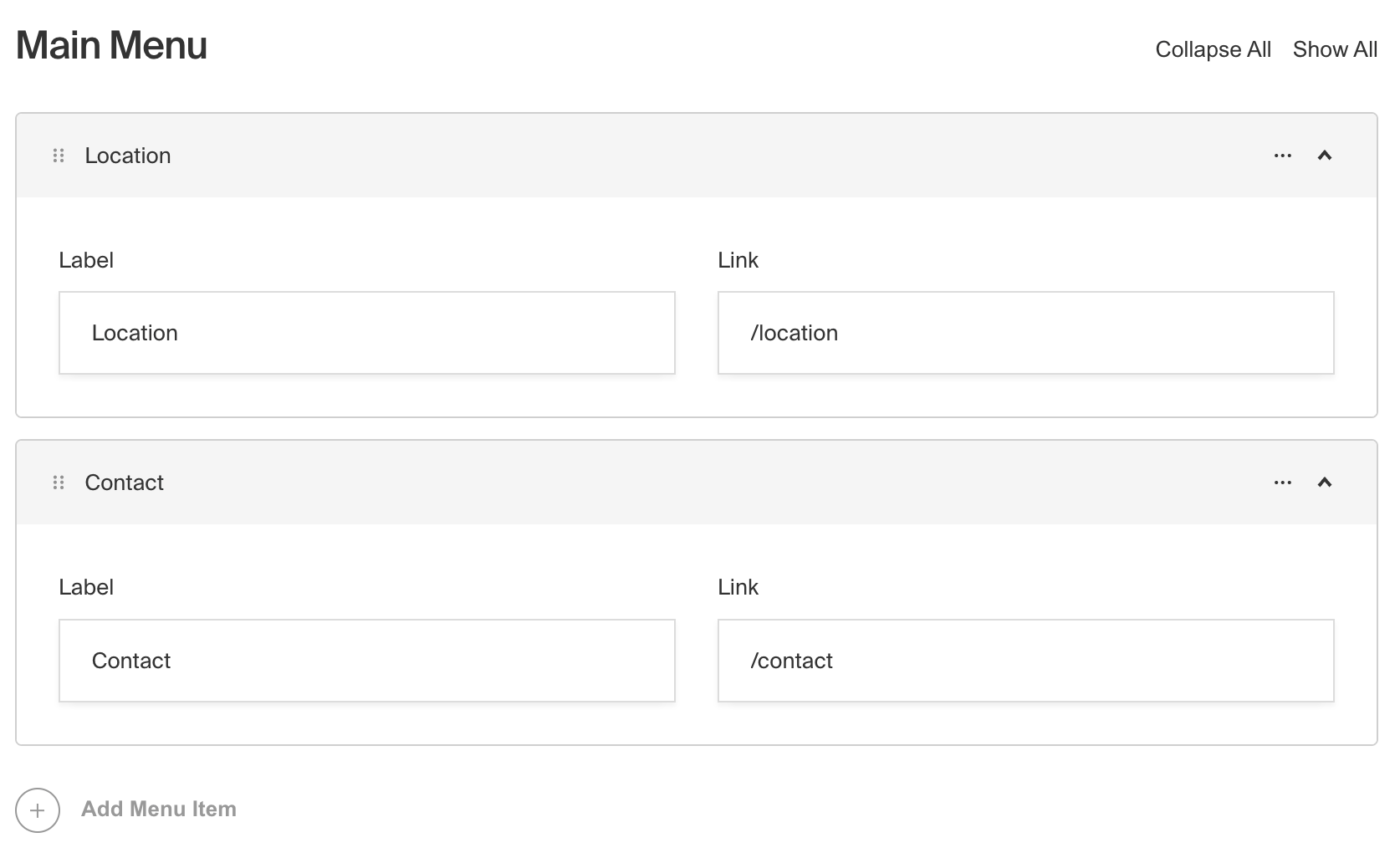
_Admin Panel screenshot of an Array field with two Rows_
To create an Array Field, set the `type` to `array` in your [Field Config](/docs/v3/fields/overview.md):
```ts
import type { Field } from 'payload'
export const MyArrayField: Field = {
// ...
// highlight-start
type: 'array',
fields: [
// ...
],
// highlight-end
}
```
## Config Options
| Option | Description |
| ---------------------- | ------------------------------------------------------------------------------------------------------------------------------------------------------------------------------------------------------------------------------------------------------------------------------------ |
| **`name`** \* | To be used as the property name when stored and retrieved from the database. [More details](/docs/v3/fields/overview.md#field-names). |
| **`label`** | Text used as the heading in the [Admin Panel](/docs/v3/admin/overview.md) or an object with keys for each language. Auto-generated from name if not defined. |
| **`fields`** \* | Array of field types to correspond to each row of the Array. |
| **`validate`** | Provide a custom validation function that will be executed on both the [Admin Panel](/docs/v3/admin/overview.md) and the backend. [More details](/docs/v3/fields/overview.md#validation). |
| **`minRows`** | A number for the fewest allowed items during validation when a value is present. |
| **`maxRows`** | A number for the most allowed items during validation when a value is present. |
| **`saveToJWT`** | If this field is top-level and nested in a config supporting [Authentication](/docs/v3/authentication/overview.md), include its data in the user JWT. |
| **`hooks`** | Provide Field Hooks to control logic for this field. [More details](/docs/v3/hooks/fields.md). |
| **`access`** | Provide Field Access Control to denote what users can see and do with this field's data. [More details](/docs/v3/access-control/fields.md). |
| **`hidden`** | Restrict this field's visibility from all APIs entirely. Will still be saved to the database, but will not appear in any API or the Admin Panel. |
| **`defaultValue`** | Provide an array of row data to be used for this field's default value. [More details](/docs/v3/fields/overview.md#default-values). |
| **`localized`** | Enable localization for this field. Requires [localization to be enabled](/docs/v3/configuration/localization.md) in the Base config. If enabled, a separate, localized set of all data within this Array will be kept, so there is no need to specify each nested field as `localized`. |
| **`required`** | Require this field to have a value. |
| **`labels`** | Customize the row labels appearing in the Admin dashboard. |
| **`admin`** | Admin-specific configuration. [More details](#admin-options). |
| **`custom`** | Extension point for adding custom data (e.g. for plugins) |
| **`interfaceName`** | Create a top level, reusable [Typescript interface](/docs/v3/typescript/generating-types.md#custom-field-interfaces) & [GraphQL type](/docs/v3/graphql/graphql-schema.md#custom-field-schemas). |
| **`dbName`** | Custom table name for the field when using SQL Database Adapter ([Postgres](/docs/v3/database/postgres.md)). Auto-generated from name if not defined. |
| **`typescriptSchema`** | Override field type generation with providing a JSON schema |
| **`virtual`** | Provide `true` to disable field in the database, or provide a string path to [link the field with a relationship](/docs/v3/fields/overview.md#string-path-virtual-fields). See [Virtual Fields](https://payloadcms.com/blog/learn-how-virtual-fields-can-help-solve-common-cms-challenges) |
_\* An asterisk denotes that a property is required._
> **Warning**
>
> Setting `unique: true` on a field **inside** an Array creates a
> collection-wide database unique index — not a per-document one. No two
> documents in the collection can share the same value at that nested path, and
> on MongoDB, documents without the array will collide on `null`. To enforce
> uniqueness within a single document's rows, use a custom
> [`validate`](/docs/v3/fields/overview.md#validation) function on this Array field.
> [More details](/docs/v3/database/indexes.md#unique-fields).
## Admin Options
To customize the appearance and behavior of the Array Field in the [Admin Panel](/docs/v3/admin/overview.md), you can use the `admin` option:
```ts
import type { Field } from 'payload'
export const MyArrayField: Field = {
// ...
admin: {
// highlight-line
// ...
},
}
```
The Array Field inherits all of the default admin options from the base [Field Admin Config](/docs/v3/fields/overview.md#admin-options), plus the following additional options:
| Option | Description |
| ------------------------- | ----------------------------------------------------------------------------------- |
| **`initCollapsed`** | Set the initial collapsed state |
| **`components.RowLabel`** | React component to be rendered as the label on the array row. [Example](#row-label) |
| **`isSortable`** | Disable order sorting by setting this value to `false` |
## Example
In this example, we have an Array Field called `slider` that contains a set of fields for a simple image slider. Each row in the array has a `title`, `image`, and `caption`. We also customize the row label to display the title if it exists, or a default label if it doesn't.
```ts
import type { CollectionConfig } from 'payload'
export const ExampleCollection: CollectionConfig = {
slug: 'example-collection',
fields: [
{
name: 'slider', // required
type: 'array', // required
label: 'Image Slider',
minRows: 2,
maxRows: 10,
interfaceName: 'CardSlider', // optional
labels: {
singular: 'Slide',
plural: 'Slides',
},
fields: [
// required
{
name: 'title',
type: 'text',
},
{
name: 'image',
type: 'upload',
relationTo: 'media',
required: true,
},
{
name: 'caption',
type: 'text',
},
],
},
],
}
```
## Custom Components
### Field
#### Server Component
```tsx
import type React from 'react'
import { ArrayField } from '@payloadcms/ui'
import type { ArrayFieldServerComponent } from 'payload'
export const CustomArrayFieldServer: ArrayFieldServerComponent = ({
clientField,
path,
schemaPath,
permissions,
}) => {
return (
<ArrayField
field={clientField}
path={path}
schemaPath={schemaPath}
permissions={permissions}
/>
)
}
```
#### Client Component
```tsx
'use client'
import React from 'react'
import { ArrayField } from '@payloadcms/ui'
import type { ArrayFieldClientComponent } from 'payload'
export const CustomArrayFieldClient: ArrayFieldClientComponent = (props) => {
return <ArrayField {...props} />
}
```
### Label
#### Server Component
```tsx
import React from 'react'
import { FieldLabel } from '@payloadcms/ui'
import type { ArrayFieldLabelServerComponent } from 'payload'
export const CustomArrayFieldLabelServer: ArrayFieldLabelServerComponent = ({
clientField,
path,
}) => {
return (
<FieldLabel
label={clientField?.label || clientField?.name}
path={path}
required={clientField?.required}
/>
)
}
```
#### Client Component
```tsx
'use client'
import type { ArrayFieldLabelClientComponent } from 'payload'
import { FieldLabel } from '@payloadcms/ui'
import React from 'react'
export const CustomArrayFieldLabelClient: ArrayFieldLabelClientComponent = ({
field,
path,
}) => {
return (
<FieldLabel
label={field?.label || field?.name}
path={path}
required={field?.required}
/>
)
}
```
### Row Label
```tsx
'use client'
import { useRowLabel } from '@payloadcms/ui'
export const ArrayRowLabel = () => {
const { data, rowNumber } = useRowLabel<{ title?: string }>()
const customLabel = `${data.title || 'Slide'} ${String(rowNumber).padStart(2, '0')} `
return <div>Custom Label: {customLabel}</div>
}
```
# Blocks Field
Source: https://payloadcms.com/docs/fields/blocks
The Blocks Field is one of the most flexible tools in Payload. It stores an array of objects, where each object is a “block” with its own schema. Unlike a simple array (where every item looks the same), blocks let you mix and match different content types in any order.
This makes Blocks perfect for building dynamic, editor-friendly experiences, such as:
- A page builder with blocks like `Quote`, `CallToAction`, `Slider`, or `Gallery`.
- A form builder with block types like `Text`, `Select`, or `Checkbox`.
- An event agenda where each timeslot could be a `Break`, `Presentation`, or `BreakoutSession`.
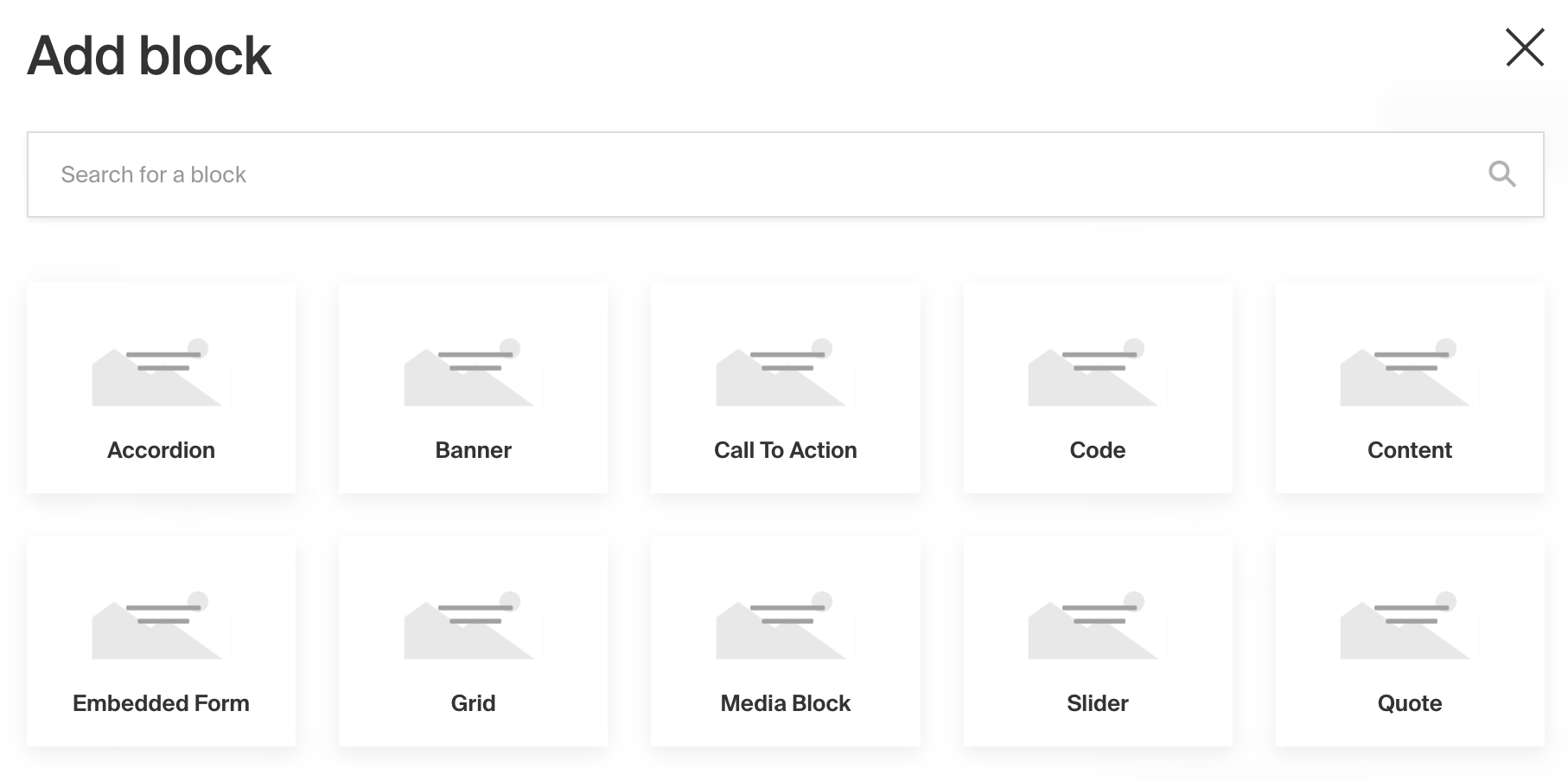
_Admin Panel screenshot of add Blocks drawer view_
To add a Blocks Field, set the `type` to `blocks` in your [Field Config](/docs/v3/fields/overview.md):
```ts
import type { Field } from 'payload'
export const MyBlocksField: Field = {
// ...
// highlight-start
type: 'blocks',
blocks: [
// ...
],
// highlight-end
}
```
This page is divided into two parts: first, the settings of the Blocks Field, and then the settings of the blocks inside it.
## Block Field
### Block Config Options
| Option | Description |
| ---------------------- | ------------------------------------------------------------------------------------------------------------------------------------------------------------------------------------------------------------------------------------------------------------------------------------ |
| **`name`** \* | To be used as the property name when stored and retrieved from the database. [More details](/docs/v3/fields/overview.md#field-names). |
| **`label`** | Text used as the heading in the Admin Panel or an object with keys for each language. Auto-generated from name if not defined. |
| **`blocks`** \* | Array of [block configs](/docs/v3/fields/blocks.md#config-options) to be made available to this field. |
| **`validate`** | Provide a custom validation function that will be executed on both the Admin Panel and the backend. [More details](/docs/v3/fields/overview.md#validation). |
| **`minRows`** | A number for the fewest allowed items during validation when a value is present. |
| **`maxRows`** | A number for the most allowed items during validation when a value is present. |
| **`saveToJWT`** | If this field is top-level and nested in a config supporting [Authentication](/docs/v3/authentication/overview.md), include its data in the user JWT. |
| **`hooks`** | Provide Field Hooks to control logic for this field. [More details](/docs/v3/hooks/fields.md). |
| **`access`** | Provide Field Access Control to denote what users can see and do with this field's data. [More details](/docs/v3/access-control/fields.md). |
| **`hidden`** | Restrict this field's visibility from all APIs entirely. Will still be saved to the database, but will not appear in any API response or the Admin Panel. |
| **`defaultValue`** | Provide an array of block data to be used for this field's default value. [More details](/docs/v3/fields/overview.md#default-values). |
| **`localized`** | Enable localization for this field. Requires [localization to be enabled](/docs/v3/configuration/localization.md) in the Base config. If enabled, a separate, localized set of all data within this field will be kept, so there is no need to specify each nested field as `localized`. |
| **`unique`** | Enforce that each entry in the Collection has a unique value for this field. This creates a database-level unique index on the field's path. [More details](/docs/v3/database/indexes.md#unique-fields). |
| **`labels`** | Customize the block row labels appearing in the Admin dashboard. |
| **`admin`** | Admin-specific configuration. [More details](#admin-options). |
| **`custom`** | Extension point for adding custom data (e.g. for plugins) |
| **`typescriptSchema`** | Override field type generation with providing a JSON schema |
| **`virtual`** | Provide `true` to disable field in the database, or provide a string path to [link the field with a relationship](/docs/v3/fields/overview.md#string-path-virtual-fields). See [Virtual Fields](https://payloadcms.com/blog/learn-how-virtual-fields-can-help-solve-common-cms-challenges) |
_\* An asterisk denotes that a property is required._
> **Warning**
>
> Setting `unique: true` on a field **inside** a Block creates a collection-wide
> database unique index — not a per-document one. No two documents in the
> collection can share the same value at that nested path, and on MongoDB,
> documents without the block will collide on `null`. To enforce uniqueness
> within a single document's blocks, use a custom
> [`validate`](/docs/v3/fields/overview.md#validation) function on this Blocks field.
> [More details](/docs/v3/database/indexes.md#unique-fields).
### Block Admin Options
To customize the appearance and behavior of the Blocks Field in the [Admin Panel](/docs/v3/admin/overview.md), you can use the `admin` option:
```ts
import type { Field } from 'payload'
export const MyBlocksField: Field = {
// ...
admin: {
// highlight-line
// ...
},
}
```
The Blocks Field inherits all of the default admin options from the base [Field Admin Config](/docs/v3/fields/overview.md#admin-options), plus the following additional options:
| Option | Description |
| ------------------- | ------------------------------------------------------ |
| **`initCollapsed`** | Set the initial collapsed state |
| **`isSortable`** | Disable order sorting by setting this value to `false` |
#### Customizing the way your block is rendered in Lexical
If you're using this block within the [Lexical editor](/docs/v3/rich-text/overview.md), you can also customize how the block is rendered in the Lexical editor itself by specifying custom components.
- `admin.components.Label` - pass a custom React component here to customize the way that the label is rendered for this block
- `admin.components.Block` - pass a component here to completely override the way the block is rendered in Lexical with your own component
This is super handy if you'd like to present your editors with a very deliberate and nicely designed block "preview" right in your rich text.
For example, if you have a `gallery` block, you might want to actually render the gallery of images directly in your Lexical block. With the `admin.components.Block` property, you can do exactly that!
> **Tip:** If you customize the way your block is rendered in Lexical, you can
> import utility components to easily edit / remove your block - so that you
> don't have to build all of this yourself.
To import these utility components for one of your custom blocks, you can import the following:
```ts
import {
// Edit block buttons (choose the one that corresponds to your usage)
// When clicked, this will open a drawer with your block's fields
// so your editors can edit them
InlineBlockEditButton,
BlockEditButton,
// Buttons that will remove this block from Lexical
// (choose the one that corresponds to your usage)
InlineBlockRemoveButton,
BlockRemoveButton,
// The label that should be rendered for an inline block
InlineBlockLabel,
// The default "container" that is rendered for an inline block
// if you want to re-use it
InlineBlockContainer,
// The default "collapsible" UI that is rendered for a regular block
// if you want to re-use it
BlockCollapsible,
} from '@payloadcms/richtext-lexical/client'
```
## Copying and Pasting Blocks
The Admin Panel includes built-in copy and paste support for both individual block rows and entire Blocks fields. This is available through the row action menu (the `...` button on each block) and from the field-level action menu in the field header.
### Row-level vs. Field-level
- **Row copy/paste** — copies a single block and lets you paste it into any position within any compatible Blocks field
- **Field copy/paste** — copies all blocks in the field at once and pastes them as the full contents of a target field, replacing whatever was there
### How it differs from Duplicate
The **Duplicate** action creates an immediate in-place copy of a block, inserted directly below the original — always within the same field on the same document.
**Copy/paste** is designed for moving data across fields or documents:
- Copy a block on `Page A`, open `Page B`, and paste it into that page's blocks field
- Copy a block from one Blocks field and paste it into a different Blocks field on the same document
### How it works
Copied data is written to `localStorage` under the key `_payloadClipboard`. This means:
- The clipboard persists across browser tabs (same origin)
- It is not shared between different Payload origins
When pasting, Payload validates that the copied block type exists in the target field's `blocks` config. If the schemas are incompatible, the paste action will not be available. All block and nested array IDs are automatically regenerated on paste to prevent duplicate key errors.
> **Warning**
>
> **"Paste Fields" replaces all blocks, even when a single row is on the clipboard.**
>
> If you have copied a single block row and then use **Paste Fields** (the field-level paste action in the field header), all existing blocks in the target field will be replaced with just that one copied row.
>
> To add a copied row to a field that already has content, use **Paste Row** instead: add a new empty block first, then use the row-level **Paste Row** action on that new row to replace it with the copied data.
## Blocks Items
### Config Options
Blocks are defined as separate configs of their own.
> **Tip:** Best practice is to define each block config in its own file, and
> then import them into your Blocks field as necessary. This way each block
> config can be easily shared between fields. For instance, using the "layout
> builder" example, you might want to feature a few of the same blocks in a Post
> collection as well as a Page collection. Abstracting into their own files
> trivializes their reusability.
| Option | Description |
| -------------------------- | ----------------------------------------------------------------------------------------------------------------------------------------------------------------------------------- |
| **`slug`** \* | Identifier for this block type. Will be saved on each block as the `blockType` property. |
| **`fields`** \* | Array of fields to be stored in this block. |
| **`labels`** | Customize the block labels that appear in the Admin dashboard. Auto-generated from slug if not defined. Alternatively you can use `admin.components.Label` for greater control. |
| **`interfaceName`** | Create a top level, reusable [Typescript interface](/docs/v3/typescript/generating-types.md#custom-field-interfaces) & [GraphQL type](/docs/v3/graphql/graphql-schema.md#custom-field-schemas). |
| **`graphQL.singularName`** | Text to use for the GraphQL schema name. Auto-generated from slug if not defined. NOTE: this is set for deprecation, prefer `interfaceName`. |
| **`dbName`** | Custom table name for this block type when using SQL Database Adapter ([Postgres](/docs/v3/database/postgres.md)). Auto-generated from slug if not defined. |
| **`custom`** | Extension point for adding custom data (e.g. for plugins) |
_\* An asterisk denotes that a property is required._
### Admin Options
Blocks are not fields, so they don’t inherit the base properties shared by all fields (not to be confused with the Blocks Field, documented above, which does). Here are their available admin options:
| Option | Description |
| ---------------------- | -------------------------------------------------------------------------------------------------------------------------------------------------------------------------------------------------------------------------------------------------------------- | --- |
| **`components.Block`** | Custom component for replacing the Block, including the header. |
| **`components.Label`** | Custom component for replacing the Block Label. |
| **`disableBlockName`** | Hide the blockName field by setting this value to `true`. |
| **`group`** | Text or localization object used to group this Block in the Blocks Drawer. |
| **`custom`** | Extension point for adding custom data (e.g. for plugins) |
| **`images`** | Custom images for the block in different UI contexts. Supports `icon` (20x20px for Lexical menus/toolbars) and `thumbnail` (3:2 ratio for block selection drawer). Each can be a URL string or `{ url, alt }` object. [More details](#block-image-guidelines). | |
### Block Image Guidelines
The `images` property lets you provide custom images for each display context:
- **`images.icon`** - Small icon for Lexical editor menus and toolbars (displayed at 20x20px)
- **`images.thumbnail`** - Larger thumbnail for block selection drawer (3:2 aspect ratio)
Each can be either a plain URL string or an object `{ url: string, alt?: string }`.
#### Icon (`images.icon`)
Used in Lexical editor slash menus, toolbar dropdowns, and inline block menus.
**Requirements**:
- Displayed at **20x20 pixels**
- **Square images** (1:1 aspect ratio) work best
- Falls back to `images.thumbnail`, then to default block icon
**Recommendations**:
- Use SVG for crisp rendering at small sizes
- Keep designs simple with bold shapes
- Provide web-optimized images (SVG, PNG with transparency)
#### Thumbnail (`images.thumbnail`)
Used in the block selection drawer when editors add blocks to a blocks field.
**Requirements**:
- **3:2 aspect ratio** (e.g., 480x320, 600x400, 900x600)
- Images are scaled using `object-fit: cover`
- Non-matching aspect ratios will be **cropped** to fill the container
**Recommendations**:
- Use images with **3:2 aspect ratio** to avoid unwanted cropping
- Keep important visual content **centered** in your image
- Provide web-optimized images (JPEG, PNG, WebP) for faster loading
#### Usage Examples
**Example 1: Using both icon and thumbnail with alt text**
```ts
const QuoteBlock: Block = {
slug: 'quote',
admin: {
images: {
icon: {
url: 'https://example.com/icons/quote-icon-20x20.svg',
alt: 'Quote icon',
},
thumbnail: {
url: 'https://example.com/thumbnails/quote-block-480x320.jpg',
alt: 'Quote block',
},
},
},
fields: [
{
name: 'quoteText',
type: 'text',
required: true,
},
],
}
```
**Example 2: Using URL strings (no alt text)**
```ts
const CallToActionBlock: Block = {
slug: 'cta',
admin: {
images: {
icon: 'https://example.com/icons/cta-20x20.svg',
thumbnail: 'https://example.com/thumbnails/cta-block-480x320.jpg',
},
},
fields: [
{
name: 'buttonText',
type: 'text',
},
],
}
```
**Example 3: Using only icon**
```ts
const DividerBlock: Block = {
slug: 'divider',
admin: {
images: {
icon: 'https://example.com/icons/divider-20x20.svg',
},
},
fields: [],
}
```
If no `images` is provided, default graphics are displayed automatically in both contexts.
### blockType, blockName, and block.label
Each block stores two pieces of data alongside your fields. The `blockType` identifies which schema to use and it is exactly the block’s `slug`. The `blockName` is an optional label you can give to a block to make editing and scanning easier.
The **label** is shared by all blocks of the same type and is defined in the block config via `label` with a fallback to `slug`. On the other hand, the **blockName** is specific to each block individually. You can hide the editable name with `admin.disableBlockName`.
If you provide `admin.components.Label`, that component replaces both the name and the label in the Admin UI.
| Property | Scope | Source | Visible in UI | Notes |
| ------------- | ---------- | ------------------------------------------ | ------------- | -------------------------------------------------------------------------------------------------- |
| `blockType` | Each block | The block’s `slug` | Not a header | Used to resolve which block schema to render |
| `blockName` | Each block | Editor input in the Admin | Yes | Optional label; hide with `admin.disableBlockName` or replace with custom `admin.components.Label` |
| `block.label` | Block type | `label` in block config or `slug` fallback | Yes | Shared by all blocks of that type. Can be replaced with custom `admin.components.Label` |
### Custom Components
#### Field
##### Server Component
```tsx
import type React from 'react'
import { BlocksField } from '@payloadcms/ui'
import type { BlocksFieldServerComponent } from 'payload'
export const CustomBlocksFieldServer: BlocksFieldServerComponent = ({
clientField,
path,
schemaPath,
permissions,
}) => {
return (
<BlocksField
field={clientField}
path={path}
schemaPath={schemaPath}
permissions={permissions}
/>
)
}
```
##### Client Component
```tsx
'use client'
import React from 'react'
import { BlocksField } from '@payloadcms/ui'
import type { BlocksFieldClientComponent } from 'payload'
export const CustomBlocksFieldClient: BlocksFieldClientComponent = (props) => {
return <BlocksField {...props} />
}
```
#### Label
##### Server Component
```tsx
import React from 'react'
import { FieldLabel } from '@payloadcms/ui'
import type { BlocksFieldLabelServerComponent } from 'payload'
export const CustomBlocksFieldLabelServer: BlocksFieldLabelServerComponent = ({
clientField,
path,
}) => {
return (
<FieldLabel
label={clientField?.label || clientField?.name}
path={path}
required={clientField?.required}
/>
)
}
```
##### Client Component
```tsx
'use client'
import React from 'react'
import { FieldLabel } from '@payloadcms/ui'
import type { BlocksFieldLabelClientComponent } from 'payload'
export const CustomBlocksFieldLabelClient: BlocksFieldLabelClientComponent = ({
label,
path,
required,
}) => {
return (
<FieldLabel
label={field?.label || field?.name}
path={path}
required={field?.required}
/>
)
}
```
## Example
`collections/ExampleCollection.js`
```ts
import { Block, CollectionConfig } from 'payload'
const QuoteBlock: Block = {
slug: 'Quote', // required
imageURL: 'https://google.com/path/to/image.jpg',
imageAltText: 'A nice thumbnail image to show what this block looks like',
interfaceName: 'QuoteBlock', // optional
fields: [
// required
{
name: 'quoteHeader',
type: 'text',
required: true,
},
{
name: 'quoteText',
type: 'text',
},
],
}
export const ExampleCollection: CollectionConfig = {
slug: 'example-collection',
fields: [
{
name: 'layout', // required
type: 'blocks', // required
minRows: 1,
maxRows: 20,
blocks: [
// required
QuoteBlock,
],
},
],
}
```
## Block References
If you have multiple blocks used in multiple places, your Payload Config can grow in size, potentially sending more data to the client and requiring more processing on the server. However, you can optimize performance by defining each block **once** in your Payload Config and then referencing its slug wherever it's used instead of passing the entire block config.
To do this, define the block in the `blocks` array of the Payload Config. Then, in the Blocks Field, pass the block slug to the `blockReferences` array - leaving the `blocks` array empty for compatibility reasons.
```ts
import { buildConfig } from 'payload'
import { lexicalEditor, BlocksFeature } from '@payloadcms/richtext-lexical'
// Payload Config
const config = buildConfig({
// Define the block once
blocks: [
{
slug: 'TextBlock',
fields: [
{
name: 'text',
type: 'text',
},
],
},
],
collections: [
{
slug: 'collection1',
fields: [
{
name: 'content',
type: 'blocks',
// Reference the block by slug
blockReferences: ['TextBlock'],
blocks: [], // Required to be empty, for compatibility reasons
},
],
},
{
slug: 'collection2',
fields: [
{
name: 'editor',
type: 'richText',
editor: lexicalEditor({
features: [
BlocksFeature({
// Same reference can be reused anywhere, even in the lexical editor, without incurred performance hit
blocks: ['TextBlock'],
}),
],
}),
},
],
},
],
})
```
> **Reminder:**
> Blocks referenced in the `blockReferences` array are treated as isolated from the collection / global config. This has the following implications:
>
> 1. The block config cannot be modified or extended in the collection config. It will be identical everywhere it's referenced.
> 2. Access control for blocks referenced in the `blockReferences` are run only once - data from the collection will not be available in the block's access control.
## TypeScript
As you build your own Block configs, you might want to store them in separate files but retain typing accordingly. To do so, you can import and use Payload's `Block` type:
```ts
import type { Block } from 'payload'
```
## Conditional Blocks
Blocks can be conditionally enabled using the `filterOptions` property on the blocks field. It allows you to provide a function that returns which block slugs should be available based on the given context.
### Behavior
- `filterOptions` is re-evaluated as part of the form state request, whenever the document data changes.
- If a block is present in the field but no longer allowed by `filterOptions`, a validation error will occur when saving.
### filterOptions Example
```ts
{
name: 'blocksWithDynamicFilterOptions',
type: 'blocks',
filterOptions: ({ siblingData }) => {
return siblingData?.enabledBlocks?.length
? [siblingData.enabledBlocks] // allow only the matching block
: true // allow all blocks if no value is set
},
blocks: [
{ slug: 'block1', fields: [{ type: 'text', name: 'block1Text' }] },
{ slug: 'block2', fields: [{ type: 'text', name: 'block2Text' }] },
{ slug: 'block3', fields: [{ type: 'text', name: 'block3Text' }] },
// ...
],
}
```
In this example, the list of available blocks is determined by the enabledBlocks sibling field. If no value is set, all blocks remain available.
# Checkbox Field
Source: https://payloadcms.com/docs/fields/checkbox
The Checkbox Field saves a boolean in the database.

_Admin Panel screenshot of Checkbox field with Text field below_
To add a Checkbox Field, set the `type` to `checkbox` in your [Field Config](/docs/v3/fields/overview.md):
```ts
import type { Field } from 'payload'
export const MyCheckboxField: Field = {
// ...
type: 'checkbox', // highlight-line
}
```
## Config Options
| Option | Description |
| ---------------------- | ------------------------------------------------------------------------------------------------------------------------------------------------------------------------------------------------------------------------------------------------------------------------------------------------------- |
| **`name`** \* | To be used as the property name when stored and retrieved from the database. [More details](/docs/v3/fields/overview.md#field-names). |
| **`label`** | Text used as a field label in the Admin Panel or an object with keys for each language. |
| **`validate`** | Provide a custom validation function that will be executed on both the Admin Panel and the backend. [More details](/docs/v3/fields/overview.md#validation). |
| **`index`** | Build an [index](/docs/v3/database/indexes.md) for this field to produce faster queries. Set this field to `true` if your users will perform queries on this field's data often. |
| **`saveToJWT`** | If this field is top-level and nested in a config supporting [Authentication](/docs/v3/authentication/overview.md), include its data in the user JWT. |
| **`hooks`** | Provide Field Hooks to control logic for this field. [More details](/docs/v3/hooks/fields.md). |
| **`access`** | Provide Field Access Control to denote what users can see and do with this field's data. [More details](/docs/v3/access-control/fields.md). |
| **`hidden`** | Restrict this field's visibility from all APIs entirely. Will still be saved to the database, but will not appear in any API or the Admin Panel. |
| **`defaultValue`** | Provide data to be used for this field's default value, will default to false if field is also `required`. [More details](/docs/v3/fields/overview.md#default-values). |
| **`localized`** | Enable localization for this field. Requires [localization to be enabled](/docs/v3/configuration/localization.md) in the Base config. |
| **`required`** | Require this field to have a value. |
| **`admin`** | Admin-specific configuration. [More details](/docs/v3/fields/overview.md#admin-options). |
| **`custom`** | Extension point for adding custom data (e.g. for plugins) |
| **`typescriptSchema`** | Override field type generation with providing a JSON schema |
| **`virtual`** | Provide `true` to disable field in the database, or provide a string path to [link the field with a relationship](/docs/v3/fields/relationship.md#linking-virtual-fields-with-relationships). See [Virtual Fields](https://payloadcms.com/blog/learn-how-virtual-fields-can-help-solve-common-cms-challenges) |
_\* An asterisk denotes that a property is required._
## Example
Here is an example of a Checkbox Field in a Collection:
```ts
import type { CollectionConfig } from 'payload'
export const ExampleCollection: CollectionConfig = {
slug: 'example-collection',
fields: [
{
name: 'enableCoolStuff', // required
type: 'checkbox', // required
label: 'Click me to see fanciness',
defaultValue: false,
},
],
}
```
## Custom Components
### Field
#### Server Component
```tsx
import type React from 'react'
import { CheckboxField } from '@payloadcms/ui'
import type { CheckboxFieldServerComponent } from 'payload'
export const CustomCheckboxFieldServer: CheckboxFieldServerComponent = ({
clientField,
path,
schemaPath,
permissions,
}) => {
return (
<CheckboxField
field={clientField}
path={path}
schemaPath={schemaPath}
permissions={permissions}
/>
)
}
```
#### Client Component
```tsx
'use client'
import React from 'react'
import { CheckboxField } from '@payloadcms/ui'
import type { CheckboxFieldClientComponent } from 'payload'
export const CustomCheckboxFieldClient: CheckboxFieldClientComponent = (
props,
) => {
return <CheckboxField {...props} />
}
```
### Label
#### Server Component
```tsx
import React from 'react'
import { FieldLabel } from '@payloadcms/ui'
import type { CheckboxFieldLabelServerComponent } from 'payload'
export const CustomCheckboxFieldLabelServer: CheckboxFieldLabelServerComponent =
({ clientField, path }) => {
return (
<FieldLabel
label={clientField?.label || clientField?.name}
path={path}
required={clientField?.required}
/>
)
}
```
#### Client Component
```tsx
'use client'
import React from 'react'
import { FieldLabel } from '@payloadcms/ui'
import type { CheckboxFieldLabelClientComponent } from 'payload'
export const CustomCheckboxFieldLabelClient: CheckboxFieldLabelClientComponent =
({ label, path, required }) => {
return (
<FieldLabel
label={field?.label || field?.name}
path={path}
required={field?.required}
/>
)
}
```
# Code Field
Source: https://payloadcms.com/docs/fields/code
The Code Field saves a string in the database, but provides the [Admin Panel](/docs/v3/admin/overview.md) with a code editor styled interface.
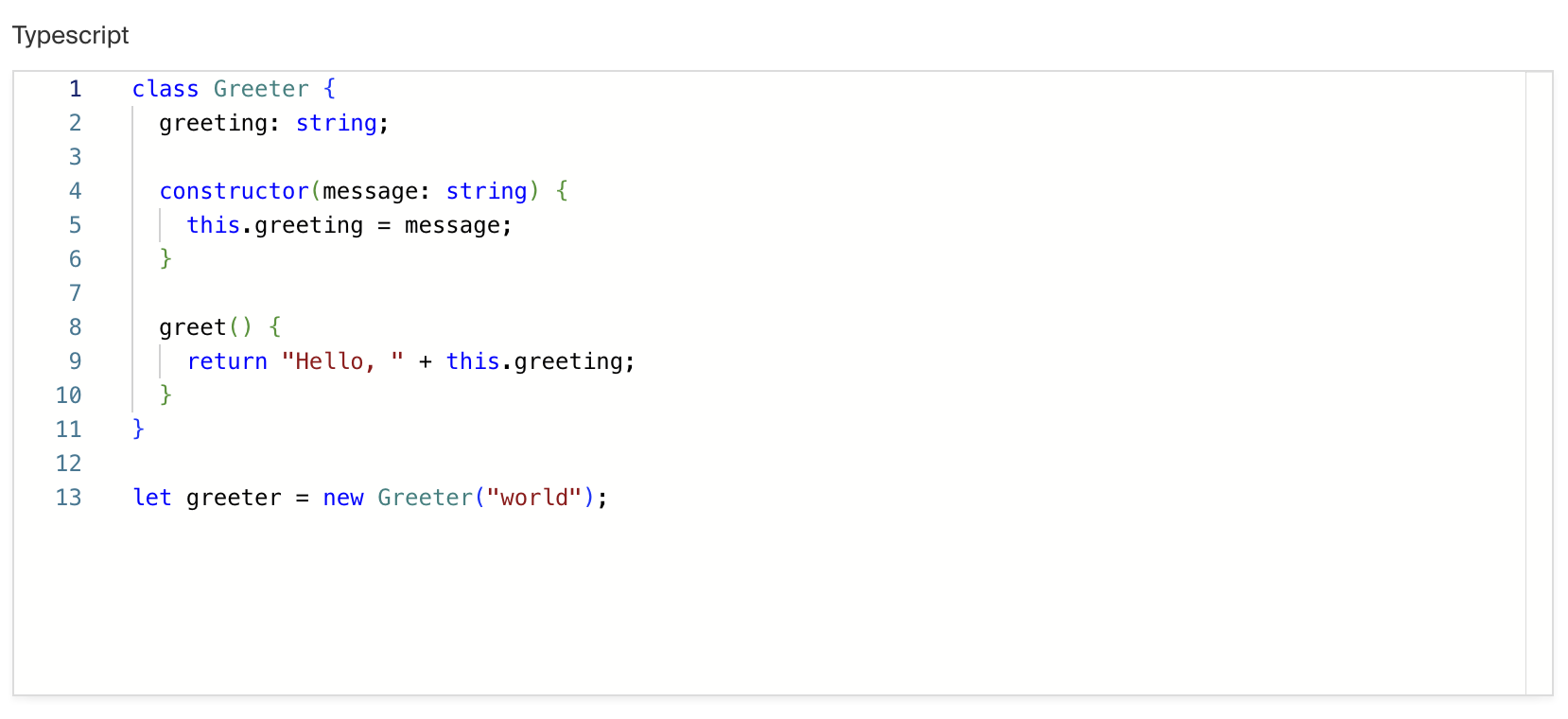
_This field is using the `monaco-react` editor syntax highlighting._
To add a Code Field, set the `type` to `code` in your [Field Config](/docs/v3/fields/overview.md):
```ts
import type { Field } from 'payload'
export const MyBlocksField: Field = {
// ...
type: 'code', // highlight-line
}
```
## Config Options
| Option | Description |
| ---------------------- | ------------------------------------------------------------------------------------------------------------------------------------------------------------------------------------------------------------------------------------------------------------------------------------------------------- |
| **`name`** \* | To be used as the property name when stored and retrieved from the database. [More details](/docs/v3/fields/overview.md#field-names). |
| **`label`** | Text used as a field label in the Admin Panel or an object with keys for each language. |
| **`unique`** | Enforce that each entry in the Collection has a unique value for this field. This creates a database-level unique index on the field's path. [More details](/docs/v3/database/indexes.md#unique-fields). |
| **`index`** | Build an [index](/docs/v3/database/indexes.md) for this field to produce faster queries. Set this field to `true` if your users will perform queries on this field's data often. |
| **`minLength`** | Used by the default validation function to ensure values are of a minimum character length. |
| **`maxLength`** | Used by the default validation function to ensure values are of a maximum character length. |
| **`validate`** | Provide a custom validation function that will be executed on both the Admin Panel and the backend. [More details](/docs/v3/fields/overview.md#validation). |
| **`saveToJWT`** | If this field is top-level and nested in a config supporting [Authentication](/docs/v3/authentication/overview.md), include its data in the user JWT. |
| **`hooks`** | Provide Field Hooks to control logic for this field. [More details](/docs/v3/hooks/fields.md). |
| **`access`** | Provide Field Access Control to denote what users can see and do with this field's data. [More details](/docs/v3/access-control/fields.md). |
| **`hidden`** | Restrict this field's visibility from all APIs entirely. Will still be saved to the database, but will not appear in any API or the Admin Panel. |
| **`defaultValue`** | Provide data to be used for this field's default value. [More details](/docs/v3/fields/overview.md#default-values). |
| **`localized`** | Enable localization for this field. Requires [localization to be enabled](/docs/v3/configuration/localization.md) in the Base config. |
| **`required`** | Require this field to have a value. |
| **`admin`** | Admin-specific configuration. See below for [more detail](#admin-options). |
| **`custom`** | Extension point for adding custom data (e.g. for plugins) |
| **`typescriptSchema`** | Override field type generation with providing a JSON schema |
| **`virtual`** | Provide `true` to disable field in the database, or provide a string path to [link the field with a relationship](/docs/v3/fields/relationship.md#linking-virtual-fields-with-relationships). See [Virtual Fields](https://payloadcms.com/blog/learn-how-virtual-fields-can-help-solve-common-cms-challenges) |
_\* An asterisk denotes that a property is required._
## Admin Options
To customize the appearance and behavior of the Code Field in the [Admin Panel](/docs/v3/admin/overview.md), you can use the `admin` option:
```ts
import type { Field } from 'payload'
export const MyCodeField: Field = {
// ...
admin: {
// highlight-line
// ...
},
}
```
The Code Field inherits all of the default admin options from the base [Field Admin Config](/docs/v3/fields/overview.md#admin-options), plus the following additional options:
| Option | Description |
| ------------------- | ------------------------------------------------------------------------------------------------------------------------------------------------------------------------------- |
| **`language`** | This property can be set to any language listed [here](https://github.com/microsoft/monaco-editor/tree/main/src/basic-languages). |
| **`editorOptions`** | Options that can be passed to the monaco editor, [view the full list](https://microsoft.github.io/monaco-editor/typedoc/interfaces/editor.IDiffEditorConstructionOptions.html). |
## Example
`collections/ExampleCollection.ts
```ts
import type { CollectionConfig } from 'payload'
export const ExampleCollection: CollectionConfig = {
slug: 'example-collection',
fields: [
{
name: 'trackingCode', // required
type: 'code', // required
required: true,
admin: {
language: 'javascript',
},
},
],
}
```
## Custom Components
### Field
#### Server Component
```tsx
import type React from 'react'
import { CodeField } from '@payloadcms/ui'
import type { CodeFieldServerComponent } from 'payload'
export const CustomCodeFieldServer: CodeFieldServerComponent = ({
clientField,
path,
schemaPath,
permissions,
}) => {
return (
<CodeField
field={clientField}
path={path}
schemaPath={schemaPath}
permissions={permissions}
/>
)
}
```
#### Client Component
```tsx
'use client'
import React from 'react'
import { CodeField } from '@payloadcms/ui'
import type { CodeFieldClientComponent } from 'payload'
export const CustomCodeFieldClient: CodeFieldClientComponent = (props) => {
return <CodeField {...props} />
}
```
### Label
#### Server Component
```tsx
import React from 'react'
import { FieldLabel } from '@payloadcms/ui'
import type { CodeFieldLabelServerComponent } from 'payload'
export const CustomCodeFieldLabelServer: CodeFieldLabelServerComponent = ({
clientField,
path,
}) => {
return (
<FieldLabel
label={clientField?.label || clientField?.name}
path={path}
required={clientField?.required}
/>
)
}
```
#### Client Component
```tsx
'use client'
import React from 'react'
import { FieldLabel } from '@payloadcms/ui'
import type { CodeFieldLabelClientComponent } from 'payload'
export const CustomCodeFieldLabelClient: CodeFieldLabelClientComponent = ({
field,
path,
}) => {
return (
<FieldLabel
label={field?.label || field?.name}
path={path}
required={field?.required}
/>
)
}
```
# JSON Field
Source: https://payloadcms.com/docs/fields/json
The JSON Field saves raw JSON to the database and provides the [Admin Panel](/docs/v3/admin/overview.md) with a code editor styled interface. This is different from the [Code Field](/docs/v3/fields/code.md) which saves the value as a string in the database.
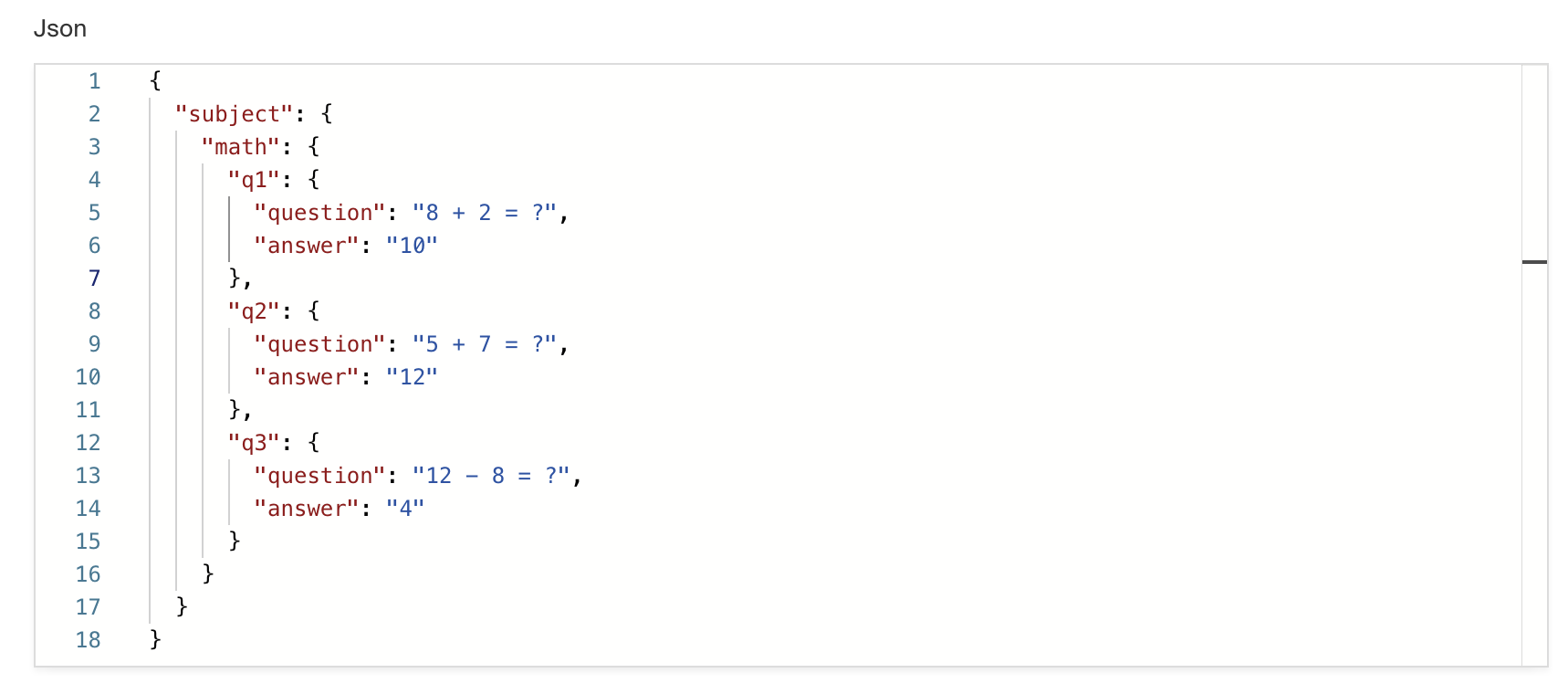
_This field is using the `monaco-react` editor syntax highlighting._
To add a JSON Field, set the `type` to `json` in your [Field Config](/docs/v3/fields/overview.md):
```ts
import type { Field } from 'payload'
export const MyJSONField: Field = {
// ...
type: 'json', // highlight-line
}
```
## Config Options
| Option | Description |
| ---------------------- | ------------------------------------------------------------------------------------------------------------------------------------------------------------------------------------------------------------------------------------------------------------------------------------------------------- |
| **`name`** \* | To be used as the property name when stored and retrieved from the database. [More details](/docs/v3/fields/overview.md#field-names). |
| **`label`** | Text used as a field label in the Admin Panel or an object with keys for each language. |
| **`unique`** | Enforce that each entry in the Collection has a unique value for this field. This creates a database-level unique index on the field's path. [More details](/docs/v3/database/indexes.md#unique-fields). |
| **`index`** | Build an [index](/docs/v3/database/indexes.md) for this field to produce faster queries. Set this field to `true` if your users will perform queries on this field's data often. |
| **`validate`** | Provide a custom validation function that will be executed on both the Admin Panel and the backend. [More details](/docs/v3/fields/overview.md#validation). |
| **`jsonSchema`** | Provide a JSON schema that will be used for validation. [JSON schemas](https://json-schema.org/learn/getting-started-step-by-step) |
| **`saveToJWT`** | If this field is top-level and nested in a config supporting [Authentication](/docs/v3/authentication/overview.md), include its data in the user JWT. |
| **`hooks`** | Provide Field Hooks to control logic for this field. [More details](/docs/v3/hooks/fields.md). |
| **`access`** | Provide Field Access Control to denote what users can see and do with this field's data. [More details](/docs/v3/access-control/fields.md). |
| **`hidden`** | Restrict this field's visibility from all APIs entirely. Will still be saved to the database, but will not appear in any API or the Admin Panel. |
| **`defaultValue`** | Provide data to be used for this field's default value. [More details](/docs/v3/fields/overview.md#default-values). |
| **`localized`** | Enable localization for this field. Requires [localization to be enabled](/docs/v3/configuration/localization.md) in the Base config. |
| **`required`** | Require this field to have a value. |
| **`admin`** | Admin-specific configuration. [More details](#admin-options). |
| **`custom`** | Extension point for adding custom data (e.g. for plugins) |
| **`typescriptSchema`** | Override field type generation with providing a JSON schema |
| **`virtual`** | Provide `true` to disable field in the database, or provide a string path to [link the field with a relationship](/docs/v3/fields/relationship.md#linking-virtual-fields-with-relationships). See [Virtual Fields](https://payloadcms.com/blog/learn-how-virtual-fields-can-help-solve-common-cms-challenges) |
_\* An asterisk denotes that a property is required._
## Admin Options
To customize the appearance and behavior of the JSON Field in the [Admin Panel](/docs/v3/admin/overview.md), you can use the `admin` option:
```ts
import type { Field } from 'payload'
export const MyJSONField: Field = {
// ...
admin: {
// highlight-line
// ...
},
}
```
The JSON Field inherits all of the default admin options from the base [Field Admin Config](/docs/v3/fields/overview.md#admin-options), plus the following additional options:
| Option | Description |
| ------------------- | --------------------------------------------------------------------------------------------------------------------------------------------------------------------------------- |
| **`editorOptions`** | Options that can be passed to the monaco editor, [view the full list](https://microsoft.github.io/monaco-editor/docs.html#variables/editor_editor_api.editor.EditorOptions.html). |
## Example
```ts
import type { CollectionConfig } from 'payload'
export const ExampleCollection: CollectionConfig = {
slug: 'example-collection',
fields: [
{
name: 'customerJSON', // required
type: 'json', // required
required: true,
},
],
}
```
## JSON Schema Validation
Payload JSON fields fully support the [JSON schema](https://json-schema.org/) standard. By providing a schema in your field config, the editor will be guided in the admin UI, getting typeahead for properties and their formats automatically. When the document is saved, the default validation will prevent saving any invalid data in the field according to the schema in your config.
If you only provide a URL to a schema, Payload will fetch the desired schema if it is publicly available. If not, it is recommended to add the schema directly to your config or import it from another file so that it can be implemented consistently in your project.
### Local JSON Schema
`collections/ExampleCollection.ts`
```ts
import type { CollectionConfig } from 'payload'
export const ExampleCollection: CollectionConfig = {
slug: 'example-collection',
fields: [
{
name: 'customerJSON', // required
type: 'json', // required
jsonSchema: {
uri: 'a://b/foo.json', // required
fileMatch: ['a://b/foo.json'], // required
schema: {
type: 'object',
properties: {
foo: {
enum: ['bar', 'foobar'],
},
},
},
},
},
],
}
// {"foo": "bar"} or {"foo": "foobar"} - ok
// Attempting to create {"foo": "not-bar"} will throw an error
```
### Remote JSON Schema
`collections/ExampleCollection.ts`
```ts
import type { CollectionConfig } from 'payload'
export const ExampleCollection: CollectionConfig = {
slug: 'example-collection',
fields: [
{
name: 'customerJSON', // required
type: 'json', // required
jsonSchema: {
uri: 'https://example.com/customer.schema.json', // required
fileMatch: ['https://example.com/customer.schema.json'], // required
},
},
],
}
// If 'https://example.com/customer.schema.json' has a JSON schema
// {"foo": "bar"} or {"foo": "foobar"} - ok
// Attempting to create {"foo": "not-bar"} will throw an error
```
## Custom Components
### Field
#### Server Component
```tsx
import type React from 'react'
import { JSONField } from '@payloadcms/ui'
import type { JSONFieldServerComponent } from 'payload'
export const CustomJSONFieldServer: JSONFieldServerComponent = ({
clientField,
path,
schemaPath,
permissions,
}) => {
return (
<JSONField
field={clientField}
path={path}
schemaPath={schemaPath}
permissions={permissions}
/>
)
}
```
#### Client Component
```tsx
'use client'
import React from 'react'
import { JSONField } from '@payloadcms/ui'
import type { JSONFieldClientComponent } from 'payload'
export const CustomJSONFieldClient: JSONFieldClientComponent = (props) => {
return <JSONField {...props} />
}
```
### Label
#### Server Component
```tsx
import React from 'react'
import { FieldLabel } from '@payloadcms/ui'
import type { JSONFieldLabelServerComponent } from 'payload'
export const CustomJSONFieldLabelServer: JSONFieldLabelServerComponent = ({
clientField,
path,
}) => {
return (
<FieldLabel
label={clientField?.label || clientField?.name}
path={path}
required={clientField?.required}
/>
)
}
```
#### Client Component
```tsx
'use client'
import React from 'react'
import { FieldLabel } from '@payloadcms/ui'
import type { JSONFieldLabelClientComponent } from 'payload'
export const CustomJSONFieldLabelClient: JSONFieldLabelClientComponent = ({
field,
path,
}) => {
return (
<FieldLabel
label={field?.label || field?.name}
path={path}
required={field?.required}
/>
)
}
```
# Collapsible Field
Source: https://payloadcms.com/docs/fields/collapsible
The Collapsible Field is presentational-only and only affects the Admin Panel. By using it, you can place fields within a nice layout component that can be collapsed / expanded.
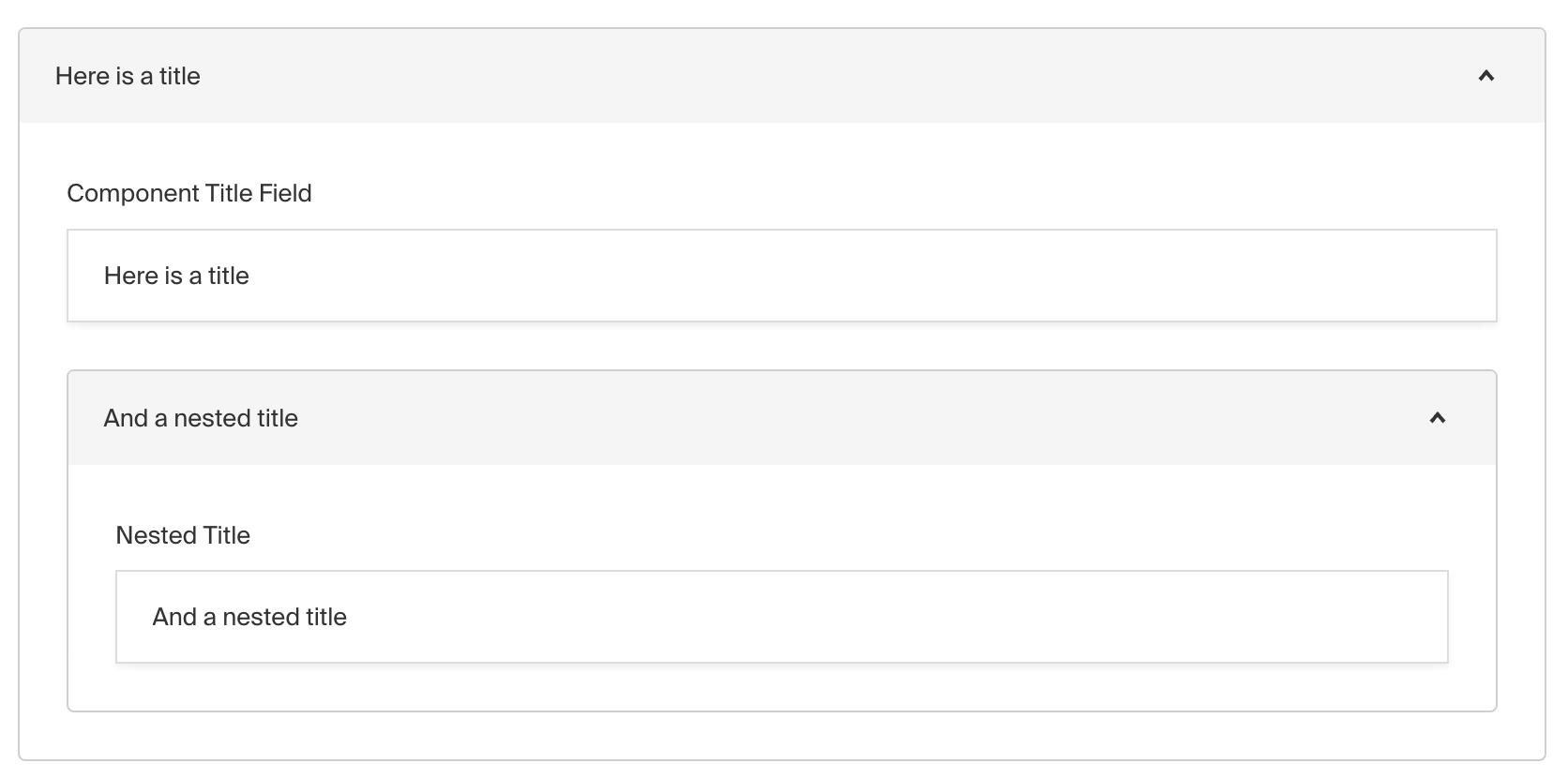
_Admin Panel screenshot of a Collapsible field_
To add a Collapsible Field, set the `type` to `collapsible` in your [Field Config](/docs/v3/fields/overview.md):
```ts
import type { Field } from 'payload'
export const MyCollapsibleField: Field = {
// ...
// highlight-start
type: 'collapsible',
fields: [
// ...
],
// highlight-end
}
```
## Config Options
| Option | Description |
| --------------- | ---------------------------------------------------------------------------------------------------------------------------------------------------------------------------- |
| **`label`** \* | A label to render within the header of the collapsible component. This can be a string, function or react component. Function/components receive `({ data, path })` as args. |
| **`fields`** \* | Array of field types to nest within this Collapsible. |
| **`admin`** | Admin-specific configuration. [More details](#admin-options). |
| **`custom`** | Extension point for adding custom data (e.g. for plugins) |
_\* An asterisk denotes that a property is required._
## Admin Options
To customize the appearance and behavior of the Collapsible Field in the [Admin Panel](/docs/v3/admin/overview.md), you can use the `admin` option:
```ts
import type { Field } from 'payload'
export const MyCollapsibleField: Field = {
// ...
admin: {
// highlight-line
// ...
},
}
```
The Collapsible Field inherits all of the default admin options from the base [Field Admin Config](/docs/v3/fields/overview.md#admin-options), plus the following additional options:
| Option | Description |
| ------------------- | ------------------------------- |
| **`initCollapsed`** | Set the initial collapsed state |
## Example
```ts
import type { CollectionConfig } from 'payload'
export const ExampleCollection: CollectionConfig = {
slug: 'example-collection',
fields: [
{
label: ({ data }) => data?.title || 'Untitled',
type: 'collapsible', // required
fields: [
// required
{
name: 'title',
type: 'text',
required: true,
},
{
name: 'someTextField',
type: 'text',
required: true,
},
],
},
],
}
```
# Date Field
Source: https://payloadcms.com/docs/fields/date
The Date Field saves a Date in the database and provides the [Admin Panel](/docs/v3/admin/overview.md) with a customizable time picker interface.
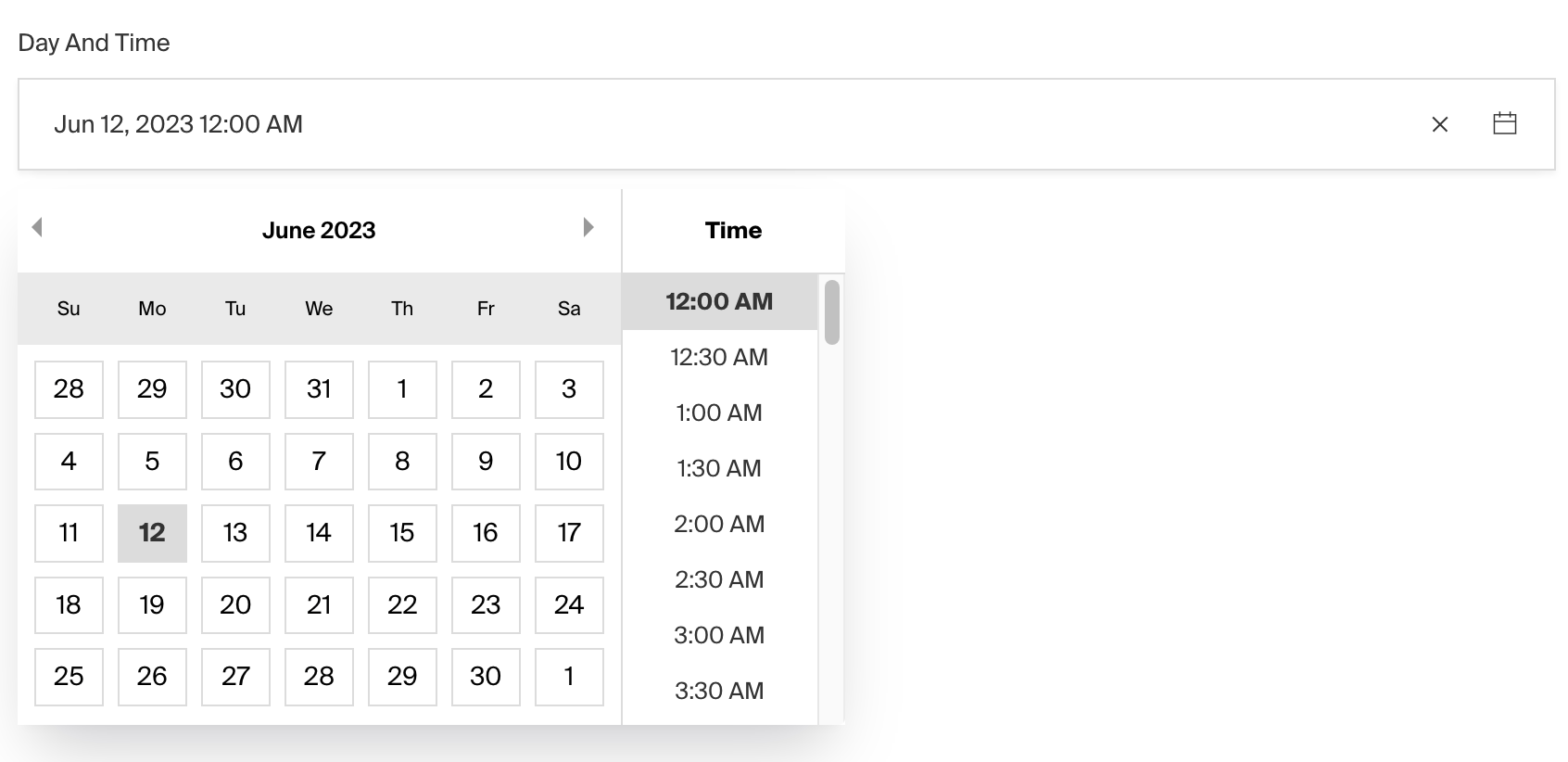
_This field is using the `react-datepicker` component for UI._
To add a Date Field, set the `type` to `date` in your [Field Config](/docs/v3/fields/overview.md):
```ts
import type { Field } from 'payload'
export const MyDateField: Field = {
// ...
type: 'date', // highlight-line
}
```
## Config Options
| Option | Description |
| ---------------------- | ------------------------------------------------------------------------------------------------------------------------------------------------------------------------------------------------------------------------------------------------------------------------------------------------------- |
| **`name`** \* | To be used as the property name when stored and retrieved from the database. [More details](/docs/v3/fields/overview.md#field-names). |
| **`label`** | Text used as a field label in the Admin Panel or an object with keys for each language. |
| **`index`** | Build an [index](/docs/v3/database/indexes.md) for this field to produce faster queries. Set this field to `true` if your users will perform queries on this field's data often. |
| **`validate`** | Provide a custom validation function that will be executed on both the Admin Panel and the backend. [More details](/docs/v3/fields/overview.md#validation). |
| **`saveToJWT`** | If this field is top-level and nested in a config supporting [Authentication](/docs/v3/authentication/overview.md), include its data in the user JWT. |
| **`hooks`** | Provide Field Hooks to control logic for this field. [More details](/docs/v3/hooks/fields.md). |
| **`access`** | Provide Field Access Control to denote what users can see and do with this field's data. [More details](/docs/v3/access-control/fields.md). |
| **`hidden`** | Restrict this field's visibility from all APIs entirely. Will still be saved to the database, but will not appear in any API or the Admin Panel. |
| **`defaultValue`** | Provide data to be used for this field's default value. [More details](/docs/v3/fields/overview.md#default-values). |
| **`localized`** | Enable localization for this field. Requires [localization to be enabled](/docs/v3/configuration/localization.md) in the Base config. |
| **`required`** | Require this field to have a value. |
| **`admin`** | Admin-specific configuration. [More details](#admin-options). |
| **`custom`** | Extension point for adding custom data (e.g. for plugins) |
| **`timezone`** \* | Set to `true` to enable timezone selection on this field. [More details](#timezones). |
| **`typescriptSchema`** | Override field type generation with providing a JSON schema |
| **`virtual`** | Provide `true` to disable field in the database, or provide a string path to [link the field with a relationship](/docs/v3/fields/relationship.md#linking-virtual-fields-with-relationships). See [Virtual Fields](https://payloadcms.com/blog/learn-how-virtual-fields-can-help-solve-common-cms-challenges) |
_\* An asterisk denotes that a property is required._
## Admin Options
To customize the appearance and behavior of the Date Field in the [Admin Panel](/docs/v3/admin/overview.md), you can use the `admin` option:
```ts
import type { Field } from 'payload'
export const MyDateField: Field = {
// ...
admin: {
// highlight-line
// ...
},
}
```
The Date Field inherits all of the default admin options from the base [Field Admin Config](/docs/v3/fields/overview.md#admin-options), plus the following additional options:
| Property | Description |
| ------------------------------ | -------------------------------------------------------------------------------------------------------------------------------------- |
| **`placeholder`** | Placeholder text for the field. |
| **`date`** | Pass options to customize date field appearance. |
| **`date.displayFormat`** | Format date to be shown in field **cell**. |
| **`date.pickerAppearance`** \* | Determines the appearance of the datepicker: `dayAndTime` `timeOnly` `dayOnly` `monthOnly`. |
| **`date.monthsToShow`** \* | Number of months to display max is 2. Defaults to 1. |
| **`date.minDate`** \* | Min date value to allow. |
| **`date.maxDate`** \* | Max date value to allow. |
| **`date.minTime`** \* | Min time value to allow. |
| **`date.maxTime`** \* | Max date value to allow. |
| **`date.overrides`** \* | Pass any valid props directly to the [react-datepicker](https://github.com/Hacker0x01/react-datepicker/blob/master/docs/datepicker.md) |
| **`date.timeIntervals`** \* | Time intervals to display. Defaults to 30 minutes. |
| **`date.timeFormat`** \* | Determines time format. Defaults to `'h:mm aa'`. |
_\* This property is passed directly to [react-datepicker](https://github.com/Hacker0x01/react-datepicker/blob/master/docs/datepicker.md)._
### Display Format and Picker Appearance
These properties only affect how the date is displayed in the UI. The full date is always stored in the format `YYYY-MM-DDTHH:mm:ss.SSSZ` (e.g. `1999-01-01T8:00:00.000+05:00`).
`displayFormat` determines how the date is presented in the field **cell**, you can pass any valid [unicode date format](https://date-fns.org/v4.1.0/docs/format).
`pickerAppearance` sets the appearance of the **react datepicker**, the options available are `dayAndTime`, `dayOnly`, `timeOnly`, and `monthOnly`. By default, the datepicker will display `dayOnly`.
When only `pickerAppearance` is set, an equivalent format will be rendered in the date field cell. To overwrite this format, set `displayFormat`.
## Example
```ts
import type { CollectionConfig } from 'payload'
export const ExampleCollection: CollectionConfig = {
slug: 'example-collection',
fields: [
{
name: 'dateOnly',
type: 'date',
admin: {
date: {
pickerAppearance: 'dayOnly',
displayFormat: 'd MMM yyy',
},
},
},
{
name: 'timeOnly',
type: 'date',
admin: {
date: {
pickerAppearance: 'timeOnly',
displayFormat: 'h:mm:ss a',
},
},
},
{
name: 'monthOnly',
type: 'date',
admin: {
date: {
pickerAppearance: 'monthOnly',
displayFormat: 'MMMM yyyy',
},
},
},
],
}
```
## Custom Components
### Field
#### Server Component
```tsx
import type React from 'react'
import { DateTimeField } from '@payloadcms/ui'
import type { DateFieldServerComponent } from 'payload'
export const CustomDateFieldServer: DateFieldServerComponent = ({
clientField,
path,
schemaPath,
permissions,
}) => {
return (
<DateTimeField
field={clientField}
path={path}
schemaPath={schemaPath}
permissions={permissions}
/>
)
}
```
#### Client Component
```tsx
'use client'
import React from 'react'
import { DateTimeField } from '@payloadcms/ui'
import type { DateFieldClientComponent } from 'payload'
export const CustomDateFieldClient: DateFieldClientComponent = (props) => {
return <DateTimeField {...props} />
}
```
### Label
#### Server Component
```tsx
import React from 'react'
import { FieldLabel } from '@payloadcms/ui'
import type { DateFieldLabelServerComponent } from 'payload'
export const CustomDateFieldLabelServer: DateFieldLabelServerComponent = ({
clientField,
path,
}) => {
return (
<FieldLabel
label={clientField?.label || clientField?.name}
path={path}
required={clientField?.required}
/>
)
}
```
#### Client Component
```tsx
'use client'
import React from 'react'
import { FieldLabel } from '@payloadcms/ui'
import type { DateFieldLabelClientComponent } from 'payload'
export const CustomDateFieldLabelClient: DateFieldLabelClientComponent = ({
field,
path,
}) => {
return (
<FieldLabel
label={field?.label || field?.name}
path={path}
required={field?.required}
/>
)
}
```
## Timezones
To enable timezone selection on a Date field, set the `timezone` property to `true`:
```ts
{
name: 'date',
type: 'date',
timezone: true,
}
```
This will add a dropdown to the date picker that allows users to select a timezone. The selected timezone will be saved in the database along with the date in a new column named `date_tz`.
You can customise the available list of timezones in the [global admin config](/docs/v3/admin/overview.md#timezones) or on the field config itself which accepts the following config as well:
| Property | Description |
| -------------------- | ---------------------------------------------------------------------------------------- |
| `defaultTimezone` | A value for the default timezone to be set. |
| `supportedTimezones` | An array of supported timezones with label and value object. |
| `required` | If true, the timezone selection will be required even if the date is not. |
| `override` | A function to customize the generated timezone field. [More details](#timezone-override) |
```ts
{
name: 'date',
type: 'date',
timezone: {
defaultTimezone: 'America/New_York',
supportedTimezones: [
{ label: 'New York', value: 'America/New_York' },
{ label: 'Los Angeles', value: 'America/Los_Angeles' },
{ label: 'London', value: 'Europe/London' },
],
},
}
```
> **Good to know:**
> The date itself will be stored in UTC so it's up to you to handle the conversion to the user's timezone when displaying the date in your frontend.
>
> Dates without a specific time are normalised to 12:00 in the selected timezone.
### Timezone Override
The `override` function allows you to customize the auto-generated timezone select field at a granular level. This is useful when you need to modify admin options like visibility, descriptions, or other field properties.
```ts
{
name: 'publishedAt',
type: 'date',
label: 'Published At',
timezone: {
override: ({ baseField }) => ({
...baseField,
admin: {
...baseField.admin,
disableListColumn: true, // Hide from list view columns
},
}),
},
}
```
The `override` function receives an object with `baseField` (the default timezone select field) and must return a valid field configuration. The base field includes:
- `name`: The timezone field name (e.g., `publishedAt_tz`)
- `type`: Always `'select'`
- `options`: The available timezone options
- `defaultValue`: The default timezone value
- `required`: Whether the timezone is required
- `label`: Auto-generated from the parent field's label (e.g., "Published At Tz")
- `admin.hidden`: `true` by default
> **Note**
>
> We recommend changing the available options only via the supportedTimezones
> config so that the right validations are run against your timezones.
### Custom UTC Offsets
In addition to IANA timezone names (like `America/New_York`), you can also use fixed UTC offsets in the `±HH:mm` format:
```ts
{
name: 'eventTime',
type: 'date',
timezone: {
supportedTimezones: [
{ label: 'UTC+5:30 (India)', value: '+05:30' },
{ label: 'UTC-8 (Pacific)', value: '-08:00' },
{ label: 'UTC+0', value: '+00:00' },
],
},
}
```
You can also mix IANA timezones with custom UTC offsets:
```ts
{
name: 'scheduledAt',
type: 'date',
timezone: {
supportedTimezones: [
{ label: 'New York', value: 'America/New_York' },
{ label: 'UTC+5:30', value: '+05:30' },
{ label: 'UTC', value: 'UTC' },
],
},
}
```
> **Note**
>
> Custom UTC offsets are fixed and do not account for daylight saving time (DST)
> adjustments. If you need automatic DST handling, use IANA timezone names
> instead (e.g., `America/New_York` rather than `-05:00`).
#### GraphQL Enum Names
When using offset timezones with GraphQL, the offset values are transformed to valid GraphQL enum names using the `_TZOFFSET_` prefix:
| Offset Value | GraphQL Enum Name |
| ------------ | ----------------------- |
| `+05:30` | `_TZOFFSET_PLUS_05_30` |
| `-08:00` | `_TZOFFSET_MINUS_08_00` |
| `+00:00` | `_TZOFFSET_PLUS_00_00` |
Similarly, IANA timezone names are also transformed (e.g., `America/New_York` becomes `America_New_York`).
```graphql
# Query returns the enum name
query {
Event {
scheduledAt_tz # Returns "_TZOFFSET_PLUS_05_30"
}
}
# Mutations use the enum name
mutation {
createEvent(data: { scheduledAt_tz: _TZOFFSET_PLUS_05_30 }) {
scheduledAt_tz
}
}
```
The actual value (`+05:30`) is stored in the database and returned by the REST API.
# Email Field
Source: https://payloadcms.com/docs/fields/email
The Email Field enforces that the value provided is a valid email address.
_Admin Panel screenshot of an Email field_
To create an Email Field, set the `type` to `email` in your [Field Config](/docs/v3/fields/overview.md):
```ts
import type { Field } from 'payload'
export const MyEmailField: Field = {
// ...
type: 'email', // highlight-line
}
```
## Config Options
| Option | Description |
| ---------------------- | ------------------------------------------------------------------------------------------------------------------------------------------------------------------------------------------------------------------------------------------------------------------------------------------------------- |
| **`name`** \* | To be used as the property name when stored and retrieved from the database. [More details](/docs/v3/fields/overview.md#field-names). |
| **`label`** | Text used as a field label in the Admin Panel or an object with keys for each language. |
| **`unique`** | Enforce that each entry in the Collection has a unique value for this field. This creates a database-level unique index on the field's path. [More details](/docs/v3/database/indexes.md#unique-fields). |
| **`index`** | Build an [index](/docs/v3/database/indexes.md) for this field to produce faster queries. Set this field to `true` if your users will perform queries on this field's data often. |
| **`validate`** | Provide a custom validation function that will be executed on both the Admin Panel and the backend. [More details](/docs/v3/fields/overview.md#validation). |
| **`saveToJWT`** | If this field is top-level and nested in a config supporting [Authentication](/docs/v3/authentication/overview.md), include its data in the user JWT. |
| **`hooks`** | Provide Field Hooks to control logic for this field. [More details](/docs/v3/hooks/fields.md). |
| **`access`** | Provide Field Access Control to denote what users can see and do with this field's data. [More details](/docs/v3/access-control/fields.md). |
| **`hidden`** | Restrict this field's visibility from all APIs entirely. Will still be saved to the database, but will not appear in any API or the Admin Panel. |
| **`defaultValue`** | Provide data to be used for this field's default value. [More details](/docs/v3/fields/overview.md#default-values). |
| **`localized`** | Enable localization for this field. Requires [localization to be enabled](/docs/v3/configuration/localization.md) in the Base config. |
| **`required`** | Require this field to have a value. |
| **`admin`** | Admin-specific configuration. [More details](#admin-options). |
| **`custom`** | Extension point for adding custom data (e.g. for plugins) |
| **`typescriptSchema`** | Override field type generation with providing a JSON schema |
| **`virtual`** | Provide `true` to disable field in the database, or provide a string path to [link the field with a relationship](/docs/v3/fields/relationship.md#linking-virtual-fields-with-relationships). See [Virtual Fields](https://payloadcms.com/blog/learn-how-virtual-fields-can-help-solve-common-cms-challenges) |
_\* An asterisk denotes that a property is required._
## Admin Options
To customize the appearance and behavior of the Email Field in the [Admin Panel](/docs/v3/admin/overview.md), you can use the `admin` option:
```ts
import type { Field } from 'payload'
export const MyEmailField: Field = {
// ...
admin: {
// highlight-line
// ...
},
}
```
The Email Field inherits all of the default admin options from the base [Field Admin Config](/docs/v3/fields/overview.md#admin-options), plus the following additional options:
| Property | Description |
| ------------------ | ------------------------------------------------------------------------- |
| **`placeholder`** | Set this property to define a placeholder string for the field. |
| **`autoComplete`** | Set this property to a string that will be used for browser autocomplete. |
## Example
```ts
import type { CollectionConfig } from 'payload'
export const ExampleCollection: CollectionConfig = {
slug: 'example-collection',
fields: [
{
name: 'contact', // required
type: 'email', // required
label: 'Contact Email Address',
required: true,
},
],
}
```
## Custom Components
### Field
#### Server Component
```tsx
import type React from 'react'
import { EmailField } from '@payloadcms/ui'
import type { EmailFieldServerComponent } from 'payload'
export const CustomEmailFieldServer: EmailFieldServerComponent = ({
clientField,
path,
schemaPath,
permissions,
}) => {
return (
<EmailField
field={clientField}
path={path}
schemaPath={schemaPath}
permissions={permissions}
/>
)
}
```
#### Client Component
```tsx
'use client'
import React from 'react'
import { EmailField } from '@payloadcms/ui'
import type { EmailFieldClientComponent } from 'payload'
export const CustomEmailFieldClient: EmailFieldClientComponent = (props) => {
return <EmailField {...props} />
}
```
### Label
#### Server Component
```tsx
import React from 'react'
import { FieldLabel } from '@payloadcms/ui'
import type { EmailFieldLabelServerComponent } from 'payload'
export const CustomEmailFieldLabelServer: EmailFieldLabelServerComponent = ({
clientField,
path,
}) => {
return (
<FieldLabel
label={clientField?.label || clientField?.name}
path={path}
required={clientField?.required}
/>
)
}
```
#### Client Component
```tsx
'use client'
import React from 'react'
import { FieldLabel } from '@payloadcms/ui'
import type { EmailFieldLabelClientComponent } from 'payload'
export const CustomEmailFieldLabelClient: EmailFieldLabelClientComponent = ({
field,
path,
}) => {
return (
<FieldLabel
label={field?.label || field?.name}
path={path}
required={field?.required}
/>
)
}
```
# Group Field
Source: https://payloadcms.com/docs/fields/group
The Group Field allows [Fields](/docs/v3/fields/overview.md) to be nested under a common property name. It also groups fields together visually in the [Admin Panel](/docs/v3/admin/overview.md).
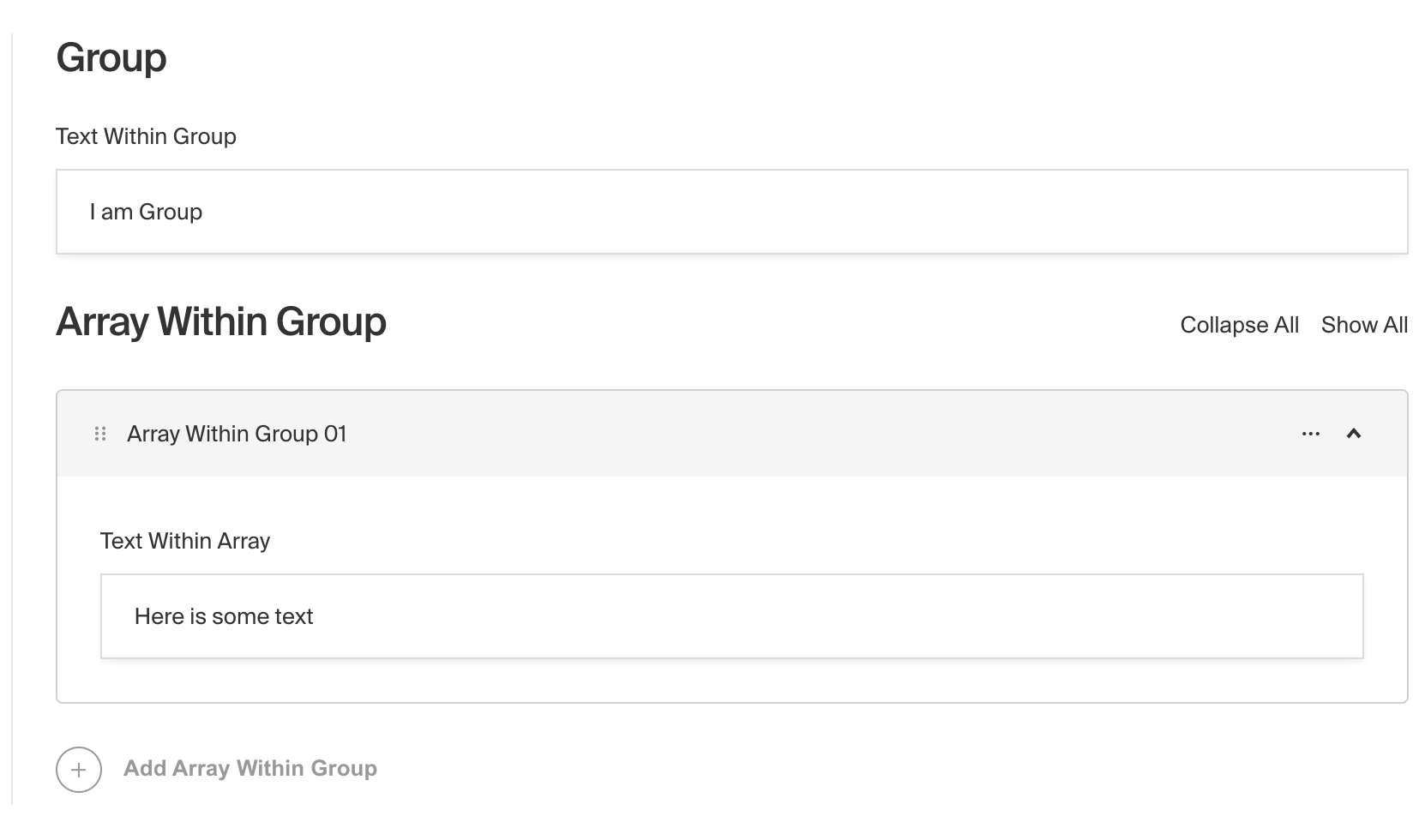
_Admin Panel screenshot of a Group field_
To add a Group Field, set the `type` to `group` in your [Field Config](/docs/v3/fields/overview.md):
```ts
import type { Field } from 'payload'
export const MyGroupField: Field = {
// ...
// highlight-start
type: 'group',
fields: [
// ...
],
// highlight-end
}
```
## Config Options
| Option | Description |
| ---------------------- | ---------------------------------------------------------------------------------------------------------------------------------------------------------------------------------------------------------------------------------------------------------------------------------- |
| **`name`** | To be used as the property name when stored and retrieved from the database. [More details](/docs/v3/fields/overview.md#field-names). |
| **`fields`** \* | Array of field types to nest within this Group. |
| **`label`** | Used as a heading in the Admin Panel and to name the generated GraphQL type. Defaults to the field name, if defined. |
| **`validate`** | Provide a custom validation function that will be executed on both the Admin Panel and the backend. [More details](/docs/v3/fields/overview.md#validation). |
| **`saveToJWT`** | If this field is top-level and nested in a config supporting [Authentication](/docs/v3/authentication/overview.md), include its data in the user JWT. |
| **`hooks`** | Provide Field Hooks to control logic for this field. [More details](/docs/v3/hooks/fields.md). |
| **`access`** | Provide Field Access Control to denote what users can see and do with this field's data. [More details](/docs/v3/access-control/fields.md). |
| **`hidden`** | Restrict this field's visibility from all APIs entirely. Will still be saved to the database, but will not appear in any API or the Admin Panel. |
| **`defaultValue`** | Provide an object of data to be used for this field's default value. [More details](/docs/v3/fields/overview.md#default-values). |
| **`localized`** | Enable localization for this field. Requires [localization to be enabled](/docs/v3/configuration/localization.md) in the Base config. If enabled, a separate, localized set of all data within this Group will be kept, so there is no need to specify each nested field as `localized`. |
| **`admin`** | Admin-specific configuration. [More details](#admin-options). |
| **`custom`** | Extension point for adding custom data (e.g. for plugins) |
| **`interfaceName`** | Create a top level, reusable [Typescript interface](/docs/v3/typescript/generating-types.md#custom-field-interfaces) & [GraphQL type](/docs/v3/graphql/graphql-schema.md#custom-field-schemas). |
| **`typescriptSchema`** | Override field type generation with providing a JSON schema |
| **`virtual`** | Provide `true` to disable field in the database. See [Virtual Fields](https://payloadcms.com/blog/learn-how-virtual-fields-can-help-solve-common-cms-challenges) |
_\* An asterisk denotes that a property is required._
## Admin Options
To customize the appearance and behavior of the Group Field in the [Admin Panel](/docs/v3/admin/overview.md), you can use the `admin` option:
```ts
import type { Field } from 'payload'
export const MyGroupField: Field = {
// ...
admin: {
// highlight-line
// ...
},
}
```
The Group Field inherits all of the default admin options from the base [Field Admin Config](/docs/v3/fields/overview.md#admin-options), plus the following additional options:
| Option | Description |
| ---------------- | ------------------------------------------------------------------------------------------------------------------------------------------------------------------------------------------------------------------------------------------------ |
| **`hideGutter`** | Set this property to `true` to hide this field's gutter within the Admin Panel. The field gutter is rendered as a vertical line and padding, but often if this field is nested within a Group, Block, or Array, you may want to hide the gutter. |
## Example
```ts
import type { CollectionConfig } from 'payload'
export const ExampleCollection: CollectionConfig = {
slug: 'example-collection',
fields: [
{
name: 'pageMeta',
type: 'group', // required
interfaceName: 'Meta', // optional
fields: [
// required
{
name: 'title',
type: 'text',
required: true,
minLength: 20,
maxLength: 100,
},
{
name: 'description',
type: 'textarea',
required: true,
minLength: 40,
maxLength: 160,
},
],
},
],
}
```
## Presentational group fields
You can also use the Group field to only visually group fields without affecting the data structure. Not defining a `name` will render just the grouped fields (no nested object is created). If you want the group to appear as a titled section in the Admin UI, set a `label`.
```ts
import type { CollectionConfig } from 'payload'
export const ExampleCollection: CollectionConfig = {
slug: 'example-collection',
fields: [
{
label: 'Page meta', // label only → presentational
type: 'group', // required
fields: [
{
name: 'title',
type: 'text',
required: true,
minLength: 20,
maxLength: 100,
},
{
name: 'description',
type: 'textarea',
required: true,
minLength: 40,
maxLength: 160,
},
],
},
],
}
```
## Named group
```ts
import type { CollectionConfig } from 'payload'
export const ExampleCollection: CollectionConfig = {
slug: 'example-collection',
fields: [
{
name: 'pageMeta', // name → nested object in data
label: 'Page meta',
type: 'group', // required
fields: [
{
name: 'title',
type: 'text',
required: true,
minLength: 20,
maxLength: 100,
},
{
name: 'description',
type: 'textarea',
required: true,
minLength: 40,
maxLength: 160,
},
],
},
],
}
```
# Number Field
Source: https://payloadcms.com/docs/fields/number
The Number Field stores and validates numeric entry and supports additional numerical validation and formatting features.

_Admin Panel screenshot of a Number field_
To add a Number Field, set the `type` to `number` in your [Field Config](/docs/v3/fields/overview.md):
```ts
import type { Field } from 'payload'
export const MyNumberField: Field = {
// ...
type: 'number', // highlight-line
}
```
## Config Options
| Option | Description |
| ---------------------- | ------------------------------------------------------------------------------------------------------------------------------------------------------------------------------------------------------------------------------------------------------------------------------------------------------- |
| **`name`** \* | To be used as the property name when stored and retrieved from the database. [More details](/docs/v3/fields/overview.md#field-names). |
| **`label`** | Text used as a field label in the Admin Panel or an object with keys for each language. |
| **`min`** | Minimum value accepted. Used in the default `validation` function. |
| **`max`** | Maximum value accepted. Used in the default `validation` function. |
| **`hasMany`** | Makes this field an ordered array of numbers instead of just a single number. |
| **`minRows`** | Minimum number of numbers in the numbers array, if `hasMany` is set to true. |
| **`maxRows`** | Maximum number of numbers in the numbers array, if `hasMany` is set to true. |
| **`unique`** | Enforce that each entry in the Collection has a unique value for this field. This creates a database-level unique index on the field's path. [More details](/docs/v3/database/indexes.md#unique-fields). |
| **`index`** | Build an [index](/docs/v3/database/indexes.md) for this field to produce faster queries. Set this field to `true` if your users will perform queries on this field's data often. |
| **`validate`** | Provide a custom validation function that will be executed on both the Admin Panel and the backend. [More details](/docs/v3/fields/overview.md#validation). |
| **`saveToJWT`** | If this field is top-level and nested in a config supporting [Authentication](/docs/v3/authentication/overview.md), include its data in the user JWT. |
| **`hooks`** | Provide Field Hooks to control logic for this field. [More details](/docs/v3/hooks/fields.md). |
| **`access`** | Provide Field Access Control to denote what users can see and do with this field's data. [More details](/docs/v3/access-control/fields.md). |
| **`hidden`** | Restrict this field's visibility from all APIs entirely. Will still be saved to the database, but will not appear in any API or the Admin Panel. |
| **`defaultValue`** | Provide data to be used for this field's default value. [More details](/docs/v3/fields/overview.md#default-values). |
| **`localized`** | Enable localization for this field. Requires [localization to be enabled](/docs/v3/configuration/localization.md) in the Base config. |
| **`required`** | Require this field to have a value. |
| **`admin`** | Admin-specific configuration. [More details](#admin-options). |
| **`custom`** | Extension point for adding custom data (e.g. for plugins) |
| **`typescriptSchema`** | Override field type generation with providing a JSON schema |
| **`virtual`** | Provide `true` to disable field in the database, or provide a string path to [link the field with a relationship](/docs/v3/fields/relationship.md#linking-virtual-fields-with-relationships). See [Virtual Fields](https://payloadcms.com/blog/learn-how-virtual-fields-can-help-solve-common-cms-challenges) |
_\* An asterisk denotes that a property is required._
## Admin Options
To customize the appearance and behavior of the Number Field in the [Admin Panel](/docs/v3/admin/overview.md), you can use the `admin` option:
```ts
import type { Field } from 'payload'
export const MyNumberField: Field = {
// ...
admin: {
// highlight-line
// ...
},
}
```
The Number Field inherits all of the default admin options from the base [Field Admin Config](/docs/v3/fields/overview.md#admin-options), plus the following additional options:
| Property | Description |
| ------------------ | --------------------------------------------------------------------------------- |
| **`step`** | Set a value for the number field to increment / decrement using browser controls. |
| **`placeholder`** | Set this property to define a placeholder string for the field. |
| **`autoComplete`** | Set this property to a string that will be used for browser autocomplete. |
## Example
```ts
import type { CollectionConfig } from 'payload'
export const ExampleCollection: CollectionConfig = {
slug: 'example-collection',
fields: [
{
name: 'age', // required
type: 'number', // required
required: true,
admin: {
step: 1,
},
},
],
}
```
## Custom Components
### Field
#### Server Component
```tsx
import type React from 'react'
import { NumberField } from '@payloadcms/ui'
import type { NumberFieldServerComponent } from 'payload'
export const CustomNumberFieldServer: NumberFieldServerComponent = ({
clientField,
path,
schemaPath,
permissions,
}) => {
return (
<NumberField
field={clientField}
path={path}
schemaPath={schemaPath}
permissions={permissions}
/>
)
}
```
#### Client Component
```tsx
'use client'
import React from 'react'
import { NumberField } from '@payloadcms/ui'
import type { NumberFieldClientComponent } from 'payload'
export const CustomNumberFieldClient: NumberFieldClientComponent = (props) => {
return <NumberField {...props} />
}
```
### Label
#### Server Component
```tsx
import React from 'react'
import { FieldLabel } from '@payloadcms/ui'
import type { NumberFieldLabelServerComponent } from 'payload'
export const CustomNumberFieldLabelServer: NumberFieldLabelServerComponent = ({
clientField,
path,
}) => {
return (
<FieldLabel
label={clientField?.label || clientField?.name}
path={path}
required={clientField?.required}
/>
)
}
```
#### Client Component
```tsx
'use client'
import React from 'react'
import { FieldLabel } from '@payloadcms/ui'
import type { NumberFieldLabelClientComponent } from 'payload'
export const CustomNumberFieldLabelClient: NumberFieldLabelClientComponent = ({
field,
path,
}) => {
return (
<FieldLabel
label={field?.label || field?.name}
path={path}
required={field?.required}
/>
)
}
```
# Point Field
Source: https://payloadcms.com/docs/fields/point
The Point Field saves a pair of coordinates in the database and assigns an index for location related queries. The data structure in the database matches the GeoJSON structure to represent point. The Payload API simplifies the object data to only the [longitude, latitude] location.

_Admin Panel screenshot of a Point field_
To add a Point Field, set the `type` to `point` in your [Field Config](/docs/v3/fields/overview.md):
```ts
import type { Field } from 'payload'
export const MyPointField: Field = {
// ...
type: 'point', // highlight-line
}
```
> **Important:** The Point Field currently is not supported in SQLite.
## Config
| Option | Description |
| ---------------------- | ------------------------------------------------------------------------------------------------------------------------------------------------------------------------------------------------------------------------------------------------------------------------------------------------------- |
| **`name`** \* | To be used as the property name when stored and retrieved from the database. [More details](/docs/v3/fields/overview.md#field-names). |
| **`label`** | Used as a field label in the Admin Panel and to name the generated GraphQL type. |
| **`unique`** | Enforce that each entry in the Collection has a unique value for this field. This creates a database-level unique index on the field's path. [More details](/docs/v3/database/indexes.md#unique-fields). |
| **`index`** | Build an [index](/docs/v3/database/indexes.md) for this field to produce faster queries. To support location queries, point index defaults to `2dsphere`, to disable the index set to `false`. |
| **`validate`** | Provide a custom validation function that will be executed on both the Admin Panel and the backend. [More details](/docs/v3/fields/overview.md#validation). |
| **`saveToJWT`** | If this field is top-level and nested in a config supporting [Authentication](/docs/v3/authentication/overview.md), include its data in the user JWT. |
| **`hooks`** | Provide Field Hooks to control logic for this field. [More details](/docs/v3/hooks/fields.md). |
| **`access`** | Provide Field Access Control to denote what users can see and do with this field's data. [More details](/docs/v3/access-control/fields.md). |
| **`hidden`** | Restrict this field's visibility from all APIs entirely. Will still be saved to the database, but will not appear in any API or the Admin Panel. |
| **`defaultValue`** | Provide data to be used for this field's default value. [More details](/docs/v3/fields/overview.md#default-values). |
| **`localized`** | Enable localization for this field. Requires [localization to be enabled](/docs/v3/configuration/localization.md) in the Base config. |
| **`required`** | Require this field to have a value. |
| **`admin`** | Admin-specific configuration. [More details](/docs/v3/fields/overview.md#admin-options). |
| **`custom`** | Extension point for adding custom data (e.g. for plugins) |
| **`typescriptSchema`** | Override field type generation with providing a JSON schema |
| **`virtual`** | Provide `true` to disable field in the database, or provide a string path to [link the field with a relationship](/docs/v3/fields/relationship.md#linking-virtual-fields-with-relationships). See [Virtual Fields](https://payloadcms.com/blog/learn-how-virtual-fields-can-help-solve-common-cms-challenges) |
_\* An asterisk denotes that a property is required._
## Example
```ts
import type { CollectionConfig } from 'payload'
export const ExampleCollection: CollectionConfig = {
slug: 'example-collection',
fields: [
{
name: 'location',
type: 'point',
label: 'Location',
},
],
}
```
## Querying - near
In order to do query based on the distance to another point, you can use the `near` operator. When querying using the near operator, the returned documents will be sorted by nearest first.
## Querying - within
In order to do query based on whether points are within a specific area defined in GeoJSON, you can use the `within` operator.
Example:
```ts
const polygon: Point[] = [
[9.0, 19.0], // bottom-left
[9.0, 21.0], // top-left
[11.0, 21.0], // top-right
[11.0, 19.0], // bottom-right
[9.0, 19.0], // back to starting point to close the polygon
]
payload.find({
collection: 'points',
where: {
point: {
within: {
type: 'Polygon',
coordinates: [polygon],
},
},
},
})
```
## Querying - intersects
In order to do query based on whether points intersect a specific area defined in GeoJSON, you can use the `intersects` operator.
Example:
```ts
const polygon: Point[] = [
[9.0, 19.0], // bottom-left
[9.0, 21.0], // top-left
[11.0, 21.0], // top-right
[11.0, 19.0], // bottom-right
[9.0, 19.0], // back to starting point to close the polygon
]
payload.find({
collection: 'points',
where: {
point: {
intersects: {
type: 'Polygon',
coordinates: [polygon],
},
},
},
})
```
## Custom Components
### Field
#### Server Component
```tsx
import type React from 'react'
import { PointField } from '@payloadcms/ui'
import type { PointFieldServerComponent } from 'payload'
export const CustomPointFieldServer: PointFieldServerComponent = ({
clientField,
path,
schemaPath,
permissions,
}) => {
return (
<PointField
field={clientField}
path={path}
schemaPath={schemaPath}
permissions={permissions}
/>
)
}
```
#### Client Component
```tsx
'use client'
import React from 'react'
import { PointField } from '@payloadcms/ui'
import type { PointFieldClientComponent } from 'payload'
export const CustomPointFieldClient: PointFieldClientComponent = (props) => {
return <PointField {...props} />
}
```
### Label
#### Server Component
```tsx
import React from 'react'
import { FieldLabel } from '@payloadcms/ui'
import type { PointFieldLabelServerComponent } from 'payload'
export const CustomPointFieldLabelServer: PointFieldLabelServerComponent = ({
clientField,
path,
}) => {
return (
<FieldLabel
label={clientField?.label || clientField?.name}
path={path}
required={clientField?.required}
/>
)
}
```
#### Client Component
```tsx
'use client'
import React from 'react'
import { FieldLabel } from '@payloadcms/ui'
import type { PointFieldLabelClientComponent } from 'payload'
export const CustomPointFieldLabelClient: PointFieldLabelClientComponent = ({
field,
path,
}) => {
return (
<FieldLabel
label={field?.label || field?.name}
path={path}
required={field?.required}
/>
)
}
```
# Radio Group Field
Source: https://payloadcms.com/docs/fields/radio
The Radio Field allows for the selection of one value from a predefined set of possible values and presents a radio group-style set of inputs to the [Admin Panel](/docs/v3/admin/overview.md).
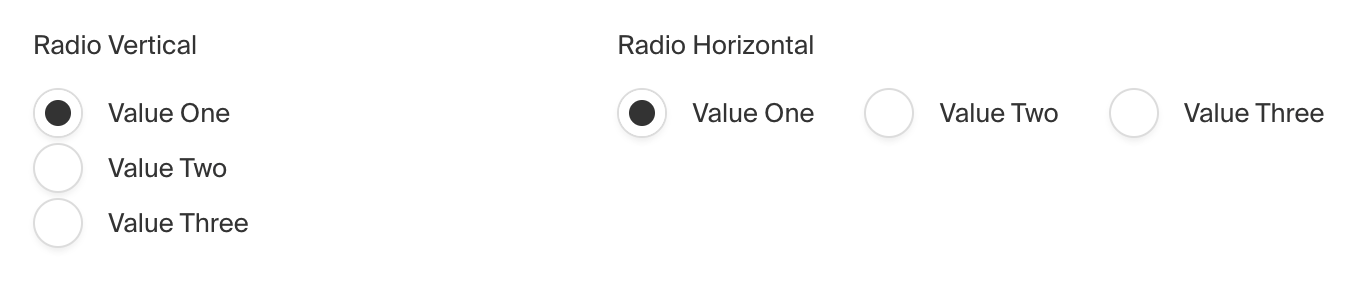
_Admin Panel screenshot of a Radio field_
To add a Radio Field, set the `type` to `radio` in your [Field Config](/docs/v3/fields/overview.md):
```ts
import type { Field } from 'payload'
export const MyRadioField: Field = {
// ...
// highlight-start
type: 'radio',
options: [
// ...
],
// highlight-end
}
```
## Config Options
| Option | Description |
| ---------------------- | ------------------------------------------------------------------------------------------------------------------------------------------------------------------------------------------------------------------------------------------------------------------------------------------------------- |
| **`name`** \* | To be used as the property name when stored and retrieved from the database. [More details](/docs/v3/fields/overview.md#field-names). |
| **`options`** \* | Array of options to allow the field to store. Can either be an array of strings, or an array of objects containing a `label` string and a `value` string. |
| **`label`** | Text used as a field label in the Admin Panel or an object with keys for each language. |
| **`validate`** | Provide a custom validation function that will be executed on both the Admin Panel and the backend. [More details](/docs/v3/fields/overview.md#validation). |
| **`index`** | Build an [index](/docs/v3/database/indexes.md) for this field to produce faster queries. Set this field to `true` if your users will perform queries on this field's data often. |
| **`saveToJWT`** | If this field is top-level and nested in a config supporting [Authentication](/docs/v3/authentication/overview.md), include its data in the user JWT. |
| **`hooks`** | Provide Field Hooks to control logic for this field. [More details](/docs/v3/hooks/fields.md). |
| **`access`** | Provide Field Access Control to denote what users can see and do with this field's data. [More details](/docs/v3/access-control/fields.md). |
| **`hidden`** | Restrict this field's visibility from all APIs entirely. Will still be saved to the database, but will not appear in any API or the Admin Panel. |
| **`defaultValue`** | Provide data to be used for this field's default value. The default value must exist within provided values in `options`. [More details](/docs/v3/fields/overview.md#default-values). |
| **`localized`** | Enable localization for this field. Requires [localization to be enabled](/docs/v3/configuration/localization.md) in the Base config. |
| **`required`** | Require this field to have a value. |
| **`admin`** | Admin-specific configuration. [More details](#admin-options). |
| **`custom`** | Extension point for adding custom data (e.g. for plugins) |
| **`enumName`** | Custom enum name for this field when using SQL Database Adapter ([Postgres](/docs/v3/database/postgres.md)). Auto-generated from name if not defined. |
| **`interfaceName`** | Create a top level, reusable [Typescript interface](/docs/v3/typescript/generating-types.md#custom-field-interfaces) & [GraphQL type](/docs/v3/graphql/graphql-schema.md#custom-field-schemas). |
| **`typescriptSchema`** | Override field type generation with providing a JSON schema |
| **`virtual`** | Provide `true` to disable field in the database, or provide a string path to [link the field with a relationship](/docs/v3/fields/relationship.md#linking-virtual-fields-with-relationships). See [Virtual Fields](https://payloadcms.com/blog/learn-how-virtual-fields-can-help-solve-common-cms-challenges) |
_\* An asterisk denotes that a property is required._
> **Important:**
>
> Option values should be strings that do not contain hyphens or special characters due to GraphQL
> enumeration naming constraints. Underscores are allowed. If you determine you need your option
> values to be non-strings or contain special characters, they will be formatted accordingly before
> being used as a GraphQL enum.
## Admin Options
To customize the appearance and behavior of the Radio Field in the [Admin Panel](/docs/v3/admin/overview.md), you can use the `admin` option:
```ts
import type { Field } from 'payload'
export const MyRadioField: Field = {
// ...
admin: {
// highlight-line
// ...
},
}
```
The Radio Field inherits all of the default admin options from the base [Field Admin Config](/docs/v3/fields/overview.md#admin-options), plus the following additional options:
| Property | Description |
| ------------ | ---------------------------------------------------------------------------------------------------------------------------- |
| **`layout`** | Allows for the radio group to be styled as a horizontally or vertically distributed list. The default value is `horizontal`. |
## Example
```ts
import type { CollectionConfig } from 'payload'
export const ExampleCollection: CollectionConfig = {
slug: 'example-collection',
fields: [
{
name: 'color', // required
type: 'radio', // required
options: [
// required
{
label: 'Mint',
value: 'mint',
},
{
label: 'Dark Gray',
value: 'dark_gray',
},
],
defaultValue: 'mint', // The first value in options.
admin: {
layout: 'horizontal',
},
},
],
}
```
## Custom Components
### Field
#### Server Component
```tsx
import type React from 'react'
import { RadioGroupField } from '@payloadcms/ui'
import type { RadioFieldServerComponent } from 'payload'
export const CustomRadioFieldServer: RadioFieldServerComponent = ({
clientField,
path,
schemaPath,
permissions,
}) => {
return (
<RadioGroupField
field={clientField}
path={path}
schemaPath={schemaPath}
permissions={permissions}
/>
)
}
```
#### Client Component
```tsx
'use client'
import React from 'react'
import { RadioGroupField } from '@payloadcms/ui'
import type { RadioFieldClientComponent } from 'payload'
export const CustomRadioFieldClient: RadioFieldClientComponent = (props) => {
return <RadioGroupField {...props} />
}
```
### Label
#### Server Component
```tsx
import React from 'react'
import { FieldLabel } from '@payloadcms/ui'
import type { RadioFieldLabelServerComponent } from 'payload'
export const CustomRadioFieldLabelServer: RadioFieldLabelServerComponent = ({
clientField,
path,
required,
}) => {
return (
<FieldLabel
label={clientField?.label || clientField?.name}
path={path}
required={clientField?.required}
/>
)
}
```
#### Client Component
```tsx
'use client'
import React from 'react'
import { FieldLabel } from '@payloadcms/ui'
import type { RadioFieldLabelClientComponent } from 'payload'
export const CustomRadioFieldLabelClient: RadioFieldLabelClientComponent = ({
field,
path,
}) => {
return (
<FieldLabel
label={field?.label || field?.name}
path={path}
required={field?.required}
/>
)
}
```
# Relationship Field
Source: https://payloadcms.com/docs/fields/relationship
The Relationship Field is one of the most powerful fields Payload features. It provides the ability to easily relate documents together.
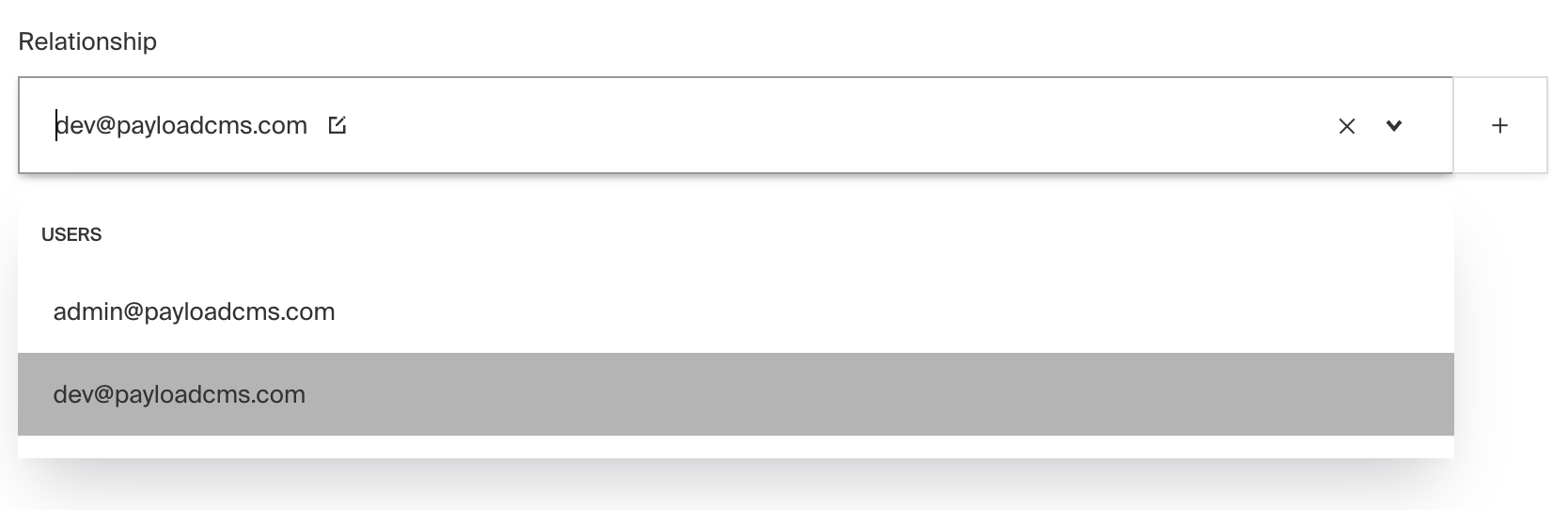
_Admin Panel screenshot of a Relationship field_
The Relationship field is used in a variety of ways, including:
- To add `Product` documents to an `Order` document
- To allow for an `Order` to feature a `placedBy` relationship to either an `Organization` or `User` collection
- To assign `Category` documents to `Post` documents
To add a Relationship Field, set the `type` to `relationship` in your [Field Config](/docs/v3/fields/overview.md):
```ts
import type { Field } from 'payload'
export const MyRelationshipField: Field = {
// ...
// highlight-start
type: 'relationship',
relationTo: 'products',
// highlight-end
}
```
## Config Options
| Option | Description |
| ---------------------- | ----------------------------------------------------------------------------------------------------------------------------------------------------------------------------------------------------- |
| **`name`** \* | To be used as the property name when stored and retrieved from the database. [More details](/docs/v3/fields/overview.md#field-names). |
| **`relationTo`** \* | Provide one or many collection `slug`s to be able to assign relationships to. |
| **`filterOptions`** | A query to filter which options appear in the UI and validate against. [More details](#filtering-relationship-options). |
| **`hasMany`** | Boolean when, if set to `true`, allows this field to have many relations instead of only one. |
| **`minRows`** | A number for the fewest allowed items during validation when a value is present. Used with `hasMany`. |
| **`maxRows`** | A number for the most allowed items during validation when a value is present. Used with `hasMany`. |
| **`maxDepth`** | Sets a maximum population depth for this field, regardless of the remaining depth when this field is reached. [Max Depth](/docs/v3/queries/depth.md#max-depth) |
| **`label`** | Text used as a field label in the Admin Panel or an object with keys for each language. |
| **`unique`** | Enforce that each entry in the Collection has a unique value for this field. This creates a database-level unique index on the field's path. [More details](/docs/v3/database/indexes.md#unique-fields). |
| **`validate`** | Provide a custom validation function that will be executed on both the Admin Panel and the backend. [More details](/docs/v3/fields/overview.md#validation). |
| **`index`** | Build an [index](/docs/v3/database/indexes.md) for this field to produce faster queries. Set this field to `true` if your users will perform queries on this field's data often. |
| **`saveToJWT`** | If this field is top-level and nested in a config supporting [Authentication](/docs/v3/authentication/overview.md), include its data in the user JWT. |
| **`hooks`** | Provide Field Hooks to control logic for this field. [More details](/docs/v3/hooks/fields.md). |
| **`access`** | Provide Field Access Control to denote what users can see and do with this field's data. [More details](/docs/v3/access-control/fields.md). |
| **`hidden`** | Restrict this field's visibility from all APIs entirely. Will still be saved to the database, but will not appear in any API or the Admin Panel. |
| **`defaultValue`** | Provide data to be used for this field's default value. [More details](/docs/v3/fields/overview.md#default-values). |
| **`localized`** | Enable localization for this field. Requires [localization to be enabled](/docs/v3/configuration/localization.md) in the Base config. |
| **`required`** | Require this field to have a value. |
| **`admin`** | Admin-specific configuration. [More details](#admin-options). |
| **`custom`** | Extension point for adding custom data (e.g. for plugins) |
| **`typescriptSchema`** | Override field type generation with providing a JSON schema |
| **`virtual`** | Provide `true` to disable field in the database, or provide a string path to link the field with a relationship. See [Virtual Field Configuration](/docs/v3/fields/overview.md#virtual-field-configuration) |
| **`graphQL`** | Custom graphQL configuration for the field. [More details](/docs/v3/graphql/overview.md#field-complexity) |
_\* An asterisk denotes that a property is required._
> **Tip:** The [Depth](/docs/v3/queries/depth.md) parameter can be used to automatically
> populate related documents that are returned by the API.
## Admin Options
To the appearance and behavior of the Relationship Field in the [Admin Panel](/docs/v3/admin/overview.md), you can use the `admin` option:
```ts
import type { Field } from 'payload'
export const MyRelationshipField: Field = {
// ...
admin: {
// highlight-line
// ...
},
}
```
The Relationship Field inherits all of the default admin options from the base [Field Admin Config](/docs/v3/fields/overview.md#admin-options), plus the following additional options:
| Property | Description |
| ----------------- | ------------------------------------------------------------------------------------------------------------------------------------------- |
| **`isSortable`** | Set to `true` if you'd like this field to be sortable within the Admin UI using drag and drop (only works when `hasMany` is set to `true`). |
| **`allowCreate`** | Set to `false` if you'd like to disable the ability to create new documents from within the relationship field. |
| **`allowEdit`** | Set to `false` if you'd like to disable the ability to edit documents from within the relationship field. |
| **`sortOptions`** | Define a default sorting order for the options within a Relationship field's dropdown. [More details](#sort-options) |
| **`placeholder`** | Define a custom text or function to replace the generic default placeholder |
| **`appearance`** | Set to `drawer` or `select` to change the behavior of the field. Defaults to `select`. |
### Sort Options
You can specify `sortOptions` in two ways:
**As a string:**
Provide a string to define a global default sort field for all relationship field dropdowns across different
collections. You can prefix the field name with a minus symbol ("-") to sort in descending order.
Example:
```ts
sortOptions: 'fieldName',
```
This configuration will sort all relationship field dropdowns by `"fieldName"` in ascending order.
**As an object :**
Specify an object where keys are collection slugs and values are strings representing the field names to sort by. This
allows for different sorting fields for each collection's relationship dropdown.
Example:
```ts
sortOptions: {
"pages": "fieldName1",
"posts": "-fieldName2",
"categories": "fieldName3"
}
```
In this configuration:
- Dropdowns related to `pages` will be sorted by `"fieldName1"` in ascending order.
- Dropdowns for `posts` will use `"fieldName2"` for sorting in descending order (noted by the "-" prefix).
- Dropdowns associated with `categories` will sort based on `"fieldName3"` in ascending order.
Note: If `sortOptions` is not defined, the default sorting behavior of the Relationship field dropdown will be used.
## Filtering relationship options
Options can be dynamically limited by supplying a [query constraint](/docs/v3/queries/overview.md), which will be used both for validating input and filtering available relationships in the UI.
The `filterOptions` property can either be a `Where` query, or a function returning `true` to not filter, `false` to prevent all, or a `Where` query. When using a function, it will be called with an argument object with the following properties:
| Property | Description |
| ------------- | ---------------------------------------------------------------------------------------------------------------------------------------------------------------------------------------- |
| `blockData` | The data of the nearest parent block. Will be `undefined` if the field is not within a block or when called on a `Filter` component within the list view. |
| `data` | An object containing the full collection or global document currently being edited. Will be an empty object when called on a `Filter` component within the list view. |
| `id` | The `id` of the current document being edited. Will be `undefined` during the `create` operation or when called on a `Filter` component within the list view. |
| `relationTo` | The collection `slug` to filter against, limited to this field's `relationTo` property. |
| `req` | The Payload Request, which contains references to `payload`, `user`, `locale`, and more. |
| `siblingData` | An object containing document data that is scoped to only fields within the same parent of this field. Will be an empty object when called on a `Filter` component within the list view. |
| `user` | An object containing the currently authenticated user. |
## Example
```ts
import type { CollectionConfig } from 'payload'
export const ExampleCollection: CollectionConfig = {
slug: 'example-collection',
fields: [
{
name: 'purchase',
type: 'relationship',
relationTo: ['products', 'services'],
filterOptions: ({ relationTo, siblingData }) => {
// returns a Where query dynamically by the type of relationship
if (relationTo === 'products') {
return {
stock: { greater_than: siblingData.quantity },
}
}
if (relationTo === 'services') {
return {
isAvailable: { equals: true },
}
}
},
},
],
}
```
You can learn more about writing queries [here](/docs/v3/queries/overview.md).
> **Note:**
>
> When a relationship field has both **filterOptions** and a custom
> **validate** function, the api will not validate **filterOptions**
> unless you call the default relationship field validation function imported from
> **payload/shared** in your validate function.
## Bi-directional relationships
The `relationship` field on its own is used to define relationships for the document that contains the relationship field, and this can be considered as a "one-way" relationship. For example, if you have a Post that has a `category` relationship field on it, the related `category` itself will not surface any information about the posts that have the category set.
However, the `relationship` field can be used in conjunction with the `Join` field to produce powerful bi-directional relationship authoring capabilities. If you're interested in bi-directional relationships, check out the [documentation for the Join field](/docs/v3/fields/join.md).
## How the data is saved
Given the variety of options possible within the `relationship` field type, the shape of the data needed for creating
and updating these fields can vary. The following sections will describe the variety of data shapes that can arise from
this field.
### Has One
The most simple pattern of a relationship is to use `hasMany: false` with a `relationTo` that allows for only one type
of collection.
```ts
{
slug: 'example-collection',
fields: [
{
name: 'owner', // required
type: 'relationship', // required
relationTo: 'users', // required
hasMany: false,
}
]
}
```
The shape of the data to save for a document with the field configured this way would be:
```json
{
// ObjectID of the related user
"owner": "6031ac9e1289176380734024"
}
```
When querying documents in this collection via REST API, you could query as follows:
`?where[owner][equals]=6031ac9e1289176380734024`.
### Has One - Polymorphic
Also known as **dynamic references**, in this configuration, the `relationTo` field is an array of Collection slugs that
tells Payload which Collections are valid to reference.
```ts
{
slug: 'example-collection',
fields: [
{
name: 'owner', // required
type: 'relationship', // required
relationTo: ['users', 'organizations'], // required
hasMany: false,
}
]
}
```
The shape of the data to save for a document with more than one relationship type would be:
```json
{
"owner": {
"relationTo": "organizations",
"value": "6031ac9e1289176380734024"
}
}
```
Here is an example for how to query documents by this data (note the difference in referencing the `owner.value`):
`?where[owner.value][equals]=6031ac9e1289176380734024`.
You can also query for documents where a field has a relationship to a specific Collection:
`?where[owners.relationTo][equals]=organizations`.
This query would return only documents that have an owner relationship to organizations.
### Has Many
The `hasMany` tells Payload that there may be more than one collection saved to the field.
```ts
{
slug: 'example-collection',
fields: [
{
name: 'owners', // required
type: 'relationship', // required
relationTo: 'users', // required
hasMany: true,
}
]
}
```
To save to the `hasMany` relationship field we need to send an array of IDs:
```json
{
"owners": ["6031ac9e1289176380734024", "602c3c327b811235943ee12b"]
}
```
When querying documents, the format does not change for arrays:
`?where[owners][equals]=6031ac9e1289176380734024`.
### Has Many - Polymorphic
```ts
{
slug: 'example-collection',
fields: [
{
name: 'owners', // required
type: 'relationship', // required
relationTo: ['users', 'organizations'], // required
hasMany: true,
required: true,
}
]
}
```
Relationship fields with `hasMany` set to more than one kind of collections save their data as an array of objects—each
containing the Collection `slug` as the `relationTo` value, and the related document `id` for the `value`:
```json
{
"owners": [
{
"relationTo": "users",
"value": "6031ac9e1289176380734024"
},
{
"relationTo": "organizations",
"value": "602c3c327b811235943ee12b"
}
]
}
```
Querying is done in the same way as the earlier Polymorphic example:
`?where[owners.value][equals]=6031ac9e1289176380734024`.
### Querying and Filtering Polymorphic Relationships
Polymorphic and non-polymorphic relationships must be queried differently because of how the related data is stored and
may be inconsistent across different collections. Because of this, filtering polymorphic relationship fields from the
Collection List admin UI is limited to the `id` value.
For a polymorphic relationship, the response will always be an array of objects. Each object will contain
the `relationTo` and `value` properties.
The data can be queried by the related document ID:
`?where[field.value][equals]=6031ac9e1289176380734024`.
Or by the related document Collection slug:
`?where[field.relationTo][equals]=your-collection-slug`.
However, you **cannot** query on any field values within the related document.
Since we are referencing multiple collections, the field you are querying on may not exist and break the query.
> **Note:**
>
> You **cannot** query on a field within a polymorphic relationship as you would with a
> non-polymorphic relationship.
## Custom Components
### Field
#### Server Component
```tsx
import type React from 'react'
import { RelationshipField } from '@payloadcms/ui'
import type { RelationshipFieldServerComponent } from 'payload'
export const CustomRelationshipFieldServer: RelationshipFieldServerComponent =
({ clientField, path, schemaPath, permissions }) => {
return (
<RelationshipField
field={clientField}
path={path}
schemaPath={schemaPath}
permissions={permissions}
/>
)
}
```
#### Client Component
```tsx
'use client'
import React from 'react'
import { RelationshipField } from '@payloadcms/ui'
import type { RelationshipFieldClientComponent } from 'payload'
export const CustomRelationshipFieldClient: RelationshipFieldClientComponent = (
props,
) => {
return <RelationshipField {...props} />
}
```
### Label
#### Server Component
```tsx
import React from 'react'
import { FieldLabel } from '@payloadcms/ui'
import type { RelationshipFieldLabelServerComponent } from 'payload'
export const CustomRelationshipFieldLabelServer: RelationshipFieldLabelServerComponent =
(clientField, path) => {
return (
<FieldLabel
label={clientField?.label || clientField?.name}
path={path}
required={clientField?.required}
/>
)
}
```
#### Client Component
```tsx
'use client'
import React from 'react'
import { FieldLabel } from '@payloadcms/ui'
import type { RelationshipFieldLabelClientComponent } from 'payload'
export const CustomRelationshipFieldLabelClient: RelationshipFieldLabelClientComponent =
({ field, path }) => {
return (
<FieldLabel
label={field?.label || field?.name}
path={path}
required={field?.required}
/>
)
}
```
# Join Field
Source: https://payloadcms.com/docs/fields/join
The Join Field is used to make Relationship and Upload fields available in the opposite direction. With a Join you can
edit and view collections
having reference to a specific collection document. The field itself acts as a virtual field, in that no new data is
stored on the collection with a Join
field. Instead, the Admin UI surfaces the related documents for a better editing experience and is surfaced by Payload's
APIs.
The Join field is useful in scenarios including:
- To surface `Orders` for a given `Product`
- To view and edit `Posts` belonging to a `Category`
- To work with any bi-directional relationship data
- Displaying where a document or upload is used in other documents

_Admin Panel screenshot of Join field_
For the Join field to work, you must have an existing [relationship](/docs/v3/fields/relationship.md) or [upload](/docs/v3/fields/upload.md) field in the
collection you are joining. This will reference the collection and path of the field of the related documents.
To add a Relationship Field, set the `type` to `join` in your [Field Config](/docs/v3/fields/overview.md):
```ts
import type { Field } from 'payload'
export const MyJoinField: Field = {
// highlight-start
name: 'relatedPosts',
type: 'join',
collection: 'posts',
on: 'category',
// highlight-end
}
// relationship field in another collection:
export const MyRelationshipField: Field = {
name: 'category',
type: 'relationship',
relationTo: 'categories',
}
```
In this example, the field is defined to show the related `posts` when added to a `category` collection. The `on`
property is used to specify the relationship field name of the field that relates to the collection document.
With this example, if you navigate to a Category in the Admin UI or an API response, you'll now see that the Posts which
are related to the Category are populated for you. This is extremely powerful and can be used to define a wide variety
of relationship types in an easy manner.
> **Success**
>
> The Join field is extremely performant and does not add additional query
> overhead to your API responses until you add depth of 1 or above. It works in
> all database adapters. In MongoDB, we use **aggregations** to automatically
> join in related documents, and in relational databases, we use joins.
> **Warning**
>
> The Join Field is not supported in
> [DocumentDB](https://aws.amazon.com/documentdb/) and [Azure Cosmos
> DB](https://azure.microsoft.com/en-us/products/cosmos-db), as we internally
> use MongoDB aggregations to query data for that field, which are limited
> there. This can be changed in the future.
### Schema advice
When modeling your database, you might come across many places where you'd like to feature bi-directional relationships.
But here's an important consideration—you generally only want to store information about a given relationship in _one_
place.
Let's take the Posts and Categories example. It makes sense to define which category a post belongs to while editing the
post.
It would generally not be necessary to have a list of post IDs stored directly on the category as well, for a few
reasons:
- You want to have a "single source of truth" for relationships, and not worry about keeping two sources in sync with
one another
- If you have hundreds, thousands, or even millions of posts, you would not want to store all of those post IDs on a
given category
- Etc.
This is where the `join` field is especially powerful. With it, you only need to store the `category_id` on the `post`,
and Payload will automatically join in related posts for you when you query for categories. The related category is only
stored on the post itself - and is not duplicated on both sides. However, the `join` field is what enables
bi-directional APIs and UI for you.
### Using the Join field to have full control of your database schema
For typical polymorphic / many relationships, if you're using Postgres or SQLite, Payload will automatically create
a `posts_rels` table, which acts as a junction table to store all of a given document's relationships.
However, this might not be appropriate for your use case if you'd like to have more control over your database
architecture. You might not want to have that `_rels` table, and would prefer to maintain / control your own junction
table design.
> **Success**
>
> With the Join field, you can control your own junction table design, and avoid
> Payload's automatic _rels table creation.
The `join` field can be used in conjunction with _any_ collection - and if you wanted to define your own "junction"
collection, which, say, is called `categories_posts` and has a `post_id` and a `category_id` column, you can achieve
complete control over the shape of that junction table.
You could go a step further and leverage the `admin.hidden` property of the `categories_posts` collection to hide the
collection from appearing in the Admin UI navigation.
#### Specifying additional fields on relationships
Another very powerful use case of the `join` field is to be able to define "context" fields on your relationships. Let's
say that you have Posts and Categories, and use join fields on both your Posts and Categories collection to join in
related docs from a new pseudo-junction collection called `categories_posts`. Now, the relations are stored in this
third junction collection, and can be surfaced on both Posts and Categories. But, importantly, you could add
additional "context" fields to this shared junction collection.
For example, on this `categories_posts` collection, in addition to having the `category` and `post` fields, we could add
custom "context" fields like `featured` or `spotlight`,
which would allow you to store additional information directly on relationships.
The `join` field gives you complete control over any type of relational architecture in Payload, all wrapped up in a
powerful Admin UI.
## Config Options
| Option | Description |
| ---------------------- | -------------------------------------------------------------------------------------------------------------------------------------------------------------------------------------------------------------------------------------- |
| **`name`** \* | To be used as the property name when retrieved from the database. [More details](/docs/v3/fields/overview.md#field-names). |
| **`collection`** \* | The `slug`s having the relationship field or an array of collection slugs. |
| **`on`** \* | The name of the relationship or upload field that relates to the collection document. Use dot notation for nested paths, like 'myGroup.relationName'. If `collection` is an array, this field must exist for all specified collections |
| **`orderable`** | If true, enables custom ordering and joined documents can be reordered via drag and drop. Uses [fractional indexing](/docs/v3/configuration/collections.md#fractional-indexing) for efficient reordering. |
| **`where`** | A `Where` query to hide related documents from appearing. Will be merged with any `where` specified in the request. |
| **`maxDepth`** | Default is 1, Sets a maximum population depth for this field, regardless of the remaining depth when this field is reached. [Max Depth](/docs/v3/queries/depth.md#max-depth). |
| **`label`** | Text used as a field label in the Admin Panel or an object with keys for each language. |
| **`hooks`** | Provide Field Hooks to control logic for this field. [More details](/docs/v3/hooks/fields.md). |
| **`access`** | Provide Field Access Control to denote what users can see and do with this field's data. [More details](/docs/v3/access-control/fields.md). |
| **`defaultLimit`** | The number of documents to return. Set to 0 to return all related documents. |
| **`defaultSort`** | The field name used to specify the order the joined documents are returned. |
| **`admin`** | Admin-specific configuration. [More details](#admin-config-options). |
| **`custom`** | Extension point for adding custom data (e.g. for plugins). |
| **`typescriptSchema`** | Override field type generation with providing a JSON schema. |
| **`graphQL`** | Custom graphQL configuration for the field. [More details](/docs/v3/graphql/overview.md#field-complexity) |
_\* An asterisk denotes that a property is required._
## Admin Config Options
You can control the user experience of the join field using the `admin` config properties. The following options are supported:
| Option | Description |
| ---------------------- | ----------------------------------------------------------------------------------------------------------------------------------------------------------------------------------------- |
| **`defaultColumns`** | Array of field names that correspond to which columns to show in the relationship table. Default is the collection config. |
| **`allowCreate`** | Set to `false` to remove the controls for making new related documents from this field. |
| **`components.Label`** | Override the default Label of the Field Component. [More details](/docs/v3/fields/overview.md#label) |
| **`disableRowTypes`** | Set to `false` to render row types, and `true` to hide them. Defaults to `false` for join fields with a singular `relationTo`, and `true` for join fields where `relationTo` is an array. |
## Join Field Data
When a document is returned that for a Join field is populated with related documents. The structure returned is an
object with:
- `docs` an array of related documents or only IDs if the depth is reached
- `hasNextPage` a boolean indicating if there are additional documents
- `totalDocs` a total number of documents, exists only if `count: true` is passed to the join query
```json
{
"id": "66e3431a3f23e684075aae9c",
"relatedPosts": {
"docs": [
{
"id": "66e3431a3f23e684075aaeb9",
// other fields...
"category": "66e3431a3f23e684075aae9c"
}
// { ... }
],
"hasNextPage": false,
"totalDocs": 10 // if count: true is passed
}
// other fields...
}
```
## Join Field Data (polymorphic)
When a document is returned that for a polymorphic Join field (with `collection` as an array) is populated with related documents. The structure returned is an
object with:
- `docs` an array of `relationTo` - the collection slug of the document and `value` - the document itself or the ID if the depth is reached
- `hasNextPage` a boolean indicating if there are additional documents
- `totalDocs` a total number of documents, exists only if `count: true` is passed to the join query
```json
{
"id": "66e3431a3f23e684075aae9c",
"relatedPosts": {
"docs": [
{
"relationTo": "posts",
"value": {
"id": "66e3431a3f23e684075aaeb9",
// other fields...
"category": "66e3431a3f23e684075aae9c"
}
}
// { ... }
],
"hasNextPage": false,
"totalDocs": 10 // if count: true is passed
}
// other fields...
}
```
## Query Options
The Join Field supports custom queries to filter, sort, and limit the related documents that will be returned. In
addition to the specific query options for each Join Field, you can pass `joins: false` to disable all Join Field from
returning. This is useful for performance reasons when you don't need the related documents.
The following query options are supported:
| Property | Description |
| ----------- | --------------------------------------------------------------------------------------------------- |
| **`limit`** | The maximum related documents to be returned, default is 10. |
| **`where`** | An optional `Where` query to filter joined documents. Will be merged with the field `where` object. |
| **`sort`** | A string used to order related results |
| **`count`** | Whether include the count of related documents or not. Not included by default |
These can be applied to the Local API, GraphQL, and REST API.
### Local API
By adding `joins` to the Local API you can customize the request for each join field by the `name` of the field.
```js
const result = await payload.find({
collection: 'categories',
where: {
title: {
equals: 'My Category',
},
},
joins: {
relatedPosts: {
limit: 5,
where: {
title: {
equals: 'My Post',
},
},
sort: 'title',
},
},
})
```
> **Warning**
>
> Currently, `Where` query support on joined documents for join fields with an
> array of `collection` is limited and not supported for fields inside arrays
> and blocks.
### Rest API
The REST API supports the same query options as the Local API. You can use the `joins` query parameter to customize the
request for each join field by the `name` of the field. For example, an API call to get a document with the related
posts limited to 5 and sorted by title:
`/api/categories/${id}?joins[relatedPosts][limit]=5&joins[relatedPosts][sort]=title`
You can specify as many `joins` parameters as needed for the same or different join fields for a single request.
### GraphQL
The GraphQL API supports the same query options as the local and REST APIs. You can specify the query options for each
join field in your query.
Example:
```graphql
query {
Categories {
docs {
relatedPosts(
sort: "createdAt"
limit: 5
where: { author: { equals: "66e3431a3f23e684075aaeb9" } }
"""
Optionally pass count: true if you want to retrieve totalDocs
"""
count: true -- s
) {
docs {
title
}
hasNextPage
totalDocs
}
}
}
}
```
# Rich Text Field
Source: https://payloadcms.com/docs/fields/rich-text
The Rich Text Field lets editors write and format dynamic content in a familiar interface. The content is saved as JSON in the database and can be converted to HTML or any other format needed.
Consistent with Payload's goal of making you learn as little of Payload as possible, customizing and using the Rich Text Editor does not involve learning how to develop for a Payload rich text editor.
Instead, you can invest your time and effort into learning the underlying open-source tools that will allow you to apply your learnings elsewhere as well.
Admin Panel screenshot of a Rich Text field
## Config Options
| Option | Description |
| ---------------------- | ------------------------------------------------------------------------------------------------------------------------------------------------------------------------------------------------------------------------------------------------------------------------------------------------------- |
| **`name`** \* | To be used as the property name when stored and retrieved from the database. [More details](/docs/v3/fields/overview.md#field-names). |
| **`label`** | Text used as a field label in the Admin Panel or an object with keys for each language. |
| **`validate`** | Provide a custom validation function that will be executed on both the Admin Panel and the backend. [More details](/docs/v3/fields/overview.md#validation). |
| **`saveToJWT`** | If this field is top-level and nested in a config supporting [Authentication](/docs/v3/authentication/overview.md), include its data in the user JWT. |
| **`hooks`** | Provide Field Hooks to control logic for this field. [More details](/docs/v3/hooks/fields.md). |
| **`access`** | Provide Field Access Control to denote what users can see and do with this field's data. [More details](/docs/v3/access-control/fields.md). |
| **`hidden`** | Restrict this field's visibility from all APIs entirely. Will still be saved to the database, but will not appear in any API or the Admin Panel. |
| **`defaultValue`** | Provide data to be used for this field's default value. [More details](/docs/v3/fields/overview.md#default-values). |
| **`localized`** | Enable localization for this field. Requires [localization to be enabled](/docs/v3/configuration/localization.md) in the Base config. |
| **`required`** | Require this field to have a value. |
| **`admin`** | Admin-specific configuration. [More details](#admin-options). |
| **`editor`** | Customize or override the rich text editor. [More details](/docs/v3/rich-text/overview.md). |
| **`custom`** | Extension point for adding custom data (e.g. for plugins) |
| **`typescriptSchema`** | Override field type generation with providing a JSON schema |
| **`virtual`** | Provide `true` to disable field in the database, or provide a string path to [link the field with a relationship](/docs/v3/fields/relationship.md#linking-virtual-fields-with-relationships). See [Virtual Fields](https://payloadcms.com/blog/learn-how-virtual-fields-can-help-solve-common-cms-challenges) |
\*_ An asterisk denotes that a property is required._
## Admin Options
To customize the appearance and behavior of the Rich Text Field in the [Admin Panel](/docs/v3/admin/overview.md), you can use the `admin` option. The Rich Text Field inherits all the default options from the base [Field Admin Config](/docs/v3/fields/overview.md#admin-options).
```ts
import type { Field } from 'payload'
export const MyRichTextField: Field = {
// ...
admin: {
// highlight-line
// ...
},
}
```
Further customization can be done with editor-specific options.
## Editor-specific Options
For a ton more editor-specific options, including how to build custom rich text elements directly into your editor,
take a look at the [rich text editor documentation](/docs/v3/rich-text/overview.md).
# Row Field
Source: https://payloadcms.com/docs/fields/row
The Row Field is presentational-only and only affects the [Admin Panel](/docs/v3/admin/overview.md). By using it, you can arrange [Fields](/docs/v3/fields/overview.md) next to each other horizontally.
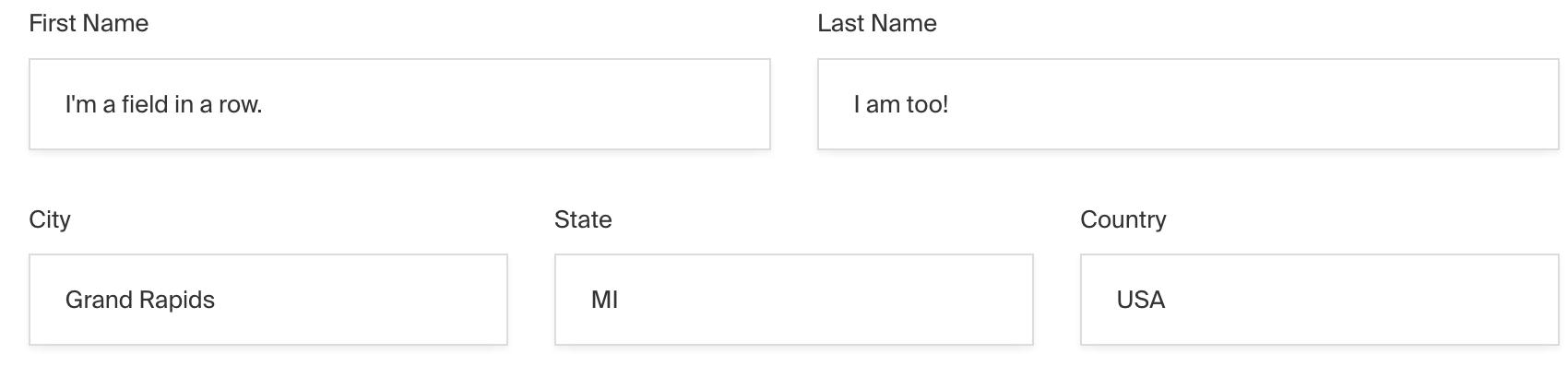
_Admin Panel screenshot of a Row field_
To add a Row Field, set the `type` to `row` in your [Field Config](/docs/v3/fields/overview.md):
```ts
import type { Field } from 'payload'
export const MyRowField: Field = {
// ...
// highlight-start
type: 'row',
fields: [
// ...
],
// highlight-end
}
```
## Config Options
| Option | Description |
| --------------- | ------------------------------------------------------------------------------------------------------------------------- |
| **`fields`** \* | Array of field types to nest within this Row. |
| **`admin`** | Admin-specific configuration excluding `description`, `readOnly`, and `hidden`. [More details](/docs/v3/fields/overview.md#admin-options). |
| **`custom`** | Extension point for adding custom data (e.g. for plugins) |
_\* An asterisk denotes that a property is required._
## Example
```ts
import type { CollectionConfig } from 'payload'
export const ExampleCollection: CollectionConfig = {
slug: 'example-collection',
fields: [
{
type: 'row', // required
fields: [
// required
{
name: 'label',
type: 'text',
required: true,
admin: {
width: '50%',
},
},
{
name: 'value',
type: 'text',
required: true,
admin: {
width: '50%',
},
},
],
},
],
}
```
# Select Field
Source: https://payloadcms.com/docs/fields/select
The Select Field provides a dropdown-style interface for choosing options from a predefined list as an enumeration.
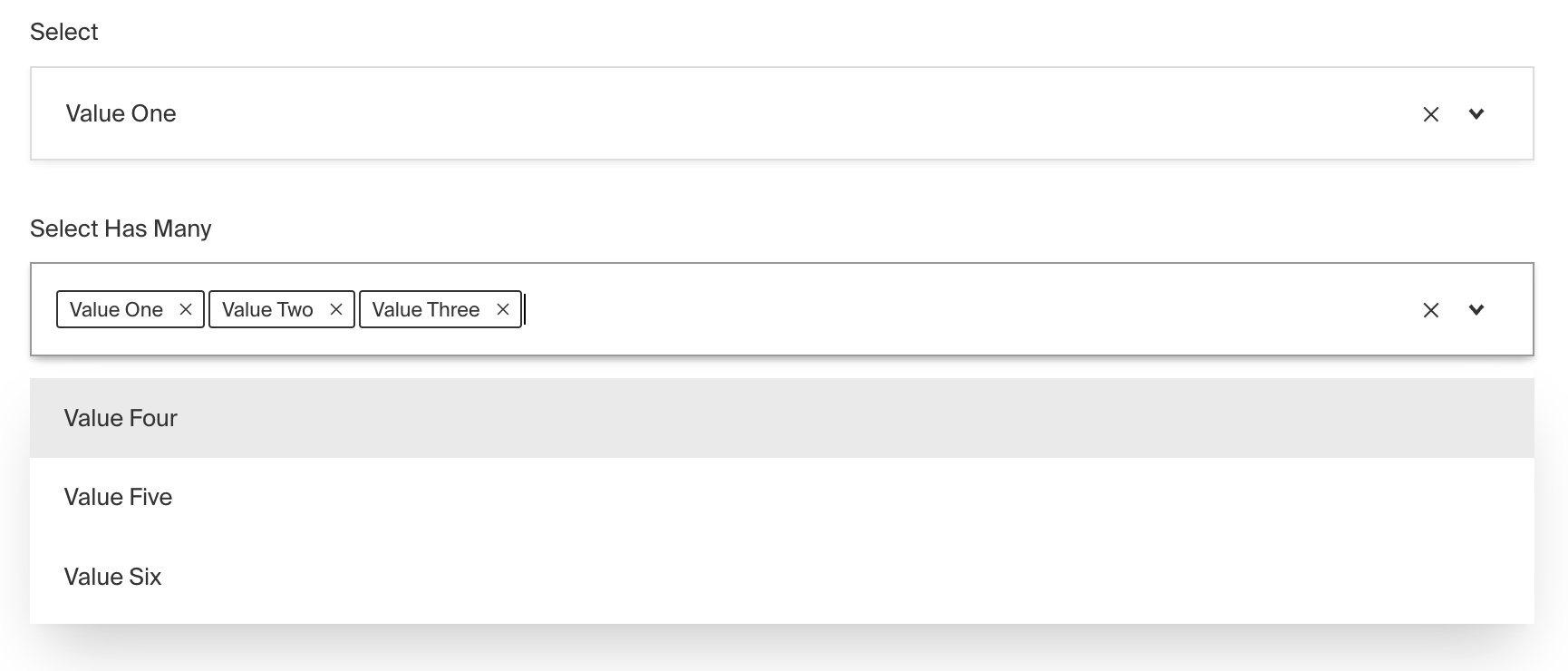
_Admin Panel screenshot of a Select field_
To add a Select Field, set the `type` to `select` in your [Field Config](/docs/v3/fields/overview.md):
```ts
import type { Field } from 'payload'
export const MySelectField: Field = {
// ...
// highlight-start
type: 'select',
options: [
// ...
],
// highlight-end
}
```
## Config Options
| Option | Description |
| ---------------------- | ------------------------------------------------------------------------------------------------------------------------------------------------------------------------------------------------------------------------------------------------------------------------------------------------------- |
| **`name`** \* | To be used as the property name when stored and retrieved from the database. [More details](/docs/v3/fields/overview.md#field-names). |
| **`options`** \* | Array of options to allow the field to store. Can either be an array of strings, or an array of objects containing a `label` string and a `value` string. |
| **`hasMany`** | Boolean when, if set to `true`, allows this field to have many selections instead of only one. |
| **`label`** | Text used as a field label in the Admin Panel or an object with keys for each language. |
| **`unique`** | Enforce that each entry in the Collection has a unique value for this field. This creates a database-level unique index on the field's path. [More details](/docs/v3/database/indexes.md#unique-fields). |
| **`validate`** | Provide a custom validation function that will be executed on both the Admin Panel and the backend. [More details](/docs/v3/fields/overview.md#validation). |
| **`index`** | Build an [index](/docs/v3/database/indexes.md) for this field to produce faster queries. Set this field to `true` if your users will perform queries on this field's data often. |
| **`saveToJWT`** | If this field is top-level and nested in a config supporting [Authentication](/docs/v3/authentication/overview.md), include its data in the user JWT. |
| **`hooks`** | Provide Field Hooks to control logic for this field. [More details](/docs/v3/hooks/fields.md). |
| **`access`** | Provide Field Access Control to denote what users can see and do with this field's data. [More details](/docs/v3/access-control/fields.md). |
| **`hidden`** | Restrict this field's visibility from all APIs entirely. Will still be saved to the database, but will not appear in any API or the Admin Panel. |
| **`defaultValue`** | Provide data to be used for this field's default value. [More details](/docs/v3/fields/overview.md#default-values). |
| **`localized`** | Enable localization for this field. Requires [localization to be enabled](/docs/v3/configuration/localization.md) in the Base config. |
| **`required`** | Require this field to have a value. |
| **`admin`** | Admin-specific configuration. See the [default field admin config](/docs/v3/fields/overview.md#admin-options) for more details. |
| **`custom`** | Extension point for adding custom data (e.g. for plugins) |
| **`enumName`** | Custom enum name for this field when using SQL Database Adapter ([Postgres](/docs/v3/database/postgres.md)). Auto-generated from name if not defined. |
| **`dbName`** | Custom table name (if `hasMany` set to `true`) for this field when using SQL Database Adapter ([Postgres](/docs/v3/database/postgres.md)). Auto-generated from name if not defined. |
| **`interfaceName`** | Create a top level, reusable [Typescript interface](/docs/v3/typescript/generating-types.md#custom-field-interfaces) & [GraphQL type](/docs/v3/graphql/graphql-schema.md#custom-field-schemas). |
| **`filterOptions`** | Dynamically filter which options are available based on the user, data, etc. [More details](#filteroptions) |
| **`typescriptSchema`** | Override field type generation with providing a JSON schema |
| **`virtual`** | Provide `true` to disable field in the database, or provide a string path to [link the field with a relationship](/docs/v3/fields/relationship.md#linking-virtual-fields-with-relationships). See [Virtual Fields](https://payloadcms.com/blog/learn-how-virtual-fields-can-help-solve-common-cms-challenges) |
_\* An asterisk denotes that a property is required._
> **Important:** Option values should be strings that do not contain hyphens or
> special characters due to GraphQL enumeration naming constraints. Underscores
> are allowed. If you determine you need your option values to be non-strings or
> contain special characters, they will be formatted accordingly before being
> used as a GraphQL enum.
### filterOptions
Used to dynamically filter which options are available based on the current user, document data, or other criteria.
Some examples of this might include:
- Restricting options based on a user's role, e.g. admin-only options
- Displaying different options based on the value of another field, e.g. a city/state selector
The result of `filterOptions` will determine:
- Which options are displayed in the Admin Panel
- Which options can be saved to the database
To do this, use the `filterOptions` property in your [Field Config](/docs/v3/fields/overview.md):
```ts
import type { Field } from 'payload'
export const MySelectField: Field = {
// ...
// highlight-start
type: 'select',
options: [
{
label: 'One',
value: 'one',
},
{
label: 'Two',
value: 'two',
},
{
label: 'Three',
value: 'three',
},
],
filterOptions: ({ options, data }) =>
data.disallowOption1
? options.filter(
(option) =>
(typeof option === 'string' ? options : option.value) !== 'one',
)
: options,
// highlight-end
}
```
> **Note:** This property is similar to `filterOptions` in
> [Relationship](/docs/v3/fields/relationship.md) or [Upload](/docs/v3/fields/upload.md) fields, except that the
> return value of this function is simply an array of options, not a query
> constraint.
## Admin Options
To customize the appearance and behavior of the Select Field in the [Admin Panel](/docs/v3/admin/overview.md), you can use the `admin` option:
```ts
import type { Field } from 'payload'
export const MySelectField: Field = {
// ...
admin: {
// highlight-line
// ...
},
}
```
The Select Field inherits all of the default admin options from the base [Field Admin Config](/docs/v3/fields/overview.md#admin-options), plus the following additional options:
| Property | Description |
| ----------------- | ------------------------------------------------------------------------------------------------------------------------------------------- |
| **`isClearable`** | Set to `true` if you'd like this field to be clearable within the Admin UI. |
| **`isSortable`** | Set to `true` if you'd like this field to be sortable within the Admin UI using drag and drop. (Only works when `hasMany` is set to `true`) |
| **`placeholder`** | Define a custom text or function to replace the generic default placeholder |
## Example
```ts
import type { CollectionConfig } from 'payload'
export const ExampleCollection: CollectionConfig = {
slug: 'example-collection',
fields: [
{
name: 'selectedFeatures', // required
type: 'select', // required
hasMany: true,
admin: {
isClearable: true,
isSortable: true, // use mouse to drag and drop different values, and sort them according to your choice
},
options: [
{
label: 'Metallic Paint',
value: 'metallic_paint',
},
{
label: 'Alloy Wheels',
value: 'alloy_wheels',
},
{
label: 'Carbon Fiber Dashboard',
value: 'carbon_fiber_dashboard',
},
],
},
],
}
```
## Custom Components
### Field
#### Server Component
```tsx
import type { SelectFieldServerComponent } from 'payload'
import type React from 'react'
import { SelectField } from '@payloadcms/ui'
export const CustomSelectFieldServer: SelectFieldServerComponent = ({
clientField,
path,
schemaPath,
permissions,
}) => {
return (
<SelectField
field={clientField}
path={path}
schemaPath={schemaPath}
permissions={permissions}
/>
)
}
```
#### Client Component
```tsx
'use client'
import type { SelectFieldClientComponent } from 'payload'
import { SelectField } from '@payloadcms/ui'
import React from 'react'
export const CustomSelectFieldClient: SelectFieldClientComponent = (props) => {
return <SelectField {...props} />
}
```
### Label
#### Server Component
```tsx
import React from 'react'
import { FieldLabel } from '@payloadcms/ui'
import type { SelectFieldLabelServerComponent } from 'payload'
export const CustomSelectFieldLabelServer: SelectFieldLabelServerComponent = ({
clientField,
path,
}) => {
return (
<FieldLabel
label={clientField?.label || clientField?.name}
path={path}
required={clientField?.required}
/>
)
}
```
#### Client Component
```tsx
'use client'
import React from 'react'
import { FieldLabel } from '@payloadcms/ui'
import type { SelectFieldLabelClientComponent } from 'payload'
export const CustomSelectFieldLabelClient: SelectFieldLabelClientComponent = ({
field,
path,
}) => {
return (
<FieldLabel
label={field?.label || field?.name}
path={path}
required={field?.required}
/>
)
}
```
# Tabs Field
Source: https://payloadcms.com/docs/fields/tabs
The Tabs Field is presentational-only and only affects the [Admin Panel](/docs/v3/admin/overview.md) (unless a tab is named). By using it, you can place fields within a nice layout component that separates certain sub-fields by a tabbed interface.
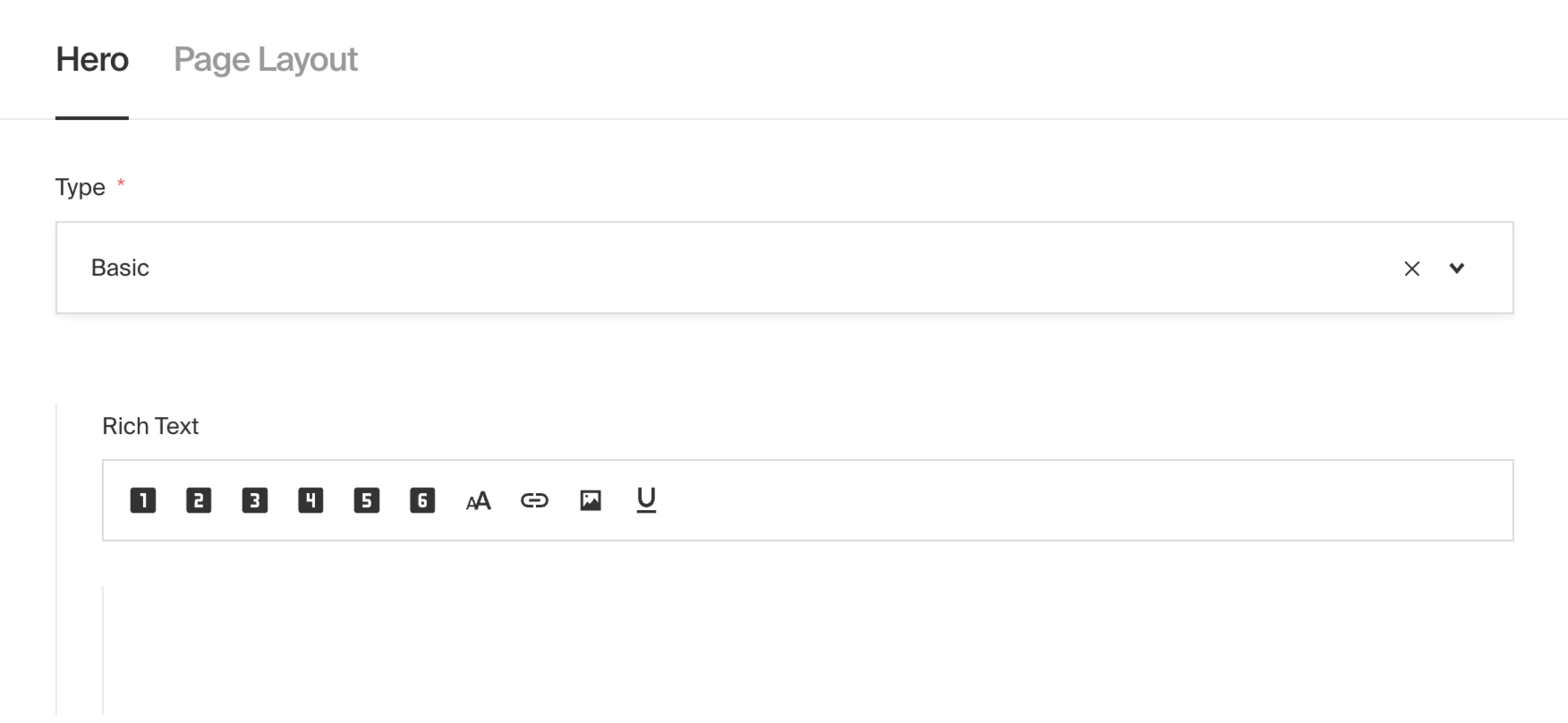
_Tabs field type used to separate Hero fields from Page Layout_
To add a Tabs Field, set the `type` to `tabs` in your [Field Config](/docs/v3/fields/overview.md):
```ts
import type { Field } from 'payload'
export const MyTabsField: Field = {
// ...
// highlight-start
type: 'tabs',
tabs: [
// ...
],
// highlight-end
}
```
## Config Options
| Option | Description |
| ------------- | ----------------------------------------------------------------------- |
| **`tabs`** \* | Array of tabs to render within this Tabs field. |
| **`admin`** | Admin-specific configuration. [More details](/docs/v3/fields/overview.md#admin-options). |
| **`custom`** | Extension point for adding custom data (e.g. for plugins) |
### Tab-specific Config
Each tab must have either a `name` or `label` and the required `fields` array. You can also optionally pass a `description` to render within each individual tab.
| Option | Description |
| ------------------- | ------------------------------------------------------------------------------------------------------------------------------------------------------------------------------------------------------------------------------------------------------------------------------------------------------- |
| **`name`** | Groups field data into an object when stored and retrieved from the database. [More details](/docs/v3/fields/overview.md#field-names). |
| **`label`** | The label to render on the tab itself. Required when name is undefined, defaults to name converted to words. |
| **`fields`** \* | The fields to render within this tab. |
| **`description`** | Optionally render a description within this tab to describe the contents of the tab itself. |
| **`interfaceName`** | Create a top level, reusable [Typescript interface](/docs/v3/typescript/generating-types.md#custom-field-interfaces) & [GraphQL type](/docs/v3/graphql/graphql-schema.md#custom-field-schemas). (`name` must be present) |
| **`virtual`** | Provide `true` to disable field in the database, or provide a string path to [link the field with a relationship](/docs/v3/fields/relationship.md#linking-virtual-fields-with-relationships). See [Virtual Fields](https://payloadcms.com/blog/learn-how-virtual-fields-can-help-solve-common-cms-challenges) |
| **`admin`** | Admin-specific configuration. [More details](/docs/v3/fields/overview.md#admin-options). Currently supports `condition` and `description`. |
| **`id`** | An optional identifier for the tab. If `admin.condition` is used on an unnamed tab, an `id` is required (and will be auto-generated if not provided). |
_\* An asterisk denotes that a property is required._
## Conditional Tabs
Just like fields, individual tabs can be conditionally shown or hidden based on the value of other fields. This is done by providing a `condition` function to the `admin` property of the tab config.
When a tab's condition returns `false`, the tab and all of its fields will be hidden from the Admin Panel. If the currently active tab becomes hidden due to a condition change, Payload will automatically switch to the next available visible tab.
### Example
```ts
{
type: 'tabs',
tabs: [
{
label: 'Always Visible',
fields: [
{
name: 'showExtraTab',
type: 'checkbox',
},
],
},
{
label: 'Conditional Tab',
admin: {
condition: (data) => !!data.showExtraTab,
},
fields: [
{
name: 'extraField',
type: 'text',
},
],
},
],
}
```
## Example
```ts
import type { CollectionConfig } from 'payload'
export const ExampleCollection: CollectionConfig = {
slug: 'example-collection',
fields: [
{
type: 'tabs', // required
tabs: [
// required
{
label: 'Tab One Label', // required
description: 'This will appear within the tab above the fields.',
fields: [
// required
{
name: 'someTextField',
type: 'text',
required: true,
},
],
},
{
name: 'tabTwo',
label: 'Tab Two Label', // required
interfaceName: 'TabTwo', // optional (`name` must be present)
fields: [
// required
{
name: 'numberField', // accessible via tabTwo.numberField
type: 'number',
required: true,
},
],
},
],
},
],
}
```
# Text Field
Source: https://payloadcms.com/docs/fields/text
The Text Field is one of the most commonly used fields. It saves a string to the database and provides the [Admin Panel](/docs/v3/admin/overview.md) with a simple text input.
_Admin Panel screenshot of a Text field and read-only Text field_
To add a Text Field, set the `type` to `text` in your [Field Config](/docs/v3/fields/overview.md):
```ts
import type { Field } from 'payload'
export const MyTextField: Field = {
// ...
type: 'text', // highlight-line
}
```
## Config Options
| Option | Description |
| ---------------------- | ------------------------------------------------------------------------------------------------------------------------------------------------------------------------------------------------------------------------------------------------------------------------------------------------------- |
| **`name`** \* | To be used as the property name when stored and retrieved from the database. [More details](/docs/v3/fields/overview.md#field-names). |
| **`label`** | Text used as a field label in the Admin Panel or an object with keys for each language. |
| **`unique`** | Enforce that each entry in the Collection has a unique value for this field. This creates a database-level unique index on the field's path. [More details](/docs/v3/database/indexes.md#unique-fields). |
| **`minLength`** | Used by the default validation function to ensure values are of a minimum character length. |
| **`maxLength`** | Used by the default validation function to ensure values are of a maximum character length. |
| **`validate`** | Provide a custom validation function that will be executed on both the Admin Panel and the backend. [More details](/docs/v3/fields/overview.md#validation). |
| **`index`** | Build an [index](/docs/v3/database/indexes.md) for this field to produce faster queries. Set this field to `true` if your users will perform queries on this field's data often. |
| **`saveToJWT`** | If this field is top-level and nested in a config supporting [Authentication](/docs/v3/authentication/overview.md), include its data in the user JWT. |
| **`hooks`** | Provide Field Hooks to control logic for this field. [More details](/docs/v3/hooks/fields.md). |
| **`access`** | Provide Field Access Control to denote what users can see and do with this field's data. [More details](/docs/v3/access-control/fields.md). |
| **`hidden`** | Restrict this field's visibility from all APIs entirely. Will still be saved to the database, but will not appear in any API or the Admin Panel. |
| **`defaultValue`** | Provide data to be used for this field's default value. [More details](/docs/v3/fields/overview.md#default-values). |
| **`localized`** | Enable localization for this field. Requires [localization to be enabled](/docs/v3/configuration/localization.md) in the Base config. |
| **`required`** | Require this field to have a value. |
| **`admin`** | Admin-specific configuration. [More details](#admin-options). |
| **`custom`** | Extension point for adding custom data (e.g. for plugins) |
| **`hasMany`** | Makes this field an ordered array of text instead of just a single text. |
| **`minRows`** | Minimum number of texts in the array, if `hasMany` is set to true. |
| **`maxRows`** | Maximum number of texts in the array, if `hasMany` is set to true. |
| **`typescriptSchema`** | Override field type generation with providing a JSON schema |
| **`virtual`** | Provide `true` to disable field in the database, or provide a string path to [link the field with a relationship](/docs/v3/fields/relationship.md#linking-virtual-fields-with-relationships). See [Virtual Fields](https://payloadcms.com/blog/learn-how-virtual-fields-can-help-solve-common-cms-challenges) |
_\* An asterisk denotes that a property is required._
## Admin Options
To customize the appearance and behavior of the Text Field in the [Admin Panel](/docs/v3/admin/overview.md), you can use the `admin` option:
```ts
import type { Field } from 'payload'
export const MyTextField: Field = {
// ...
admin: {
// highlight-line
// ...
},
}
```
The Text Field inherits all of the default admin options from the base [Field Admin Config](/docs/v3/fields/overview.md#admin-options), plus the following additional options:
| Option | Description |
| ------------------ | --------------------------------------------------------------------------------------------------------------------------- |
| **`placeholder`** | Set this property to define a placeholder string in the text input. |
| **`autoComplete`** | Set this property to a string that will be used for browser autocomplete. |
| **`rtl`** | Override the default text direction of the Admin Panel for this field. Set to `true` to force right-to-left text direction. |
## Example
```ts
import type { CollectionConfig } from 'payload'
export const ExampleCollection: CollectionConfig = {
slug: 'example-collection',
fields: [
{
name: 'pageTitle', // required
type: 'text', // required
required: true,
},
],
}
```
## Custom Components
### Field
#### Server Component
```tsx
import type React from 'react'
import { TextField } from '@payloadcms/ui'
import type { TextFieldServerComponent } from 'payload'
export const CustomTextFieldServer: TextFieldServerComponent = ({
clientField,
path,
schemaPath,
permissions,
}) => {
return (
<TextField
field={clientField}
path={path}
schemaPath={schemaPath}
permissions={permissions}
/>
)
}
```
#### Client Component
```tsx
'use client'
import React from 'react'
import { TextField } from '@payloadcms/ui'
import type { TextFieldClientComponent } from 'payload'
export const CustomTextFieldClient: TextFieldClientComponent = (props) => {
return <TextField {...props} />
}
```
### Label
#### Server Component
```tsx
import React from 'react'
import { FieldLabel } from '@payloadcms/ui'
import type { TextFieldLabelServerComponent } from 'payload'
export const CustomTextFieldLabelServer: TextFieldLabelServerComponent = ({
clientField,
path,
required,
}) => {
return (
<FieldLabel
label={clientField?.label || clientField?.name}
path={path}
required={clientField?.required}
/>
)
}
```
#### Client Component
```tsx
'use client'
import React from 'react'
import { FieldLabel } from '@payloadcms/ui'
import type { TextFieldLabelClientComponent } from 'payload'
export const CustomTextFieldLabelClient: TextFieldLabelClientComponent = ({
field,
path,
}) => {
return (
<FieldLabel
label={field?.label || field?.name}
path={path}
required={field?.required}
/>
)
}
```
## Slug Field
> **Warning**
>
> The slug field is experimental and may change, or even be removed, in future
> releases. Use at your own risk.
One common use case for the Text Field is to create a "slug" for a document. A slug is a unique, indexed, URL-friendly string that identifies a particular document, often used to construct the URL of a webpage.
Payload provides a built-in Slug Field so you don't have to built one from scratch. This field automatically generates a slug based on the value of another field, such as a title or name field. It provides UI to lock and unlock the field to protect its value, as well as to re-generate the slug on-demand.
To add a Slug Field, import the `slugField` into your field schema:
```ts
import { slugField } from 'payload'
import type { CollectionConfig } from 'payload'
export const ExampleCollection: CollectionConfig = {
// ...
fields: [
// ...
// highlight-line
slugField(),
// highlight-line
],
}
```
The slug field exposes a few top-level config options for easy customization:
| Option | Description |
| --------------- | --------------------------------------------------------------------------------------------------------------------------------------------------------------------------------------------------------------------------------------- |
| `name` | To be used as the slug field's name. Defaults to `slug`. |
| `overrides` | A function that receives the default fields so you can override on a granular level. See example below. [More details](#slug-overrides). |
| `checkboxName` | To be used as the name for the `generateSlug` checkbox field. Defaults to `generateSlug`. |
| `disableUnique` | Disables the unique index on the field. Useful when you want to add a compound unique index to the collection `indexes` config instead, for example with the multi-tenant plugin where the slug is only unique per tenant, not globally |
| `useAsSlug` | The name of the top-level field to use when generating the slug. This field must exist in the same collection. Defaults to `title`. |
| `localized` | Enable localization on the `slug` and `generateSlug` fields. Defaults to `false`. |
| `position` | The position of the slug field. [More details](/docs/v3/fields/overview.md#admin-options). |
| `required` | Require the slug field. Defaults to `true`. |
| `slugify` | Override the default slugify function. [More details](#custom-slugify-function). |
### Slug Overrides
If the above options aren't sufficient for your use case, you can use the `overrides` function to customize the slug field at a granular level. The `overrides` function receives the default fields that make up the slug field, and you can modify them to any extent you need.
```ts
import { slugField } from 'payload'
import type { CollectionConfig } from 'payload'
export const ExampleCollection: CollectionConfig = {
// ...
fields: [
// ...
// highlight-line
slugField({
overrides: (defaultField) => {
const slugTextField = defaultField.fields[1]
if (slugTextField?.type === 'text') {
slugTextField.label = 'Custom Slug Label'
}
return defaultField
},
}),
// highlight-line
],
}
```
### Custom Slugify Function
You can also override the default slugify function of the slug field. This is necessary if the slug requires special treatment, such as character encoding, additional language support, etc.
This functions receives the value of the `useAsSlug` field as `valueToSlugify` and must return a string.
For example, if you wanted to use the [`slugify`](https://www.npmjs.com/package/slugify) package, you could do something like this:
```ts
import type { CollectionConfig } from 'payload'
import { slugField } from 'payload'
import slugify from 'slugify'
export const MyCollection: CollectionConfig = {
// ...
fields: [
// ...
slugField({
slugify: ({ valueToSlugify }) =>
slugify(valueToSlugify, {
// ...additional `slugify` options here
}),
}),
],
}
```
The following args are provided to the custom `slugify` function:
| Argument | Type | Description |
| ---------------- | ---------------- | ------------------------------------------------ |
| `valueToSlugify` | `string` | The value of the field specified in `useAsSlug`. |
| `data` | `object` | The full document data being saved. |
| `req` | `PayloadRequest` | The Payload request object. |
# Textarea Field
Source: https://payloadcms.com/docs/fields/textarea
The Textarea Field is nearly identical to the [Text Field](/docs/v3/fields/text.md) but it features a slightly larger input that is better suited to edit longer text.
_Admin Panel screenshot of a Textarea field and read-only Textarea field_
To add a Textarea Field, set the `type` to `textarea` in your [Field Config](/docs/v3/fields/overview.md):
```ts
import type { Field } from 'payload'
export const MyTextareaField: Field = {
// ...
type: 'textarea', // highlight-line
}
```
## Config Options
| Option | Description |
| ---------------------- | ------------------------------------------------------------------------------------------------------------------------------------------------------------------------------------------------------------------------------------------------------------------------------------------------------- |
| **`name`** \* | To be used as the property name when stored and retrieved from the database. [More details](/docs/v3/fields/overview.md#field-names). |
| **`label`** | Text used as a field label in the Admin Panel or an object with keys for each language. |
| **`unique`** | Enforce that each entry in the Collection has a unique value for this field. This creates a database-level unique index on the field's path. [More details](/docs/v3/database/indexes.md#unique-fields). |
| **`minLength`** | Used by the default validation function to ensure values are of a minimum character length. |
| **`maxLength`** | Used by the default validation function to ensure values are of a maximum character length. |
| **`validate`** | Provide a custom validation function that will be executed on both the Admin Panel and the backend. [More details](/docs/v3/fields/overview.md#validation). |
| **`index`** | Build an [index](/docs/v3/database/indexes.md) for this field to produce faster queries. Set this field to `true` if your users will perform queries on this field's data often. |
| **`saveToJWT`** | If this field is top-level and nested in a config supporting [Authentication](/docs/v3/authentication/overview.md), include its data in the user JWT. |
| **`hooks`** | Provide Field Hooks to control logic for this field. [More details](/docs/v3/hooks/fields.md). |
| **`access`** | Provide Field Access Control to denote what users can see and do with this field's data. [More details](/docs/v3/access-control/fields.md). |
| **`hidden`** | Restrict this field's visibility from all APIs entirely. Will still be saved to the database, but will not appear in any API or the Admin Panel. |
| **`defaultValue`** | Provide data to be used for this field's default value. [More details](/docs/v3/fields/overview.md#default-values). |
| **`localized`** | Enable localization for this field. Requires [localization to be enabled](/docs/v3/configuration/localization.md) in the Base config. |
| **`required`** | Require this field to have a value. |
| **`admin`** | Admin-specific configuration. [More details](#admin-options). |
| **`custom`** | Extension point for adding custom data (e.g. for plugins) |
| **`typescriptSchema`** | Override field type generation with providing a JSON schema |
| **`virtual`** | Provide `true` to disable field in the database, or provide a string path to [link the field with a relationship](/docs/v3/fields/relationship.md#linking-virtual-fields-with-relationships). See [Virtual Fields](https://payloadcms.com/blog/learn-how-virtual-fields-can-help-solve-common-cms-challenges) |
_\* An asterisk denotes that a property is required._
## Admin Options
To customize the appearance and behavior of the Textarea Field in the [Admin Panel](/docs/v3/admin/overview.md), you can use the `admin` option:
```ts
import type { Field } from 'payload'
export const MyTextareaField: Field = {
// ...
admin: {
// highlight-line
// ...
},
}
```
The Textarea Field inherits all of the default admin options from the base [Field Admin Config](/docs/v3/fields/overview.md#admin-options), plus the following additional options:
| Option | Description |
| ------------------ | --------------------------------------------------------------------------------------------------------------------------- |
| **`placeholder`** | Set this property to define a placeholder string in the textarea. |
| **`autoComplete`** | Set this property to a string that will be used for browser autocomplete. |
| **`rows`** | Set the number of visible text rows in the textarea. Defaults to `2` if not specified. |
| **`rtl`** | Override the default text direction of the Admin Panel for this field. Set to `true` to force right-to-left text direction. |
## Example
```ts
import type { CollectionConfig } from 'payload'
export const ExampleCollection: CollectionConfig = {
slug: 'example-collection',
fields: [
{
name: 'metaDescription', // required
type: 'textarea', // required
required: true,
},
],
}
```
## Custom Components
### Field
#### Server Component
```tsx
import type React from 'react'
import { TextareaField } from '@payloadcms/ui'
import type { TextareaFieldServerComponent } from 'payload'
export const CustomTextareaFieldServer: TextareaFieldServerComponent = ({
clientField,
path,
schemaPath,
permissions,
}) => {
return (
<TextareaField
field={clientField}
path={path}
schemaPath={schemaPath}
permissions={permissions}
/>
)
}
```
#### Client Component
```tsx
'use client'
import React from 'react'
import { TextareaField } from '@payloadcms/ui'
import type { TextareaFieldClientComponent } from 'payload'
export const CustomTextareaFieldClient: TextareaFieldClientComponent = (
props,
) => {
return <TextareaField {...props} />
}
```
### Label
#### Server Component
```tsx
import React from 'react'
import { FieldLabel } from '@payloadcms/ui'
import type { TextareaFieldLabelServerComponent } from 'payload'
export const CustomTextareaFieldLabelServer: TextareaFieldLabelServerComponent =
({ clientField, path }) => {
return (
<FieldLabel
label={clientField?.label || clientField?.name}
path={path}
required={clientField?.required}
/>
)
}
```
#### Client Component
```tsx
'use client'
import React from 'react'
import { FieldLabel } from '@payloadcms/ui'
import type { TextareaFieldLabelClientComponent } from 'payload'
export const CustomTextareaFieldLabelClient: TextareaFieldLabelClientComponent =
({ field, path }) => {
return (
<FieldLabel
label={field?.label || field?.name}
path={path}
required={field?.required}
/>
)
}
```
# UI Field
Source: https://payloadcms.com/docs/fields/ui
The UI (user interface) Field gives you a ton of power to add your own React components directly into the [Admin Panel](/docs/v3/admin/overview.md), nested directly within your other fields. It has absolutely no effect on the data of your documents. It is presentational-only. Think of it as a way for you to "plug in" your own React components directly within your other fields, so you can provide your editors with new controls exactly where you want them to go.
With the UI Field, you can:
- Add a custom message or block of text within the body of an Edit View to describe the purpose of surrounding fields
- Add a "Refund" button to an Order's Edit View sidebar, which might make a fetch call to a custom `refund` endpoint
- Add a "view page" button into a Pages List View to give editors a shortcut to view a page on the frontend of the site
- Build a "clear cache" button or similar mechanism to manually clear caches of specific documents
To add a UI Field, set the `type` to `ui` in your [Field Config](/docs/v3/fields/overview.md):
```ts
import type { Field } from 'payload'
export const MyUIField: Field = {
// ...
type: 'ui', // highlight-line
}
```
## Config Options
| Option | Description |
| ------------------------------- | ---------------------------------------------------------------------------------------------------------- |
| **`name`** \* | A unique identifier for this field. |
| **`label`** | Human-readable label for this UI field. |
| **`admin.components.Field`** \* | React component to be rendered for this field within the Edit View. [More details](/docs/v3/fields/overview.md#field). |
| **`admin.components.Cell`** | React component to be rendered as a Cell within collection List views. [More details](/docs/v3/fields/overview.md#cell). |
| **`admin.disableListColumn`** | Set `disableListColumn` to `true` to prevent the UI field from appearing in the list view column selector. |
| **`custom`** | Extension point for adding custom data (e.g. for plugins) |
_\* An asterisk denotes that a property is required._
## Example
```ts
import type { CollectionConfig } from 'payload'
export const ExampleCollection: CollectionConfig = {
slug: 'example-collection',
fields: [
{
name: 'myCustomUIField', // required
type: 'ui', // required
admin: {
components: {
Field: '/path/to/MyCustomUIField',
Cell: '/path/to/MyCustomUICell',
},
},
},
],
}
```
# Upload Field
Source: https://payloadcms.com/docs/fields/upload
The Upload Field allows for the selection of a Document from a Collection supporting [Uploads](/docs/v3/upload/overview.md), and
formats the selection as a thumbnail in the Admin Panel.
Upload fields are useful for a variety of use cases, such as:
- To provide a `Page` with a featured image
- To allow for a `Product` to deliver a downloadable asset like PDF or MP3
- To give a layout building block the ability to feature a background image
_Admin Panel screenshot of an Upload field_
To create an Upload Field, set the `type` to `upload` in your [Field Config](/docs/v3/fields/overview.md):
```ts
import type { Field } from 'payload'
export const MyUploadField: Field = {
// ...
// highlight-start
type: 'upload',
relationTo: 'media',
// highlight-end
}
```
> **Important:** To use the Upload Field, you must have a
> [Collection](/docs/v3/configuration/collections.md) configured to allow
> [Uploads](/docs/v3/upload/overview.md).
## Config Options
| Option | Description |
| ---------------------- | ------------------------------------------------------------------------------------------------------------------------------------------------------------------------------------------------------------------------------------------------------------------------------------------------------- |
| **`name`** \* | To be used as the property name when stored and retrieved from the database. [More details](/docs/v3/fields/overview.md#field-names). |
| **`relationTo`** \* | Provide a single collection `slug` or an array of slugs to allow this field to accept a relation to. **Note: the related collections must be configured to support Uploads.** |
| **`filterOptions`** | A query to filter which options appear in the UI and validate against. [More details](#filtering-upload-options). |
| **`hasMany`** | Boolean which, if set to true, allows this field to have many relations instead of only one. |
| **`minRows`** | A number for the fewest allowed items during validation when a value is present. Used with hasMany. |
| **`maxRows`** | A number for the most allowed items during validation when a value is present. Used with hasMany. |
| **`maxDepth`** | Sets a number limit on iterations of related documents to populate when queried. [Depth](/docs/v3/queries/depth.md) |
| **`label`** | Text used as a field label in the Admin Panel or an object with keys for each language. |
| **`unique`** | Enforce that each entry in the Collection has a unique value for this field. This creates a database-level unique index on the field's path. [More details](/docs/v3/database/indexes.md#unique-fields). |
| **`validate`** | Provide a custom validation function that will be executed on both the Admin Panel and the backend. [More details](/docs/v3/fields/overview.md#validation). |
| **`index`** | Build an [index](/docs/v3/database/indexes.md) for this field to produce faster queries. Set this field to `true` if your users will perform queries on this field's data often. |
| **`saveToJWT`** | If this field is top-level and nested in a config supporting [Authentication](/docs/v3/authentication/overview.md), include its data in the user JWT. |
| **`hooks`** | Provide Field Hooks to control logic for this field. [More details](/docs/v3/hooks/fields.md). |
| **`access`** | Provide Field Access Control to denote what users can see and do with this field's data. [More details](/docs/v3/access-control/fields.md). |
| **`hidden`** | Restrict this field's visibility from all APIs entirely. Will still be saved to the database, but will not appear in any API or the Admin Panel. |
| **`defaultValue`** | Provide data to be used for this field's default value. [More details](/docs/v3/fields/overview.md#default-values). |
| **`displayPreview`** | Enable displaying preview of the uploaded file. Overrides related Collection's `displayPreview` option. [More details](/docs/v3/upload/overview.md#collection-upload-options). |
| **`localized`** | Enable localization for this field. Requires [localization to be enabled](/docs/v3/configuration/localization.md) in the Base config. |
| **`required`** | Require this field to have a value. |
| **`admin`** | Admin-specific configuration. [Admin Options](/docs/v3/fields/overview.md#admin-options). |
| **`custom`** | Extension point for adding custom data (e.g. for plugins) |
| **`typescriptSchema`** | Override field type generation with providing a JSON schema |
| **`virtual`** | Provide `true` to disable field in the database, or provide a string path to [link the field with a relationship](/docs/v3/fields/relationship.md#linking-virtual-fields-with-relationships). See [Virtual Fields](https://payloadcms.com/blog/learn-how-virtual-fields-can-help-solve-common-cms-challenges) |
| **`graphQL`** | Custom graphQL configuration for the field. [More details](/docs/v3/graphql/overview.md#field-complexity) |
_\* An asterisk denotes that a property is required._
## Example
```ts
import type { CollectionConfig } from 'payload'
export const ExampleCollection: CollectionConfig = {
slug: 'example-collection',
fields: [
{
name: 'backgroundImage', // required
type: 'upload', // required
relationTo: 'media', // required
required: true,
},
],
}
```
## Filtering upload options
Options can be dynamically limited by supplying a [query constraint](/docs/v3/queries/overview.md), which will be used both
for validating input and filtering available uploads in the UI.
The `filterOptions` property can either be a `Where` query, or a function returning `true` to not filter, `false` to
prevent all, or a `Where` query. When using a function, it will be
called with an argument object with the following properties:
| Property | Description |
| ------------- | ----------------------------------------------------------------------------------------------------- |
| `relationTo` | The collection `slug` to filter against, limited to this field's `relationTo` property |
| `data` | An object containing the full collection or global document currently being edited |
| `siblingData` | An object containing document data that is scoped to only fields within the same parent of this field |
| `id` | The `id` of the current document being edited. `id` is `undefined` during the `create` operation |
| `user` | An object containing the currently authenticated user |
| `req` | The Payload Request, which contains references to `payload`, `user`, `locale`, and more. |
### Example#filter-options-example
```ts
const uploadField = {
name: 'image',
type: 'upload',
relationTo: 'media',
filterOptions: {
mimeType: { contains: 'image' },
},
}
```
You can learn more about writing queries [here](/docs/v3/queries/overview.md).
> **Note:**
>
> When an upload field has both **filterOptions** and a custom
> **validate** function, the api will not validate **filterOptions**
> unless you call the default upload field validation function imported from
> **payload/shared** in your validate function.
## Bi-directional relationships
The `upload` field on its own is used to reference documents in an upload collection. This can be considered a "one-way"
relationship. If you wish to allow an editor to visit the upload document and see where it is being used, you may use
the `join` field in the upload enabled collection. Read more about bi-directional relationships using
the [Join field](/docs/v3/fields/join.md)
## Polymorphic Uploads
Upload fields can reference multiple upload collections by providing an array of collection slugs to the `relationTo` property.
```ts
import type { CollectionConfig } from 'payload'
export const ExampleCollection: CollectionConfig = {
slug: 'example-collection',
fields: [
{
name: 'media',
type: 'upload',
relationTo: ['images', 'documents', 'videos'], // references multiple upload collections
},
],
}
```
This can be combined with the `hasMany` property to allow multiple uploads from multiple collections.
```ts
import type { CollectionConfig } from 'payload'
export const ExampleCollection: CollectionConfig = {
slug: 'example-collection',
fields: [
{
name: 'media',
type: 'upload',
relationTo: ['images', 'documents', 'videos'], // references multiple upload collections
hasMany: true, // allows multiple uploads
},
],
}
```
# Access Control
Source: https://payloadcms.com/docs/access-control/overview
[Video: Overview of Payload Access Control](https://www.youtube.com/watch?v=DoPLyXG26Dg)
Access Control determines what a user can and cannot do with any given Document, as well as what they can and cannot see within the [Admin Panel](/docs/v3/admin/overview.md). By implementing Access Control, you can define granular restrictions based on the user, their roles (RBAC), Document data, or any other criteria your application requires.
Access Control functions are scoped to the _operation_, meaning you can have different rules for `create`, `read`, `update`, `delete`, etc. Access Control functions are executed _before_ any changes are made and _before_ any operations are completed. This allows you to determine if the user has the necessary permissions before fulfilling the request.
There are many use cases for Access Control, including:
- Allowing anyone `read` access to all posts
- Only allowing public access to posts where a `status` field is equal to `published`
- Giving only users with a `role` field equal to `admin` the ability to delete posts
- Allowing anyone to submit contact forms, but only logged in users to `read`, `update` or `delete` them
- Restricting a user to only be able to see their own orders, but no-one else's
- Allowing users that belong to a certain organization to access only that organization's resources
There are three main types of Access Control in Payload:
- [Collection Access Control](/docs/v3/access-control/collections.md)
- [Global Access Control](/docs/v3/access-control/globals.md)
- [Field Access Control](/docs/v3/access-control/fields.md)
## Default Access Control
Payload provides default Access Control so that your data is secured behind [Authentication](/docs/v3/authentication/overview.md) without additional configuration. To do this, Payload sets a default function that simply checks if a user is present on the request. You can override this default behavior by defining your own Access Control functions as needed.
Here is the default Access Control that Payload provides:
```ts
const defaultPayloadAccess = ({ req: { user } }) => {
// Return `true` if a user is found
// and `false` if it is undefined or null
return Boolean(user) // highlight-line
}
```
> **Important:** In the [Local API](/docs/v3/local-api/overview.md), all Access Control
> is _skipped_ by default. This allows your server to have full control over
> your application. To opt back in, you can set the `overrideAccess` option to
> `false` in your requests.
## The Access Operation
The Admin Panel responds dynamically to your changes to Access Control. For example, if you restrict editing `ExampleCollection` to only users that feature an "admin" role, Payload will **hide** that Collection from the Admin Panel entirely. This is super powerful and allows you to control who can do what within your Admin Panel using the same functions that secure your APIs.
To accomplish this, Payload exposes the [Access Operation](/docs/v3/authentication/operations.md#access). Upon login, Payload executes each Access Control function at the top level, across all Collections, Globals, and Fields, and returns a response that contains a reflection of what the currently authenticated user can do within your application.
> **Important:** When your access control functions are executed via the [Access
> Operation](/docs/v3/authentication/operations.md#access), the `id`, `data`, `siblingData`, `blockData` and `doc` arguments
> will be `undefined`. Additionally, `Where` queries returned from access control functions will not be run - we'll assume the user does not have access instead.
>
> This is because Payload is executing your functions without referencing a specific Document.
If you use `id`, `data`, `siblingData`, `blockData` and `doc` within your access control functions, make sure to check that they are defined first. If they are not, then you can assume that your Access Control is being executed via the Access Operation to determine solely what the user can do within the Admin Panel.
## Locale Specific Access Control
To implement locale-specific access control, you can use the `req.locale` argument in your access control functions. This argument allows you to evaluate the current locale of the request and determine access permissions accordingly.
Here is an example:
```ts
const access = ({ req }) => {
// Grant access if the locale is 'en'
if (req.locale === 'en') {
return true
}
// Deny access for all other locales
return false
}
```
# Collection Access Control
Source: https://payloadcms.com/docs/access-control/collections
Collection Access Control is [Access Control](/docs/v3/access-control/overview.md) used to restrict access to Documents within a [Collection](/docs/v3/getting-started/concepts.md#collections), as well as what they can and cannot see within the [Admin Panel](/docs/v3/admin/overview.md) as it relates to that Collection.
To add Access Control to a Collection, use the `access` property in your [Collection Config](/docs/v3/configuration/collections.md):
```ts
import type { CollectionConfig } from 'payload'
export const CollectionWithAccessControl: CollectionConfig = {
// ...
access: {
// highlight-line
// ...
},
}
```
## Config Options
Access Control is specific to the operation of the request.
To add Access Control to a Collection, use the `access` property in your [Collection Config](/docs/v3/configuration/collections.md):
```ts
import type { CollectionConfig } from 'payload';
export const CollectionWithAccessControl: CollectionConfig = {
// ...
// highlight-start
access: {
create: () => {...},
read: () => {...},
update: () => {...},
delete: () => {...},
// Auth-enabled Collections only
admin: () => {...},
unlock: () => {...},
// Version-enabled Collections only
readVersions: () => {...},
},
// highlight-end
}
```
The following options are available:
| Function | Allows/Denies Access |
| ------------ | -------------------------------------------------------------------- |
| **`create`** | Used in the `create` operation. [More details](#create). |
| **`read`** | Used in the `find` and `findByID` operations. [More details](#read). |
| **`update`** | Used in the `update` operation. [More details](#update). |
| **`delete`** | Used in the `delete` operation. [More details](#delete). |
If a Collection supports [`Authentication`](/docs/v3/authentication/overview.md), the following additional options are available:
| Function | Allows/Denies Access |
| ------------ | ---------------------------------------------------------------------------------------- |
| **`admin`** | Used to restrict access to the [Admin Panel](/docs/v3/admin/overview.md). [More details](#admin). |
| **`unlock`** | Used to restrict which users can access the `unlock` operation. [More details](#unlock). |
If a Collection supports [Versions](/docs/v3/versions/overview.md), the following additional options are available:
| Function | Allows/Denies Access |
| ------------------ | ------------------------------------------------------------------------------------------------------------------------------------------------------ |
| **`readVersions`** | Used to control who can read versions, and who can't. Will automatically restrict the Admin UI version viewing access. [More details](#read-versions). |
### Create
Returns a boolean which allows/denies access to the `create` request.
To add create Access Control to a Collection, use the `create` property in the [Collection Config](/docs/v3/configuration/collections.md):
```ts
import type { CollectionConfig } from 'payload'
export const CollectionWithCreateAccess: CollectionConfig = {
// ...
access: {
// highlight-start
create: ({ req: { user }, data }) => {
return Boolean(user)
},
// highlight-end
},
}
```
The following arguments are provided to the `create` function:
| Option | Description |
| ---------- | ----------------------------------------------------------------------------------------------------------------------------- |
| **`req`** | The [Request](https://developer.mozilla.org/en-US/docs/Web/API/Request) object containing the currently authenticated `user`. |
| **`data`** | The data passed to create the document with. |
### Read
Returns a boolean which allows/denies access to the `read` request.
To add read Access Control to a Collection, use the `read` property in the [Collection Config](/docs/v3/configuration/collections.md):
```ts
import type { CollectionConfig } from 'payload'
export const CollectionWithReadAccess: CollectionConfig = {
// ...
access: {
// highlight-start
read: ({ req: { user } }) => {
return Boolean(user)
},
// highlight-end
},
}
```
> **Tip:** Return a [Query](/docs/v3/queries/overview.md) to limit the Documents to only
> those that match the constraint. This can be helpful to restrict users' access
> to specific Documents. [More details](/docs/v3/queries/overview.md).
As your application becomes more complex, you may want to define your function in a separate file and import them into your Collection Config:
```ts
import type { Access } from 'payload'
import type { Page } from '@/payload-types'
export const canReadPage: Access<Page> = ({ req: { user } }) => {
// Allow authenticated users
if (user) {
return true
}
// By returning a Query, guest users can read public Documents
// Note: this assumes you have a `isPublic` checkbox field on your Collection
return {
isPublic: {
equals: true,
},
}
}
```
The following arguments are provided to the `read` function:
| Option | Description |
| --------- | ----------------------------------------------------------------------------------------------------------------------------- |
| **`req`** | The [Request](https://developer.mozilla.org/en-US/docs/Web/API/Request) object containing the currently authenticated `user`. |
| **`id`** | `id` of document requested, if within `findByID`. |
### Update
Returns a boolean which allows/denies access to the `update` request.
To add update Access Control to a Collection, use the `update` property in the [Collection Config](/docs/v3/configuration/collections.md):
```ts
import type { CollectionConfig } from 'payload'
export const CollectionWithUpdateAccess: CollectionConfig = {
// ...
access: {
// highlight-start
update: ({ req: { user } }) => {
return Boolean(user)
},
// highlight-end
},
}
```
> **Tip:** Return a [Query](/docs/v3/queries/overview.md) to limit the Documents to only
> those that match the constraint. This can be helpful to restrict users' access
> to specific Documents. [More details](/docs/v3/queries/overview.md).
As your application becomes more complex, you may want to define your function in a separate file and import them into your Collection Config:
```ts
import type { Access } from 'payload'
import type { User } from '@/payload-types'
export const canUpdateUser: Access<User> = ({ req: { user }, id }) => {
// Allow users with a role of 'admin'
if (user.roles && user.roles.some((role) => role === 'admin')) {
return true
}
// allow any other users to update only oneself
return user.id === id
}
```
The following arguments are provided to the `update` function:
| Option | Description |
| ---------- | ----------------------------------------------------------------------------------------------------------------------------- |
| **`req`** | The [Request](https://developer.mozilla.org/en-US/docs/Web/API/Request) object containing the currently authenticated `user`. |
| **`id`** | `id` of document requested to update. |
| **`data`** | The data passed to update the document with. |
> **Tip:** For Collections with [Drafts](/docs/v3/versions/drafts.md) enabled, you can
> use `update` access to [control who can
> publish](/docs/v3/versions/drafts.md#controlling-who-can-publish) by returning a query
> constraint on the `_status` field.
### Delete
Similarly to the Update function, returns a boolean or a [query constraint](/docs/v3/queries/overview.md) to limit which documents can be deleted by which users.
To add delete Access Control to a Collection, use the `delete` property in the [Collection Config](/docs/v3/configuration/collections.md):
```ts
import type { CollectionConfig } from 'payload'
export const CollectionWithDeleteAccess: CollectionConfig = {
// ...
access: {
// highlight-start
delete: ({ req: { user } }) => {
return Boolean(user)
},
// highlight-end
},
}
```
As your application becomes more complex, you may want to define your function in a separate file and import them into your Collection Config:
```ts
import type { Access } from 'payload'
import type { Customer } from '@/payload-types'
export const canDeleteCustomer: Access<Customer> = async ({ req, id }) => {
if (!id) {
// allow the admin UI to show controls to delete since it is indeterminate without the `id`
return true
}
// Query another Collection using the `id`
const result = await req.payload.find({
collection: 'contracts',
limit: 0,
depth: 0,
where: {
customer: { equals: id },
},
})
return result.totalDocs === 0
}
```
The following arguments are provided to the `delete` function:
| Option | Description |
| ---------- | ------------------------------------------------------------------------------------------------------------------------------------------------------------------------------------ |
| **`req`** | The [Request](https://developer.mozilla.org/en-US/docs/Web/API/Request) object with additional `user` property, which is the currently logged in user. |
| **`id`** | `id` of document requested to delete. |
| **`data`** | The data being set on the document. For [Trash-enabled](/docs/v3/trash/overview.md) collections, check `data.deletedAt` to differentiate between soft delete and permanent delete operations. |
> **Tip:** For Collections with [Trash](/docs/v3/trash/overview.md) enabled, you can use
> the `data` argument to allow users to soft delete (trash) documents while
> restricting permanent deletion. See [Trash Access
> Control](/docs/v3/trash/overview.md#access-control) for examples.
### Admin
If the Collection is used to access the [Admin Panel](/docs/v3/admin/overview.md#the-admin-user-collection), the `Admin` Access Control function determines whether or not the currently logged in user can access the admin UI.
To add Admin Access Control to a Collection, use the `admin` property in the [Collection Config](/docs/v3/configuration/collections.md):
```ts
import type { CollectionConfig } from 'payload'
export const CollectionWithAdminAccess: CollectionConfig = {
// ...
access: {
// highlight-start
admin: ({ req: { user } }) => {
return Boolean(user)
},
// highlight-end
},
}
```
The following arguments are provided to the `admin` function:
| Option | Description |
| --------- | -----------------------------------------------------------------------------------------------------In this repositoryOne other file it gives its agents.
- public/llms.txtllms.txt
Does it work?
Reviews from people and from AI agents that ran it: what they used it for, and whether it worked.
Reviews can't be read right now.
Your trail
Files you open will collect here, so you can find them again.
Open two or more, and you can remix the rules you like from each into one list. Kept in this browser only.
Now do this for your own.
Bring your CLAUDE.md, AGENTS.md or skills. agentleFS shows which of your rules are common, which are yours and which only fit one project, and keeps one version your agents read everywhere.