


OpenHRApp
mimnets/OpenHRApp/public/llms-full.txt
OpenHRApp is free, open-source HR management software for small and mid-sized organizations. It covers attendance tracking with GPS and selfie verification, leave management, employee records, performance reviews, and reporting. It can be used as a hosted service or self-hosted with Docker. The guides below are practical HR documentation — policy templates, workflow design, and step-by-step product walkthroughs. URL: https://openhrapp.com/how-to-use/install-openhrapp-pwa Category: Getting Started Author: Monirul Islam OpenHRApp is a Progressive Web App (PWA), which means you can install it directly on…
- Installs packages
# OpenHRApp
> OpenHRApp is free, open-source HR management software for small and mid-sized organizations. It covers attendance tracking with GPS and selfie verification, leave management, employee records, performance reviews, and reporting. It can be used as a hosted service or self-hosted with Docker. The guides below are practical HR documentation — policy templates, workflow design, and step-by-step product walkthroughs.
# Guides
## Install OpenHRApp as an App (PWA) on Android and iOS
URL: https://openhrapp.com/how-to-use/install-openhrapp-pwa
Category: Getting Started
Author: Monirul Islam
OpenHRApp is a Progressive Web App (PWA), which means you can install it directly on your Android or iOS device and use it just like a native app — with its own icon, full-screen mode, and fast loading. No app store download required.
This is a sub-guide of [Welcome to OpenHR](https://www.openhrapp.com/how-to-use/welcome-to-openhr).
#### What is a Progressive Web App (PWA)?
A Progressive Web App is a website that behaves like a native mobile app. Once installed, OpenHR will:
- Appear on your **home screen** with its own icon
- Open in **full-screen mode** (no browser address bar)
- Load **faster** thanks to cached resources
- Work even with **poor network connectivity**
- Receive **push notifications** (if enabled by your admin)
#### Installing OpenHRApp on Android (Chrome)
1. Open **Google Chrome** on your Android device.
2. Navigate to your organization's OpenHR URL (e.g., `https://openhrapp.com`).
3. Log in with your credentials.
4. You should see a **"Add to Home Screen"** banner at the bottom — tap **Install**.
5. If the banner doesn't appear:
- Tap the **three-dot menu** (⋮) in the top-right corner.
- Select **"Add to Home screen"** or **"Install app"**.
6. Confirm by tapping **"Install"** or **"Add"**.
7. OpenHR will now appear on your home screen as a standalone app.
#### Installing OpenHRApp on iPhone / iPad (Safari)
1. Open **Safari** on your iPhone or iPad (this only works in Safari, not Chrome or Firefox on iOS).
2. Navigate to your organization's OpenHRApp URL.
3. Log in with your credentials.
4. Tap the **Share button** (the square with an upward arrow) at the bottom of the screen.
5. Scroll down in the share menu and tap **"Add to Home Screen"**.
6. You can rename the app if you want, then tap **"Add"** in the top-right corner.
7. OpenHR will now appear on your home screen as an app icon.
#### Installing OpenHRApp on Desktop (Chrome / Edge)
1. Open **Google Chrome** or **Microsoft Edge** on your computer.
2. Navigate to your OpenHRApp URL and log in.
3. Look for the **install icon** (a small + or monitor icon) in the address bar on the right side.
4. Click it and confirm **"Install"**.
5. OpenHR will open in its own window and appear in your Start Menu (Windows) or Applications folder (Mac).
#### Using OpenHRApp as an Installed App
Once installed, OpenHRApp behaves like any other app on your device:
- **Launch** it from your home screen or app drawer — no need to open a browser first.
- **Switch** between OpenHR and other apps normally.
- **[Notifications](https://www.openhrapp.com/how-to-use/notifications-guide)** will come through as system notifications (if supported by your organization).
- **Updates** happen automatically — you always get the latest version without reinstalling.
You can immediately [clock in for attendance](https://www.openhrapp.com/how-to-use/how-to-clock-in-and-out) from the installed app with full camera and GPS support.
#### Troubleshooting PWA Installation Issues
| Issue | Solution |
| --- | --- |
| "Add to Home Screen" option not showing (Android) | Make sure you're using **Chrome**. Clear your browser cache and reload the page. |
| "Add to Home Screen" option not showing (iOS) | You must use **Safari** — this feature is not available in Chrome or Firefox on iOS. |
| App opens in browser instead of full-screen | Remove the shortcut and reinstall using the steps above. Make sure you use the browser's install/share feature, not a simple bookmark. |
| App looks outdated after an update | Close the app completely and reopen it. On Android, you can also go to Chrome > Settings > Site Settings > find OpenHR > Clear & Reset. |
| App not loading offline | Ensure you've visited the app at least once while online so resources can be cached. |
#### How to Uninstall the PWA
- **Android:** Long-press the OpenHR icon > Uninstall (or drag to Remove).
- **iOS:** Long-press the OpenHR icon > Remove App > Delete from Home Screen.
- **Desktop (Chrome):** Open the app > click the three-dot menu in the title bar > Uninstall.
#### Related Guides
- [Welcome to OpenHR](https://www.openhrapp.com/how-to-use/welcome-to-openhr) — Overview of all features.
- [How to Clock In and Out](https://www.openhrapp.com/how-to-use/how-to-clock-in-and-out) — Use attendance from the installed app.
- [Understanding the Dashboard](https://www.openhrapp.com/how-to-use/understanding-dashboard) — What you see when you open the app.
---
## Exporting Employee Data
URL: https://openhrapp.com/how-to-use/exporting-employee-data
Category: Reports
Author: Monirul Islam
Published: 2026-03-13
In addition to [attendance and leave reports](https://www.openhrapp.com/how-to-use/generating-reports), OpenHR allows you to export your [employee directory](https://www.openhrapp.com/features/employee-directory) data in two formats.
#### How to Export from the Employee Directory
Navigate to **[Employees](https://www.openhrapp.com/how-to-use/managing-employees)** from the sidebar. You'll find export options at the top of the page.
##### CSV Export — For Data Analysis
Click **"Export CSV"** to download a spreadsheet containing:
- Employee ID
- Full Name
- Email
- Department
- Designation
- Role
- Team
- Status (Active/Inactive)
- Joining Date
- Contact Information
The CSV file can be opened in Excel, Google Sheets, or any spreadsheet application for data analysis and reporting.
##### PDF Export — For Stakeholder Sharing
Click **"Export PDF"** to generate a formatted document that includes:
- Your organization's **logo and name** at the top
- A **summary table** with total employee count, department breakdown
- **Employee listing** with all key fields
- **Generation date** for record-keeping
The PDF is ideal for printing or sharing with stakeholders who need an official employee roster with organization branding.
#### Tips for Employee Data Export
- Use **search filters** before exporting to narrow down to specific departments or [roles](https://www.openhrapp.com/how-to-use/roles-and-permissions).
- PDF exports include organization branding automatically — no manual formatting needed.
- CSV exports are best for data analysis; PDF exports are best for sharing and archiving.
#### Related Guides
- [Managing Employees](https://www.openhrapp.com/how-to-use/managing-employees) — The full employee directory guide.
- [Generating HR Reports](https://www.openhrapp.com/how-to-use/generating-reports) — Attendance and leave report exports.
- [Roles and Permissions](https://www.openhrapp.com/how-to-use/roles-and-permissions) — Who can access export features.
---
## Subscription and Upgrade Options
URL: https://openhrapp.com/how-to-use/subscription-upgrade-options
Category: Getting Started
Author: Monirul Islam
Published: 2026-03-13
OpenHRApp is an [open-source HR management system](https://openhrapp.com/) that offers several ways to keep using the platform after your trial period. This guide explains all your options.
This is a sub-guide of [Welcome to OpenHRApp](https://www.openhrapp.com/how-to-use/welcome-to-openhrapp).
#### Understanding OpenHRApp Subscription States
| Status | Description | Access Level |
| --- | --- | --- |
| **Trial** | Your initial 14-day evaluation period | Full access with countdown banner |
| **Active** | Activated via donation | Full access, no restrictions |
| **Ad-Supported** | Free tier with non-intrusive ads | Full access, small ads shown |
| **Expired** | Trial ended, no action taken | Read-only — cannot create/edit records |
| **Suspended** | Account suspended | Complete lockout — contact support |
#### What Happens When Your Trial Expires
When your trial expires, your account switches to **read-only mode**:
- You can still **view** all your data — [attendance logs](https://www.openhrapp.com/how-to-use/understanding-attendance-logs), leave history, [employee records](https://www.openhrapp.com/how-to-use/managing-employees).
- You **cannot** create new records, [clock in/out](https://www.openhrapp.com/how-to-use/how-to-clock-in-and-out), [apply for leave](https://www.openhrapp.com/how-to-use/how-to-apply-for-leave), or make any changes.
- A banner prompts you to choose an upgrade option.
You'll receive email reminders at **7 days**, **3 days**, and **1 day** before your trial expires.
#### Upgrade Option 1: Donate (Support Open Source)
Support the project with a one-time donation and get full access:
| Tier | Amount | Duration |
| --- | --- | --- |
| Starter | $5 | 3 months |
| Supporter | $10 | 6 months |
| Champion | $20 | 1 year |
| Lifetime | $50 | Lifetime access |
**How donation activation works:**
1. Choose a donation tier.
2. Make your payment via Ko-fi, Buy Me a Coffee, or PayPal.
3. Enter your **transaction reference** and upload a **screenshot** of the payment.
4. Submit your activation request.
5. The OpenHR team verifies and activates your subscription.
#### Upgrade Option 2: Extend Your Trial
Need more time to evaluate? Request a trial extension:
1. Select an **extension reason** (evaluating features, budget approval, setup in progress, training team, non-profit organization, educational institution, or other).
2. Choose the **extension period** — 7, 14, or 30 days.
3. Add any **additional details**.
4. Submit the request for review.
#### Upgrade Option 3: Ad-Supported (Free Forever)
Get **full feature access for free** with non-intrusive ads:
- **Ads are shown** in the sidebar and dashboard areas only.
- **No ads** in critical workflows — [attendance clock-in/out](https://www.openhrapp.com/how-to-use/how-to-clock-in-and-out) remains completely ad-free.
- You can **upgrade anytime** to remove ads by making a donation.
Click **"Accept Ad-Supported Mode"** to activate immediately — no approval needed.
#### Related Guides
- [Welcome to OpenHRApp](https://www.openhrapp.com/how-to-use/welcome-to-openhrapp) — Overview of all features.
- [Install OpenHRApp as a Mobile App](https://www.openhrapp.com/how-to-use/install-openhrapp-pwa) — Use OpenHR from your phone.
- [Understanding the Dashboard](https://www.openhrapp.com/how-to-use/understanding-dashboard) — What you see when logged in, including subscription banners.
---
## Understanding the Dashboard
URL: https://openhrapp.com/how-to-use/understanding-dashboard
Category: Getting Started
Author: Monirul Islam
Published: 2026-03-13
Your Dashboard is the first thing you see after logging into OpenHR. It's personalized based on your [role](https://www.openhrapp.com/how-to-use/roles-and-permissions) and shows the most relevant information at a glance.
This is a sub-guide of [Welcome to OpenHRApp](https://www.openhrapp.com/how-to-use/welcome-to-openhrapp).
#### Employee Dashboard — Your Personal Overview
As an Employee, your dashboard shows:
- **Quick Actions** — Buttons for [Office Check-In, Factory Check-In](https://www.openhrapp.com/how-to-use/how-to-clock-in-and-out), Finish Session, and [Apply for Leave](https://www.openhrapp.com/how-to-use/how-to-apply-for-leave). These are shortcuts to the most common daily tasks.
- **Today's Status** — Whether you've clocked in today, your check-in time, and current session status.
- **Leave Balance Summary** — Your remaining Annual, Casual, and Sick leave days (see [Leave Policies](https://www.openhrapp.com/how-to-use/understanding-leave-policies)).
- **Recent [Announcements](https://www.openhrapp.com/how-to-use/announcements-guide)** — The latest announcements from your organization.
- **Team Information** — Your team name, team lead, and reporting manager.
- **Upcoming Holiday** — The next public/company holiday.
#### Manager Dashboard — Team Oversight
As a Manager, you see everything an Employee sees, plus:
- **Team Attendance Summary** — How many of your direct reports are present, late, or absent today.
- **Pending [Leave Approvals](https://www.openhrapp.com/how-to-use/leave-approval-for-managers)** — Leave requests from your team that need your action. A count badge highlights how many are waiting.
- **Team Member Cards** — Quick view of your direct reports with their current [attendance](https://www.openhrapp.com/how-to-use/how-to-clock-in-and-out) status.
#### Admin/HR Dashboard — Organization-Wide View
As an Admin or HR user, you see the full organizational picture:
- **Organization-Wide Stats** — Total [employees](https://www.openhrapp.com/how-to-use/managing-employees), today's attendance rate, pending leave requests, active [review cycles](https://www.openhrapp.com/how-to-use/performance-review-self-assessment).
- **Department Breakdown** — Attendance and leave statistics by department.
- **System Health** — Active sessions, pending items, and recent activity.
- **Quick Links** — Navigate to all management modules (Employees, Organization, [Reports](https://www.openhrapp.com/how-to-use/generating-reports), etc.).
- **Recent Activity Feed** — Latest attendance check-ins, leave requests, and review submissions across the organization.
#### Tips for Using Your Dashboard Effectively
- Use the **quick action buttons** to save time — they take you directly to the [clock-in screen](https://www.openhrapp.com/how-to-use/how-to-clock-in-and-out) or [leave form](https://www.openhrapp.com/how-to-use/how-to-apply-for-leave).
- Check your dashboard **at the start of each workday** to see any pending approvals or important [announcements](https://www.openhrapp.com/how-to-use/announcements-guide).
- Managers: Keep an eye on the **pending approvals** count — responding quickly to [leave requests](https://www.openhrapp.com/how-to-use/leave-approval-for-managers) helps your team.
#### Related Guides
- [Welcome to OpenHRApp](https://www.openhrapp.com/how-to-use/welcome-to-openhrapp) — Overview of all features.
- [How to Clock In and Out](https://www.openhrapp.com/how-to-use/how-to-clock-in-and-out) — Start your day with attendance.
- [How to Apply for Leave](https://www.openhrapp.com/how-to-use/how-to-apply-for-leave) — Submit leave requests from the dashboard.
- [Install OpenHRApp as a Mobile App](https://www.openhrapp.com/how-to-use/install-openhrapp-pwa) — Quick access from your phone's home screen.
- [Roles and Permissions](https://www.openhrapp.com/how-to-use/roles-and-permissions) — Why dashboards differ by role.
---
## Configuring Notification Settings
URL: https://openhrapp.com/how-to-use/notification-settings
Category: Organization
Author: Monirul Islam
Published: 2026-03-13
OpenHRApp sends automatic email and [bell notifications](https://www.openhrapp.com/how-to-use/notifications-guide) for important events. Admins can control what gets sent and how from the Organization settings.
This is a sub-guide of [Setting Up Your Organization](https://www.openhrapp.com/how-to-use/setting-up-organization).
#### Accessing Notification Settings
Navigate to **Organization** from the sidebar, then click the **Notifications** tab.
#### Configuring Which Email Notifications Are Sent
The notification system automatically sends emails for:
- **[Leave events](https://www.openhrapp.com/how-to-use/how-to-apply-for-leave)** — Submission confirmations, [approval](https://www.openhrapp.com/how-to-use/leave-approval-for-managers)/rejection notices, workflow forwards
- **[Attendance events](https://www.openhrapp.com/how-to-use/how-to-clock-in-and-out)** — Late check-in alerts, absent notifications, checkout reminders, daily summaries
- **[Review events](https://www.openhrapp.com/how-to-use/performance-review-self-assessment)** — Cycle open/close, submission confirmations, deadline reminders
Each email includes the relevant details (employee name, dates, status) and is sent to the appropriate parties based on the event type.
#### Notification Retention and Cleanup
The system automatically cleans up old notifications:
- **Bell notifications** are retained for **30 days** and then automatically deleted by the nightly cleanup job.
- **Selfie photos** from [attendance records](https://www.openhrapp.com/how-to-use/how-to-clock-in-and-out) are retained for **30 days** and then cleared to save storage.
#### Email Delivery and SMTP Configuration
Emails are sent through PocketBase's configured SMTP settings. The admin should ensure:
1. **SMTP is configured** in PocketBase admin panel (Settings > Mail settings).
2. **Sender address** is set (defaults to [support@openhrapp.com](mailto:support@openhrapp.com)).
3. **Test email** can be sent from the Settings page to verify the configuration.
#### Related Guides
- [Setting Up Your Organization](https://www.openhrapp.com/how-to-use/setting-up-organization) — Complete organization configuration.
- [Notifications Guide](https://www.openhrapp.com/how-to-use/notifications-guide) — How bell notifications and admin tools work.
- [Announcements Guide](https://www.openhrapp.com/how-to-use/announcements-guide) — How announcements trigger notifications.
---
## Custom Leave Types and Special Leave
URL: https://openhrapp.com/how-to-use/custom-leave-types
Category: Leave
Author: Monirul Islam
Published: 2026-03-13
Beyond the standard Annual, Casual, and Sick leave that employees can [apply for directly](https://www.openhrapp.com/how-to-use/how-to-apply-for-leave), OpenHRApp's [leave management system](https://www.openhrapp.com/features/leave-management) supports several additional leave types and allows admins to configure custom ones.
#### Standard Employee Leave Types
These are the leave types employees can apply for through the self-service form:
| Type | Description | Has Balance |
| --- | --- | --- |
| **Annual** | Vacation / annual leave | Yes — deducted from [allocation](https://www.openhrapp.com/how-to-use/understanding-leave-policies) |
| **Casual** | Short-notice personal leave | Yes — deducted from allocation |
| **Sick** | Medical / health-related leave | Yes — deducted from allocation |
#### Special Leave Types (Admin-Created)
These types are typically created by [Admin/HR on behalf of employees](https://www.openhrapp.com/how-to-use/leave-approval-for-hr):
| Type | Description | Has Balance |
| --- | --- | --- |
| **Maternity** | Leave for expectant or new mothers | No — duration set per case |
| **Paternity** | Leave for new fathers | No — duration set per case |
| **Earned** | Accrued leave earned through extra work | No — managed manually |
| **Unpaid** | Leave without pay | No — no balance deduction |
#### How Half-Day Leave Works
OpenHR supports half-day leave. When an [Admin or HR creates a leave record manually](https://www.openhrapp.com/how-to-use/leave-approval-for-hr), the **total days** field can be set to decimal values like **0.5** for a half day. This allows precise tracking of partial leave days.
#### How to Create Custom Leave Types (Admin Only)
Admins can create entirely new leave types from [Organization Settings](https://www.openhrapp.com/how-to-use/setting-up-organization):
1. Navigate to **Organization** from the sidebar.
2. Go to the **Leaves** tab.
3. In the leave types section, click **"Add Leave Type"**.
4. Configure:
- **Name** — The display name (e.g., "Compensatory Off," "Study Leave")
- **Has Balance** — Whether this type tracks a quota
- **Description** — A brief explanation of when this leave type applies
5. Save.
Custom leave types will appear in the Admin leave creation form and can be assigned to any employee.
#### Related Guides
- [How to Apply for Leave](https://www.openhrapp.com/how-to-use/how-to-apply-for-leave) — Submit standard leave requests.
- [Leave Approval for HR and Admins](https://www.openhrapp.com/how-to-use/leave-approval-for-hr) — Create leave records for special types.
- [Understanding Leave Policies](https://www.openhrapp.com/how-to-use/understanding-leave-policies) — Allocations and workflow configuration.
- [Setting Up Your Organization](https://www.openhrapp.com/how-to-use/setting-up-organization) — Where to configure custom leave types.
---
## Theme Customization
URL: https://openhrapp.com/how-to-use/theme-customization
Category: Settings
Author: Monirul Islam
Published: 2026-03-13
OpenHRApp offers extensive visual customization so you can make the app look and feel just right for your preference. This is a sub-guide of [Managing Your Profile and Settings](https://www.openhrapp.com/how-to-use/managing-profile-settings).
#### Choosing a Color Theme
Navigate to **Settings** from the sidebar. In the **Theme** section, you'll see a grid of 14 available color themes.
Each theme changes the primary accent color used across the entire application — buttons, links, badges, sidebar highlights, and more.
Simply click on a theme to apply it instantly. Your selection is saved to your profile and persists across devices and sessions.
#### Switching Between Light Mode, Dark Mode, and System Preference
Use the **mode toggle** to switch between:
- **Light Mode** — Bright background with dark text. Best for well-lit environments.
- **Dark Mode** — Dark background with light text. Reduces eye strain in low-light conditions and saves battery on OLED screens.
- **System** — Automatically follows your device's system preference.
#### Organization Default Theme (Super Admin)
Super Admins can set a **default theme** for the entire organization. When a new user logs in for the first time, they'll see the organization's default theme. Users can then customize their own preference from their [Settings page](https://www.openhrapp.com/how-to-use/managing-profile-settings).
#### Related Guides
- [Managing Your Profile and Settings](https://www.openhrapp.com/how-to-use/managing-profile-settings) — Profile, password, and app settings.
- [Welcome to OpenHRApp](https://www.openhrapp.com/how-to-use/welcome-to-openhrapp) — Overview of all OpenHRApp features.
- [Subscription and Upgrade Options](https://www.openhrapp.com/how-to-use/subscription-upgrade-options) — How Super Admin settings and subscription tiers work.
---
## Notifications — Bell Notifications and Admin Management
URL: https://openhrapp.com/how-to-use/notifications-guide
Category: Settings
Author: Monirul Islam
Published: 2026-03-13
OpenHRApp has a built-in notification system that keeps you informed about important events via bell notifications and email. This guide covers how notifications work and how admins can manage them.
This is a sub-guide of [Managing Your Profile and Settings](https://www.openhrapp.com/how-to-use/managing-profile-settings).
#### Understanding the Notification Bell
You'll see a **bell icon** in the top header bar. A red badge shows your **unread notification count**.
Click the bell to see your recent notifications. Each notification shows:
- **Type icon** — Color-coded by category (Leave, Attendance, Announcement, Review, System)
- **Title** — A brief description of the event
- **Message** — Details about what happened
- **Timestamp** — When the notification was created
- **Read/Unread status** — Unread notifications are highlighted
Notifications are automatically **marked as read** when you view them.
#### Complete Notification Trigger Matrix
| Event | Who Gets Notified |
| --- | --- |
| **[Leave submitted](https://www.openhrapp.com/how-to-use/how-to-apply-for-leave)** | Employee (confirmation), [Manager](https://www.openhrapp.com/how-to-use/leave-approval-for-managers) (action required), Admin/HR (new request) |
| **Leave approved by manager** | Employee (manager approved), Admin/HR ([HR review](https://www.openhrapp.com/how-to-use/leave-approval-for-hr) required) |
| **Leave fully approved** | Employee (approved), Manager (FYI) |
| **Leave rejected** | Employee (rejected), Manager (FYI) |
| **Late [check-in](https://www.openhrapp.com/how-to-use/how-to-clock-in-and-out)** | Manager (late alert), Admin/HR (late alert) |
| **Auto-marked absent** | Employee (marked absent), Manager (FYI) |
| **Checkout reminder** | Employee (reminder to clock out) |
| **Daily [attendance report](https://www.openhrapp.com/how-to-use/generating-reports)** | Admin/HR (end-of-day summary) |
| **[Review cycle](https://www.openhrapp.com/how-to-use/performance-review-self-assessment) opened** | All employees (cycle open), Managers (action required) |
| **[Self-assessment](https://www.openhrapp.com/how-to-use/performance-review-self-assessment) submitted** | [Manager](https://www.openhrapp.com/how-to-use/performance-review-for-managers) (review ready) |
| **[Manager review](https://www.openhrapp.com/how-to-use/performance-review-for-managers) completed** | Employee (feedback available), HR (calibration needed) |
| **[Review finalized](https://www.openhrapp.com/how-to-use/performance-review-hr-calibration) by HR** | Employee (review complete), Manager (FYI) |
| **New [announcement](https://www.openhrapp.com/how-to-use/announcements-guide)** | Targeted roles (based on announcement settings) |
#### Admin Notification Management
Admins and HR can access the **Notifications** page from the sidebar to send and manage notifications.
##### How to Send Custom Notifications
1. Click **"Send Notification"** to open the form.
2. Select the **notification type** (Announcement, Leave, Attendance, Review, System).
3. Choose **recipients** — select specific [employees](https://www.openhrapp.com/how-to-use/managing-employees) from the dropdown.
4. Enter a **title** and **message**.
5. Set **priority** — Normal or Urgent.
6. Click **"Send"** to deliver the notification instantly.
##### Viewing Notification History
- See all notifications sent across the organization (up to 100 most recent).
- **Search** notifications by title or message content.
- **Filter** by notification type (Announcement, Leave, Attendance, Review, System).
- Each notification shows the recipient, type badge, title, message, and timestamp.
##### Managing and Deleting Notifications
- **Delete individual** notifications by clicking the delete button on each card.
- **Delete all** notifications at once using the "Delete All" button (confirmation required).
For notification system configuration, see the [Notification Settings guide](https://www.openhrapp.com/how-to-use/notification-settings).
#### Related Guides
- [Managing Your Profile and Settings](https://www.openhrapp.com/how-to-use/managing-profile-settings) — Profile and password management.
- [Announcements Guide](https://www.openhrapp.com/how-to-use/announcements-guide) — Company-wide announcements.
- [Configuring Notification Settings](https://www.openhrapp.com/how-to-use/notification-settings) — SMTP and notification type configuration.
- [Leave Approval for Managers](https://www.openhrapp.com/how-to-use/leave-approval-for-managers) — Leave-related notifications.A
---
## Announcements — Viewing and Creating
URL: https://openhrapp.com/how-to-use/announcements-guide
Category: Announcements
Author: Monirul Islam
Published: 2026-03-13
Announcements in OpenHRApp let admins and HR communicate important information to the entire organization or specific role groups. They appear both on the announcements page and as a widget on your [dashboard](https://www.openhrapp.com/how-to-use/understanding-dashboard).
#### Viewing Company Announcements
Navigate to **Announcements** from the sidebar menu. You'll see a list of active announcements with:
- **Title** — The announcement headline
- **Content** — Full message text
- **Priority Badge** — NORMAL (default) or URGENT (highlighted for attention)
- **Author** — Who posted the announcement
- **Date** — When it was posted
- **Expiry** — When the announcement will be automatically hidden (if set)
**Urgent announcements** always appear at the top of the list and are visually highlighted so they stand out.
#### How to Create Announcements (Admin/HR Only)
If you're an Admin or HR user (see [Roles and Permissions](https://www.openhrapp.com/how-to-use/roles-and-permissions)):
1. Click the **"Create Announcement"** button.
2. Fill in the form:
- **Title** — A clear, concise headline (required).
- **Content** — The full announcement message (required).
- **Priority** — Choose NORMAL or URGENT. Urgent announcements are highlighted and appear first.
- **Target Roles** — Select which roles should see this announcement (Admin, HR, Manager, Team Lead, Employee). Leave empty to show to everyone.
- **Expiry Date** — Optional. The announcement will automatically hide after this date.
3. Click **"Save"** to publish.
All targeted employees receive a **[bell notification](https://www.openhrapp.com/how-to-use/notifications-guide)** when a new announcement is posted.
#### Editing and Deleting Announcements
- Click the **edit** icon on any announcement to update its title, content, priority, target audience, or expiry.
- Click the **delete** icon to permanently remove an announcement. A confirmation dialog is shown before deletion.
#### Tips for Effective Announcements
- Use **URGENT** priority sparingly — reserve it for critical updates like policy changes, emergency notices, or system downtime.
- Set **expiry dates** for time-sensitive announcements (e.g., event reminders, holiday notices) so old content doesn't clutter the page.
- Use **role targeting** to avoid sending irrelevant announcements to the entire organization.
#### Related Guides
- [Welcome to OpenHRApp](https://www.openhrapp.com/how-to-use/welcome-to-openhrapp) — Overview of all features.
- [Notifications Guide](https://www.openhrapp.com/how-to-use/notifications-guide) — How bell and email notifications work.
- [Roles and Permissions](https://www.openhrapp.com/how-to-use/roles-and-permissions) — Who can create announcements.
---
## Performance Reviews — HR Calibration
URL: https://openhrapp.com/how-to-use/performance-reviews-hr-calibration
Category: Performance
Author: Monirul Islam
Published: 2026-03-13
HR has the final say in OpenHRApp's [performance review process](https://www.openhrapp.com/features/performance-reviews). After [managers submit their reviews](https://www.openhrapp.com/how-to-use/performance-review-for-managers), HR calibrates the results and completes the cycle.
#### Accessing Reviews for HR Calibration
Navigate to **Performance** from the sidebar. In the **HR Calibration** section, you'll see reviews with status **MANAGER\_REVIEWED** that are waiting for your input.
#### How to Calibrate a Performance Review
Open a review to see:
1. **Employee's [Self-Assessment](https://www.openhrapp.com/how-to-use/performance-review-self-assessment)** — Their self-ratings and comments.
2. **[Manager's Review](https://www.openhrapp.com/how-to-use/performance-review-for-managers)** — The manager's ratings and feedback.
3. **Attendance & Leave Summary** — Objective data about the employee's presence and [leave usage](https://www.openhrapp.com/how-to-use/how-to-apply-for-leave).
#### Completing and Finalizing the Review
1. Review both self-assessment and manager ratings side by side.
2. Add **HR Final Remarks** — Your overall assessment and any calibration notes.
3. Assign an **Overall Rating** — The final performance rating for this employee.
4. Click **"Complete Review"** to finalize.
The review status changes to **COMPLETED**, and both the employee and [manager are notified](https://www.openhrapp.com/how-to-use/notifications-guide).
#### Managing Review Cycles (Admin/HR)
Admins can manage review cycles from the Performance page:
- **Create Cycle** — Set up a new review cycle with name, type (Quarterly, Mid-Year, Annual), start/end dates, and review window dates.
- **Configure Competencies** — Choose which competencies to include in the cycle.
- **Activate/Deactivate** — Control when the cycle is open for [employee submissions](https://www.openhrapp.com/how-to-use/performance-review-self-assessment).
- **View Progress** — Track how many employees have completed each stage.
#### Related Guides
- [Performance Reviews — Employee Self-Assessment](https://www.openhrapp.com/how-to-use/performance-review-self-assessment) — The first step in the review process.
- [Performance Reviews — For Managers](https://www.openhrapp.com/how-to-use/performance-review-for-managers) — The manager evaluation step.
- [Leave Approval for HR](https://www.openhrapp.com/how-to-use/leave-approval-for-hr) — Your other HR responsibilities.
---
## Performance Reviews — For Managers
URL: https://openhrapp.com/how-to-use/performance-review-for-managers
Category: Performance
Author: Monirul Islam
Published: 2026-03-13
As a Manager, you play a critical role in OpenHR's [performance review process](https://www.openhrapp.com/features/performance-reviews). After your direct reports [submit their self-assessments](https://www.openhrapp.com/how-to-use/performance-review-self-assessment), it's your turn to evaluate them.
#### Accessing Pending Employee Reviews
Navigate to **Performance** from the sidebar. In the **Manager Review** section, you'll see:
- A list of your direct reports who have submitted their self-assessments (status: **SELF\_REVIEW\_SUBMITTED**).
- Each card shows the employee's name, department, and current review status.
You'll receive [email and bell notifications](https://www.openhrapp.com/how-to-use/notifications-guide) when employees submit their self-assessments.
#### How to Review an Employee's Performance
Click on an employee's review card to open the review form:
1. **View Self-Assessment** — See the employee's self-ratings and comments for each competency.
2. **Attendance & Leave Summary** — Review the employee's [attendance record](https://www.openhrapp.com/how-to-use/understanding-attendance-logs) and [leave usage](https://www.openhrapp.com/how-to-use/how-to-apply-for-leave) during the review period.
3. **Add Your Ratings** — For each competency, provide your own rating (1–5) and comments. Consider:
- How the employee's work aligns with each competency
- Specific examples of strengths or improvement areas
- Whether the employee's self-assessment is accurate
4. **Overall Comments** — Add any general feedback about the employee's performance.
#### Submitting Your Manager Review
Once you've completed all ratings:
1. Click **"Submit Manager Review"**.
2. The review status changes to **MANAGER\_REVIEWED**.
3. [HR is notified](https://www.openhrapp.com/how-to-use/notifications-guide) that the review is ready for [final calibration](https://www.openhrapp.com/how-to-use/performance-review-hr-calibration).
4. The employee can now see your feedback alongside their self-assessment.
#### Tips for Effective Manager Reviews
- Be **specific** — reference actual projects, deliverables, or incidents.
- Be **balanced** — acknowledge strengths while constructively addressing areas for improvement.
- Be **fair** — base ratings on observable performance, not personal preferences.
- Complete reviews **promptly** — you'll receive deadline reminders at 3 days and 1 day before the cycle closes.
#### Related Guides
- [Performance Reviews — Employee Self-Assessment](https://www.openhrapp.com/how-to-use/performance-review-self-assessment) — How employees rate themselves.
- [Performance Reviews — HR Calibration](https://www.openhrapp.com/how-to-use/performance-review-hr-calibration) — The final review step.
- [Leave Approval for Managers](https://www.openhrapp.com/how-to-use/leave-approval-for-managers) — Your other manager responsibilities.
---
## Performance Reviews — Employee Self-Assessment
URL: https://openhrapp.com/how-to-use/performance-review-self-assessment
Category: Performance
Author: Monirul Islam
Published: 2026-03-13
OpenHRApp includes a built-in [performance review system](https://www.openhrapp.com/features/performance-reviews) that guides employees, managers, and HR through a structured review process each cycle. This guide covers the employee self-assessment step.
#### How the Performance Review Process Works
The review process has three stages:
1. **Self-Assessment** — You rate yourself on each competency and add comments (this guide).
2. **[Manager Review](https://www.openhrapp.com/how-to-use/performance-review-for-managers)** — Your manager reviews your self-assessment, adds their own ratings, and provides feedback.
3. **[HR Calibration](https://www.openhrapp.com/how-to-use/performance-review-hr-calibration)** — HR reviews the final assessment, adds overall remarks, and completes the review.
#### Checking for Active Review Cycles
Navigate to **Performance** from the sidebar menu. You'll see one of the following:
- **Active Cycle** — A review cycle is currently open. You'll see the cycle name, date range, and your review status.
- **Upcoming Cycle** — A cycle is scheduled but hasn't started yet. You'll see when it opens.
- **No Active Cycle** — No reviews are currently in progress. Check back later.
#### How to Complete Your Self-Assessment
When a review cycle is active:
1. You'll see a list of **competencies** configured by your organization (e.g., Agility, Collaboration, Customer Focus, Innovation Mindset).
2. For each competency, select a **rating** on the configured scale (typically 1–5):
- 1 — Needs Improvement
- 2 — Below Expectations
- 3 — Meets Expectations
- 4 — Exceeds Expectations
- 5 — Outstanding
3. Add a **comment** for each competency explaining why you chose that rating. Be specific — mention projects, achievements, or areas for growth.
4. Review the auto-generated **Attendance Summary** and **Leave Summary** cards. These are calculated from your [attendance](https://www.openhrapp.com/how-to-use/understanding-attendance-logs) and [leave records](https://www.openhrapp.com/how-to-use/how-to-apply-for-leave) during the review period and are included for reference.
#### Submitting Your Self-Assessment
Once you've rated all competencies and added your comments:
1. Click **"Submit Self-Assessment"**.
2. Your review status changes from **DRAFT** to **SELF\_REVIEW\_SUBMITTED**.
3. Your [manager is notified](https://www.openhrapp.com/how-to-use/notifications-guide) (via email and bell notification) that your review is ready for their input.
**Important:** Once submitted, you cannot edit your self-assessment. Make sure everything is accurate before submitting.
#### Viewing Your Manager's Feedback
After your [manager completes their review](https://www.openhrapp.com/how-to-use/performance-review-for-managers):
- Your status changes to **MANAGER\_REVIEWED**.
- You can see your manager's ratings and comments alongside your own self-assessment.
- The review is then forwarded to [HR for final calibration](https://www.openhrapp.com/how-to-use/performance-review-hr-calibration).
#### When the Review Is Complete
When [HR completes the review](https://www.openhrapp.com/how-to-use/performance-review-hr-calibration):
- Your status changes to **COMPLETED**.
- You can see the final overall rating and HR remarks.
- The completed review is archived in your **Past Reviews** section.
#### Downloading Your Review as PDF
Once a review is completed, you can download it as a PDF:
1. Go to your **Past Reviews** section.
2. Click the **Download** icon next to any completed review.
3. The PDF includes your organization's branding, all competency ratings (self and manager), attendance/leave summaries, and final HR remarks.
#### Past Reviews — Your Review History
Click **"View Past Reviews"** to expand your review history. Each past review shows:
- Cycle name and date range
- Your final overall rating
- Status badge (COMPLETED, MANAGER\_REVIEWED, etc.)
- Option to expand and view full details
- Download as PDF
#### Related Guides
- [Performance Reviews — For Managers](https://www.openhrapp.com/how-to-use/performance-review-for-managers) — How managers evaluate employees.
- [Performance Reviews — HR Calibration](https://www.openhrapp.com/how-to-use/performance-review-hr-calibration) — How HR finalizes reviews.
- [Welcome to OpenHRApp](https://www.openhrapp.com/how-to-use/welcome-to-openhrapp) — Overview of all features.
---
## Roles and Permissions in OpenHRApp
URL: https://openhrapp.com/how-to-use/roles-and-permissions
Category: Getting Started
Author: Monirul Islam
Published: 2026-03-13
OpenHR uses role-based access control (RBAC) to ensure each user sees only what they need and can only perform actions appropriate to their role. This guide covers every role and its exact permissions.
This is a sub-guide of [Welcome to OpenHR](https://www.openhrapp.com/how-to-use/welcome-to-openhr) — read that first for a general overview.
#### Available Roles in OpenHR
| Role | Description |
| --- | --- |
| **ADMIN** | Full system access. Can configure everything in [Organization Settings](https://www.openhrapp.com/how-to-use/setting-up-organization). |
| **HR** | [Manage employees](https://www.openhrapp.com/how-to-use/managing-employees), [leaves](https://www.openhrapp.com/how-to-use/leave-approval-for-hr), and policies. Similar to Admin but focused on HR functions. |
| **MANAGER** | Oversee team [attendance](https://www.openhrapp.com/how-to-use/attendance-admin-audit) and [approve leaves](https://www.openhrapp.com/how-to-use/leave-approval-for-managers) for direct reports. |
| **TEAM\_LEAD** | Lead a team. Can be configured as a leave approver. |
| **EMPLOYEE** | Standard user. Can [clock in/out](https://www.openhrapp.com/how-to-use/how-to-clock-in-and-out), [apply for leave](https://www.openhrapp.com/how-to-use/how-to-apply-for-leave), and view personal data. |
#### Complete Permission Matrix
| Feature | Admin | HR | Manager | Team Lead | Employee |
| --- | --- | --- | --- | --- | --- |
| [Dashboard](https://www.openhrapp.com/how-to-use/understanding-dashboard) (full stats) | Yes | Yes | Team only | Team only | Personal |
| [Employee Directory](https://www.openhrapp.com/how-to-use/managing-employees) | Full CRUD | Full CRUD | View team | View team | View teammates |
| [Organization Settings](https://www.openhrapp.com/how-to-use/setting-up-organization) | Full access | Full access | No | No | No |
| [Attendance Clock In/Out](https://www.openhrapp.com/how-to-use/how-to-clock-in-and-out) | Yes | Yes | Yes | Yes | Yes |
| [Attendance Audit](https://www.openhrapp.com/how-to-use/attendance-admin-audit) | Yes | Yes | Team only | No | Own only |
| [Leave Apply](https://www.openhrapp.com/how-to-use/how-to-apply-for-leave) | Yes | Yes | Yes | Yes | Yes |
| [Leave Approve (Manager)](https://www.openhrapp.com/how-to-use/leave-approval-for-managers) | Override | Override | Direct reports | If configured | No |
| [Leave Approve (HR)](https://www.openhrapp.com/how-to-use/leave-approval-for-hr) | Yes | Yes | No | No | No |
| Leave Create/Edit/Delete | Yes | Yes | No | No | No |
| [Reports](https://www.openhrapp.com/how-to-use/generating-reports) | All | All | Team scope | No | No |
| [Profile/Settings](https://www.openhrapp.com/how-to-use/managing-profile-settings) | Yes + Admin tools | Yes | Yes | Yes | Yes |
#### Key Access Rules to Understand
- **Managers** can only see employees in their teams and their direct reports. They cannot access other departments.
- **Employees** can see their teammates but cannot edit anyone's information.
- **Admin and HR** have organization-wide visibility.
- **Leave approval** follows the [configured workflow](https://www.openhrapp.com/how-to-use/understanding-leave-policies) — Managers approve first, then HR gives final approval.
#### Related Guides
- [Welcome to OpenHR](https://www.openhrapp.com/how-to-use/welcome-to-openhr) — Overview of all features.
- [Managing Employees](https://www.openhrapp.com/how-to-use/managing-employees) — How to add employees and assign roles.
- [Attendance Audit for Admins](https://www.openhrapp.com/how-to-use/attendance-admin-audit) — Role-scoped attendance visibility.
---
## Managing Your Profile and Settings
URL: https://openhrapp.com/how-to-use/managing-profile-settings
Category: Settings
Author: Monirul Islam
Published: 2026-03-13
The Settings page lets you view your profile information, update your details, change your password, and personalize your OpenHR experience.
#### Viewing Your Employee Profile
Navigate to **Settings** from the sidebar. You'll see your profile information:
- **Employee ID** — Your official ID in the organization
- **Reporting Manager** — Who you report to
- **Team** — Your [team assignment](https://www.openhrapp.com/how-to-use/setting-up-organization)
- **Shift** — Your assigned work shift and timing
- **Department and Designation** — Your organizational placement
These fields are read-only and managed by your Admin/HR through the [Employee Directory](https://www.openhrapp.com/how-to-use/managing-employees).
#### Updating Your Personal Information
You can update:
- **Full Name** — Your display name across the system
- **Work Email** — Your email address
Click **"Save"** after making changes.
#### How to Change Your Password
1. Scroll to the **Security** section.
2. Enter your **new password** (minimum 8 characters).
3. Confirm the password.
4. Click **"Update Password."**
#### Customizing Your App Theme
Customize the app's appearance using the Theme Selector:
- Choose from **14 color themes** to change the app's accent color across all pages.
- Switch between **Light Mode**, **Dark Mode**, or **System** (follows your device preference).
- Your theme preference is saved to your profile and persists across devices.
See the [Theme Customization guide](https://www.openhrapp.com/how-to-use/theme-customization) for more details on available themes and dark mode.
#### Contacting Support
Need help? Use the **Contact Support** form at the bottom of the Settings page:
1. Your name and email are pre-filled.
2. Enter a **subject** for your query.
3. Write your **message** with details about your issue.
4. Click **"Send"** to submit your support request.
#### Related Guides
- [Welcome to OpenHR](https://www.openhrapp.com/how-to-use/welcome-to-openhr) — Overview of all features.
- [Notifications Guide](https://www.openhrapp.com/how-to-use/notifications-guide) — How bell and email notifications work.
- [Theme Customization](https://www.openhrapp.com/how-to-use/theme-customization) — Full guide to themes and dark mode.
---
## Generating Reports
URL: https://openhrapp.com/how-to-use/generating-reports
Category: Reports
Author: Monirul Islam
Published: 2026-03-13
OpenHR's [Reports module](https://www.openhrapp.com/features/reports-analytics) lets you generate detailed attendance and leave reports for your organization, export them as CSV or branded PDF, and email them directly to stakeholders.
#### Accessing the Reports Page
Navigate to **Reports** from the sidebar menu. You'll see two tabs: **Generator** and **Columns**. Reports are available to Admin, HR, and Manager [roles](https://www.openhrapp.com/how-to-use/roles-and-permissions).
#### Available Report Types
Choose from 4 report types:
| Type | Description |
| --- | --- |
| **Attendance** | All [attendance records](https://www.openhrapp.com/how-to-use/understanding-attendance-logs) for the selected period |
| **Absent** | Only days where employees were absent or had no check-in |
| **Late** | Only records where employees were marked as LATE |
| **Leave** | [Leave request](https://www.openhrapp.com/how-to-use/how-to-apply-for-leave) records for the selected period |
#### How to Configure and Generate a Report
1. **Select Report Type** — Choose Attendance, Absent, Late, or Leave.
2. **Select Departments** — Use the multi-select to choose which departments to include. Use "Select All" for the entire organization.
3. **Set Date Range** — Choose the start and end dates for your report.
4. **Employee Scope** — Generate for all employees or select a specific individual.
5. **Recipients (for email)** — Enter comma-separated email addresses if you want to send the report via email.
#### Exporting Reports to CSV
Click **"Export CSV"** to download the report as a CSV file. The file includes:
- Employee ID and name
- Date and status
- Check-in and check-out times
- GPS location and coordinates
- Remarks
CSV files can be opened in Excel, Google Sheets, or any spreadsheet application for further analysis.
#### Emailing Reports to Stakeholders
Click **"Email Summary"** to send the report to the specified recipients. The system:
- Splits large reports into batches of 350 records per email
- Tracks delivery status (Sent, Failed, Pending)
- Shows a live status panel with email delivery updates
#### Configuring Report Columns
Switch to the **Columns** tab to choose which fields to include in your report:
- Employee ID, Full Name, Entry Date, Status Type
- Clock In / Clock Out times
- GPS Address, Latitude / Longitude
- Notes / Remarks
Toggle columns on/off based on what you need. Your selection applies to both CSV export and email reports.
#### Smart Report Calculations
Reports include intelligent processing:
- **Consolidated records:** Multiple [clock-ins on the same day](https://www.openhrapp.com/how-to-use/understanding-attendance-logs) are merged (earliest check-in, latest check-out).
- **Gap analysis:** The Absent report identifies days where employees had no attendance record on working days.
- **Holiday exclusion:** Employees aren't counted as absent on [holidays](https://www.openhrapp.com/how-to-use/setting-up-organization).
- **Shift-aware:** Uses each employee's [assigned shift](https://www.openhrapp.com/how-to-use/setting-up-organization) to determine their working days.
#### Related Guides
- [Understanding Attendance Logs](https://www.openhrapp.com/how-to-use/understanding-attendance-logs) — What each attendance field means.
- [Attendance Audit for Admins](https://www.openhrapp.com/how-to-use/attendance-admin-audit) — Edit and manage attendance records.
- [Exporting Employee Data](https://www.openhrapp.com/how-to-use/exporting-employee-data) — Export employee directory as CSV or PDF.
- [Managing Employees](https://www.openhrapp.com/how-to-use/managing-employees) — Employee directory and profiles.
---
## Setting Up Your Organization
URL: https://openhrapp.com/how-to-use/setting-up-organization
Category: Organization
Author: Monirul Islam
Published: 2026-03-13
Organization Settings is where Admins configure the structure and policies of their company in OpenHR. This is typically the first thing you do after [registering your organization](https://openhrapp.com/). Access it from the sidebar by clicking **"Organization."**
The settings page has 9 tabs covering everything from departments to notification preferences.
#### 1\. Structure — Departments and Designations
**Departments:**
- Add departments like "Engineering," "Sales," "HR," "Finance"
- Departments are used for [employee assignment](https://www.openhrapp.com/how-to-use/managing-employees), [leave workflow routing](https://www.openhrapp.com/how-to-use/understanding-leave-policies), and [report filtering](https://www.openhrapp.com/how-to-use/generating-reports)
**Designations:**
- Add job titles like "Software Engineer," "HR Manager," "Accountant"
- Designations appear on employee profiles and [reports](https://www.openhrapp.com/how-to-use/generating-reports)
Click **"Add"** to create, or use the edit/delete icons on existing items.
#### 2\. Teams — Creating and Managing Teams
Create teams within departments:
1. Click **"Add Team"**
2. Enter a **team name** (e.g., "Frontend Team")
3. Select the **department** it belongs to
4. Choose a **Team Lead** from your [employees](https://www.openhrapp.com/how-to-use/managing-employees)
5. Select **team members** using the multi-select checkboxes
6. Save
Team assignment is important because:
- It determines which [manager approves leave requests](https://www.openhrapp.com/how-to-use/leave-approval-for-managers)
- Managers can only see [attendance](https://www.openhrapp.com/how-to-use/attendance-admin-audit)/leave for their team
- [Dashboard](https://www.openhrapp.com/how-to-use/understanding-dashboard) shows team-based statistics
#### 3\. Placement — Office Locations with GPS Geofencing
Define your physical office locations for [GPS-based attendance verification](https://www.openhrapp.com/features/gps-geofencing):
1. Click **"Add Location"**
2. Enter the **location name** (e.g., "Head Office")
3. Enter **GPS coordinates** (latitude and longitude)
4. Set the **geofence radius** in meters (how far from the coordinates an employee can be and still match this location)
**Finding GPS coordinates:** Use Google Maps — right-click on your office location and copy the coordinates.
When employees [clock in](https://www.openhrapp.com/how-to-use/how-to-clock-in-and-out), their GPS is matched against these locations. If they're within the radius, the location name is recorded. Otherwise, they're marked as "Remote Area."
#### 4\. Shifts — Work Schedule Configuration
Configure work schedules for your organization:
1. Click **"Add Shift"**
2. Set the **shift name** (e.g., "Morning Shift," "Night Shift")
3. Define **start time** and **end time**
4. Set **late grace period** (minutes after start time before marking as LATE in [attendance](https://www.openhrapp.com/how-to-use/how-to-clock-in-and-out))
5. Set **early out grace period** (minutes before end time for acceptable early departure)
6. Set **earliest check-in time** (when employees can start clocking in)
7. Set **auto session close time** (when to automatically end sessions — default 11:59 PM)
8. Select **working days** (e.g., Monday through Friday)
9. Mark as **default shift** if it should be auto-assigned to [new employees](https://www.openhrapp.com/how-to-use/managing-employees)
**Shift Overrides for Temporary Schedule Changes:** Need to temporarily change an employee's shift? (e.g., Ramadan hours, project deadlines)
- Go to the shift section
- Click **"Add Override"**
- Select the employee, date range, and the temporary shift
- Add a reason
- The override takes precedence during that date range, then reverts automatically
#### 5\. Workflow — Leave Approval Routing
Configure how [leave requests](https://www.openhrapp.com/how-to-use/how-to-apply-for-leave) are routed per department:
1. Select a **department**
2. Choose the **approver role:** Manager, Team Lead, Admin, or HR
3. Save
This determines whether leave requests go through the [manager first](https://www.openhrapp.com/how-to-use/leave-approval-for-managers) or directly to [HR](https://www.openhrapp.com/how-to-use/leave-approval-for-hr). See the [Leave Policies guide](https://www.openhrapp.com/how-to-use/understanding-leave-policies) for more details.
#### 6\. Leaves — Leave Policy and Allocations
**Global Defaults:** Set the standard [leave allocation](https://www.openhrapp.com/how-to-use/understanding-leave-policies) for all employees:
- Annual Leave: e.g., 15 days
- Casual Leave: e.g., 10 days
- Sick Leave: e.g., 14 days
**Employee Overrides:** Give specific employees different allocations:
1. Click **"Add Override"**
2. Select the employee
3. Set custom values for Annual, Casual, and Sick leave
4. Save
The override takes priority over the global default for that employee.
#### 7\. Holidays — Company Holiday Calendar
Manage your organization's holiday calendar:
1. Click **"Add Holiday"**
2. Enter the **date** and **holiday name**
3. Select the **type:** National, Festival, or Islamic
4. Mark if it's a **government holiday**
5. Save
Holidays are:
- Excluded from [leave day calculations](https://www.openhrapp.com/how-to-use/how-to-apply-for-leave)
- Excluded from absence reports (employees aren't marked absent on holidays)
- Displayed on the holiday calendar
#### 8\. Notifications — Notification Settings
Configure how [notifications](https://www.openhrapp.com/how-to-use/notification-settings) are handled in your organization:
- **Enabled Notification Types** — Choose which events trigger [bell and email notifications](https://www.openhrapp.com/how-to-use/notifications-guide) (Leave, Attendance, Review, Announcement, System).
- **Digest Frequency** — Set how often notification digests are sent (Immediate or batched).
- **Quiet Hours** — Optionally disable notifications during off-hours.
- **Retention** — Notifications are automatically cleaned up after 30 days.
#### 9\. System — Application-Level Settings
Configure application-level settings like your company name, office/factory labels, and other global preferences.
#### Related Guides
- [Welcome to OpenHR](https://www.openhrapp.com/how-to-use/welcome-to-openhr) — Overview of all features.
- [How to Clock In and Out](https://www.openhrapp.com/how-to-use/how-to-clock-in-and-out) — How shifts and locations affect attendance.
- [How to Apply for Leave](https://www.openhrapp.com/how-to-use/how-to-apply-for-leave) — How leave policies affect employees.
- [Managing Employees](https://www.openhrapp.com/how-to-use/managing-employees) — Adding and assigning employees to teams and shifts.
- [Configuring Notification Settings](https://www.openhrapp.com/how-to-use/notification-settings) — Detailed notification configuration.
---
## Managing Employees — Adding and Editing Staff
URL: https://openhrapp.com/how-to-use/managing-employees
Category: Employees
Author: Monirul Islam
Published: 2026-03-13
The [Employee Directory](https://www.openhrapp.com/features/employee-directory) is where you manage your organization's people. Admins and HR have full access to add, edit, and remove employees, while managers and team leads have scoped visibility.
#### Accessing the Employee Directory
Go to **Employees** from the sidebar menu. You'll see a grid of employee cards with search functionality. What you see depends on your [role and permissions](https://www.openhrapp.com/how-to-use/roles-and-permissions).
#### How to Add a New Employee
Click **"Provision New User"** to open the employee creation form.
**Required employee information:**
| Section | Fields |
| --- | --- |
| **Personal** | Full Name, Email, Phone, Emergency Contact |
| **Professional** | Employee ID, Role, Department, Designation |
| **Organization** | Team Assignment, Line Manager, Shift Assignment |
| **Employment** | Status (Active/Inactive), Type (Permanent/Contract), Location, Work Type (Office/Remote) |
| **Additional** | Joining Date, Salary, National ID |
**Available [roles](https://www.openhrapp.com/how-to-use/roles-and-permissions):**
- **EMPLOYEE** — Standard employee access
- **TEAM\_LEAD** — Can lead a team
- **MANAGER** — Can manage teams, [approve leaves](https://www.openhrapp.com/how-to-use/leave-approval-for-managers), view team reports
- **HR** — Can manage leaves, policies, and employee records
- **ADMIN** — Full system access
**When you save, the system automatically:**
- Generates a username from the Employee ID
- Creates login credentials
- Assigns the [default shift](https://www.openhrapp.com/how-to-use/setting-up-organization) (if configured)
- Sends account verification email (if email is configured)
#### How to Edit an Employee Profile
Click on any employee card to view their profile. Click **"Edit"** to modify any field.
Common edits:
- Changing department or [team assignment](https://www.openhrapp.com/how-to-use/setting-up-organization)
- Updating role (e.g., promoting to Manager — see [roles guide](https://www.openhrapp.com/how-to-use/roles-and-permissions))
- Assigning a different shift
- Updating contact information
#### Assigning Teams and Line Managers
When you assign an employee to a team:
- The team's leader is automatically set as their line manager
- You can override this by manually selecting a different line manager
- Team assignment determines which [manager sees their leave requests](https://www.openhrapp.com/how-to-use/leave-approval-for-managers)
#### Uploading Employee Profile Photos
Click the avatar area in the employee form to upload a profile picture. Supported formats: JPEG, PNG, WebP. Images are automatically converted to WebP for efficient storage.
#### Searching and Filtering the Employee Directory
Use the search bar at the top to find employees by:
- Name
- Employee ID
- Designation
- Email address
Results update in real-time with a 300ms delay for smooth searching.
#### Exporting Employee Data as CSV or PDF
Admins can [export the employee directory](https://www.openhrapp.com/how-to-use/exporting-employee-data) in two formats:
- **CSV** — Download a spreadsheet with employee IDs, names, departments, roles, and contact details. Ideal for data analysis.
- **PDF** — Generate a branded document with your organization's logo, employee summary statistics, and a complete employee listing. Ideal for sharing with stakeholders.
#### Deleting an Employee Account
Click **"Delete"** on an employee card. A confirmation dialog will appear — **this action is permanent** and removes:
- The employee's user account
- Their attendance records
- Their leave records
#### Employee Directory Visibility by Role
| Role | Can See | Can Edit |
| --- | --- | --- |
| **Admin/HR** | All employees | Yes — add, edit, delete |
| **Manager** | Team members and direct reports only | No |
| **Employee** | Teammates only | No |
For full details on what each role can access, see the [Roles and Permissions guide](https://www.openhrapp.com/how-to-use/roles-and-permissions).
#### Related Guides
- [Welcome to OpenHR](https://www.openhrapp.com/how-to-use/welcome-to-openhr) — Overview of all OpenHR features.
- [Setting Up Your Organization](https://www.openhrapp.com/how-to-use/setting-up-organization) — Configure departments, teams, and shifts.
- [Roles and Permissions](https://www.openhrapp.com/how-to-use/roles-and-permissions) — What each role can access.
- [Exporting Employee Data](https://www.openhrapp.com/how-to-use/exporting-employee-data) — CSV and PDF export options.
---
## Understanding Leave Policies
URL: https://openhrapp.com/how-to-use/understanding-leave-policies
Category: Leave
Author: Monirul Islam
Published: 2026-03-13
our leave allocation and approval process in OpenHR are determined by your organization's [leave management](https://www.openhrapp.com/features/leave-management) policies. This guide explains how everything works together.
#### Leave Types Available in OpenHR
OpenHR supports 7 built-in leave types:
| Type | Description |
| --- | --- |
| **Annual** | Vacation / annual leave |
| **Casual** | Short-notice casual leave |
| **Sick** | Medical / sick leave |
| **Maternity** | Maternity leave |
| **Paternity** | Paternity leave |
| **Earned** | Earned / accrued leave |
| **Unpaid** | Leave without pay |
Employees can [apply for Annual, Casual, and Sick leave](https://www.openhrapp.com/how-to-use/how-to-apply-for-leave) through the self-service form. Admins can [create records for all 7 types](https://www.openhrapp.com/how-to-use/leave-approval-for-hr). For more details on special leave types, see the [Custom Leave Types guide](https://www.openhrapp.com/how-to-use/custom-leave-types).
#### Default Leave Allocations and Quotas
Your organization has default quotas:
- **Annual Leave:** typically 15 days/year
- **Casual Leave:** typically 10 days/year
- **Sick Leave:** typically 14 days/year
These defaults are set by your Admin/HR in [Organization Settings > Leaves](https://www.openhrapp.com/how-to-use/setting-up-organization).
#### Per-Employee Custom Leave Allocations
HR can set custom allocations for specific employees. For example, a senior employee might get 20 Annual Leave days instead of the default 15.
Check with your HR if you believe your allocation should be different.
#### How the Leave Approval Workflow Routes Requests
Each department has a configured approval path:
- **Standard:** Employee → [Manager](https://www.openhrapp.com/how-to-use/leave-approval-for-managers) → [HR](https://www.openhrapp.com/how-to-use/leave-approval-for-hr) → Approved
- **Direct to HR:** Employee → [HR](https://www.openhrapp.com/how-to-use/leave-approval-for-hr) → Approved (manager step skipped)
The workflow is configured per department in [Organization Settings > Workflow](https://www.openhrapp.com/how-to-use/setting-up-organization).
#### How Holidays and Weekends Affect Leave Calculations
When calculating leave days:
- **Weekends** (based on your [shift schedule](https://www.openhrapp.com/how-to-use/setting-up-organization)) are automatically excluded.
- **Public/company holidays** (managed in [Organization Settings > Holidays](https://www.openhrapp.com/how-to-use/setting-up-organization)) are automatically excluded.
- Only working days are counted against your balance.
#### Related Guides
- [How to Apply for Leave](https://www.openhrapp.com/how-to-use/how-to-apply-for-leave) — Submit a leave request.
- [Leave Approval for HR and Admins](https://www.openhrapp.com/how-to-use/leave-approval-for-hr) — How HR manages leave records.
- [Setting Up Your Organization](https://www.openhrapp.com/how-to-use/setting-up-organization) — Configure leave policies, workflows, and holidays.
- [Custom Leave Types](https://www.openhrapp.com/how-to-use/custom-leave-types) — Special and custom leave types.
---
## Leave Approval — For HR and Admins
URL: https://openhrapp.com/how-to-use/leave-approval-for-hr
Category: Leave
Author: Monirul Islam
Published: 2026-03-13
HR and Admin users have the final say in OpenHR's [leave approval process](https://www.openhrapp.com/features/leave-management). You also have tools to create, edit, and delete leave records directly — making you the central point of leave administration.
#### HR Leave Administration Panel
Go to the **Leave** page. You'll see the **"HR Administration"** section with two tabs:
##### Pending Leave Approval Tab
Shows all requests waiting for your action:
- **PENDING\_HR** requests (green badge) — Already [approved by the manager](https://www.openhrapp.com/how-to-use/leave-approval-for-managers), waiting for your verification.
- **PENDING\_MANAGER** requests (orange badge) — If the workflow skips the manager step or if you want to override.
Click **"Verify"** or **"Review"** to open the request details.
**What you see in the review modal:**
- Employee name and leave details
- The employee's original reason
- Manager's remarks (if the request was [forwarded from a manager](https://www.openhrapp.com/how-to-use/leave-approval-for-managers))
- A field for your **"Admin Remarks"**
**Your actions:**
- **Approve** — Final approval. Status changes to **APPROVED**. Leave balance is deducted automatically per [leave policy](https://www.openhrapp.com/how-to-use/understanding-leave-policies).
- **Decline** — Rejection. Status changes to **REJECTED**. Employee is notified.
##### All Leaves Tab — Complete Leave Records
A comprehensive view of all leave records in the organization:
- **Search** by employee name, leave type, or status.
- View full leave history with status, dates, and duration.
- **Quick actions** on each record:
- **Review** — Approve or reject pending requests inline.
- **Edit** — Modify leave details (dates, type, days, status, remarks).
- **Delete** — Permanently remove a leave record.
#### How to Create Leave Records Manually
Admins can create leave records on behalf of employees:
1. Click the **"Add Leave"** button.
2. Select the **employee** from the dropdown.
3. Choose **leave type** — all 7 types available including [Maternity, Paternity, Earned, and Unpaid](https://www.openhrapp.com/how-to-use/custom-leave-types).
4. Set **start and end dates**.
5. Total days are auto-calculated (editable — supports half days like 0.5).
6. Set the **status** directly (you can set it to APPROVED to skip the workflow).
7. Add admin remarks.
8. Submit.
#### Admin Override — Processing Stuck Leave Requests
If a leave request is stuck at **PENDING\_MANAGER** (manager hasn't responded), you can:
- Click **"Review"** on the request.
- The modal shows as an **"Admin Override"** action.
- You can approve or reject directly without waiting for the [manager's approval](https://www.openhrapp.com/how-to-use/leave-approval-for-managers).
#### Related Guides
- [How to Apply for Leave](https://www.openhrapp.com/how-to-use/how-to-apply-for-leave) — The employee leave submission process.
- [Leave Approval for Managers](https://www.openhrapp.com/how-to-use/leave-approval-for-managers) — The first approval step.
- [Understanding Leave Policies](https://www.openhrapp.com/how-to-use/understanding-leave-policies) — Allocations and workflow configuration.
- [Managing Employees](https://www.openhrapp.com/how-to-use/managing-employees) — Employee directory and profile management.
- [Custom Leave Types](https://www.openhrapp.com/how-to-use/custom-leave-types) — Special leave types like Maternity and Paternity.
---
## Leave Approval — For Managers
URL: https://openhrapp.com/how-to-use/leave-approval-for-managers
Category: Leave
Author: Monirul Islam
Published: 2026-03-13
As a Manager, you are the first step in OpenHR's [leave approval workflow](https://www.openhrapp.com/features/leave-management). Leave requests from your direct reports land in your approval queue and require your action before moving to HR.
This guide is part of the [leave management system](https://www.openhrapp.com/how-to-use/how-to-apply-for-leave) — make sure you also understand the [leave policy configuration](https://www.openhrapp.com/how-to-use/understanding-leave-policies) for your organization.
#### Accessing Pending Leave Requests
Go to the **Leave** page. You'll see the **"Manager Approval Hub"** section showing:
- A list of leave requests with status **PENDING\_MANAGER** from your team members.
- Each card shows: employee name, leave type, days requested, and start date.
You'll also receive [bell and email notifications](https://www.openhrapp.com/how-to-use/notifications-guide) when a new leave request is submitted by your team.
#### Reviewing a Leave Request
Click **"Evaluate"** on any pending request to open the review modal:
- **Employee's reason** for the leave is displayed (read-only).
- You can add your **"Managerial Remarks"** — notes about team coverage, your assessment, etc.
#### Approving or Rejecting Leave
You have two options:
1. **Approve & Forward** — Approves the request at the manager level and forwards it to [HR for final verification](https://www.openhrapp.com/how-to-use/leave-approval-for-hr). Status changes to **PENDING\_HR**.
2. **Reject** — Denies the request. Status changes to **REJECTED**. The employee is notified via bell and email. Provide a clear reason in your remarks.
#### Best Practices for Leave Approvals
- Review requests **within 24 hours** to avoid delays.
- Check team coverage before approving — make sure critical work is covered.
- Add meaningful remarks — they help [HR make their decision](https://www.openhrapp.com/how-to-use/leave-approval-for-hr) and serve as documentation.
- If you're unavailable, HR/Admin can [override and process the request directly](https://www.openhrapp.com/how-to-use/leave-approval-for-hr).
#### Related Guides
- [How to Apply for Leave](https://www.openhrapp.com/how-to-use/how-to-apply-for-leave) — How employees submit leave requests.
- [Leave Approval for HR and Admins](https://www.openhrapp.com/how-to-use/leave-approval-for-hr) — The final approval step.
- [Understanding Leave Policies](https://www.openhrapp.com/how-to-use/understanding-leave-policies) — Workflow routing and allocations.
- [Notifications Guide](https://www.openhrapp.com/how-to-use/notifications-guide) — How leave notifications work.
---
## How to Apply for Leave
URL: https://openhrapp.com/how-to-use/how-to-apply-for-leave
Category: Leave
Author: Monirul Islam
Published: 2026-03-13
OpenHR's [leave management system](https://www.openhrapp.com/features/leave-management) makes it easy to apply for leave, check your remaining balance, and follow your request through the approval process — all from your browser or phone.
#### Step 1: Check Your Leave Balance
Go to the **Leave** page from the sidebar. At the top, you'll see three cards showing your remaining balance:
- **Annual Leave** — Your vacation/annual days remaining
- **Casual Leave** — Your casual leave days remaining
- **Sick Leave** — Your sick leave days remaining
These balances are calculated automatically: your total allocation (set by your admin in [leave policy settings](https://www.openhrapp.com/how-to-use/understanding-leave-policies)) minus all approved leaves.
For other leave types like Maternity, Paternity, or Unpaid, see the [Custom Leave Types guide](https://www.openhrapp.com/how-to-use/custom-leave-types).
#### Step 2: Submit a Leave Request
Click the **"Apply Leave"** button on the Leave page. A form will open asking for:
1. **Leave Type** — Select from Annual, Casual, or Sick leave.
2. **Start Date** — When your leave begins.
3. **End Date** — When your leave ends.
4. **Reason** — A mandatory explanation for your absence.
#### How OpenHR Calculates Leave Days Automatically
As you select your dates, the system automatically calculates the total working days:
- **Weekends are excluded** — Based on your [shift's working days](https://www.openhrapp.com/how-to-use/setting-up-organization) (e.g., if you work Mon–Fri, Saturday and Sunday are excluded).
- **Public holidays are excluded** — Any [company holidays](https://www.openhrapp.com/how-to-use/setting-up-organization) falling within your leave period are deducted.
- A breakdown is shown: *"X Weekend(s) excluded. Y Holiday(s) excluded."*
#### Step 3: Review and Submit Your Leave Application
Before submitting, verify:
- Your balance is sufficient (the system will block you if it's not)
- The dates and leave type are correct
- Your reason clearly explains the absence
Click **Submit** to send your request into the [approval workflow](https://www.openhrapp.com/how-to-use/understanding-leave-policies).
#### Step 4: Track Your Leave Request Status
After submitting, your request appears in the **Application History** section on the Leave page. Each request shows:
- **Status badge:**
- **PENDING\_MANAGER** (amber) — Awaiting your [manager's approval](https://www.openhrapp.com/how-to-use/leave-approval-for-managers)
- **PENDING\_HR** (amber/orange) — Manager approved, awaiting [HR verification](https://www.openhrapp.com/how-to-use/leave-approval-for-hr)
- **APPROVED** (green) — Leave approved and balance deducted
- **REJECTED** (red) — Leave denied
- **Leave type** and date range
- **Total days** requested
#### How the Leave Approval Workflow Works
Your request follows the approval workflow [configured by your organization](https://www.openhrapp.com/how-to-use/understanding-leave-policies):
1. **Manager Review** — Your [line manager evaluates](https://www.openhrapp.com/how-to-use/leave-approval-for-managers) and either approves (forwarding to HR) or rejects.
2. **HR Verification** — [HR gives final approval](https://www.openhrapp.com/how-to-use/leave-approval-for-hr) or rejection.
3. **Balance Update** — Once fully approved, the days are deducted from your balance.
If your department is configured to skip the manager step, your request goes directly to HR.
#### Tips for Leave Applications
- Apply for leave **in advance** whenever possible.
- For sick leave exceeding 3 days, attach medical documentation (mention in the reason field).
- Half-day leaves are supported — ask your HR to set this up for you.
- You can view all your past leave requests in the Application History section.
#### Related Guides
- [Leave Approval for Managers](https://www.openhrapp.com/how-to-use/leave-approval-for-managers) — How managers review and approve leave requests.
- [Leave Approval for HR and Admins](https://www.openhrapp.com/how-to-use/leave-approval-for-hr) — How HR gives final approval.
- [Understanding Leave Policies](https://www.openhrapp.com/how-to-use/understanding-leave-policies) — Leave types, allocations, and workflow configuration.
- [Custom Leave Types](https://www.openhrapp.com/how-to-use/custom-leave-types) — Maternity, Paternity, Earned, Unpaid, and custom leave.
---
## Attendance for Admins — Audit and Manual Entries
URL: https://openhrapp.com/how-to-use/attendance-admin-audit
Category: Attendance
Author: Monirul Islam
Published: 2026-03-13
As an Admin or HR user, you have full visibility into the organization's [attendance data](https://www.openhrapp.com/features/attendance-tracking). This guide covers auditing, editing, and manually creating attendance records for any employee.
#### Viewing All Employee Attendance Records
Navigate to **Attendance Audit** from the sidebar. This shows attendance records for all employees in your organization.
**Managers** will see records only for their direct reports and team members based on [role-based access control](https://www.openhrapp.com/how-to-use/roles-and-permissions).
#### Filtering Attendance Records by Employee, Department, or Date
Use the filters to narrow down the records:
- **Employee name or ID** — Search for a specific person
- **Department** — Filter by department (Admin/HR only)
- **Date range** — View records within a specific period
- **Status** — Filter by PRESENT, LATE, ABSENT, etc.
#### How to Edit an Attendance Record
Click on any record to open the detail modal. You can edit:
- **Check-in time** — Correct the clock-in time
- **Check-out time** — Correct the clock-out time
- **Status** — Change to PRESENT, LATE, ABSENT, EARLY\_OUT, or LEAVE
- **Remarks** — Add admin notes
- **Date** — Change the log date
You can also use the **"Recalculate Status"** button which auto-calculates the status based on the employee's [shift configuration](https://www.openhrapp.com/how-to-use/setting-up-organization) and the edited times.
#### How to Mark an Employee as Absent
Click the **"Mark Absent"** button (Admin only) to create a manual absence record:
1. Select the employee from the dropdown.
2. Choose the date of absence.
3. Enter a reason (optional).
4. Submit.
This creates a record with check-in and check-out set to "-", status set to "ABSENT", and remarks prefixed with "\[Manual Entry\]."
#### Deleting Attendance Records
Admins can permanently delete attendance records. A confirmation dialog is shown before deletion. Use this carefully — deleted records cannot be recovered.
#### GPS Location Verification for Attendance
Each attendance record shows the exact GPS coordinates captured during [clock-in](https://www.openhrapp.com/how-to-use/how-to-clock-in-and-out). Click the coordinates to open the location in Google Maps for verification — useful for confirming [field/factory attendance](https://www.openhrapp.com/features/gps-geofencing).
#### Related Guides
- [How to Clock In and Out](https://www.openhrapp.com/how-to-use/how-to-clock-in-and-out) — How the attendance system works for employees.
- [Understanding Attendance Logs](https://www.openhrapp.com/how-to-use/understanding-attendance-logs) — What each field means.
- [Managing Employees](https://www.openhrapp.com/how-to-use/managing-employees) — Employee directory and profile management.
- [Generating HR Reports](https://www.openhrapp.com/how-to-use/generating-reports) — Export attendance data for analysis.
- [Roles and Permissions](https://www.openhrapp.com/how-to-use/roles-and-permissions) — What each role can access in attendance audit.
---
## Understanding Your Attendance Logs
URL: https://openhrapp.com/how-to-use/understanding-attendance-logs
Category: Attendance
Published: 2026-02-17
After you start [clocking in daily](https://www.openhrapp.com/how-to-use/how-to-clock-in-and-out), you can review your complete attendance history from the Attendance Logs page. This guide explains what each field means and how records are consolidated.
#### How to Access Your Attendance History
Navigate to **"My Attendance History"** from the sidebar menu. This shows your personal [attendance records](https://www.openhrapp.com/features/attendance-tracking) sorted by date.
#### Understanding Each Attendance Record Field
Each record displays the following information:
| Field | Description |
| --- | --- |
| **Selfie** | Your check-in photo thumbnail (captured during [clock-in](https://www.openhrapp.com/how-to-use/how-to-clock-in-and-out)) |
| **Date** | The date of the attendance record (e.g., "17 Feb 2026") |
| **Status** | Color-coded badge: PRESENT (green), LATE (amber), ABSENT (red) |
| **Check-In Time** | When you clocked in (24-hour format) |
| **Check-Out Time** | When you clocked out, or "Active" if session is ongoing |
| **Location** | Office name (matched via [GPS geofencing](https://www.openhrapp.com/features/gps-geofencing)) or "Remote Area" |
| **Remarks** | Any notes — yours or system-generated (e.g., auto-close messages) |
#### How Multiple Punches in a Day Are Consolidated
If you clock in and out multiple times on the same day (e.g., stepped out for lunch), the system consolidates your records:
- **Check-In** = Earliest clock-in time of the day
- **Check-Out** = Latest clock-out time of the day
- **Remarks** = Combined from all sessions (separated by "|")
This ensures each employee has one clean record per day, which is what appears in [attendance reports](https://www.openhrapp.com/how-to-use/generating-reports).
#### How to Sort and Filter Your Logs
You can sort records by date — newest first or oldest first — using the sort toggle. This makes it easy to find specific days or review recent attendance.
#### Related Guides
- [How to Clock In and Out](https://www.openhrapp.com/how-to-use/how-to-clock-in-and-out) — The full attendance clock-in process.
- [Attendance Audit for Admins](https://www.openhrapp.com/how-to-use/attendance-admin-audit) — Admin tools for viewing all employee attendance.
- [Generating HR Reports](https://www.openhrapp.com/how-to-use/generating-reports) — Export attendance data as CSV or PDF.
---
## How to Clock In and Out
URL: https://openhrapp.com/how-to-use/how-to-clock-in-and-out
Category: Attendance
Author: Monirul Islam
Published: 2026-02-17
OpenHR uses a smart [attendance tracking system](https://www.openhrapp.com/features/attendance-tracking) that combines a **live selfie**, **[GPS location verification](https://www.openhrapp.com/features/gps-geofencing)**, and **time tracking** to create a tamper-proof attendance record — eliminating buddy punching and manual errors.
#### Before You Start Clocking In
Make sure you have:
1. **Camera access** — Your browser will ask for camera permission. Allow it for [selfie-based verification](https://www.openhrapp.com/features/biometric-selfie-verification).
2. **Location access** — GPS must be enabled on your device. Allow location permission when prompted.
3. **HTTPS connection** — The app must be accessed over a secure connection for camera and GPS to work.
If you're using OpenHR on your phone, make sure you've [installed it as a PWA](https://www.openhrapp.com/how-to-use/install-openhr-pwa) for the best experience with camera and GPS.
#### Navigate to the Attendance Screen
From your [dashboard](https://www.openhrapp.com/how-to-use/understanding-dashboard), you have two ways to start:
- Click the **"Office Check-In"** or **"Factory Check-In"** quick action button on your dashboard.
- Or, go to the **Attendance** page from the sidebar menu.
#### Choose Your Attendance Mode — Office or Factory
- **Office Mode** — For regular office work. Your GPS location will be matched against [configured office locations](https://www.openhrapp.com/how-to-use/setting-up-organization) (geofencing).
- **Factory Mode** — For field or factory work. You **must** add remarks (e.g., factory name, site details) before clocking in.
#### Wait for Camera and GPS Verification
The attendance screen shows:
- A **live camera feed** in a circular frame (front-facing camera by default).
- A **"Face Ready"** indicator at the top when the camera is active (green, pulsing).
- Your **GPS location** below the camera — it shows the matched office name (e.g., "Head Office") or "Remote Area" if you're not near a configured location.
**Mobile users:** You can toggle between front and back cameras using the camera switch button. If your device supports it, you can also toggle the flashlight.
#### How to Clock In with Selfie Verification
Once both camera and GPS are ready:
1. Review your location tag — make sure it shows the correct office or area.
2. For **Factory mode**, enter your remarks (factory name, project details, etc.).
3. Click **"Check In"**.
4. The system captures your selfie automatically.
5. A success animation (checkmark + "Verified") confirms your clock-in.
**What gets recorded in your attendance:**
- Your selfie photo (auto-converted to WebP for efficient storage)
- GPS coordinates (latitude, longitude)
- Office/location name
- Check-in time
- Date
- Duty type (OFFICE or FACTORY)
- Status: **PRESENT** or **LATE** (calculated based on your [shift start time + grace period](https://www.openhrapp.com/how-to-use/setting-up-organization))
#### How to Clock Out and End Your Session
When your work is done:
1. Go back to the **Attendance** page (or click "Finish Session" from the dashboard).
2. The button now shows **"Check Out"** instead of "Check In."
3. Your camera and GPS will activate again.
4. Optionally add end-of-day remarks.
5. Click **"Check Out"** to complete your session.
Your check-out time is recorded, and the session is marked as completed. You can [review your attendance history](https://www.openhrapp.com/how-to-use/understanding-attendance-logs) anytime.
#### How Late Status Is Calculated
Your attendance status is automatically determined by your assigned shift:
- Clock in **before** (shift start time + grace period) → **PRESENT**
- Clock in **after** (shift start time + grace period) → **LATE**
- Grace period is configured by your admin in [Organization Settings](https://www.openhrapp.com/how-to-use/setting-up-organization) (e.g., 15 minutes)
#### What Happens If You Forget to Clock Out — Auto-Close
If you forget to clock out, the system automatically closes your session:
- **Past-date sessions** — Closed automatically when you next log in. Remarks show "\[System: Auto-Closed Past Date\]."
- **Same-day sessions** — Closed at the configured auto-close time (default: 11:59 PM). Remarks show "\[System: Max Time Reached\]."
#### Tips for Reliable Attendance Tracking
- Always make sure your GPS shows the correct location before clocking in.
- If GPS shows "Locating..." — wait a few seconds or tap the location indicator to refresh.
- Factory mode remarks are mandatory — be specific about your work site.
- Your selfie is stored securely and used for attendance verification only.
#### Related Guides
- [Understanding Your Attendance Logs](https://www.openhrapp.com/how-to-use/understanding-attendance-logs) — Review your attendance history and records.
- [Attendance Audit for Admins](https://www.openhrapp.com/how-to-use/attendance-admin-audit) — Admin tools for editing and managing attendance.
- [Setting Up Your Organization](https://www.openhrapp.com/how-to-use/setting-up-organization) — Configure shifts, office locations, and geofencing.
- [Welcome to OpenHR](https://www.openhrapp.com/how-to-use/welcome-to-openhr) — Overview of all features.
---
## Welcome to OpenHRApp — Your First Steps
URL: https://openhrapp.com/how-to-use/welcome-to-openhrapp
Category: Getting Started
Author: Monirul Islam
Published: 2026-02-17
OpenHRApp is a free, [open source HR management system](https://openhrapp.com/) built for growing teams that need reliable attendance tracking, leave management, performance reviews, and employee directory tools — without enterprise pricing.
Whether you're an Admin setting up your organization, a Manager overseeing your team, or an Employee tracking your daily work, this guide covers everything you need to get started.
#### What You Can Do with OpenHRApp
- **[Track Attendance with Selfie Verification](https://www.openhrapp.com/how-to-use/how-to-clock-in-and-out)** — Clock in and out using your device camera and GPS location. Supports both Office and Factory/Field modes with [biometric selfie verification](https://www.openhrapp.com/features/biometric-selfie-verification).
- **[Manage Leave Requests](https://www.openhrapp.com/how-to-use/how-to-apply-for-leave)** — Apply for leave, check your balance, and get approvals through a configurable multi-step workflow with [smart leave management](https://www.openhrapp.com/features/leave-management).
- **[Organize Your Team](https://www.openhrapp.com/how-to-use/setting-up-organization)** — Set up departments, teams, shifts, office locations, and leave policies all from one place.
- **[Generate HR Reports](https://www.openhrapp.com/how-to-use/generating-reports)** — Export attendance and leave reports as CSV or PDF, or send them via email to stakeholders.
- **[Role-Based Access Control](https://www.openhrapp.com/how-to-use/roles-and-permissions)** — Five distinct roles (Admin, HR, Manager, Team Lead, Employee) each see different dashboards and have different permissions.
#### How OpenHRApp Works
1. **Admin registers the organization** on [openhrapp.com](https://openhrapp.com/) and configures company structure.
2. **Employees log in** and [clock in/out daily](https://www.openhrapp.com/how-to-use/how-to-clock-in-and-out) using their device camera and GPS.
3. **Leave requests** flow through a [configurable approval chain](https://www.openhrapp.com/how-to-use/understanding-leave-policies) (Manager → HR).
4. **Admins and HR** can [view reports](https://www.openhrapp.com/how-to-use/generating-reports), [manage employees](https://www.openhrapp.com/how-to-use/managing-employees), and configure the system.
#### Your Role-Based Dashboard
When you log in, you see a personalized [dashboard](https://www.openhrapp.com/how-to-use/understanding-dashboard) based on your role:
- **Admin/HR Dashboard:** Full organization stats, quick action buttons, global employee directory, and leave allocation overview.
- **Manager Dashboard:** Team-scoped stats, direct reports directory, and a team attendance summary.
- **Employee Dashboard:** Personal stats, team info, reporting manager details, and quick actions like "Apply for Leave."
#### Quick Actions Available on the Dashboard
Your dashboard includes shortcut buttons for common daily tasks:
- **Office Check-In** — Start an [attendance session](https://www.openhrapp.com/how-to-use/how-to-clock-in-and-out) for office work.
- **Factory Check-In** — Start an attendance session for field/factory work (requires location remarks).
- **Finish Session** — End your active attendance session (appears when you're clocked in).
- **Apply for Leave** — Open the [leave application form](https://www.openhrapp.com/how-to-use/how-to-apply-for-leave) directly.
#### Related Guides
- [How to Clock In and Out](https://www.openhrapp.com/how-to-use/how-to-clock-in-and-out) — Learn the selfie-based attendance process step by step.
- [How to Apply for Leave](https://www.openhrapp.com/how-to-use/how-to-apply-for-leave) — Submit your first leave request.
- [Setting Up Your Organization](https://www.openhrapp.com/how-to-use/setting-up-organization) — For admins: configure departments, shifts, and policies.
- [Install OpenHR as a Mobile App (PWA)](https://www.openhrapp.com/how-to-use/install-openhr-pwa) — Use OpenHR from your phone's home screen.
- [Understanding Roles and Permissions](https://www.openhrapp.com/how-to-use/roles-and-permissions) — What each role can access.
# Blog
## The Complete Guide to OpenHR: Free Open Source HR Software That Actually Works
URL: https://openhrapp.com/blog/openhr-complete-guide
Author: Monirul Islam
Published: 2026-08-21
Look, I get it. You've probably spent hours Googling "free HR software" and every result either wants your credit card after five users or looks like it hasn't been updated since Windows XP was cool. I was in the same boat when I started working on OpenHR.
Here's what happened: a friend of mine runs a garments factory outside Dhaka with about 200 workers. He was tracking attendance on paper. Paper! In 2026. Workers would sign a register, someone would manually type it into Excel at the end of the week, and payroll was always a mess because nobody could agree on who showed up when. He asked me if there was something cheap that could fix this. I looked around, and honestly? Nothing fit. The enterprise tools wanted $8 per user per month (do the math on 200 employees), and the free ones were either half-broken or required a PhD in DevOps to set up.
So we built OpenHR. And after running it in production for a while now, I figured it was worth writing down everything it does and how to actually get it running, because the README only tells half the story.
---
## Why We Didn't Just Use BambooHR or Zoho
People ask this a lot, so let me get it out of the way.
**The setup is dead simple.** Most open source HR platforms need Docker, PostgreSQL, Redis, Nginx reverse proxies, SSL certificates... you get the idea. OpenHR runs on PocketBase, which is literally one executable file. You download it, double-click it, done. Your database, API, and authentication are all running. I've seen non-technical HR managers set it up on their office laptop in ten minutes.
**Your data stays yours.** This was non-negotiable for us. Employee selfies, GPS locations, salary information, national ID numbers — this stuff shouldn't sit on someone else's server. OpenHR is fully self-hosted. You run it on your own machine or your own cloud VPS, and nobody else touches your data. For companies in Bangladesh, the Middle East, or anywhere with strict data residency rules, this was a big deal.
**It's actually free.** Not the "free for 5 users" kind of free. Not the "free but you can only track attendance and everything else is premium" kind. Every feature works. There's an ad-supported mode after the trial if you don't want to pay anything, and honestly the ads are pretty unobtrusive — small banners in the sidebar, nothing during clock-in or clock-out.
---
## What Does OpenHR Actually Do? A Walkthrough of Every Feature
Let me walk through the major features, because "HR software" can mean a hundred different things.
### Selfie-Based Attendance with Photo and GPS Proof
This is the one feature people always want to talk about first, and I think it's because it solves a problem that drives every factory and office manager crazy: buddy punching.
You know the drill — Ahmad tells Rafiq "hey, punch in for me, I'm running late" and suddenly your attendance data is fiction. With OpenHR's [biometric selfie verification](https://openhrapp.com/features/biometric-selfie-verification), that trick doesn't work anymore. Every clock-in captures a selfie from the front camera. You can literally see who punched in. It's dead simple and it works without any special hardware — no fingerprint scanners, no face recognition servers, just a phone camera.
But the selfie is only half of it. The [GPS and location verification](https://openhrapp.com/features/gps-geofencing) system runs alongside the camera. When someone hits "Check In," OpenHR grabs their GPS coordinates and matches them against your office geofences. Set up your office at lat/lng with a 200-meter radius, and the system automatically tags whether the employee was inside or outside that zone. If they're outside all your defined locations, it falls back to OpenStreetMap reverse geocoding and records the street address instead.
We built two duty modes because one size doesn't fit all. Office mode is your standard 9-to-5 setup. Factory mode (or Field mode — same thing) is for employees at job sites, construction zones, or satellite offices, and it forces them to write remarks about what site they're working at. That distinction turned out to be surprisingly useful for our factory friend, because now his site supervisors can see at a glance who's at which location.
Oh, and there's an auto-close thing that saved us from an embarrassing amount of "I forgot to clock out" tickets. If someone forgets to check out, the system closes their session automatically at a time you configure. No more employees showing 18-hour workdays because they forgot to tap a button.
For the full breakdown of how the [attendance tracking](https://openhrapp.com/features/attendance-tracking) system works end to end, including shift integration and late calculations, there's a detailed page on the site.
### Leave Requests That Actually Route to the Right Person
I'll be honest — [leave management](https://openhrapp.com/features/leave-management) was the feature I was least excited to build, because every HR system has it, and I thought "how hard can it be?" Turns out, pretty hard if you want it to work the way real companies actually operate.
The basic flow is straightforward: employee picks a leave type (Annual, Casual, Sick, Maternity, whatever), selects dates, writes a reason, hits submit. But then what? In some departments the manager approves first, then HR does final sign-off. In other departments — maybe a small team where the manager is also HR — it goes straight to the admin. And some companies skip the manager step entirely for certain leave types.
We handle all of this with per-department workflow configuration. You go into Organization settings, pick a department, and tell it "this department's leaves should route to HR directly" or "this one needs manager approval first." The system figures out the rest. If an employee doesn't have a line manager assigned, it skips that step automatically instead of getting stuck in limbo forever.
Leave balances track themselves. You set defaults — say, 15 annual days, 10 sick days, 7 casual days — and as requests get approved, the balances deduct. You can override per employee too, which is handy for senior staff with negotiated leave packages.
Every status change fires a notification. Employee submits? Manager gets a bell and an email. Manager approves? Employee gets notified and HR gets a "ready for your review" ping. It sounds obvious, but I've used systems where you'd submit a leave request and then have to physically walk to your manager's desk to tell them to check their inbox. Not great.
### Performance Reviews That Don't Make Everyone Miserable
Nobody loves performance reviews, but they're a reality, and [OpenHR's performance review system](https://openhrapp.com/features/performance-reviews) tries to make them as painless as possible.
It's a three-step process: the employee does a self-assessment, their manager adds their evaluation, and HR finalizes everything. Each step uses competency ratings on a 1-to-5 scale. The default competencies are things like Agility, Collaboration, Customer Focus, but you can change them to whatever makes sense for your company. A software company might add "Code Quality" and "Technical Leadership." A sales org might want "Client Retention" and "Pipeline Management."
Here's the part I'm actually proud of: the system automatically pulls attendance and leave data for the review period and shows it right on the review form. So when a manager is evaluating someone, they can see — right there on the same screen — that this employee had 3 late arrivals and took 8 sick days during the quarter. Or that another employee had perfect attendance and zero unplanned absences. It removes the guesswork and the "well, I feel like they were late a lot" bias. The data is just there.
Review cycles have proper lifecycle management too. HR creates a cycle with start and end dates, and the system handles transitions. Reminders go out when deadlines approach. If someone hasn't submitted their self-assessment three days before the deadline, they get a nudge.
### An Employee Directory That's More Than a Phone Book
The [employee directory](https://openhrapp.com/features/employee-directory) might seem boring on the surface — it's a list of employees, right? — but the role-based access control is where it gets interesting.
OpenHR has five roles: Admin, HR, Manager, Team Lead, and Employee. What each role can see is carefully scoped. An Admin or HR person sees the entire organization. A Manager sees their team members and direct reports. A Team Lead sees their specific team. An Employee sees only their teammates — peers in the same team.
This scoping applies everywhere, not just the directory. When a Manager opens the attendance audit page, they only see their team's records. When they open the leave section, they only see requests from their reports. It's not just UI filtering either — the API enforces it, so even if someone messed with the frontend code, they couldn't pull data they shouldn't see.
For admins, the directory is also where you provision new user accounts. You fill in their details, assign a department and designation, put them on a team, pick their shift, and they get login credentials. There's also CSV and PDF export now, which is handy for annual reports or when finance needs a current headcount by department.
### Reports You Can Actually Hand to Your Boss
The [reports and analytics](https://openhrapp.com/features/reports-analytics) section is built for one thing: getting data out of the system in a format that's useful.
You pick a date range, optionally filter by department or team, and generate attendance or leave reports. The data shows up in a table you can sort and filter, and then you export it as CSV for Excel or as a branded PDF with your company logo, summary stats, and proper page numbers. That PDF thing sounds minor but trust me — the first time an HR manager needs to email an attendance summary to the CEO, having a properly formatted PDF with the company logo on it makes them look good.
The reports pull from actual punch data, so they're accurate down to the minute. Late arrivals are calculated against the employee's assigned shift and grace period, not some arbitrary global threshold.
---
## How to Get OpenHR Running (The Honest Version)
I'm going to give you the actual setup steps, not the marketing-sanitized version.
### Step 1: Get PocketBase Running
PocketBase is your entire backend. Go to [pocketbase.io](https://pocketbase.io), download the binary for your OS, extract it, and run `./pocketbase serve`. It starts on port 8090. Open `http://127.0.0.1:8090/_/` in your browser and create an admin account.
Then — and this is the step people miss — copy the `.pb.js` hook files from the `Others/pb_hooks/` folder in the OpenHR repo into your PocketBase's `pb_hooks/` directory. These hooks handle email notifications, automated absent marking, review cycle transitions, and a bunch of background jobs. Without them, the system works but you won't get emails and some automated features won't fire.
Total time: maybe 5 minutes if you're reading carefully.
### Step 2: Run the Frontend
```
git clone https://github.com/openhr/openhr.git
cd openhr
npm install
npm run dev
```
That gives you a dev server on `http://localhost:3000`. For production, run `npm run build` and throw the `dist/` folder on any static host — Vercel, Netlify, a $5 DigitalOcean droplet with Nginx, whatever you've got.
### Step 3: Connect and Register
First launch, the app asks for your PocketBase URL. Plug it in. Then register your organization — company name, country, logo (optional but recommended since it shows up on PDF exports), your admin email and password. You'll get a verification email, click the link, and you're in.
### Step 4: Set Up Your Organization Structure
Before you start adding people, spend 15-20 minutes configuring things. This is the part that pays dividends later:
1. **Departments and Designations** — Add your actual department names and job titles. Don't overthink this; you can always add more later.
2. **Teams** — Create teams and assign team leaders. This drives the manager visibility and leave routing.
3. **Office Locations** — Add your office coordinates for GPS geofencing. Open Google Maps, right-click your office, copy the lat/lng, set a reasonable radius (100-300 meters usually works).
4. **Shifts** — Set up work schedules. At minimum, create one default shift with your office hours and grace periods.
5. **Leave Policies** — Set default leave balances by type.
6. **Holidays** — Add your public holidays so the system doesn't mark people absent on Eid or Christmas.
### Step 5: Add Your People
Now go to the Employee Directory, hit "Provision New User," and start adding employees. Each one gets a department, designation, role, team assignment, and shift. Give them their login credentials (or let them use the email they registered with).
For a 50-person company, this takes maybe an hour. For 200+, you'll want to batch it — we're working on a CSV import feature but for now it's manual.
---
## The Daily Workflow (What It Actually Feels Like to Use)
### If You're an Employee
Your morning: open the app on your phone, tap the attendance button on the dashboard, see the camera and your GPS location, tap Check In. That's it. Maybe 10 seconds.
Need a day off? Go to Leaves, tap Apply, pick your type and dates, write "family commitment" or whatever your reason is, submit. You'll see it move through the approval pipeline in real time — pending with your manager, then pending with HR, then approved (or, sorry, rejected with a comment explaining why).
During review season, you'll get a notification to fill in your self-assessment. Rate yourself honestly — your manager can see your attendance data right next to your self-ratings, so "I'm always on time" when the data shows 12 late arrivals will not land well.
### If You're a Manager
The dashboard tells you who's checked in, who hasn't, and who has pending leave requests. The attendance audit view lets you look at patterns — is someone consistently late on Sundays? Are field workers checking in from the right locations?
Leave approvals are quick: you see the request, the reason, and how many leave days the employee has left. Approve or reject with optional comments. It flows to HR automatically.
### If You're Running the Show (HR or Admin)
You get the organizational view. Attendance rates by department, leave trends, open review cycles. The reports page is probably where you'll spend the most time, pulling data for payroll or management meetings.
The announcement system is actually pretty useful for company-wide communications. You can target messages by role (e.g., "only managers need to see this policy update") and set expiry dates so outdated announcements clean themselves up.
---
## Running OpenHR on Phones
OpenHR is a Progressive Web App, which in plain English means you can install it to your phone's home screen directly from the browser. No app store involved.
On Android, open it in Chrome and tap "Install App" from the menu. On iPhone, use Safari and hit Share > Add to Home Screen. Either way, it shows up as an icon, opens full-screen, and works offline for basic stuff.
For the selfie-based attendance to work on mobile, you do need to grant camera and location permissions. The app asks nicely and explains why, but if someone fat-fingers "Deny" on the permission popup, there's a help guide built into the attendance screen that walks them through re-enabling it on their specific browser or device.
---
## Shifts, Holidays, and the Fiddly Scheduling Stuff
Not everyone works 9-to-5, and OpenHR doesn't assume they do.
You define shifts with a name (Morning, Night, Split, whatever), start and end times, and grace periods. The late grace period is the one that matters most in practice — if your shift starts at 9:00 and grace is 5 minutes, an employee checking in at 9:04 is on time but 9:06 is late. Getting this right saves you from a lot of complaints.
There's also an "earliest check-in time" per shift, which stops the system from accepting a 5 AM check-in for a 9 AM shift. Without this, you'd have employees punching in ridiculously early to game the punctuality metrics.
For temporary changes — Ramadan schedules, winter hours, one-off accommodations — use shift overrides. You assign a different shift to specific employees for a date range, and their regular shift kicks back in automatically when the override expires.
Holidays are centralized in a calendar. Mark them as National, Festival, Religious, or custom types. The system uses this to skip absent-marking on holidays and to exclude them from leave day calculations.
---
## What It Costs (Actually Nothing, Seriously)
I know "free" gets thrown around loosely in software. Here's the deal with OpenHR.
You get a 14-day trial with every feature unlocked. After that, three paths:
**Keep it free with ads.** The system shows small banner ads in non-critical areas (sidebar, bottom of dashboard). Nothing during attendance punching, nothing in modals, nothing that blocks your workflow. For most small organizations, this is the pragmatic choice.
**Support the project.** Donation tiers from $5 (3 months ad-free) to $50 (lifetime). Processed through Ko-fi, Buy Me a Coffee, or PayPal. This keeps development going and is honestly how we pay for hosting the landing page and demo server.
**Ask for more trial time.** If you're mid-rollout and need more evaluation time, request a 7, 14, or 30-day extension. We approve these pretty liberally — we'd rather you take your time and adopt it properly than rush and have a bad experience.
There are no per-user fees. No enterprise tiers. No "contact sales" pricing pages.
---
## Data Privacy and Security
Since you're self-hosting, security is your responsibility — but that also means you're in control.
All employee data lives in your PocketBase instance. Selfies, GPS logs, personal info, salary data — it's all on your server. The only external service OpenHR talks to is OpenStreetMap's Nominatim API for converting GPS coordinates into human-readable addresses, and that's a simple lookup — no employee data is transmitted.
Role-based access control is enforced at the API level, not just the UI. Even if someone inspected the frontend code and tried to call APIs directly, PocketBase's collection rules would block unauthorized access. Employees can only read their own records. Managers can only see their team. Only Admin and HR have org-wide access.
Uploaded images (selfies, avatars, logos) are automatically converted to WebP format to keep storage manageable. When you have 200 employees punching in with selfies every day, those files add up fast. WebP compression helps a lot.
---
## Who This is Really Built For
I'm not going to pretend OpenHR is for everyone. It won't replace Workday for a 10,000-person enterprise, and it doesn't have payroll or applicant tracking (yet).
But if you recognize yourself in any of these, it's probably worth trying:
- You have 50 to 500 employees and your current "system" involves Excel, paper registers, or WhatsApp groups
- You're tired of buddy punching and want photo-verified attendance without buying fingerprint hardware
- You have multiple locations — offices, factories, field sites — and need to know where people are when they clock in
- You care about data privacy and don't want employee records on a third-party cloud you can't audit
- Your leave approval process is currently "email your manager and hope they remember"
- You want proper performance reviews but the enterprise tools cost more than the problem is worth
It works well for garments factories, IT companies, NGOs, schools, construction firms, and basically any mid-size organization that needs real HR infrastructure without the enterprise tax.
---
## Wrapping Up
OpenHR does four things and tries to do them well: [attendance tracking](https://openhrapp.com/features/attendance-tracking) with real verification, [leave management](https://openhrapp.com/features/leave-management) with flexible approval workflows, [performance reviews](https://openhrapp.com/features/performance-reviews) backed by actual data, and an [employee directory](https://openhrapp.com/features/employee-directory) with proper access control. It doesn't try to be a Swiss Army knife for every HR function imaginable.
If that sounds like what you need, head over to [openhrapp.com](https://openhrapp.com) and register. Setup genuinely takes about 20 minutes. If you hit any snags, the [tutorials section](https://openhrapp.com/#/how-to-use) has step-by-step guides, and there's a contact form if you need help.
You can also check out all [OpenHR features](https://openhrapp.com/features) to see everything in one place before committing.
---
*OpenHR is open source under the MIT License. Code, issues, and contributions live on [GitHub](https://github.com/openhr/openhr).*
---
## OpenHRApp Reports and Analytics: Making Data-Driven HR Decisions
URL: https://openhrapp.com/blog/openhrapp-reports-analytics-guide
Category: Feature Guide
Author: OpenHRApp Team
Published: 2026-07-22
Data is one of the most underutilized assets in HR. Every attendance punch, leave request, and performance review generates data that can reveal patterns, predict trends, and inform better decisions — if you have the right tools to analyze it. OpenHR's reporting module transforms raw HR data into clear, actionable insights.
## The Report Types Available
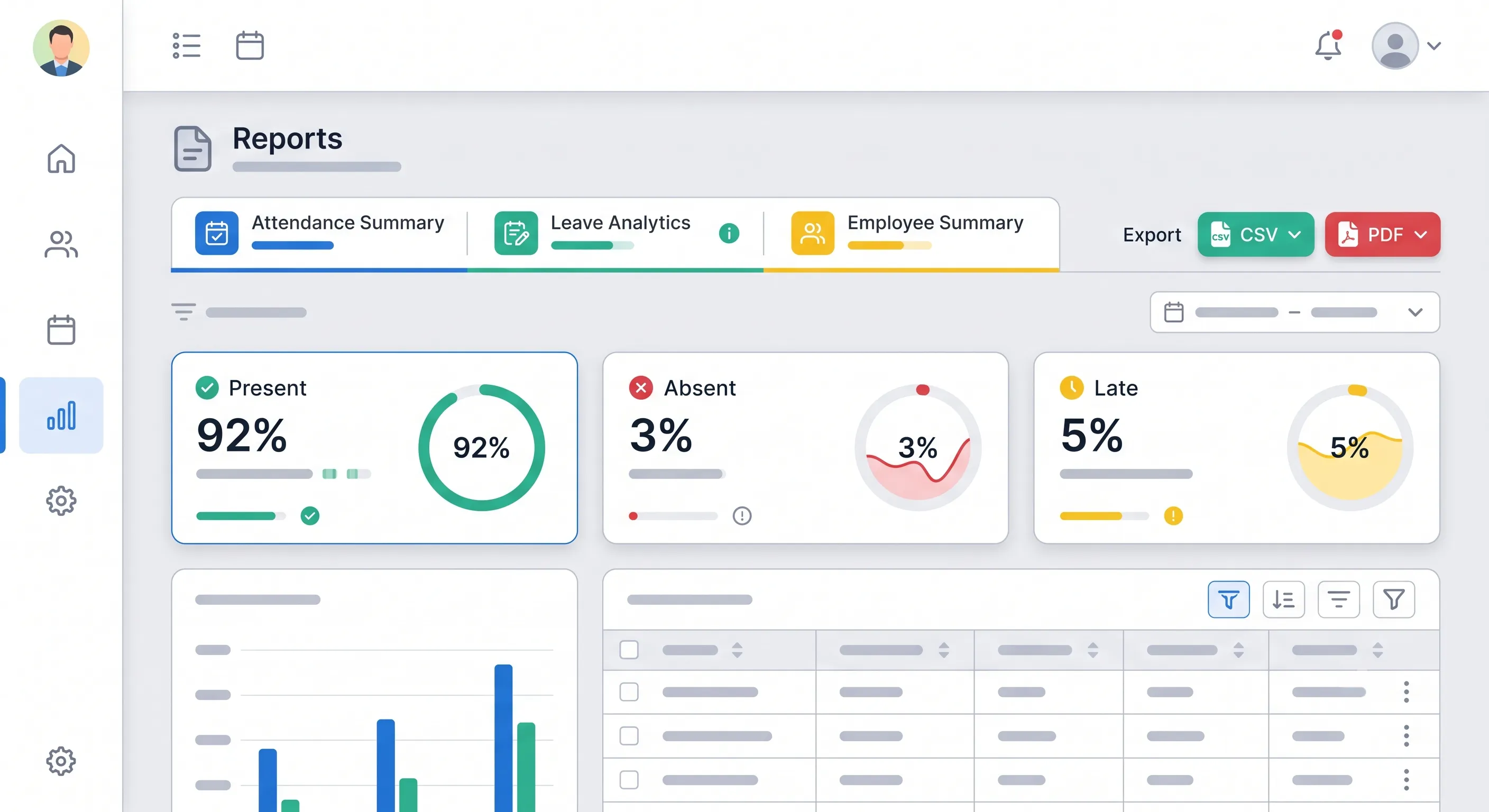
OpenHR provides several categories of reports, accessible from the **Reports** page by HR and Admin users.
### Attendance Summary Reports
Attendance reports give you a complete picture of who is showing up, who is late, and who is absent. Available views include:
- **Daily Summary** — Who was present, absent, or late on a specific day. Useful for daily stand-ups or shift handovers.
- **Weekly/Monthly Summary** — Aggregated attendance data over a week or month. Ideal for identifying patterns — is one employee consistently late on Mondays? Is absenteeism spiking in a particular department?
- **By Employee** — Individual attendance history over a date range. Shows every check-in and check-out, lateness markings, and absence days.
- **By Department** — Compare attendance patterns across departments. Are some departments showing significantly higher absenteeism? This can be an early indicator of management or morale issues.
Each report includes metrics like:
- Total working days in the period
- Days present, absent, and late
- Attendance percentage
- Average check-in time
- Overtime hours (if applicable)
### Leave Analytics Reports
Leave reports help you understand how leave is being utilized across your organization:
- **Leave Utilization by Employee** — How many days each employee has taken, organized by leave type (Annual, Sick, Casual, etc.). See at a glance who is using their leave and who is accumulating it.
- **Leave Utilization by Department** — Compare leave usage across departments. High leave usage might indicate burnout or disengagement; low leave usage might indicate employees are not taking time off when they should.
- **Leave Balance Summary** — Remaining balances for all employees. Useful for year-end planning — identify employees who need to use their remaining leave before it expires.
- **Approval Analytics** — Average approval turnaround time, rejection rates, and leave request volume by month. Helps managers and HR identify bottlenecks in the approval process.
### Interactive Charts and Visualizations
Reports are not just tables of numbers. OpenHR includes interactive charts that make trends immediately visible:
- **Attendance trend lines** — See how attendance rates change week over week or month over month.
- **Department comparison bar charts** — Visually compare metrics across departments.
- **Leave type distribution pie charts** — See what proportion of leave is Annual vs. Sick vs. Casual.
- **Drill-down capability** — Click on a department in a chart to see individual employee data within that department.
### Custom Date Range Filtering
Every report supports custom date ranges. You are not locked into predefined periods. Need to analyze attendance during a specific project phase? Export leave data for a compliance audit covering a specific quarter? Set any start and end date.
### CSV Export
Every report can be exported to CSV with one click. The export includes all columns visible in the report, formatted for easy import into:
- **Payroll software** — Attendance data formatted for common payroll system import templates.
- **Spreadsheets** — Open in Excel or Google Sheets for additional analysis or charting.
- **Compliance filings** — Attendance and leave records formatted for labor law compliance reporting.

## How to Use Reports Effectively
### For Daily Operations
Start each day with a quick glance at the Daily Attendance Summary. See who is absent or late before the workday begins, so you can reassign tasks or arrange coverage proactively.
### For Weekly Management Reviews
Run the Weekly Attendance Summary and scan for:
- Employees with attendance below 90% — check in with them to understand if there is an issue.
- Departments with unusual patterns — a spike in sick leave might indicate a health issue spreading through a team.
- Late arrival trends — is a particular shift consistently late? The shift timing may need adjustment.
### For Monthly Payroll Processing
Export the monthly attendance summary and use it as the input for payroll calculations:
- Total days worked per employee.
- Overtime hours.
- Unpaid leave days (deduct from salary).
- Late arrivals (if your policy includes salary deductions for lateness).
Having a single, trusted data source for payroll eliminates the most common source of payroll errors: mismatched data between attendance and payroll systems.
### For Strategic Planning
Quarterly or annually, use aggregate reports to inform strategic decisions:
- **Headcount planning** — Attendance and leave patterns help predict workforce availability.
- **Policy adjustments** — If leave utilization is consistently low, employees may not feel comfortable taking time off. If it is extremely high, your allowances may be too generous.
- **Performance correlation** — Do departments with higher absenteeism also have lower performance review scores? The correlation can reveal systemic issues.
- **Budgeting** — Overtime reports help forecast labor costs. Leave balance reports help forecast leave encashment liabilities.
## Dashboard Widgets for At-a-Glance Insights
Beyond the dedicated Reports page, key metrics are embedded directly into the dashboard for quick access:
- **Admin Dashboard** — Summary cards for attendance rates, pending leave requests, and employee count.
- **Manager Dashboard** — Team-specific metrics: who is present, who is on leave today, team attendance rate.
- **Employee Dashboard** — Personal metrics: my attendance rate, my leave balance, upcoming holidays.
These widgets update in real time and provide the most frequently needed information without requiring a full report.
## Data Accuracy and Integrity
Reports are only as good as the data they are built on. OpenHR ensures data accuracy through:
- **Server-verified timestamps** — Attendance times are recorded server-side, preventing manipulation.
- **Automated calculations** — Leave balances are calculated based on configured policies, not manual entries.
- **Immutable records** — Closed attendance sessions cannot be silently edited. All adjustments are logged with the admin's identity and timestamp.
- **Consistent naming** — Employee names, department names, and leave type names are standardized across all reports through the centralized configuration.
## Conclusion
HR data contains valuable insights about your workforce — if you can access and understand it. OpenHR's reporting module transforms attendance and leave data into clear, actionable reports with one-click CSV export. Whether you need a daily attendance check, monthly payroll input, or quarterly strategic analysis, the data is ready when you are.
**Further Reading**
- [Managing Employee Leave with OpenHRApp](https://www.openhrapp.com/blog/managing-leave-with-openhrapp) — See how leave data flows from employee applications into the reports and analytics covered here.
- [How Selfie-Based Attendance Works in OpenHRApp](https://www.openhrapp.com/blog/how-selfie-attendance-works) — Understand the attendance data pipeline — from check-in to the summary reports that feed payroll.
---
*Explore OpenHR's reporting and analytics — completely free. [Get started](https://openhrapp.com/).*
---
## Getting Started with OpenHRApp: A Step-by-Step Setup Guide
URL: https://openhrapp.com/blog/getting-started-with-openhrapp
Category: Feature Guide
Author: OpenHRApp Team
Published: 2026-07-20
Welcome to OpenHRApp! This guide will walk you through every step of setting up your organization, from creating your account to configuring advanced policies. By the end, you will have a fully functional HR management system ready for your team.
The entire setup process takes about 30 to 60 minutes, depending on how many employees you have and how much customization you want. Let's get started.
## Step 1: Create Your Organization Account
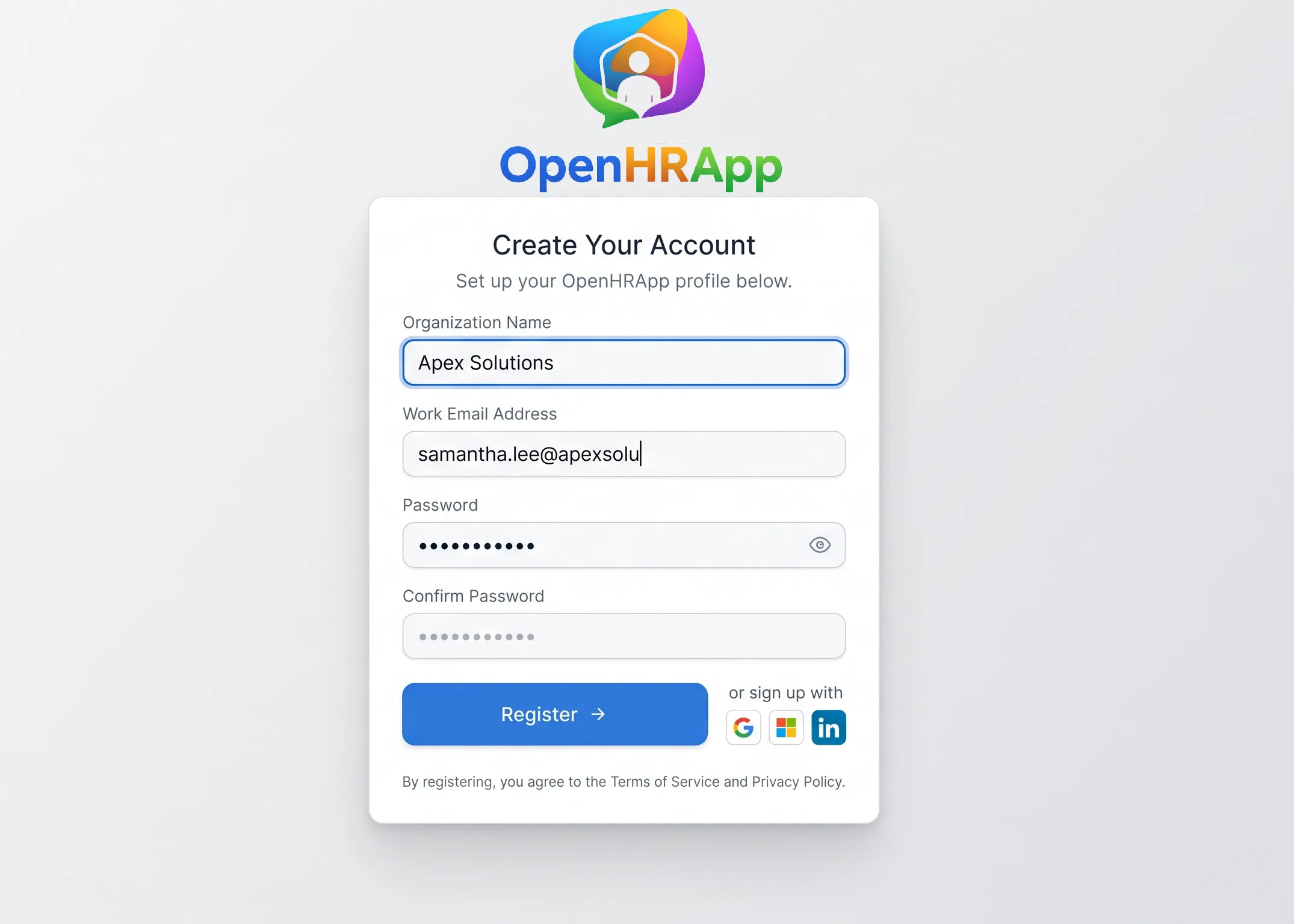
Visit [openhrapp.com](https://openhrapp.com/) and click **Get Started Free**. You will be asked to provide:
- **Organization name** — This is your company's name as it will appear throughout the app.
- **Your name and email** — You will be the first administrator for your organization.
- **Password** — Choose a strong, unique password for your admin account.
After submitting the form, you will receive a verification email. Click the link in the email to verify your account, and you will be logged in automatically.
> **Tip:** Check your spam folder if you do not see the verification email within a few minutes. Add `noreply@openhrapp.com` to your contacts to ensure future emails arrive in your inbox.
## Step 2: Configure Your Organization Settings
Once logged in, navigate to **Organization** from the sidebar. This is where you will configure the core settings that define how your HR system operates.
### Basic Configuration
Go to the **System** tab and configure:
- **Company Name** — Should already be set from registration. You can update it here.
- **Timezone** — Critical for accurate attendance tracking. Set this to your organization's primary timezone.
- **Currency** — Used in reports and any future billing features.
- **Date Format** — Choose the format that matches your region (DD/MM/YYYY, MM/DD/YYYY, etc.).
### Working Days & Office Hours
Still in the **System** tab, scroll down to **Working Days**:
- Select the days your organization operates. For most offices, this is Monday through Friday. In many Middle Eastern and South Asian countries, the work week runs Sunday through Thursday.
- Set your **Office Start Time** and **Office End Time**. These define the standard workday and are used to calculate late arrivals and early departures.
- Configure the **Late Grace Period** — how many minutes after the start time an employee can check in without being marked late.
- Set the **Auto Session Close Time** — the time after which any open attendance session is automatically closed. This prevents employees from forgetting to check out.
### Holidays
Switch to the **Holidays** tab and add your organization's holiday calendar:
- Add each holiday with a name, date, and optional type (National, Festival, Religious, etc.).
- Employees will not be marked absent on holidays, and leave applications can account for holiday dates.
- Add all holidays for the current calendar year at minimum. You can always add more later.
## Step 3: Set Up Your Organization Structure
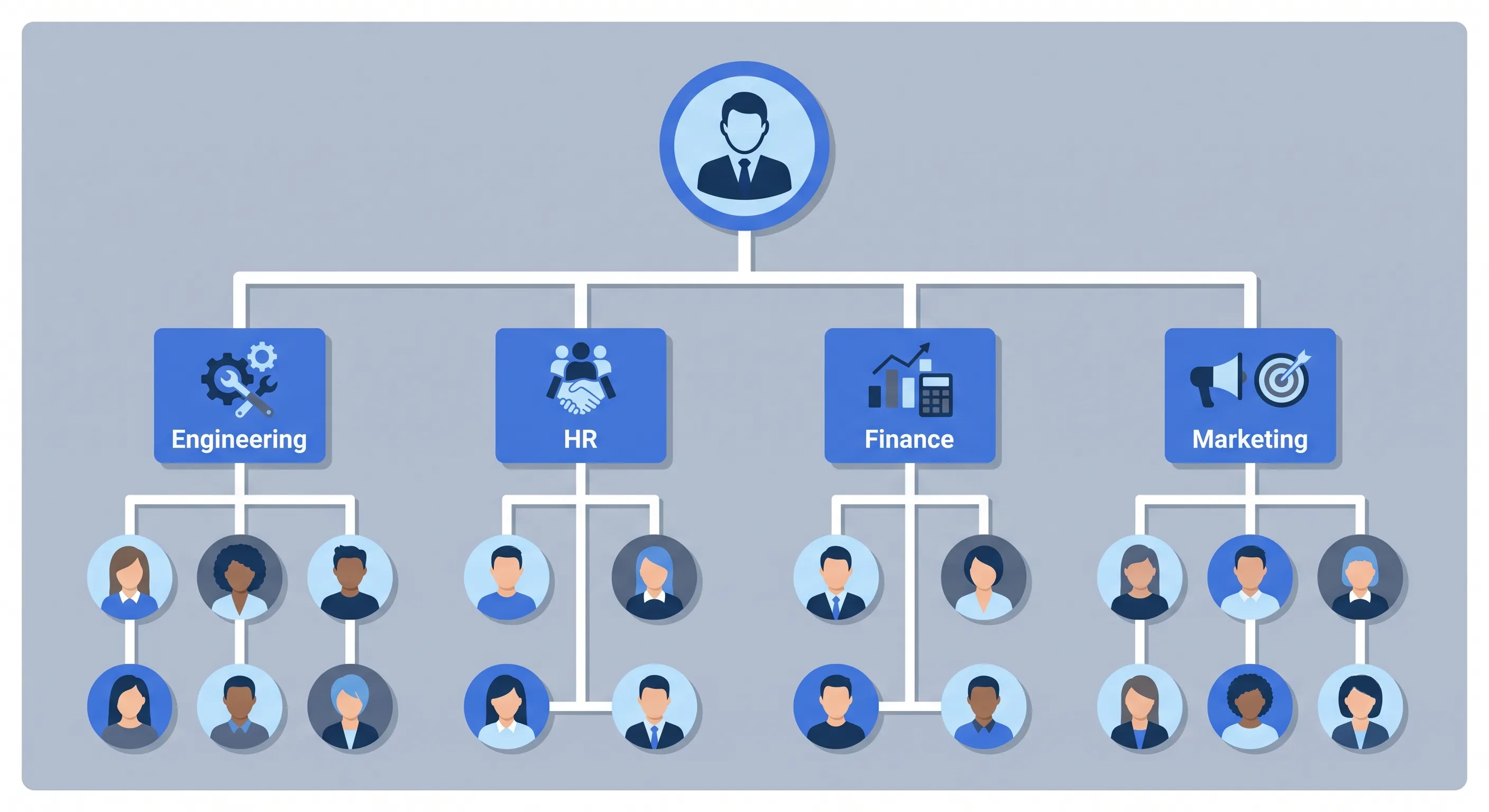
Now switch to the **Structure** tab. This is where you define how your company is organized.
### Departments
Create departments that reflect your actual organizational structure. Common examples include:
- Engineering
- Human Resources
- Finance & Accounting
- Operations
- Marketing
- Sales
- Product Management
You can add, rename, or remove departments at any time. Each employee will be assigned to one department.
### Designations (Job Titles)
Add the job titles used in your organization. Examples:
- Chief Executive Officer
- Department Head
- Senior Developer
- Junior Developer
- HR Manager
- Operations Lead
- Marketing Specialist
Designations help categorize employees by role and seniority level.
### Teams
Teams represent cross-functional or project-based groups within your organization. Unlike departments (which are structural), teams are flexible groupings. For example, you might have a "Product Launch Team" with members from Engineering, Marketing, and Sales.
Each team can have a **Team Leader** assigned from your employee list. Team leaders have visibility into their team members' attendance and leave data (depending on their role).
## Step 4: Configure Leave Policies
Go to the **Leaves** tab under Organization.
### Leave Types
OpenHR comes with default leave types, but you should customize them to match your organization's policies:
- **Annual Leave** — Set the yearly allowance per employee (e.g., 20 days).
- **Sick Leave** — Typically 7–14 days per year, with or without carry-over.
- **Casual Leave** — Short-notice personal days (usually 5–10 per year).
- **Custom Types** — Add any additional types like Maternity Leave, Paternity Leave, Earned Leave, or Unpaid Leave.
For each type, you can configure:
- Whether it has a balance (tracked allowance) or is unlimited.
- The default annual allowance.
- Whether unused days carry over to the next year.
### Leave Workflows
Switch to the **Workflow** tab to define how leave requests are approved:
- For each department, choose who approves leave requests: the employee's direct **Manager** or the **HR/Admin** team.
- If an employee does not have a manager assigned, requests automatically go to HR/Admin for approval.
- You can also configure whether certain leave types skip the manager approval step entirely.
### Employee-Specific Overrides
If certain employees have different leave allowances (e.g., senior staff get 5 extra annual leave days), you can set per-employee overrides in the Leave Policy section. These override the default allowances for the selected leave types.
## Step 5: Add Your Employees
Go to **Team Directory** from the sidebar and start adding employees.
For each employee, you will provide:
- **Full Name**
- **Email Address** — This will be their login. They will receive an invitation/welcome email.
- **Role** — Choose from: Admin, HR, Manager, Team Lead, or Employee. Each role has carefully scoped data access — managers see only their team, employees see only their own data, and HR/Admin have organization-wide access.
- **Department** — Select from the departments you created earlier.
- **Designation** — Their job title.
- **Line Manager** — Who they report to. This determines who approves their leave and reviews their performance.
- **Team** — Optional team assignment.
- **Shift** — Which work shift they follow (if you have configured multiple shifts).
- **Employment Details** — Joining date, employment type (Full-time, Part-time, Contract), and optional salary, mobile number, and emergency contact information.
### Bulk Import
If you have many employees to add, you can use the bulk import feature:
1. Download the CSV template from the Employee Directory page.
2. Fill in your employee data following the template format.
3. Upload the completed CSV file.
4. Review the imported records and fix any validation errors.
> **Important:** After adding employees, they will receive an email invitation to set up their password and log in. Make sure your email configuration is working correctly before adding a large batch of employees.
## Step 6: Review and Test
Before announcing OpenHR to your entire organization, take these final verification steps:
1. **Log in as a test employee** — If you created a test account, log in as that employee and verify they see only what they should see.
2. **Test attendance check-in** — Do a test check-in and check-out. Verify the timestamp, location, and selfie are captured correctly.
3. **Submit a test leave request** — Apply for leave as a test employee, then approve it as the manager. Verify the balance updated correctly.
4. **Check notifications** — Verify that email and in-app notifications are being sent for leave requests, approvals, and attendance alerts.
5. **Review permissions** — Navigate through the app as different roles to confirm access controls are working as expected.
## Step 7: Announce to Your Team
Once everything is verified, it is time to roll out OpenHR to your organization:
1. Send an announcement email introducing OpenHR, explaining why you chose it, and what employees should do first.
2. Share our [Complete Guide to OpenHRApp](https://www.openhrapp.com/blog/complete-guide-openhrapp) with employees (or create your own short guide).
3. Set a go-live date when everyone should start using OpenHR for attendance and leave.
4. Offer a brief training session or record a short walkthrough video.
5. Make yourself available for questions during the first week.
6. 
## What's Next?
Now that your organization is set up, explore these next steps:
- **Set up Performance Reviews** — Configure competencies, rating scales, and your first review cycle.
- **Customize Notifications** — Adjust which notification types are enabled and how frequently they are sent.
- **Configure Shifts** — If you operate multiple shifts (e.g., Office and Factory), set up shift definitions with different start/end times.
- **Explore Reports** — Run attendance summaries, leave utilization reports, and export data for payroll.
- **Install the PWA** — On mobile devices, install OpenHR as a Progressive Web App for a native app-like experience with offline support.
---
**Further Reading**
- [Managing Employee Leave with OpenHRApp](https://www.openhrapp.com/blog/managing-leave-with-openhrapp) — Configure leave types, approval workflows, and balance tracking.
- [How Selfie-Based Attendance Works in OpenHRApp](https://www.openhrapp.com/blog/how-selfie-attendance-works) — Set up shifts, test check-in/check-out, and understand the audit trail.
- [A Guide to OpenHRApp's Performance Review Module](https://www.openhrapp.com/blog/openhrapp-performance-review-guide) — Create your first review cycle with custom competencies.
- [The Complete Guide to OpenHRApp](https://www.openhrapp.com/blog/complete-guide-openhrapp) — A comprehensive walkthrough of every feature, setup, and daily workflow.
---
*Need help? Check out our other guides in the [Guides section](https://openhrapp.com/how-to-use) or reach out to our community on [GitHub](https://github.com/mimnets/openhrapp).*
---
## The Ultimate "No-Install" HRMS: High-Precision Attendance Without the App Store Headache
URL: https://openhrapp.com/blog/the-ultimate-no-install-hrms-high-precision-attendance-without-the-app-store-headache
Category: Product
Author: OpenHRApp Team
Published: 2026-07-20
Ditch the bulky downloads and expensive licenses. [OpenHRApp](https://openhrapp.com/) uses modern PWA (Progressive Web App) technology to provide a high-precision, "no-install" attendance system. From geofencing with GPS coordinates to [biometric selfie verification](https://openhrapp.com/features/biometric-selfie-verification), we've built a tool that ensures accountability for teams in the office or the field. Whether you host it yourself via [GitHub](https://github.com/mimnets/OpenHRApp) or use our managed service at [OpenHRApp.com](https://openhrapp.com/), get enterprise-level leave workflows and daily reporting for free.
## The HR App That Lives in Your Browser (No Download Required)
Forget the app store. No storage warnings, no forced updates, no IT tickets. OpenHRApp runs directly in your mobile browser — with [GPS attendance tracking](https://openhrapp.com/features/attendance-tracking), selfie verification, and [leave management](https://openhrapp.com/features/leave-management) built in. Free to self-host, or use the managed version at [OpenHRApp.com](https://openhrapp.com/).
## Why "No Install" Actually Matters
Most HR apps ask a lot from employees before they've even clocked in. Download this, allow that, update before you can log in. On a Monday morning, that friction adds up fast.
OpenHRApp works as a Progressive Web App (PWA). Employees open a URL, save it to their home screen, and it behaves like a native app — without touching the App Store or Play Store. No storage issues, no version mismatches, no complaints from the team.
And every time they open it, they're already on the latest version. That's just how PWAs work.
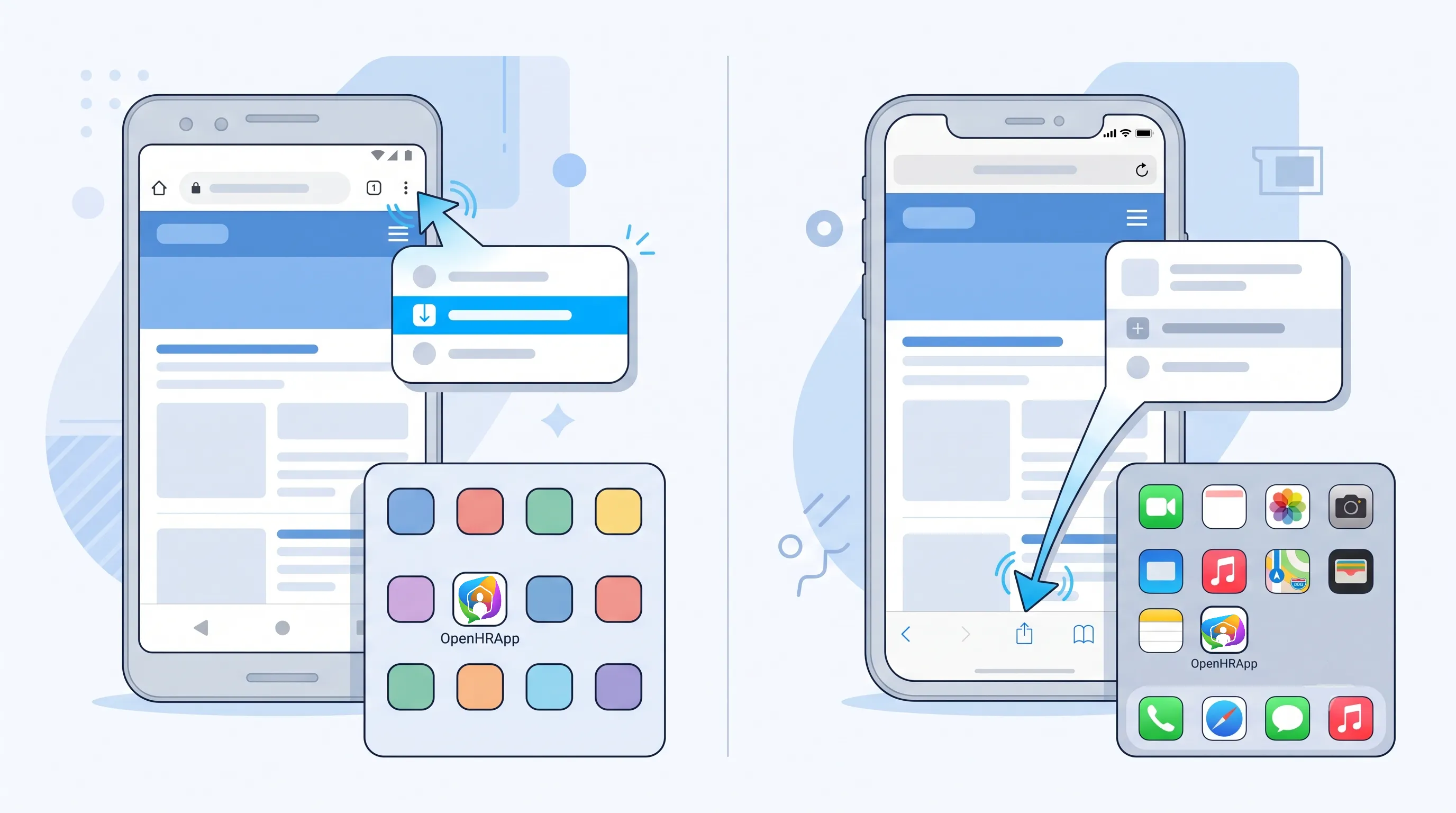
**What the Attendance System Actually Tracks**
This is where it gets practical. Logging "present" is easy. Knowing someone is actually on-site is a different problem.
### GPS Coordinates at Check-In
The app captures exact latitude and longitude the moment an employee checks in. Not a general area — a precise location. [Geofencing rules](https://openhrapp.com/features/gps-geofencing) can flag anyone who checks in outside the designated zone.
### Selfie Verification
Employees take a quick photo at check-in. It's a lightweight way to prevent buddy punching without biometric hardware or complicated setup. The [selfie-based verification](https://openhrapp.com/features/biometric-selfie-verification) ties a face to every punch — no fingerprint scanners, no face recognition servers, just a phone camera.
### Daily Attendance Reports
Managers get automated reports showing who's on-site, who's late, and who's working remotely. No manual follow-up needed. The [reports and analytics](https://openhrapp.com/features/reports-analytics) dashboard gives you exports in CSV and branded PDF.
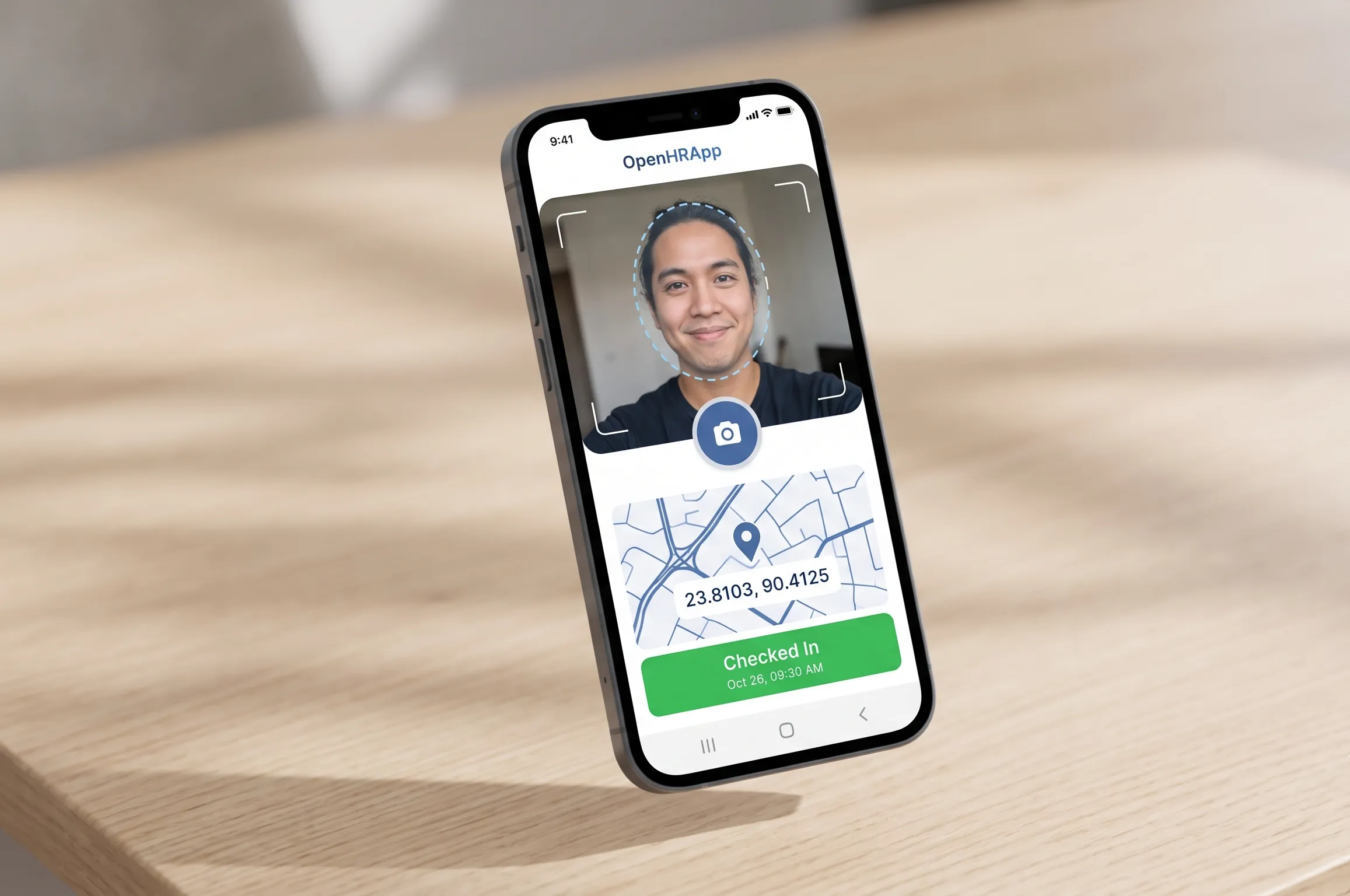
**Leave Management That Doesn't Live in Email**
[Team-wise leave workflows](https://openhrapp.com/features/leave-management) let department heads manage their own staff's time off directly in the app. Managers can see who's available on any given day, which makes planning around absences actually manageable.
No more digging through email threads to figure out if two people from the same team are both off on Friday.
## Two Ways to Get Started
**Self-Hosted (Open Source)** — Pull the code from [GitHub](https://github.com/mimnets/OpenHRApp), deploy it on your own server, and own your data completely. If you're comfortable with that setup, it's fully free and fully yours.
**Managed (OpenHRApp.com)** — We handle hosting, security, and backups. You log in and use it. Good option if you want the features without the infrastructure work.
For a step-by-step walkthrough, check out the [Getting Started with OpenHR guide](https://www.openhrapp.com/blog/getting-started-with-openhrapp).
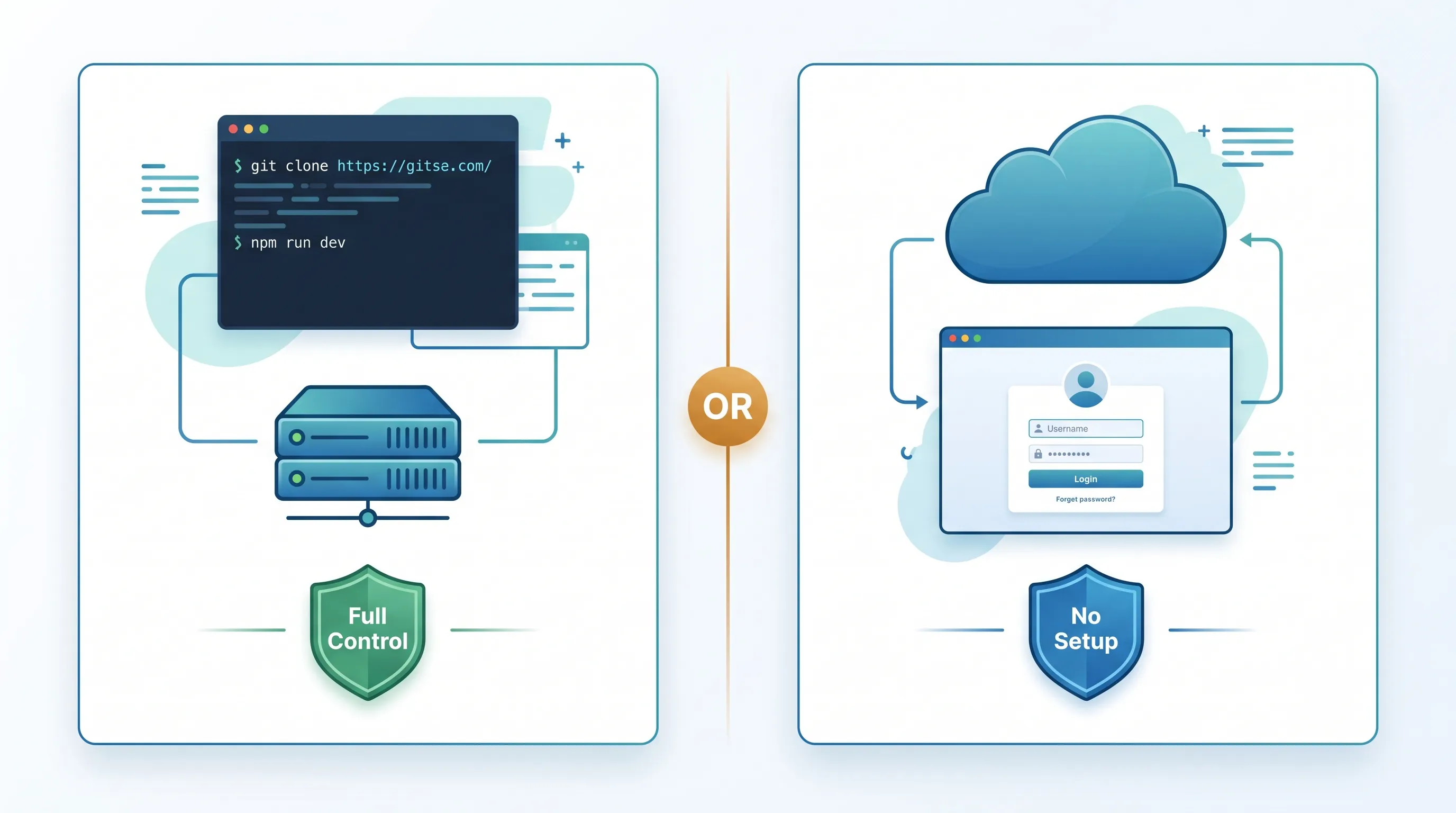
**Pricing That Doesn't Assume You're Already Funded**
- **14-Day Trial** — Full access to all features, no credit card required. Just sign up and explore.
- **Extended Trials** — Need longer to evaluate? Request a 30 to 90-day extension. We'd rather you make a confident decision than a rushed one.
- **Lifetime Access (One-Time Donation)** — If the app works for you long-term, a small one-time donation keeps your access permanent and helps fund ongoing development.
- **Ad-Supported Free Plan** — Prefer to pay nothing at all? The ad-supported version is completely free. Ads cover server costs, nothing more.
For a detailed breakdown of all costs and options, see our [OpenHRApp vs Commercial HRMS comparison](https://github.com/mimnets/OpenHRApp/blob/main/blog/openhr-vs-commercial-hrms-comparison).
## Who This Is For
If you're a developer, the [GitHub repo](https://github.com/mimnets/OpenHRApp) is open and built with React, TypeScript, and Supabase — so customizing it for your own needs is straightforward.
If you're a business owner, you get GPS attendance tracking, selfie verification, and leave management without paying per-seat enterprise pricing or dealing with app deployment.
It's a practical tool built to stay out of your way.
## Frequently Asked Questions
### Q: What is a PWA and do I need to install anything?
A: A Progressive Web App (PWA) runs in your browser and can be saved to your phone's home screen. No app store download, no storage drain, and it updates automatically. On Android, use Chrome's "Install App" option. On iPhone, use Safari's "Add to Home Screen."
### Q: Does GPS tracking work if employees are indoors?
A: Yes. Modern smartphones use a combination of GPS, Wi-Fi positioning, and cell tower triangulation. Indoor accuracy is typically within 10-30 meters — more than enough for geofencing. If GPS is unavailable, the app falls back to the best available location data.
### Q: Can I use OpenHRApp for field teams and remote workers?
A: Absolutely. The app supports two duty modes: Office mode for standard 9-to-5 setups and Field mode for employees at job sites, construction zones, or satellite offices. Field mode prompts workers to add site remarks so managers know exactly where each person is working.
### Q: Is my data secure if I self-host?
A: Your data lives entirely in your own Supabase project — employee selfies, GPS logs, personal info, everything. Supabase provides encryption at rest, audit logging, and configurable backup policies. No third party can access your data.
### Q: What happens after the 14-day trial?
A: You have three options: continue free with ads, make a one-time donation for ad-free lifetime access, or request a trial extension if you need more evaluation time. There's no automatic billing and no credit card is ever required.
---
**Start your free trial at [OpenHRApp.com](https://openhrapp.com/)** or **[View the source code on GitHub](https://github.com/mimnets/OpenHRApp).**
*OpenHR is open source under the MIT License. For more on how we compare to commercial alternatives, read our [OpenHRApp vs Commercial HRMS comparison](https://www.openhrapp.com/blog/openhrapp-vs-commercial-hrms-comparison).*
---
## The Complete Guide to OpenHRApp: Features, Setup, and Daily Workflows
URL: https://openhrapp.com/blog/complete-guide-openhrapp
Category: Feature Guide
Author: OpenHRApp Team
Published: 2026-07-19
Look, I get it. You've probably spent hours Googling "free HR software" and every result either wants your credit card after five users or looks like it hasn't been updated since Windows XP was cool. I was in the same boat when I started working on OpenHR.
Here's what happened: a friend of mine runs a garments factory outside Dhaka with about 200 workers. He was tracking attendance on paper. Paper! In 2026. Workers would sign a register, someone would manually type it into Excel at the end of the week, and payroll was always a mess because nobody could agree on who showed up when. He asked me if there was something cheap that could fix this. I looked around, and honestly? Nothing fit. The enterprise tools wanted $8 per user per month (do the math on 200 employees), and the free ones were either half-broken or required a PhD in DevOps to set up.
So we built OpenHRApp, powered by Supabase for database, auth, and file storage. And after running it in production for a while now, I figured it was worth writing down everything it does and how to actually get it running, because the README only tells half the story.
## Why We Didn't Just Use BambooHR or Zoho
People ask this a lot, so let me get it out of the way.
**The setup is dead simple.** Most open source HR platforms need Docker, PostgreSQL, Redis, Nginx reverse proxies, SSL certificates... you get the idea. OpenHRApp runs on Supabase, an open-source Firebase alternative. Create a free Supabase project, run one migration, and your entire backend — database, authentication, file storage — is ready. No Docker, no PostgreSQL config, no reverse proxies needed.
**Your data stays yours.** This was non-negotiable for us. Employee selfies, GPS locations, salary information, national ID numbers — this stuff shouldn't sit on someone else's server. OpenHR is fully self-hosted. You run it on your own machine or your own cloud VPS, and nobody else touches your data. For companies in Bangladesh, the Middle East, or anywhere with strict data residency rules, this was a big deal.
**It's actually free.** Not the "free for 5 users" kind of free. Not the "free but you can only track attendance and everything else is premium" kind. Every feature works. There's an ad-supported mode after the trial if you don't want to pay anything, and honestly the ads are pretty unobtrusive — small banners in the sidebar, nothing during clock-in or clock-out.
## What Does OpenHRApp Actually Do? A Walkthrough of Every Feature
Let me walk through the major features, because "HR software" can mean a hundred different things.
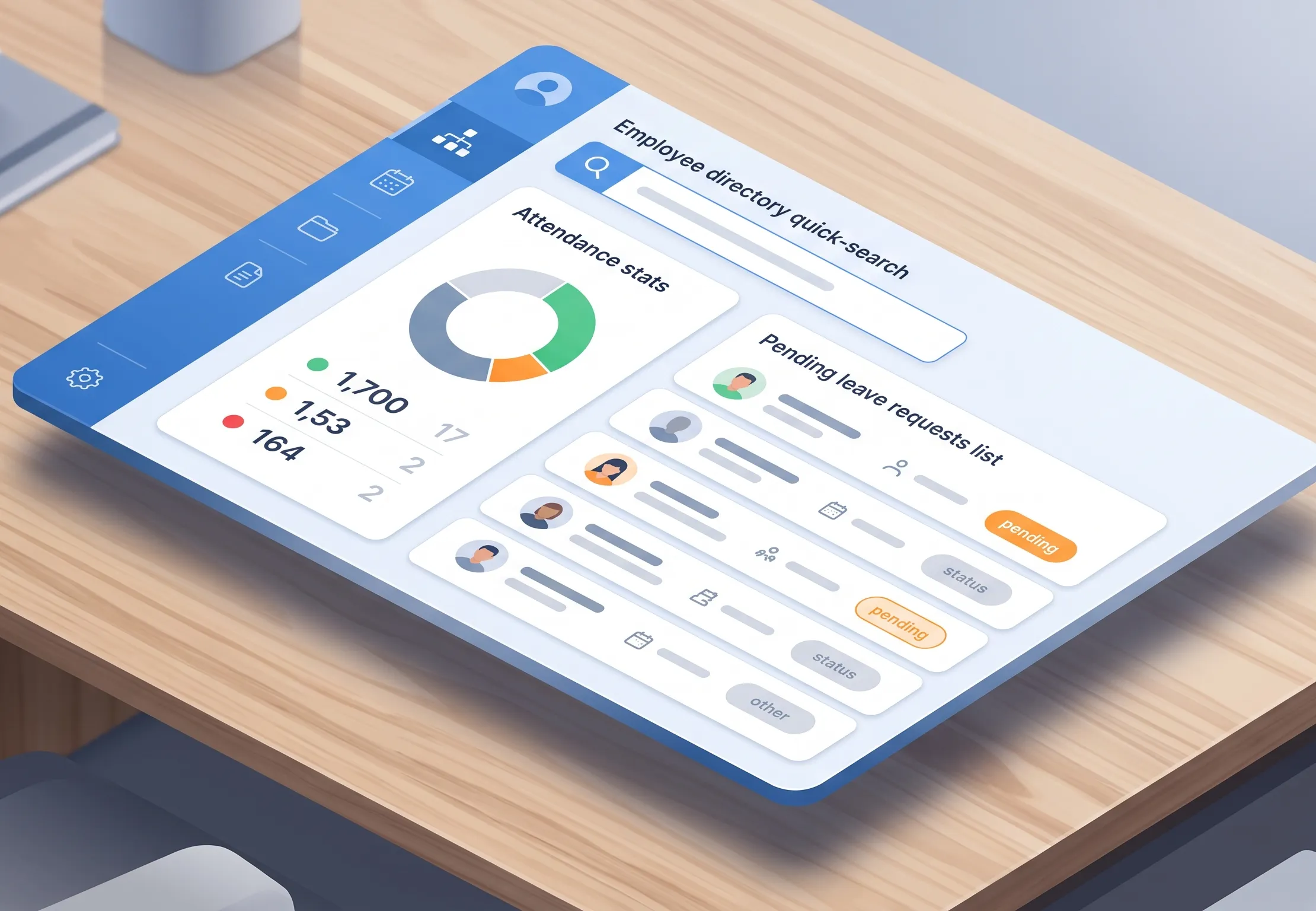
**Selfie-Based Attendance with Photo and GPS Proof**
This is the one feature people always want to talk about first, and I think it's because it solves a problem that drives every factory and office manager crazy: buddy punching.
You know the drill — Ahmad tells Rafiq "hey, punch in for me, I'm running late" and suddenly your attendance data is fiction. With OpenHR's [biometric selfie verification](https://openhrapp.com/features/biometric-selfie-verification), that trick doesn't work anymore. Every clock-in captures a selfie from the front camera. You can literally see who punched in. It's dead simple and it works without any special hardware — no fingerprint scanners, no face recognition servers, just a phone camera.
But the selfie is only half of it. The [GPS and location verification](https://openhrapp.com/features/gps-geofencing) system runs alongside the camera. When someone hits "Check In," OpenHR grabs their GPS coordinates and matches them against your office geofences. Set up your office at lat/lng with a 200-meter radius, and the system automatically tags whether the employee was inside or outside that zone. If they're outside all your defined locations, it falls back to OpenStreetMap reverse geocoding and records the street address instead.
We built two duty modes because one size doesn't fit all. Office mode is your standard 9-to-5 setup. Factory mode (or Field mode — same thing) is for employees at job sites, construction zones, or satellite offices, and it forces them to write remarks about what site they're working at. That distinction turned out to be surprisingly useful for our factory friend, because now his site supervisors can see at a glance who's at which location.
Oh, and there's an auto-close thing that saved us from an embarrassing amount of "I forgot to clock out" tickets. If someone forgets to check out, the system closes their session automatically at a time you configure. No more employees showing 18-hour workdays because they forgot to tap a button.
For the full breakdown of how the [attendance tracking](https://openhrapp.com/features/attendance-tracking) system works end to end, including shift integration and late calculations, there's a detailed page on the site.
### Leave Requests That Actually Route to the Right Person
I'll be honest — [leave management](https://openhrapp.com/features/leave-management) was the feature I was least excited to build, because every HR system has it, and I thought "how hard can it be?" Turns out, pretty hard if you want it to work the way real companies actually operate.
The basic flow is straightforward: employee picks a leave type (Annual, Casual, Sick, Maternity, whatever), selects dates, writes a reason, hits submit. But then what? In some departments the manager approves first, then HR does final sign-off. In other departments — maybe a small team where the manager is also HR — it goes straight to the admin. And some companies skip the manager step entirely for certain leave types.
We handle all of this with per-department workflow configuration. You go into Organization settings, pick a department, and tell it "this department's leaves should route to HR directly" or "this one needs manager approval first." The system figures out the rest. If an employee doesn't have a line manager assigned, it skips that step automatically instead of getting stuck in limbo forever.
Leave balances track themselves. You set defaults — say, 15 annual days, 10 sick days, 7 casual days — and as requests get approved, the balances deduct. You can override per employee too, which is handy for senior staff with negotiated leave packages.
Every status change fires a notification. Employee submits? Manager gets a bell and an email. Manager approves? Employee gets notified and HR gets a "ready for your review" ping. It sounds obvious, but I've used systems where you'd submit a leave request and then have to physically walk to your manager's desk to tell them to check their inbox. Not great.
### Performance Reviews That Don't Make Everyone Miserable
Nobody loves performance reviews, but they're a reality, and [OpenHR's performance review system](https://openhrapp.com/features/performance-reviews) tries to make them as painless as possible.
It's a three-step process: the employee does a self-assessment, their manager adds their evaluation, and HR finalizes everything. Each step uses competency ratings on a 1-to-5 scale. The default competencies are things like Agility, Collaboration, Customer Focus, but you can change them to whatever makes sense for your company. A software company might add "Code Quality" and "Technical Leadership." A sales org might want "Client Retention" and "Pipeline Management."
Here's the part I'm actually proud of: the system automatically pulls attendance and leave data for the review period and shows it right on the review form. So when a manager is evaluating someone, they can see — right there on the same screen — that this employee had 3 late arrivals and took 8 sick days during the quarter. Or that another employee had perfect attendance and zero unplanned absences. It removes the guesswork and the "well, I feel like they were late a lot" bias. The data is just there.
Review cycles have proper lifecycle management too. HR creates a cycle with start and end dates, and the system handles transitions. Reminders go out when deadlines approach. If someone hasn't submitted their self-assessment three days before the deadline, they get a nudge.
### An Employee Directory That's More Than a Phone Book
The [employee directory](https://openhrapp.com/features/employee-directory) might seem boring on the surface — it's a list of employees, right? — but the role-based access control is where it gets interesting.
OpenHR has five roles: Admin, HR, Manager, Team Lead, and Employee. What each role can see is carefully scoped. An Admin or HR person sees the entire organization. A Manager sees their team members and direct reports. A Team Lead sees their specific team. An Employee sees only their teammates — peers in the same team.
This scoping applies everywhere, not just the directory. When a Manager opens the attendance audit page, they only see their team's records. When they open the leave section, they only see requests from their reports. It's not just UI filtering either — the API enforces it, so even if someone messed with the frontend code, they couldn't pull data they shouldn't see.
For admins, the directory is also where you provision new user accounts. You fill in their details, assign a department and designation, put them on a team, pick their shift, and they get login credentials. There's also CSV and PDF export now, which is handy for annual reports or when finance needs a current headcount by department.
### Reports You Can Actually Hand to Your Boss
The [reports and analytics](https://openhrapp.com/features/reports-analytics) section is built for one thing: getting data out of the system in a format that's useful.
You pick a date range, optionally filter by department or team, and generate attendance or leave reports. The data shows up in a table you can sort and filter, and then you export it as CSV for Excel or as a branded PDF with your company logo, summary stats, and proper page numbers. That PDF thing sounds minor but trust me — the first time an HR manager needs to email an attendance summary to the CEO, having a properly formatted PDF with the company logo on it makes them look good.
The reports pull from actual punch data, so they're accurate down to the minute. Late arrivals are calculated against the employee's assigned shift and grace period, not some arbitrary global threshold.
## How to Get OpenHRApp Running (The Honest Version)
I'm going to give you the actual setup steps, not the marketing-sanitized version.
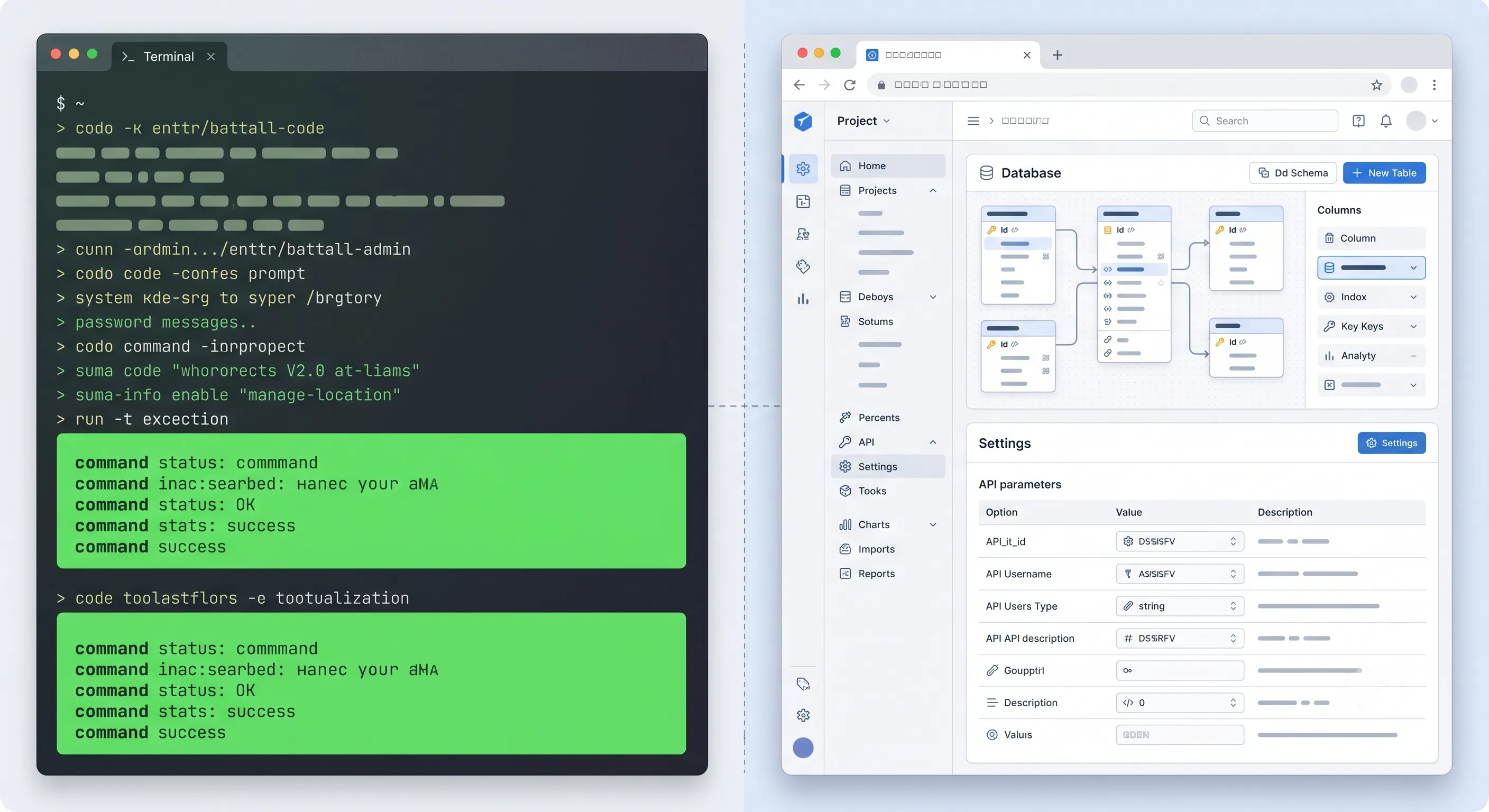
**Step 1: Set Up Supabase**
OpenHRApp uses Supabase as its backend. Create a free account at [supabase.com](https://supabase.com/) and start a new project (takes about 2 minutes). Go to Project Settings → API and copy your project URL and anon key.
Then, in your local clone of the repo:
```
npx supabase link --project-ref your-project-ref
npx supabase db push
```
This applies all migrations — tables, indexes, Row-Level Security policies, triggers, and cron jobs are configured. If you prefer self-hosting, Supabase can be deployed via Docker on your own server.
Total time: about 5 minutes.
### Step 2: Run the Frontend
```
git clone https://github.com/mimnets/OpenHRApp.git
cd OpenHRApp
npm install
npm run dev
```
That gives you a dev server on `http://localhost:3000`. For production, run `npm run build` and throw the `dist/` folder on any static host — Vercel, Netlify, a $5 DigitalOcean droplet with Nginx, whatever you've got.
### Step 3: Connect and Register
First launch, the app connects to your Supabase backend automatically via your environment variables. Register your organization — company name, country, logo, your admin email and password — and you're in.
### Step 4: Set Up Your Organization Structure
Before you start adding people, spend 15-20 minutes configuring things. This is the part that pays dividends later:
1. **Departments and Designations** — Add your actual department names and job titles. Don't overthink this; you can always add more later.
2. **Teams** — Create teams and assign team leaders. This drives the manager visibility and leave routing.
3. **Office Locations** — Add your office coordinates for GPS geofencing. Open Google Maps, right-click your office, copy the lat/lng, set a reasonable radius (100-300 meters usually works).
4. **Shifts** — Set up work schedules. At minimum, create one default shift with your office hours and grace periods.
5. **Leave Policies** — Set default leave balances by type.
6. **Holidays** — Add your public holidays so the system doesn't mark people absent on Eid or Christmas.
### Step 5: Add Your People
Now go to the Employee Directory, hit "Provision New User," and start adding employees. Each one gets a department, designation, role, team assignment, and shift. Give them their login credentials (or let them use the email they registered with).
For a 50-person company, this takes maybe an hour. For 200+, you'll want to batch it — we're working on a CSV import feature but for now it's manual.
## The Daily Workflow (What It Actually Feels Like to Use)
### If You're an Employee
Your morning: open the app on your phone, tap the attendance button on the dashboard, see the camera and your GPS location, tap Check In. That's it. Maybe 10 seconds.
Need a day off? Go to Leaves, tap Apply, pick your type and dates, write "family commitment" or whatever your reason is, submit. You'll see it move through the approval pipeline in real time — pending with your manager, then pending with HR, then approved (or, sorry, rejected with a comment explaining why).
During review season, you'll get a notification to fill in your self-assessment. Rate yourself honestly — your manager can see your attendance data right next to your self-ratings, so "I'm always on time" when the data shows 12 late arrivals will not land well.
### If You're a Manager
The dashboard tells you who's checked in, who hasn't, and who has pending leave requests. The attendance audit view lets you look at patterns — is someone consistently late on Sundays? Are field workers checking in from the right locations?
Leave approvals are quick: you see the request, the reason, and how many leave days the employee has left. Approve or reject with optional comments. It flows to HR automatically.
### If You're Running the Show (HR or Admin)
You get the organizational view. Attendance rates by department, leave trends, open review cycles. The reports page is probably where you'll spend the most time, pulling data for payroll or management meetings.
The announcement system is actually pretty useful for company-wide communications. You can target messages by role (e.g., "only managers need to see this policy update") and set expiry dates so outdated announcements clean themselves up.
## Running OpenHRApp on Phones
OpenHR is a Progressive Web App, which in plain English means you can install it to your phone's home screen directly from the browser. No app store involved.
On Android, open it in Chrome and tap "Install App" from the menu. On iPhone, use Safari and hit Share > Add to Home Screen. Either way, it shows up as an icon, opens full-screen, and works offline for basic stuff.
For the selfie-based attendance to work on mobile, you do need to grant camera and location permissions. The app asks nicely and explains why, but if someone fat-fingers "Deny" on the permission popup, there's a help guide built into the attendance screen that walks them through re-enabling it on their specific browser or device.
## Shifts, Holidays, and the Fiddly Scheduling Stuff
Not everyone works 9-to-5, and OpenHR doesn't assume they do.
You define shifts with a name (Morning, Night, Split, whatever), start and end times, and grace periods. The late grace period is the one that matters most in practice — if your shift starts at 9:00 and grace is 5 minutes, an employee checking in at 9:04 is on time but 9:06 is late. Getting this right saves you from a lot of complaints.
There's also an "earliest check-in time" per shift, which stops the system from accepting a 5 AM check-in for a 9 AM shift. Without this, you'd have employees punching in ridiculously early to game the punctuality metrics.
For temporary changes — Ramadan schedules, winter hours, one-off accommodations — use shift overrides. You assign a different shift to specific employees for a date range, and their regular shift kicks back in automatically when the override expires.
Holidays are centralized in a calendar. Mark them as National, Festival, Religious, or custom types. The system uses this to skip absent-marking on holidays and to exclude them from leave day calculations.
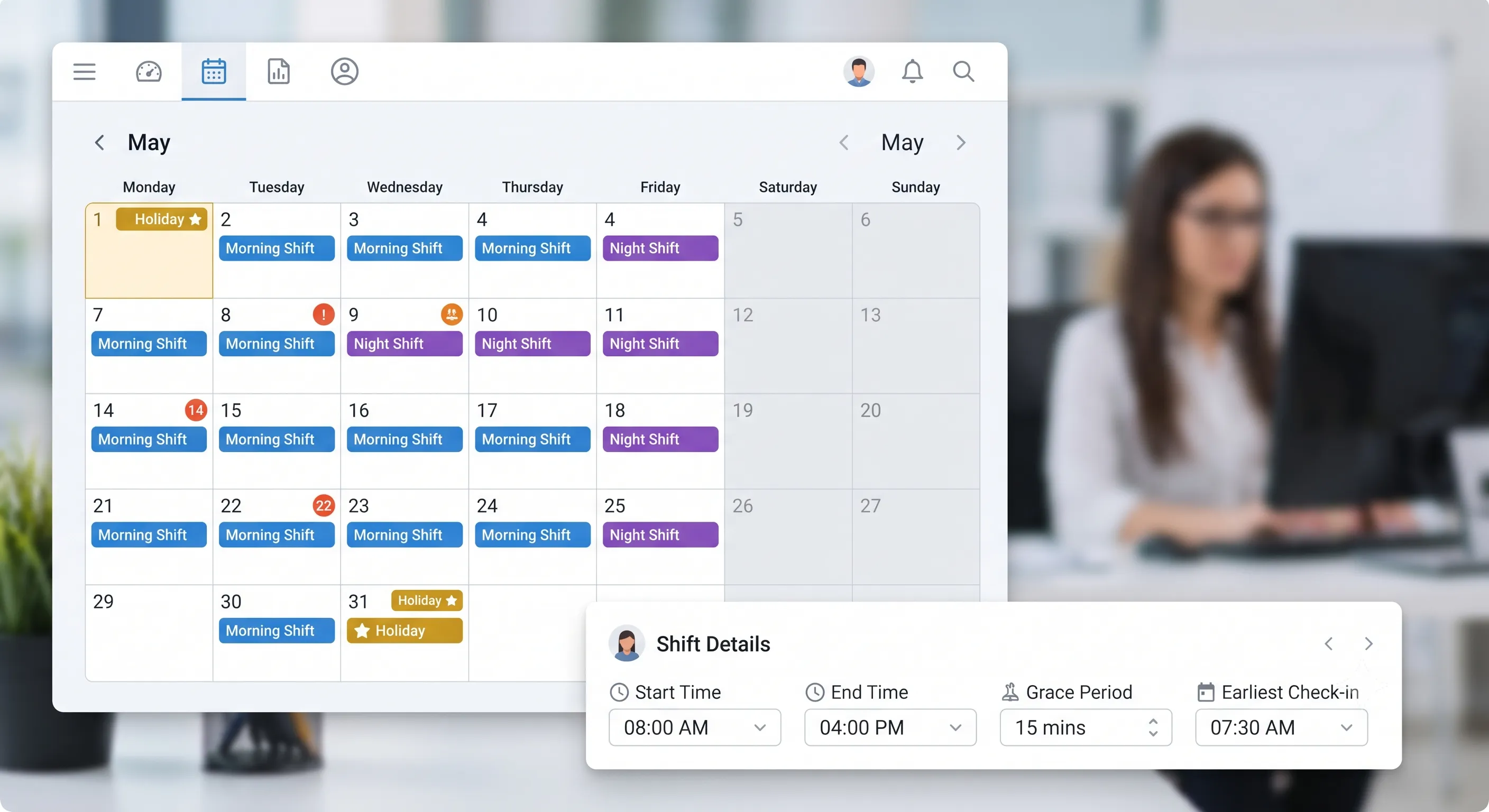
**What It Costs (Actually Nothing, Seriously)**
I know "free" gets thrown around loosely in software. Here's the deal with OpenHR.
You get a 14-day trial with every feature unlocked. After that, three paths:
**Keep it free with ads.** The system shows small banner ads in non-critical areas (sidebar, bottom of dashboard). Nothing during attendance punching, nothing in modals, nothing that blocks your workflow. For most small organizations, this is the pragmatic choice.
**Support the project.** Donation tiers from $5 (3 months ad-free) to $50 (lifetime). Processed through Ko-fi, Buy Me a Coffee, or PayPal. This keeps development going and is honestly how we pay for hosting the landing page and demo server.
**Ask for more trial time.** If you're mid-rollout and need more evaluation time, request a 7, 14, or 30-day extension. We approve these pretty liberally — we'd rather you take your time and adopt it properly than rush and have a bad experience.
There are no per-user fees. No enterprise tiers. No "contact sales" pricing pages.
## Data Privacy and Security
Since you're self-hosting, security is your responsibility — but that also means you're in control.
All employee data lives in your Supabase project. Selfies, GPS logs, personal info, salary data — it's all on your server. The only external service OpenHR talks to is OpenStreetMap's Nominatim API for converting GPS coordinates into human-readable addresses, and that's a simple lookup — no employee data is transmitted.
Supabase provides encryption at rest, audit logging, and configurable backup policies out of the box.
Role-based access control is enforced at the API level, not just the UI. Even if someone inspected the frontend code and tried to call APIs directly, Supabase's Row-Level Security policies block unauthorized access. Employees can only read their own records. Managers can only see their team. Only Admin and HR have org-wide access.
Uploaded images (selfies, avatars, logos) are automatically converted to WebP format to keep storage manageable. When you have 200 employees punching in with selfies every day, those files add up fast. WebP compression helps a lot.
## Who This Is Really Built For
I'm not going to pretend OpenHR is for everyone. It won't replace Workday for a 10,000-person enterprise, and it doesn't have payroll or applicant tracking (yet).
But if you recognize yourself in any of these, it's probably worth trying:
- You have 50 to 500 employees and your current "system" involves Excel, paper registers, or WhatsApp groups
- You're tired of buddy punching and want photo-verified attendance without buying fingerprint hardware
- You have multiple locations — offices, factories, field sites — and need to know where people are when they clock in
- You care about data privacy and don't want employee records on a third-party cloud you can't audit
- Your leave approval process is currently "email your manager and hope they remember"
- You want proper performance reviews but the enterprise tools cost more than the problem is worth
It works well for garments factories, IT companies, NGOs, schools, construction firms, and basically any mid-size organization that needs real HR infrastructure without the enterprise tax.
## Frequently Asked Questions
### Q: Is OpenHRApp really free?
A: Yes. After the 14-day trial, you can keep using it free with ads, or donate for ad-free access. No per-user fees, no premium tiers, no credit card required.
### Q: Do I need a server to run OpenHRApp?
A: No. Use Supabase cloud (free tier) and you're set. For self-hosting, Supabase Docker deployment is also supported. Both options work with the same setup steps.
### Q: Can I migrate from PocketBase to Supabase?
A: Migration scripts are available in the repo under scripts/migrate-from-pb/. The migration covers users, attendance, leaves, reviews, and all settings.
### Q: What happens to my data if I stop using OpenHRApp?
A: Your data stays in your Supabase project — you keep full access. Export anytime via the Supabase dashboard or API.
## Wrapping Up
OpenHR does four things and tries to do them well: [attendance tracking](https://openhrapp.com/features/attendance-tracking) with real verification, [leave management](https://openhrapp.com/features/leave-management) with flexible approval workflows, [performance reviews](https://openhrapp.com/features/performance-reviews) backed by actual data, and an [employee directory](https://openhrapp.com/features/employee-directory) with proper access control. It doesn't try to be a Swiss Army knife for every HR function imaginable.
If you are ready to dive deeper into specific areas, we have dedicated guides for each major feature:
- [Getting Started with OpenHRApp: A Step-by-Step Setup Guide](https://www.openhrapp.com/blog/getting-started-with-openhrapp) — Walk through organization setup, employee provisioning, and policy configuration.
- [How Selfie-Based Attendance Works in OpenHRApp](https://www.openhrapp.com/blog/how-selfie-attendance-works) — Deep dive into the check-in flow, GPS verification, audit trails, and troubleshooting.
- [Managing Employee Leave with OpenHRApp](https://www.openhrapp.com/blog/managing-leave-with-openhrapp) — Leave applications, multi-level approvals, balance tracking, and team calendars.
- [A Guide to OpenHRApp's Performance Review Module](https://www.openhrapp.com/blog/openhrapp-performance-review-guide) — Competency frameworks, multi-stage evaluations, and integrated attendance data.
- [OpenHRApp Reports and Analytics](https://www.openhrapp.com/blog/openhrapp-reports-analytics-guide) — Attendance summaries, leave analytics, interactive charts, and CSV exports.
You can also check out all [OpenHRApp features](https://openhrapp.com/features) to see everything in one place before committing.
*OpenHR is open source under the MIT License. Code, issues, and contributions live on [GitHub](https://github.com/mimnets/OpenHRApp).*
---
## Building a Performance Review Process That Actually Works
URL: https://openhrapp.com/blog/building-effective-performance-review-process
Category: HR Management
Author: OpenHRApp Team
Published: 2026-07-19
Let's be honest: most employees and managers dread performance reviews. The annual ritual of filling out forms, recalling accomplishments from 11 months ago, and sitting through awkward conversations serves neither the employee nor the organization. Yet performance management — done right — is one of the most powerful tools for developing talent, aligning goals, and retaining top performers.
Here is how to build a review process that people actually find valuable.
## Why Traditional Reviews Fail
Before designing a better process, it is worth understanding why the traditional model is broken:
1. **Recency bias** — Annual reviews over-emphasize the last few weeks because that is what everyone remembers. An employee who performed brilliantly for 10 months but had one rough project in month 11 gets an unfairly negative review.
2. **Halo effect** — A single positive trait (e.g., "they are always available on Slack") colors the entire review, masking real areas for improvement.
3. **Rater inconsistency** — Different managers apply wildly different standards. A "meets expectations" from a tough manager may represent stronger performance than an "exceeds expectations" from an easy grader.
4. **No follow-through** — The review happens, the form is filed, and nothing changes. No development plan, no follow-up, no accountability.
5. **Anxiety and defensiveness** — When feedback is delivered only once a year, it feels high-stakes and personal. Employees brace for bad news rather than engaging constructively.
## The Modern Approach: Continuous Feedback + Structured Reviews
The best organizations combine two elements:
**Continuous feedback** — Regular, informal check-ins between employees and managers. These are forward-looking, coaching-oriented, and low-stakes. They normalize giving and receiving feedback throughout the year.
**Structured reviews** — Formal assessment cycles (quarterly or annual) with defined competencies, rating scales, and multi-stage evaluations. These provide a documented record of performance for compensation, promotion, and development decisions.
The structured review is not eliminated — it is enhanced by the continuous feedback that precedes it. By the time the formal review happens, nothing should be a surprise.
## Designing Your Review Cycle
### 
### Step 1: Choose Your Cadence
- **Annual:** One review per year. Works for stable organizations with clear, long-term goals. Risk: feedback is infrequent and can feel disconnected from day-to-day work.
- **Semi-annual (recommended):** Two reviews per year. Provides a mid-year checkpoint for course correction. Reduces recency bias compared to annual reviews.
- **Quarterly:** Four reviews per year. Best for fast-paced organizations, startups, and teams with rapidly evolving priorities. Can feel burdensome if the process is too heavy.
### Step 2: Define Your Competencies
Competencies are the skills, behaviors, and values you evaluate. They should reflect what actually drives success in your organization. Common competency categories:
- **Job-specific skills** — Technical expertise, domain knowledge, role-specific capabilities.
- **Collaboration and teamwork** — How effectively the employee works with others.
- **Communication** — Clarity, frequency, and appropriateness of communication.
- **Problem-solving** — Analytical thinking, creativity, resourcefulness.
- **Leadership** — For managers: team development, decision-making, strategic thinking.
- **Initiative and growth** — Proactive learning, adaptability, going beyond assigned duties.
Limit yourself to 5–8 competencies. More than that and reviews become tedious and unfocused. Each competency should have a clear description so raters understand what "good" looks like.
### Step 3: Set Your Rating Scale
A clear, consistent scale reduces rater inconsistency. Common approaches:
- **3-point scale:** Needs Improvement / Meets Expectations / Exceeds Expectations. Simple and effective for smaller organizations.
- **5-point scale:** 1 (Needs Improvement) to 5 (Outstanding). Provides more granularity but requires clear definitions for each level to prevent everyone clustering at 3.
- **Behaviorally Anchored Rating Scales (BARS):** Each number on the scale is anchored to a specific, observable behavior. Example: Level 3 — "Responds to stakeholder requests within 24 hours." Level 5 — "Anticipates stakeholder needs and proactively provides solutions before requests are made."
The key is consistency: the same scale should be used across all competencies and all employees.
### Step 4: Implement Multi-Stage Evaluation
The best review processes involve multiple perspectives:
**Stage 1: Self-Assessment** The employee rates themselves on each competency and provides written reflections. Self-assessments serve two purposes: they give the employee a voice in the process, and they reveal gaps between self-perception and manager perception — which is often the most valuable data point in the entire review.
**Stage 2: Manager Evaluation** The direct manager rates the employee on the same competencies, provides written feedback, and notes areas for development. This is the primary evaluation and carries the most weight.
**Stage 3: HR Review and Calibration** HR reviews all evaluations across the organization (or department) to ensure consistency. If one manager is rating everyone as "Outstanding" while another is more balanced, HR facilitates calibration discussions to align standards. HR then finalizes the reviews.
**Optional: Peer Feedback** 360-degree feedback — input from peers, direct reports, and cross-functional collaborators — provides a fuller picture. It works best in organizations with strong psychological safety where honest, constructive feedback is the norm.
## Making Reviews Data-Driven
Effective reviews are anchored in evidence, not impressions. Integrate relevant data into the review:
- **Attendance record** — How many days absent or late during the review period? Is there a pattern?
- **Leave utilization** — Has the employee taken leave appropriately, or are they accumulating excessive unused leave (potential burnout risk)?
- **Previous review scores** — Has performance improved, declined, or stayed consistent across review cycles?
- **Project outcomes** — Specific deliverables, metrics, or milestones accomplished during the review period.
When this data is presented alongside the competency ratings, reviews become objective assessments rather than vague opinion exchanges.
## Common Pitfalls and How to Avoid Them
### The "Everyone is a 3" Problem
When managers rate everyone as average, the review process provides no useful differentiation. Fix this by: (a) training managers on what each rating level looks like with concrete examples, (b) requiring written justification for extreme ratings (both high and low), and (c) having HR facilitate calibration sessions.
### The Halo/Horns Effect
When one outstanding (or terrible) trait colors the entire review. Fix this by requiring managers to rate each competency independently, with specific evidence for each rating.
### The "No Surprises" Rule
If an employee is surprised by negative feedback in their formal review, the manager has failed at continuous feedback. Reviews should summarize and document what has already been discussed throughout the year.
### Form Overload
If your review form takes more than 30 minutes to complete, it is too long. People will rush through it, and quality will suffer. Focus on what matters most.
## Using Technology to Streamline Reviews
A good HR platform handles the administrative overhead so you can focus on the actual conversation:
- **Automated cycle management** — Define review periods, set deadlines, and the system tracks who has completed each stage.
- **Competency templates** — Create reusable competency frameworks that can be applied across review cycles.
- **Data integration** — Attendance and leave data is automatically pulled into the review, saving manual compilation.
- **Progress tracking** — HR can see at a glance which reviews are in draft, submitted, or completed.
- **Reminder notifications** — Automatic emails nudge employees and managers as deadlines approach.
> **See it in action:** Our [guide to OpenHRApp's Performance Review module](https://www.openhrapp.com/blog/openhrapp-performance-review-guide) walks through setting up review cycles, configuring competencies, and running multi-stage evaluations with the platform.
## Conclusion
Performance reviews do not have to be an annual dread-fest. When designed thoughtfully — with clear competencies, consistent scales, multiple perspectives, and integrated data — they become a valuable tool for developing your people and aligning your organization. Pair them with continuous, informal feedback throughout the year, and you have a performance management system that actually works.
---
**Further Reading**
- [A Guide to OpenHRApp's Performance Review Module](https://www.openhrapp.com/blog/openhrapp-performance-review-guide) — Step-by-step instructions for setting up and running review cycles in OpenHR.
---
*OpenHRApp includes a full performance review module with customizable competencies, multi-stage evaluations, and integrated attendance/leave data. [Start building better reviews](https://openhrapp.com/) — completely free.*
---
## How to Choose the Right HR Management Software for Your Small Business
URL: https://openhrapp.com/blog/choosing-hr-software-small-business
Author: Admin
Published: 2026-07-18
# How to Choose the Right HR Management Software for Your Small Business
Choosing your first HR management system is a pivotal decision for any small business. The right platform can save your team hours of administrative work every week, reduce compliance risks, and give you insights into your workforce that spreadsheets simply cannot provide. The wrong choice can waste money, create frustration, and leave you stuck in a contract with software that does not fit your needs.
In this guide, we will walk through a practical, no-nonsense framework for evaluating HR software — built specifically for small businesses with 5 to 100 employees.
## Start With Your Actual Needs, Not the Feature List
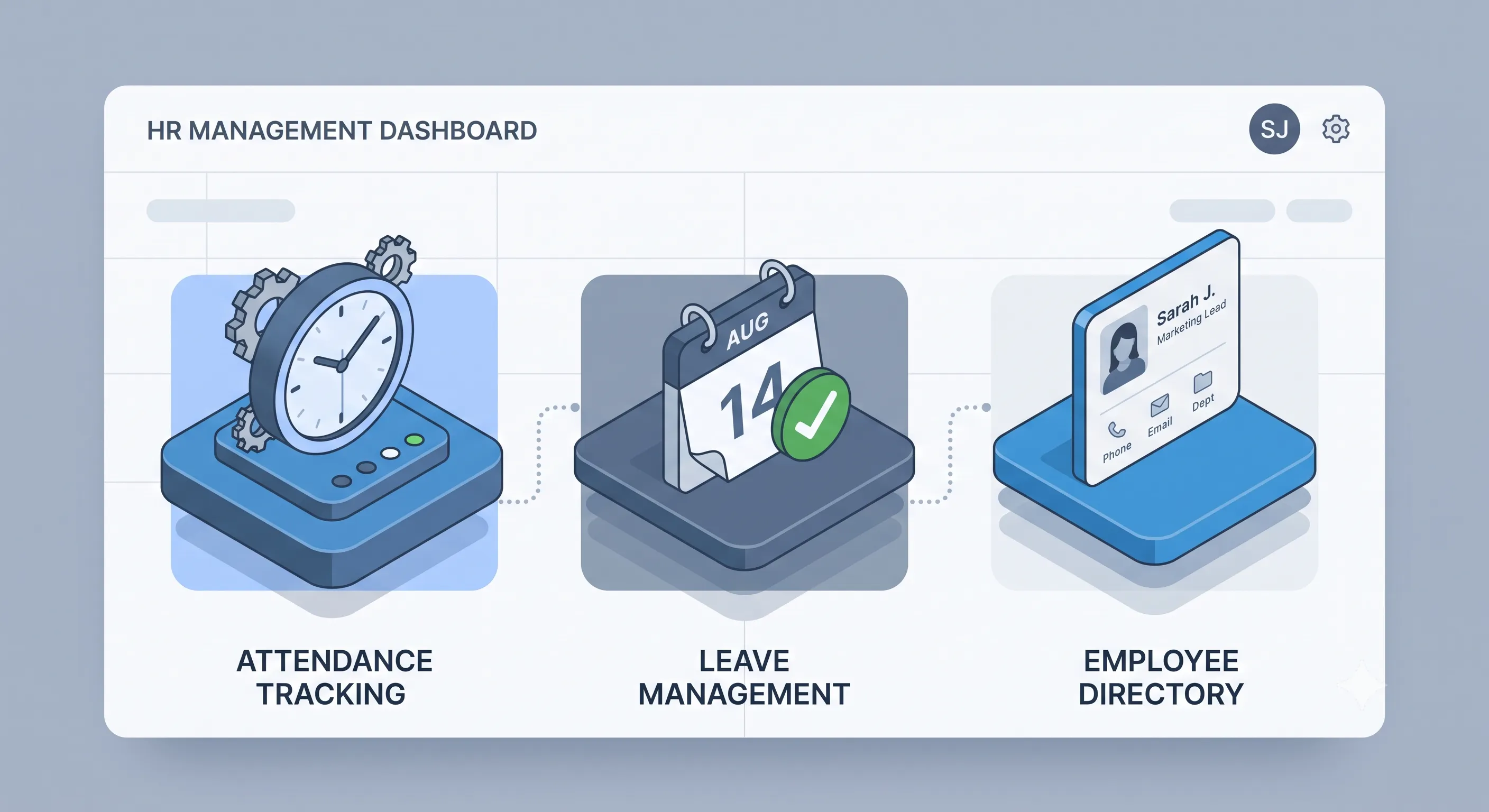
It is easy to get excited by flashy features. AI-powered analytics, predictive turnover modeling, advanced workforce planning — these sound impressive but are rarely what a small business actually needs in year one.
Begin by listing the HR tasks that currently consume the most time in your organization. For most small businesses, the top three are:
- **Attendance and time tracking** — Who is present? Who is late? How many hours did each employee work this month?
- **Leave and absence management** — Who has applied for leave? How many days do they have remaining? Who covers for them while they are out?
- **Employee records and directory** — Where do we store contact details, emergency contacts, job titles, and employment documents?
If these three areas are your pain points, look for software that handles them exceptionally well. Do not pay for modules you will not use for years.
## Must-Have Features vs. Nice-to-Have
Here is a practical breakdown of what matters at each stage of growth:
### Must-Have (Day One)
- Attendance tracking with timestamp verification
- Leave request and approval workflow
- Employee directory with search
- Role-based access (so employees see only their own data)
- Basic reporting (attendance summaries, leave balances)
### Nice-to-Have (As You Grow)
- Performance review cycles
- Multi-department organization structures
- Integration with payroll software
- Custom leave policies per department
- Onboarding checklists and templates
### Can Wait (Enterprise Scale)
- Advanced analytics and predictive modeling
- API access for custom integrations
- Single Sign-On (SSO)
- Multi-language support
- Custom branding and white-labeling
Focus on the must-have list. A tool that does the basics perfectly is far more valuable than one that does everything poorly.
## The Hidden Cost of "Cheap" HR Software
Many HR platforms advertise low monthly fees but hide costs in per-user pricing. A typical model is $5–$10 per employee per month. For a 20-person company, that is $100–$200 per month — or $1,200–$2,400 per year. Add on extra fees for features like performance reviews or custom leave types, and the total can easily double.
Open-source HR platforms flip this model entirely. The software is free. There is no per-user charge. You pay only for hosting (if you self-host) or nothing at all if you use a free cloud tier. For a small business watching every dollar, the savings are substantial.
## Why Open-Source HR Software Is Worth Considering
Open-source HR tools like OpenHRApp offer distinct advantages for small businesses:
1. **No vendor lock-in** — Your data is yours. You can export it anytime in standard formats. If you outgrow the platform, you are not trapped.
2. **Transparency** — The code is public. You can inspect it for security issues, or have a developer customize it to your exact needs.
3. **Community-driven improvements** — Bugs get fixed fast because the community contributes. Features are built based on real user needs, not a sales team's quarterly targets.
4. **Cost predictability** — No surprise price hikes, no "we changed our pricing model" emails, no per-user fees that skyrocket as you hire.
## Questions to Ask Before Committing
Before signing up for any HR platform, ask these five questions:
1. **Can I export all my data at any time?** If the answer is not a clear "yes, in standard formats," walk away.
2. **What happens when I add more employees?** Understand exactly how the price scales. Get it in writing.
3. **Is there a free trial or free tier?** Test the software with real data before committing.
4. **How are updates and new features released?** Frequent, small updates are better than one massive annual overhaul.
5. **Is there an active community or support channel?** A responsive community forum or Discord server is often more helpful than a formal support ticket system.
## A Practical Migration Checklist
If you are moving from spreadsheets (or another system) to a new HR platform, follow these steps:
1. **Audit your current data** — Clean up duplicate records, fix inconsistent formatting, and archive old information you no longer need.
2. **Export everything** — Download CSV files of all employee records, attendance logs, and leave history. Store them safely as a backup.
3. **Set up your organization structure first** — Departments, designations, teams, and reporting hierarchies should be configured before you add individual employees.
4. **Configure policies and settings** — Leave types, working hours, holidays, and approval workflows should match your actual policies.
5. **Import employees in batches** — Start with a small test group, verify everything looks correct, then import the rest.
6. **Train your team** — Even the most intuitive software benefits from a 15-minute walkthrough. Record a quick video or hold a short team call.
7. 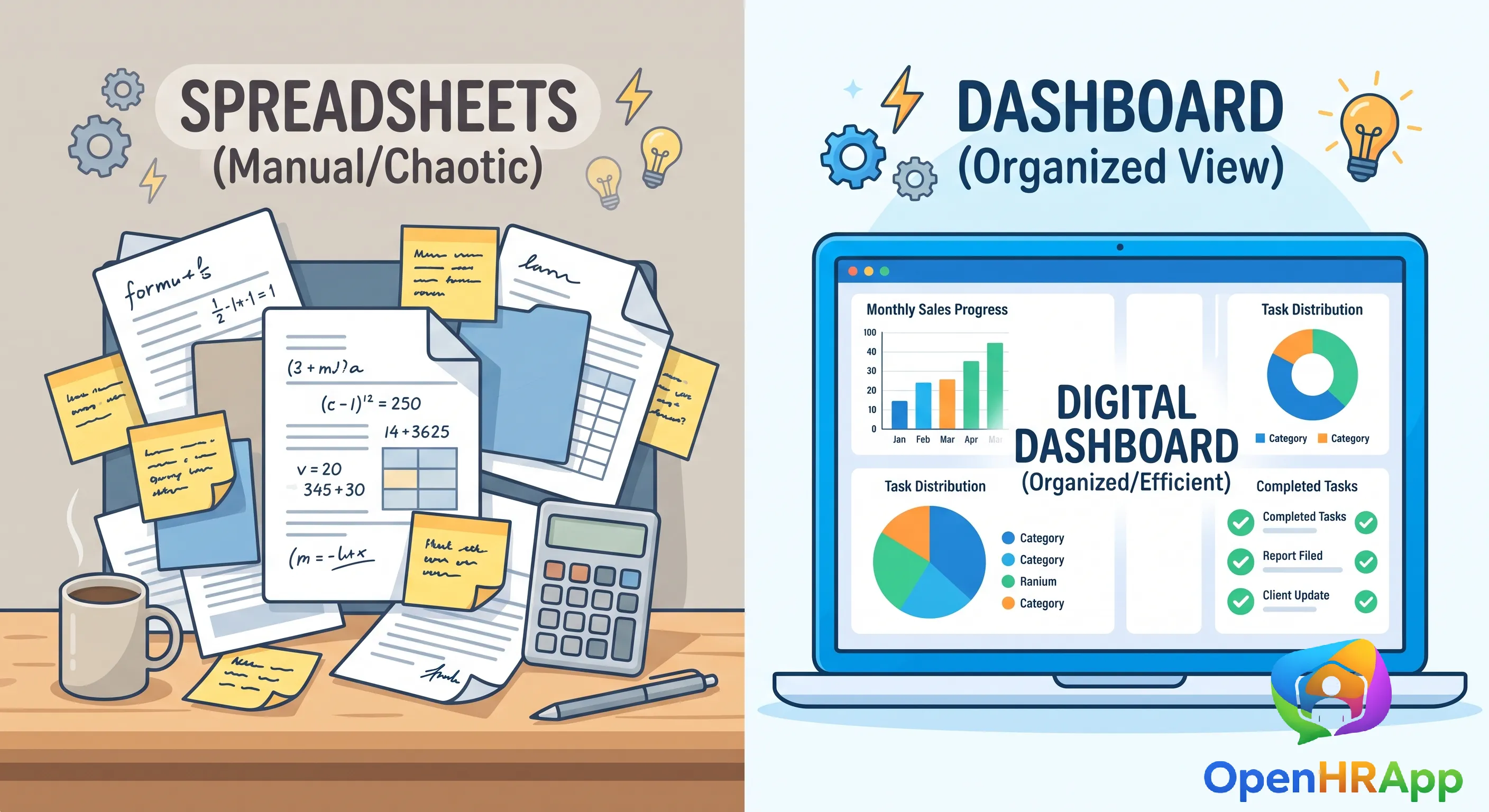
## Conclusion
The right HR software saves time, reduces errors, and gives you back hours every week. For most small businesses, the best choice is a platform that handles attendance, leave, and employee records well — without locking you into expensive per-user pricing. Open-source options like OpenHRApp make it possible to get enterprise-grade HR tools completely free.
Take your time evaluating options. Test with real data. Ask hard questions about pricing and data portability. And remember: the goal is not to buy the most feature-packed software. It is to buy the software that makes your HR processes easier, faster, and more reliable.
---
*Ready to get started? OpenHRApp is completely free — no credit card required, no per-user fees, no time limits. [Sign up today](https://openhrapp.com/) and have your HR system running in minutes.*
---
## Why We Built OpenHRApp: The Story Behind the Open-Source HR Platform
URL: https://openhrapp.com/blog/why-we-built-openhrapp
Author: Admin
Published: 2026-07-18
# Why We Built OpenHRApp: The Story Behind the Open-Source HR Platform
Every software project starts with a moment of frustration. For OpenHRApp, that moment came when a small business owner — let's call him Rafiq — showed us his "HR system": a folder of spreadsheets, a notebook of leave requests, and a WhatsApp group where employees messaged their sick days.
Rafiq managed 35 employees across two locations. He needed attendance tracking, leave management, and employee records — basic HR functionality. But when he looked at commercial HR software, the pricing was absurd: $12 per employee per month. For 35 people, that was $5,040 per year. His business could not justify it. So he made do with spreadsheets and chat messages, spending hours every week on manual data entry and reconciliation.
Rafiq's story is not unique. It is the reality for millions of small and medium businesses around the world. And it was the spark that ignited OpenHRApp.
## The Problem We Set Out to Solve
The HR software market is broken in a fundamental way: the organizations that need help the most — small businesses, startups, non-profits, and growing teams in emerging markets — are priced out of the tools that could help them. The per-user pricing model that dominates the industry creates a cruel paradox: the more employees you hire, the more you pay for HR software. Growing your business means growing your software bill.
We saw three specific problems we wanted to solve:
1. **Cost.** HR software should not cost thousands of dollars per year for basic functionality. Attendance tracking, leave management, and employee directories are not premium features — they are essential infrastructure that every organization needs.
2. **Complexity.** Enterprise HR platforms are powerful but overwhelming. They require weeks of implementation, dedicated administrators, and extensive training. Small businesses need software that works out of the box — not a platform that requires a consulting engagement to configure.
3. **Vendor lock-in.** Proprietary HR platforms make it difficult to export your data and migrate to another system. Your employee records, attendance history, and leave data are locked into formats designed to make leaving expensive and painful.
## The Decision to Go Open Source
We could have built OpenHRApp as a freemium SaaS product — free for small teams, paid for larger ones. It is a common and perfectly valid business model. But we chose open source for a reason that goes deeper than pricing:
**HR data is some of the most sensitive data an organization holds.** Employee personal information, attendance records, leave history, performance reviews, salary data — this is not data you should entrust to a black box. Organizations deserve to know exactly how their HR data is stored, processed, and protected. The only way to provide that transparency is to make the code public.
Open source also aligned with our belief that HR tools should be community-driven. The people who use HR software every day — HR managers, team leads, and employees — know best what features are needed. A proprietary vendor guesses what users want based on sales conversations and market research. An open-source project lets users directly influence the roadmap through feature requests, bug reports, and code contributions.
## What We Built
We started with the essentials — the features that every organization needs from day one:
- **Attendance tracking** with selfie-based identity verification and GPS location capture. No hardware required — just the camera on any smartphone.
- **Leave management** with custom leave types, automatic balance calculations, and configurable approval workflows.
- **Employee directory** with departments, designations, teams, and role-based access controls.
- **Reports and analytics** with one-click CSV export for payroll and compliance.
As the community grew, so did the platform:
- **Performance reviews** with multi-stage evaluations, customizable competencies, and rating scales.
- **Shift management** for organizations with multiple shifts, factory workers, and flexible schedules.
- **Notifications** — email and in-app alerts for leave requests, approvals, attendance issues, and announcements.
- **Progressive Web App (PWA)** — installable on any device, works offline, no app store required.
Everything was built on a foundation of multi-tenant architecture, role-based access control, and data portability — because these are not "enterprise features." They are basic requirements for any organization handling sensitive employee data.
## The Challenges Along the Way
Building an open-source product that competes with well-funded proprietary alternatives is not easy. Some of the challenges we faced:
- **Balancing simplicity and flexibility.** HR processes vary widely across organizations. We needed a system that worked out of the box for a 10-person startup while being configurable enough for a 200-person company with complex leave policies and multiple shifts. The solution was sensible defaults with optional configuration — everything works immediately, but you can customize as needed.
- **Building for mobile-first.** Many of our users access OpenHRApp primarily on phones — factory workers checking in, field staff applying for leave, managers approving requests on the go. The PWA architecture was essential, but getting camera access, GPS, and offline support right across iOS, Android, and desktop browsers was a significant engineering effort.
- **Maintaining quality without a QA team.** In a proprietary company, a dedicated QA team tests every release. In an open-source project, the community is the QA team. We invested heavily in making the software resilient — clear error messages, automatic data validation, and graceful degradation when features are not available (e.g., camera access denied on certain browsers).
- **Sustainability.** How do you keep building and improving a free product without a revenue model? Our approach: optional ads (which organizations can remove with a small donation), community contributions, and the conviction that building something valuable for the world is worth doing regardless.
## What Makes Us Different
There are other HR platforms — both proprietary and open-source. Here is what we believe sets OpenHRApp apart:
**Actually free.** Not "free for up to 5 users." Not "free, but reports are a paid add-on." Free. Every feature. Unlimited employees. No time limits. No credit card required.
**Privacy-respecting.** Selfie verification at check-in, not facial recognition. GPS captured at check-in, not continuous tracking. Data minimization by design.
**Community-shaped.** Our roadmap is public. Feature requests are voted on by the community. Anyone can contribute code, documentation, or translations.
**No lock-in.** Export your data in standard formats at any time. Self-host if you prefer. The software is yours as much as it is ours.

## The Road Ahead
OpenHRApp is still in its early chapters. Some of what we are working on:
- **Expanded integrations** — Payroll system connectors, calendar sync, and API access for custom integrations.
- **Multi-language support** — Making the platform accessible to organizations around the world in their local language.
- **Advanced analytics** — Deeper workforce insights, predictive analytics for attrition risk, and customizable dashboards.
- **Community marketplace** — A place for community-contributed extensions, themes, and integrations.
But our core commitment will not change: essential HR tools should be free, transparent, and accessible to every organization — regardless of size, budget, or location.
## Join Us
OpenHRApp is not just software. It is a community of HR professionals, developers, and organization leaders who believe that HR technology should be open, fair, and accessible. Whether you use the platform, contribute code, report bugs, suggest features, or simply tell a colleague about us — you are part of that community.
The best way to get involved:
- **Use it:** Sign up at [openhrapp.com](https://openhrapp.com/) and set up your organization. It takes 30 minutes and costs nothing.
- **Contribute:** Check out our [GitHub repository](https://github.com/mimnets/openhrapp). Good first issues are tagged for new contributors.
- **Share feedback:** Tell us what is working, what is not, and what you wish existed. Every feature in OpenHRApp started as a user request.
- **Spread the word:** If you know a small business owner struggling with spreadsheets, tell them there is a better way — and it is free.
## A Final Word
To Rafiq — and to every small business owner, HR manager, and team lead who has ever stared at a spreadsheet at 10 PM, manually reconciling attendance records: we built this for you. You should not need a Fortune 500 budget to have decent HR tools. You should not need to choose between overpaying for software and drowning in administrative work. There is a better way. And it is free.
---
*OpenHRApp is free, open-source, and ready when you are. [Get started in minutes](https://openhrapp.com/).*
---
## 10 Common HR Compliance Mistakes and How to Avoid Them
URL: https://openhrapp.com/blog/hr-compliance-mistakes-to-avoid
Category: HR Management
Author: OpenHRApp Team
Published: 2026-06-18
HR compliance is not the most exciting topic. But getting it wrong can be devastating — fines, lawsuits, damaged reputation, and lost employee trust. The good news is that most compliance violations are entirely preventable with the right systems and processes in place.
Here are the 10 most common HR compliance mistakes we see small and mid-size organizations make, along with practical steps to avoid them.

## 1\. Misclassifying Employees as Independent Contractors
**The mistake:** Treating full-time workers as independent contractors to avoid paying benefits, payroll taxes, or overtime.
**Why it matters:** Tax authorities and labor departments take worker misclassification seriously. Penalties can include back taxes, interest, fines, and even criminal charges in severe cases. Employees misclassified as contractors may also sue for unpaid benefits and overtime.
**How to avoid it:** Understand the legal distinction between employees and contractors in your jurisdiction. Generally, if you control how, when, and where the work is done, the person is likely an employee. When in doubt, consult an employment attorney.
## 2\. Inadequate Record-Keeping
**The mistake:** Failing to maintain accurate, complete, and up-to-date employment records — including attendance logs, leave balances, performance reviews, and payroll data.
**Why it matters:** In the event of a dispute, audit, or lawsuit, your records are your defense. Missing or inconsistent records can make it impossible to prove compliance and may result in automatic judgments against your organization.
**How to avoid it:** Use a centralized HR management system that automatically timestamps and stores all records. Set retention policies: attendance records should generally be kept for at least 3 years, payroll records for 4–7 years depending on jurisdiction. Never rely on paper records or scattered spreadsheets as your primary system of record.
## 3\. Overtime and Working Hours Violations
**The mistake:** Not tracking hours accurately, encouraging off-the-clock work, or incorrectly classifying employees as exempt from overtime.
**Why it matters:** Wage and hour lawsuits are among the most common employment claims. Even unintentional violations can result in back pay for multiple years, plus penalties.
**How to avoid it:** Implement a reliable time-tracking system that records check-in and check-out times for all non-exempt employees. Configure overtime thresholds in your HR software. Train managers not to expect or implicitly encourage work outside of recorded hours. Audit time records regularly to catch discrepancies early.
## 4\. Leave Law Non-Compliance
**The mistake:** Not providing legally mandated leave (sick leave, family leave, maternity/paternity leave) or penalizing employees for taking protected leave.
**Why it matters:** Leave laws vary significantly by jurisdiction, but violations typically result in fines, reinstatement orders, and back pay. In some cases, individual managers can be held personally liable.
**How to avoid it:** Know the leave laws that apply to your organization based on employee count and location. Configure your leave management system to track entitlements accurately. Train managers to never discourage employees from taking legally protected leave. Document all leave decisions with clear, business-related reasons.
## 5\. Data Privacy and Security Gaps
**The mistake:** Storing sensitive employee data (social security numbers, bank details, medical information, performance reviews) without adequate security measures, or sharing it with unauthorized individuals.
**Why it matters:** Data breaches involving employee personal information can trigger mandatory breach notification laws, regulatory fines, and class-action lawsuits. The reputational damage of exposing your employees' private data can be irreparable.
**How to avoid it:** Use an HR platform with role-based access controls — ensure employees can only see their own data, managers can only see their team's data, and only HR/Admin can see everything. Enable encryption for data at rest and in transit. Never share employee data over unsecured channels like personal email or messaging apps. Have a clear data retention and deletion policy.
## 6\. Inconsistent or Discriminatory Discipline
**The mistake:** Applying disciplinary rules inconsistently — punishing one employee for behavior that another employee gets away with. Or worse, discipline that correlates with protected characteristics (race, gender, age, religion, etc.).
**Why it matters:** Inconsistent discipline is the foundation of most discrimination lawsuits. Even if the discrimination was unintentional, the pattern of inconsistent treatment can be damning in court.
**How to avoid it:** Document all disciplinary actions with specific, objective reasons. Review discipline patterns periodically — look for any demographic patterns that could suggest bias. Have a written disciplinary policy and follow it consistently. Use HR software to maintain a chronological record of all formal communications and actions.
## 7\. Improper Employee Termination
**The mistake:** Terminating an employee without proper documentation, notice (where required), or final pay; or terminating for reasons that could be construed as retaliatory or discriminatory.
**Why it matters:** Wrongful termination claims can result in substantial settlements or judgments, plus legal fees that can dwarf the actual damages.
**How to avoid it:** Document performance issues as they occur — do not wait until termination to create a record. Follow your organization's progressive discipline policy. Consult with HR or legal counsel before high-risk terminations (employees who have recently taken protected leave, filed complaints, or belong to protected groups). Provide all required final pay and paperwork on the last day.
## 8\. Missing or Outdated Employee Handbook
**The mistake:** Either not having an employee handbook at all, or having one that is years out of date and no longer reflects current policies or applicable laws.
**Why it matters:** An employee handbook is your first line of defense in employment disputes. It establishes that employees were informed of policies, procedures, and expectations. Without one, it is your word against theirs.
**How to avoid it:** Create an employee handbook that covers: code of conduct, anti-discrimination and anti-harassment policies, attendance and leave policies, disciplinary procedures, data privacy, use of company equipment, and remote work policies. Review and update the handbook annually. Have employees acknowledge receipt in writing (digital acknowledgment is sufficient).
## 9\. Ignoring Remote Work Compliance
**The mistake:** Treating remote employees the same as on-site employees without considering the unique compliance challenges of remote work — wage and hour tracking across time zones, ergonomic safety, data security on home networks, and multi-jurisdiction tax obligations.
**Why it matters:** Remote work introduces compliance risks that do not exist in a single-location office. An employee working from a different state or country may be subject to that jurisdiction's labor laws, tax requirements, and data privacy regulations.
**How to avoid it:** Track where your remote employees are physically located. Understand the employment laws of each jurisdiction where you have employees. Implement security policies for remote work (VPN, device encryption, secure file sharing). Use attendance tracking with location verification to confirm where remote employees are checking in from.
## 10\. Failing to Train Managers on Compliance
**The mistake:** Assuming that managers inherently understand HR compliance or that a one-time onboarding session is sufficient.
**Why it matters:** Managers are the front line of HR compliance. A single manager's inappropriate comment, improper documentation, or retaliatory action can create liability for the entire organization — regardless of how good your official policies are.
**How to avoid it:** Provide annual compliance training for all managers covering: anti-discrimination and anti-harassment, proper documentation and record-keeping, leave law compliance, wage and hour rules, and data privacy. Document training attendance. Update training whenever laws or policies change. Make it easy for managers to consult HR before making risky decisions.
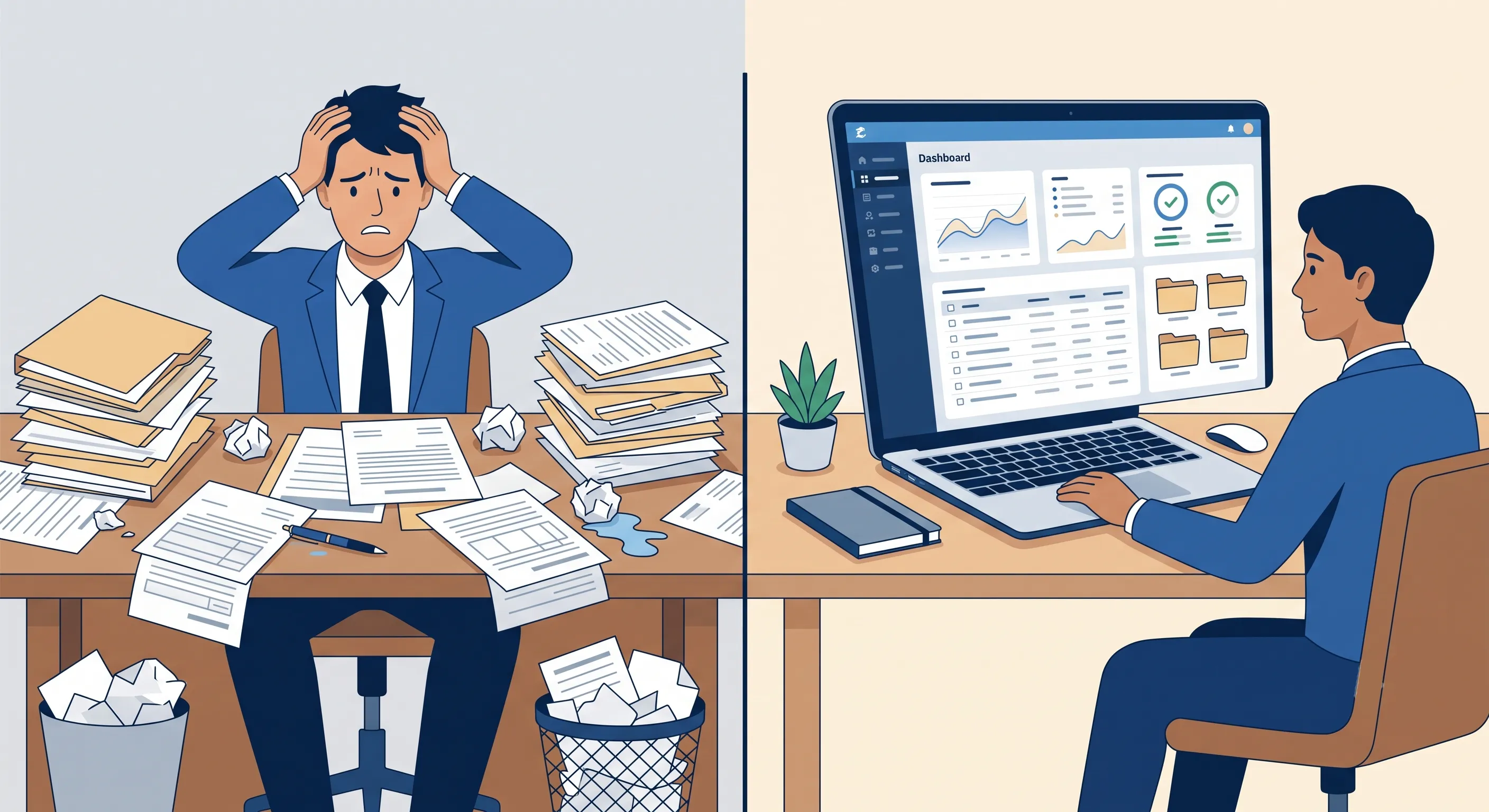
## Building a Compliance-Ready HR System
The common thread through all of these mistakes is a lack of systematic processes. Spreadsheets, email threads, and mental notes are not adequate compliance tools for an organization of any size.
A proper HR management system helps prevent these mistakes by:
- **Automating record-keeping** — Every attendance punch, leave request, and approval is timestamped and stored in an auditable database.
- **Enforcing consistent policies** — Leave balances are calculated automatically based on configured rules, not someone's memory.
- **Controlling access** — Role-based permissions ensure employees only see data they are authorized to see.
- **Providing an audit trail** — Every action in the system is logged, creating a verifiable history for any compliance inquiry.
- **Generating reports** — Attendance summaries, leave utilization, and workforce analytics can be exported for auditors or regulators at a moment's notice.
## Conclusion
HR compliance does not have to be overwhelming. The key is building systems that make compliance the default — not something you have to remember to do manually. With the right tools and processes in place, you can focus on running your business, confident that your HR foundation is solid.
**Further Reading**
- [The Complete Guide to Employee Attendance Tracking](https://www.openhrapp.com/blog/employee-attendance-tracking-guide) — Accurate time records are your primary evidence in wage-and-hour disputes and audits.
- [Leave Management Best Practices for Growing Teams](https://www.openhrapp.com/blog/leave-management-best-practices) — Design leave policies that keep you compliant as you scale.
- [Employee Privacy in the Age of Workplace Surveillance](https://www.openhrapp.com/blog/employee-privacy-workplace-surveillance) — Data privacy and security best practices for HR systems.
---
*OpenHRApp helps you stay compliant with automated attendance tracking, role-based access control, and comprehensive audit trails — all completely free. [Get started today](https://openhrapp.com/).*
---
## The Complete Guide to Employee Attendance Tracking
URL: https://openhrapp.com/blog/employee-attendance-tracking-guide
Category: HR Management
Author: OpenHRApp Team
Published: 2026-05-06
Attendance tracking is one of the most fundamental HR functions — and one of the most commonly mismanaged. Whether you are transitioning from paper timesheets, upgrading from spreadsheets, or evaluating your first automated system, this guide covers everything you need to know about modern attendance tracking.
## Why Attendance Tracking Matters
Accurate attendance records are not just about knowing who showed up today. They directly impact:
- **Payroll accuracy** — Overpaying or underpaying employees due to incorrect attendance data creates trust issues and potential legal exposure.
- **Compliance** — Labor laws in most jurisdictions require employers to maintain accurate time records. In an audit, your attendance logs are primary evidence.
- **Productivity insights** — Patterns of late arrivals, early departures, and absenteeism can reveal issues with morale, workload, or management before they escalate.
- **Fairness** — When attendance is tracked objectively and consistently, everyone is held to the same standard. No favoritism, no "I forgot to write it down."
## The Evolution of Attendance Tracking
### 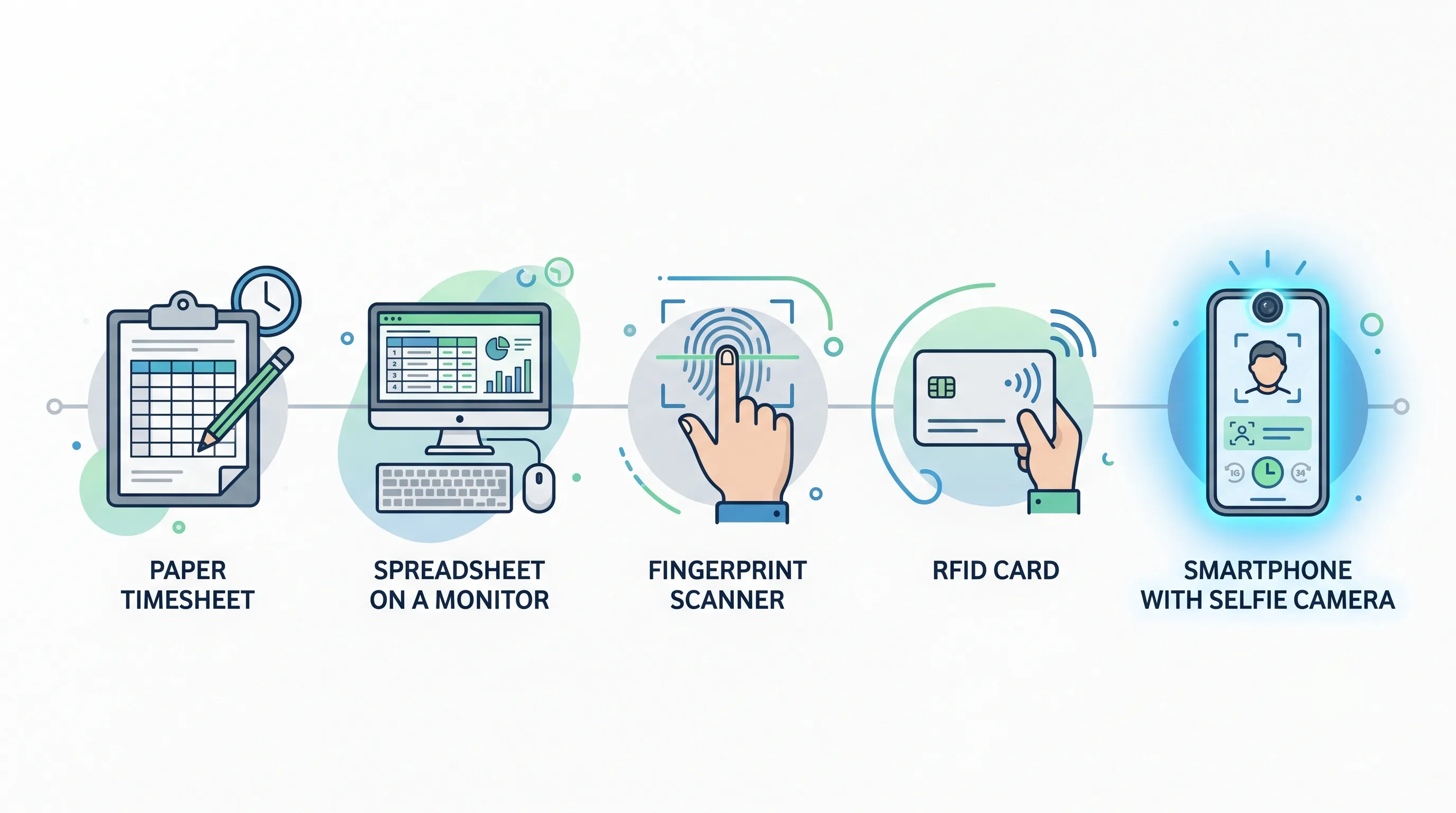
### Paper Timesheets and Punch Cards
The oldest approach: employees write their arrival and departure times on a paper form, or punch a physical card into a mechanical clock.
**Problems:** Easy to lose or damage. Impossible to verify — a colleague can punch in for an absent employee ("buddy punching"). Data must be manually entered into payroll, creating errors. No real-time visibility for managers.
### Spreadsheets
Many small businesses graduate to Excel or Google Sheets for attendance tracking.
**Problems:** Still manual entry, still error-prone, still no verification. Version control chaos — who has the latest copy? No audit trail — cells can be edited without any record of who changed what. No automated alerts for late arrivals or absences.
### Biometric Scanners
Fingerprint, palm, or iris scanners add identity verification to the check-in process.
**Problems:** Expensive hardware ($500–$2,000+ per device). Requires employees to be physically present at the scanner location (useless for remote workers). Hygiene concerns with shared touch surfaces. Hardware maintenance and calibration. Privacy concerns about storing biometric data.
### RFID Cards and Fobs
Employees tap a card or fob on a reader to record their attendance.
**Problems:** Hardware costs (readers at every entry point). Cards can be shared or lost. Still no visual identity verification — a colleague can use someone else's card. Replacement costs for lost cards.
### Selfie-Based Digital Check-In (Modern Approach)
Employees use their own smartphone to check in by taking a selfie. The system captures the photo, GPS location, and timestamp — all stored together as a verifiable attendance record.
**Advantages:**
- **No hardware cost** — Uses the camera already on every employee's phone.
- **Eliminates buddy punching** — Each check-in has a face attached.
- **Works anywhere** — Office, factory, remote, field locations.
- **Real-time visibility** — Managers see who is present, late, or absent immediately.
- **Audit trail** — Every check-in is timestamped and stored with photo evidence.
## Key Features to Look for in an Attendance System
Whether you choose a standalone attendance tool or a full HR platform, look for these capabilities:
### Identity Verification
The system should confirm that the person checking in is who they claim to be. Selfie capture is the most practical method. Avoid systems that rely solely on PINs, passwords, or card taps — these can all be shared.
### Location Tracking
GPS coordinates should be captured with each check-in. This verifies that employees are where they are supposed to be — in the office, at a client site, or on a job site. For privacy, location should only be captured at the moment of check-in, not continuously tracked.
### Shift and Schedule Support
If your organization runs multiple shifts (morning, evening, night) or flexible hours, your attendance system needs to understand when each employee is expected. A good system calculates lateness and overtime automatically based on each employee's assigned shift.
### Real-Time Dashboard
Managers need a live view of who is present, who is absent, who is late, and who has not checked in yet. This enables quick follow-ups — a quick message to an employee who is 15 minutes late is far better than discovering at the end of the month that they missed several days.
### Automated Alerts and Notifications
The system should proactively notify relevant people:
- **Employee:** Reminder to check in if they have not by a certain time.
- **Manager:** Alert when a team member is late or absent.
- **HR/Admin:** Daily or weekly attendance summary.
### Integration with Leave Management
Attendance and leave should not be separate systems. When an employee is on approved leave, they should not be marked absent. When they return from leave and check in, the system should reflect both records coherently.
### Export and Reporting
Attendance data needs to feed into payroll, compliance reporting, and management reviews. One-click CSV export and pre-built summary reports (daily, weekly, monthly, by department) save hours of manual work.
## Remote Work and Attendance Tracking
The rise of remote and hybrid work has changed attendance tracking significantly. Traditional methods (physical punch-in, biometric scanners) do not work for remote employees. Even in a remote context, organizations still need to know:
- Is the employee working today?
- When did they start and finish?
- Where are they working from (for compliance and security)?
Selfie + GPS check-in solves all three. The employee takes a quick selfie at their workspace, the system records the time and location, and the manager has the same visibility they would have in an office.
> **Privacy note:** Organizations should be transparent about what is tracked and why. GPS should only be captured at check-in, not throughout the day. The goal is verification, not surveillance.
## Handling Common Attendance Scenarios
### Late Arrival
Configure a grace period (e.g., 5–15 minutes after shift start). Employees checking in within the grace period are on time. After the grace period, they are marked late. The system should track late arrivals over time so managers can spot patterns.
### Early Departure
Similar to late arrivals — configure an early-out grace period before the shift end time. Employees checking out before this threshold are marked as leaving early.
### Forgotten Check-Out
Employees sometimes forget to check out at the end of the day. Without a solution, the system would show them as still working. Good attendance systems handle this with:
- **Auto session close** — The system automatically closes the session at a configured time (e.g., 10 PM) and appends a note that it was auto-closed.
- **Next-day reconciliation** — When the employee checks in the next day, the system detects the open session and closes it with the auto-close time.
### Overtime
If an employee checks out significantly after their scheduled end time, the system should flag this as potential overtime. Managers can review and approve overtime for payroll processing.
### Field and Off-Site Work
Employees visiting clients, working at job sites, or attending off-site meetings should check in from their location. The GPS data confirms they were where they were supposed to be.
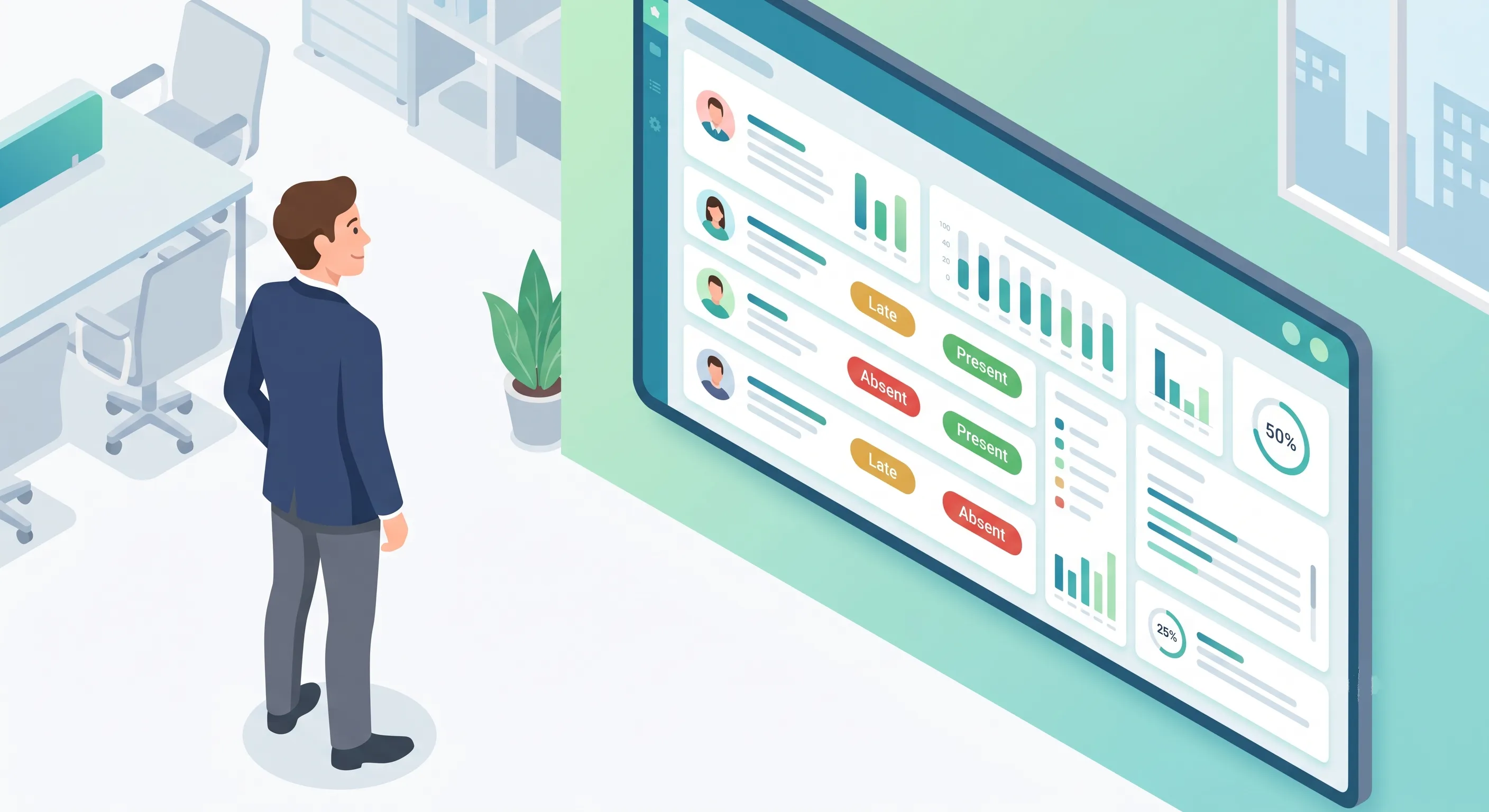
## Making the Switch to Digital Attendance
If you are moving from paper or spreadsheets to a digital system, follow these steps for a smooth transition:
1. **Set a switch-over date** — Pick a specific date when the new system goes live. Run the old system in parallel for a brief period if you want extra assurance.
2. **Communicate early** — Tell employees what is changing, why (emphasize the benefits: easier for them, no more paper forms), and what they need to do.
3. **Provide clear instructions** — A 5-minute walkthrough or one-page guide on how to check in and out using the new system.
4. **Address privacy concerns upfront** — Be transparent about what data is collected (selfie, GPS at check-in only) and who can see it (manager and HR only).
5. **Configure shifts properly** — Make sure every employee is assigned to the correct shift before go-live. Incorrect shift assignments are the #1 cause of incorrect late/absent markings.
6. **Monitor the first week closely** — Check daily that check-ins and check-outs are being recorded correctly. Follow up immediately on any issues.
## Conclusion
Attendance tracking does not need to be complicated or expensive. Modern smartphone-based systems eliminate the need for dedicated hardware, provide reliable identity verification, and give managers real-time visibility — all at no cost. The key is choosing a system that is easy for employees to use, provides the verification and reporting you need, and integrates naturally with your other HR processes.
> **See how OpenHR does it:** Our [deep dive into selfie-based attendance](https://www.openhrapp.com/blog/how-selfie-attendance-works) covers the complete check-in flow, GPS verification, and how photo capture eliminates buddy punching — all without dedicated hardware.
**Further Reading**
- [How Selfie-Based Attendance Works in OpenHRApp](https://www.openhrapp.com/blog/how-selfie-attendance-works) — The technical details behind photo + GPS check-in.
- [Remote Work and HR: Adapting Your Policies for a Distributed Workforce](https://www.openhrapp.com/blog/remote-work-hr-policies) — How attendance tracking changes when your team is distributed.
---
*OpenHRApp provides selfie-based attendance tracking with GPS verification, shift support, and real-time dashboards — completely free. [Start tracking attendance today](https://openhrapp.com/).*
---
## Comparing OpenHRApp vs Commercial HRMS: An Honest Look
URL: https://openhrapp.com/blog/openhrapp-vs-commercial-hrms-comparison
Category: Company
Author: OpenHRApp Team
Published: 2026-04-29
If you are evaluating HR software, you have probably noticed the enormous range of options — from free open-source platforms to enterprise systems costing tens of thousands of dollars per year. This article provides a transparent comparison between OpenHRApp and typical commercial HRMS platforms to help you make an informed decision.
We will be honest about where OpenHRApp excels and where commercial alternatives may be a better fit. Our goal is not to convince you that OpenHRApp is the right choice for everyone — it is to give you the information you need to decide what is right for your organization.
## Feature Comparison
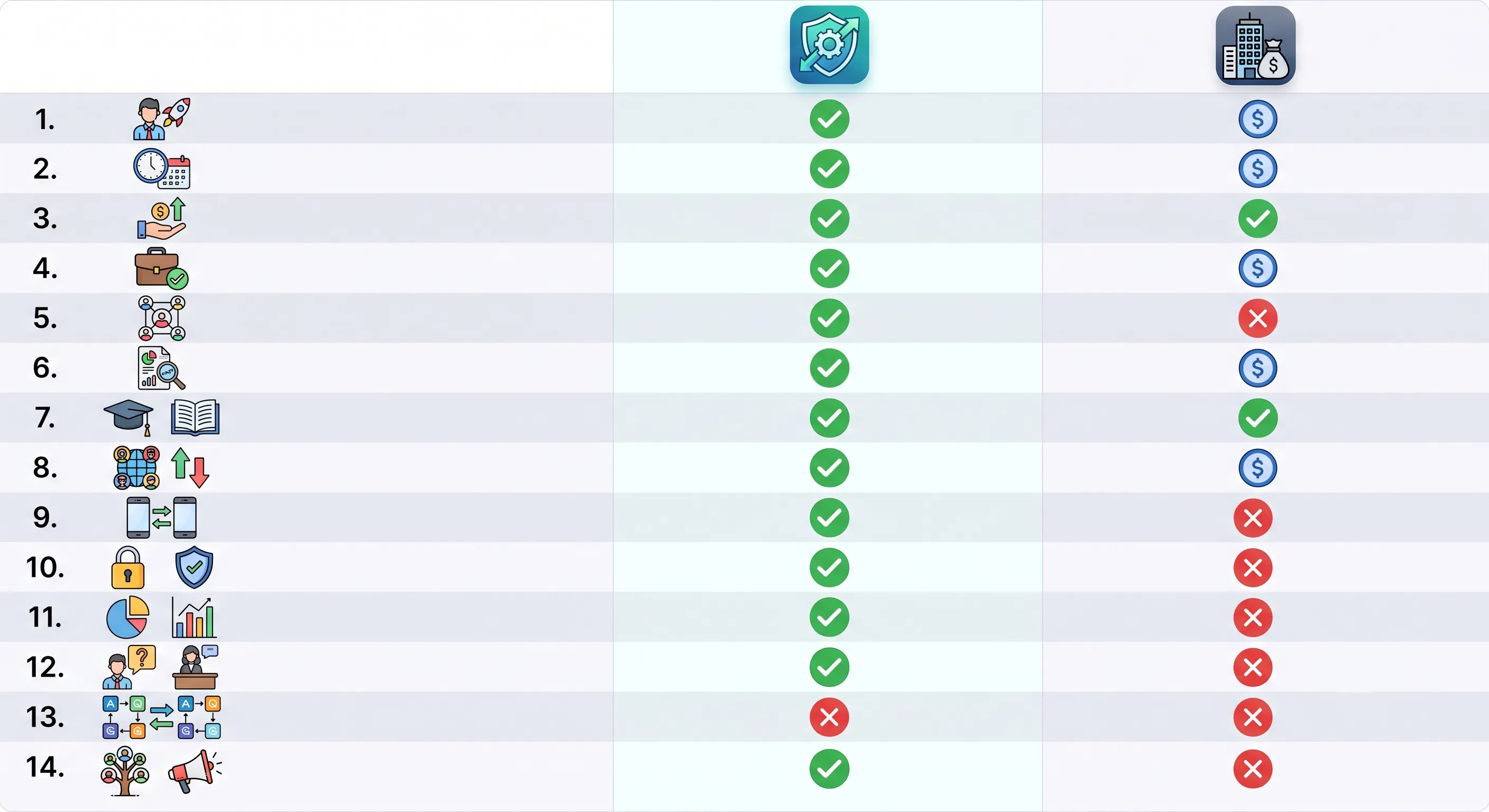
| Feature | OpenHRApp | Typical Commercial HRMS |
| --- | --- | --- |
| Attendance tracking | Selfie + GPS verification | Varies — some use biometrics, some use manual entry |
| Leave management | Full lifecycle with custom types and workflows | Full lifecycle, often with more complex rule engines |
| Employee directory | Complete profiles with role-based access | Complete profiles, sometimes with org chart visualization |
| Performance reviews | Multi-stage with custom competencies | Multi-stage, often with 360-degree feedback |
| Reports and analytics | Attendance, leave, and workforce summaries with CSV export | Advanced analytics with custom report builders |
| Shift management | Configurable shifts with overrides | Configurable shifts, often with scheduling optimization |
| Mobile support | PWA (works on any device, installable) | Native iOS/Android apps (often limited features) |
| Customization | Full source code access, self-hosting option | Configuration options only, no code access |
| Multi-language | English (more languages planned) | Often 10+ languages |
| API access | Via PocketBase SDK (self-hosted) | REST APIs, often with usage limits |
| Payroll integration | CSV export for payroll import | Direct integrations with major payroll providers |
| SSO / SAML | Not yet available | Standard in enterprise tiers |
| SLA / Support | Community support + GitHub issues | Phone/email support with guaranteed response times |
## Total Cost Analysis
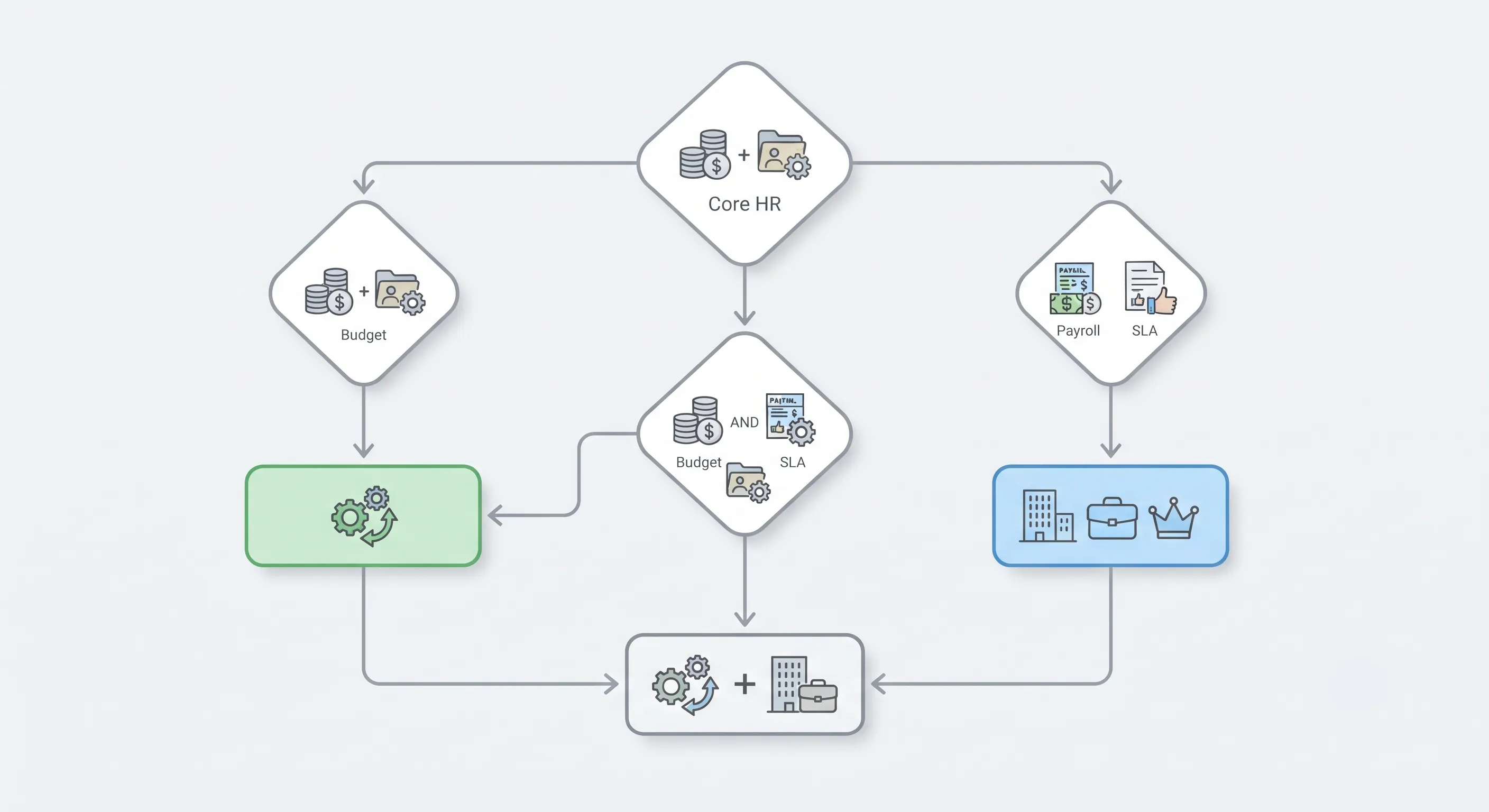
Let's compare the total cost of ownership for a 50-employee organization over 3 years:
### OpenHRApp (Free Cloud Tier)
| Item | Year 1 | Year 2 | Year 3 | 3-Year Total |
| --- | --- | --- | --- | --- |
| Software license | $0 | $0 | $0 | $0 |
| Per-user fees | $0 | $0 | $0 | $0 |
| Implementation | $0 (self-service) | $0 | $0 | $0 |
| Training | $0 (documentation + tutorials) | $0 | $0 | $0 |
| **Total** | **$0** | **$0** | **$0** | **$0** |
### Typical Mid-Range Commercial HRMS ($8/user/month)
| Item | Year 1 | Year 2 | Year 3 | 3-Year Total |
| --- | --- | --- | --- | --- |
| Software license (50 × $8 × 12) | $4,800 | $4,800 | $4,800 | $14,400 |
| Implementation fee | $2,500 | $0 | $0 | $2,500 |
| Training | $1,000 | $500 | $500 | $2,000 |
| **Total** | **$8,300** | **$5,300** | **$5,300** | **$18,900** |
### Enterprise HRMS ($15/user/month)
| Item | Year 1 | Year 2 | Year 3 | 3-Year Total |
| --- | --- | --- | --- | --- |
| Software license (50 × $15 × 12) | $9,000 | $9,000 | $9,000 | $27,000 |
| Implementation fee | $10,000 | $0 | $0 | $10,000 |
| Training + change management | $5,000 | $2,000 | $2,000 | $9,000 |
| **Total** | **$24,000** | **$11,000** | **$11,000** | **$46,000** |
For a 50-person company, the savings with OpenHRApp range from **$18,900 to $46,000 over three years** — money that can fund an additional employee, invest in other tools, or simply improve the bottom line.
And these numbers scale linearly: a 100-person company saves $37,800–$92,000 over three years.
## When OpenHRApp Is the Right Choice
OpenHRApp is an excellent fit when:
**Budget is a primary concern.** If you are a startup, small business, or non-profit that cannot justify $5,000–$25,000+ per year for HR software, OpenHRApp gives you enterprise-grade features at zero cost.
**You want to avoid vendor lock-in.** Your data is yours, exportable at any time in standard formats. If you outgrow OpenHRApp, you can migrate to another system without a costly data extraction process.
**You value transparency.** The code is public. You can inspect it for security, customize it to your needs, or have a developer extend it. No black boxes.
**You have a distributed or mobile workforce.** The PWA architecture means OpenHRApp works on any device — phones, tablets, laptops — without installing anything. Selfie + GPS attendance works for remote teams, field workers, and multi-location organizations.
**You need core HR functionality without complexity.** If your needs are attendance tracking, leave management, employee directory, basic reporting, and performance reviews, OpenHRApp covers them all — without the overwhelming complexity of enterprise platforms.
## When a Commercial HRMS Might Be Better
We believe in being honest about our limitations. A commercial HRMS may be a better fit when:
**You need direct payroll integration.** OpenHRApp exports attendance and leave data to CSV for payroll import, but it does not integrate directly with payroll processors like ADP, Gusto, or QuickBooks Payroll. If real-time payroll sync is critical, a commercial platform with native payroll integration may save you time.
**You require guaranteed SLAs.** OpenHRApp's free cloud tier does not offer an SLA with financial penalties for downtime. For mission-critical HR operations where downtime has significant financial impact, a commercial platform with a contractual SLA may be necessary.
**You need 24/7 phone support.** OpenHRApp provides community support through GitHub, documentation, and tutorials. If your organization requires immediate phone support with guaranteed response times, commercial platforms offer this (typically in higher pricing tiers).
**You operate in a highly regulated industry requiring specific certifications.** Some industries (finance, healthcare, government) require vendors to hold specific compliance certifications (SOC 2 Type II, ISO 27001, FedRAMP). OpenHRApp has not yet obtained these certifications.
**You need advanced workflow automation.** If your HR processes involve complex, multi-step workflows with conditional logic across multiple systems, enterprise platforms like Workday or SAP SuccessFactors offer visual workflow builders that OpenHRApp does not yet match.
## The Hybrid Approach
Some organizations take a hybrid approach: use OpenHRApp for core HR operations (attendance, leave, employee records) and a specialized tool for advanced needs (e.g., a dedicated payroll system, an applicant tracking system for recruiting, or a learning management system for training). This gives you the best of both worlds — free core HR infrastructure plus specialized tools where you need them.
OpenHRApp's CSV export makes this hybrid approach practical: export attendance and leave data, import into your payroll system, and you have a complete workflow without paying for HR software you only partially use.
## Making the Switch: Migration Considerations
If you are currently using a commercial HRMS and considering switching to OpenHRApp, here is a practical migration approach:
1. **Export all data from your current system** — Employee records, attendance history, leave history, performance reviews. Get everything in CSV or Excel format.
2. **Set up OpenHRApp** — Configure your organization structure, leave policies, shifts, and other settings before importing data.
3. **Import employee records** — Use OpenHRApp's bulk import to add all employees at once.
4. **Import historical attendance and leave data** — This can be done via the admin interface or (for large datasets) via direct database import if you self-host.
5. **Run both systems in parallel for one pay period** — Verify that attendance and leave data matches between the old and new systems before fully switching over.
6. **Decommission the old system** — Export one final backup, then cancel your subscription.
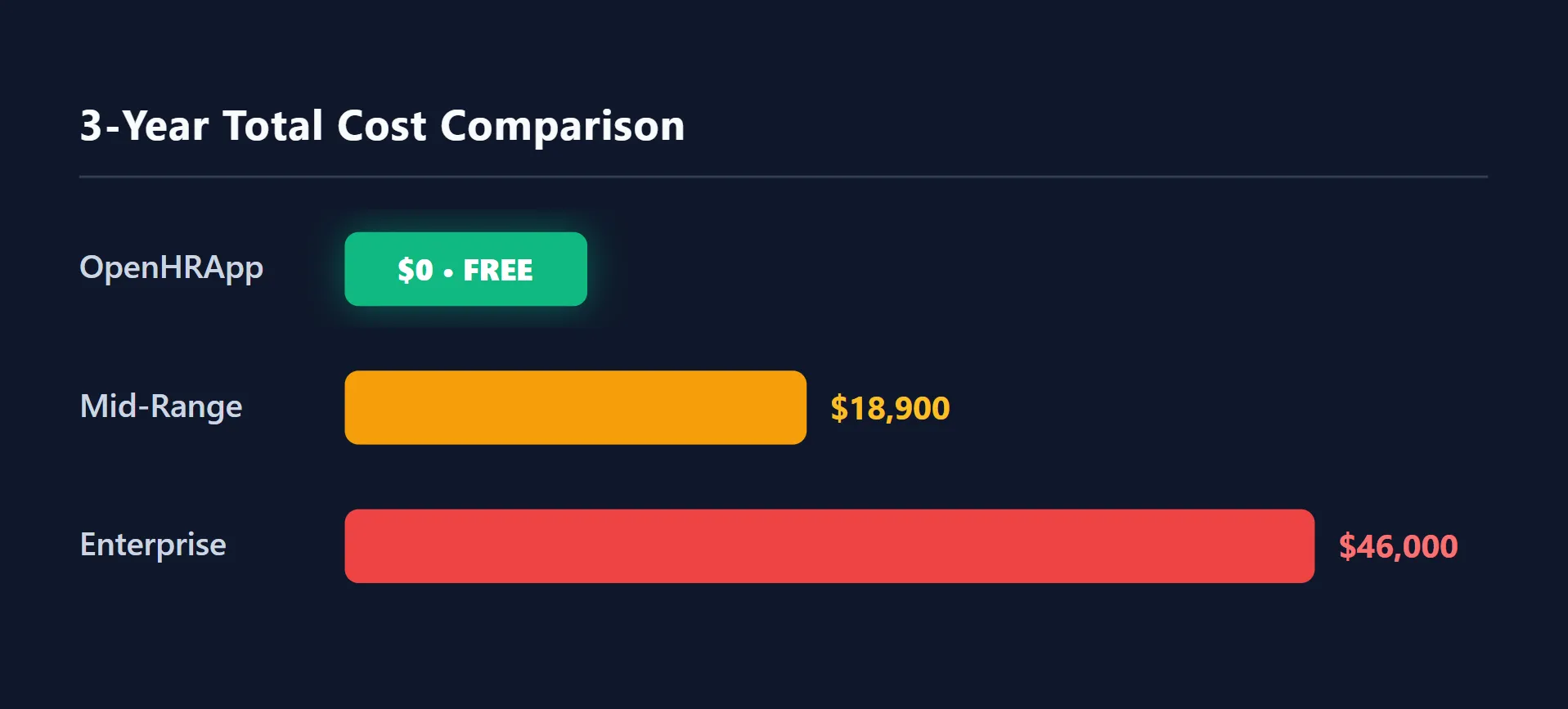
## The Bottom Line
For the vast majority of small and medium organizations, OpenHRApp provides all the HR functionality needed — at zero cost. The trade-offs (no direct payroll integration, no contractual SLA, community-based support) are acceptable for most teams, especially given the enormous cost savings.
For larger enterprises with complex requirements, regulated environments, or mission-critical uptime needs, a commercial HRMS may be the right investment. But even then, the cost difference is worth understanding — $46,000 over three years for a 50-person company is real money that could be invested elsewhere.
The best choice depends on your specific needs, budget, and priorities. We hope this honest comparison helps you make the right decision for your organization — whether that is OpenHRApp, a commercial alternative, or a hybrid of both.
**Further Reading**
- [How to Choose the Right HR Management Software for Your Small Business](https://www.openhrapp.com/blog/choosing-hr-software-small-business) — A practical framework for evaluating HR software, from must-have features to migration checklists.
- [The Rise of Open-Source HR Software: Why It's the Future](https://www.openhrapp.com/blog/rise-of-open-source-hr-software) — Why organizations are switching from proprietary solutions and the broader open-source HR movement.
---
*Try OpenHRApp risk-free. It is completely free — no credit card, no time limit, no catch. [Get started today](https://openhrapp.com/).*
---
## A Day in the Life: How HR Teams Use OpenHRApp to Save 10+ Hours Per Week
URL: https://openhrapp.com/blog/day-in-life-hr-teams-openhrapp
Category: Industry Insights
Author: OpenHRApp Team
Published: 2026-04-20
Let's follow Priya, an HR manager at a 45-person technology company, through a typical workday. Priya's company switched to OpenHRApp six months ago after struggling with spreadsheets and email-based leave approvals. Here is how automation has transformed her daily workflow.
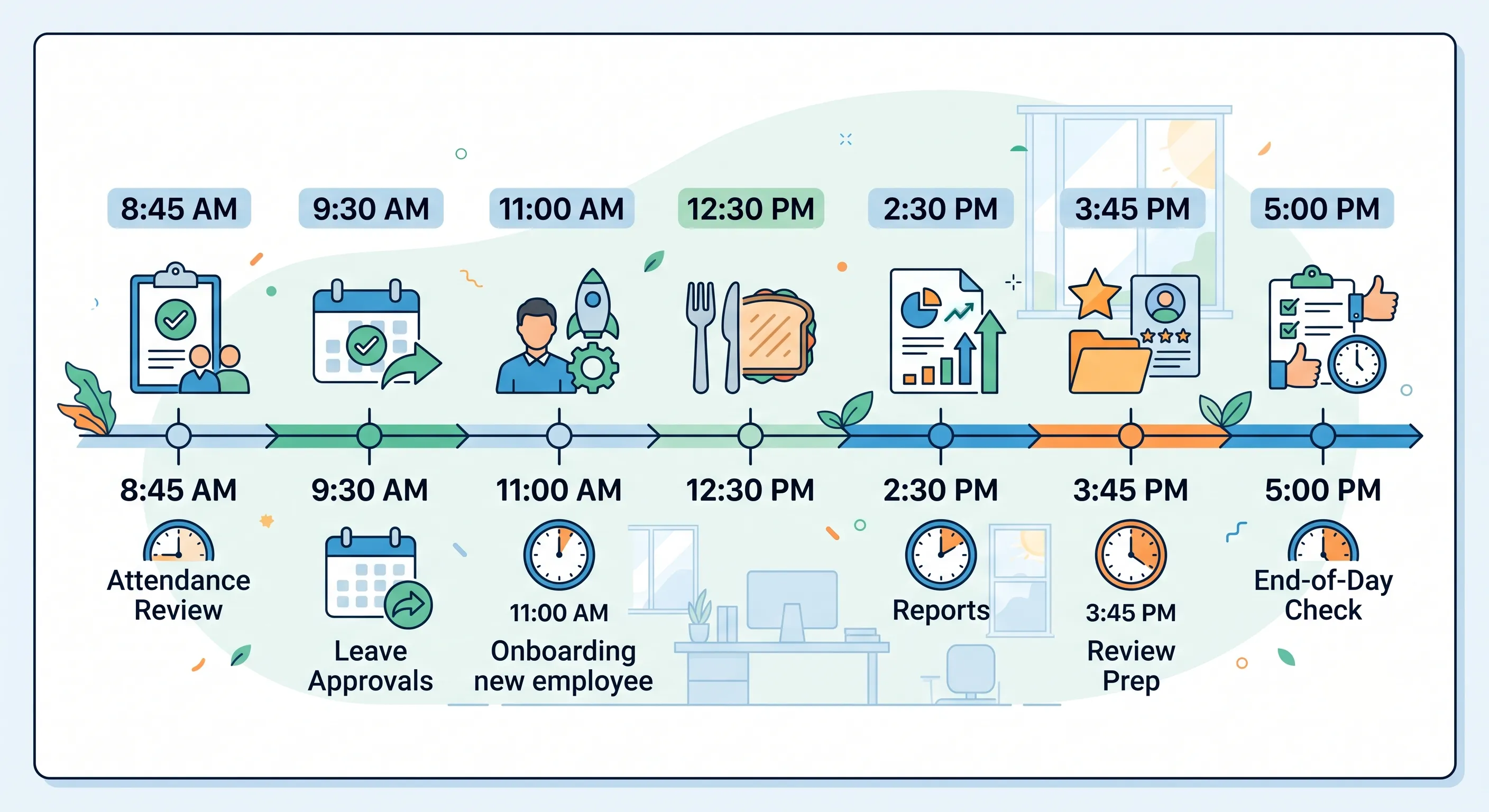
## 8:45 AM — Morning Check-In Review
Priya arrives at the office, opens OpenHRApp on her laptop, and glances at the dashboard. The real-time attendance summary shows:
- 42 of 45 employees have checked in.
- 1 employee is marked late (checked in 18 minutes after shift start).
- 2 employees are on approved leave today.
- 1 employee has not checked in yet and is not on leave.
She sends a quick message to the employee who has not checked in: "Hey, noticed you haven't checked in yet — everything OK?" The employee responds that they forgot to check in after arriving. Priya reminds them to check in, and the issue is resolved before 9 AM.
**Time saved vs. spreadsheets:** 15–20 minutes. Previously, Priya would manually cross-reference a spreadsheet of who was supposed to be present, emails about who called in sick, and Slack messages about who was running late.
## 9:30 AM — Leave Request Approvals
Priya checks the pending leave requests. Two requests came in overnight:
1. **An employee requesting 3 days of annual leave in two weeks.** Priya opens the team calendar view, sees that no one else on the team is off that week, and approves with one click. The employee gets an instant email notification.
2. **An employee requesting 1 day of sick leave for today.** The employee's sick leave balance shows 3 remaining days. Priya approves, and the attendance system automatically marks the employee as on approved sick leave — no absence will be recorded.
**Time saved vs. email-based process:** 10–15 minutes. Previously, leave requests came by email, required Priya to manually check a separate spreadsheet for leave balances, and then manually update both the approval spreadsheet and the attendance tracker.
## 10:30 AM — New Hire Onboarding
A new developer starts today. Priya adds them to OpenHRApp:
- Full name, email, designation (Junior Developer), department (Engineering).
- Assigns the Engineering Manager as their line manager.
- Assigns them to the Engineering team and the standard office shift.
- Their annual leave balance is automatically calculated based on the organization's policy (20 days, pro-rated for the remaining months in the year).
The new hire receives an email invitation to set their password and log in. Priya then posts an announcement visible to all employees: "Please join us in welcoming our new Junior Developer to the Engineering team!"
**Time saved vs. manual process:** 10 minutes. Previously, Priya would update three separate documents (employee directory spreadsheet, leave tracker, and payroll sheet) — all of which are now handled automatically by a single system.
## 12:00 PM — Manager Check-In
The Engineering Manager stops by Priya's desk with a question: "One of my team members has been coming in late consistently. Can you pull their attendance history?"
Priya opens the Reports page, filters by the employee's name and the last 3 months, and exports the attendance summary as a CSV. The report shows: of 65 working days, the employee was late on 12 days (18% late rate), with an average delay of 25 minutes. Priya shares the report with the manager.
**Time saved vs. manual process:** 15–20 minutes. Previously, Priya would need to manually compile this from daily attendance spreadsheets and calculate the statistics herself.
## 2:00 PM — Performance Review Preparation
The company is starting its mid-year review cycle next week. Priya opens the Performance Review module and:
1. Creates a new review cycle: "2026 Mid-Year Review," covering January–June 2026.
2. Selects the 6 competencies from the organization's framework.
3. Sets the self-assessment deadline for the following week and the manager evaluation deadline two weeks after that.
4. Activates the cycle.
Within minutes, all 45 employees and their managers receive email notifications that the review cycle has begun, with clear deadlines and instructions.
**Time saved vs. manual process:** 30–45 minutes. Previously, Priya would create review forms in a word processor, email them to each employee and manager individually, manually track who had completed each stage, and send reminder emails to anyone who was late.
## 3:30 PM — Leave Policy Update
The company has decided to increase casual leave from 5 days to 7 days per year, effective immediately. Priya goes to Organization > Leaves, edits the Casual Leave type, and changes the default allowance from 5 to 7. The change applies instantly to all employees' remaining balances.
She also adds a note in the leave policy description explaining the change, which is visible to all employees when they view their leave balances.
**Time saved vs. manual process:** 15–20 minutes. Previously, Priya would need to update each employee's leave balance individually in the spreadsheet and send an email announcement.
## 4:45 PM — End-of-Day Review
Before leaving, Priya checks the attendance dashboard one more time:
- 40 employees have checked out.
- 3 employees are still working (it is before the end of their shift).
- 2 employees forgot to check out yesterday — the system auto-closed their sessions at 10 PM and appended a note. Priya makes a mental note to remind those employees to check out properly.
She also checks that all leave requests for the day have been processed (they have) and that the daily attendance report will be automatically generated and emailed to the management team at 11 PM (it will).
**Time saved vs. manual process:** 10–15 minutes. Previously, Priya would manually compile the day's attendance summary for the management team before leaving.
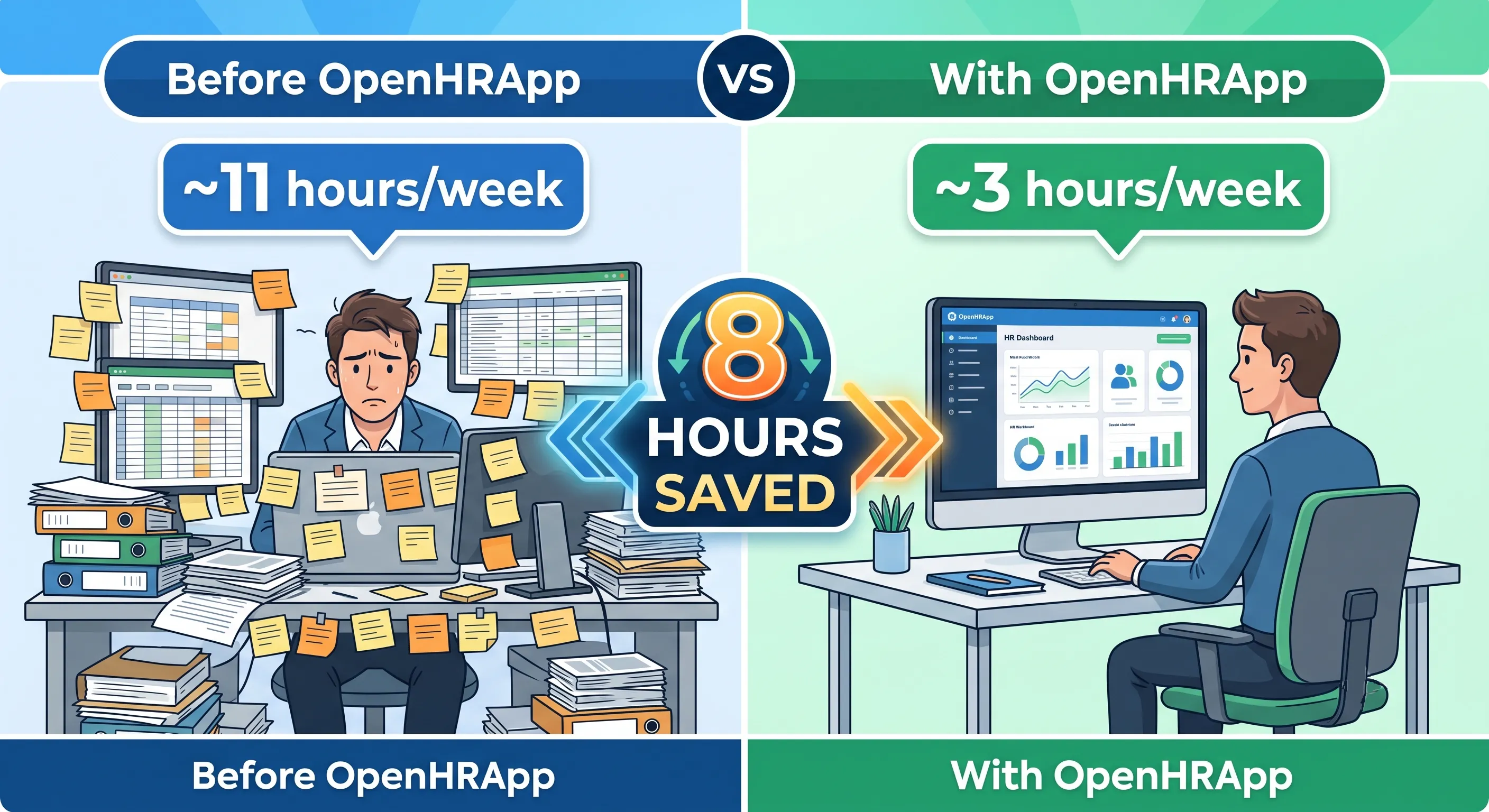
## The Weekly Tally
Across a typical workweek, Priya saves approximately 10–12 hours that were previously spent on manual HR administration. That time now goes to higher-value work:
- Strategic workforce planning conversations with department heads.
- Employee engagement initiatives and culture building.
- Improving onboarding and training programs.
- Professional development — Priya recently completed an HR analytics certification.
## What Changed with OpenHRApp
| Task | Before OpenHRApp (per week) | With OpenHRApp (per week) | Time Saved |
| --- | --- | --- | --- |
| Morning attendance check | 1.5 hours | 30 minutes | 1 hour |
| Leave request processing | 2 hours | 30 minutes | 1.5 hours |
| Reporting and data compilation | 2.5 hours | 30 minutes | 2 hours |
| Performance review administration | 1.5 hours (averaged) | 20 minutes | 1+ hour |
| Employee record updates | 1 hour | 15 minutes | 45 minutes |
| End-of-day summary | 1 hour | 10 minutes | 50 minutes |
| Policy updates and communication | 1.5 hours | 30 minutes | 1 hour |
| **Total** | **~11 hours** | **~3 hours** | **~8 hours** |
The time savings are significant, but the real transformation is qualitative: no more errors from manual data entry, no more "I forgot to update the spreadsheet," no more "which version of the leave tracker is current?" The system handles the administrative overhead, and Priya handles the work that actually requires human judgment.
## Conclusion
HR automation is not about replacing HR professionals — it is about freeing them from the administrative burden that consumes their time and prevents them from doing strategic, high-impact work. Whether it is [attendance tracking that runs itself](https://www.openhrapp.com/blog/how-selfie-attendance-works), [leave balances that calculate automatically](https://www.openhrapp.com/blog/managing-leave-with-openhrapp), or [performance reviews with built-in reminders and deadlines](https://www.openhrapp.com/blog/openhrapp-performance-review-guide), the right HR platform gives you back hours every week.
**Further Reading**
- [Getting Started with OpenHRApp: A Step-by-Step Setup Guide](https://www.openhrapp.com/blog/getting-started-with-openhrapp) — Set up your organization from scratch in under an hour.
- [How Selfie-Based Attendance Works in OpenHRApp](https://www.openhrapp.com/blog/how-selfie-attendance-works) — A deep dive into the attendance system Priya relies on every morning.
- [Managing Employee Leave with OpenHRApp](https://www.openhrapp.com/blog/managing-leave-with-openhrapp) — How leave applications, approvals, and balance tracking work.
- [A Guide to OpenHRApp's Performance Review Module](https://www.openhrapp.com/blog/openhrapp-performance-review-guide) — Set up and run review cycles like Priya did.
- [OpenHRApp Reports and Analytics](https://www.openhrapp.com/blog/openhrapp-reports-analytics-guide) — Generate the reports that save hours of manual compilation.
---
*OpenHRApp automates the administrative side of HR so you can focus on what matters: your people. Completely free. [Start saving time today](https://openhrapp.com/).*
---
## Leave Management Best Practices for Growing Teams
URL: https://openhrapp.com/blog/leave-management-best-practices
Category: HR Management
Author: OpenHRApp Team
Published: 2026-04-06
Leave management seems simple when you have five employees and the founder approves requests by text message. But as your team grows to 20, 50, or 100+ people, that informal system breaks down spectacularly. Requests get lost. Balances are calculated incorrectly. Two critical team members take leave the same week, leaving no coverage. And nobody is quite sure how many days anyone has left.
This guide covers leave management best practices designed to scale from small teams to growing organizations.
## Start With a Clear Leave Policy
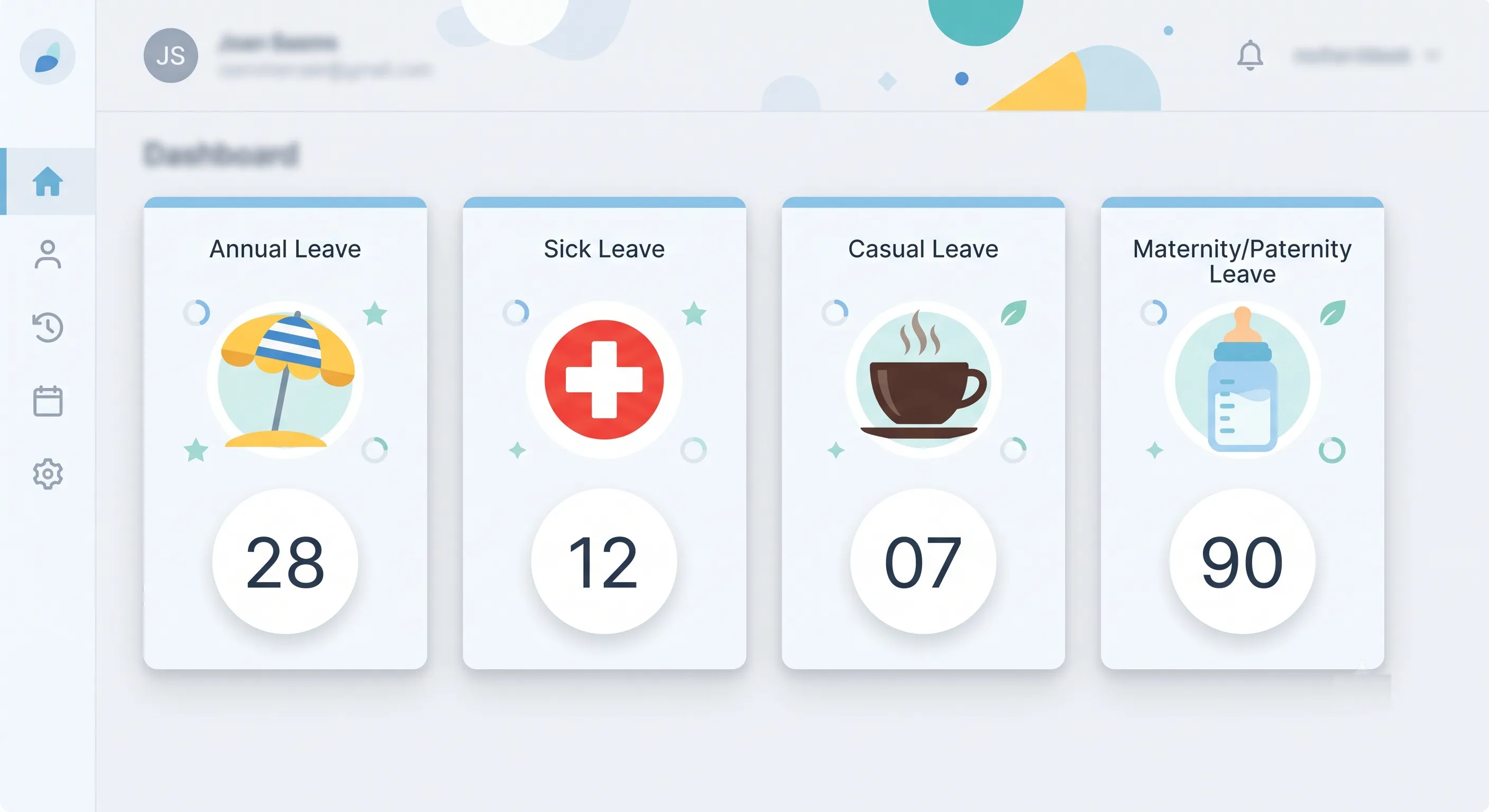
Your leave policy should be written down, communicated to all employees, and consistently applied. At minimum, it should cover:
### Leave Types and Allowances
Define each leave type available to employees. Common categories:
- **Annual/Privilege Leave** — Planned vacation time. Typically 15–30 days per year depending on industry, seniority, and jurisdiction.
- **Sick Leave** — Unplanned absence due to illness or medical appointments. Typically 7–14 days per year.
- **Casual Leave** — Short-notice personal days for unforeseen needs. Typically 5–10 days per year.
- **Maternity Leave** — Governed by local law. Common minimums range from 12 to 26 weeks.
- **Paternity Leave** — Increasingly common. Typically 1–4 weeks.
- **Bereavement/Compassionate Leave** — For the death of an immediate family member. Typically 3–7 days.
- **Unpaid Leave** — Leave beyond the employee's paid allowance. May be used for extended personal needs.
For each type, specify: the annual allowance, whether unused days carry over to the next year (and if so, how many), whether the leave is paid or unpaid, and any eligibility requirements (e.g., probation period completion).
### Accrual vs. Lump-Sum Allocation
- **Lump-sum:** The full annual allowance is available on January 1 (or the employee's anniversary date). Simple to administer but risks employees exhausting their full allowance early in the year.
- **Accrual:** Employees earn leave days gradually throughout the year (e.g., 1.67 days per month for a 20-day annual allowance). Prevents early exhaustion but adds complexity to balance calculations.
For most growing teams, lump-sum with a probation period (e.g., leave is available after 3 months of employment) provides a good balance of simplicity and risk management.
### Carry-Over Rules
Decide what happens to unused leave at the end of the year:
- **Use it or lose it:** Unused days are forfeited. Simple but can create a year-end rush of leave requests.
- **Limited carry-over:** A capped number of days (e.g., up to 5) can be carried into the next year. The most common approach.
- **Full carry-over:** All unused days carry forward. Generous but can result in employees accumulating very large balances that become a financial liability on termination.
- **Use it or get paid:** Unused days are paid out at year-end. Common in jurisdictions where this is legally required.
### Approval Workflow
Define who approves leave at each stage:
- **Employee submits request** — Should be a simple form: leave type, dates, optional reason.
- **Manager reviews and approves/rejects** — Managers should check team availability and workload before approving. They should respond within 1–2 business days.
- **HR review (optional)** — For certain leave types or extended absences, HR may provide a secondary review for compliance and policy adherence.
- **Automatic approval (optional)** — For routine short-duration leave, the system can auto-approve if no conflicts are detected.
## Team Visibility Without Micromanaging
One of the biggest challenges in growing teams is balancing transparency with privacy. Managers and team members need to know who will be absent and when — but individual leave reasons should remain private.
### Team Calendar
A shared team calendar showing approved leave (dates and employee name, but not leave type or reason) helps everyone plan around absences. It also prevents the awkward situation of two critical team members accidentally taking the same week off.
### Leave Balance Visibility
Employees should be able to see their own leave balances at any time — remaining days per type, pending requests, and leave history. Managers should see their team's balances to make informed approval decisions. HR should see organization-wide balances for reporting and policy adjustments.
### Notification Best Practices
- **New request** — Notify the approver (manager or HR) immediately.
- **Approved/Rejected** — Notify the employee immediately with the decision and any remarks.
- **Team awareness** — Optionally notify team members when a colleague's leave is approved (dates only, no reason), but make this configurable — not every organization wants this level of transparency.
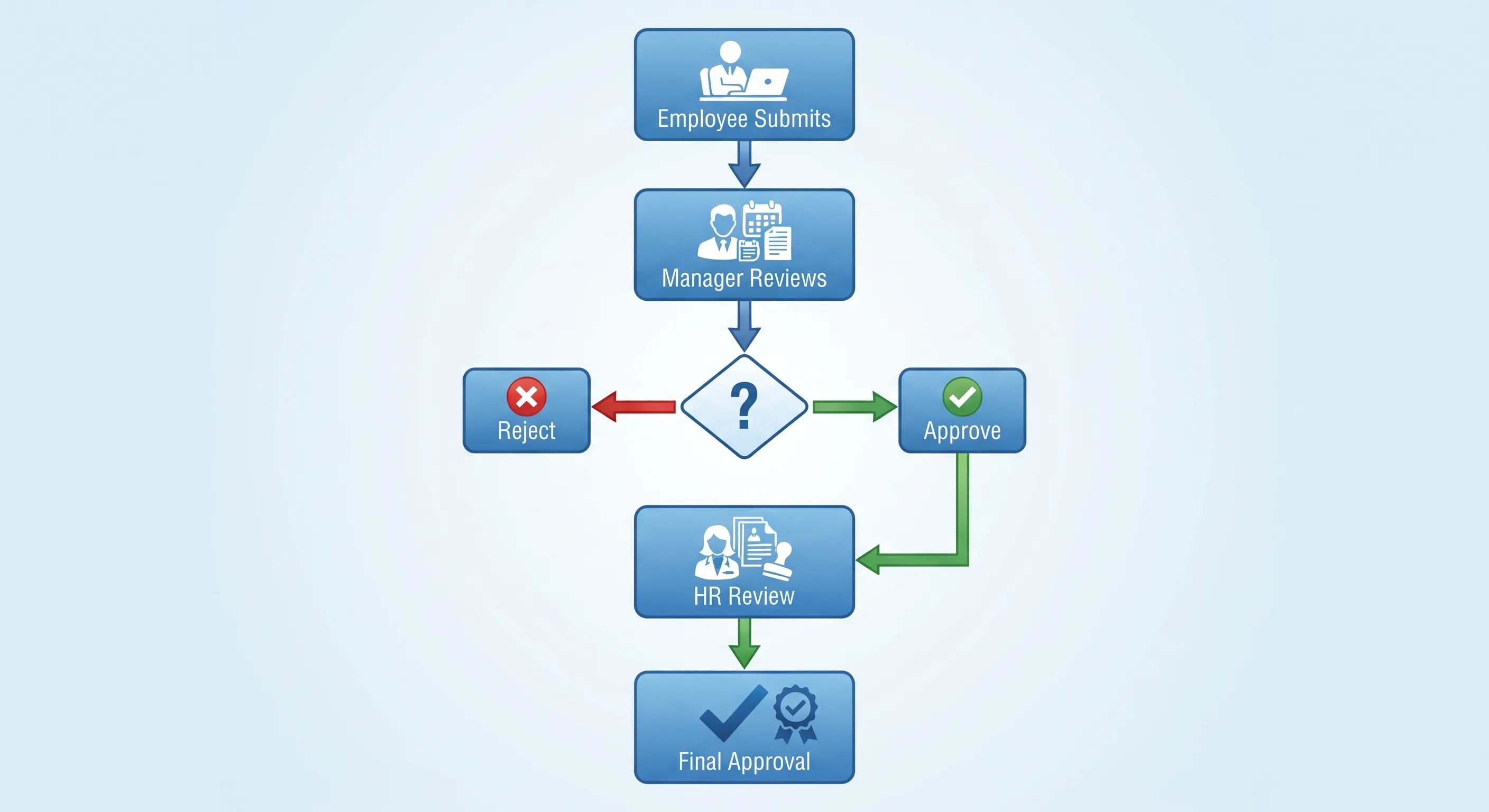
## Handling Common Edge Cases
### Half-Day Leave
Allow employees to take half-day leave (morning or afternoon) rather than consuming a full day for short appointments. This is widely appreciated and reduces unnecessary full-day absences.
### Leave During Notice Period
Decide your policy on leave during an employee's notice period. Some organizations allow it (with remaining balance), others require employees to work through their notice and pay out unused leave. Whatever you decide, apply it consistently.
### Leave Cancelation
An employee who returns early or no longer needs approved leave should be able to cancel the request. The system should restore the leave balance and remove the absence from the team calendar.
### Leave Overlap with Holidays
If a leave request spans a period that includes a public holiday, the holiday should not be deducted from the employee's leave balance. For example, if an employee takes Monday through Friday off and Thursday is a public holiday, only 4 days should be deducted. A good leave management system handles this automatically.
### Negative Balances
When an employee needs leave but has exhausted their balance, managers may approve "negative balance" leave (advance against future accrual). This should require explicit approval and be tracked separately — it is essentially a loan of future leave days.
## Scaling Leave Policies Across Departments
As your organization grows, different departments may need different leave policies. A factory floor with shift workers has different needs than a software engineering team with flexible hours. A customer support team that must maintain minimum staffing levels has different constraints than a research team with long project cycles.
A scalable leave system should support:
- **Default organization-wide policies** — Apply to all employees unless overridden.
- **Department-level overrides** — Different departments can have different leave types, allowances, or approval workflows.
- **Per-employee overrides** — Individual exceptions (e.g., a senior executive with a negotiated additional week of annual leave).
- **Role-based approval rules** — Different roles may have different approvers. A team lead's leave might be approved by the department head, while a team member's leave is approved by the team lead.
## Preventing Leave Abuse
While most employees use leave responsibly, a small minority may abuse the system. Warning signs include:
- **Consistent Monday/Friday sick leave** — Pattern of sick days adjacent to weekends.
- **Leave during critical periods** — Repeated requests during month-end closing, product launches, or other busy periods.
- **Exhausting leave immediately upon accrual** — Zero or near-zero balance throughout the year.
The best defense is visibility: managers should be able to see leave patterns for their team members. Address concerns through conversation first — there is often a legitimate reason behind suspicious patterns. Escalate to formal disciplinary action only if the pattern persists after discussion.
## Integrating Leave with Attendance and Payroll
Leave management should not operate in isolation. When an employee is on approved leave:
1. They should not be marked absent in the attendance system for those days.
2. Their leave days should be automatically deducted from the correct balance.
3. If leave affects payroll (unpaid leave, leave encashment), the data should flow to payroll processing without manual re-entry.
Integration eliminates the most common source of payroll errors: mismatched data between systems.
## Conclusion
Effective leave management is about designing policies that are clear, fair, and easy to administer — then using technology to enforce them consistently. Start with a well-documented policy. Configure your HR system to handle accruals, approvals, and balance calculations automatically. Give employees self-service access to their balances and leave history. And review your policies annually — what worked for 10 employees may need adjustment at 50.
> **See it in practice:** Our guide to [managing leave with OpenHRApp](https://www.openhrapp.com/blog/managing-leave-with-openhrapp) covers the complete leave lifecycle — employee applications, manager approvals, HR policy configuration, and team calendar visibility.
**Further Reading**
- [Managing Employee Leave with OpenHRApp](https://www.openhrapp.com/blog/managing-leave-with-openhrapp) — A practical walkthrough of leave applications, approvals, and policy configuration in OpenHRApp.
---
*OpenHRApp provides a complete leave management system with custom leave types, automatic balance tracking, configurable workflows, and team calendars — all free. [Start managing leave effectively](https://openhrapp.com/).*
---
## How Selfie-Based Attendance Works in OpenHRApp
URL: https://openhrapp.com/blog/how-selfie-attendance-works
Category: Feature Guide
Author: OpenHRApp Team
Published: 2026-03-26
One of OpenHRApp's standout features is selfie-based attendance tracking. Instead of fingerprint scanners, RFID cards, or old-school punch clocks, employees simply take a selfie using their phone — and the system captures their photo, GPS location, and timestamp all together. This guide explains exactly how it works under the hood and how to use it effectively.
## The Check-In Flow
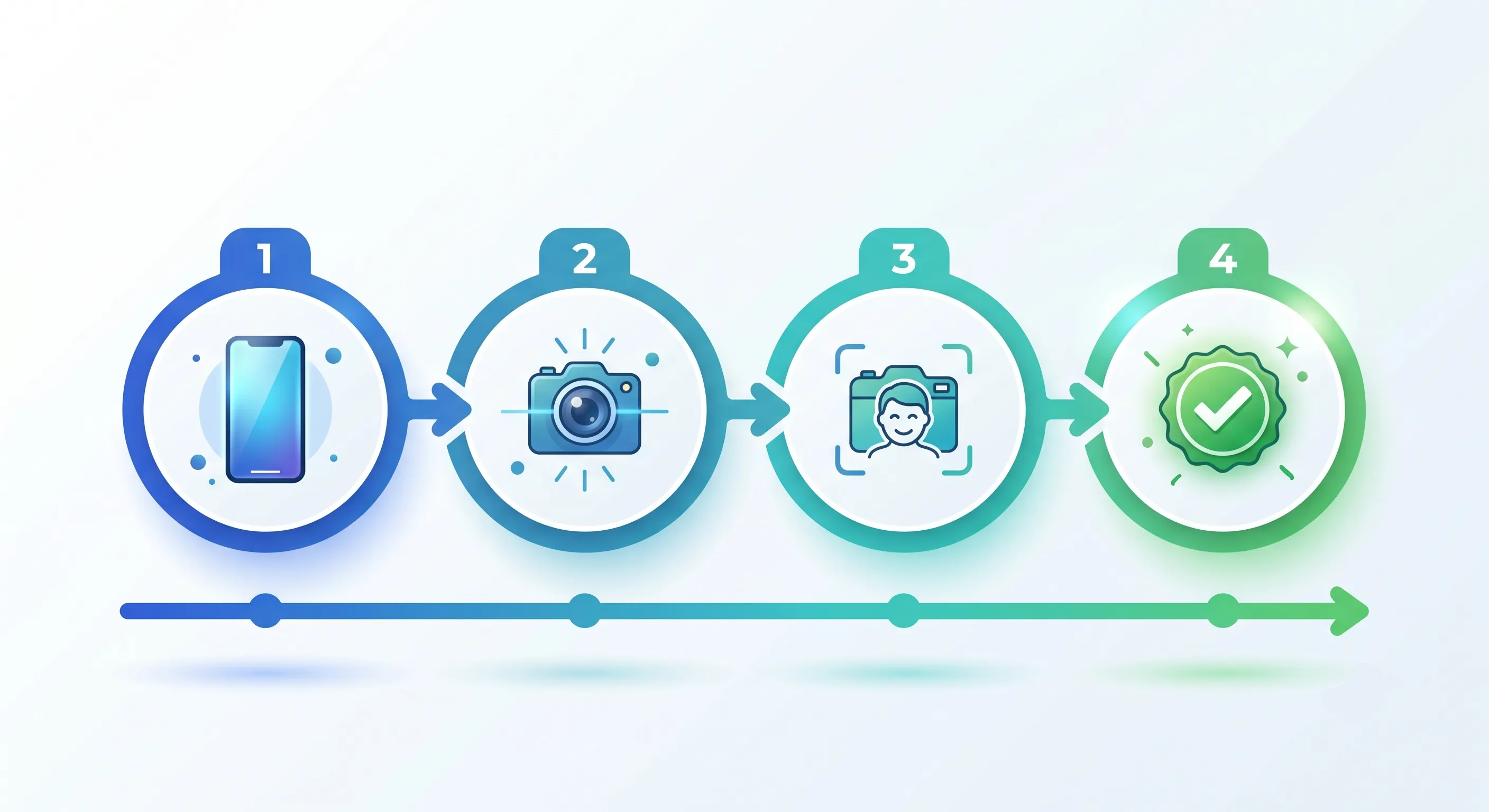
When an employee arrives at work, here is what happens step by step:
1. **Open the app** — On any device (phone, tablet, or laptop), the employee navigates to the Attendance page.
2. **Choose the duty type** — Depending on your organization's configuration, the employee selects their work type: Office (standard check-in) or Factory (shift-based check-in).
3. **Camera activates** — The app requests access to the device's camera. On first use, the browser will ask for camera permission. The employee grants permission once, and the camera activates automatically on future check-ins.
4. **Take the selfie** — The employee positions their face in the frame and captures the photo. The photo is automatically converted to WebP format for efficient storage.
5. **GPS capture** — Simultaneously, the app captures the device's GPS coordinates (with the employee's permission). This records where the check-in occurred.
6. **Timestamp** — The exact date and time are recorded server-side to prevent manipulation.
7. **Check-in complete** — The employee sees a confirmation that they are checked in, and the record is stored in the attendance database.
The entire flow takes about 5–10 seconds from opening the app to completing the check-in.
## Check-Out Flow
At the end of the workday (or shift), the employee returns to the Attendance page and taps Check Out. The system:
1. Captures another selfie for identity verification.
2. Records the checkout timestamp.
3. Calculates the total work duration.
4. Closes the attendance session.
If an employee forgets to check out, OpenHR's auto-close mechanism kicks in. At a configured time (e.g., 10 PM), any open attendance sessions are automatically closed with a system note, and the employee is notified.
## Identity Verification: How It Prevents Buddy Punching
Buddy punching — when a colleague checks in for an absent employee — is one of the most common forms of time theft. Selfie verification makes it virtually impossible because:
- **Every check-in requires a photo.** The photo is captured live through the camera — it cannot be uploaded from the device gallery in standard mode. This ensures the photo is taken at the moment of check-in.
- **Photos are stored with each attendance record.** Managers and HR can visually verify who checked in. If John's attendance record shows a photo of Sarah, it is immediately obvious.
- **No shared credentials.** Unlike PIN codes or swipe cards, a selfie cannot be shared or lent to a colleague.
### Privacy Safeguards
Selfie verification is not facial recognition. OpenHR does not process or analyze facial features. The photo is stored as evidence for manual verification by authorized personnel only. Specifically:
- Photos are only visible to managers and HR/Admin — not to other employees.
- Photos are stored securely alongside attendance records with the same access controls.
- No biometric data is extracted or stored. The photo is simply an image file.
## GPS Location Verification
Every check-in captures the device's GPS coordinates. This serves multiple purposes:
- **On-site verification** — Confirms that office-based employees are checking in from the office location, not from home.
- **Field worker tracking** — Verifies that field workers are at their assigned job sites or client locations.
- **Remote work monitoring** — Shows where remote employees are working from on any given day.
The GPS data is displayed in the attendance logs as coordinates and, where available, as a reverse-geocoded address (e.g., "123 Main Street, Dhaka"). Managers can view check-in locations on a map for visual verification.
> **Important:** GPS is only captured at the moment of check-in (and check-out, if configured). OpenHR does not track employee location continuously throughout the day. The purpose is verification, not surveillance.
## Attendance Modes: Office vs. Factory
OpenHR supports two distinct attendance modes to accommodate different work environments:
### Office Mode
Designed for standard office environments with regular business hours. Key characteristics:
- Employees check in once at the start of the day and check out once at the end.
- Lateness is calculated against the employee's assigned shift start time (minus any grace period).
- Work duration is calculated from check-in to check-out.
- Ideal for knowledge workers, administrative staff, and management.
### Factory Mode
Designed for manufacturing, production, and shift-based environments. Key characteristics:
- Supports multiple shifts throughout the day (morning, afternoon, night).
- Employees check in at the start of their shift and check out at the end.
- Overtime is calculated automatically for work beyond the scheduled shift end.
- Supports split shifts and rotating schedules.
- Ideal for factory workers, warehouse staff, and operations teams.
Admins can configure which modes are available to their organization and assign specific modes per employee or per department.
## The Audit Trail
Every attendance event creates an auditable record containing:
- Employee ID and name
- Date and time of check-in (server-verified)
- Date and time of check-out (if applicable)
- Selfie photo
- GPS coordinates
- Duty type (Office or Factory)
- Status (Present, Late, Absent, etc.)
- Any remarks or overrides
This data is stored in a structured database and can be exported to CSV for payroll processing, compliance audits, or further analysis. All records are immutable — once an attendance session is closed, it cannot be silently edited. Manual adjustments by admins are logged with the admin's identity, timestamp, and reason.
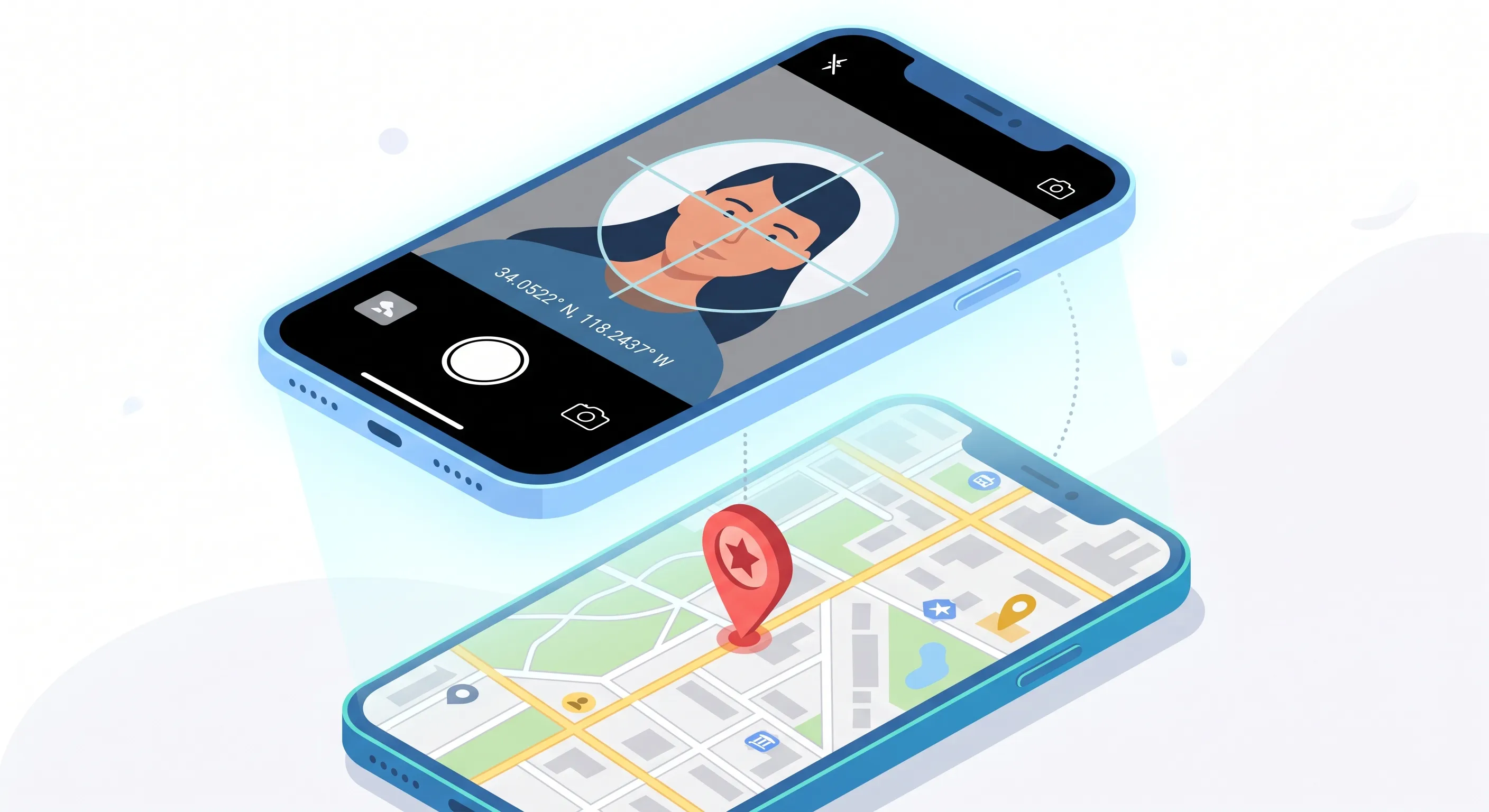
## Troubleshooting Common Issues
### Camera Not Working
If the camera fails to activate:
- Ensure the browser has camera permission. Check the browser's site settings.
- On iOS, make sure you are using Safari (PWA mode) — some third-party browsers have limited camera access.
- Try the gallery upload fallback: in environments where live camera access is blocked, OpenHR allows uploading a recently taken photo as an alternative (this is configurable by the admin).
### GPS Not Available
If GPS cannot be determined:
- Ensure location services are enabled on the device.
- Grant location permission to the browser when prompted.
- On desktop, GPS may be less accurate or unavailable. Desktop check-ins will record the best available location (often based on IP geolocation) and flag the record accordingly.
### "Already Checked In" Error
This occurs when an employee tries to check in twice without checking out in between. The employee should check out first before starting a new session. If the previous check-out was missed, an admin can manually close the previous session.
## Setting Up Attendance for Your Organization
To configure attendance for your team:
1. **Configure shifts** — Go to Organization > Shifts. Define your shifts with start/end times, grace periods, and working days.
2. **Assign shifts to employees** — In the Employee Directory, assign each employee to their appropriate shift.
3. **Configure auto-close time** — Go to Organization > System and set the auto-session-close time. This should be after the latest possible shift end time.
4. **Set up holidays** — Go to Organization > Holidays and add your holiday calendar. Employees will not be marked absent on holidays.
5. **Test with a pilot group** — Have a small group of employees test the check-in/check-out flow before rolling out to the entire organization.
## Conclusion
Selfie-based attendance tracking gives you biometric-level identity verification without any dedicated hardware. It eliminates buddy punching, provides location verification, and creates a complete audit trail — all from the smartphone your employees already carry. Combined with flexible shift support and automatic absence detection, it is a complete attendance management solution that costs nothing to use.
**Further Reading**
- [The Complete Guide to Employee Attendance Tracking](https://www.openhrapp.com/blog/employee-attendance-tracking-guide) — Compare selfie-based check-in against paper, biometric, RFID, and spreadsheet methods.
- [Employee Privacy in the Age of Workplace Surveillance](https://www.openhrapp.com/blog/employee-privacy-workplace-surveillance) — How OpenHR balances identity verification with employee privacy.
- [Remote Work and HR: Adapting Your Policies for a Distributed Workforce](https://www.openhrapp.com/blog/remote-work-hr-policies) — How selfie + GPS attendance works for distributed and hybrid teams.
---
*OpenHRApp's attendance system is completely free, with no limits on employees, check-ins, or storage. [Start tracking attendance today](https://openhrapp.com/).*
---
## Employee Privacy in the Age of Workplace Surveillance
URL: https://openhrapp.com/blog/employee-privacy-workplace-surveillance
Category: Industry Insights
Author: OpenHRApp Team
Published: 2026-03-17
Workplace monitoring technology has exploded. From keystroke loggers and screen recorders to GPS tracking and webcam monitoring, employers now have more tools than ever to watch what their employees are doing. But capability does not equal wisdom — and many organizations are discovering that heavy surveillance damages trust, morale, and ultimately, productivity.
This article explores how to adopt HR technology responsibly — getting the verification and accountability you need without crossing into invasive surveillance.
## The Surveillance Arms Race
The COVID-19 pandemic accelerated a trend that was already underway: as employees moved out of physical offices, some employers responded by deploying digital surveillance tools to replicate the visibility they had lost. According to industry surveys:
- Over 60% of companies with remote workers use some form of monitoring software.
- 1 in 3 companies that adopted monitoring during the pandemic have kept it in place even after returning to hybrid work.
- Employee pushback against invasive monitoring has become a significant factor in turnover, particularly among knowledge workers who have other options.
The irony is that heavy surveillance often produces the opposite of its intended effect: employees who feel watched perform worse, not better. Studies consistently show that perceived autonomy and trust are far stronger drivers of productivity than monitoring.
## Where Is the Line?
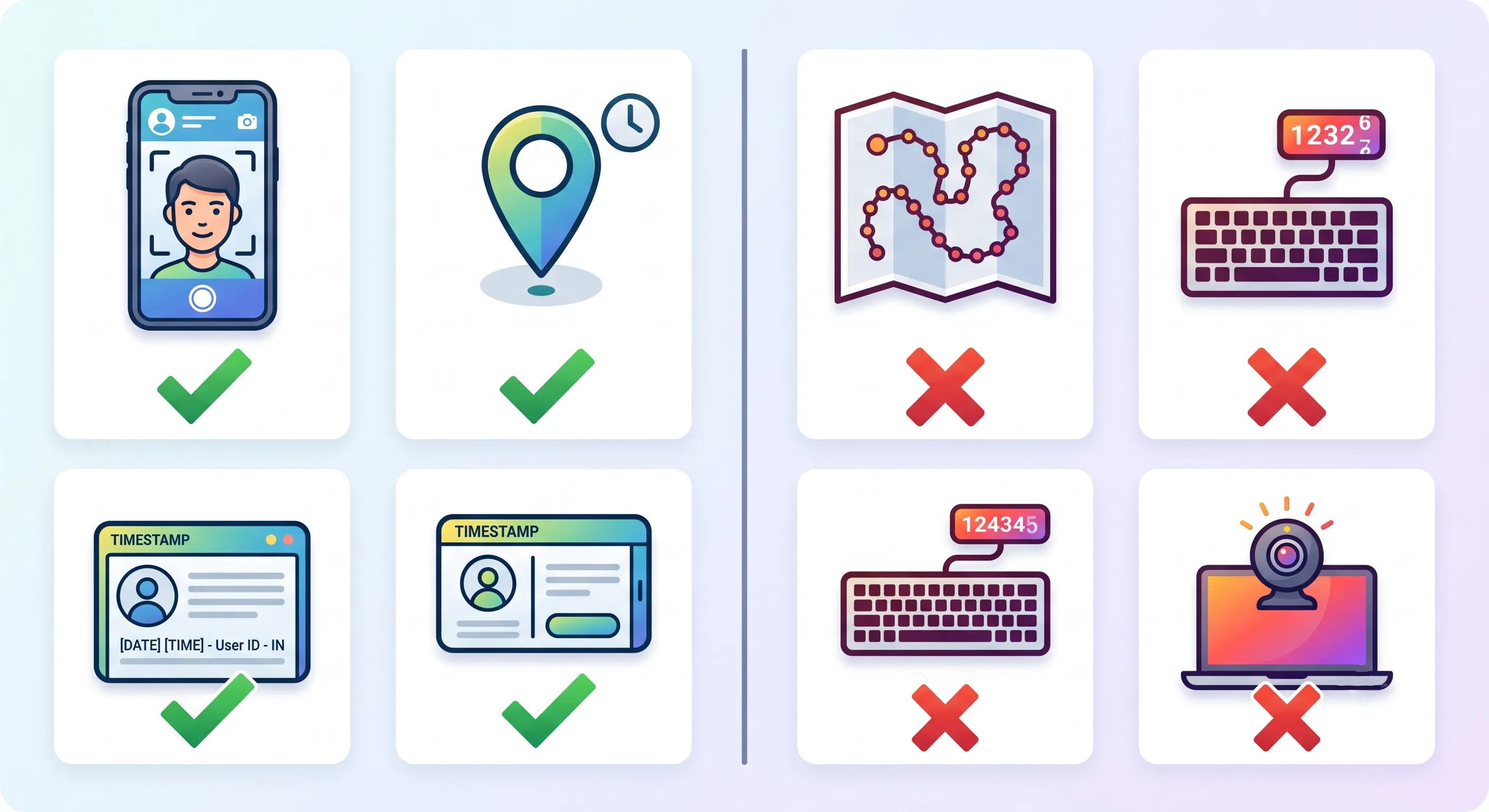
Not all monitoring is invasive. The key distinction is between **verification** and **surveillance**:
### Verification (Reasonable)
- Capturing a selfie at the moment of attendance check-in to confirm identity.
- Recording GPS coordinates at check-in to confirm the employee is at their work location.
- Logging access to sensitive systems for security auditing.
- Tracking time spent on specific projects for client billing purposes.
### Surveillance (Problematic)
- Continuous location tracking throughout the workday.
- Keystroke logging to measure "activity levels."
- Random webcam captures to verify presence at the desk.
- Screen recording without specific, disclosed reasons.
- Monitoring personal devices or personal accounts.
The difference comes down to three factors: **purpose**, **proportionality**, and **transparency**.
- **Purpose:** Is the data being collected for a specific, legitimate business need (payroll accuracy, security, client billing)? Or is it being collected "just in case" it might be useful?
- **Proportionality:** Is the minimum amount of data being collected to achieve the purpose? GPS at check-in verifies work location. Continuous GPS tracking goes far beyond what is needed.
- **Transparency:** Do employees know exactly what is being tracked, when, and why? Have they consented?
## Designing Privacy-Respecting Attendance Tracking
Attendance tracking illustrates the difference between verification and surveillance:
**Bad approach:** Require employees to install an app that tracks their location continuously from 9 AM to 6 PM, flagging any time they leave a designated geofenced area. This treats adults like parolees and generates constant anxiety.
**Good approach (OpenHR's approach):** Employees take a selfie and the app captures GPS coordinates at the moment of check-in. That is it. No continuous tracking. The data shows: "Employee X checked in at 8:58 AM from location Y." It does not show where the employee went for lunch.
This approach achieves the legitimate business goal — verifying attendance and work location — without unnecessary intrusion.
## Data Privacy Best Practices for HR Systems
### Collect Only What You Need
Before adding any new data field to your HR system, ask: "What decision does this data enable? Would we make a different decision without it?" If you cannot articulate a specific, legitimate use, do not collect it.
### Limit Access Rigorously
Use role-based access controls (RBAC) to ensure:
- Employees can only see their own data.
- Managers can only see their direct reports' data.
- HR can see organization-wide data but only for legitimate HR functions.
- No single person has unrestricted access to all employee data without oversight.
OpenHR implements these controls by default — every query is scoped to the user's role and organization.
### Have a Retention Policy
Do not keep data forever. Define how long different types of data are retained:
- Attendance logs: typically 3–7 years (for labor law compliance).
- Performance reviews: typically 3–5 years after employment ends.
- Selfie photos: delete after a reasonable verification period (e.g., 30 days) unless needed for an active investigation.
Automated data cleanup prevents the accumulation of sensitive data that could be exposed in a breach.
### Secure the Data
- Encrypt data at rest and in transit (HTTPS, database encryption).
- Require strong authentication (strong passwords, and ideally multi-factor authentication).
- Regularly audit access logs — look for unusual patterns (HR staff accessing their own records, access outside of business hours, bulk data exports).
- Have an incident response plan for data breaches that includes notifying affected employees promptly.
## The Legal Landscape
Employee privacy laws vary significantly by jurisdiction, but several principles are nearly universal:
- **GDPR (Europe):** Requires a lawful basis for processing employee data, data minimization, purpose limitation, and transparency. Employees have the right to access their data and request deletion.
- **CCPA/CPRA (California):** Gives employees rights to know what data is collected, to opt out of certain uses, and to request deletion.
- **Common law privacy torts:** In many jurisdictions, employees can sue for "intrusion upon seclusion" if monitoring goes beyond what a reasonable person would find acceptable.
The legal trend is consistently toward stronger employee privacy protections. Organizations that implement privacy-respecting practices now will be ahead of the regulatory curve — and will avoid the compliance scramble when new laws take effect.
## Building Trust Through Transparency
The single most effective privacy practice is also the simplest: tell employees what you are doing and why.
Before rolling out any new HR technology (attendance tracking, performance monitoring, etc.):
1. **Explain what data will be collected.** Be specific — not "we may collect location data," but "the app will record your GPS coordinates at the moment you check in."
2. **Explain why it is collected.** "This confirms you are at your work location when you start your shift."
3. **Explain who can see it.** "Your manager and HR can see your check-in location. Other employees cannot."
4. **Explain how long it is kept.** "Attendance records are retained for 3 years for labor law compliance. Location data older than 30 days is automatically purged."
5. **Give employees a way to ask questions.** A brief Q&A session or a written FAQ can address concerns before they become resentment.
When employees understand what is being tracked and why — and when they see that the tracking is limited, purposeful, and transparent — most are comfortable with reasonable verification measures. Resistance arises when tracking feels secretive, excessive, or disrespectful.
## The Business Case for Privacy
Privacy-respecting HR practices are not just ethically right — they are good for business:
- **Higher trust and morale** — Employees who feel respected perform better and stay longer.
- **Lower turnover** — Invasive monitoring is a top reason knowledge workers cite for leaving jobs.
- **Reduced legal risk** — Privacy-respecting practices reduce the likelihood of lawsuits and regulatory fines.
- **Better recruiting** — In a competitive talent market, "we do not spy on our employees" is a compelling pitch.
- **Data minimization reduces breach impact** — The less data you collect, the less there is to be exposed in a breach.
## Conclusion
The goal of HR technology should be to support and empower employees, not to surveil them. Attendance verification, identity confirmation, and location tracking all serve legitimate business needs — when implemented with purpose, proportionality, and transparency. The best HR platforms make verification painless and privacy-respecting, not intrusive and anxiety-inducing. As you evaluate HR tools, make privacy practices a primary selection criterion — not an afterthought.
**Further Reading**
- [How Selfie-Based Attendance Works in OpenHRApp](https://www.openhrapp.com/blog/how-selfie-attendance-works) — See how OpenHR balances identity verification with privacy (GPS at check-in only, no continuous tracking).
- [Remote Work and HR: Adapting Your Policies for a Distributed Workforce](https://www.openhrapp.com/blog/remote-work-hr-policies) — Privacy considerations for distributed teams, including data security for remote workers.
---
*OpenHRApp is designed with employee privacy in mind: selfie verification at check-in only, GPS captured only at the moment of check-in, no continuous tracking, and role-based access controls. [Learn more](https://openhrapp.com/).*
---
## Remote Work and HR: Adapting Your Policies for a Distributed Workforce
URL: https://openhrapp.com/blog/remote-work-hr-policies
Category: Industry Insights
Author: OpenHRApp Team
Published: 2026-02-24
The shift to remote and hybrid work is one of the most significant changes in the history of human resources. What started as a necessity has become a permanent expectation for millions of workers. But remote work introduces unique HR challenges that traditional policies — designed for in-office teams — do not address.
This guide covers how to adapt your core HR policies for a distributed workforce.
## Attendance Tracking for Remote Teams
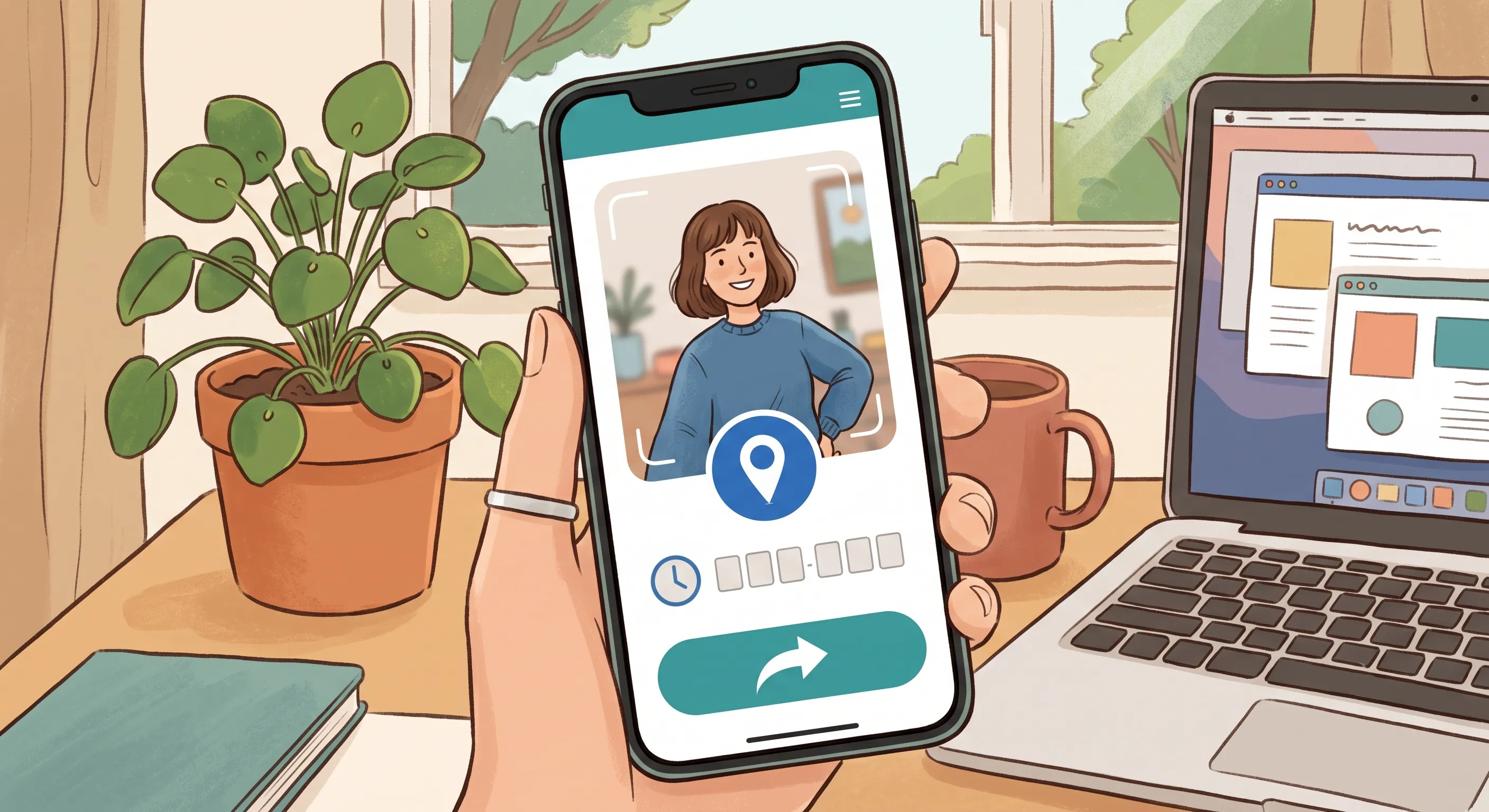
The traditional model of attendance — walk through the door, sit at your desk — does not apply to remote workers. But organizations still need to know who is working, when they started, and that the person checking in is actually the employee.
### What Works for Remote Attendance
- **Selfie-based check-in with GPS** — Employees take a quick selfie when they start work. The photo confirms identity (no "buddy punching"), and GPS confirms the employee is at their registered work location (home, co-working space, or wherever they work from).
- **Flexible hours with core overlap** — Instead of a fixed 9-to-6 schedule, define core hours (e.g., 10 AM–3 PM) when all team members must be available for meetings and collaboration. Outside of core hours, employees have flexibility.
- **Results-based tracking** — For knowledge workers, shift the emphasis from hours logged to outcomes delivered. Did the project ship on time? Are clients satisfied? Is work quality high? These matter more than whether someone was online at 9:02 AM.
### What to Avoid
- **Keystroke monitoring or screen tracking** — These tools damage trust, create anxiety, and are rarely correlated with actual productivity. They signal to employees that you do not trust them — and employees who feel distrusted perform worse.
- **Rigid 9-to-5 expectations** — Remote employees often work across time zones. Requiring them to be online during a specific office's hours is arbitrary and unfair. Focus on outcomes and availability during core overlap hours instead.
## Leave Management Across Jurisdictions
Remote work often means employees are spread across different states, provinces, or even countries — each with its own leave laws.
### Key Considerations
- **Know the applicable leave laws for each employee's location.** An employee working remotely from California is subject to California leave laws, not the laws of your headquarters state. This applies to sick leave, family leave, bereavement leave, and any other statutory leave.
- **Configure leave policies per jurisdiction.** Your HR system should support different leave allowances and rules based on employee location. An employee in a jurisdiction with mandated 5 sick days should not be held to a 3-day policy designed for a different location.
- **Document location changes.** When an employee moves to a new city, state, or country, update their employment record and review whether any policies change. An employee who moves without notifying HR can create unexpected compliance exposure.
### Practical Tips
- Maintain a register of employee work locations and their applicable leave laws.
- Review leave policies annually to ensure they remain compliant as laws change.
- Use an HR system that supports per-employee leave policy overrides — so you can accommodate jurisdiction-specific rules without creating dozens of organization-wide policies.
## Performance Reviews for Distributed Teams
Evaluating remote employees fairly requires different approaches than in-office evaluations:
### Focus on Outcomes, Not Activity
When you cannot see someone at their desk, you must evaluate what they produce, not how they look while producing it. This is actually a better approach for all employees — in-office or remote — but it is essential for distributed teams.
Define clear, measurable goals at the start of each review period. Examples:
- Shipped feature X by Q2.
- Reduced customer support response time from 4 hours to 1 hour.
- Closed 15 new accounts in the quarter.
### Address Visibility Bias
In-office employees often benefit from informal visibility — the quick chat with a manager in the hallway, being seen working late, presenting in person. Remote employees do not have these advantages, which can lead to them being overlooked for promotions and recognition.
Mitigate visibility bias by:
- Ensuring all important discussions and decisions happen in writing (shared documents, chat channels, project management tools) — not in hallway conversations.
- Rotating meeting times so no single time zone is always inconvenienced.
- Tracking contributions objectively (using project management tools, code repositories, ticket systems) rather than relying on manager impressions.
### Written Feedback Over Verbal
Remote reviews benefit from more written documentation. Written feedback:
- Can be referenced later (no one forgets what was said).
- Gives the recipient time to process before responding.
- Creates a record for future reviews.
Encourage managers to provide written feedback before any live video discussion. The live conversation should be a dialogue about the written feedback, not the first time the employee hears it.

## Building Culture in a Distributed Team
Culture does not require a physical office, but it does require intentional effort:
- **Regular video check-ins** — Not just work meetings, but informal coffee chats, team lunches (everyone orders delivery and eats together on video), and virtual celebrations.
- **Written values and norms** — Document your culture explicitly. What behaviors are valued? What is unacceptable? Remote teams cannot rely on osmosis to transmit culture.
- **Recognition and celebration** — Publicly recognize achievements in team channels. Celebrate work anniversaries, project completions, and personal milestones.
- **Asynchronous-first communication** — Default to writing (documents, messages) over meetings. This respects different time zones and work schedules. Meetings should be the exception, not the default.
## Technology Requirements for Remote HR
Your HR tools must work for a distributed workforce:
- **Cloud-based, accessible from anywhere** — On-premise software that requires VPN access does not work for remote teams.
- **Mobile-friendly** — Remote employees may not always be at a desk. A PWA or mobile app that works on phones is essential for attendance check-in, leave applications, and accessing HR information.
- **Self-service** — Remote employees cannot walk over to HR's desk with a question. The HR system must be intuitive enough that employees can find answers and complete tasks on their own.
- **Real-time notifications** — Email and in-app notifications keep distributed teams connected. When a leave request is approved or a review deadline is approaching, the right people should be notified automatically.
## Data Security for Remote Work
Remote employees access HR systems from home networks, coffee shop Wi-Fi, and co-working spaces — all of which are less secure than an office network. Mitigate risk by:
- Enforcing HTTPS for all HR system access.
- Requiring strong, unique passwords (and encouraging password managers).
- Implementing role-based access controls — remote employees should only access data relevant to their role.
- Educating employees about phishing, public Wi-Fi risks, and secure data handling.
- Never storing sensitive HR data on personal devices. All data should live in the secured HR platform.
## Conclusion
Remote work does not require reinventing HR — but it does require adapting policies that were designed for a co-located workforce. Focus on outcomes over activity. Configure leave policies per jurisdiction. Mitigate visibility bias in performance reviews. Invest in cloud-based, mobile-friendly HR tools. And most importantly, build a culture of trust — because the best remote teams are built on mutual respect, not surveillance.
**Further Reading**
- [How Selfie-Based Attendance Works in OpenHRApp](https://www.openhrapp.com/blog/how-selfie-attendance-works) — Photo + GPS check-in that works for remote and distributed teams without continuous tracking.
- [Employee Privacy in the Age of Workplace Surveillance](https://www.openhrapp.com/blog/employee-privacy-workplace-surveillance) — How to adopt HR technology responsibly — verification, not surveillance.
- [Leave Management Best Practices for Growing Teams](https://www.openhrapp.com/blog/leave-management-best-practices) — Multi-jurisdiction leave policies, team calendars, and scaling leave across distributed teams.
---
*OpenHRApp is built for remote and distributed teams — cloud-based, works as a PWA on any device, with selfie-based check-in and GPS verification. Completely free. [Get started](https://openhrapp.com/).*
---
## A Guide to OpenHRApp's Performance Review Module
URL: https://openhrapp.com/blog/openhrapp-performance-review-guide
Category: Feature Guide
Author: OpenHRApp Team
Published: 2026-02-08
OpenHRApp's performance review module enables structured, multi-stage evaluations with customizable competencies and rating scales. Whether you are running annual appraisals, quarterly check-ins, or probation reviews, this guide walks you through the complete process.
## Overview of the Review Lifecycle
A performance review in OpenHR follows a defined lifecycle:
1. **Draft** — The review cycle is created but not yet active.
2. **Self-Assessment** — Employees rate themselves on each competency and provide written reflections.
3. **Manager Review** — The direct manager evaluates the employee, provides feedback, and assigns ratings.
4. **HR Finalization** — HR reviews all evaluations, calibrates ratings across the organization, and finalizes the reviews.
At each stage, automatic email notifications keep everyone informed of deadlines and pending actions.
## Step 1: Configure Your Organization's Review Settings
Before creating your first review cycle, configure the organization-wide review settings. Go to **Organization > Structure** (or the dedicated Review Config section).
### Competencies
Define the competencies that will be evaluated across all review cycles. Competencies are the skills, behaviors, and values you want to assess. Each competency has:
- **Name** — A short, descriptive label (e.g., "Collaboration," "Technical Expertise," "Problem-Solving").
- **Description** — A clear explanation of what the competency means in your organizational context. This description is visible to both employees and managers during the review.
OpenHR comes with six default competencies — Agility, Collaboration, Customer Focus, Developing Others, Global Mindset, and Innovation Mindset — but you can customize these completely. Add, remove, or rename competencies to match what matters to your organization.
> **Tip:** Keep your competency list to 5–8 items. Too many competencies make reviews tedious and unfocused.
### Rating Scale
Configure the rating scale that will be used across all competencies. The default is a 5-point scale:
1. Needs Improvement
2. Developing
3. Meets Expectations
4. Exceeds Expectations
5. Outstanding
You can customize the number of levels (3-point, 4-point, 7-point) and the label for each level.
## Step 2: Create a Review Cycle
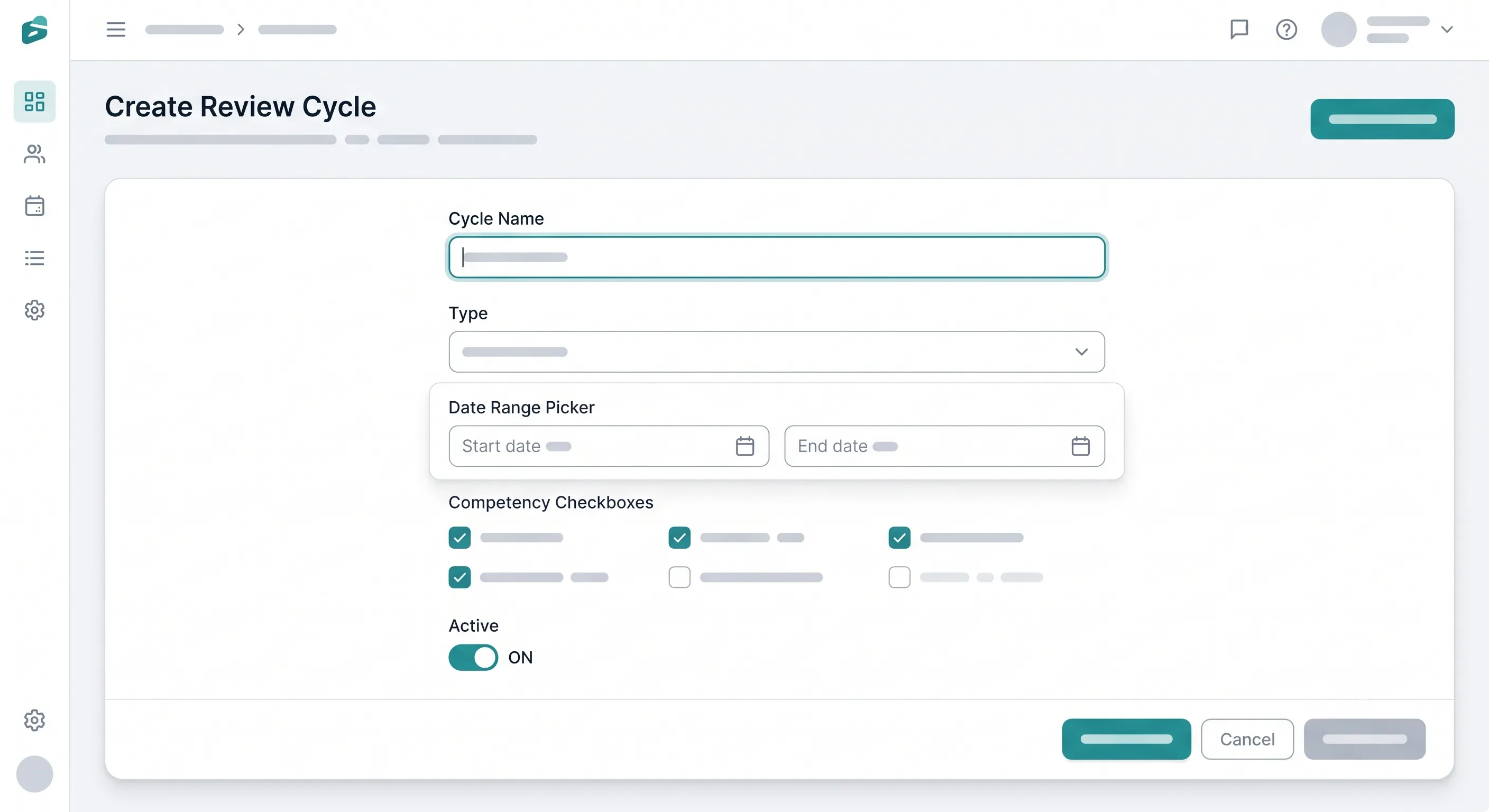
Go to the **Performance Review** section from the sidebar and create a new review cycle. You will need to define:
- **Cycle Name** — A descriptive name (e.g., "2026 Annual Review," "Q3 2026 Quarterly Check-In").
- **Cycle Type** — Choose from Annual, Semi-Annual, Quarterly, or Probation.
- **Cycle Period** — The date range the review covers (e.g., January 1 – December 31, 2026). This determines which attendance and leave data is pulled into the review.
- **Review Period** — The window during which reviews are completed (e.g., January 1–31, 2027). Deadlines for self-assessment and manager review are set within this period.
- **Selected Competencies** — Choose which competencies from your configured list apply to this cycle. Different cycles can evaluate different competencies.
- **Active Status** — Toggle whether the cycle is active. Employees can only see and participate in active cycles.
Once created, the cycle automatically notifies employees and managers that a new review period has begun.
## Step 3: Self-Assessment (Employee)
When a review cycle is active, employees see their pending self-assessment on their Performance Review page.
The self-assessment form displays:
- Each competency with its description.
- The rating scale for reference.
- A text area for written self-reflection.
For each competency, employees rate themselves and provide written comments. The self-assessment gives employees a voice in the evaluation process and highlights gaps between self-perception and manager perception.
**Best practices for employees:**
- Be honest. Over-rating yourself undermines credibility; under-rating yourself does not help your case.
- Provide specific examples. Instead of "I collaborate well," write "I led the cross-functional project with Engineering and Marketing to launch the Q3 feature on schedule."
- Use the self-assessment as an opportunity to highlight accomplishments your manager may not be aware of.
After submitting, the self-assessment is locked (no further edits) and the manager is notified that their review is ready.
## Step 4: Manager Evaluation
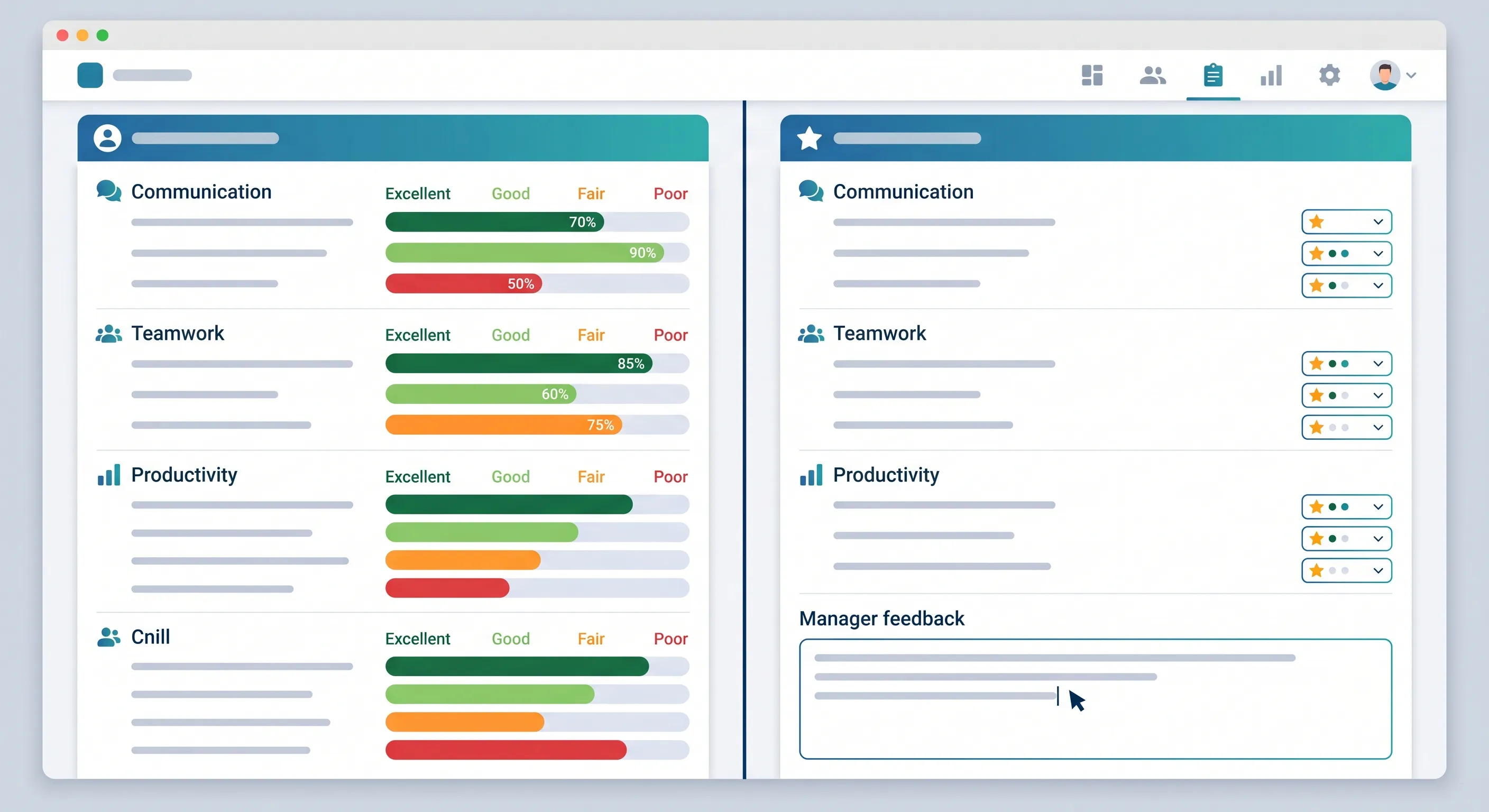
Managers see all pending reviews for their direct reports. The manager evaluation screen shows:
- The employee's self-assessment (ratings and comments) — side by side with the manager's evaluation form.
- Attendance summary for the review period — total days present, absent, and late.
- Leave summary for the review period — total days taken by type.
For each competency, the manager provides:
- **Rating** — Their independent assessment of the employee's performance.
- **Written feedback** — Specific observations, examples, and guidance.
The side-by-side layout is intentional: it makes gaps between self-assessment and manager evaluation immediately visible, which often leads to the most productive conversations.
**Best practices for managers:**
- Base ratings on evidence, not impressions. Refer to specific projects, outcomes, and behaviors observed during the review period.
- For any rating below "Meets Expectations," provide concrete, actionable guidance on what improvement looks like.
- Do not save critical feedback for the review — it should have been discussed throughout the year. The review summarizes and documents.
- Submit the review before the deadline. Late reviews signal to employees that their development is not a priority.
After the manager submits their evaluation, the review moves to HR for finalization.
## Step 5: HR Finalization
HR sees all reviews that have completed the manager evaluation stage. The HR finalization screen provides:
- A summary view of all reviews in the cycle, organized by department.
- Rating distributions — are certain managers systematically rating higher or lower than others?
- The ability to add final remarks and an overall rating that may differ from the manager's ratings (for calibration purposes).
HR's role in finalization is to ensure consistency and fairness across the organization. If one manager has rated all their reports as "Outstanding" while another manager in the same department has a more balanced distribution, HR may adjust ratings after discussion with the managers.
After HR finalizes a review, the employee is notified and can view their completed evaluation.
## Viewing Review History
Both employees and managers can view historical reviews at any time. The review history shows:
- All completed reviews for the employee, organized by cycle.
- Ratings trends over time — is performance improving, stable, or declining?
- Written feedback from previous cycles, providing context for current evaluations.
This longitudinal view is particularly valuable during promotion discussions, succession planning, and identifying high-potential employees.
## Use Cases for Different Review Types
### Annual Performance Review
The traditional year-end appraisal. Best for organizations with stable roles and clear, long-term performance expectations. Covers the full calendar or fiscal year.
### Semi-Annual Review
Two reviews per year (mid-year and year-end). Provides more frequent feedback and allows for mid-year course correction. Reduces the "recency bias" problem of annual reviews.
### Quarterly Check-In
Four lightweight reviews per year. Best for fast-paced organizations where goals and priorities shift frequently. Each quarterly review should be shorter than an annual review — focus on 3–5 key competencies.
### Probation Review
Evaluates a new hire at the end of their probation period (typically 3–6 months). Focuses on onboarding progress, cultural fit, and initial performance. The probation review determines whether employment is confirmed.
## Tips for a Successful Review Cycle
1. **Announce the cycle early** — Give employees at least 2 weeks notice before the self-assessment deadline.
2. **Set realistic deadlines** — Allow at least 1–2 weeks for self-assessment and 1–2 weeks for manager evaluation.
3. **Train managers** — Run a brief session on how to rate consistently, provide constructive feedback, and handle difficult conversations.
4. **Monitor progress** — HR should check completion rates regularly and send reminders to anyone who is behind.
5. **Calibrate before finalizing** — Hold a calibration meeting with managers to align rating standards before HR finalization.
6. **Follow up** — After reviews are completed, schedule development conversations. The review is the starting point, not the end.
## Conclusion
OpenHR's performance review module provides everything you need to run fair, consistent, and data-driven evaluations — from customizable competencies to multi-stage workflows to integrated attendance and leave data. Whether you are a small team running your first review cycle or a growing organization scaling your performance management process, the tools are ready.
**Further Reading**
- [Building a Performance Review Process That Actually Works](https://www.openhrapp.com/blog/building-effective-performance-review-process) — General best practices for designing review cycles, competencies, and rating scales.
- [OpenHRApp Reports and Analytics: Making Data-Driven HR Decisions](https://www.openhrapp.com/blog/openhrapp-reports-analytics-guide) — Pull attendance and leave data into reviews and track performance trends over time.
---
*Set up your first performance review cycle in OpenHRApp today — completely free. [Start here](https://openhrapp.com/).*
---
## Managing Employee Leave with OpenHRApp
URL: https://openhrapp.com/blog/managing-leave-with-openhrapp
Category: Feature Guide
Author: OpenHRApp Team
Published: 2026-01-13
OpenHRApp's leave management system handles the entire lifecycle — from application to approval to balance tracking — with minimal administrative overhead. This guide walks through how each role uses the leave system and how to configure it for your organization.
## For Employees: Applying for Leave
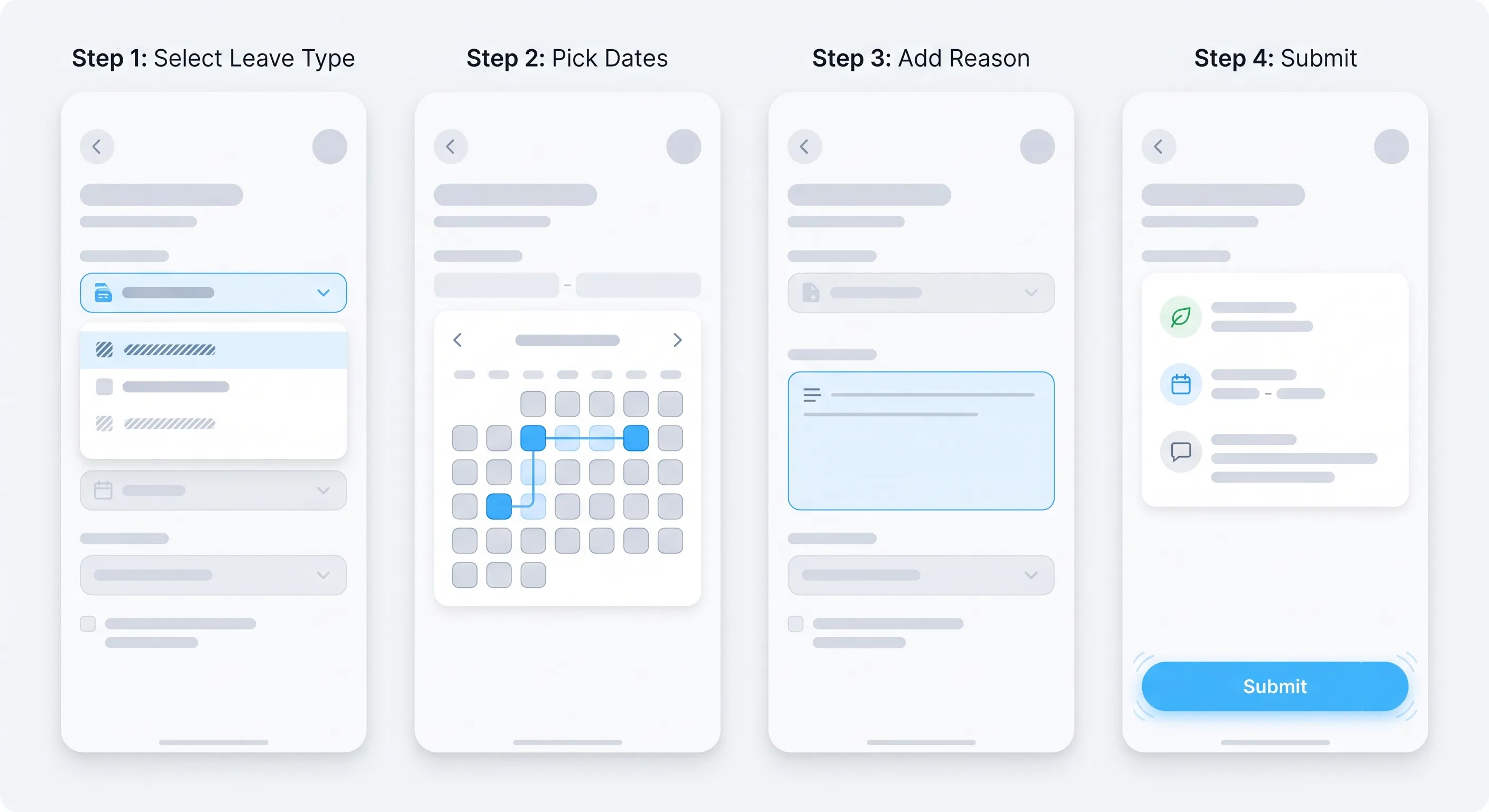
The leave application process is designed to take less than a minute. Here is how it works:
1. Navigate to **Leave** from the sidebar.
2. You will see your leave dashboard, which displays your current balances for each leave type, your recent leave history, and the team calendar.
3. Click **Apply for Leave** to open the application form.
4. Fill in:
- **Leave Type** — Select from the types your organization has configured (Annual, Sick, Casual, etc.).
- **Dates** — Choose your start and end dates using the date picker. The system automatically calculates the total number of days, excluding weekends and holidays.
- **Half-Day Option** — If you only need a half day, toggle this option and select morning or afternoon.
- **Reason** — Optional but recommended. A brief note helps your manager understand the context.
5. Submit the application.
You will receive an email confirmation that your application has been submitted. You can track the status of all your applications from the Leave page.
### Checking Your Leave Balance
Your leave dashboard shows, for each leave type:
- **Total allowance** — Your annual entitlement.
- **Used days** — How many days you have taken this year.
- **Remaining days** — How many days you still have available.
This updates in real time — when a leave request is approved, your balance is deducted automatically.
### Canceling a Leave Request
If your plans change, you can cancel a pending or approved leave request from the Leave page. Canceling an approved request restores the days to your balance and removes the absence from the team calendar.
## For Managers: Approving or Rejecting Leave
Managers receive an email notification when a team member submits a leave request. The email includes the employee's name, leave type, dates, and reason — everything needed to make a decision in seconds.
From the Leave page, managers can:
1. **View pending requests** — All leave requests awaiting your approval are listed at the top.
2. **Check team availability** — The team calendar shows who else is on leave during the requested dates. This helps you identify potential coverage gaps before approving or rejecting.
3. **Approve or reject** — One click to approve, or reject with an optional remark explaining why (e.g., "Two other team members are already on leave that week. Could you reschedule to the following week?").
The employee is notified immediately of your decision.
### Best Practices for Managers
- **Respond within 24 hours.** Employees often need to make plans around leave approvals. A quick response shows respect for their time.
- **Use rejection remarks constructively.** If you must reject a request, explain why clearly and suggest alternatives if possible.
- **Check the calendar before approving.** A brief glance at team availability prevents the awkward situation of discovering a coverage gap after approving.
## For HR/Admin: Configuring Leave Policies
HR administrators have full control over the leave system. All configuration is done from the **Organization** page.
### Setting Up Leave Types
Go to Organization > Leaves. Here you can:
- **Add, edit, or remove leave types** — Customize the list to match your organization's actual policies.
- **Configure annual allowances** — Set the default number of days per year for each leave type.
- **Enable or disable balance tracking** — Some leave types (like Maternity Leave or Bereavement Leave) may not need a tracked balance — they are granted as needed.
- **Set carry-over rules** — For leave types with tracked balances, specify whether unused days carry over to the next year, and if so, the maximum number of days that can be carried over.
### Managing Leave Workflows
Go to Organization > Workflow to configure how leave requests are routed:
- **Department-level settings** — For each department, specify the approver role: Manager (the employee's direct manager approves) or HR/Admin (skip the manager, go directly to HR).
- **Manager bypass** — If an employee does not have a line manager assigned, their requests automatically go to HR/Admin.
- **Auto-approval** — For certain leave types (like Casual Leave under 2 days), you can configure auto-approval to skip the manual review entirely.
### Leave Balance Overrides
If individual employees have different leave allowances (e.g., a senior executive with extra annual leave, or a part-time employee with prorated leave), you can set per-employee overrides. These override the default allowance for the selected leave types.
### Leave Reports
HR can generate leave reports from the Reports page:
- **Leave utilization by employee** — How many days each employee has taken, organized by leave type.
- **Leave utilization by department** — Which departments are using the most leave? Are there patterns of high leave usage that might indicate workload or morale issues?
- **Leave balance summary** — Remaining balances for all employees, useful for year-end planning.
- **Export to CSV** — All reports can be exported for payroll processing or further analysis.
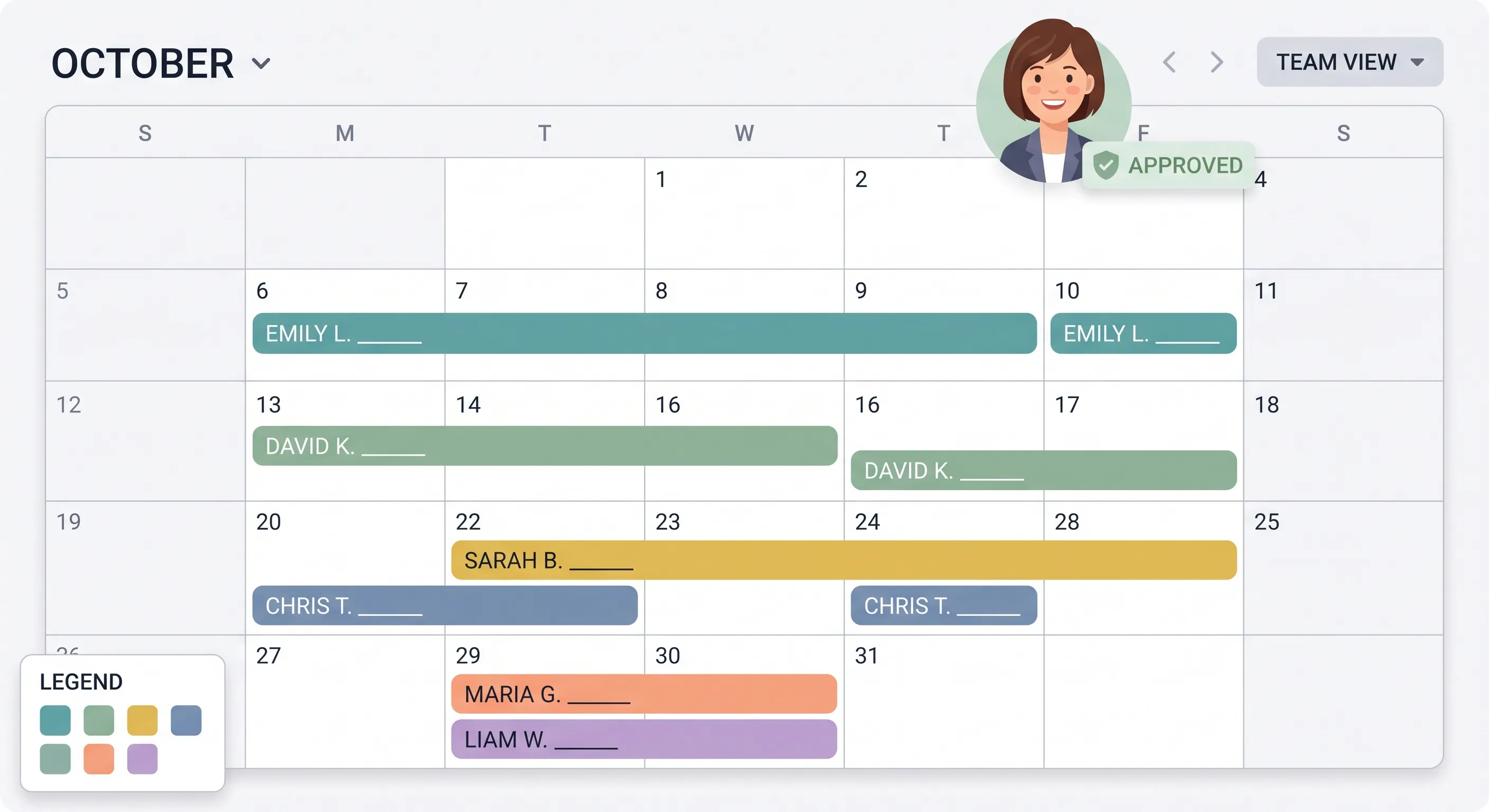
## The Team Calendar
The team calendar provides a visual overview of who is on leave and when. Each approved leave appears as a colored bar spanning the leave dates. The calendar shows:
- Employee name (but not leave type or reason — maintaining privacy).
- Date range of the absence.
- Color coding by leave type (optional, configurable).
Managers and HR see the calendar for their team or the entire organization. Employees see their own approved leave and, optionally, their team members' leave dates.
The calendar is particularly useful for:
- Spotting coverage gaps before they happen.
- Planning project timelines around team availability.
- Identifying patterns (e.g., multiple people in the same team taking leave during the same week every month).
## Handling Special Leave Scenarios
### Leave Spanning Weekends and Holidays
When an employee selects a date range, OpenHR automatically calculates the number of working days — excluding weekends and holidays. For example, if an employee takes Monday through the following Monday (8 calendar days) and the weekend falls in between, only 6 working days are deducted from their balance.
### Half-Day Leave
Employees can request half-day leave (morning or afternoon). This is handled as 0.5 days for balance calculations. Half-day leave is useful for medical appointments, school events, or other short-duration personal needs.
### Multi-Level Approvals
For organizations that require both manager and HR approval, the workflow is sequential:
1. Employee submits → Manager reviews.
2. Manager approves → HR reviews.
3. HR approves → Leave is confirmed.
At each step, all relevant parties are notified by email.
### Leave During Notice Period
When an employee is serving their notice period, leave requests may follow different rules (e.g., requiring HR approval regardless of the standard workflow). OpenHR supports role-based routing rules that can be configured to handle this scenario.
## Conclusion
OpenHR's leave management system handles the entire leave lifecycle — from one-click employee applications to automated balance tracking to comprehensive HR reporting. It adapts to your organization's policies, not the other way around. And like everything in OpenHR, it is completely free.
**Further Reading**
- [Leave Management Best Practices for Growing Teams](https://www.openhrapp.com/blog/leave-management-best-practices) — Design leave policies that scale: accruals, carry-over, team calendars, and multi-department rules.
- [Getting Started with OpenHRApp: A Step-by-Step Setup Guide](https://www.openhrapp.com/blog/getting-started-with-openhrapp) — Configure your organization's leave types, workflows, and policies from scratch.
---
*Set up your leave policies in OpenHRApp today. Free, no limits, no per-user fees. [Get started](https://openhrapp.com/).*
---
## The Rise of Open-Source HR Software: Why It's the Future
URL: https://openhrapp.com/blog/rise-of-open-source-hr-software
Category: Industry Insights
Author: OpenHRApp Team
Published: 2026-01-05
The HR software market has been dominated by a handful of large, proprietary vendors for decades. Companies like Workday, SAP SuccessFactors, and BambooHR built powerful platforms — and charged accordingly. But a quiet revolution has been building: open-source HR software is reaching maturity, and organizations of all sizes are taking notice.
## The Cost Problem in HR Software
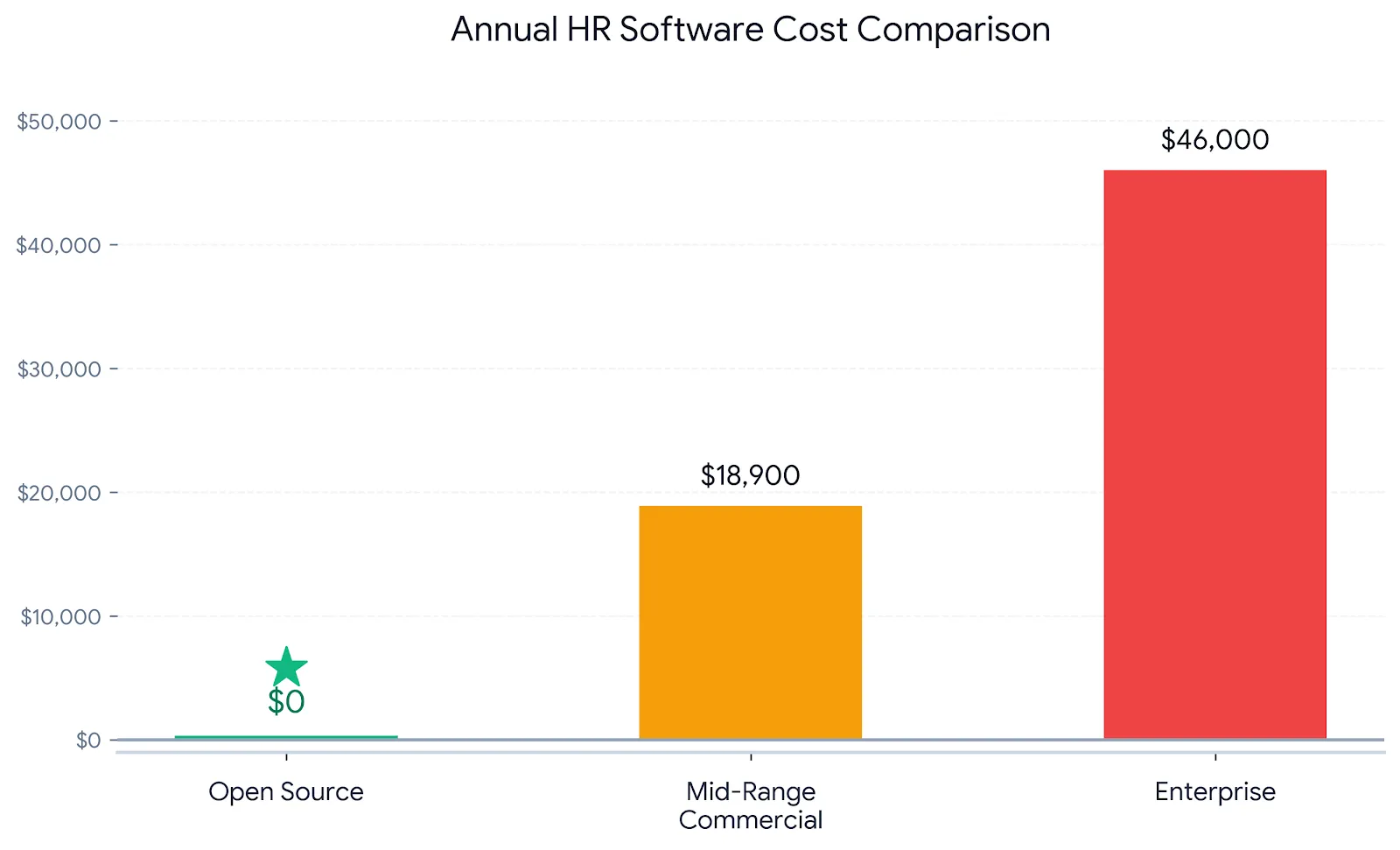
Enterprise HR platforms typically charge $8–$20 per employee per month. For a 100-person company, that is $9,600–$24,000 per year — just for the software license. Add implementation fees (often $10,000–$50,000+), training, and ongoing support, and the total cost of ownership can easily exceed $50,000 annually for a mid-size organization.
For small businesses and startups, these numbers are simply not viable. They are forced to choose between:
- Overpaying for features they do not need.
- Using spreadsheets that do not scale.
- Going without HR software entirely, accepting the administrative burden and compliance risk.
Open-source changes this equation entirely. The software itself is free. There are no per-user license fees. Organizations pay only for hosting (if self-hosting) or nothing at all (if using a free cloud tier). A 100-person company using OpenHRApp pays $0 for the software — versus potentially $24,000+ per year for a proprietary alternative.
## Beyond Cost: The Transparency Advantage
Cost savings get organizations in the door, but transparency keeps them there. With open-source software:
- **The code is public.** Anyone can inspect it for security vulnerabilities, backdoors, or poor engineering practices. Proprietary vendors ask you to trust that their software is secure; open-source projects let you verify.
- **No vendor lock-in.** Your data belongs to you. You can export it in standard formats at any time. You are never held hostage by a proprietary data format or a contract that makes migration prohibitively expensive.
- **Community-driven roadmap.** Features are prioritized based on what users actually need — not what a sales team thinks will close the next enterprise deal. If you need a feature, you can build it yourself or sponsor its development.
- **Longevity.** If a proprietary vendor goes out of business or gets acquired (and their product gets "sunset"), you lose your HR system. With open-source, the code lives on. Even if the original maintainers step away, the community can fork and continue development.
## Security: Open Source vs. Proprietary
There is a persistent myth that proprietary software is more secure because "hackers can not see the code." Security experts overwhelmingly disagree. The consensus in the security community is that open-source software tends to be more secure because:
1. **More eyes on the code** — Thousands of developers and security researchers can review open-source code for vulnerabilities. Proprietary code is only reviewed by the vendor's internal team.
2. **Faster vulnerability fixes** — When a vulnerability is discovered in open-source software, fixes are often available within hours or days. Proprietary vendors may take weeks or months to release patches.
3. **No security through obscurity** — Relying on attackers not being able to see your code is not a security strategy. It is wishful thinking. Real security comes from sound engineering, encryption, access controls, and regular audits — all of which apply equally (or more so) to open-source projects.
## The Community Innovation Engine
Open-source HR software improves faster than proprietary alternatives because of how development works:
- **Diverse contributors** — Developers from different organizations, industries, and countries contribute code. A feature built for a manufacturing company in Bangladesh might solve a problem for a tech startup in Berlin.
- **Rapid iteration** — Bugs are reported publicly, fixes are contributed by the community, and releases happen frequently. The feedback loop is days or weeks, not months or quarters.
- **No artificial feature gating** — In proprietary software, the best features are often reserved for the highest pricing tier. In open-source, every feature is available to everyone. This aligns incentives: the goal is to build the best possible product, not to upsell.
## Real Organizations, Real Savings
Around the world, organizations are making the switch:
- A 50-person tech company in Southeast Asia switched from a $12/user/month proprietary HRMS to OpenHRApp, saving $7,200/year. They used those savings to fund an additional junior developer position.
- A non-profit with 30 employees needed attendance tracking and leave management but had zero budget for software. OpenHRApp provided everything they needed at no cost.
- A 200-person manufacturing company with factory shifts was quoted $30,000/year for an enterprise HRMS. They adopted OpenHRApp, customized the shift management module to their needs, and paid nothing.
## The Role of Managed Hosting
One valid concern about open-source software is the technical expertise required to self-host. Not every organization has a DevOps engineer on staff who can manage servers, databases, and backups. This is where managed hosting (or free cloud tiers) comes in.
OpenHRApp, for example, provides a free cloud-hosted version at openhrapp.com. Organizations sign up and start using the software immediately — no servers to manage, no databases to configure, no backups to schedule. The experience is identical to signing up for a proprietary SaaS product, except there is no bill at the end of the month.
For organizations that prefer self-hosting (for data sovereignty, compliance, or customization reasons), the option is always available. This flexibility — use our cloud, or host it yourself — is something proprietary vendors cannot offer.
## What to Expect in the Coming Years
The open-source HR software movement is still in its early stages, but the trajectory is clear:
- **More organizations will switch** as open-source HR platforms reach feature parity with proprietary alternatives.
- **Enterprise adoption will grow** as security certifications (SOC 2, ISO 27001) become more common in open-source projects.
- **Integration ecosystems will expand** — APIs, plugins, and connectors will make open-source HR platforms interoperable with the broader business software landscape.
- **AI and automation will become standard** in open-source HR tools, just as they are in proprietary alternatives — with the key difference that the algorithms and training data are transparent.

## Is Open-Source HR Right for Your Organization?
Open-source HR software is ideal if:
- You want to avoid per-user pricing that scales with your headcount.
- You value data portability and do not want to be locked into a single vendor.
- You appreciate transparency — being able to see exactly how the software works.
- You have the technical capability to self-host, or you are comfortable using a free cloud-hosted version.
Proprietary HR software may still be the right choice if:
- You need guaranteed SLAs with financial penalties for downtime.
- You require 24/7 phone support (though many open-source projects now offer paid support tiers).
- You operate in a heavily regulated industry with specific compliance certifications that open-source projects have not yet obtained.
## Conclusion
The rise of open-source HR software is not just about saving money — it is about a fundamentally better model for building and distributing software. Transparent development, community-driven priorities, no vendor lock-in, and the freedom to customize. As open-source HR platforms continue to mature, the question is shifting from "Why would I use open-source HR software?" to "Why would I pay thousands of dollars per year for something I can get for free?"
**Further Reading**
- [OpenHRApp vs Commercial HRMS: An Honest Look](https://www.openhrapp.com/blog/openhrapp-vs-commercial-hrms-comparison) — Feature-by-feature comparison, total cost analysis, and guidance on when to choose each option.
- [Why We Built OpenHRApp: The Story Behind the Open-Source HR Platform](https://www.openhrapp.com/blog/why-we-built-openhrapp) — The origin story, the problems we set out to solve, and our vision for the future of HR technology.
---
*OpenHRApp is a free, open-source HR management platform. No per-user fees, no time limits, no catch. [Start today](https://openhrapp.com/).*
Discussion
Did this work in your project? Say what you used it for and what you changed. People and their agents can both post here.
No one has posted yet. Be the first.