


bookcars
llms.txt638 starsChanged 19 days agoMITView on GitHub
Auto-generated full documentation context compiled from the BookCars Wiki. Generated on: 2026-10-15T20:13:17Z Source: https://github.com/aelassas/bookcars/wiki/Add-New-Currency By default, only USD, EUR, GBP and AUD currencies are available but you can add other currencies if you want. If you choose to use Stripe Payment Gateway, here is the list of all supported currencies. If you choose to use PayPal Payment Gateway, here is the list of all supported currencies. ExchangeRatesAPI is used to convert prices from base currency to end user currency. To…
- Reads credentials
- Deletes or force-pushes
- Installs packages
- Commits and pushes
We split this llms-full.txt into the rules it gives an agent
94 rules. About 0 are common, 63 are distinctive, and 31 are very specific to this project.
≈0
Common · estimate
Many files like this have a rule of this kind.
≈63
Distinctive · estimate
This author's own choices. Worth a look.
31
Very specific
Tied to their project's names, files or tools. Probably skip.
- Common
- Distinctive
- Very specific
- Distinctive: line 14
If you choose to use Stripe Payment Gateway, here is the list of all supported currencies.
- Distinctive: line 16
If you choose to use PayPal Payment Gateway, here is the list of all supported currencies.
- Very specific: line 50
Add the new language ISO 639-1 code to LANGUAGES setting in backend/src/config/env.config.ts.
- Distinctive: line 51
Create a new file *<ISO 639-1 code>.ts* in *src/lang* folder and add the translations in it.
- Very specific: line 52
Import and include your translations in src/lang/i18n.ts
- Very specific: line 55
Add the new language ISO 639-1 code and its label in LANGUAGES setting in both:
- Distinctive: line 58
Add the translations to:
- Very specific: line 63
Add the new language ISO 639-1 code and its label in mobile/config/env.config.ts in LANGUAGES constant.
- Very specific: line 64
Create a new file *<ISO 639-1 code>.ts* in mobile/lang folder and add the translations in it.
- Very specific: line 65
Import and register your translations in mobile/lang/i18n.ts
- Distinctive: line 92
HTTPS in Production: All production traffic is served over HTTPS to ensure encrypted communication.
- Very specific: line 123
All environments (development, staging, production) are configured via .env files.
- Distinctive: line 132
Add new translations by following this guide.
- Distinctive: line 134
Add support for more currencies by following this guide
- Distinctive: line 212
Only admins can modify this option.
- Distinctive: line 245
Expo Account: If you do not have an account, create one at expo.dev.
- Very specific: line 254
Update the owner field with your Expo username.
- Very specific: line 272
Create a file named .env in the ./mobile directory with the following content.
- Very specific: line 314
Security: Use HTTPS for the BookCars API.
- Very specific: line 440
If you are using MongoDB Atlas, put your MongoDB Atlas URI in --uri= command line argument:
- Distinctive: line 467
Make sure that the ports 80, 3001, 4002 and 27017 are not used by any application.
- Distinctive: line 471
Add MongoDB Command Line Database Tools folder to <code>Path</code> environment variable in your local machine.
- Distinctive: line 475
Run the compose:<pre lang="Shell">docker compose up</pre>
- Distinctive: line 521
Use it in commercial and proprietary products
- Distinctive: line 524
Use it privately or publicly
- Distinctive: line 557
If the business operates between 09:00 and 19:00, and needs to be at least 2 hours in future for pick up, and a minimum rental duration of …
- Distinctive: line 587
If the minimum rental days for a supplier is set to 3, only rental periods of 3 days or more will be allowed.
- Distinctive: line 605
If "Authorize Payment Later" is disabled, only the Pay in Full Online option will be available at checkout.
- Distinctive: line 630
Add your bank details and enable the Show Bank Details Page option.
- Distinctive: line 634
Only admins can edit bank details.
- Distinctive: line 638
Check out this doc to set a price change rate for a supplier.
- Very specific: line 676
If you don't want to use the demo database, create an admin user by running the following command from backend to create admin user:
- Distinctive: line 745
Create a new branch for your custom changes:
- Distinctive: line 750
If you're just making small quick changes, working directly on main might be simpler initially.
- Distinctive: line 774
If you've made changes to your fork and want to contribute them back to the official repository:
- Distinctive: line 823
Run the following command to generate and install an SSL certificate using Certbot with NGINX:
- Very specific: line 857
Important: Make sure root is the same as Let's encrypt webroot_path.
- Distinctive: line 892
Add the following cron job:
- Distinctive: line 922
Extend Freely: Add new features and integrations without platform constraints or additional fees
- Distinctive: line 933
Use the sidebar to browse installation guides, configuration options, and more.
- Distinctive: line 995
When new suppliers are created, they will receive an email prompting them to create an account in order to access the admin panel and …
- Very specific: line 1015
Create ./backend/.env.docker file with the following content:
- Very specific: line 1152
Leave localhost if you want to test locally.
- Distinctive: line 1154
If you want to enable push notifications in the mobile app, follow these instructions and set the following option:
- Distinctive: line 1159
If you want to enable stripe payment gateway, sign up for a stripe account, fill the forms and save the publishable key and the secret key …
- Distinctive: line 1164
Don't expose stripe secret key on a website or embed it in a mobile application.
- Distinctive: line 1168
Test mode secret key: Use this key to authenticate requests on your server when in test mode.
- Distinctive: line 1169
Test mode publishable key: Use this key for testing purposes in your web or mobile app’s client-side code.
- Distinctive: line 1170
Live mode secret key: Use this key to authenticate requests on your server when in live mode.
- Distinctive: line 1171
Live mode publishable key: Use this key, when you’re ready to launch your app, in your web or mobile app’s client-side code.
- Distinctive: line 1173
Use only your test API keys for testing.
- Distinctive: line 1175
If you want to use PayPal payment gateway instead of Stripe, you need to set:
- Distinctive: line 1181
If you want to test PayPal in sandbox mode, leave:
- Distinctive: line 1186
If you want to test PayPal in production mode, set:
- Distinctive: line 1191
If you want to use Google reCAPTCHA on the frontend, you need to set:
- Very specific: line 1310
Leave localhost if you want to test locally or Replace it with an IP, hostname or FQDN.
- Very specific: line 1314
If you want to enable stripe payment gateway, set stripe publishable key in VITE_BC_STRIPE_PUBLISHABLE_KEY.
- Very specific: line 1318
If you want to change pagination mode, change VITE_BC_PAGINATION_MODE option.
- Distinctive: line 1327
If you want to enable Google Analytics, set the following options:
- Distinctive: line 1333
If you want to use PayPal payment gateway instead of Stripe, you need to set this:
- Very specific: line 1434
If you want to use MongoDB Atlas, remove mongo container.
- Distinctive: line 1446
If you want to rebuild, use the following command:
- Distinctive: line 1451
If you want to rebuild without cache, use the following commands:
- Distinctive: line 1457
If you want to check the logs of the containers for troubleshooting, use the following command:
- Very specific: line 1468
If you run BookCars for the first time, you'll start from an empty database.
- Very specific: line 1592
Update ./docker-compose.yml to load your private key bookcars.key and your certificate bookcars.crt, and add the port 443 to the frontend …
- Distinctive: line 1697
Before we begin, make sure you have at least 1GB of SWAP memory on your server.
- Very specific: line 1892
If you want to use MongoDB Atlas, put you MongoDB Atlas URI in BC_DB_URI otherwise replace PASSWORD in BC_DB_URI with your MongoDB password.
- Very specific: line 1912
Make sure the following environment variables are correctly configured in your backend/.env file.
- Very specific: line 1932
Use HTTPS in production environments (e.g., https://admin.domain.com/, https://domain.com/).
- Distinctive: line 1939
If you want to use stripe payment gateway, sign up for a stripe account, fill the forms and save the publishable key and the secret key …
- Distinctive: line 1971
If you want to enable HTTPS, you have to set the following options:
- Very specific: line 2125
If you want to use the mobile app, create mobile/.env file with the following content:
- Distinctive: line 2210
If you want to enable SSL, uncomment and set these lines:
- Distinctive: line 2217
Add the following configuration for the admin panel:
- Very specific: line 2243
Create /var/www/cdn/bookcars folder and add full access permissions to the user who is running BookCars API on /var/www/cdn/bookcars.
- Very specific: line 2277
Make sure that bookcars service is running with the following command:
- Distinctive: line 2283
Make sure that the database connection is established by checking the logs with the following command:
- Very specific: line 2310
If you want to install BookCars on a VPS with small amount of RAM, you may encounter memory issues while running bc-deploy all.
- Very specific: line 2312
Run bc-deploy backend to install and run the backend server.
- Distinctive: line 2344
If you want to deploy the backend only, run the following command:
- Distinctive: line 2349
If you want to deploy the frontend only, run the following command:
- Distinctive: line 2354
If you want to deploy the admin panel only, run the following command:
- Distinctive: line 2359
If you want to deploy the admin panel and the frontend only, run the following command:
- Distinctive: line 2364
If you want to deploy the backend, the admin panel and the frontend, run the following command:
- Very specific: line 2406
Update npm to its latest version:
- Distinctive: line 2415
After letting the command run and all required packages are installed, test it out by typing in the IP address of the VPS on a web browser.
- Distinctive: line 2416
Create and configure MongoDB Atlas account:
- Distinctive: line 2417
Create a an account or login to MongoDB Atlas
- Very specific: line 2519
Put you MongoDB Atlas URI in BC_DB_URI and don't forget mongodb.net/bookcars.
- Distinctive: line 2526
If you choose sendgrid, create an account on sendgrid.com, login and go to the dashboard.
- Distinctive: line 2548
If you want to enable stripe payment gateway, sign up for a stripe account, fill the forms and save the publishable key and the secret key …
- Distinctive: line 2558
Test mode secret key: Use this key to authenticate requests on your server when in test mode.
- Distinctive: line 2561
Live mode secret key: Use this key to authenticate requests on your server when in live mode.
≈ “Common” is an estimate: at least 1 in 5 of the 3,225 llms.txt files we read have a rule of the same kind, not the same words. “Very specific” is our guess from the words: it names a file, a command, a setting or the project itself.
Files
# BookCars - Full Documentation Context
> Auto-generated full documentation context compiled from the BookCars Wiki.
> Generated on: 2026-10-15T20:13:17Z
---
# Document: Add New Currency
> Source: https://github.com/aelassas/bookcars/wiki/Add-New-Currency
By default, only USD, EUR, GBP and AUD currencies are available but you can add other currencies if you want.
If you choose to use Stripe Payment Gateway, here is the list of all [supported currencies](https://docs.stripe.com/currencies).
If you choose to use PayPal Payment Gateway, here is the list of all [supported currencies](https://developer.paypal.com/docs/reports/reference/paypal-supported-currencies/).
[ExchangeRatesAPI](https://exchangeratesapi.io/) is used to convert prices from base currency to end user currency.
## Frontend
To add a currency to the frontend, open *frontend/src/config/env.config.ts* and add the three-letter ISO 4217 alphabetic currency codes, e.g. "USD" or "EUR" and their symbols to `CURRENCIES` setting.
That's it! Once added the new currencies will show up in the header menu of the frontend and the end user can switch between all available currencies.
## Mobile App
To add a currency to the mobile app, open *mobile/config/env.config.ts* and add the three-letter ISO 4217 alphabetic currency codes, e.g. "USD" or "EUR" and their symbols to `CURRENCIES` setting.
That's it! Once added the new currencies will show up in the header menu of the mobile app and the end user can switch between all available currencies.
## Base Currency
From the admin panel, the base currency is used to store all prices. By default, it is `USD ` but you can change it from `BC_BASE_CURRENCY` setting in *backend/.env*, `VITE_BC_CURRENCY` setting in *admin/.env*, `VITE_BC_BASE_CURRENCY` in *frontend/.env* and `BC_BASE_CURRENCY` in *mobile/.env*.
---
# Document: Add New Language
> Source: https://github.com/aelassas/bookcars/wiki/Add-New-Language
This guide explains how to add support for a new language across all parts of the application: Backend, Admin Panel, Frontend, and Mobile App.
> 📌 Note: All language codes must follow the [ISO 639-1 standard](https://en.wikipedia.org/wiki/List_of_ISO_639-1_codes) (e.g., en for English, fr for French, es for Spanish).
BookCars comes with built-in support for English, French, and Spanish. To add a new language, follow the instructions below.
### Backend
1. Add the new language [ISO 639-1 code](https://en.wikipedia.org/wiki/List_of_ISO_639-1_codes) to `LANGUAGES` setting in `backend/src/config/env.config.ts`.
2. Create a new file *<ISO 639-1 code>.ts* in *src/lang* folder and add the translations in it.
3. Import and include your translations in `src/lang/i18n.ts`
### Admin Panel and Frontend
1. Add the new language [ISO 639-1 code](https://en.wikipedia.org/wiki/List_of_ISO_639-1_codes) and its label in `LANGUAGES` setting in both:
* `admin/src/config/env.config.ts`
* `frontend/src/config/env.config.ts`
2. Add the translations to:
* `admin/src/lang/*.ts`
* `frontend/src/lang/*.ts`.
### Mobile App
1. Add the new language [ISO 639-1 code](https://en.wikipedia.org/wiki/List_of_ISO_639-1_codes) and its label in `mobile/config/env.config.ts` in `LANGUAGES` constant.
2. Create a new file *<ISO 639-1 code>.ts* in `mobile/lang` folder and add the translations in it.
3. Import and register your translations in `mobile/lang/i18n.ts`
---
# Document: Advanced Features
> Source: https://github.com/aelassas/bookcars/wiki/Advanced-Features
## Table Of Contents
1. [Security Practices](https://github.com/aelassas/bookcars/wiki/Advanced-Features#security-practices)
1. [Monitoring & Logging](https://github.com/aelassas/bookcars/wiki/Advanced-Features#monitoring--logging)
1. [Deployment & Hosting](https://github.com/aelassas/bookcars/wiki/Advanced-Features#deployment--hosting)
1. [Extensibility & Customization](https://github.com/aelassas/bookcars/wiki/Advanced-Features#extensibility--customization)
1. [Analytics & Tracking](https://github.com/aelassas/bookcars/wiki/Advanced-Features#analytics--tracking)
## Security Practices
BookCars prioritizes security across all layers of the platform:
- **Authentication**: The backend uses JWT (JSON Web Tokens) for secure and stateless authentication. Tokens are signed with a secret and validated on each request to protect user sessions.
- **Refresh Tokens**: Long-lived refresh tokens are securely issued and rotated to maintain user sessions without exposing credentials.
- **Secure Headers**: Security-related HTTP headers are enforced using the `helmet` middleware to protect against common vulnerabilities such as clickjacking and MIME sniffing.
- **Input Validation**:
- Frontend: Uses Zod to validate user input and enforce schema correctness.
- **CORS Policies**: Configured to allow only trusted domains to interact with the backend.
- **Rate Limiting**: Protects against brute-force attacks and abusive traffic patterns.
- **HTTPS in Production**: All production traffic is served over HTTPS to ensure encrypted communication.
- **Secure Payments**: Integrated with Stripe and PayPal using tokenized and encrypted transactions.
- **Role-Based Access Control**:
- Admin: Full access
- Supplier: Restricted to managing their own content
- Customer: Can browse and book vehicles
## Monitoring & Logging
Logging and debugging are vital for observability and diagnostics:
- **Backend Logging**: Uses Winston, a flexible and extensible logging library that supports multiple transports (console, file, remote).
- **MongoDB Debug Mode**: Can be enabled in `backend/.env` to trace database operations:
```env
BC_DB_DEBUG=true
```
You can find more details about logging [here](https://github.com/aelassas/bookcars/wiki/Logs).
BookCars supports error monitoring through Sentry (https://sentry.io), which captures runtime exceptions and performance metrics. This is useful for diagnosing backend issues in production or staging environments. You can find more details [here](https://github.com/aelassas/bookcars/wiki/Setup-Sentry).
## Deployment & Hosting
BookCars supports multiple deployment strategies:
- **Docker Support**: Includes Docker and Docker Compose for development and production setups.
- **VPS Hosting**: The app can also be deployed manually on virtual private servers (self-hosted).
- **Static File Delivery**: Uses Express to serve frontend static assets.
- **Environment Configuration**:
- All environments (development, staging, production) are configured via `.env` files.
- Self-hosted Deployment instructions and required variables are documented [here](https://github.com/aelassas/bookcars/wiki/Installing-(Self%E2%80%90hosted)).
- Docker Deployment instructions and required variables are documented [here](https://github.com/aelassas/bookcars/wiki/Installing-(Docker)).
## Extensibility & Customization
BookCars is highly configurable and easy to customize:
- **Language Support**:
- Add new translations by following this [guide](https://github.com/aelassas/bookcars/wiki/Add-New-Language).
- **Currency Support**:
- Add support for more currencies by following this [guide](https://github.com/aelassas/bookcars/wiki/Add-New-Currency)
- **Modular Design**:
- Shared packages and isolated features make customization seamless across mobile, web, and admin interfaces.
## Analytics & Tracking
- **Google Analytics**: The frontend includes optional integration with Google Analytics. Configured via:
```env
VITE_BC_GOOGLE_ANALYTICS_ENABLED=false
VITE_BC_GOOGLE_ANALYTICS_ID=G-XXXXXXXXXX
```
- Analytics support:
- Page view tracking in SPA mode
- Environment-aware logic (disabled in development)
- GDPR-friendly implementation
Configuration is located in `frontend/.env`.
---
# Document: Auto‐Notification System
> Source: https://github.com/aelassas/bookcars/wiki/Auto‐Notification-System
# Auto-Notification System
The auto-notification system in BookCars ensures timely communication between admins, suppliers, and drivers regarding important actions. Notifications are triggered automatically based on specific events, helping streamline operations and improve platform transparency.
## Notifications Overview
### 1. Admin Notifications
Admins are automatically notified when:
- A supplier adds a new car when "Notify Admin on New Car" option is enabled on supplier level.
- A driver checks out a booking.
- A driver cancels a booking.
This ensures that admins are aware of critical updates and can respond promptly when needed.
### 2. Supplier Notifications
Suppliers receive notifications when:
- A driver checks out a booking for one of their cars.
- A driver cancels a booking for one of their cars.
This keeps suppliers informed about activity related to their vehicles and helps them manage availability more effectively.
### 3. Driver Notifications
Drivers are notified when:
- The status of their booking changes (e.g., confirmed, cancelled, or completed).
This ensures that drivers are always up to date on their bookings without needing to manually check the platform.
## Push Notifications (Mobile App)
For users of the BookCars mobile app, push notifications are used to deliver real-time alerts directly to their devices. This ensures timely delivery of important updates, especially for drivers on the move.
### Supported Notifications via Push
- Booking status changes for drivers.
### Requirements
- Users must have the mobile app installed and notifications enabled at the system level.
- A stable internet connection is required to receive notifications in real time.
- Push notifications are powered by the platform’s backend and integrated with a cloud messaging service (Firebase Cloud Messaging).
## Configuration
- The "Notify Admin on New Car" option can be enabled or disabled for each supplier from the Create/Update Supplier page in the admin dashboard.
- Only admins can modify this option.
- Other notifications are built into the system and are triggered automatically when the corresponding actions occur.
- Notifications may be delivered via email, in-app notifications, or both, depending on the platform configuration.
---
# Document: Build Mobile App
> Source: https://github.com/aelassas/bookcars/wiki/Build-Mobile-App
## Prerequisites
To build the BookCars mobile application, ensure the following tools are installed on your system:
* **Node.js LTS release**
* **Git**
* **eas-cli**: Install this globally using the following command:
```bash
npm i -g eas-cli
```
## Configuration
### Expo and Firebase Setup
1. **Google Services**: Download the `google-services.json` file from your Firebase project and place it in the `./mobile` root directory. This file is mandatory for the build process.
2. **Firebase Credentials**: In the [Expo dashboard](https://expo.dev), navigate to **Credentials > Service Credentials > Google Cloud Messaging Token** and set your Firebase Server key.
3. **Expo Account**: If you do not have an account, create one at [expo.dev](https://expo.dev).
4. **Project Creation**:
* On the Expo dashboard, click **Projects**, then **Create a Project**.
* Name the project **BookCars**.
5. **Project Identification**:
* Copy the **Project ID** from the Expo dashboard.
* Open `./mobile/app.json` and paste the ID into `extra.eas.projectId`.
* Update the `owner` field with your Expo username.
6. **Expo Login**: Authenticate your CLI by running:
```bash
npx expo login
```
7. **Access Token**: Generate an Expo Access Token under **Account Settings > Access Tokens**. Add this to your `api/.env` file:
```text
BC_EXPO_ACCESS_TOKEN=YOUR_EXPO_ACCESS_TOKEN
```
### Environment Variables
Create a file named `.env` in the `./mobile` directory with the following content. Replace placeholder values with your specific configuration:
```text
BC_API_HOST=https://bookcars.ma:4002
BC_DEFAULT_LANGUAGE=en
BC_PAGE_SIZE=20
BC_CARS_PAGE_SIZE=8
BC_BOOKINGS_PAGE_SIZE=8
BC_CDN_USERS=https://bookcars.ma:4002/cdn/bookcars/users
BC_CDN_CARS=https://bookcars.ma:4002/cdn/bookcars/cars
BC_CDN_LICENSES=http://bookcars.ma:4002/cdn/bookcars/licenses
BC_CDN_TEMP_LICENSES=http://bookcars.ma:4002/cdn/bookcars/temp/licenses
BC_SUPPLIER_IMAGE_WIDTH=60
BC_SUPPLIER_IMAGE_HEIGHT=30
BC_CAR_IMAGE_WIDTH=300
BC_CAR_IMAGE_HEIGHT=200
BC_MINIMUM_AGE=21
BC_STRIPE_PUBLISHABLE_KEY=STRIPE_PUBLISHABLE_KEY
BC_STRIPE_MERCHANT_IDENTIFIER=MERCHANT_IDENTIFIER
BC_STRIPE_COUNTRY_CODE=US
BC_BASE_CURRENCY=USD
BC_DEPOSIT_FILTER_VALUE_1=250
BC_DEPOSIT_FILTER_VALUE_2=500
BC_DEPOSIT_FILTER_VALUE_3=750
BC_WEBSITE_NAME=BookCars
BC_GOOGLE_WEB_CLIENT_ID=GOOGLE_WEB_CLIENT_ID
```
| Variable | Description |
| --- | --- |
| `BC_API_HOST` | Replace with your server IP or FQDN. |
| `BC_STRIPE_PUBLISHABLE_KEY` | Your Stripe API key. Use Test Mode for development. |
| `BC_STRIPE_MERCHANT_IDENTIFIER` | The merchant ID registered with Apple for Apple Pay. |
| `BC_STRIPE_COUNTRY_CODE` | Two-letter ISO 3166 code (e.g., US). Required for Stripe. |
| `BC_BASE_CURRENCY` | Three-letter ISO 4217 code (e.g., USD). Required for Stripe. |
| `BC_GOOGLE_WEB_CLIENT_ID` | Follow the [Social Login Setup](https://github.com/aelassas/bookcars/wiki/Social-Login-Setup#mobile-app) guide to obtain this. |
## Production Build Requirements
For production environments, the following changes are required:
1. **Security**: Use HTTPS for the BookCars API.
2. **Plugin Configuration**: Open `./mobile/app.json` and remove the line `"./plugins/usesCleartextTraffic"` from the `plugins` section to disable cleartext traffic.
## Build Instructions
### Initialization
1. Clone the repository:
```bash
git clone https://github.com/aelassas/bookcars.git
```
2. Navigate to the mobile directory and install dependencies:
```bash
cd ./mobile
npm install
```
### Android Builds
* **EAS Build (Hosted)**: To build using the Expo Application Services hosted cloud, run:
```bash
npm run build:android
```
* **Local Build**: Requires macOS or Linux. Ensure Android Studio and openjdk-17 are installed. Set your `ANDROID_HOME` and `JAVA_HOME` environment variables, then run:
```bash
npm run build:android:local
```
### iOS Builds
A **paid Apple Developer account** is required for all iOS build methods.
* **EAS Build (Hosted)**: To build using the EAS hosted service, run:
```bash
npm run build:ios
```
* **Local Build**: Requires macOS with fastlane and CocoaPods installed. Run:
```bash
npm run build:ios:local
```
---
# Document: Change Currency
> Source: https://github.com/aelassas/bookcars/wiki/Change-Currency
To change the currency, follow these instructions:
### Frontend
Open `frontend/.env` and change `VITE_BC_CURRENCY` and `VITE_BC_STRIPE_CURRENCY_CODE` settings.
By default, it is set to:
```
VITE_BC_CURRENCY=$
VITE_BC_STRIPE_CURRENCY_CODE=USD
```
For example, if you want to change to euro:
```
VITE_BC_CURRENCY=€
VITE_BC_STRIPE_CURRENCY_CODE=EUR
```
On production, you need to rebuild the frontend to apply changes.
### Backend
Open `backend/.env` and change `VITE_BC_CURRENCY` setting.
By default, it is set to:
```
VITE_BC_CURRENCY=$
```
On production, you need to rebuild the backend to apply changes.
### Mobile App
Open `mobile/.env` and change `BC_CURRENCY` and `BC_STRIPE_CURRENCY_CODE` settings.
By default, it is set to:
```
BC_CURRENCY=$
BC_STRIPE_CURRENCY_CODE=USD
```
For example, if you want to change to euro:
```
BC_CURRENCY=€
BC_STRIPE_CURRENCY_CODE=EUR
```
On production, you need to rebuild the mobile app to apply changes.
---
# Document: Demo Database
> Source: https://github.com/aelassas/bookcars/wiki/Demo-Database
## Windows, Linux and macOS
* Download and install [MongoDB Command Line Database Tools](https://www.mongodb.com/try/download/database-tools).
* On Windows, add MongoDB Command Line Database Tools folder to `Path` environment variable.
* Download [bookcars-db.zip](https://github.com/aelassas/bookcars/releases/latest) down to your machine, unzip it and go to the unzipped folder from a terminal.
* Restore BookCars demo db by using the following command:
```
mongorestore --verbose --drop --gzip --host=127.0.0.1 --port=27017 --username=admin --password=$PASSWORD --authenticationDatabase=admin --nsInclude="bookcars.*" --archive=bookcars.gz
```
Replace **$PASSWORD** with your MongoDB password.
If you are using MongoDB Atlas, put your MongoDB Atlas URI in `--uri=` command line argument:
```
mongorestore --verbose --drop --gzip --uri="mongodb://admin:$PASSWORD@127.0.0.1:27017/bookcars?authSource=admin&appName=bookcars" --nsInclude="bookcars.*" --nsFrom="bookcars.*" --nsTo="bookcars.*" --archive=bookcars.gz
```
Copy the content of `cdn` in /var/www/cdn/bookcars on Linux or C:\inetpub\wwwroot\cdn\bookcars on Windows.
`cdn` folder contains the following folders:
* `users`: This folder contains users’ avatars and suppliers’ images.
* `cars`: This folder contains cars’ images.
* `temp`: This folder contains temporay files.
Finally, add full access permissions to the user who is running BookCars API on /var/www/cdn/bookcars on Linux or C:\inetpub\wwwroot\cdn\bookcars on Windows.
Backend credentials:
* **Username:** admin@bookcars.ma<br>
* **Password:** B00kC4r5<br>
Frontend and mobile app credentials:
* **Username:** jdoe@bookcars.ma<br>
* **Password:** B00kC4r5<br>
## Docker
To restore BookCars demo database in Docker containers, proceed as follow:
1. Make sure that the ports 80, 3001, 4002 and 27017 are not used by any application.
2. Download and install <a href="https://www.mongodb.com/try/download/database-tools">MongoDB Command Line Database Tools</a> on your local machine.
3. Add MongoDB Command Line Database Tools folder to <code>Path</code> environment variable in your local machine.
4. Download <a href="https://github.com/aelassas/bookcars/releases/latest">bookcars-db.zip</a> down to your local machine and unzip it.
5. Run the compose:<pre lang="Shell">docker compose up</pre>
6. Go to <i>bookcars-db</i> folder and restore the demo database with the following command:
```
mongorestore --verbose --drop --gzip --host=127.0.0.1 --port=27017 --username=admin --password=$PASSWORD --authenticationDatabase=admin --nsInclude="bookcars.*" --archive=bookcars.gz
```
Replace <code>$PASSWORD</code> with your MongoDB password set in your docker-compose.yml
7. Get API Docker container name with the following command:<pre lang="Shell">docker container ls</pre>
The name should be something like this: <code>src-bc-api-1</code>
8. Go to <i>bookcars-db/cdn</i> folder and copy the content of the folder in API container with the following commands: <pre lang="Shell">docker cp ./cdn/users src-bc-api-1:/var/www/cdn/bookcars
docker cp ./cdn/cars src-api-1:/var/www/cdn/bookcars</pre>
Replace <code>src-api-1</code> with your API container name.
9. Go to the backend http://localhost:3001 and login with the following credentials:<br>
<b>Username</b>: admin@bookcars.ma<br>
<b>Password</b>: B00kC4r5
10. Go to the frontend http://localhost and login with the following credentials:<br>
<b>Username</b>: jdoe@bookcars.ma<br>
<b>Password</b>: B00kC4r5
---
# Document: FAQ
> Source: https://github.com/aelassas/bookcars/wiki/FAQ
Here you can find a list of questions and answers relating to BookCars.
## Is BookCars free to use, or are certain features restricted?
BookCars is free and open source. BookCars is licensed under the [MIT License](https://github.com/aelassas/bookcars/blob/main/LICENSE). The license is permissive. This means that you have lots of permission and few restrictions. You have permission to use the code, to modify it, to publish it, make something with it and sell it, etc.
There are no locked or restricted features. If you deploy BookCars on your server, you can access all features available.
On demo links provided on GitHub, some features are locked. If you want to unlock these features, contact the [project owner](https://github.com/aelassas) by email (requires login).
## Can people use BookCars for commercial needs? Any licensing caveats?
BookCars is licensed under the MIT License, which means you can absolutely use it for commercial purposes.
You can:
* Use it in commercial and proprietary products
* Modify and adapt the code as you need
* Distribute your modified or original version
* Use it privately or publicly
Caveats:
* You must include the original license and copyright notice in your distribution
* There is no warranty—you use it at your own risk (this clause protects open-source maintainers from liability while allowing users full freedom to use the software)
There are no other restrictions. It's a very permissive and business-friendly license.
<!--
## Is it normal that even when the car is booked for a certain period of time, another person can still reserve it?
In some cases, some suppliers have for example a car named "Toyota Corolla or Similar". So the same car refers to many vehicles, it can be 2, 3 or even more. In such case, they don't mark the car as fully booked until the number of cars they have is reached.
When the customer pays and books a car, the booking is automatically marked as paid and the related supplier and admin are notified. Once the booking is confirmed, the supplier or admin must mark it as confirmed from the admin panel. Once confirmed, the customer will be notified.
If the supplier or admin wants to block a car after successful payment, they must mark it as fully booked from the admin panel. Once the car is marked as fully booked, it will no longer be listed in search results. And thus, another person can no longer reserve it. Once the customer returns the car back and the car is available for pick up again, the supplier or admin must mark it as available by unchecking fully booked from the admin panel.
-->
## How to automatically prevent a car from being booked multiple times when it's already booked?
To prevent a car from being booked multiple times when it's already booked, you need to toggle **Block Car On Successful Payment** option on the car. When enabled (default), the car will not appear in search results if the requested pickup and drop-off times overlap with an existing booking. When disabled, the car can still appear in search results even if it's already booked during that time. In this case, you can manually hide the car by setting it as unavailable or fully booked from the admin panel.
This option helps manage car availability more easily based on rental policy.
## How do I prevent users from booking too close to the pickup time or outside business hours?
BookCars allows admins to configure rules that control how rental date and time selections behave across the platform. These settings help ensure cars are not booked with unrealistic timeframes or outside of operating hours.
#### Location
**Admin Panel → Settings → Rental Settings**
#### Example Use Case
If the business operates between 09:00 and 19:00, and needs to be at least 2 hours in future for pick up, and a minimum rental duration of 24 hours, the settings would look like:
| Setting | Value |
|--------|---------|
| Minimum required time in hours before pick-up | 2 |
| Minimum rental duration in hours between pick up and drop off | 24 |
| Minimum allowed hour for pickup and drop-off | 9 |
| Maximum allowed hour for pickup and drop-off | 19 |
You can find more information about these settings [here](https://github.com/aelassas/bookcars/wiki/Rental-Date-and-Time-Configuration).
## Is there a link to make donations?
Yes, of course. You can donate through [GitHub Sponsorship](https://github.com/sponsors/aelassas) (one-time or monthly), [PayPal](https://www.paypal.me/aelassaspp), or [Buy Me a Coffee](https://buymeacoffee.com/aelassas). Even a simple star on the [GitHub repository](https://github.com/aelassas/bookcars) helps spread the word and is greatly appreciated.
## How can I hide suppliers from the frontend?
`VITE_BC_HIDE_SUPPLIERS` setting allows to toggle supplier visibility in the frontend.
To hide suppliers from the frontend, simply set it to `true` in *frontend/.env*:
```env
VITE_BC_HIDE_SUPPLIERS=true
```
Then re-run the frontend if you are in a development environment or redeploy the frontend if you are in a production environment.
## How Do I Set Minimum Rental Days for a Supplier?
You can set the **minimum rental days** for a supplier from the **Supplier** page in the admin dashboard. This setting ensures that customers can only book rentals that meet or exceed the specified minimum rental period.
If the **minimum rental days** for a supplier is set to **3**, only rental periods of **3 days or more** will be allowed. Rental searches with a duration **less than 3 days** will not display available vehicles from that supplier.
### Example:
- Minimum Rental Days: `3`
- Customer searches for a 2-day rental: No results will be shown.
- Customer searches for a 3-day or longer rental: Available vehicles will be displayed.
## How Can I Enable *Pay at Counter* and *Pay Deposit* Checkout Options?
To enable the **Pay at Counter** and **Pay Deposit** checkout options, follow these steps:
1. Go to the **Supplier** page in the **Admin Dashboard**.
2. Locate the option **"Authorize Payment Later"**.
3. Toggle this option **ON** to allow customers to:
- **Pay at Counter** (pay the full amount in person).
- **Pay Deposit** (pay a partial amount upfront and the rest later).
### Important Note:
- If **"Authorize Payment Later"** is **disabled**, only the **Pay in Full Online** option will be available at checkout.
This feature gives suppliers flexibility in how they handle payments, allowing customers to choose their preferred payment method.
## How do I limit the number of cars for a supplier in search results?
You can limit the number of cars for a supplier in search results by setting the maximum number of cars allowed for a supplier from the **Create/Update Supplier** pages in the admin dashboard. Use the field **"Max Allowed Cars in Search"** to configure this. Only admins can edit this field.
- To allow **unlimited cars**, leave the **"Max Allowed Cars in Search"** field **empty**.
- To **hide all cars** for a supplier, set **"Max Allowed Cars in Search"** to **0**.
- To allow for example **5 cars**, set **"Max Allowed Cars in Search"** to **5**.
## How to notify the admin when a supplier creates a new car?
To notify the admin when a supplier creates a new car, enable the **"Notify Admin on New Car"** option from the **Create/Update Supplier** page in the admin dashboard. When this option is enabled, the admin will be automatically notified whenever a supplier adds a new car. Only admins can edit this field.
To receive email notifications, ensure that the **"Enable Email Notifications"** option is enabled for the admin user in the **Settings** page of the admin dashboard.
## How can I show bank details to suppliers?
To show bank details to suppliers, follow these steps:
1. **Login as admin** to the admin dashboard.
2. Click on your avatar in the top right corner, then select **Settings**.
3. Navigate to the **Bank Details** section.
4. Add your bank details and enable the **Show Bank Details Page** option.
Once enabled, a new menu item called **Bank Details** will appear in the navbar, allowing suppliers to view the bank details.
Only admins can edit bank details.
## How do I set a price change rate for a supplier?
Check out this [doc](https://github.com/aelassas/bookcars/wiki/Price-Calculation#price-change-rate) to set a price change rate for a supplier.
## How do I set up brevo as email provider?
First sign up on brevo: https://www.brevo.com/products/transactional-email/
Second, enter your information, check "I don't have a website" if you don't have one.
Third, enter your address.
Fourth, enter info about your organization and check "I don’t want to receive product updates, marketing tips, or promotional content from Brevo. "
Fifth, enter and validate your phone number.
Finally, you will enter the brevo dashboard.
Click on your organization name on the top right corner, then SMTP & API.
Copy your STMP login email (ex: 8627f603@smtp-brevo.com), and your master password.
Paste your smtp login and master password in api/.env:
```env
BC_SMTP_HOST=smtp-relay.brevo.com
BC_SMTP_PORT=587
BC_SMTP_USER=your-smtp-login@smtp-brevo.com
BC_SMTP_PASS=YOUR_MASTER_PASSWORD
BC_SMTP_FROM=your-email-used-in-sign-up@gmail.com
```
Once you finished with .env, restart bookcars.service:
```bash
sudo systemctl restart bookcars.service
```
## How to create admin account?
If you don't want to use the demo database, create an admin user by running the following command from `backend` to create admin user:
```bash
npm run setup
```
It will create an admin user with the email provided in `BC_ADMIN_EMAIL` in `backend/.env` and `B00kC4r5` as password. Change the password once you log in to admin panel.
To delete the admin user with the email provided in `BC_ADMIN_EMAIL`, run the following command from `backend`:
```bash
npm run reset
```
## I want to make changes to BookCars but still get updates from the main repository. How can I do that?
You can [fork the repository](https://github.com/aelassas/bookcars), make your changes, and keep your version in sync with the main repository by following the [Fork, Customize, and Sync](https://github.com/aelassas/bookcars/wiki/Fork,-Customize,-and-Sync) guide.
---
# Document: Fork, Customize, and Sync
> Source: https://github.com/aelassas/bookcars/wiki/Fork,-Customize,-and-Sync
This guide shows you how to fork the BookCars repository, make your own changes, and keep your version up to date with the official repository.
## Table of Contents
1. [Fork the Repository](https://github.com/aelassas/bookcars/wiki/Fork,-Customize,-and-Sync#1-fork-the-repository)
2. [Clone Your Fork](https://github.com/aelassas/bookcars/wiki/Fork,-Customize,-and-Sync#2-clone-your-fork)
3. [Add Upstream Remote](https://github.com/aelassas/bookcars/wiki/Fork,-Customize,-and-Sync#3-add-upstream-remote)
4. [Sync Your Main Branch](https://github.com/aelassas/bookcars/wiki/Fork,-Customize,-and-Sync#4-sync-your-main-branch)
5. [Create a Feature Branch](https://github.com/aelassas/bookcars/wiki/Fork,-Customize,-and-Sync#5-create-a-feature-branch)
6. [Keep Your Feature Branch in Sync](https://github.com/aelassas/bookcars/wiki/Fork,-Customize,-and-Sync#6-keep-your-feature-branch-in-sync)
7. [Creating a Pull Request](https://github.com/aelassas/bookcars/wiki/Fork,-Customize,-and-Sync#7-creating-a-pull-request)
## 1. Fork the Repository
**Fork** the repository on GitHub:
[https://github.com/aelassas/bookcars](https://github.com/aelassas/bookcars)
## 2. Clone Your Fork
**Clone** your fork:
```bash
git clone https://github.com/your-username/bookcars.git
cd bookcars
```
## 3. Add Upstream Remote
**Add the original repository as an upstream remote**:
```bash
git remote add upstream https://github.com/aelassas/bookcars.git
```
## 4. Sync Your Main Branch
**Fetch the latest changes** from the original repo and **merge** them into your `main` branch:
```bash
git fetch upstream
git checkout main
git merge upstream/main
```
## 5. Create a Feature Branch
Create a new branch for your custom changes:
```bash
git checkout -b my-custom-feature
```
If you're just making small quick changes, working directly on `main` might be simpler initially. But for ongoing customization or multiple features, branching is the safer, cleaner approach.
## 6. Keep Your Feature Branch in Sync
To keep your custom branch in sync with the latest upstream `main`, do this regularly:
```bash
# Fetch upstream changes
git fetch upstream
# Switch to your main branch and update it
git checkout main
git merge upstream/main
# Switch back to your custom branch
git checkout my-custom-feature
# Merge the updated main into your branch
git merge main
```
This way, your feature branch stays up to date with the official repository without losing your changes.
## 7. Creating a Pull Request
If you've made changes to your fork and want to contribute them back to the official repository:
1. **Push your branch to your GitHub fork:**
```bash
git push origin my-custom-feature
```
2. Go to your fork on GitHub (e.g. `https://github.com/your-username/bookcars`) and you'll see a **"Compare & pull request"** button.
3. Click the button and create a pull request (PR) targeting the `main` branch of the original repository (`aelassas/bookcars`).
4. Include a clear title and description explaining what your PR changes or fixes.
Once submitted, your PR will be reviewed, and if everything looks good, it can be merged into the official repository.
---
# Document: Free SSL Setup Guide
> Source: https://github.com/aelassas/bookcars/wiki/Free-SSL-Setup-Guide
This guide shows you how to generate and renew free SSL certificates using Let's Encrypt and Certbot on Ubuntu for your BookCars deployment.
## Table of Contents
1. [Prerequisites](https://github.com/aelassas/bookcars/wiki/Free-SSL-Setup-Guide#1-prerequisites)
2. [Generate Your Certificate](https://github.com/aelassas/bookcars/wiki/Free-SSL-Setup-Guide#2-generate-your-certificate)
3. [Certificate Renewal](https://github.com/aelassas/bookcars/wiki/Free-SSL-Setup-Guide#3-certificate-renewal)
3.1. [Test Renewal](https://github.com/aelassas/bookcars/wiki/Free-SSL-Setup-Guide#31-test-renewal)
3.2. [Schedule Automatic Renewal](https://github.com/aelassas/bookcars/wiki/Free-SSL-Setup-Guide#32-schedule-automatic-renewal)
4. [You're All Set!](https://github.com/aelassas/bookcars/wiki/Free-SSL-Setup-Guide#4-youre-all-set)
## Prerequisites
1. Install NGINX:
```bash
sudo apt update
sudo apt install nginx-full
```
2. Install Certbot via Snap:
```bash
sudo apt update
sudo apt install snapd
sudo snap install core; sudo snap refresh core
sudo snap install --classic certbot
sudo ln -s /snap/bin/certbot /usr/bin/certbot
```
## Generate Your Certificate
Run the following command to generate and install an SSL certificate using Certbot with NGINX:
```bash
sudo certbot --nginx -d domain.com -d www.domain.com -d admin.domain.com --redirect --non-interactive --agree-tos --email your-email@example.com --keep-until-expiring
```
* Replace `domain.com` with your domain.
* Replace `your-email@example.com` with your email.
Your frontend will be accessible at https://domain.com
Your admin panel will be accessible at https://admin.domain.com
To ensure HTTP requests are redirected to HTTPS and to allow Let's Encrypt challenges, add the following NGINX configuration:
```nginx
server {
listen 80;
server_name _;
# Serve Let's Encrypt challenges without redirect
location ^~ /.well-known/acme-challenge/ {
root /var/lib/letsencrypt;
default_type "text/plain";
allow all;
}
# Redirect everything else to HTTPS
location / {
return 301 https://$host$request_uri;
}
}
```
**Important:** Make sure `root` is the same as Let's encrypt `webroot_path`. To get `webroot_path` value, run the following command:
```
sudo cat /etc/letsencrypt/renewal/domain.com.conf
```
Then check the configuration and restart NGINX:
```bash
sudo nginx -t
sudo systemctl restart nginx
```
To make sure certbot certificate renewal will work, create a test challenge file to ensure Certbot will work properly:
```bash
sudo mkdir -p /var/lib/letsencrypt/.well-known/acme-challenge
echo "ok" | sudo tee /var/lib/letsencrypt/.well-known/acme-challenge/test
curl http://domain.com/.well-known/acme-challenge/test
```
You should see `ok` in the output.
## Certificate Renewal
### Test Renewal
To test certificate renewal, run the following command:
```bash
sudo certbot renew --dry-run
```
### Schedule Automatic Renewal
To automatically renew certificates before expiration, edit the crontab::
```bash
sudo crontab -e
```
Add the following cron job:
```
00 00,12 * * * certbot renew --post-hook "systemctl restart nginx bookcars"
```
This cron job is scheduled to run Certbot twice daily and restart the `nginx` and `bookcars` services if certificates are renewed. It runs at 00:00 and 12:00 every day.
## You're All Set!
Your BookCars platform is now secured with HTTPS and automatically renews certificates before they expire. Be sure to monitor email notifications from Let's Encrypt in case of issues.
---
# Document: Home
> Source: https://github.com/aelassas/bookcars/wiki/Home
<!--<p align="center">
<img src="https://bookcars.github.io/content/bookcars.drawio.png" alt="" width="380" />
</p>-->
BookCars is an open-source and cross-platform car rental platform with an admin panel for managing car fleets and bookings, as well as a frontend and a mobile app for renting cars.
<!--
BookCars is designed for startups looking to launch a single-supplier car rental business, companies that need a multi-supplier rental solution, developers who want to study a full-stack codebase for learning, and anyone looking for a solid foundation to build a custom car rental platform.
This project emerged from a desire to build without boundaries – a fully customizable and operational car rental platform where every aspect is within your control:
- **Own the UI/UX**: Design unique customer experiences without fighting against template limitations
- **Control the Backend**: Implement custom business logic and data structures that perfectly match the requirements
- **Master DevOps**: Deploy, scale, and monitor the application with preferred tools and workflows
- **Extend Freely**: Add new features and integrations without platform constraints or additional fees
You can deploy BookCars with minimal cost using the [Docker-based setup](https://github.com/aelassas/bookcars/wiki/Installing-(Docker)). It runs efficiently on a small virtual server with just 1GB of RAM—ideal for startups and small businesses. Hosting can cost around $5/month using cloud providers like [Hetzner](https://www.hetzner.com/cloud/) or [DigitalOcean](https://www.digitalocean.com/pricing/droplets).
-->
BookCars supports both single-supplier and multi-supplier modes. Suppliers can manage their fleets and bookings through a dedicated admin panel. Each new supplier receives an email prompting them to create their account and gain access to the system.
The admin panel allows admins to manage suppliers, cars, countries, locations, parking spots, customers, bookings, and payments.
Customers can register through the web frontend or mobile app, search for available cars based on pickup and drop-off points and time, choose a car and complete the checkout process in a few clicks.
Use the sidebar to browse installation guides, configuration options, and more.
## Features
### Supplier & Fleet Management
* Supplier management
* [Supplier contracts](https://github.com/aelassas/bookcars/wiki/Supplier-Contracts)
* [Supplier search result limit](https://github.com/aelassas/bookcars/wiki/FAQ#how-do-i-limit-the-number-of-cars-for-a-supplier-in-search-results)
* Ready for single or multiple suppliers
* Car fleet management
* [Flexible Time-Based Car Availability](https://github.com/aelassas/bookcars/wiki/FAQ#how-to-automatically-prevent-a-car-from-being-booked-multiple-times-when-its-already-booked)
* [Flexible Rental Date and Time Constraints](https://github.com/aelassas/bookcars/wiki/Rental-Date-and-Time-Constraints)
* Booking management
* [Vehicle scheduler](https://bookcars.github.io/content/screenshots/v5.5/backend-scheduler.png?raw=true)
* [Auto-Notification System](https://github.com/aelassas/bookcars/wiki/Auto%E2%80%90Notification-System)
### Pricing & Payments
* [Dynamic price calculation](https://github.com/aelassas/bookcars/wiki/Price-Calculation)
* [Date-based price rates](https://github.com/aelassas/bookcars/wiki/Price-Calculation#date-based-price-rates)
* [Price change rate](https://github.com/aelassas/bookcars/wiki/Price-Calculation#price-change-rate)
* Payment management
* [Multiple payment gateways supported (Stripe, PayPal)](https://github.com/aelassas/bookcars/wiki/Payment-Gateways)
* Multiple payment methods: Credit Card, PayPal, Google Pay, Apple Pay, Link, Pay at the counter, Pay in full, Pay deposit
### Locations & Search
* [Hierarchical locations with country, map, and parking integration](https://github.com/aelassas/bookcars/wiki/Locations)
* Location-based search with nested child location support
* Map display for locations and parking spots
### User Experience
* Customer management
* [Multiple login options](https://github.com/aelassas/bookcars/wiki/Social-Login-Setup): Google, Facebook, Apple, Email
* Multiple language support: English, French, Spanish
* [Multiple currencies support](https://github.com/aelassas/bookcars/wiki/Add-New-Currency)
* Multiple pagination styles: classic (next/previous), infinite scroll
* Push notifications
### Security & Performance
* Secure against XSS, XST, CSRF, MITM, and DDoS attacks
* Responsive admin panel and frontend
* Native mobile app for Android and iOS (single codebase)
* [Docker](https://www.docker.com/) support for easy deployment and a better developer experience
* Error monitoring and performance tracing with [Sentry](https://github.com/aelassas/bookcars/wiki/Setup-Sentry)
### Supported Platforms
* iOS
* Android
* Web
* Docker
<!--
## Supplier Oriented
BookCars is supplier-oriented. This means that there are three types of users:
* Admin: He has full access to the backend. He can do everything.
* Supplier: He has restricted access to the admin panel. He can only manage his cars and bookings.
* User: He has only access to the frontend and the mobile app. He cannot access the admin panel.
BookCars is designed to work with multiple suppliers. Each supplier can manage his car fleet and bookings from the admin panel. BookCars can also work with only one supplier as well.
From the admin panel, admins can create and manage suppliers, cars, locations, users and bookings.
When new suppliers are created, they will receive an email prompting them to create an account in order to access the admin panel and manage their car fleet and bookings.
-->
---
# Document: Installing (Docker)
> Source: https://github.com/aelassas/bookcars/wiki/Installing-(Docker)
BookCars can run in a Docker container on Linux and Docker Desktop for Windows or Mac.
# Docker Image
This section describes how to build BookCars Docker image and run it in a Docker container.
1. Clone BookCars repo:
```bash
git clone https://github.com/aelassas/bookcars.git
```
2. Create `./backend/.env.docker` file with the following content:
```env
# General
NODE_ENV=production
# Backend server
BC_PORT=4002
BC_HTTPS=false
BC_PRIVATE_KEY=/etc/ssl/bookcars.key
BC_CERTIFICATE=/etc/ssl/bookcars.crt
# MongoDB
BC_DB_URI="mongodb://admin:admin@mongo:27017/bookcars?authSource=admin&appName=bookcars"
BC_DB_SSL=false
BC_DB_SSL_CERT=/etc/ssl/bookcars.crt
BC_DB_SSL_CA=/etc/ssl/bookcars.ca.pem
BC_DB_DEBUG=false
# Redis
BC_REDIS_URL=redis://redis:6379
# Rate Limiter
BC_RATE_LIMIT_CAPACITY=10
BC_RATE_LIMIT_REFILL_RATE_MS=2000
# Auth
BC_COOKIE_SECRET=COOKIE_SECRET
BC_AUTH_COOKIE_DOMAIN=localhost
BC_ADMIN_HOST=http://localhost:3001/
BC_FRONTEND_HOST=http://localhost:8080/
BC_JWT_SECRET=JWT_SECRET
BC_JWT_EXPIRE_AT=86400 # in seconds
BC_TOKEN_EXPIRE_AT=86400 # in seconds
BC_APPLE_CLIENT_ID_WEB=APPLE_CLIENT_ID_WEB
BC_APPLE_CLIENT_ID_MOBILE=APPLE_CLIENT_ID_MOBILE
BC_GOOGLE_CLIENT_ID=GOOGLE_CLIENT_ID
BC_GOOGLE_MOBILE_CLIENT_ID=GOOGLE_MOBILE_CLIENT_ID
BC_FACEBOOK_APP_ID=FACEBOOK_APP_ID
BC_FACEBOOK_APP_SECRET=FACEBOOK_APP_SECRET
# Currency
BC_BASE_CURRENCY=USD
# Email (SMTP)
BC_SMTP_HOST=smtp.sendgrid.net
BC_SMTP_PORT=587
BC_SMTP_USER=apikey
BC_SMTP_PASS="PASSWORD"
BC_SMTP_FROM=no-reply@bookcars.ma
# CDN (File storage)
BC_CDN_ROOT=/var/www/cdn
BC_CDN_USERS=/var/www/cdn/bookcars/users
BC_CDN_TEMP_USERS=/var/www/cdn/bookcars/temp/users
BC_CDN_CARS=/var/www/cdn/bookcars/cars
BC_CDN_TEMP_CARS=/var/www/cdn/bookcars/temp/cars
BC_CDN_LOCATIONS=/var/www/cdn/bookcars/locations
BC_CDN_TEMP_LOCATIONS=/var/www/cdn/bookcars/temp/locations
BC_CDN_CONTRACTS=/var/www/cdn/bookcars/contracts
BC_CDN_TEMP_CONTRACTS=/var/www/cdn/bookcars/temp/contracts
BC_CDN_LICENSES=/var/www/cdn/bookcars/licenses
BC_CDN_TEMP_LICENSES=/var/www/cdn/bookcars/temp/licenses
# Localization
BC_DEFAULT_LANGUAGE=en
# Business Rules
BC_MINIMUM_AGE=21
# Expo
BC_EXPO_ACCESS_TOKEN=EXPO_ACCESS_TOKEN
# Stripe
BC_STRIPE_SECRET_KEY=STRIPE_SECRET_KEY
BC_STRIPE_SESSION_EXPIRE_AT=82800
# PayPal
BC_PAYPAL_SANDBOX=true
BC_PAYPAL_CLIENT_ID=PAYPAL_CLIENT_ID
BC_PAYPAL_CLIENT_SECRET=PAYPAL_CLIENT_SECRET
# Admin
BC_ADMIN_EMAIL=admin@bookcars.ma
# Google reCAPTCHA
BC_RECAPTCHA_SECRET=RECAPTCHA_SECRET
# Misc
BC_WEBSITE_NAME=BookCars
BC_TIMEZONE=UTC # Timezone for cenverting dates from UTC to local time (used in emails sent from backend). TZ identifier https://en.wikipedia.org/wiki/List_of_tz_database_time_zones
# IPInfo (Geo lookup)
BC_IPINFO_API_KEY=IPINFO_API_KEY # Required for more than 1000 requests/day
BC_IPINFO_DEFAULT_COUNTRY=US
# Language cleanup job
BC_BATCH_SIZE=1000 # Number of documents to process per batch when deleting obsolete language values
# Sentry (Error monitoring & performance tracing)
BC_ENABLE_SENTRY=false # Set to true to enable Sentry
BC_SENTRY_DSN_BACKEND=https://your_dsn@o0.ingest.sentry.io/your_project_id # Your backend DSN (keep this secret)
BC_SENTRY_TRACES_SAMPLE_RATE=1.0 # Tracing sample rate: 1.0 = 100%, 0.1 = 10%, 0 = disabled
```
Set the following options:
```env
BC_DB_URI=mongodb://admin:admin@mongo:27017/bookcars?authSource=admin&appName=bookcars
BC_COOKIE_SECRET=COOKIE_SECRET
BC_AUTH_COOKIE_DOMAIN=localhost
BC_JWT_SECRET=JWT_SECRET
BC_SMTP_HOST=smtp.sendgrid.net
BC_SMTP_PORT=587
BC_SMTP_USER=apikey
BC_SMTP_PASS=PASSWORD
BC_SMTP_FROM=admin@bookcars.com
BC_ADMIN_HOST=http://localhost:3001/
BC_FRONTEND_HOST=http://localhost/
BC_RECAPTCHA_SECRET=RECAPTCHA_SECRET
```
If you want to use MongoDB Atlas, put you MongoDB Atlas URI in `BC_DB_URI` otherwise replace the second `admin` in `BC_DB_URI` with your MongoDB password. Replace `JWT_SECRET` with a secret token. Finally, set the SMTP options. SMTP options are necessary for sign up. You can use [sendgrid](https://sendgrid.com/) or any other transactional email provider.
If you choose sendgrid, create an account on [sendgrid.com](https://sendgrid.com/), login and go to the dashboard. On the left panel, click on **Email API**, then on **Integration Guide**. Then, choose **SMTP Relay** and follow the steps. You will be prompted to create an API Key. Once you create the API Key and verify the smtp relay, copy the API key in `BC_SMTP_PASS` in *./backend/.env*. Sendgrid's free plan allows to send up to 100 emails/day. If you need to send more than 100 emails/day, switch to a paid plan or choose another transactional email provider.
`COOKIE_SECRET` and `JWT_SECRET` should at least be 32 characters long, but the longer the better. You can use an online password generator and set the password length to 32 or longer.
`BC_TIMEZONE` is used for cenverting dates from UTC to local time in emails. Must be a valid [TZ idenfidier](https://en.wikipedia.org/wiki/List_of_tz_database_time_zones). Default is UTC.
The following settings are very important and if they are not set properly, authentication won't work:
```env
BC_AUTH_COOKIE_DOMAIN=localhost
BC_ADMIN_HOST=http://localhost:3001/
BC_FRONTEND_HOST=http://localhost/
```
Replace `localhost` with an IP or FQDN. That is if you access the admin panel from http://\<FQDN\>:3001/. `BC_ADMIN_HOST` should be http://\<FQDN\>:3001/. The same goes for `BC_FRONTEND_HOST`. And `BC_AUTH_COOKIE_DOMAIN` should be FQDN.
Leave `localhost` if you want to test locally.
If you want to enable push notifications in the mobile app, follow these [instructions](https://github.com/aelassas/bookcars/wiki/Build-Mobile-App#configuration) and set the following option:
```env
BC_EXPO_ACCESS_TOKEN=EXPO_ACCESS_TOKEN
```
If you want to enable stripe payment gateway, sign up for a [stripe](https://stripe.com/) account, fill the forms and save the publishable key and the secret key from stripe dashboard. Then, set the secret key in the following option in *api/.env*:
```env
BC_STRIPE_SECRET_KEY=STRIPE_SECRET_KEY
```
Don't expose stripe secret key on a website or embed it in a mobile application. It must be secret and stored securely in the server-side.
In stripe, all accounts have a total of four API keys by default-two for test mode and two for live mode:
* **Test mode secret key**: Use this key to authenticate requests on your server when in test mode. By default, you can use this key to perform any API request without restriction.
* **Test mode publishable key**: Use this key for testing purposes in your web or mobile app’s client-side code.
* **Live mode secret key**: Use this key to authenticate requests on your server when in live mode. By default, you can use this key to perform any API request without restriction.
* **Live mode publishable key**: Use this key, when you’re ready to launch your app, in your web or mobile app’s client-side code.
Use only your test API keys for testing. This ensures that you don't accidentally modify your live customers or charges.
If you want to use PayPal payment gateway instead of Stripe, you need to set:
```env
BC_PAYPAL_CLIENT_ID=PAYPAL_CLIENT_ID
BC_PAYPAL_CLIENT_SECRET=PAYPAL_CLIENT_SECRET
```
If you want to test PayPal in sandbox mode, leave:
```env
BC_PAYPAL_SANDBOX=true
```
If you want to test PayPal in [production mode](https://developer.paypal.com/api/rest/production/), set:
```env
BC_PAYPAL_SANDBOX=false
```
If you want to use Google reCAPTCHA on the frontend, you need to set:
```env
BC_RECAPTCHA_SECRET=RECAPTCHA_SECRET
```
3. Create `./admin/.env.docker` file with the following content:
```env
VITE_NODE_ENV=production
VITE_BC_API_HOST=http://localhost:4002
VITE_BC_DEFAULT_LANGUAGE=en
VITE_BC_PAGE_SIZE=30
VITE_BC_CARS_PAGE_SIZE=15
VITE_BC_BOOKINGS_PAGE_SIZE=20
VITE_BC_BOOKINGS_MOBILE_PAGE_SIZE=10
VITE_BC_CDN_USERS=http://localhost:4002/cdn/bookcars/users
VITE_BC_CDN_TEMP_USERS=http://localhost:4002/cdn/bookcars/temp/users
VITE_BC_CDN_CARS=http://localhost:4002/cdn/bookcars/cars
VITE_BC_CDN_TEMP_CARS=http://localhost:4002/cdn/bookcars/temp/cars
VITE_BC_CDN_LOCATIONS=http://localhost:4002/cdn/bookcars/locations
VITE_BC_CDN_TEMP_LOCATIONS=http://localhost:4002/cdn/bookcars/temp/locations
VITE_BC_CDN_CONTRACTS=http://localhost:4002/cdn/bookcars/contracts
VITE_BC_CDN_TEMP_CONTRACTS=http://localhost:4002/cdn/bookcars/temp/contracts
VITE_BC_CDN_LICENSES=http://localhost:4002/cdn/bookcars/licenses
VITE_BC_CDN_TEMP_LICENSES=http://localhost:4002/cdn/bookcars/temp/licenses
VITE_BC_SUPPLIER_IMAGE_WIDTH=60
VITE_BC_SUPPLIER_IMAGE_HEIGHT=30
VITE_BC_CAR_IMAGE_WIDTH=300
VITE_BC_CAR_IMAGE_HEIGHT=200
VITE_BC_MINIMUM_AGE=21
VITE_BC_PAGINATION_MODE=classic
VITE_BC_CURRENCY=\$
VITE_BC_DEPOSIT_FILTER_VALUE_1=250
VITE_BC_DEPOSIT_FILTER_VALUE_2=500
VITE_BC_DEPOSIT_FILTER_VALUE_3=750
VITE_BC_WEBSITE_NAME=BookCars
VITE_BC_CONTACT_EMAIL=info@bookcars.ma
VITE_BC_RECAPTCHA_ENABLED=false
VITE_BC_RECAPTCHA_SITE_KEY=GOOGLE_RECAPTCHA_SITE_KEY
```
Set the following options:
```env
VITE_BC_API_HOST=http://localhost:4002
VITE_BC_CDN_USERS=http://localhost:4002/cdn/bookcars/users
VITE_BC_CDN_TEMP_USERS=http://localhost:4002/cdn/bookcars/temp/users
VITE_BC_CDN_CARS=http://localhost:4002/cdn/bookcars/cars
VITE_BC_CDN_TEMP_CARS=http://localhost:4002/cdn/bookcars/temp/cars
VITE_BC_CDN_LOCATIONS=http://localhost:4002/cdn/bookcars/locations
VITE_BC_CDN_TEMP_LOCATIONS=http://localhost:4002/cdn/bookcars/temp/locations
VITE_BC_CDN_CONTRACTS=http://localhost:4002/cdn/bookcars/contracts
VITE_BC_CDN_TEMP_CONTRACTS=http://localhost:4002/cdn/bookcars/temp/contracts
VITE_BC_CDN_LICENSES=http://localhost:4002/cdn/bookcars/licenses
VITE_BC_CDN_TEMP_LICENSES=http://localhost:4002/cdn/bookcars/temp/licenses
```
If you want to change pagination mode, change `VITE_BC_PAGINATION_MODE` option. You can choose between `classic` or `infinite_scroll`. This option defaults to `classic`. If you choose `classic`, you will get a classic pagination with next and previous buttons on desktop and infinite scroll on mobile. If you choose `infinite_scroll`, you will get infinite scroll on desktop and mobile.
4. Create `./frontend/.env.docker` file with the following content:
```env
VITE_NODE_ENV=production
VITE_BC_API_HOST=http://localhost:4002
VITE_BC_RECAPTCHA_ENABLED=false
VITE_BC_DEFAULT_LANGUAGE=en
VITE_BC_PAGE_SIZE=30
VITE_BC_CARS_PAGE_SIZE=15
VITE_BC_BOOKINGS_PAGE_SIZE=20
VITE_BC_BOOKINGS_MOBILE_PAGE_SIZE=10
VITE_BC_CDN_USERS=http://localhost:4002/cdn/bookcars/users
VITE_BC_CDN_CARS=http://localhost:4002/cdn/bookcars/cars
VITE_BC_CDN_LOCATIONS=http://localhost:4002/cdn/bookcars/locations
VITE_BC_CDN_LICENSES=http://localhost:4002/cdn/bookcars/licenses
VITE_BC_CDN_TEMP_LICENSES=http://localhost:4002/cdn/bookcars/temp/licenses
VITE_BC_SUPPLIER_IMAGE_WIDTH=60
VITE_BC_SUPPLIER_IMAGE_HEIGHT=30
VITE_BC_CAR_IMAGE_WIDTH=300
VITE_BC_CAR_IMAGE_HEIGHT=200
VITE_BC_MINIMUM_AGE=21
VITE_BC_PAGINATION_MODE=classic # classic or infinite_scroll
VITE_BC_PAYMENT_GATEWAY=Stripe # Stripe or PayPal
VITE_BC_STRIPE_PUBLISHABLE_KEY=STRIPE_PUBLISHABLE_KEY
VITE_BC_PAYPAL_CLIENT_ID=PAYPAL_CLIENT_ID
VITE_BC_BASE_CURRENCY=USD
VITE_BC_SET_LANGUAGE_FROM_IP=false
VITE_BC_GOOGLE_ANALYTICS_ENABLED=false
VITE_BC_GOOGLE_ANALYTICS_ID=G-XXXXXXXXXX
VITE_BC_CONTACT_EMAIL=info@bookcars.ma
VITE_BC_DEPOSIT_FILTER_VALUE_1=250
VITE_BC_DEPOSIT_FILTER_VALUE_2=500
VITE_BC_DEPOSIT_FILTER_VALUE_3=750
VITE_BC_FB_APP_ID=XXXXXXXXXX
VITE_BC_APPLE_ID=XXXXXXXXXX
VITE_BC_GG_APP_ID=XXXXXXXXXX
VITE_BC_MIN_LOCATIONS=4
VITE_BC_WEBSITE_NAME=BookCars
VITE_BC_HIDE_SUPPLIERS=false
VITE_BC_MAP_LATITUDE=34.0268755 # Default map latitude
VITE_BC_MAP_LONGITUDE=1.6528399999999976 # Default map longitude
VITE_BC_MAP_ZOOM=5 # Default map zoom
```
Set the following options:
```env
VITE_BC_API_HOST=http://localhost:4002
VITE_BC_CDN_USERS=http://localhost:4002/cdn/bookcars/users
VITE_BC_CDN_CARS=http://localhost:4002/cdn/bookcars/cars
VITE_BC_CDN_LOCATIONS=http://localhost:4002/cdn/bookcars/locations
VITE_BC_CDN_LICENSES=http://localhost:4002/cdn/bookcars/licenses
VITE_BC_CDN_TEMP_LICENSES=http://localhost:4002/cdn/bookcars/temp/licenses
VITE_BC_STRIPE_PUBLISHABLE_KEY=STRIPE_PUBLISHABLE_KEY
VITE_BC_BASE_CURRENCY=USD
VITE_BC_SET_LANGUAGE_FROM_IP=false
VITE_BC_GOOGLE_ANALYTICS_ENABLED=false
VITE_BC_GOOGLE_ANALYTICS_ID=G-XXXXXXXXXX
VITE_BC_CONTACT_EMAIL=info@bookcars.ma
VITE_BC_FB_APP_ID=XXXXXXXXXX
VITE_BC_APPLE_ID=XXXXXXXXXX
VITE_BC_GG_APP_ID=XXXXXXXXXX
```
Leave `localhost` if you want to test locally or Replace it with an IP, hostname or FQDN.
For Google Auth, you need to create OAuth 2.0 client ID and add your domains [here](https://console.cloud.google.com/apis/credentials) and set `VITE_BC_GG_APP_ID`. Do the samething for `VITE_BC_APPLE_ID` [here](https://developer.apple.com/account/resources/) and `VITE_BC_FB_APP_ID` [here](https://developers.facebook.com/apps/).
If you want to enable stripe payment gateway, set stripe publishable key in `VITE_BC_STRIPE_PUBLISHABLE_KEY`. You can retrieve it from stripe dashboard.
`VITE_BC_BASE_CURRENCY` is the three-letter ISO 4217 alphabetic currency code, e.g. "USD" or "EUR". Required for Stripe payments. Must be a supported currency: https://docs.stripe.com/currencies
If you want to change pagination mode, change `VITE_BC_PAGINATION_MODE` option.
reCAPTCHA is by default disabled on the frontend. If you want to enable it, you have to set `VITE_BC_RECAPTCHA_ENABLED` to `true` and `VITE_BC_RECAPTCHA_SITE_KEY` to Google reCAPTCHA site key.
Emails sent from the contact form are sent to:
```env
VITE_BC_CONTACT_EMAIL=info@bookcars.ma
```
If you want to enable Google Analytics, set the following options:
```env
VITE_BC_GOOGLE_ANALYTICS_ENABLED=true
VITE_BC_GOOGLE_ANALYTICS_ID=G-XXXXXXXXXX
```
If you want to use PayPal payment gateway instead of Stripe, you need to set this:
```env
VITE_BC_PAYMENT_GATEWAY=PayPal # Stripe or PayPal
VITE_BC_PAYPAL_CLIENT_ID=PAYPAL_CLIENT_ID
```
You can find PayPal client id in [PayPal Developer Dashboard](https://developer.paypal.com/dashboard).
5. Open `./docker-compose.yml` and set MongoDB password:
```yaml
services:
mongo:
image: mongo:7.0.12 # Update mongo version if necessary
command:
- bash
- -lc
- openssl rand -base64 756 > /tmp/mongodb-keyfile && chown mongodb:mongodb /tmp/mongodb-keyfile && chmod 400 /tmp/mongodb-keyfile && exec /usr/local/bin/docker-entrypoint.sh mongod --quiet --replSet rs0 --bind_ip_all --keyFile /tmp/mongodb-keyfile
restart: always
environment:
# Provide your credentials here
MONGO_INITDB_ROOT_USERNAME: admin
MONGO_INITDB_ROOT_PASSWORD: admin
ports:
- 27018:27017
volumes:
- mongodb_data:/data/db
- mongodb_config:/data/configdb
healthcheck:
test: ["CMD-SHELL", "mongosh --quiet --username admin --password admin --authenticationDatabase admin --eval \"try { rs.status().ok } catch (error) { rs.initiate({_id:'rs0',members:[{_id:0,host:'mongo:27017'}]}).ok }\" | grep -q 1"]
interval: 5s
timeout: 5s
retries: 30
mongo-express:
image: mongo-express:latest
restart: always
ports:
- 8084:8081
environment:
ME_CONFIG_MONGODB_URL: mongodb://admin:admin@mongo:27017/
ME_CONFIG_BASICAUTH_USERNAME: admin
ME_CONFIG_BASICAUTH_PASSWORD: admin
depends_on:
mongo:
condition: service_healthy
redis:
image: redis:7-alpine
restart: always
ports:
- 6379:6379
volumes:
- redis_data:/data
bc-backend:
build:
context: .
dockerfile: ./backend/Dockerfile
env_file: ./backend/.env.docker
restart: always
ports:
- 4002:4002
depends_on:
mongo:
condition: service_healthy
redis:
condition: service_started
volumes:
- cdn:/var/www/cdn/bookcars
- backend_logs:/bookcars/backend/logs
bc-admin:
build:
context: .
dockerfile: ./admin/Dockerfile
depends_on:
- bc-backend
ports:
- 3001:3001
bc-frontend:
build:
context: .
dockerfile: ./frontend/Dockerfile
depends_on:
- bc-backend
ports:
- 8080:80
- 8443:443
volumes:
- cdn:/var/www/cdn/bookcars
volumes:
cdn:
mongodb_data:
mongodb_config:
backend_logs:
redis_data:
```
If you want to use MongoDB Atlas, remove `mongo` container. Otherwise, replace `admin` with the password that you have set in `BC_DB_URI` in `./backend/.env.docker`.
6. Build and run docker image:
```bash
docker compose up
```
To run the compose in background, add the `-d` option with the command:
```bash
docker compose up -d
```
If you want to rebuild, use the following command:
```bash
docker compose up --build --force-recreate --no-deps bc-backend bc-admin bc-frontend
```
If you want to rebuild without cache, use the following commands:
```bash
docker compose build --no-cache bc-backend bc-admin bc-frontend
docker compose up
```
If you want to check the logs of the containers for troubleshooting, use the following command:
```
docker compose logs
```
That's it! You can access the services:
- Frontend: http://localhost:8080
- Admin Panel: http://localhost:3001
- Backend Server: http://localhost:4002
- MongoDB Express: http://localhost:8084
If you run BookCars for the first time, you'll start from an empty database. An admin user is automatically created with the email provided in `BC_ADMIN_EMAIL` in `backend/.env.docker` and `B00kC4r5` as password. Change the password once you login to the admin panel.
Then, do the following:
* Go to the suppliers page and create one or multiple suppliers
* Go to the locations page and create one or multiple locations
* Go to the cars page and create one or multiple cars
* Go to the frontend, sign up, choose a car and checkout.
Finally, you will see bookings listed in the backend dashboard.
You can use the [demo database](https://github.com/aelassas/bookcars/wiki/Demo-Database) if you want to.
Below are Docker configuration files:
* Backend Server: [Dockerfile](https://github.com/aelassas/bookcars/blob/main/backend/Dockerfile)
* Admin Panel: [Dockerfile](https://github.com/aelassas/bookcars/blob/main/admin/Dockerfile)
* Frontend: [Dockerfile](https://github.com/aelassas/bookcars/blob/main/frontend/Dockerfile)
* BookCars: [docker-compose.yml](https://github.com/aelassas/bookcars/blob/main/docker-compose.yml)
That's it. You can explore the other pages in the backend and the frontend.
# SSL
This section will walk you through how to enable SSL in the API, the backend and the frontend in a docker container.
Copy your private key `bookcars.key` and your certificate `bookcars.crt` in `./`.
`bookcars.key` will be loaded as `/etc/ssl/bookcars.key` and `bookcars.crt` will be loaded as `/etc/ssl/bookcars.crt` in `./docker-compose.yml`.
### Backend
For the API, update `./backend/.env.docker` as follows to enable SSL:
```env
BC_HTTPS=true
BC_PRIVATE_KEY=/etc/ssl/bookcars.key
BC_CERTIFICATE=/etc/ssl/bookcars.crt
BC_BACKEND_HOST=http://localhost:3001/
BC_FRONTEND_HOST=http://localhost:8080/
```
Replace `http://localhost` with `https://<fqdn>`.
### Admin Panel
For the backend, update the following options in `./backend/.env.docker`:
```env
VITE_BC_API_HOST=http://localhost:4002
VITE_BC_CDN_USERS=http://localhost:4002/cdn/bookcars/users
VITE_BC_CDN_TEMP_USERS=http://localhost:4002/cdn/bookcars/temp/users
VITE_BC_CDN_CARS=http://localhost:4002/cdn/bookcars/cars
VITE_BC_CDN_TEMP_CARS=http://localhost:4002/cdn/bookcars/temp/cars
VITE_BC_CDN_LOCATIONS=http://localhost:4002/cdn/bookcars/locations
VITE_BC_CDN_TEMP_LOCATIONS=http://localhost:4002/cdn/bookcars/temp/locations
VITE_BC_CDN_CONTRACTS=http://localhost:4002/cdn/bookcars/contracts
VITE_BC_CDN_TEMP_CONTRACTS=http://localhost:4002/cdn/bookcars/temp/contracts
VITE_BC_CDN_LICENSES=http://localhost:4002/cdn/bookcars/licenses
VITE_BC_CDN_TEMP_LICENSES=http://localhost:4002/cdn/bookcars/temp/licenses
```
Replace `http://localhost` with `https://<fqdn>:4002`.
Then, update `./admin/nginx.conf` as follows to enable SSL:
```nginx
server {
listen 3001 ssl;
root /usr/share/nginx/html;
index index.html;
ssl_certificate_key /etc/ssl/bookcars.key;
ssl_certificate /etc/ssl/bookcars.crt;
error_page 497 301 =307 https://$host:$server_port$request_uri;
access_log /var/log/nginx/backend.access.log;
error_log /var/log/nginx/backend.error.log;
location / {
# First attempt to serve request as file, then as directory,
# then as index.html, then fall back to displaying a 404.
try_files $uri $uri/ /index.html =404;
}
}
```
### Frontend
For the frontend, update the following options in `./frontend/.env.docker`:
```env
VITE_BC_API_HOST=http://localhost:4002
VITE_BC_CDN_USERS=http://localhost:4002/cdn/bookcars/users
VITE_BC_CDN_CARS=http://localhost:4002/cdn/bookcars/cars
VITE_BC_CDN_LOCATIONS=http://localhost:4002/cdn/bookcars/locations
VITE_BC_CDN_LICENSES=http://localhost:4002/cdn/bookcars/licenses
VITE_BC_CDN_TEMP_LICENSES=http://localhost:4002/cdn/bookcars/temp/licenses
```
Replace `http://localhost` with `https://<fqdn>:4002`.
Then, update `./frontend/nginx.conf` as follows to enable SSL:
```nginx
server {
listen 80;
return 301 https://$host$request_uri;
}
server {
listen 443 ssl;
root /usr/share/nginx/html;
index index.html;
ssl_certificate_key /etc/ssl/bookcars.key;
ssl_certificate /etc/ssl/bookcars.crt;
access_log /var/log/nginx/frontend.access.log;
error_log /var/log/nginx/frontend.error.log;
location / {
# First attempt to serve request as file, then as directory,
# then as index.html, then fall back to displaying a 404.
try_files $uri $uri/ /index.html =404;
}
location /cdn {
alias /var/www/cdn;
}
}
```
### docker-compose.yml
Update `./docker-compose.yml` to load your private key `bookcars.key` and your certificate `bookcars.crt`, and add the port 443 to the frontend as follows:
```yaml
services:
mongo:
image: mongo:latest
command: mongod --quiet --logpath /dev/null
restart: always
environment:
# Provide your credentials here
MONGO_INITDB_ROOT_USERNAME: admin
MONGO_INITDB_ROOT_PASSWORD: admin
ports:
- 27018:27017
volumes:
- mongodb_data:/data/db
- mongodb_config:/data/configdb
mongo-express:
image: mongo-express:latest
restart: always
ports:
- 8084:8081
environment:
ME_CONFIG_MONGODB_ADMINUSERNAME: admin
ME_CONFIG_MONGODB_ADMINPASSWORD: admin
ME_CONFIG_MONGODB_SERVER: mongo
ME_CONFIG_BASICAUTH_USERNAME: admin
ME_CONFIG_BASICAUTH_PASSWORD: admin
depends_on:
mongo:
condition: service_healthy
redis:
image: redis:7-alpine
restart: always
ports:
- 6379:6379
volumes:
- redis_data:/data
bc-backend:
build:
context: .
dockerfile: ./backend/Dockerfile
env_file: ./backend/.env.docker
restart: always
ports:
- 4002:4002
depends_on:
mongo:
condition: service_healthy
redis:
condition: service_started
volumes:
- cdn:/var/www/cdn/bookcars
- ./bookcars.key:/etc/ssl/bookcars.key
- ./bookcars.crt:/etc/ssl/bookcars.crt
bc-backend:
build:
context: .
dockerfile: ./backend/Dockerfile
depends_on:
- bc-backend
ports:
- 3001:3001
volumes:
- ./bookcars.key:/etc/ssl/bookcars.key
- ./bookcars.crt:/etc/ssl/bookcars.crt
bc-frontend:
build:
context: .
dockerfile: ./frontend/Dockerfile
depends_on:
- bc-backend
ports:
- 8080:80
- 8443:443
volumes:
- cdn:/var/www/cdn/bookcars
- ./bookcars.key:/etc/ssl/bookcars.key
- ./bookcars.crt:/etc/ssl/bookcars.crt
volumes:
cdn:
mongodb_data:
mongodb_config:
redis_data:
```
Rebuild and run Docker image:
```bash
docker compose build --no-cache api backend frontend
docker compose up
```
---
# Document: Installing (Self‐hosted)
> Source: https://github.com/aelassas/bookcars/wiki/Installing-(Self‐hosted)
BookCars is cross-platform and can run and be installed on Windows, Linux and macOS.
Before we begin, make sure you have at least 1GB of SWAP memory on your server. You can add it with this [script](https://github.com/aelassas/bookcars/blob/main/__scripts/swap.sh). If you add SWAP memory, you can use your own MongoDB server by installing [MongoDB Community Edition](https://www.mongodb.com/docs/manual/tutorial/install-mongodb-on-ubuntu/).
Below are the installation instructions on Linux.
## Prerequisites
1. Install [git](https://github.com/git-guides/install-git), [Node.js](https://github.com/nodesource/distributions/blob/master/README.md#debinstall), [NGINX](https://ubuntu.com/tutorials/install-and-configure-nginx#1-overview), [MongoDB](https://www.mongodb.com/docs/manual/tutorial/install-mongodb-on-ubuntu/) and [mongosh](https://www.mongodb.com/docs/mongodb-shell/install/). If you want to use [MongoDB Atlas](https://www.mongodb.com/atlas/database), you can skip installing and configuring MongoDB.
2. Configure MongoDB:
```
mongosh
```
Create admin user:
```
db = db.getSiblingDB('admin')
db.createUser({ user: "admin", pwd: "PASSWORD", roles:["root"]})
```
Replace PASSWORD with a strong password.
Secure MongoDB:
```
sudo nano /etc/mongod.conf
```
Change configuration as follows:
```
net:
port: 27017
bindIp: 0.0.0.0
security:
authorization: enabled
```
Restart MongoDB service:
```
sudo systemctl restart mongod.service
sudo systemctl status mongod.service
```
## Instructions
1. Clone BookCars repo:
```
cd /opt
sudo git clone https://github.com/aelassas/bookcars.git
```
2. Add permissions:
```
sudo chown -R $USER:$USER /opt/bookcars
sudo chmod -R +x /opt/bookcars/__scripts
```
3. Create deployment shortcut:
```
sudo ln -s /opt/bookcars/__scripts/bc-deploy.sh /usr/local/bin/bc-deploy
```
4. Create BookCars service:
```
sudo cp /opt/bookcars/__services/bookcars.service /etc/systemd/system
sudo systemctl enable bookcars.service
```
5. Create `/opt/bookcars/backend/.env` file with the following content:
```env
# General
NODE_ENV=production
# Backend server
BC_PORT=4002
BC_HTTPS=false
BC_PRIVATE_KEY=/etc/ssl/bookcars.key
BC_CERTIFICATE=/etc/ssl/bookcars.crt
# MongoDB
BC_DB_URI="mongodb://admin:PASSWORD@127.0.0.1:27017/bookcars?authSource=admin&appName=bookcars"
BC_DB_SSL=false
BC_DB_SSL_CERT=/etc/ssl/bookcars.crt
BC_DB_SSL_CA=/etc/ssl/bookcars.ca.pem
BC_DB_DEBUG=false
# Redis
BC_REDIS_URL=redis://127.0.0.1:6379
# Rate Limiter
BC_RATE_LIMIT_CAPACITY=10
BC_RATE_LIMIT_REFILL_RATE_MS=2000
# Auth
BC_COOKIE_SECRET=COOKIE_SECRET
BC_AUTH_COOKIE_DOMAIN=localhost
BC_ADMIN_HOST=http://localhost:3001/
BC_FRONTEND_HOST=http://localhost/
BC_JWT_SECRET=JWT_SECRET
BC_JWT_EXPIRE_AT=86400 # in seconds
BC_TOKEN_EXPIRE_AT=86400 # in seconds
BC_APPLE_CLIENT_ID_WEB=APPLE_CLIENT_ID_WEB
BC_APPLE_CLIENT_ID_MOBILE=APPLE_CLIENT_ID_MOBILE
BC_GOOGLE_CLIENT_ID=GOOGLE_CLIENT_ID
BC_GOOGLE_MOBILE_CLIENT_ID=GOOGLE_MOBILE_CLIENT_ID
BC_FACEBOOK_APP_ID=FACEBOOK_APP_ID
BC_FACEBOOK_APP_SECRET=FACEBOOK_APP_SECRET
# Currency
BC_BASE_CURRENCY=USD
# Email (SMTP)
BC_SMTP_HOST=smtp.sendgrid.net
BC_SMTP_PORT=587
BC_SMTP_USER=apikey
BC_SMTP_PASS="PASSWORD"
BC_SMTP_FROM=no-reply@bookcars.ma
# CDN (File storage)
BC_CDN_ROOT=/var/www/cdn
BC_CDN_USERS=/var/www/cdn/bookcars/users
BC_CDN_TEMP_USERS=/var/www/cdn/bookcars/temp/users
BC_CDN_CARS=/var/www/cdn/bookcars/cars
BC_CDN_TEMP_CARS=/var/www/cdn/bookcars/temp/cars
BC_CDN_LOCATIONS=/var/www/cdn/bookcars/locations
BC_CDN_TEMP_LOCATIONS=/var/www/cdn/bookcars/temp/locations
BC_CDN_CONTRACTS=/var/www/cdn/bookcars/contracts
BC_CDN_TEMP_CONTRACTS=/var/www/cdn/bookcars/temp/contracts
BC_CDN_LICENSES=/var/www/cdn/bookcars/licenses
BC_CDN_TEMP_LICENSES=/var/www/cdn/bookcars/temp/licenses
# Localization
BC_DEFAULT_LANGUAGE=en
# Business Rules
BC_MINIMUM_AGE=21
# Expo
BC_EXPO_ACCESS_TOKEN=EXPO_ACCESS_TOKEN
# Stripe
BC_STRIPE_SECRET_KEY=STRIPE_SECRET_KEY
BC_STRIPE_SESSION_EXPIRE_AT=82800
# PayPal
BC_PAYPAL_SANDBOX=true
BC_PAYPAL_CLIENT_ID=PAYPAL_CLIENT_ID
BC_PAYPAL_CLIENT_SECRET=PAYPAL_CLIENT_SECRET
# Admin
BC_ADMIN_EMAIL=admin@bookcars.ma
# Google reCAPTCHA
BC_RECAPTCHA_SECRET=RECAPTCHA_SECRET
# Misc
BC_WEBSITE_NAME=BookCars
BC_TIMEZONE=UTC # Timezone for cenverting dates from UTC to local time (used in emails sent from backend). TZ identifier https://en.wikipedia.org/wiki/List_of_tz_database_time_zones
# IPInfo (Geo lookup)
BC_IPINFO_API_KEY=IPINFO_API_KEY # Required for more than 1000 requests/day
BC_IPINFO_DEFAULT_COUNTRY=US
# Language cleanup job
BC_BATCH_SIZE=1000 # Number of documents to process per batch when deleting obsolete language values
# Sentry (Error monitoring & performance tracing)
BC_ENABLE_SENTRY=false # Set to true to enable Sentry
BC_SENTRY_DSN_BACKEND=https://your_dsn@o0.ingest.sentry.io/your_project_id # Your backend DSN (keep it secret)
BC_SENTRY_TRACES_SAMPLE_RATE=1.0 # Tracing sample rate: 1.0 = 100%, 0.1 = 10%, 0 = disabled
```
Set the following options:
```env
BC_DB_URI=mongodb://admin:PASSWORD@127.0.0.1:27017/bookcars?authSource=admin&appName=bookcars
BC_COOKIE_SECRET=COOKIE_SECRET
BC_JWT_SECRET=JWT_SECRET
BC_AUTH_COOKIE_DOMAIN=localhost
BC_ADMIN_HOST=http://localhost:3001/
BC_FRONTEND_HOST=http://localhost/
BC_SMTP_HOST=smtp.sendgrid.net
BC_SMTP_PORT=587
BC_SMTP_USER=apikey
BC_SMTP_PASS=PASSWORD
BC_SMTP_FROM=admin@bookcars.com
BC_STRIPE_SECRET_KEY=STRIPE_SECRET_KEY
BC_RECAPTCHA_SECRET=RECAPTCHA_SECRET
BC_TIMEZONE=UTC
```
If you want to use MongoDB Atlas, put you MongoDB Atlas URI in `BC_DB_URI` otherwise replace `PASSWORD` in `BC_DB_URI` with your MongoDB password. Replace `JWT_SECRET` with a secret token.
Finally, set the SMTP options. SMTP options are necessary for sign up. You can use [brevo](https://www.brevo.com/products/transactional-email/) or any other transactional email provider.
```env
BC_SMTP_HOST=smtp-relay.brevo.com
BC_SMTP_PORT=587
BC_SMTP_USER=admin@bookcars.com
BC_SMTP_PASS=PASSWORD
BC_SMTP_FROM=admin@bookcars.com
```
<!--
If you choose sendgrid, create an account on [sendgrid.com](https://sendgrid.com/), login and go to the dashboard. On the left panel, click on **Email API**, then on **Integration Guide**. Then, choose **SMTP Relay** and follow the steps. You will be prompted to create an API Key. Once you create the API Key and verify the smtp relay, copy the API key in `BC_SMTP_PASS` in *./api/.env*. Sendgrid's free plan allows to send up to 100 emails/day. If you need to send more than 100 emails/day, switch to a paid plan or choose another transactional email provider.
-->
`COOKIE_SECRET` and `JWT_SECRET` should at least be 32 characters long, but the longer the better. You can use an online password generator and set the password length to 32 or longer.
`BC_TIMEZONE` is used for cenverting dates from UTC to local time in emails. Must be a valid [TZ idenfidier](https://en.wikipedia.org/wiki/List_of_tz_database_time_zones). Default is UTC.
Make sure the following environment variables are correctly configured in your `backend/.env` file. These settings are essential for authentication to work properly. If any of them are misconfigured, login and session handling may fail.
```env
BC_AUTH_COOKIE_DOMAIN=localhost
BC_ADMIN_HOST=http://localhost:3001/
BC_FRONTEND_HOST=http://localhost/
```
Replace `localhost` with your actual domain name.
For example, if your admin panel is accessible at `https://admin.domain.com/`, set the variables as follows:
```env
BC_ADMIN_HOST=https://admin.domain.com/
BC_FRONTEND_HOST=https://domain.com/
BC_AUTH_COOKIE_DOMAIN=domain.com
```
**Notes:**
- `BC_AUTH_COOKIE_DOMAIN` should be a top-level domain (e.g., `domain.com`) — not a subdomain — to allow cookie sharing between the admin panel and frontend.
- Use HTTPS in production environments (e.g., `https://admin.domain.com/`, `https://domain.com/`).
If you want to enable push notifications in the mobile app, follow these [instructions](https://github.com/aelassas/bookcars/wiki/Build-Mobile-App#configuration) and set the following option:
```env
BC_EXPO_ACCESS_TOKEN=EXPO_ACCESS_TOKEN
```
If you want to use stripe payment gateway, sign up for a [stripe](https://stripe.com/) account, fill the forms and save the publishable key and the secret key from stripe dashboard. Then, set the secret key in the following option in *backend/.env*:
```env
BC_STRIPE_SECRET_KEY=STRIPE_SECRET_KEY
```
Don't expose stripe secret key on a website or embed it in a mobile application. It must be secret and stored securely in the server-side.
In stripe, all accounts have a total of four API keys by default-two for test mode and two for live mode:
* **Test mode secret key**: Use this key to authenticate requests on your server when in test mode. By default, you can use this key to perform any API request without restriction.
* **Test mode publishable key**: Use this key for testing purposes in your web or mobile app’s client-side code.
* **Live mode secret key**: Use this key to authenticate requests on your server when in live mode. By default, you can use this key to perform any API request without restriction.
* **Live mode publishable key**: Use this key, when you’re ready to launch your app, in your web or mobile app’s client-side code.
Use only your test API keys for testing. This ensures that you don't accidentally modify your live customers or charges.
If you want to use PayPal payment gateway instead of Stripe, you need to set:
```env
BC_PAYPAL_CLIENT_ID=PAYPAL_CLIENT_ID
BC_PAYPAL_CLIENT_SECRET=PAYPAL_CLIENT_SECRET
```
If you want to test PayPal in sandbox mode, leave:
```env
BC_PAYPAL_SANDBOX=true
```
If you want to test PayPal in [production mode](https://developer.paypal.com/api/rest/production/), set:
```env
BC_PAYPAL_SANDBOX=false
```
If you want to enable HTTPS, you have to set the following options:
```env
BC_HTTPS=true
BC_PRIVATE_KEY=/etc/ssl/bookcars.com.key
BC_CERTIFICATE=/etc/ssl/bookcars.com.crt
```
If you want to use Google reCAPTCHA on the frontend, you need to set:
```env
BC_RECAPTCHA_SECRET=RECAPTCHA_SECRET
```
6. Create `/opt/bookcars/admin/.env` file with the following content:
```env
VITE_NODE_ENV=production
VITE_BC_API_HOST=http://localhost:4002
VITE_BC_DEFAULT_LANGUAGE=en
VITE_BC_PAGE_SIZE=30
VITE_BC_CARS_PAGE_SIZE=15
VITE_BC_BOOKINGS_PAGE_SIZE=20
VITE_BC_BOOKINGS_MOBILE_PAGE_SIZE=10
VITE_BC_CDN_USERS=http://localhost:4002/cdn/bookcars/users
VITE_BC_CDN_TEMP_USERS=http://localhost:4002/cdn/bookcars/temp/users
VITE_BC_CDN_CARS=http://localhost:4002/cdn/bookcars/cars
VITE_BC_CDN_TEMP_CARS=http://localhost:4002/cdn/bookcars/temp/cars
VITE_BC_CDN_LOCATIONS=http://localhost:4002/cdn/bookcars/locations
VITE_BC_CDN_TEMP_LOCATIONS=http://localhost:4002/cdn/bookcars/temp/locations
VITE_BC_CDN_CONTRACTS=http://localhost:4002/cdn/bookcars/contracts
VITE_BC_CDN_TEMP_CONTRACTS=http://localhost:4002/cdn/bookcars/temp/contracts
VITE_BC_CDN_LICENSES=http://localhost:4002/cdn/bookcars/licenses
VITE_BC_CDN_TEMP_LICENSES=http://localhost:4002/cdn/bookcars/temp/licenses
VITE_BC_SUPPLIER_IMAGE_WIDTH=60
VITE_BC_SUPPLIER_IMAGE_HEIGHT=30
VITE_BC_CAR_IMAGE_WIDTH=300
VITE_BC_CAR_IMAGE_HEIGHT=200
VITE_BC_MINIMUM_AGE=21
VITE_BC_PAGINATION_MODE=classic
VITE_BC_CURRENCY=\$
VITE_BC_DEPOSIT_FILTER_VALUE_1=250
VITE_BC_DEPOSIT_FILTER_VALUE_2=500
VITE_BC_DEPOSIT_FILTER_VALUE_3=750
VITE_BC_WEBSITE_NAME=BookCars
VITE_BC_CONTACT_EMAIL=info@bookcars.ma
VITE_BC_RECAPTCHA_ENABLED=false
VITE_BC_RECAPTCHA_SITE_KEY=GOOGLE_RECAPTCHA_SITE_KEY
```
Set the following options:
```env
VITE_BC_API_HOST=http://localhost:4002
VITE_BC_CDN_USERS=http://localhost:4002/cdn/bookcars/users
VITE_BC_CDN_TEMP_USERS=http://localhost:4002/cdn/bookcars/temp/users
VITE_BC_CDN_CARS=http://localhost:4002/cdn/bookcars/cars
VITE_BC_CDN_TEMP_CARS=http://localhost:4002/cdn/bookcars/temp/cars
VITE_BC_CDN_LOCATIONS=http://localhost:4002/cdn/bookcars/locations
VITE_BC_CDN_TEMP_LOCATIONS=http://localhost:4002/cdn/bookcars/temp/locations
VITE_BC_CDN_CONTRACTS=http://localhost:4002/cdn/bookcars/contracts
VITE_BC_CDN_TEMP_CONTRACTS=http://localhost:4002/cdn/bookcars/temp/contracts
VITE_BC_CDN_LICENSES=http://localhost:4002/cdn/bookcars/licenses
VITE_BC_CDN_TEMP_LICENSES=http://localhost:4002/cdn/bookcars/temp/licenses
```
Replace `localhost` with your domain.
`VITE_BC_PAGINATION_MODE`: You can choose between `classic` or `infinite_scroll`. This option defaults to `classic`. If you choose `classic`, you will get a classic pagination with next and previous buttons on desktop and infinite scroll on mobile. If you choose `infinite_scroll`, you will get infinite scroll on desktop and mobile.
7. Create `/opt/bookcars/frontend/.env` file with the following content:
```env
VITE_NODE_ENV=production
VITE_BC_API_HOST=http://localhost:4002
VITE_BC_RECAPTCHA_ENABLED=false
VITE_BC_RECAPTCHA_SITE_KEY=GOOGLE_RECAPTCHA_SITE_KEY
VITE_BC_DEFAULT_LANGUAGE=en
VITE_BC_PAGE_SIZE=30
VITE_BC_CARS_PAGE_SIZE=15
VITE_BC_BOOKINGS_PAGE_SIZE=20
VITE_BC_BOOKINGS_MOBILE_PAGE_SIZE=10
VITE_BC_CDN_USERS=http://localhost:4002/cdn/bookcars/users
VITE_BC_CDN_CARS=http://localhost:4002/cdn/bookcars/cars
VITE_BC_CDN_LOCATIONS=http://localhost:4002/cdn/bookcars/locations
VITE_BC_CDN_LICENSES=http://localhost:4002/cdn/bookcars/licenses
VITE_BC_CDN_TEMP_LICENSES=http://localhost:4002/cdn/bookcars/temp/licenses
VITE_BC_SUPPLIER_IMAGE_WIDTH=60
VITE_BC_SUPPLIER_IMAGE_HEIGHT=30
VITE_BC_CAR_IMAGE_WIDTH=300
VITE_BC_CAR_IMAGE_HEIGHT=200
VITE_BC_MINIMUM_AGE=21
VITE_BC_PAGINATION_MODE=classic # classic or infinite_scroll
VITE_BC_PAYMENT_GATEWAY=Stripe # Stripe or PayPal
VITE_BC_STRIPE_PUBLISHABLE_KEY=STRIPE_PUBLISHABLE_KEY
VITE_BC_PAYPAL_CLIENT_ID=PAYPAL_CLIENT_ID
VITE_BC_BASE_CURRENCY=USD
VITE_BC_SET_LANGUAGE_FROM_IP=false
VITE_BC_GOOGLE_ANALYTICS_ENABLED=false
VITE_BC_GOOGLE_ANALYTICS_ID=G-XXXXXXXXXX
VITE_BC_CONTACT_EMAIL=info@bookcars.ma
VITE_BC_DEPOSIT_FILTER_VALUE_1=250
VITE_BC_DEPOSIT_FILTER_VALUE_2=500
VITE_BC_DEPOSIT_FILTER_VALUE_3=750
VITE_BC_FB_APP_ID=XXXXXXXXXX
VITE_BC_APPLE_ID=XXXXXXXXXX
VITE_BC_GG_APP_ID=XXXXXXXXXX
VITE_BC_MIN_LOCATIONS=4
VITE_BC_WEBSITE_NAME=BookCars
VITE_BC_HIDE_SUPPLIERS=false
VITE_BC_MAP_LATITUDE=34.0268755 # Default map latitude
VITE_BC_MAP_LONGITUDE=1.6528399999999976 # Default map longitude
VITE_BC_MAP_ZOOM=5 # Default map zoom
```
Set the following options:
```env
VITE_BC_API_HOST=http://localhost:4002
VITE_BC_CDN_USERS=http://localhost:4002/cdn/bookcars/users
VITE_BC_CDN_CARS=http://localhost:4002/cdn/bookcars/cars
VITE_BC_CDN_LOCATIONS=http://localhost:4002/cdn/bookcars/locations
VITE_BC_CDN_LICENSES=http://localhost:4002/cdn/bookcars/licenses
VITE_BC_CDN_TEMP_LICENSES=http://localhost:4002/cdn/bookcars/temp/licenses
VITE_BC_STRIPE_PUBLISHABLE_KEY=STRIPE_PUBLISHABLE_KEY
VITE_BC_BASE_CURRENCY=USD
VITE_BC_CONTACT_EMAIL=info@bookcars.ma
VITE_BC_FB_APP_ID=XXXXXXXXXX
VITE_BC_APPLE_ID=XXXXXXXXXX
VITE_BC_GG_APP_ID=XXXXXXXXXX
```
Replace `localhost` with your domain.
For Google Auth, you need to create OAuth 2.0 client ID and add your domains [here](https://console.cloud.google.com/apis/credentials) and set `VITE_BC_GG_APP_ID`. Do the samething for `VITE_BC_APPLE_ID` [here](https://developer.apple.com/account/resources/) and `VITE_BC_FB_APP_ID` [here](https://developers.facebook.com/apps/).
If you want to enable stripe payment gateway, set stripe publishable key in `VITE_BC_STRIPE_PUBLISHABLE_KEY`. You can retrieve it from stripe dashboard.
`VITE_BC_BASE_CURRENCY` is the three-letter ISO 4217 alphabetic currency code, e.g. "USD" or "EUR". Required for Stripe payments. Must be a supported currency: https://docs.stripe.com/currencies
reCAPTCHA is by default disabled. If you want to enable it, you have to set `VITE_BC_RECAPTCHA_ENABLED` to `true` and `VITE_BC_RECAPTCHA_SITE_KEY` to Google reCAPTCHA site key.
Emails sent from the contact form are sent to:
```
VITE_BC_CONTACT_EMAIL=info@bookcars.ma
```
If you want to enable Google Analytics, set the following options:
```env
VITE_BC_GOOGLE_ANALYTICS_ENABLED=true
VITE_BC_GOOGLE_ANALYTICS_ID=G-XXXXXXXXXX
```
If you want to use PayPal payment gateway instead of Stripe, you need to set this:
```env
VITE_BC_PAYMENT_GATEWAY=PayPal # Stripe or PayPal
VITE_BC_PAYPAL_CLIENT_ID=PAYPAL_CLIENT_ID
```
You can find PayPal client id in [PayPal Developer Dashboard](https://developer.paypal.com/dashboard).
8. If you want to use the mobile app, create `mobile/.env` file with the following content:
```env
BC_API_HOST=https://bookcars.ma:4002
BC_DEFAULT_LANGUAGE=en
BC_PAGE_SIZE=20
BC_CARS_PAGE_SIZE=8
BC_BOOKINGS_PAGE_SIZE=8
BC_CDN_USERS=https://bookcars.ma:4002/cdn/bookcars/users
BC_CDN_CARS=https://bookcars.ma:4002/cdn/bookcars/cars
BC_CDN_LICENSES=http://bookcars.ma:4002/cdn/bookcars/licenses
BC_CDN_TEMP_LICENSES=http://bookcars.ma:4002/cdn/bookcars/temp/licenses
BC_SUPPLIER_IMAGE_WIDTH=60
BC_SUPPLIER_IMAGE_HEIGHT=30
BC_CAR_IMAGE_WIDTH=300
BC_CAR_IMAGE_HEIGHT=200
BC_MINIMUM_AGE=21
BC_STRIPE_PUBLISHABLE_KEY=STRIPE_PUBLISHABLE_KEY
BC_STRIPE_MERCHANT_IDENTIFIER=MERCHANT_IDENTIFIER
BC_STRIPE_COUNTRY_CODE=US
BC_BASE_CURRENCY=USD
BC_DEPOSIT_FILTER_VALUE_1=250
BC_DEPOSIT_FILTER_VALUE_2=500
BC_DEPOSIT_FILTER_VALUE_3=750
BC_WEBSITE_NAME=BookCars
BC_MIN_PICK_UP_HOURS=1 # Minimum required time in hours before pick-up. Default is 1 hour.
BC_MIN_RENTAL_HOURS=1 # Minimum rental duration in hours between pick up and drop off. Default is 1 hour.
```
Set the following options:
```env
BC_API_HOST=https://bookcars.ma:4002
BC_CDN_USERS=https://bookcars.ma:4002/cdn/bookcars/users
BC_CDN_CARS=https://bookcars.ma:4002/cdn/bookcars/cars
BC_CDN_LICENSES=http://bookcars.ma:4002/cdn/bookcars/licenses
BC_CDN_TEMP_LICENSES=http://bookcars.ma:4002/cdn/bookcars/temp/licenses
BC_STRIPE_PUBLISHABLE_KEY=STRIPE_PUBLISHABLE_KEY
BC_STRIPE_MERCHANT_IDENTIFIER=MERCHANT_IDENTIFIER
BC_STRIPE_COUNTRY_CODE=US
BC_BASE_CURRENCY=USD
BC_CURRENCY=$
```
Replace `https://bookcars.com` with your domain.
If you want to enable stripe payment gateway, set stripe publishable key in `BC_STRIPE_PUBLISHABLE_KEY`. You can retrieve it from stripe dashboard.
`BC_STRIPE_MERCHANT_IDENTIFIER` is the merchant identifier you registered with Apple for use with Apple Pay.
`BC_STRIPE_COUNTRY_CODE` is the two-letter ISO 3166 code of the country of your business, e.g. "US". Required for Stripe payments.
`BC_STRIPE_CURRENCY_CODE` is the three-letter ISO 4217 alphabetic currency code, e.g. "USD" or "EUR". Required for Stripe payments. Must be a supported currency: https://docs.stripe.com/currencies
9. Configure NGINX:
```
sudo nano /etc/nginx/sites-available/default
```
Change the configuration as follows for the frontend:
```nginx
server {
root /var/www/bookcars/frontend;
#listen 443 http2 ssl default_server;
listen 80 default_server;
server_name domain.com;
#ssl_certificate_key /etc/ssl/bookcars.com.key;
#ssl_certificate /etc/ssl/bookcars.com.pem;
access_log /var/log/nginx/bookcars.frontend.access.log;
error_log /var/log/nginx/bookcars.frontend.error.log;
index index.html;
location / {
# First attempt to serve request as file, then as directory,
# then as index.html, then fall back to displaying a 404.
try_files $uri $uri/ /index.html =404;
}
#location /cdn {
# alias /var/www/cdn;
#}
}
```
If you want to enable SSL, uncomment and set these lines:
```
#listen 443 http2 ssl default_server;
#ssl_certificate_key /etc/ssl/bookcars.com.key;
#ssl_certificate /etc/ssl/bookcars.com.pem;
```
Add the following configuration for the admin panel:
```nginx
server {
root /var/www/bookcars/admin;
#listen 443 http2 ssl default_server;
listen 80 default_server;
server_name admin.domain.com;
#ssl_certificate_key /etc/ssl/bookcars.com.key;
#ssl_certificate /etc/ssl/bookcars.com.pem;
#error_page 497 301 =307 https://$host:$server_port$request_uri;
access_log /var/log/nginx/bookcars.admin.access.log;
error_log /var/log/nginx/bookcars.admin.error.log;
index index.html;
location / {
# First attempt to serve request as file, then as directory,
# then as index.html, then fall back to displaying a 404.
try_files $uri $uri/ /index.html =404;
}
}
```
<!--
Create `/var/www/cdn/bookcars` folder and add full access permissions to the user who is running BookCars API on `/var/www/cdn/bookcars`.
-->
If you want to enable SSL, uncomment and set these lines:
```
#listen 3001 http2 ssl default_server;
#ssl_certificate_key /etc/ssl/bookcars.com.key;
#ssl_certificate /etc/ssl/bookcars.com.pem;
#error_page 497 301 =307 https://$host:$server_port$request_uri;
```
Then, check NGINX configuration and restart NGINX service:
```
sudo nginx -t
sudo systemctl restart nginx.service
sudo systemctl status nginx.service
```
10. enable firewall and open BookCars ports:
```
sudo ufw enable
sudo ufw allow 4002/tcp
sudo ufw allow 80/tcp
sudo ufw allow 443/tcp
sudo ufw allow 3001/tcp
sudo ufw allow 27017/tcp
```
11. Start bookcars service:
```
cd /opt/bookcars/backend
npm install
sudo systemctl start bookcars.service
```
Make sure that bookcars service is running with the following command:
```
sudo systemctl status bookcars.service
```
Make sure that the database connection is established by checking the logs with the following command:
```
tail -f /var/log/bookcars.log
```
Or this one:
```
sudo journalctl -xfu bookcars.service
```
Or by opening this file:
```
tail -f /opt/bookcars/backend/logs/all.log
```
Error logs are written in:
```
tail -f /opt/bookcars/backend/logs/error.log
```
12. Deploy BookCars:
```
bc-deploy all
```
BookCars admin panel is accessible on port 3001 and the frontend is accessible on port 80.
If you want to install BookCars on a VPS with small amount of RAM, you may encounter memory issues while running `bc-deploy all`. In that case, you need to proceed as follow:
* Run `bc-deploy backend` to install and run the backend server.
* On your desktop PC, set up `frontend/.env` as described previously, then run the following commands from `frontend` folder:
```shell
npm install --force
npm run build
```
* Copy the content of `frontend/build` from your desktop PC to `/var/www/bookcars/frontend` on your VPS.
* On your desktop PC, set up `admin/.env` as described previously, then run the following commands from `admin` folder:
```shell
npm install --force
npm run build
```
* Copy the content of `admin/build` from your desktop PC to `/var/www/bookcars/admin` on your VPS.
* Restart NGINX:
```shell
sudo rm -rf /var/cache/nginx
sudo systemctl restart nginx
sudo systemctl status nginx
```
13. If you don't want to use the demo database, create an admin user by running the following command from `backend` to create admin user:
```
npm run setup
```
It will create an admin user with the email provided in `BC_ADMIN_EMAIL` in `backend/.env` and `B00kC4r5` as password. Change the password once you log in to admin panel.
To delete the admin user with the email provided in `BC_ADMIN_EMAIL`, run the following command from `backend`:
```
npm run reset
```
If you want to deploy the backend only, run the following command:
```
bc-deploy backend
```
If you want to deploy the frontend only, run the following command:
```
bc-deploy frontend
```
If you want to deploy the admin panel only, run the following command:
```
bc-deploy admin
```
If you want to deploy the admin panel and the frontend only, run the following command:
```
bc-deploy ui
```
If you want to deploy the backend, the admin panel and the frontend, run the following command:
```
bc-deploy all
```
To change the currency, follow these [instructions](https://github.com/aelassas/bookcars/wiki/Change-Currency).
---
# Document: Installing (VPS)
> Source: https://github.com/aelassas/bookcars/wiki/Installing-(VPS)
# Table of Contents
1. [Introduction](https://github.com/aelassas/bookcars/wiki/Installing-(VPS)#introduction)
2. [Prerequisites](https://github.com/aelassas/bookcars/wiki/Installing-(VPS)#prerequisites)
3. [Installation Instructions](https://github.com/aelassas/bookcars/wiki/Installing-(VPS)#installation-instructions)
1. [API](https://github.com/aelassas/bookcars/wiki/Installing-(VPS)#api)
2. [Frontend](https://github.com/aelassas/bookcars/wiki/Installing-(VPS)#frontend)
3. [Backend](https://github.com/aelassas/bookcars/wiki/Installing-(VPS)#backend)
4. [Apply Updates](https://github.com/aelassas/bookcars/wiki/Installing-(VPS)#apply-updates)
1. [Update API](https://github.com/aelassas/bookcars/wiki/Installing-(VPS)#update-api)
2. [Update Frontend and Backend](https://github.com/aelassas/bookcars/wiki/Installing-(VPS)#update-frontend-and-backend)
## Introduction
In this walkthrough, we are going to install BookCars on a VPS running under Ubuntu 22.04 with at least 1GB of RAM and one CPU.
We will to use Apache as a web server and MongoDB Atlas free tier as database server. The free tier provides 512MB of storage which is largely enough for testing purposes. On production, you should use your own MongoDB server or choose another plan.
Before we begin, make sure you have at least 1GB of SWAP memory on your VPS. You can add it with this [script](https://github.com/aelassas/bookcars/blob/main/__scripts/swap.sh). If you add SWAP memory, you can use your own MongoDB server by installing [MongoDB Community Edition](https://www.mongodb.com/docs/manual/tutorial/install-mongodb-on-ubuntu/) on your VPS and skip MongoDB Atlas prerequisite.
## Prerequisites
1. Install [git](https://github.com/git-guides/install-git):
```shell
sudo apt update
sudo apt install git
```
2. Install [Node.js](https://github.com/nodesource/distributions/blob/master/README.md#debinstall):
```shell
curl -fsSL https://deb.nodesource.com/setup_20.x | sudo -E bash - &&\
sudo apt install -y nodejs
```
Update `npm` to its latest version:
```shell
sudo npm i -g npm
```
3. Install Apache server:
```shell
sudo apt update
sudo apt install apache2
```
After letting the command run and all required packages are installed, test it out by typing in the IP address of the VPS on a web browser.
4. Create and configure MongoDB Atlas account:
1. Create a an account or login to [MongoDB Atlas](https://account.mongodb.com/account/login)
2. Fill out the forms and click on **Finish**
3. Choose **M0 Free**
4. You can change the name of the cluster or leave **Cluster0**
5. Choose the **Provider** (AWS, Google Cloud or Azure)
6. Choose the **Region**
7. Click on **Create Deployment**
8. Set **admin** as database username and save the generated password somewhere safe. You will need it later. Then, click on **Create Database User**.
9. Click on **Choose a Connection Method** and select Node.js as **Driver**. Copy the connection string somewhere safe. We will need it later. The connection string looks like this:
```
mongodb+srv://admin:PASSWORD@cluster0.xxxxxxx.mongodb.net/?retryWrites=true&w=majority&appName=Cluster0
```
10. Click on **Review setup steps** then on **Done**.
11. On the left panel under **Security**, click on **Network Access**. Then, click on **ADD IP ADDRESS**. Then in **Access List Entry**, enter the IP address of the VPS to allow the VPS accessing MongoDB Atlas server. Finally, click on **Confirm**.
## Installation Instructions
### API
1. Clone BookCars repo:
```shell
cd /opt
sudo git clone https://github.com/aelassas/bookcars.git
```
2. Add permissions:
```shell
sudo chown -R $USER:$USER /opt/bookcars
```
3. Create BookCars service:
```shell
sudo cp /opt/bookcars/__services/bookcars.service /etc/systemd/system
sudo systemctl enable bookcars.service
```
4. Create `/opt/bookcars/api/.env` file with the following content:
```
NODE_ENV=production
BC_PORT=4002
BC_HTTPS=false
BC_PRIVATE_KEY=/etc/ssl/bookcars.ma.key
BC_CERTIFICATE=/etc/ssl/bookcars.ma.crt
BC_DB_URI=mongodb+srv://admin:PASSWORD@cluster0.xxxxxxx.mongodb.net/bookcars?retryWrites=true&w=majority&appName=Cluster0
BC_DB_SSL=false
BC_DB_SSL_CERT=/etc/ssl/bookcars.ma.crt
BC_DB_SSL_CA=/etc/ssl/bookcars.ma.ca.pem
BC_DB_DEBUG=false
BC_COOKIE_SECRET=COOKIE_SECRET
BC_AUTH_COOKIE_DOMAIN=localhost
BC_JWT_SECRET=JWT_SECRET
BC_JWT_EXPIRE_AT=86400
BC_TOKEN_EXPIRE_AT=86400
BC_SMTP_HOST=smtp.sendgrid.net
BC_SMTP_PORT=587
BC_SMTP_USER=apikey
BC_SMTP_PASS=PASSWORD
BC_SMTP_FROM=admin@bookcars.ma
BC_CDN_USERS=/var/www/cdn/bookcars/users
BC_CDN_TEMP_USERS=/var/www/cdn/bookcars/temp/users
BC_CDN_CARS=/var/www/cdn/bookcars/cars
BC_CDN_TEMP_CARS=/var/www/cdn/bookcars/temp/cars
BC_CDN_LOCATIONS=/var/www/cdn/bookcars/locations
BC_CDN_TEMP_LOCATIONS=/var/www/cdn/bookcars/temp/locations
BC_CDN_CONTRACTS=/var/www/cdn/bookcars/contracts
BC_CDN_TEMP_CONTRACTS=/var/www/cdn/bookcars/temp/contracts
BC_CDN_LICENSES=/var/www/cdn/bookcars/licenses
BC_CDN_TEMP_LICENSES=/var/www/cdn/bookcars/temp/licenses
BC_DEFAULT_LANGUAGE=en
BC_BACKEND_HOST=http://localhost:3001/
BC_FRONTEND_HOST=http://localhost/
BC_MINIMUM_AGE=21
BC_EXPO_ACCESS_TOKEN=EXPO_ACCESS_TOKEN
BC_STRIPE_SECRET_KEY=STRIPE_SECRET_KEY
BC_PAYPAL_SANDBOX=true
BC_PAYPAL_CLIENT_ID=PAYPAL_CLIENT_ID
BC_PAYPAL_CLIENT_SECRET=PAYPAL_CLIENT_SECRET
BC_ADMIN_EMAIL=admin@bookcars.ma
BC_RECAPTCHA_SECRET=RECAPTCHA_SECRET
BC_WEBSITE_NAME=BookCars
BC_TIMEZONE=UTC # TZ identifier https://en.wikipedia.org/wiki/List_of_tz_database_time_zones
BC_IPINFO_API_KEY=IPINFO_API_KEY # required for more than 1000 requests/day
BC_IPINFO_DEFAULT_COUNTRY=US # ISO 3166-1 alpha-2 (two-letter country code)
```
Set the following options:
```
BC_DB_URI=mongodb+srv://admin:PASSWORD@cluster0.xxxxxxx.mongodb.net/bookcars?retryWrites=true&w=majority&appName=Cluster0
BC_COOKIE_SECRET=COOKIE_SECRET
BC_AUTH_COOKIE_DOMAIN=localhost
BC_JWT_SECRET=JWT_SECRET
BC_SMTP_HOST=smtp.sendgrid.net
BC_SMTP_PORT=587
BC_SMTP_USER=apikey
BC_SMTP_PASS=PASSWORD
BC_SMTP_FROM=admin@bookcars.ma
BC_BACKEND_HOST=http://localhost:3001/
BC_FRONTEND_HOST=http://localhost/
BC_STRIPE_SECRET_KEY=STRIPE_SECRET_KEY
BC_RECAPTCHA_SECRET=RECAPTCHA_SECRET
BC_TIMEZONE=UTC
```
Put you MongoDB Atlas URI in `BC_DB_URI` and don't forget `mongodb.net/bookcars`. Replace `JWT_SECRET` with a secret token of your choice.
`COOKIE_SECRET` and `JWT_SECRET` should at least be 32 characters long, but the longer the better. You can use an online password generator and set
the password length to 32 or longer.
Finally, set the SMTP options. SMTP options are necessary for sign up. You can use [sendgrid](https://sendgrid.com/) or any other transactional email
provider.
If you choose sendgrid, create an account on [sendgrid.com](https://sendgrid.com/), login and go to the dashboard. On the left panel, click on
**Email API**, then on **Integration Guide**. Then, choose **SMTP Relay** and follow the steps. You will be prompted to create an API Key. Once you
create the API Key and verify the smtp relay, copy the API key in `BC_SMTP_PASS` in *./api/.env*. Sendgrid's free plan allows to send up to 100
emails/day. If you need to send more than 100 emails/day, switch to a paid plan or choose another transactional email provider.
`BC_TIMEZONE` is used for cenverting dates from UTC to local time in emails. Must be a valid [TZ idenfidier](https://en.wikipedia.org/wiki/List_of_tz_database_time_zones). Default is UTC.
The following settings are very important and if they are not set properly, authentication won't work:
```
BC_AUTH_COOKIE_DOMAIN=localhost
BC_BACKEND_HOST=http://localhost:3001/
BC_FRONTEND_HOST=http://localhost/
```
Replace `localhost` with an IP or FQDN. That is if you access the backend from http://\<FQDN\>:3001/. `BC_BACKEND_HOST` should be http://\<FQDN\>:3001/.
The same goes for `BC_FRONTEND_HOST`. And `BC_AUTH_COOKIE_DOMAIN` should be FQDN.
If you want to enable push notifications in the mobile app, follow these [instructions](https://github.com/aelassas/bookcars/wiki/Build-Mobile-App#configuration) and set the following option:
```
BC_EXPO_ACCESS_TOKEN=EXPO_ACCESS_TOKEN
```
If you want to enable stripe payment gateway, sign up for a [stripe](https://stripe.com/) account, fill the forms and save the publishable key and
the secret key from stripe dashboard. Then, set the secret key in the following option in *api/.env*:
```
BC_STRIPE_SECRET_KEY=STRIPE_SECRET_KEY
```
Don't expose stripe secret key on a website or embed it in a mobile application. It must be secret and stored securely in the server-side.
In stripe, all accounts have a total of four API keys by default-two for test mode and two for live mode:
* **Test mode secret key**: Use this key to authenticate requests on your server when in test mode. By default, you can use this key to perform any
API request without restriction.
* **Test mode publishable key**: Use this key for testing purposes in your web or mobile app’s client-side code.
* **Live mode secret key**: Use this key to authenticate requests on your server when in live mode. By default, you can use this key to perform any
API request without restriction.
* **Live mode publishable key**: Use this key, when you’re ready to launch your app, in your web or mobile app’s client-side code.
Use only your test API keys for testing. This ensures that you don't accidentally modify your live customers or charges.
If you want to use PayPal payment gateway instead of Stripe, you need to set:
```
BC_PAYPAL_CLIENT_ID=PAYPAL_CLIENT_ID
BC_PAYPAL_CLIENT_SECRET=PAYPAL_CLIENT_SECRET
```
If you want to test PayPal in sandbox mode, leave:
```
BC_PAYPAL_SANDBOX=true
```
If you want to test PayPal in [production mode](https://developer.paypal.com/api/rest/production/), set:
```
BC_PAYPAL_SANDBOX=false
```
If you want to enable HTTPS, you have to set the following options:
```
BC_HTTPS=true
BC_PRIVATE_KEY=/etc/ssl/bookcars.ma.key
BC_CERTIFICATE=/etc/ssl/bookcars.ma.crt
```
If you want to use Google reCAPTCHA on the frontend, you need to set:
```
BC_RECAPTCHA_SECRET=RECAPTCHA_SECRET
```
5. Create `cdn` folder:
```shell
sudo mkdir -p /var/www/cdn/bookcars
sudo chown -R $USER:$USER /var/www/cdn/bookcars
```
6. Start bookcars service:
```shell
cd /opt/bookcars/api
npm install
sudo systemctl start bookcars.service
```
Make sure that bookcars service is running with the following command:
```
sudo systemctl status bookcars.service
```
Make sure that the database connection is established by checking the logs with the following command:
```shell
tail -f /var/log/bookcars.log
```
Or this one:
```shell
sudo journalctl -xfu bookcars.service
```
Or by opening this file:
```shell
tail -f /opt/bookcars/api/logs/all.log
```
Error logs are written in:
```shell
tail -f /opt/bookcars/api/logs/error.log
```
7. If you want to use the demo database, follow this step otherwise you can skip it.
1. On your desktop PC, Download and install [MongoDB Command Line Database Tools](https://www.mongodb.com/try/download/database-tools).
2. On Windows, add MongoDB Command Line Database Tools folder to `Path` environment variable.
3. Download [bookcars-db.zip](https://github.com/aelassas/bookcars/releases/latest) down to your machine, unzip it and go to the unzipped folder from a terminal.
4. Restore BookCars demo db by using the following command:
```shell
mongorestore --verbose --drop --gzip --uri="$URI" --nsInclude="bookcars.*" --nsFrom="bookcars.*" --nsTo="bookcars.*" --archive=bookcars.gz
```
Replace `$URI` with your MongoDB Atlas URI.
5. Copy the content of `cdn` folder in `/var/www/cdn/bookcars/` on your VPS. You can use FileZilla and connect to your VPS through SFTP. `cdn` folder
contains the following folders:
* `users`: This folder contains users’ avatars and suppliers’ images.
* `cars`: This folder contains cars’ images.
* `temp`: This folder contains temporay files.
Make sure permissions are set for these folders, otherwise run the following command:
```shell
sudo chown -R $USER:$USER /var/www/cdn/bookcars/
```
### Frontend
Now, we are going to build the frontend on a desktop PC and install it on Apache server in the VPS:
1. On your desktop PC, download the [latest version](https://github.com/aelassas/bookcars) of the source code down to your machine.
2. download and install the latest LTS version of [Node.js](https://nodejs.org/en).
3. Open the source code with [Visual Studio Code](https://code.visualstudio.com/).
4. Create `frontend/.env` file with the following content:
```
VITE_NODE_ENV=production
VITE_BC_API_HOST=http://localhost:4002
VITE_BC_RECAPTCHA_ENABLED=false
VITE_BC_RECAPTCHA_SITE_KEY=GOOGLE_RECAPTCHA_SITE_KEY
VITE_BC_DEFAULT_LANGUAGE=en
VITE_BC_PAGE_SIZE=30
VITE_BC_CARS_PAGE_SIZE=15
VITE_BC_BOOKINGS_PAGE_SIZE=20
VITE_BC_BOOKINGS_MOBILE_PAGE_SIZE=10
VITE_BC_CDN_USERS=http://localhost/cdn/bookcars/users
VITE_BC_CDN_CARS=http://localhost/cdn/bookcars/cars
VITE_BC_CDN_LOCATIONS=http://localhost/cdn/bookcars/locations
VITE_BC_CDN_LICENSES=http://localhost/cdn/bookcars/licenses
VITE_BC_CDN_TEMP_LICENSES=http://localhost/cdn/bookcars/temp/licenses
VITE_BC_SUPPLIER_IMAGE_WIDTH=60
VITE_BC_SUPPLIER_IMAGE_HEIGHT=30
VITE_BC_CAR_IMAGE_WIDTH=300
VITE_BC_CAR_IMAGE_HEIGHT=200
VITE_BC_MINIMUM_AGE=21
VITE_BC_PAGINATION_MODE=classic # classic or infinite_scroll
VITE_BC_PAYMENT_GATEWAY=Stripe # Stripe or PayPal
VITE_BC_STRIPE_PUBLISHABLE_KEY=STRIPE_PUBLISHABLE_KEY
VITE_BC_PAYPAL_CLIENT_ID=PAYPAL_CLIENT_ID
VITE_BC_BASE_CURRENCY=USD
VITE_BC_SET_LANGUAGE_FROM_IP=false
VITE_BC_GOOGLE_ANALYTICS_ENABLED=false
VITE_BC_GOOGLE_ANALYTICS_ID=G-XXXXXXXXXX
VITE_BC_CONTACT_EMAIL=info@bookcars.ma
VITE_BC_DEPOSIT_FILTER_VALUE_1=250
VITE_BC_DEPOSIT_FILTER_VALUE_2=500
VITE_BC_DEPOSIT_FILTER_VALUE_3=750
VITE_BC_FB_APP_ID=XXXXXXXXXX
VITE_BC_APPLE_ID=XXXXXXXXXX
VITE_BC_GG_APP_ID=XXXXXXXXXX
VITE_BC_MIN_LOCATIONS=4
VITE_BC_WEBSITE_NAME=BookCars
VITE_BC_HIDE_SUPPLIERS=false
VITE_BC_MIN_PICK_UP_HOURS=1 # Minimum required time in hours before pick-up. Default is 1 hour.
VITE_BC_MIN_RENTAL_HOURS=1 # Minimum rental duration in hours between pick up and drop off. Default is 1 hour.
VITE_BC_MAP_LATITUDE=34.0268755 # Default map latitude
VITE_BC_MAP_LONGITUDE=1.6528399999999976 # Default map longitude
VITE_BC_MAP_ZOOM=5 # Default map zoom
```
Set the following options:
```
VITE_BC_API_HOST=http://localhost:4002
VITE_BC_CDN_USERS=http://localhost/cdn/bookcars/users
VITE_BC_CDN_CARS=http://localhost/cdn/bookcars/cars
VITE_BC_CDN_LOCATIONS=http://localhost/cdn/bookcars/locations
VITE_BC_CDN_LICENSES=http://localhost/cdn/bookcars/licenses
VITE_BC_CDN_TEMP_LICENSES=http://localhost/cdn/bookcars/temp/licenses
VITE_BC_STRIPE_PUBLISHABLE_KEY=STRIPE_PUBLISHABLE_KEY
VITE_BC_STRIPE_CURRENCY_CODE=USD
VITE_BC_CURRENCY=$
VITE_BC_SET_LANGUAGE_FROM_IP=false
VITE_BC_GOOGLE_ANALYTICS_ENABLED=false
VITE_BC_GOOGLE_ANALYTICS_ID=G-XXXXXXXXXX
VITE_BC_CONTACT_EMAIL=info@bookcars.ma
VITE_BC_FB_APP_ID=XXXXXXXXXX
VITE_BC_APPLE_ID=XXXXXXXXXX
VITE_BC_GG_APP_ID=XXXXXXXXXX
```
Replace `localhost` with the VPS IP or FQDN.
For Google Auth, you need to create OAuth 2.0 client ID and add your domains [here](https://console.cloud.google.com/apis/credentials) and set `VITE_BC_GG_APP_ID`. Do the samething for `VITE_BC_APPLE_ID` [here](https://developer.apple.com/account/resources/) and `VITE_BC_FB_APP_ID` [here](https://developers.facebook.com/apps/).
If you want to enable stripe payment gateway, set stripe publishable key in `VITE_BC_STRIPE_PUBLISHABLE_KEY`. You can retrieve it from stripe
dashboard.
`VITE_BC_STRIPE_CURRENCY_CODE` is the three-letter ISO 4217 alphabetic currency code, e.g. "USD" or "EUR". Required for Stripe payments. Must be a supported currency: https://docs.stripe.com/currencies
`VITE_BC_PAGINATION_MODE`: You can choose between `classic` or `infinite_scroll`. This option defaults to `classic`. If you choose `classic`,
you will get a classic pagination with next and previous buttons on desktop and infinite scroll on mobile. If you choose `infinite_scroll`, you will
get infinite scroll on desktop and mobile.
Emails sent from the contact form are sent to:
```
VITE_BC_CONTACT_EMAIL=info@bookcars.ma
```
If you want to enable Google Analytics, set the following options:
```
VITE_BC_GOOGLE_ANALYTICS_ENABLED=true
VITE_BC_GOOGLE_ANALYTICS_ID=G-XXXXXXXXXX
```
If you want to use PayPal payment gateway instead of Stripe, you need to set this:
```
VITE_BC_PAYMENT_GATEWAY=PayPal # Stripe or PayPal
VITE_BC_PAYPAL_CLIENT_ID=PAYPAL_CLIENT_ID
```
You can find PayPal client id in [PayPal Developer Dashboard](https://developer.paypal.com/dashboard).
5. Go to `frontend` folder from a terminal and build the frontend with the following command:
```shell
npm install --force
npm run build
```
6. Copy the folder `frontend/build` in `/opt/bookcars/frontend/` on your VPS. You can use FileZilla and connect to your VPS through SFTP.
7. Copy the content of `/opt/bookcars/frontend/build/` in `/var/www/bookcars/frontend/`:
```shell
sudo mkdir -p /var/www/bookcars/frontend/
sudo cp -rf /opt/bookcars/frontend/build/* /var/www/bookcars/frontend/
```
8. Set up the frontend VirtualHost on Apache:
1. We start this step by going into the configuration files directory:
```shell
cd /etc/apache2/sites-available/
```
2. Since Apache came with a default VirtualHost file, let’s use that as a base.
```shell
sudo cp 000-default.conf bookcars-frontend.conf
sudo cp 000-default.conf 000-default.conf.original
sudo a2dissite 000-default.conf
```
3. Now edit the configuration file:
```shell
sudo nano bookcars-frontend.conf
```
The file should have the following content:
```
<VirtualHost *:80>
# The ServerName directive sets the request scheme, hostname and port that
# the server uses to identify itself. This is used when creating
# redirection URLs. In the context of virtual hosts, the ServerName
# specifies what hostname must appear in the request's Host: header to
# match this virtual host. For the default virtual host (this file) this
# value is not decisive as it is used as a last resort host regardless.
# However, you must set it for any further virtual host explicitly.
#ServerName www.example.com
ServerAdmin webmaster@localhost
DocumentRoot /var/www/bookcars/frontend
Alias /cdn /var/www/cdn
<Directory "/var/www/cdn">
allow from all
order allow,deny
AllowOverride All
</Directory>
<Directory "/var/www/bookcars/frontend">
RewriteEngine On
# Don't rewrite files or directories
RewriteCond %{REQUEST_FILENAME} -f [OR]
RewriteCond %{REQUEST_FILENAME} -d
RewriteRule ^ - [L]
# Rewrite everything else to index.html to allow html5 state links
RewriteRule ^ index.html [L]
</Directory>
# Available loglevels: trace8, ..., trace1, debug, info, notice, warn,
# error, crit, alert, emerg.
# It is also possible to configure the loglevel for particular
# modules, e.g.
#LogLevel info ssl:warn
ErrorLog ${APACHE_LOG_DIR}/error.log
CustomLog ${APACHE_LOG_DIR}/access.log combined
# For most configuration files from conf-available/, which are
# enabled or disabled at a global level, it is possible to
# include a line for only one particular virtual host. For example the
# following line enables the CGI configuration for this host only
# after it has been globally disabled with "a2disconf".
#Include conf-available/serve-cgi-bin.conf
</VirtualHost>
# vim: syntax=apache ts=4 sw=4 sts=4 sr noet
```
If you want to enable HTTPS, add the following configuration at the end before ``</VirtualHost>``:
```
SSLEngine on
SSLCertificateFile /path/to/ssl.cert
SSLCertificateKeyFile /path/to/ssl.key
SSLCACertificateFile /path/to/ssl.ca
SSLProtocol all -SSLv2 -SSLv3 -TLSv1 -TLSv1.1
```
5. Activate Apache `RewriteEngine`:
```shell
sudo a2enmod rewrite
sudo systemctl restart apache2
```
6. Activate frontend VirtualHost file:
```shell
sudo a2ensite bookcars-frontend.conf
```
7. Check that you have the following configuration in `/etc/apache2/apache2.conf`:
```
<Directory /var/www/>
Options Indexes FollowSymLinks
AllowOverride None
Require all granted
</Directory>
```
8. Load the frontend:
```shell
sudo systemctl restart apache2
sudo systemctl status apache2
```
9. The frontend is accessible on: http://\<VPS-IP\>
### Backend
Now, we are going to build the backend on a desktop PC and install it on Apache server in the VPS:
1. On your desktop PC, download the [latest version](https://github.com/aelassas/bookcars) of the source code down to your machine.
2. download and install the latest LTS version of [Node.js](https://nodejs.org/en).
3. Open the source code with [Visual Studio Code](https://code.visualstudio.com/).
4. Create `backend/.env` file with the following content:
```
VITE_NODE_ENV=production
VITE_BC_API_HOST=http://localhost:4002
VITE_BC_DEFAULT_LANGUAGE=en
VITE_BC_PAGE_SIZE=30
VITE_BC_CARS_PAGE_SIZE=15
VITE_BC_BOOKINGS_PAGE_SIZE=20
VITE_BC_BOOKINGS_MOBILE_PAGE_SIZE=10
VITE_BC_CDN_USERS=http://localhost/cdn/bookcars/users
VITE_BC_CDN_TEMP_USERS=http://localhost/cdn/bookcars/temp/users
VITE_BC_CDN_CARS=http://localhost/cdn/bookcars/cars
VITE_BC_CDN_TEMP_CARS=http://localhost/cdn/bookcars/temp/cars
VITE_BC_CDN_LOCATIONS=http://localhost/cdn/bookcars/locations
VITE_BC_CDN_TEMP_LOCATIONS=http://localhost/cdn/bookcars/temp/locations
VITE_BC_CDN_CONTRACTS=http://localhost/cdn/bookcars/contracts
VITE_BC_CDN_TEMP_CONTRACTS=http://localhost/cdn/bookcars/temp/contracts
VITE_BC_CDN_LICENSES=http://localhost/cdn/bookcars/licenses
VITE_BC_CDN_TEMP_LICENSES=http://localhost/cdn/bookcars/temp/licenses
VITE_BC_SUPPLIER_IMAGE_WIDTH=60
VITE_BC_SUPPLIER_IMAGE_HEIGHT=30
VITE_BC_CAR_IMAGE_WIDTH=300
VITE_BC_CAR_IMAGE_HEIGHT=200
VITE_BC_MINIMUM_AGE=21
VITE_BC_PAGINATION_MODE=classic
VITE_BC_CURRENCY=\$
VITE_BC_DEPOSIT_FILTER_VALUE_1=250
VITE_BC_DEPOSIT_FILTER_VALUE_2=500
VITE_BC_DEPOSIT_FILTER_VALUE_3=750
VITE_BC_WEBSITE_NAME=BookCars
```
Set the following options:
```
VITE_BC_API_HOST=http://localhost:4002
VITE_BC_CDN_USERS=http://localhost/cdn/bookcars/users
VITE_BC_CDN_TEMP_USERS=http://localhost/cdn/bookcars/temp/users
VITE_BC_CDN_CARS=http://localhost/cdn/bookcars/cars
VITE_BC_CDN_TEMP_CARS=http://localhost/cdn/bookcars/temp/cars
VITE_BC_CDN_LOCATIONS=http://localhost/cdn/bookcars/locations
VITE_BC_CDN_TEMP_LOCATIONS=http://localhost/cdn/bookcars/temp/locations
VITE_BC_CDN_CONTRACTS=http://localhost/cdn/bookcars/contracts
VITE_BC_CDN_TEMP_CONTRACTS=http://localhost/cdn/bookcars/temp/contracts
VITE_BC_CDN_LICENSES=http://localhost/cdn/bookcars/licenses
VITE_BC_CDN_TEMP_LICENSES=http://localhost/cdn/bookcars/temp/licenses
VITE_BC_CURRENCY=\$
```
Replace `localhost` with the VPS IP or FQDN.
`VITE_BC_PAGINATION_MODE`: You can choose between `classic` or `infinite_scroll`. This option defaults to `classic`. If you choose `classic`,
you will get a classic pagination with next and previous buttons on desktop and infinite scroll on mobile. If you choose `infinite_scroll`, you will
get infinite scroll on desktop and mobile.
5. Go to `backend` folder from a terminal and build the backend with the following command:
```shell
npm install --force
npm run build
```
6. Copy the folder `backend/build` in `/opt/bookcars/backend/` on your VPS. You can use FileZilla and connect to your VPS through SFTP.
7. Copy the content of `/opt/bookcars/backend/build/` in `/var/www/bookcars/backend/`:
```shell
sudo mkdir -p /var/www/bookcars/backend/
sudo cp -rf /opt/bookcars/backend/build/* /var/www/bookcars/backend/
```
8. Set up the backend VirtualHost on Apache:
1. We start this step by going into the configuration files directory:
```shell
cd /etc/apache2/sites-available/
```
2. Let’s use the frontend configuration file as a base.
```shell
sudo cp bookcars-frontend.conf bookcars-backend.conf
```
3. Now edit the configuration file:
```shell
sudo nano bookcars-backend.conf
```
The file should have the following content:
```
Listen 3001
<VirtualHost *:3001>
# The ServerName directive sets the request scheme, hostname and port that
# the server uses to identify itself. This is used when creating
# redirection URLs. In the context of virtual hosts, the ServerName
# specifies what hostname must appear in the request's Host: header to
# match this virtual host. For the default virtual host (this file) this
# value is not decisive as it is used as a last resort host regardless.
# However, you must set it for any further virtual host explicitly.
#ServerName www.example.com
ServerAdmin webmaster@localhost
DocumentRoot /var/www/bookcars/backend
<Directory "/var/www/bookcars/backend">
RewriteEngine On
# Don't rewrite files or directories
RewriteCond %{REQUEST_FILENAME} -f [OR]
RewriteCond %{REQUEST_FILENAME} -d
RewriteRule ^ - [L]
# Rewrite everything else to index.html to allow html5 state links
RewriteRule ^ index.html [L]
</Directory>
# Available loglevels: trace8, ..., trace1, debug, info, notice, warn,
# error, crit, alert, emerg.
# It is also possible to configure the loglevel for particular
# modules, e.g.
#LogLevel info ssl:warn
ErrorLog ${APACHE_LOG_DIR}/error.log
CustomLog ${APACHE_LOG_DIR}/access.log combined
# For most configuration files from conf-available/, which are
# enabled or disabled at a global level, it is possible to
# include a line for only one particular virtual host. For example the
# following line enables the CGI configuration for this host only
# after it has been globally disabled with "a2disconf".
#Include conf-available/serve-cgi-bin.conf
</VirtualHost>
# vim: syntax=apache ts=4 sw=4 sts=4 sr noet
```
If you want to enable HTTPS, add the following configuration at the end before ``</VirtualHost>``:
```
SSLEngine on
SSLCertificateFile /path/to/ssl.cert
SSLCertificateKeyFile /path/to/ssl.key
SSLCACertificateFile /path/to/ssl.ca
SSLProtocol all -SSLv2 -SSLv3 -TLSv1 -TLSv1.1
```
4. Activate backend VirtualHost file:
```shell
sudo a2ensite bookcars-backend.conf
```
5. Load the backend:
```shell
sudo systemctl reload apache2
sudo systemctl status apache2
```
6. The backend is accessible on: http://\<VPS-IP\>:3001
If you decided to not use the demo database, you need to create an admin user by navigation to http://\<VPS-IP\>:3001/sign-up and filling the form. Once the admin user is created, you need to secure the backend by commenting the following line in backend/src/App.tsx:
```
<Route exact path='/sign-up' element={<Signup />} />
```
Then you need to build the backend and run the installation process again.
### Apply Updates
#### Update API
If you want to update the API to the latest version, run the following commands:
```shell
cd /opt/bookcars/api
git pull
npm install
sudo systemctl restart bookcars.service
sudo systemctl status bookcars.service
tail -f /opt/bookcars/api/logs/all.log
```
#### Update Frontend and Backend
If you want to update the frontend and the backend to the latest version, fetch the latest version of the source code from GitHub then run the installation steps of the frontend and the backend again.
---
# Document: Integration Tests and Coverage
> Source: https://github.com/aelassas/bookcars/wiki/Integration-Tests-and-Coverage
Below are the instructions to run integration tests and build coverage report.
## Integration Tests
* Follow the steps regarding the backend server in [Run from Source](https://github.com/aelassas/bookcars/wiki/Run-from-Source) documentation
* To run the integration tests, run the following commands:
```
cd ./backend
npm install
npm test
```
Integration tests are written in `./backend/__tests__/` folder.
## Coverage
Once you run integration tests, a coverage report is automatically built in:
```
./backend/coverage
```
You can also view the coverage report on [coveralls](https://coveralls.io/github/aelassas/bookcars) or [codecov](https://app.codecov.io/gh/aelassas/bookcars).
---
# Document: Locations
> Source: https://github.com/aelassas/bookcars/wiki/Locations
# BookCars Locations
Locations in BookCars are geographic points used to organize car availability, search, and mapping. They support multilingual names, optional visual and geospatial data, and can contain nested sub-locations and parking spots.
## Structure of a Location
Each location consists of the following properties:
- **Image** (optional):
Used to visually represent the location on the landing page.
- **Country** (required):
Indicates the country in which the location resides.
- **Parent Location** (optional):
Allows locations to be organized hierarchically. Child locations inherit visibility in search.
- **Name (Multilingual)** (required):
A name must be provided for each supported language.
- **Longitude** (optional):
Used to position the location on a map.
- **Latitude** (optional):
Used to position the location on a map.
- **Parking Spots** (optional):
A list of parking areas associated with the location (see below).
## Parking Spots
Parking spots are optional child entities within a location. Each parking spot includes:
- **Name (Multilingual)** (required)
- **Longitude** (required)
- **Latitude** (required)
Parking spots enhance user experience by appearing on the **Search** and **Checkout** maps.
## Visibility on the Platform
Depending on the data provided, locations appear on various parts of the platform:
| Condition | Display Contexts |
|-------------------------------------------|------------------------------------------------------------------|
| Has image | Shown in **Locations** section on the **Landing Page** |
| Has coordinates (longitude + latitude) | Displayed on **Maps** in the Landing, Locations, Search, and Checkout pages |
| Has parking spots | Displayed on **Maps** in **Search** and **Checkout** pages |
## Search Behavior
BookCars supports **nested location search**:
If a user selects a **parent location** `P` that does **not** have cars, but one of its **child locations** `C` does, cars from `C` will appear in the search results for `P`.
This enables flexible and intuitive browsing for users who search by broader regions.
## Permissions
- **Suppliers** can:
- **Create and edit** their own locations and countries.
- **View but not edit** locations and countries created by admins or other suppliers.
- **Admins** can:
- Manage all locations and countries without restriction.
## Summary
| Property | Required | Notes |
|------------------------|----------|--------------------------------------------|
| Image | ❌ | Enhances UI on landing page |
| Country | ✅ | Each location must belong to a country |
| Parent Location | ❌ | Enables hierarchical grouping |
| Name (All Languages) | ✅ | Ensures localization |
| Longitude & Latitude | ❌ | Required for map display |
| Parking Spots | ❌ | Adds detailed sub-location info |
---
# Document: Logs
> Source: https://github.com/aelassas/bookcars/wiki/Logs
### Logging
The system maintains logs for all API requests and errors to provide transparency and assist with debugging, performance monitoring, and troubleshooting.
#### Log Files
- **All Logs**: All general API logs are written in the file located at `./api/logs/all.log`: This log focuses on capturing detailed information about the API.
- **Error Logs**: All API errors are logged in the file located at `./api/logs/error.log`: This log focuses on capturing error events that may require immediate attention. It helps in identifying and resolving issues quickly by tracking error codes, stack traces, and relevant request information.
---
# Document: Manual Tests
> Source: https://github.com/aelassas/bookcars/wiki/Manual-Tests
After you deploy the platform, you need to run the following [manual tests](https://bookcars.github.io/content/bookcars-tests.xls?raw=true) to make sure everything is working correctly.
Manual tests after deployment are crucial for several reasons:
1. Real-World Validation: They help ensure that the system works as expected in the actual production environment, where configurations and dependencies may differ slightly from testing or staging environments.
2. Edge Case Detection: Manual tests allow testers to explore the application intuitively, uncovering unexpected issues or edge cases that automated tests may have missed.
3. User Experience (UX) Review: They provide an opportunity to evaluate the usability, layout, and overall experience to ensure everything appears and behaves correctly for end users.
4. Quick Issue Identification: Human testers can quickly identify obvious problems, such as broken visuals, links, or misaligned elements, that might not trigger automated test failures.
5. Confidence Boost: Performing manual tests adds an extra layer of confidence that the deployment is functioning as intended before it is fully utilized by users.
Additionaly, you can run the integration tests as described [here](https://github.com/aelassas/bookcars/wiki/Integration-Tests-and-Coverage).
---
# Document: Overview
> Source: https://github.com/aelassas/bookcars/wiki/Overview
In this section, you'll see the main pages of the **frontend**, the **admin panel**, and the **mobile app**.
## Frontend
From the frontend, the user can search for available cars, choose a car, and checkout.
Below is the main page of the frontend where the user can choose pickup and drop-off points and time, and search for available cars.
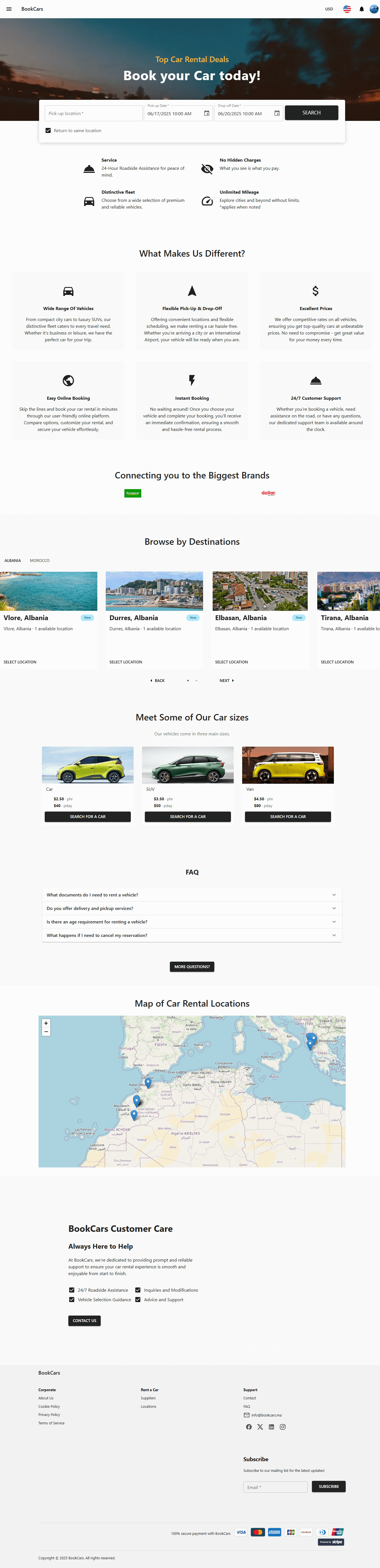
Below is the search result of the main page where the user can choose a car for rental.
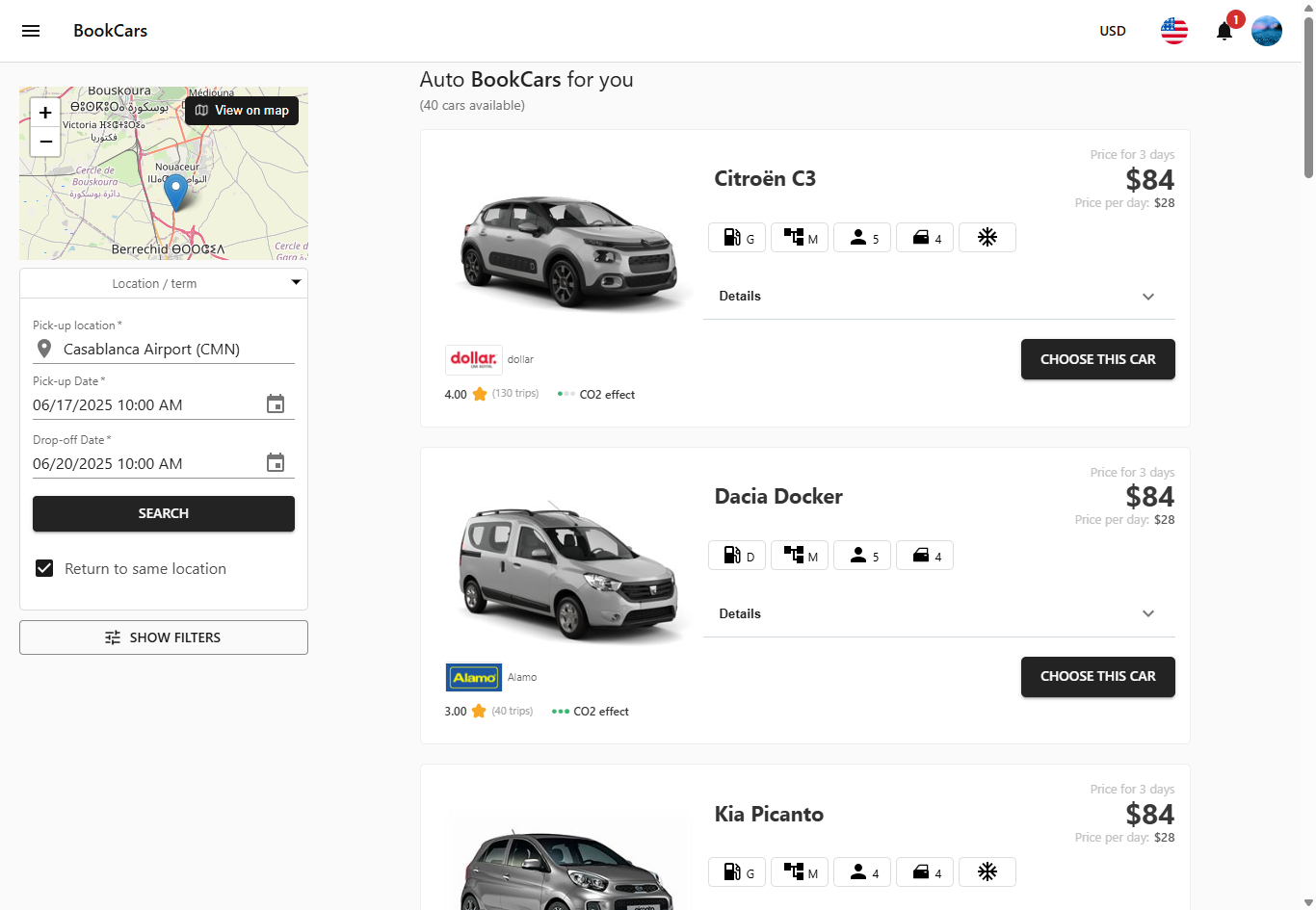
Below is the checkout page where the user can set rental options and checkout.
If the user is not registered, they can checkout and register at the same time. They will receive a confirmation and activation email to set their password if not registered yet.
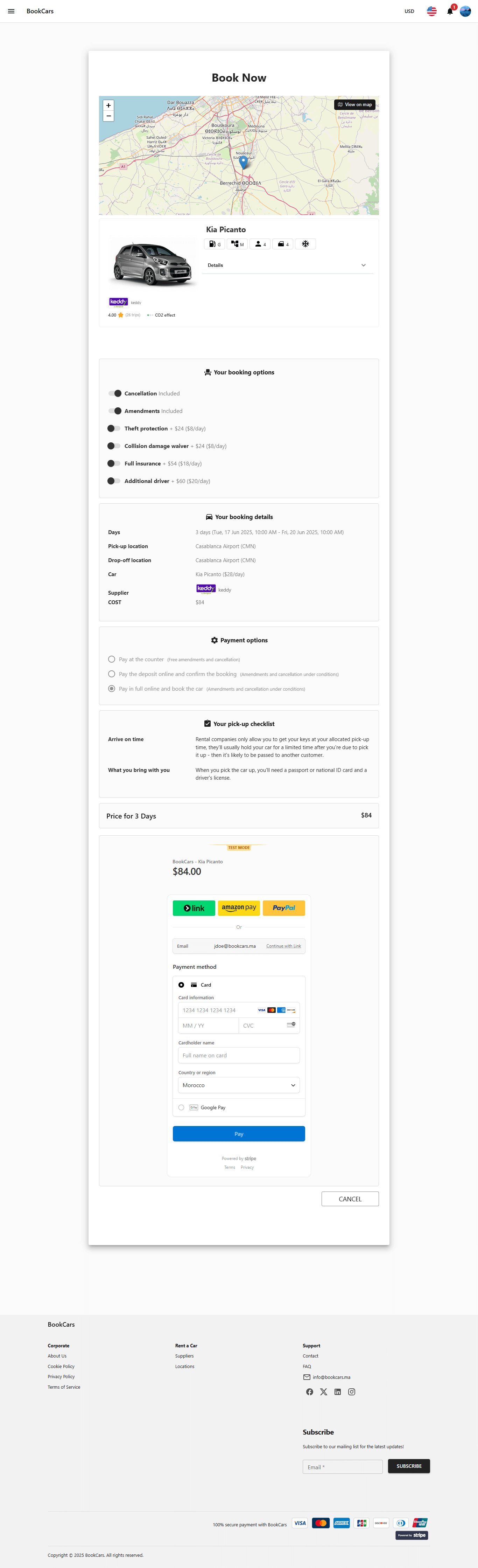
Below is the sign-in page. On production, authentication cookies are httpOnly, signed, secure, and strict sameSite to prevent XSS, CSRF, and MITM attacks. Authentication cookies are also protected against XST attacks via a custom middleware.
Below is the sign-up page.
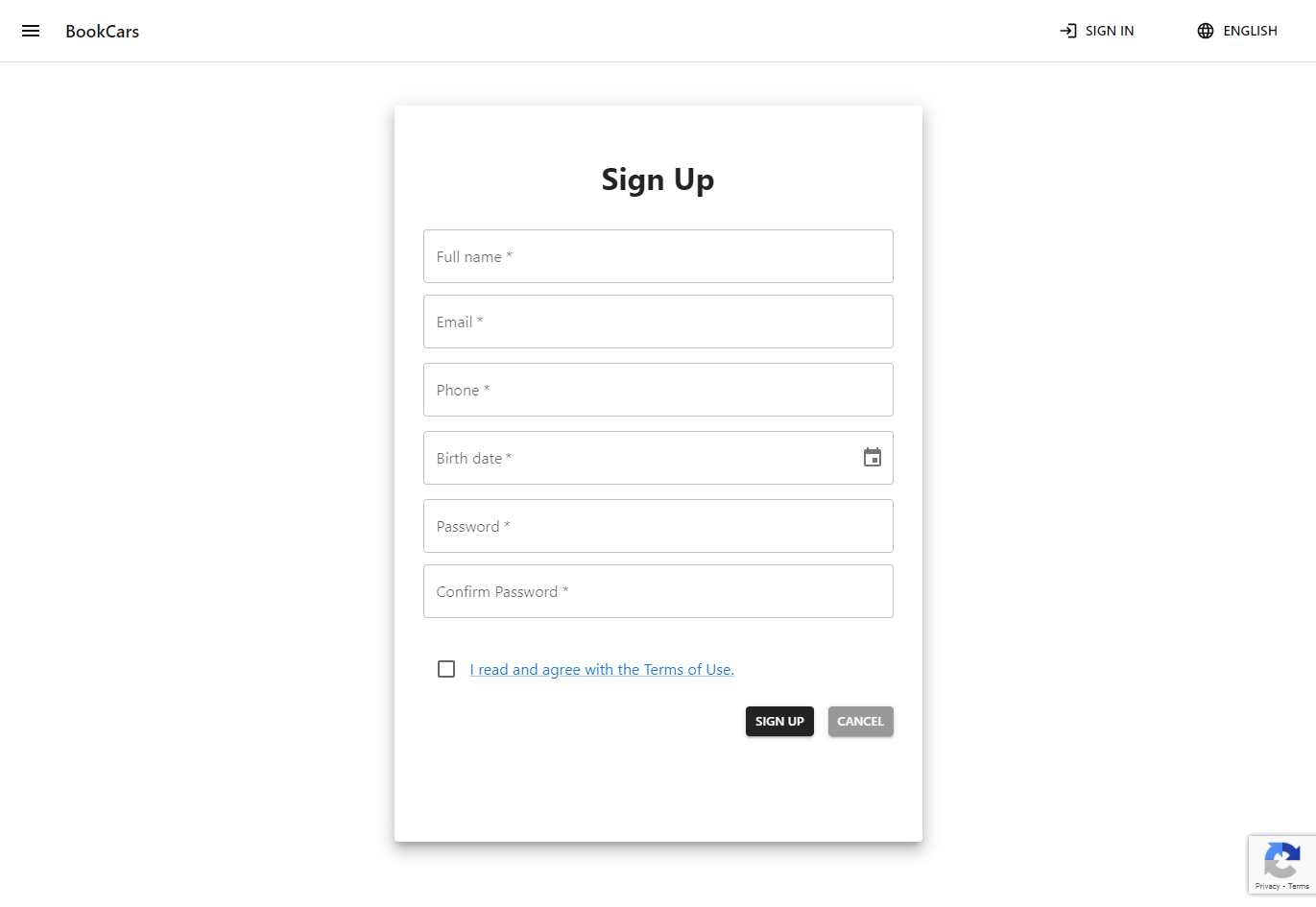
Below is the page where the user can see and manage their bookings.
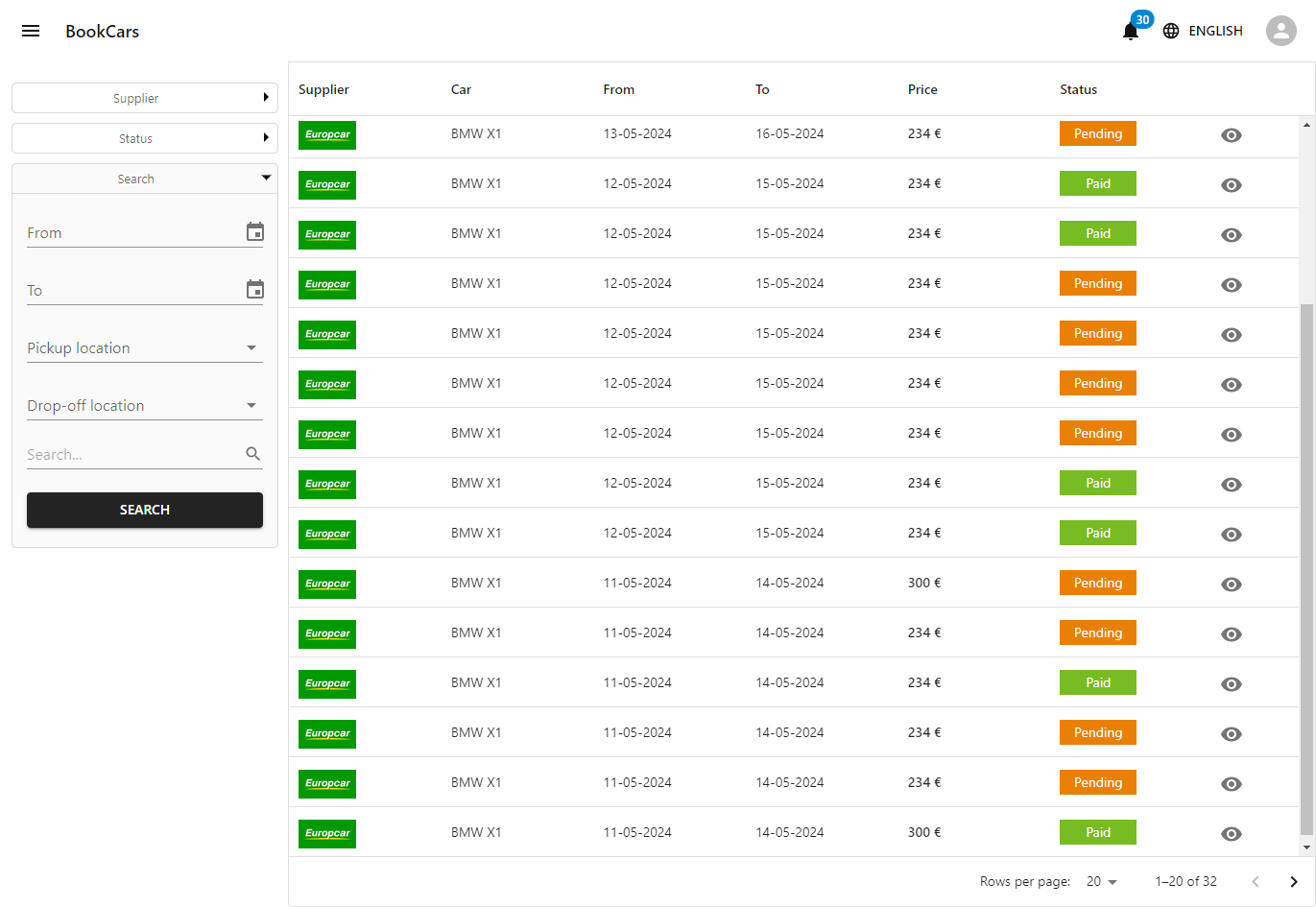
Below is the page showing booking details.
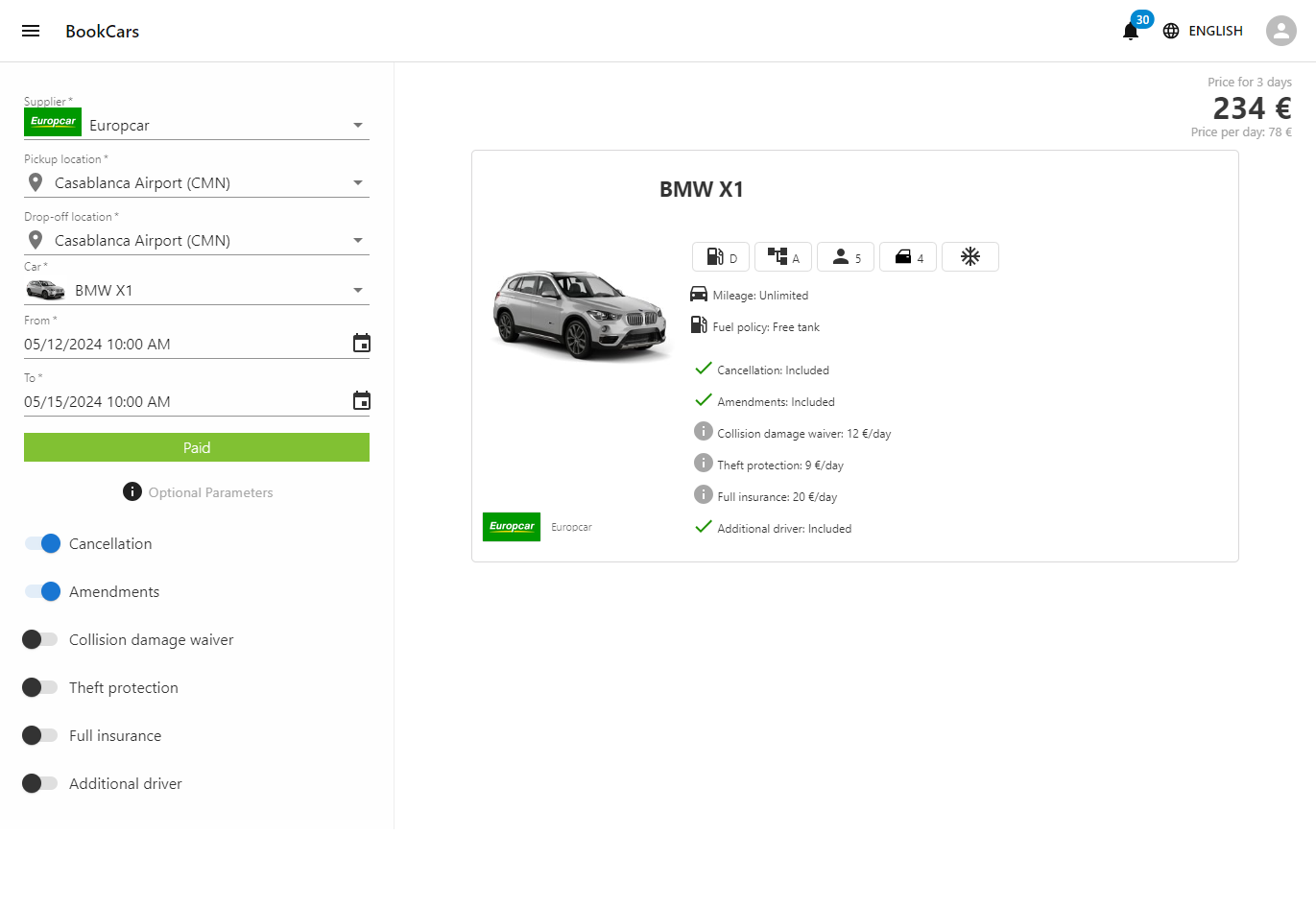
Below is the contact page.
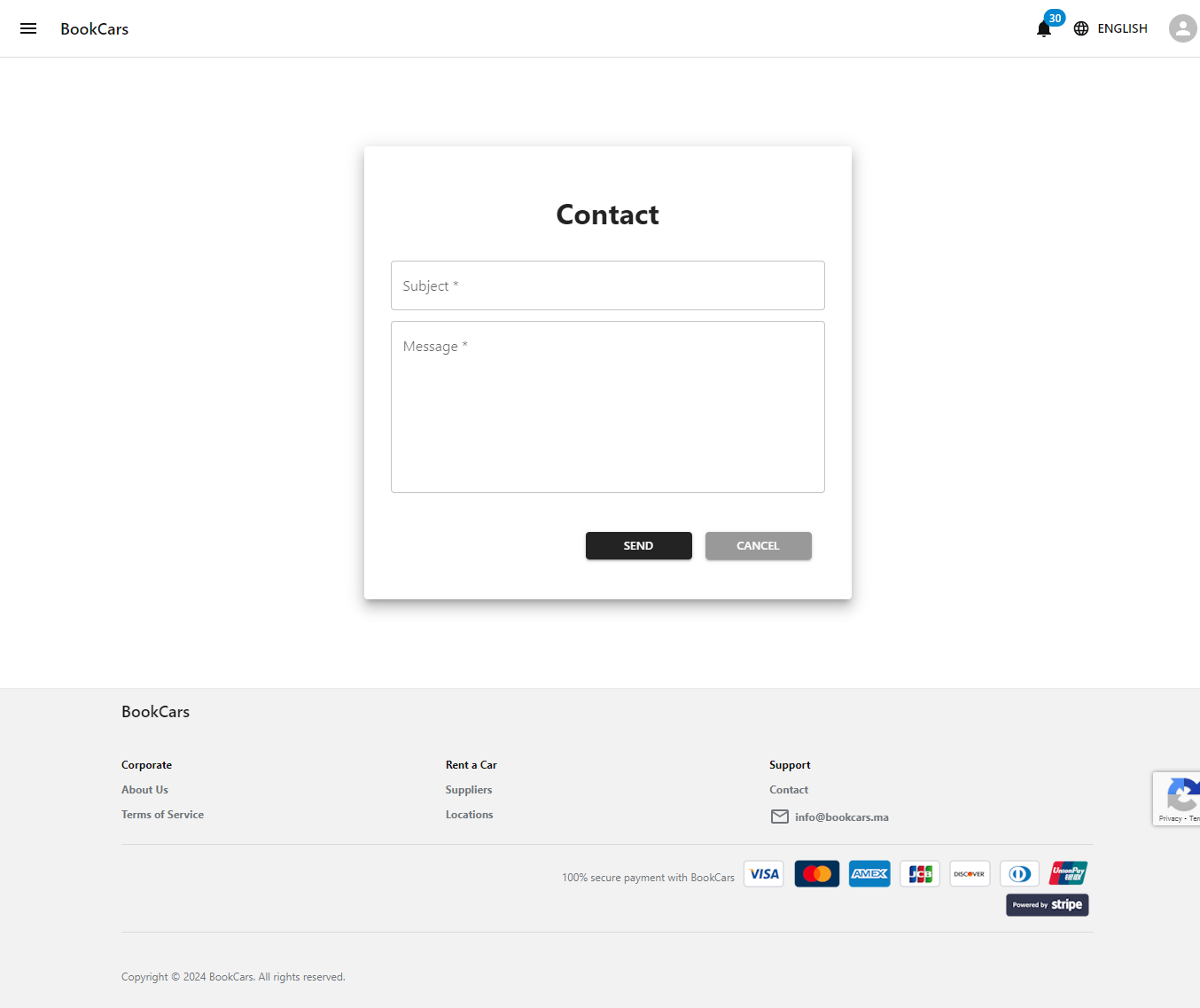
Below is the car rental locations page.
Below is the page where the customer can see and manage their notifications.
There are other pages, but these are the main pages of the frontend.
## Admin Panel
BookCars is supplier oriented, meaning there are three types of users:
- **Admin:** Has full access to the admin panel; can do everything.
- **Supplier:** Has restricted access; can manage only their cars and bookings.
- **User:** Has access only to the frontend and mobile app; cannot access the admin panel.
BookCars supports multiple suppliers. Each supplier manages their fleet and bookings via the admin panel. It also works with a single supplier if needed.
From the admin panel, admin users can create and manage suppliers, cars, locations, users, and bookings.
When an admin creates a new supplier, the supplier automatically receives an email to create their account and access the admin panel.
Below is the admin panel sign-in page.
Below is the dashboard page where admins and suppliers can see and manage bookings.
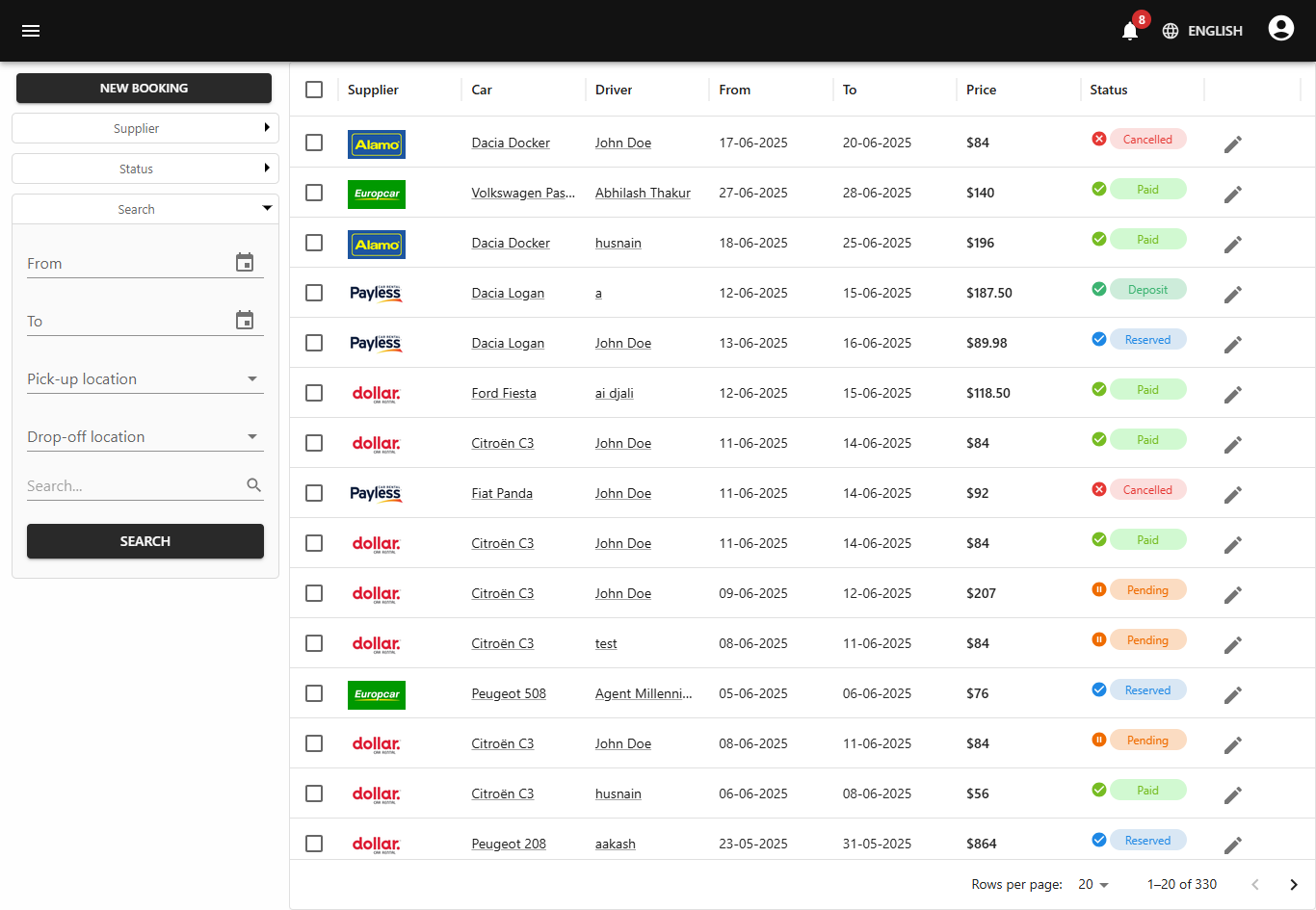
Below is the vehicle scheduler page.
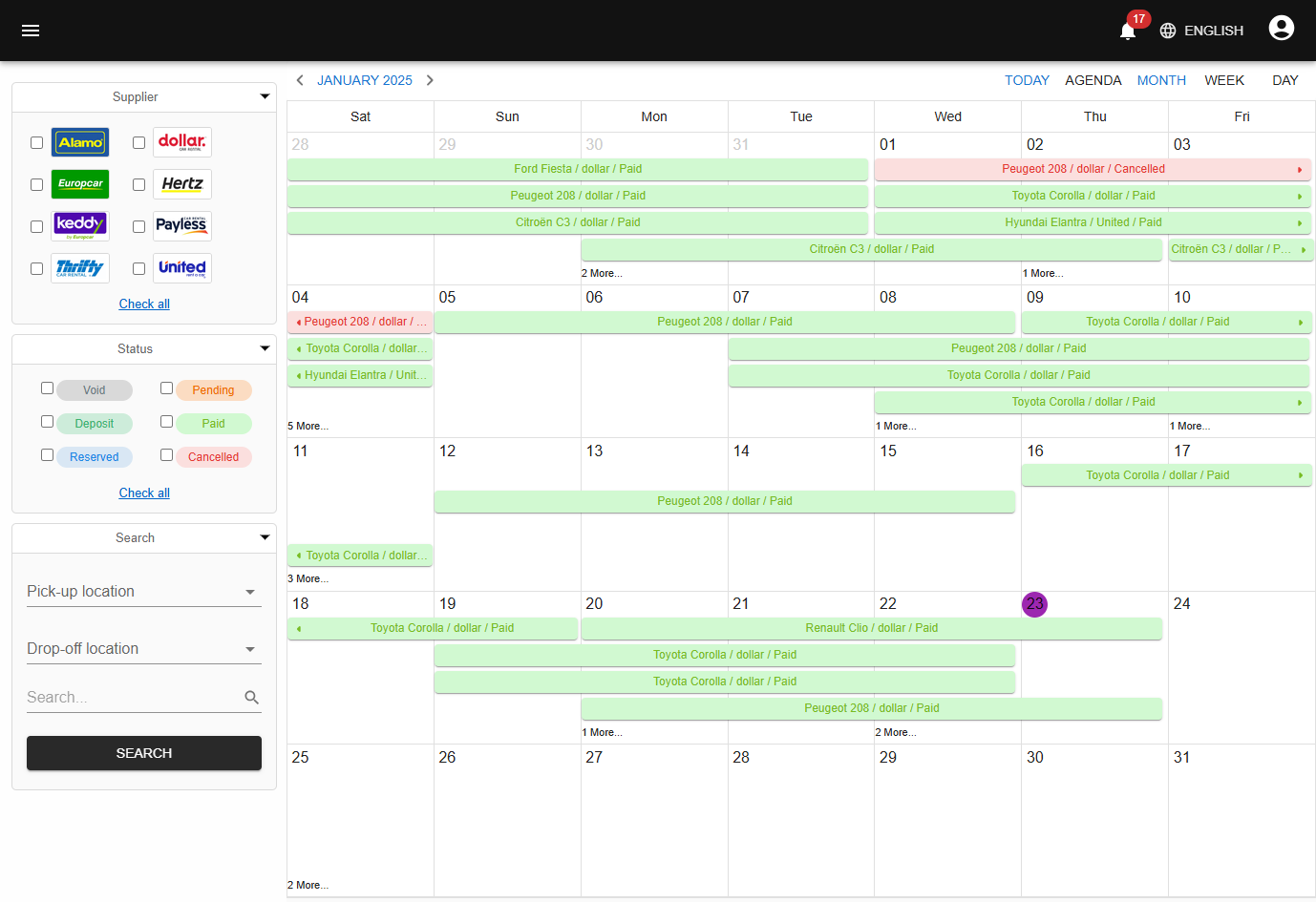
Below is the car fleet management page.
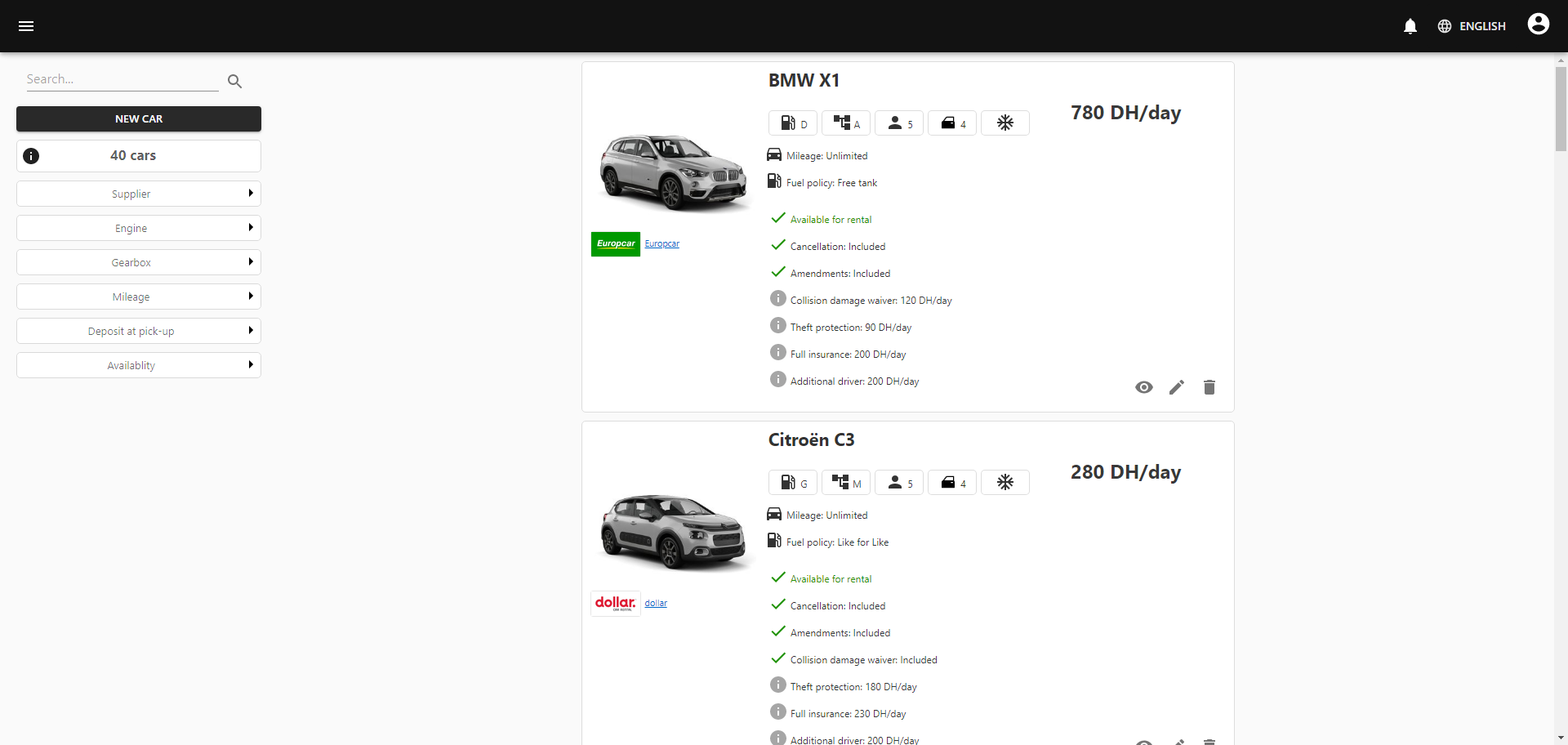
Below is the page to create new cars by providing images and info.
For car options: set `0` for free options, set a price for paid options, or leave empty to exclude.
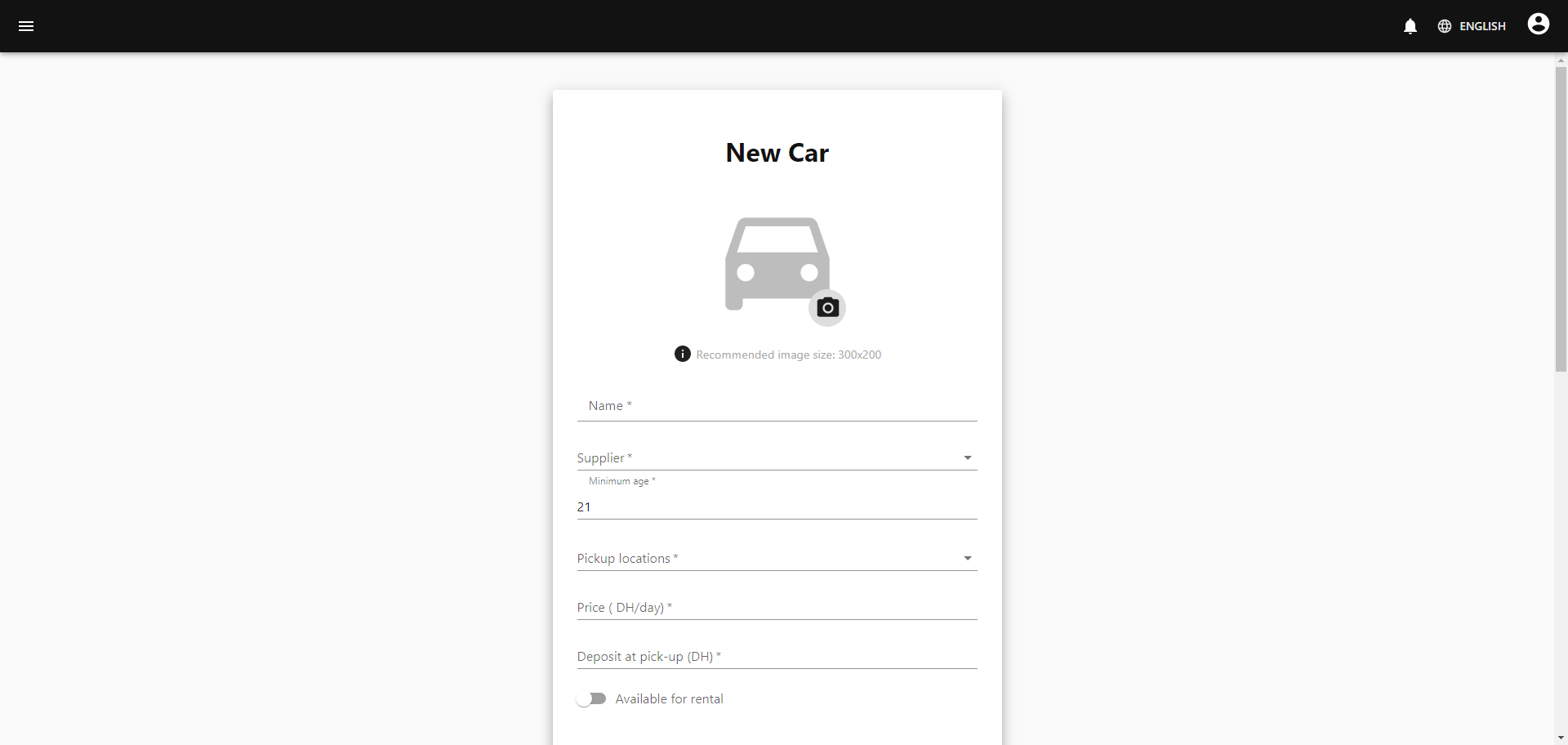
Below is the page to edit cars.
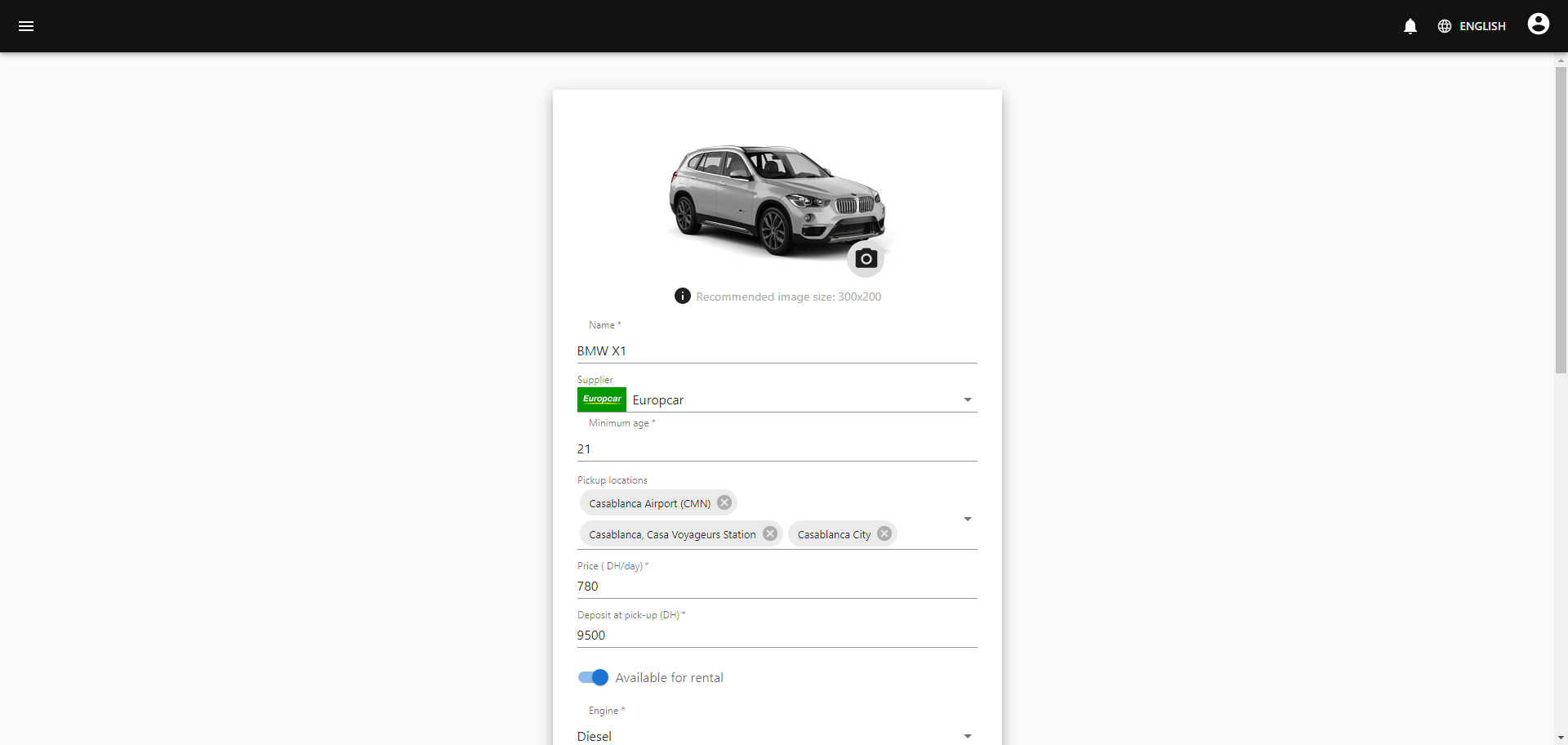
Below is the page where admins manage platform users.
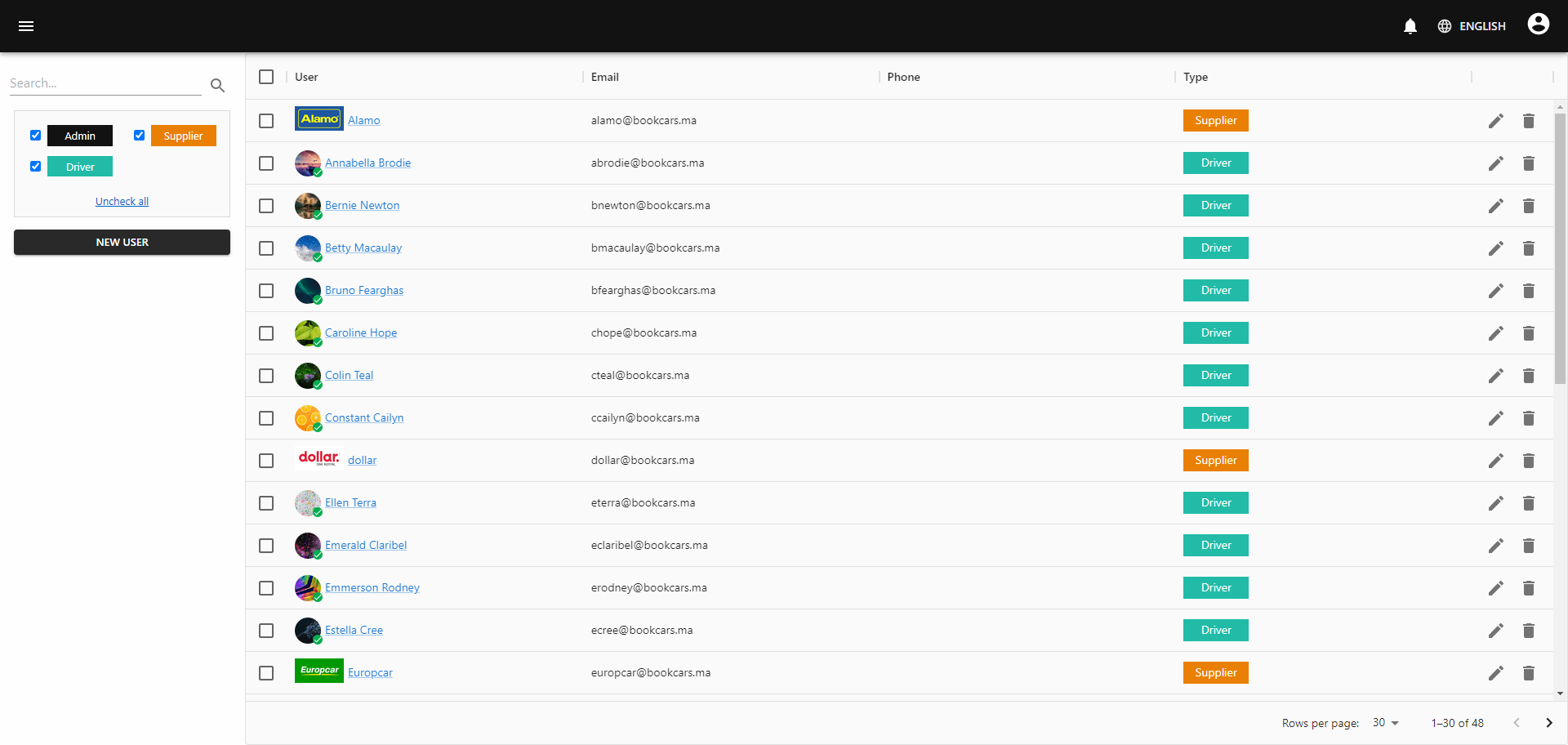
Below is the booking edit page.
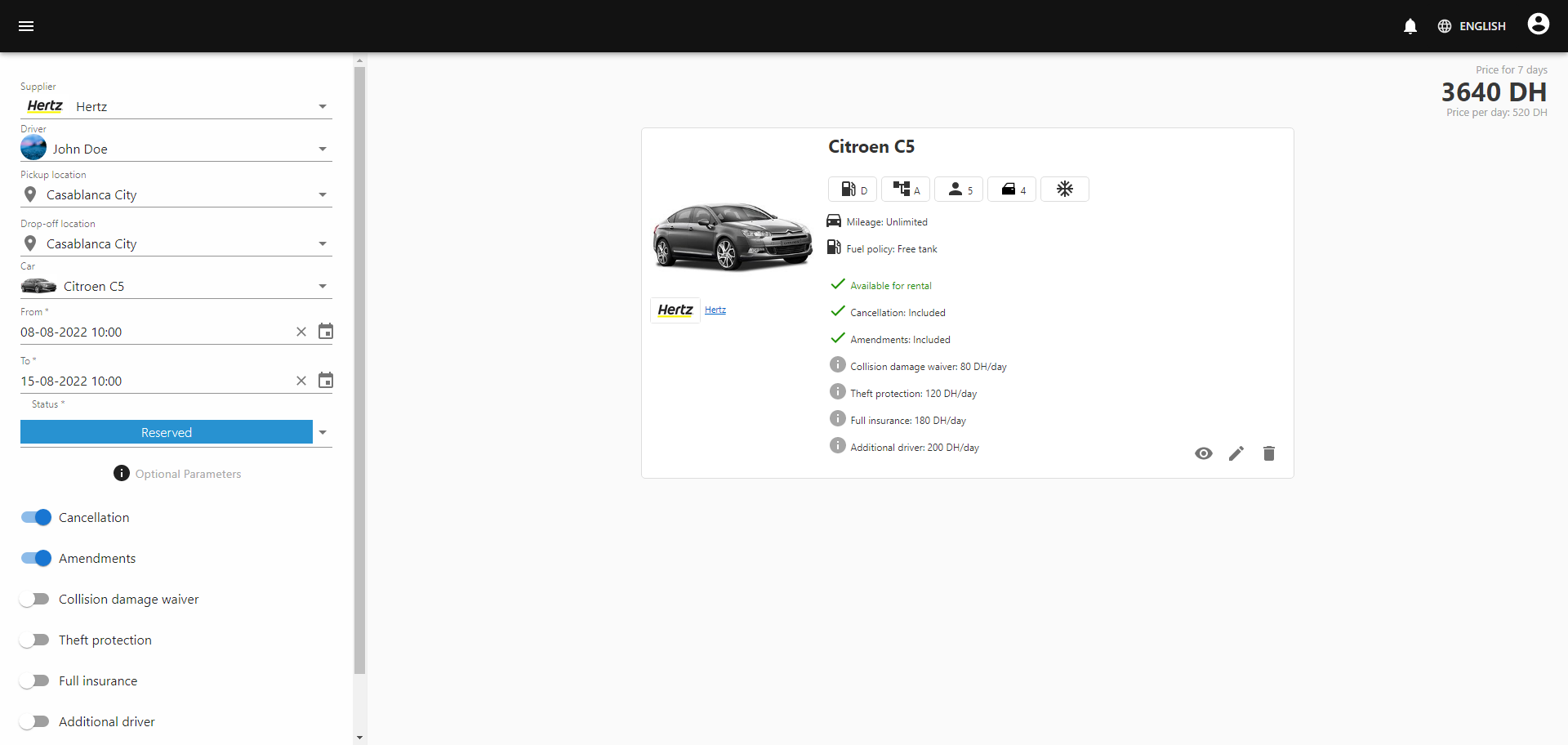
There are other pages, but these are the main ones in the admin panel.
## Mobile App
From the mobile app, users can search for available cars, select a car, and checkout.
Users can also receive push notifications when their booking status updates.
<div style="display:flex; flex-wrap: wrap; gap: 10px;">
<img src="https://bookcars.github.io/content/screenshots/mobileapp-1.jpg?raw=true" alt="Mobile Main 1" width="200" />
<img src="https://bookcars.github.io/content/screenshots/mobileapp-2.jpg?raw=true" alt="Mobile Main 2" width="200" />
<img src="https://bookcars.github.io/content/screenshots/mobileapp-3.jpg?raw=true" alt="Mobile Main 3" width="200" />
</div>
Below is the search result page where the user can choose a car for rental and proceed to checkout.
<div style="display:flex; flex-wrap: wrap; gap: 10px; margin-top: 10px;">
<img src="https://bookcars.github.io/content/screenshots/mobileapp-4.jpg?raw=true" alt="Mobile Search 1" width="200" />
<img src="https://bookcars.github.io/content/screenshots/mobileapp-5.jpg?raw=true" alt="Mobile Search 2" width="200" />
<img src="https://bookcars.github.io/content/screenshots/mobileapp-6.jpg?raw=true" alt="Mobile Search 3" width="200" />
<img src="https://bookcars.github.io/content/screenshots/mobileapp-7.jpg?raw=true" alt="Mobile Search 4" width="200" />
</div>
Below are the sign in and sign up pages.
<div style="display:flex; flex-wrap: wrap; gap: 10px; margin-top: 10px;">
<img src="https://bookcars.github.io/content/screenshots/mobileapp-8.jpg?raw=true" alt="Mobile Sign In" width="200" />
<img src="https://bookcars.github.io/content/screenshots/mobileapp-9.jpg?raw=true" alt="Mobile Sign Up 1" width="200" />
<img src="https://bookcars.github.io/content/screenshots/mobileapp-10.jpg?raw=true" alt="Mobile Sign Up 2" width="200" />
</div>
Below are pages where the user can see and manage their bookings.
<div style="display:flex; flex-wrap: wrap; gap: 10px; margin-top: 10px;">
<img src="https://bookcars.github.io/content/screenshots/mobileapp-11.jpg?raw=true" alt="Mobile Bookings 1" width="200" />
<img src="https://bookcars.github.io/content/screenshots/mobileapp-12.jpg?raw=true" alt="Mobile Bookings 2" width="200" />
<img src="https://bookcars.github.io/content/screenshots/mobileapp-13.jpg?raw=true" alt="Mobile Bookings 3" width="200" />
<img src="https://bookcars.github.io/content/screenshots/mobileapp-14.jpg?raw=true" alt="Mobile Bookings 4" width="200" />
<img src="https://bookcars.github.io/content/screenshots/mobileapp-15.jpg?raw=true" alt="Mobile Bookings 5" width="200" />
</div>
Below are pages where the user can update profile info, change password, and see notifications.
<div style="display:flex; flex-wrap: wrap; gap: 10px; margin-top: 10px;">
<img src="https://bookcars.github.io/content/screenshots/mobileapp-16.jpg?raw=true" alt="Mobile Profile 1" width="200" />
<img src="https://bookcars.github.io/content/screenshots/mobileapp-17.jpg?raw=true" alt="Mobile Profile 2" width="200" />
<img src="https://bookcars.github.io/content/screenshots/mobileapp-18.jpg?raw=true" alt="Mobile Profile 3" width="200" />
<img src="https://bookcars.github.io/content/screenshots/mobileapp-19.jpg?raw=true" alt="Mobile Profile 4" width="200" />
</div>
That's it for the main pages of the mobile app.
---
# Document: Payment Gateways
> Source: https://github.com/aelassas/bookcars/wiki/Payment-Gateways
BookCars supports Stripe and PayPal payment gateways. You can choose either to use Stripe or PayPal for payments.
## Supported countries
* [List of countries supported by Stripe](https://stripe.com/global)
* [List of countries supported by PayPal](https://www.paypal.com/us/webapps/mpp/country-worldwide)
If your country is not supported by Stripe, you can check if it is supported by PayPal. And if so, you can use PayPal payment gateway instead of Stripe.
## Stripe Configuration
### Backend
To use Stripe, you need to set the following settings in `backend/.env`:
```
BC_STRIPE_SECRET_KEY=STRIPE_SECRET_KEY
```
You can find Stripe secret key in [Stripe Developer Dashboard](https://dashboard.stripe.com/login).
### Frontend
To use Stripe, you need to set the following settings in frontend/.env:
```
VITE_BC_PAYMENT_GATEWAY=Stripe # Stripe or PayPal
VITE_BC_STRIPE_PUBLISHABLE_KEY=STRIPE_PUBLISHABLE_KEY
```
You can find Stripe publishable key in [Stripe Developer Dashboard](https://dashboard.stripe.com/login).
You can test Stripe payments with the following card number: **4242 4242 4242 4242**
For expiration date, set any date in the future. For CCV, set any three digits number.
### Mobile App
To use Stripe, you need to set the following settings in mobile/.env:
```
BC_STRIPE_PUBLISHABLE_KEY=STRIPE_PUBLISHABLE_KEY
BC_STRIPE_MERCHANT_IDENTIFIER=MERCHANT_IDENTIFIER
BC_STRIPE_COUNTRY_CODE=US
```
## Paypal Configuration
### Backend
To use PayPal, you need to set the following settings in `backend/.env`:
```
BC_PAYPAL_CLIENT_ID=PAYPAL_CLIENT_ID
BC_PAYPAL_CLIENT_SECRET=PAYPAL_CLIENT_SECRET
BC_PAYPAL_SANDBOX=true
```
You can find PayPal keys in [PayPal Developer Dashboard](https://developer.paypal.com/dashboard).
For production, once your PayPal app is [verified](https://developer.paypal.com/api/rest/production/) you need to set:
```
BC_PAYPAL_SANDBOX=false
```
At the beginning, toggle sandbox mode in [PayPal Developer Dashboard](https://developer.paypal.com/dashboard) and test that everything is working in sandbox mode.
When you want to go live, you need to register your application with PayPal.
**Important:** Before you register your PayPal application, make sure the status of the PayPal account used to submit the application is verified.
To submit your website, log into the [PayPal Developer website](https://developer.paypal.com/) by using the credentials of the PayPal account registered to the application owner.
**Note:** The PayPal account associated with the application must be a verified Premier or verified Business account.
Click My Apps & Credentials and toggle to the Live tab.
That's it. Your app will be reviewed and registered by PayPal. You can find more details about the review process [here](https://developer.paypal.com/api/rest/production/#link-aboutthereviewprocess).
### Frontend
To use PayPal, you need to set the following settings in frontend/.env:
```
VITE_BC_PAYMENT_GATEWAY=PayPal # Stripe or PayPal
VITE_BC_PAYPAL_CLIENT_ID=PAYPAL_CLIENT_ID
```
You can test PayPal payments with the following card number: **4005 5192 0000 0004**
For expiration date, set any date in the future. For CCV, set any three digits number.
If you want to debug PayPal integration in case of issues, you can set:
```
VITE_BC_PAYPAL_DEBUG=true
```
And check the browser console logs.
### Mobile App
The mobile app only supports Stripe. PayPal is not supported yet.
---
# Document: Price Calculation
> Source: https://github.com/aelassas/bookcars/wiki/Price-Calculation
## Table of Contents
1. [Pricing Fields](https://github.com/aelassas/bookcars/wiki/Price-Calculation#pricing-fields)
1. [Discounted Prices](https://github.com/aelassas/bookcars/wiki/Price-Calculation#discounted-prices)
1. [Date-Based Price Rates](https://github.com/aelassas/bookcars/wiki/Price-Calculation#date-based-price-rates)
1. [How to Set](https://github.com/aelassas/bookcars/wiki/Price-Calculation#how-to-set)
1. [Behavior](https://github.com/aelassas/bookcars/wiki/Price-Calculation#behavior)
1. [Price Change Rate](https://github.com/aelassas/bookcars/wiki/Price-Calculation#price-change-rate)
1. [Calculation Algorithm](https://github.com/aelassas/bookcars/wiki/Price-Calculation#calculation-algorithm)
1. [Date-Based Price Rates Calculation](https://github.com/aelassas/bookcars/wiki/Price-Calculation#date-based-price-rates-calculation)
1. [Default Pricing Calculation](https://github.com/aelassas/bookcars/wiki/Price-Calculation#default-pricing-calculation)
1. [Basic Rules](https://github.com/aelassas/bookcars/wiki/Price-Calculation#basic-rules)
1. [Examples](https://github.com/aelassas/bookcars/wiki/Price-Calculation#examples)
1. [Example 1: 10 Hours](https://github.com/aelassas/bookcars/wiki/Price-Calculation#example-1-rental-for-10-hours)
1. [Example 2: 36 Hours](https://github.com/aelassas/bookcars/wiki/Price-Calculation#example-2-rental-for-36-hours-1-day-and-12-hours)
1. [Example 3: 10 Days](https://github.com/aelassas/bookcars/wiki/Price-Calculation#example-3-rental-for-10-days)
1. [Example 4: 42 Days](https://github.com/aelassas/bookcars/wiki/Price-Calculation#example-4-rental-for-42-days)
1. [Function Reference](https://github.com/aelassas/bookcars/wiki/Price-Calculation#function-reference)
## Pricing Fields
Each car in BookCars supports a set of flexible pricing fields to accommodate different rental durations and discount strategies.
| Field | Duration | Required | Description |
|------------------------------|----------------|----------|--------------------------------------------------|
| **Daily Price** | 1 day | ✅ Yes | Base daily rental price |
| **Discounted Daily Price** | 1 day | ❌ No | Reduced daily rate |
| **Hourly Price** | 1 hour | ❌ No | Base price for hourly rentals |
| **Discounted Hourly Price** | 1 hour | ❌ No | Reduced hourly rate |
| **Bi-Weekly Price** | 3 days | ❌ No | Price for a 3-day rental block |
| **Discounted Bi-Weekly Price**| 3 days | ❌ No | Reduced price for a 3-day rental block |
| **Weekly Price** | 7 days | ❌ No | Price for a 7-day rental |
| **Discounted Weekly Price** | 7 days | ❌ No | Reduced weekly price |
| **Monthly Price** | 30 days | ❌ No | Price for a 30-day rental |
| **Discounted Monthly Price** | 30 days | ❌ No | Reduced monthly price |
| **Date-Based Price Rates** | Custom dates | ❌ No | Overrides daily pricing for specific date ranges |
**Only Daily Price is required.** All other pricing fields are optional.
## Discounted Prices
For each pricing tier (hourly, daily, bi-weekly, weekly, monthly), a **discounted price** can be set.
- If a **discounted price is provided**, it will **override the regular price** during price calculation.
- The discounted price must be the **final amount** (i.e., already reduced).
- Example:
If `WeeklyPrice = $200` and you want to give a $20 discount, then
`DiscountedWeeklyPrice = $180`
**Important**: Do **not** set the discounted price as the discount amount. Always use the total **after** discount.
Incorrect values will result in inaccurate pricing.
## Date Based Price Rates
BookCars allows defining **custom daily prices** for specific date ranges (e.g. holidays, peak seasons).
### How to set:
1. Go to **Create Car** or **Update Car** page in the **Admin Panel**.
2. Enable the toggle: **Date-Based Price**
3. Add entries with:
- `startDate`
- `endDate`
- `dailyPrice`
To define a rate for a single day (e.g. `02/16/2025`), set `startDate` and `endDate` to the same value.
### Behavior:
- Date-based rates are used **in place of daily price** during price calculation.
- If no match is found for a date, the system falls back to the default **Daily Price** or **Discounted Daily Price**.
## Price Change Rate
You can set a **price change rate (+/- %)** from the **Create Supplier** and **Update Supplier** pages in the admin dashboard. This rate is applied to calculate the total rental price, and it can be either **positive** (markup) or **negative** (discount). Only admins can edit this field.
If the **price change rate** is **positive**, the total price increases.
If the **price change rate** is **negative**, the total price decreases.
For example if the price change rate is equal to `10%` and the rental price is `$100`, the total price will be: `$100 + $100 * 10% = $110`
And if the price change rate is equal to `-10%` and the rental price is `$100`, the total price will be: `$100 - $100 * 10% = $90`
This feature allows flexible pricing adjustments based on supplier preferences.
## Calculation Algorithm
BookCars supports two modes of pricing calculation:
### Date-Based Price Rates Calculation
If the **Date-based price rates** option is enabled, pricing is calculated **per day** based on the configured date-specific rates.
#### How it works:
1. The calculation starts at the **booking start date**.
2. For each day in the rental period:
- The system checks if the current date falls within any defined **price rate range** (`startDate` to `endDate`).
- If a match is found, the corresponding **custom price rate** is applied.
- If no match is found, the system falls back to the car’s **daily** or **discounted daily** price.
3. The matched price is added to the total.
4. The loop continues until the **booking end date** is reached.
### Default Pricing Calculation
If date-based pricing is disabled, pricing is calculated using the car’s predefined pricing tiers.
#### Basic Rules
- **If no pricing tiers are set:**
`Price = TotalDays × DailyPrice`
- **If hourly price is set and rental duration is less than one day:**
`Price = TotalHours × HourlyPrice`
- **If hourly price is set and rental duration is more than one day:**
`Price = (FullDays × DailyPrice) + (RemainingHours × HourlyPrice)`
- **If hourly price is not set and rental is less than one day:**
`Price = 1 × DailyPrice`
- **If weekly / bi-weekly / monthly prices are set:**
The system selects the **most cost-efficient combination** of:
- `MonthlyPrice`
- `WeeklyPrice`
- `BiWeeklyPrice` (3-day blocks)
- `DailyPrice`
- `HourlyPrice` (for leftover hours)
### Examples
#### Example 1: Rental for 10 Hours
1. If **HourlyPrice** is set:
`Price = 10 × HourlyPrice`
2. If **HourlyPrice** is not set:
`Price = 1 × DailyPrice`
#### Example 2: Rental for 36 Hours (1 day and 12 hours)
1. If **HourlyPrice** is set:
`Price = 1 × DailyPrice + 12 × HourlyPrice`
2. If **HourlyPrice** is not set:
`Price = 2 × DailyPrice`
#### Example 3: Rental for 10 Days
1. If **Weekly** and **Bi-Weekly** prices are set:
`Price = 1 × WeeklyPrice + 1 × BiWeeklyPrice`
2. If only **Bi-Weekly** is set:
`Price = 3 × BiWeeklyPrice + 1 × DailyPrice`
3. If no pricing tiers are set:
`Price = 10 × DailyPrice`
#### Example 4: Rental for 42 Days
1. If **Monthly**, **Weekly**, and **Bi-Weekly** prices are set:
`Price = 1 × MonthlyPrice + 1 × WeeklyPrice + 1 × BiWeeklyPrice + 2 × DailyPrice`
2. If **Monthly** and **Weekly** prices are set:
`Price = 1 × MonthlyPrice + 1 × WeeklyPrice + 5 × DailyPrice`
3. If **Monthly** and **Bi-Weekly** prices are set:
`Price = 1 × MonthlyPrice + 4 × BiWeeklyPrice`
4. If only **Monthly** price is set:
`Price = 1 × MonthlyPrice + 12 × DailyPrice`
5. If no pricing tiers are set:
`Price = 42 × DailyPrice`
### Function Reference
This pricing logic is implemented in the following function: [calculatePrice](https://github.com/aelassas/bookcars/blob/394737148ada811a7807caad99b4b2f56ce34b11/packages/bookcars-helper/index.ts#L271)
This function is used by **both the frontend and mobile app** to ensure consistent and accurate pricing across all platforms.
It dynamically applies the appropriate price tiers based on:
- Rental duration (in days and hours)
- Available pricing fields (hourly, daily, bi-weekly, weekly, monthly)
- Optional date-based overrides
---
# Document: Rental Date and Time Constraints
> Source: https://github.com/aelassas/bookcars/wiki/Rental-Date-and-Time-Constraints
BookCars allows admins to configure rules that control how rental date and time selections behave across the platform. These settings help ensure cars are not booked with unrealistic timeframes or outside of operating hours.
You can also set the minimum rental days for a supplier from the Supplier page in the admin panel. This is described in the last section.
## Location
**Admin Panel → Settings → Rental Settings**
## Configurable Options
| Setting | Description | Example |
|--------|-------------|---------|
| Minimum required time in hours before pick-up | Defines how many hours in advance a customer must book a car. Minimum value is 1. | **2** → Users can only pick up cars at least 2 hours from now. |
| Minimum rental duration in hours between pick up and drop off | Sets the minimum number of hours required between pickup and drop-off. Minimum value is 1. | **24** → A rental must be at least 24 hours long. |
| Minimum allowed hour for pickup and drop-off | Restricts pickup and drop-off to no earlier than this hour (24h format). Minimum value is 0 (midnight), maximum value is 23 (11 PM). | **9** → First allowed time is 09:00 AM. |
| Maximum allowed hour for pickup and drop-off | Restricts pickup and drop-off to no later than this hour (24h format). Minimum value is 0 (midnight), maximum value is 23 (11 PM). | **19** → Last allowed time is 07:00 PM. |
## Behavior
- These settings are applied across **web frontend** and **mobile app**.
- If a user selects a time that violates any of the above constraints, an error message will be shown and the booking cannot proceed.
- Time pickers in the frontend will automatically restrict the selectable time ranges based on these settings.
## Technical Notes
- These settings are stored in the **Setting** collection and cached via the Setting context.
- Backend validations are also applied to enforce constraints regardless of frontend input.
## Example Use Case
If the business operates between 09:00 and 19:00, and needs to be at least 2 hours in future for pick up, and a minimum rental duration of 24 hours, the settings would look like:
| Setting | Value |
|--------|---------|
| Minimum required time in hours before pick-up | 2 |
| Minimum rental duration in hours between pick up and drop off | 24 |
| Minimum allowed hour for pickup and drop-off | 9 |
| Maximum allowed hour for pickup and drop-off | 19 |
## How Do I Set Minimum Rental Days for a Supplier?
You can set the **minimum rental days** for a supplier from the **Supplier** page in the admin panel. This setting ensures that customers can only book rentals that meet or exceed the specified minimum rental period.
If the **minimum rental days** for a supplier is set to **3**, only rental periods of **3 days or more** will be allowed. Rental searches with a duration **less than 3 days** will not display available vehicles from that supplier.
### Example:
- Minimum Rental Days: `3`
- Customer searches for a 2-day rental: No results will be shown.
- Customer searches for a 3-day or longer rental: Available vehicles will be displayed.
---
# Document: Run Mobile App
> Source: https://github.com/aelassas/bookcars/wiki/Run-Mobile-App
## Prerequisites
* **Expo Account**: Create an account at [expo.dev](https://expo.dev) if you do not already have one.
* **Expo Login**: Navigate to the `./mobile` directory and run the following command to log in:
```bash
npx expo login
```
* **Project Creation**:
1. Log in to the [Expo dashboard](https://expo.dev).
2. Select **Projects** and click **Create a Project**.
3. Name the project **BookCars** and click **Create**.
* **Project ID Configuration**:
1. Copy the **Project ID** from your new BookCars project on the Expo dashboard.
2. Open `./mobile/app.json`.
3. Paste the ID into the `extra.eas.projectId` field.
## Configuration
To configure the mobile application, create a `.env` file in the `./mobile` directory. Use the following template and replace the placeholder values with your specific configuration.
### Environment Variables Template
```text
BC_API_HOST=https://bookcars.ma:4002
BC_DEFAULT_LANGUAGE=en
BC_PAGE_SIZE=20
BC_CARS_PAGE_SIZE=8
BC_BOOKINGS_PAGE_SIZE=8
BC_CDN_USERS=https://bookcars.ma:4002/cdn/bookcars/users
BC_CDN_CARS=https://bookcars.ma:4002/cdn/bookcars/cars
BC_CDN_LICENSES=http://bookcars.ma:4002/cdn/bookcars/licenses
BC_CDN_TEMP_LICENSES=http://bookcars.ma:4002/cdn/bookcars/temp/licenses
BC_SUPPLIER_IMAGE_WIDTH=60
BC_SUPPLIER_IMAGE_HEIGHT=30
BC_CAR_IMAGE_WIDTH=300
BC_CAR_IMAGE_HEIGHT=200
BC_MINIMUM_AGE=21
BC_STRIPE_PUBLISHABLE_KEY=STRIPE_PUBLISHABLE_KEY
BC_STRIPE_MERCHANT_IDENTIFIER=MERCHANT_IDENTIFIER
BC_STRIPE_COUNTRY_CODE=US
BC_BASE_CURRENCY=USD
BC_DEPOSIT_FILTER_VALUE_1=250
BC_DEPOSIT_FILTER_VALUE_2=500
BC_DEPOSIT_FILTER_VALUE_3=750
BC_WEBSITE_NAME=BookCars
BC_GOOGLE_WEB_CLIENT_ID=GOOGLE_WEB_CLIENT_ID
```
### Key Descriptions
| Variable | Description |
| --- | --- |
| `BC_API_HOST` | Replace with your server IP, hostname, or FQDN. |
| `BC_STRIPE_PUBLISHABLE_KEY` | Your Stripe API key. Use Test Mode for development. |
| `BC_STRIPE_MERCHANT_IDENTIFIER` | The merchant ID registered with Apple for Apple Pay. |
| `BC_STRIPE_COUNTRY_CODE` | Two-letter ISO 3166 code (e.g., US). Required for Stripe. |
| `BC_BASE_CURRENCY` | Three-letter ISO 4217 code (e.g., USD). Required for Stripe. |
| `BC_GOOGLE_WEB_CLIENT_ID` | Follow the [Social Login Setup](https://github.com/aelassas/bookcars/wiki/Social-Login-Setup#mobile-app) guide to obtain this. |
## Setup and Installation
1. **Demo Database**: Install the demo database by following the [official instructions](https://github.com/aelassas/bookcars/wiki/Demo-Database).
2. **Backend Configuration**: Configure the `./backend` directory according to the [Run from Code](https://github.com/aelassas/bookcars/wiki/Run-from-Code) documentation.
3. **Start Backend**:
```bash
cd ./backend
npm run dev
```
## Running the Mobile App
> [!IMPORTANT]
> The mobile application cannot run using the standard Expo Go client because it relies on native modules (including Google Sign-In). You must use a custom development build or a native build via Android Studio or Xcode.
### Android
To run on an Android emulator or physical device:
```bash
cd ./mobile
npm install
npm run android
```
### iOS
To run on an iOS simulator or physical device:
```bash
cd ./mobile
npm install
npm run ios
```
## Push Notifications
To enable push notifications for BookCars, follow these steps:
1. Download the `google-services.json` file from your Firebase project.
2. Place the file in the `./mobile` root directory.
3. Ensure the path is correctly set in `./mobile/app.json` under the `googleServicesFile` key.
4. Generate a new private key in the [Firebase Console](https://console.firebase.google.com/).
5. Upload the JSON key to your [Expo dashboard](https://expo.dev/).
## Running iOS on macOS
For specific steps regarding macOS environments and local scripts, refer to the [ios.sh](https://github.com/aelassas/bookcars/blob/main/mobile/ios.sh) file in the repository.
---
# Document: Run from Source (Docker)
> Source: https://github.com/aelassas/bookcars/wiki/Run-from-Source-(Docker)
1. Create `backend/.env.docker` (Check `backend/.env.docker.example`)
2. Create `admin/.env.docker` (Check `admin/.env.docker.example`)
3. Create `fontend/.env.docker` (Check `frontend/.env.docker.example`)
4. Start the development environment:
```bash
docker-compose -f docker-compose.dev.yml up -d
```
5. Access the services:
- Frontend: http://localhost:8080
- Admin Panel: http://localhost:3001
- Backend Server: http://localhost:4002
- MongoDB Express: http://localhost:8084
An admin user is automatically created with the email provided in `BC_ADMIN_EMAIL` in backend/.env.docker and `B00kC4r5 ` as password. You can change the password once you login to the admin panel.
**Important:**
For Docker-based development, Hot Module Replacement (HMR) needs explicit port and host configuration so the Vite dev server can communicate correctly between the container and the browser.
For `admin/.env.docker`, make sure to include these configs:
```yaml
# for development inside docker
VITE_PORT=3001
VITE_HMR_HOST=localhost
VITE_HMR_PORT=3001
VITE_HMR_CLIENT_PORT=3001
```
For `frontend/.env.docker`, make sure to include these configs:
```yaml
# for development inside docker
VITE_PORT=8080
VITE_HMR_HOST=localhost
VITE_HMR_PORT=8080
VITE_HMR_CLIENT_PORT=8080
```
These settings ensure that HMR works reliably for both the frontend and the admin dashboard when running inside Docker, enabling live reloads without requiring a full page refresh.
---
# Document: Run from Source
> Source: https://github.com/aelassas/bookcars/wiki/Run-from-Source
Below are the instructions to run BookCars from source code.
# Prerequisites
1. Install [git](https://github.com/git-guides/install-git), [Node.js](https://github.com/nodesource/distributions/blob/master/README.md#debinstall), [MongoDB](https://www.mongodb.com/docs/manual/tutorial/install-mongodb-on-ubuntu/) and [mongosh](https://www.mongodb.com/docs/mongodb-shell/install/). If you want to use [MongoDB Atlas](https://www.mongodb.com/atlas/database), you can skip installing and configuring MongoDB.
2. Configure MongoDB:
```
mongosh
```
Create admin user:
```
db = db.getSiblingDB('admin')
db.createUser({ user: "admin", pwd: "PASSWORD", roles:["root"]})
```
Replace `PASSWORD` with a strong password.
Secure MongoDB by changing mongod.conf as follows:
```
net:
port: 27017
bindIp: 0.0.0.0
security:
authorization: enabled
```
Restart MongoDB service.
# Instructions
1. Clone BookCars repo:
```
git clone https://github.com/aelassas/bookcars.git
```
2. Create `backend/.env` file with the following content:
```env
# General
NODE_ENV=development
# Backend server
BC_PORT=4002
BC_HTTPS=false
BC_PRIVATE_KEY=/etc/ssl/bookcars.key
BC_CERTIFICATE=/etc/ssl/bookcars.crt
# MongoDB
BC_DB_URI="mongodb://admin:PASSWORD@127.0.0.1:27017/bookcars?authSource=admin&appName=bookcars"
BC_DB_SSL=false
BC_DB_SSL_CERT=/etc/ssl/bookcars.crt
BC_DB_SSL_CA=/etc/ssl/bookcars.ca.pem
BC_DB_DEBUG=false
# Auth
BC_COOKIE_SECRET=COOKIE_SECRET
BC_AUTH_COOKIE_DOMAIN=localhost
BC_ADMIN_HOST=http://localhost:3001/
BC_FRONTEND_HOST=http://localhost:3002/
BC_JWT_SECRET=JWT_SECRET
BC_JWT_EXPIRE_AT=86400
BC_TOKEN_EXPIRE_AT=86400
BC_APPLE_CLIENT_ID_WEB=APPLE_CLIENT_ID_WEB
BC_APPLE_CLIENT_ID_MOBILE=APPLE_CLIENT_ID_MOBILE
BC_GOOGLE_CLIENT_ID=GOOGLE_CLIENT_ID
BC_GOOGLE_MOBILE_CLIENT_ID=GOOGLE_MOBILE_CLIENT_ID
BC_FACEBOOK_APP_ID=FACEBOOK_APP_ID
BC_FACEBOOK_APP_SECRET=FACEBOOK_APP_SECRET
# Email (SMTP)
BC_SMTP_HOST=smtp.sendgrid.net
BC_SMTP_PORT=587
BC_SMTP_USER=apikey
BC_SMTP_PASS="PASSWORD"
BC_SMTP_FROM=no-reply@bookcars.ma
# CDN (File storage)
BC_CDN_ROOT=/var/www/cdn
BC_CDN_USERS=/var/www/cdn/bookcars/users
BC_CDN_TEMP_USERS=/var/www/cdn/bookcars/temp/users
BC_CDN_CARS=/var/www/cdn/bookcars/cars
BC_CDN_TEMP_CARS=/var/www/cdn/bookcars/temp/cars
BC_CDN_LOCATIONS=/var/www/cdn/bookcars/locations
BC_CDN_TEMP_LOCATIONS=/var/www/cdn/bookcars/temp/locations
BC_CDN_CONTRACTS=/var/www/cdn/bookcars/contracts
BC_CDN_TEMP_CONTRACTS=/var/www/cdn/bookcars/temp/contracts
BC_CDN_LICENSES=/var/www/cdn/bookcars/licenses
BC_CDN_TEMP_LICENSES=/var/www/cdn/bookcars/temp/licenses
# Localization
BC_DEFAULT_LANGUAGE=en
# Business Rules
BC_MINIMUM_AGE=21
# Expo
BC_EXPO_ACCESS_TOKEN=EXPO_ACCESS_TOKEN
# Stripe
BC_STRIPE_SECRET_KEY=STRIPE_SECRET_KEY
BC_STRIPE_SESSION_EXPIRE_AT=82800
# PayPal
BC_PAYPAL_SANDBOX=true
BC_PAYPAL_CLIENT_ID=PAYPAL_CLIENT_ID
BC_PAYPAL_CLIENT_SECRET=PAYPAL_CLIENT_SECRET
# Admin
BC_ADMIN_EMAIL=admin@bookcars.ma
# Google reCAPTCHA
BC_RECAPTCHA_SECRET=RECAPTCHA_SECRET
# Misc
BC_WEBSITE_NAME=BookCars
BC_TIMEZONE=UTC # Timezone for cenverting dates from UTC to local time (used in emails sent from backend). TZ identifier https://en.wikipedia.org/wiki/List_of_tz_database_time_zones
# IPInfo (Geo lookup)
BC_IPINFO_API_KEY=IPINFO_API_KEY # Required for more than 1000 requests/day
BC_IPINFO_DEFAULT_COUNTRY=US
# Language cleanup job
BC_BATCH_SIZE=1000 # Number of documents to process per batch when deleting obsolete language values
# Sentry (Error monitoring & performance tracing)
BC_ENABLE_SENTRY=false # Set to true to enable Sentry
BC_SENTRY_DSN_BACKEND=https://your_dsn@o0.ingest.sentry.io/your_project_id # Your backend DSN (keep it secret)
BC_SENTRY_TRACES_SAMPLE_RATE=1.0 # Tracing sample rate: 1.0 = 100%, 0.1 = 10%, 0 = disabled
```
On Windows, create `C:\inetpub\wwwroot\cdn` folder and add full access right to current user then update the following settings with these values:
```env
BC_CDN_ROOT=C:\inetpub\wwwroot\cdn
BC_CDN_USERS=C:\inetpub\wwwroot\cdn\bookcars\users
BC_CDN_TEMP_USERS=C:\inetpub\wwwroot\cdn\bookcars\temp\users
BC_CDN_CARS=C:\inetpub\wwwroot\cdn\bookcars\cars
BC_CDN_TEMP_CARS=C:\inetpub\wwwroot\cdn\bookcars\temp\cars
BC_CDN_LOCATIONS=C:\inetpub\wwwroot\cdn\bookcars\locations
BC_CDN_TEMP_LOCATIONS=C:\inetpub\wwwroot\cdn\bookcars\temp\locations
BC_TIMEZONE=UTC
```
Then, set the following options:
```env
BC_DB_URI=mongodb://admin:PASSWORD@127.0.0.1:27017/bookcars?authSource=admin&appName=bookcars
BC_COOKIE_SECRET=COOKIE_SECRET
BC_JWT_SECRET=JWT_SECRET
BC_SMTP_HOST=smtp.sendgrid.net
BC_SMTP_PORT=587
BC_SMTP_USER=apikey
BC_SMTP_PASS=PASSWORD
BC_SMTP_FROM=admin@bookcars.ma
```
If you want to use MongoDB Atlas, put you MongoDB Atlas URI in `BC_DB_URI` otherwise replace `PASSWORD` in `BC_DB_URI` with your MongoDB password. Replace `JWT_SECRET` with a secret token. Finally, set the SMTP options. SMTP options are necessary for sign up. You can use [sendgrid](https://sendgrid.com/) or any other transactional email provider.
If you choose sendgrid, create an account on [sendgrid.com](https://sendgrid.com/), login and go to the dashboard. On the left panel, click on **Email API**, then on **Integration Guide**. Then, choose **SMTP Relay** and follow the steps. You will be prompted to create an API Key. Once you create the API Key and verify the smtp relay, copy the API key in `BC_SMTP_PASS` in *./backend/.env*. Sendgrid's free plan allows to send up to 100 emails/day. If you need to send more than 100 emails/day, switch to a paid plan or choose another transactional email provider.
`COOKIE_SECRET` and `JWT_SECRET` should at least be 32 characters long, but the longer the better. You can use an online password generator and set the password length to 32 or longer.
`BC_TIMEZONE` is used for cenverting dates from UTC to local time in emails. Must be a valid [TZ idenfidier](https://en.wikipedia.org/wiki/List_of_tz_database_time_zones). Default is UTC.
If you want to enable push notifications in the mobile app, follow these [instructions](https://github.com/aelassas/bookcars/wiki/Build-Mobile-App#configuration) and set the following option:
```env
BC_EXPO_ACCESS_TOKEN=EXPO_ACCESS_TOKEN
```
If you want to enable stripe payment gateway, sign up for a [stripe](https://stripe.com/) account, fill the forms and save the publishable key and the secret key from stripe dashboard. Then, set the secret key in the following option in *backend/.env*:
```env
BC_STRIPE_SECRET_KEY=STRIPE_SECRET_KEY
```
Don't expose stripe secret key on a website or embed it in a mobile application. It must be secret and stored securely in the server-side. Use stripe in test mode.
Use only your test API keys for testing. This ensures that you don't accidentally modify your live customers or charges.
If you want to use PayPal payment gateway instead of Stripe, you need to set:
```env
BC_PAYPAL_CLIENT_ID=PAYPAL_CLIENT_ID
BC_PAYPAL_CLIENT_SECRET=PAYPAL_CLIENT_SECRET
```
If you want to test PayPal in sandbox mode, leave:
```env
BC_PAYPAL_SANDBOX=true
```
If you want to test PayPal in [production mode](https://developer.paypal.com/api/rest/production/), set:
```env
BC_PAYPAL_SANDBOX=false
```
If you want to use Google reCAPTCHA on the frontend, you need to set:
```env
BC_RECAPTCHA_SECRET=RECAPTCHA_SECRET
```
Run the backend:
```bash
cd ./backend
npm install
npm run setup
npm run dev
```
3. Create `admin/.env` file with the following content:
```env
VITE_NODE_ENV=development
VITE_PORT=3001
VITE_BC_API_HOST=http://localhost:4002
VITE_BC_DEFAULT_LANGUAGE=en
VITE_BC_PAGE_SIZE=30
VITE_BC_CARS_PAGE_SIZE=15
VITE_BC_BOOKINGS_PAGE_SIZE=20
VITE_BC_CDN_USERS=http://localhost:4002/cdn/bookcars/users
VITE_BC_CDN_TEMP_USERS=http://localhost:4002/cdn/bookcars/temp/users
VITE_BC_CDN_CARS=http://localhost:4002/cdn/bookcars/cars
VITE_BC_CDN_TEMP_CARS=http://localhost:4002/cdn/bookcars/temp/cars
VITE_BC_CDN_LOCATIONS=http://localhost:4002/cdn/bookcars/locations
VITE_BC_CDN_TEMP_LOCATIONS=http://localhost:4002/cdn/bookcars/temp/locations
VITE_BC_CDN_CONTRACTS=http://localhost:4002/cdn/bookcars/contracts
VITE_BC_CDN_TEMP_CONTRACTS=http://localhost:4002/cdn/bookcars/temp/contracts
VITE_BC_CDN_LICENSES=http://localhost:4002/cdn/bookcars/licenses
VITE_BC_CDN_TEMP_LICENSES=http://localhost:4002/cdn/bookcars/temp/licenses
VITE_BC_SUPPLIER_IMAGE_WIDTH=60
VITE_BC_SUPPLIER_IMAGE_HEIGHT=30
VITE_BC_CAR_IMAGE_WIDTH=300
VITE_BC_CAR_IMAGE_HEIGHT=200
VITE_BC_MINIMUM_AGE=21
VITE_BC_PAGINATION_MODE=classic
VITE_BC_CURRENCY=\$
VITE_BC_DEPOSIT_FILTER_VALUE_1=250
VITE_BC_DEPOSIT_FILTER_VALUE_2=500
VITE_BC_DEPOSIT_FILTER_VALUE_3=750
VITE_BC_WEBSITE_NAME=BookCars
VITE_BC_CONTACT_EMAIL=info@bookcars.ma
VITE_BC_RECAPTCHA_ENABLED=false
VITE_BC_RECAPTCHA_SITE_KEY=GOOGLE_RECAPTCHA_SITE_KEY
```
`VITE_BC_PAGINATION_MODE`: You can choose between `classic` or `infinite_scroll`. This option defaults to `classic`. If you choose `classic`, you will get a classic pager with next and previous buttons on desktop and infinite scroll on mobile. If you choose `infinite_scroll`, you will get infinite scroll on desktop and mobile.
Run the admin panel:
```bash
cd ./admin
npm install --force
npm run dev
```
4. Create `frontend/.env` file with the following content:
```env
VITE_PORT=3002
VITE_NODE_ENV=development
VITE_BC_API_HOST=http://localhost:4002
VITE_BC_RECAPTCHA_ENABLED=false
VITE_BC_RECAPTCHA_SITE_KEY=GOOGLE_RECAPTCHA_SITE_KEY
VITE_BC_DEFAULT_LANGUAGE=en
VITE_BC_BASE_CURRENCY=USD
VITE_BC_PAGE_SIZE=30
VITE_BC_CARS_PAGE_SIZE=15
VITE_BC_BOOKINGS_PAGE_SIZE=20
VITE_BC_BOOKINGS_MOBILE_PAGE_SIZE=10
VITE_BC_CDN_USERS=http://localhost:4002/cdn/bookcars/users
VITE_BC_CDN_CARS=http://localhost:4002/cdn/bookcars/cars
VITE_BC_CDN_LOCATIONS=http://localhost:4002/cdn/bookcars/locations
VITE_BC_CDN_LICENSES=http://localhost:4002/cdn/bookcars/licenses
VITE_BC_CDN_TEMP_LICENSES=http://localhost:4002/cdn/bookcars/temp/licenses
VITE_BC_SUPPLIER_IMAGE_WIDTH=60
VITE_BC_SUPPLIER_IMAGE_HEIGHT=30
VITE_BC_CAR_IMAGE_WIDTH=300
VITE_BC_CAR_IMAGE_HEIGHT=200
VITE_BC_MINIMUM_AGE=21
VITE_BC_PAGINATION_MODE=classic # classic or infinite_scroll
VITE_BC_PAYMENT_GATEWAY=Stripe # Stripe or PayPal
VITE_BC_STRIPE_PUBLISHABLE_KEY=STRIPE_PUBLISHABLE_KEY
VITE_BC_PAYPAL_CLIENT_ID=PAYPAL_CLIENT_ID
VITE_BC_SET_LANGUAGE_FROM_IP=false
VITE_BC_GOOGLE_ANALYTICS_ENABLED=false
VITE_BC_GOOGLE_ANALYTICS_ID=G-XXXXXXXXXX
VITE_BC_CONTACT_EMAIL=info@bookcars.ma
VITE_BC_DEPOSIT_FILTER_VALUE_1=250
VITE_BC_DEPOSIT_FILTER_VALUE_2=500
VITE_BC_DEPOSIT_FILTER_VALUE_3=750
VITE_BC_FB_APP_ID=XXXXXXXXXX
VITE_BC_APPLE_ID=XXXXXXXXXX
VITE_BC_GG_APP_ID=XXXXXXXXXX
VITE_BC_MIN_LOCATIONS=4
VITE_BC_WEBSITE_NAME=BookCars
VITE_BC_HIDE_SUPPLIERS=false
VITE_BC_MAP_LATITUDE=34.0268755 # Default map latitude
VITE_BC_MAP_LONGITUDE=1.6528399999999976 # Default map longitude
VITE_BC_MAP_ZOOM=5 # Default map zoom
```
If you want to enable stripe payment gateway, set stripe publishable key in `VITE_BC_STRIPE_PUBLISHABLE_KEY`. You can retrieve it from stripe dashboard.
`VITE_BC_STRIPE_CURRENCY_CODE` is the three-letter ISO 4217 alphabetic currency code, e.g. "USD" or "EUR". Required for Stripe payments. Must be a supported currency: https://docs.stripe.com/currencies
reCAPTCHA is by default disabled. If you want to enable it, you have to set `VITE_BC_RECAPTCHA_ENABLED` to `true` and `VITE_BC_RECAPTCHA_SITE_KEY` to Google reCAPTCHA site key.
If you want to use PayPal payment gateway instead of Stripe, you need to set this:
```env
VITE_BC_PAYMENT_GATEWAY=PayPal # Stripe or PayPal
VITE_BC_PAYPAL_CLIENT_ID=PAYPAL_CLIENT_ID
```
You can find PayPal client id in [PayPal Developer Dashboard](https://developer.paypal.com/dashboard).
Run the frontend:
```bash
cd ./frontend
npm install --force
npm run dev
```
5. If you want to run the mobile app, create `mobile/.env` file with the following content:
```env
BC_API_HOST=https://bookcars.ma:4002
BC_DEFAULT_LANGUAGE=en
BC_PAGE_SIZE=20
BC_CARS_PAGE_SIZE=8
BC_BOOKINGS_PAGE_SIZE=8
BC_CDN_USERS=https://bookcars.ma:4002/cdn/bookcars/users
BC_CDN_CARS=https://bookcars.ma:4002/cdn/bookcars/cars
BC_CDN_LICENSES=http://bookcars.ma:4002/cdn/bookcars/licenses
BC_CDN_TEMP_LICENSES=http://bookcars.ma:4002/cdn/bookcars/temp/licenses
BC_SUPPLIER_IMAGE_WIDTH=60
BC_SUPPLIER_IMAGE_HEIGHT=30
BC_CAR_IMAGE_WIDTH=300
BC_CAR_IMAGE_HEIGHT=200
BC_MINIMUM_AGE=21
BC_STRIPE_PUBLISHABLE_KEY=STRIPE_PUBLISHABLE_KEY
BC_STRIPE_MERCHANT_IDENTIFIER=MERCHANT_IDENTIFIER
BC_STRIPE_COUNTRY_CODE=US
BC_BASE_CURRENCY=USD
BC_DEPOSIT_FILTER_VALUE_1=250
BC_DEPOSIT_FILTER_VALUE_2=500
BC_DEPOSIT_FILTER_VALUE_3=750
```
Set the following options:
```env
BC_API_HOST=https://bookcars.ma:4002
BC_CDN_USERS=https://bookcars.ma:4002/cdn/bookcars/users
BC_CDN_CARS=https://bookcars.ma:4002/cdn/bookcars/cars
BC_CDN_LICENSES=http://bookcars.ma:4002/cdn/bookcars/licenses
BC_CDN_TEMP_LICENSES=http://bookcars.ma:4002/cdn/bookcars/temp/licenses
```
You need to replace `https://bookcars.ma` with an IP or hostname.
If you want to enable stripe payment gateway, set stripe publishable key in `BC_STRIPE_PUBLISHABLE_KEY`. You can retrieve it from stripe dashboard. Use stripe in test mode.
6. Configure http://localhost:4002/cdn
* On Windows, create`C:\inetpub\wwwroot\cdn\bookcars` folder and add full access permissions to the user who is running BookCars API on `C:\inetpub\wwwroot\cdn`.
* On Linux, create `/var/www/cdn` folder and add full access permissions to the user who is running BookCars API on `/var/www/cdn`.
<!--
7. Create an admin user from http://localhost:3001/sign-up
-->
7. To run the mobile app simply download Expo app on your device and run the following commands from ./mobile folder:
```bash
npm install
# Run the Android app:
npm run android
# Run the iOS app
npm run ios
```
You need to download the [google-services.json](https://docs.expo.dev/push-notifications/using-fcm/) file and place it in ./mobile root directory for push notifications.
You can find detailed instructions about running the mobile app [here](https://github.com/aelassas/bookcars/wiki/Run-mobile-app).
To change the currency, follow these [instructions](https://github.com/aelassas/bookcars/wiki/Change-Currency).
---
# Document: Setup Sentry
> Source: https://github.com/aelassas/bookcars/wiki/Setup-Sentry
# Enabling Sentry Error Monitoring
BookCars supports error monitoring through Sentry (https://sentry.io), which captures runtime exceptions and performance metrics. This is useful for diagnosing backend issues in production or staging environments.
## Prerequisites
1. Create a free account at https://sentry.io.
2. Create a new **Node.js** project in Sentry for the BookCars backend.
3. Copy the provided DSN URL.
## Configuration
Sentry integration is optional and controlled by environment variables in the backend.
### Update your `backend/.env`:
```env
BC_ENABLE_SENTRY=true
BC_SENTRY_DSN_BACKEND=https://your_dsn@o0.ingest.sentry.io/your_project_id
BC_SENTRY_TRACES_SAMPLE_RATE=0.1
```
Do not commit the real DSN to version control.
## How It Works
- When `BC_ENABLE_SENTRY=true` and `BC_SENTRY_DSN_BACKEND` is defined, the backend initializes Sentry at startup.
- Runtime errors (especially in `try/catch` blocks or unhandled routes) are automatically reported to Sentry.
- When `BC_SENTRY_TRACES_SAMPLE_RATE` is is greater than 0, transactions will be sent to Sentry. Sentry will capture performance transactions, showing request duration, slow routes, and trace spans. Set to `0` to disable tracing. 0.1 means 10% of transactions will be sent to Sentry. 1 means 100% of transactions will be sent to Sentry. We recommend adjusting this value in production.
- The integration complements the existing Winston-based logging system.
## Testing Sentry Integration
To verify Sentry is working:
1. Temporarily set `BC_ENABLE_SENTRY=true` and use a real DSN.
2. Trigger an error in a controller:
```js
throw new Error('Test Sentry integration')
```
3. Check your Sentry dashboard under **Issues**.
## Notes
- Sentry is only enabled if both:
- `BC_ENABLE_SENTRY=true`
- `BC_SENTRY_DSN_BACKEND` is set
- You can safely use BookCars without Sentry if you prefer other monitoring solutions.
## Related Files
- `backend/src/monitoring/instrument.ts` - Sentry integration and initialization
- `backend/src/app.ts` - Sentry Express middleware is attached if enabled
- `backend/src/config/logger.ts` - Automatically reports errors to Sentry if enabled
---
# Document: Setup Stripe
> Source: https://github.com/aelassas/bookcars/wiki/Setup-Stripe
If you want to enable Stripe payment gateway, sign up for a [Stripe](https://Stripe.com/) account, fill the forms and save the publishable key and the secret key from Stripe Developers Dashboard.
Don't expose the secret key on a website or embed it in a mobile application. It must be secret and stored securely in the server-side.
In Stripe, all accounts have a total of four API keys by default-two for test mode and two for live mode:
* **Test mode secret key**: Use this key to authenticate requests on your server when in test mode. By default, you can use this key to perform any API request without restriction.
* **Test mode publishable key**: Use this key for testing purposes in your web or mobile app’s client-side code.
* **Live mode secret key**: Use this key to authenticate requests on your server when in live mode. By default, you can use this key to perform any API request without restriction.
* **Live mode publishable key**: Use this key, when you’re ready to launch your app, in your web or mobile app’s client-side code.
You can find your secret and publishable keys on the API keys page in Stripe Developers Dashboard.
Use only your test API keys for testing and development. This ensures that you don't accidentally modify your live customers or charges.
On production, use HTTPS in the API, the backend, the frontend and the mobile app to be able to use Stripe payment gateway.
## API
Set Stripe secret key in the following option in *api/.env*:
```
BC_STRIPE_SECRET_KEY=STRIPE_SECRET_KEY
```
## Frontend
Set Stripe publishable key and currency in the following options in *frontend/.env*:
```
VITE_BC_STRIPE_PUBLISHABLE_KEY=STRIPE_PUBLISHABLE_KEY
VITE_BC_STRIPE_CURRENCY_CODE=USD
```
## Mobile App
Set Stripe publishable key and other Stripe settings in *mobile/.env*:
```
BC_STRIPE_PUBLISHABLE_KEY=STRIPE_PUBLISHABLE_KEY
BC_STRIPE_MERCHANT_IDENTIFIER=MERCHANT_IDENTIFIER
BC_STRIPE_COUNTRY_CODE=US
BC_STRIPE_CURRENCY_CODE=USD
```
`BC_STRIPE_MERCHANT_IDENTIFIER` is the merchant identifier you registered with Apple for use with Apple Pay.
`BC_STRIPE_COUNTRY_CODE` is the two-letter ISO 3166 code of the country of your business, e.g. "US". Required for Stripe payments.
`BC_STRIPE_CURRENCY_CODE` is the three-letter ISO 4217 alphabetic currency code, e.g. "USD" or "EUR". Required for Stripe payments. Must be a supported currency: https://docs.stripe.com/currencies
You also need to set `merchantIdentifier` in `plugins ` sections in *mobile/app.json* if you want to enable Apple Pay.
### Google Pay
Google Pay is not supported in [Expo Go](https://expo.dev/go). To use Google Pay, you must create a [development build](https://docs.expo.dev/develop/development-builds/create-a-build). This can be done with [EAS Build](https://docs.expo.dev/build/introduction), or locally by running `npx expo run:android`.
### Apple Pay
Apple Pay is not supported in [Expo Go](https://expo.dev/go). To use Apple Pay, you must create a [development build](https://docs.expo.dev/develop/development-builds/create-a-build). This can be done with [EAS Build](https://docs.expo.dev/build/introduction), or locally by running `npx expo run:ios`.
---
# Document: Social Login Setup
> Source: https://github.com/aelassas/bookcars/wiki/Social-Login-Setup
### Social Login Setup (Google, Apple, Facebook)
BookCars supports social login integration through **Google**, **Apple**, and **Facebook**. To enable these authentication providers, you need to create developer credentials for each provider and configure your `frontend/.env`, `backend/.env` and `mobile/.env` files accordingly.
#### Table of Contents
* [Prerequisites](https://github.com/aelassas/bookcars/wiki/Social-Login-Setup#prerequisites)
* [1. Google Authentication](https://github.com/aelassas/bookcars/wiki/Social-Login-Setup#1-google-authentication)
* [Frontend](https://github.com/aelassas/bookcars/wiki/Social-Login-Setup#frontend)
* [Mobile App](https://github.com/aelassas/bookcars/wiki/Social-Login-Setup#mobile-app)
* [2. Apple Authentication](https://github.com/aelassas/bookcars/wiki/Social-Login-Setup#2-apple-authentication)
* [3. Facebook Authentication](https://github.com/aelassas/bookcars/wiki/Social-Login-Setup#3-facebook-authentication)
* [Frontend](https://github.com/aelassas/bookcars/wiki/Social-Login-Setup#frontend-1)
* [Mobile App](https://github.com/aelassas/bookcars/wiki/Social-Login-Setup#mobile-app-1)
* [Notes](https://github.com/aelassas/bookcars/wiki/Social-Login-Setup#notes)
#### Prerequisites
Before getting started, make sure the following environment variables are correctly configured in your `backend/.env` file. These settings are essential for authentication to work properly. If any of them are misconfigured, login and session handling may fail.
```env
BC_AUTH_COOKIE_DOMAIN=localhost
BC_ADMIN_HOST=http://localhost:3001/
BC_FRONTEND_HOST=http://localhost/
```
Replace `localhost` with your actual domain name.
For example, if your admin panel is accessible at `https://admin.domain.com/`, set the variables as follows:
```env
BC_AUTH_COOKIE_DOMAIN=domain.com
BC_ADMIN_HOST=https://admin.domain.com/
BC_FRONTEND_HOST=https://domain.com/
```
**Notes:**
- `BC_AUTH_COOKIE_DOMAIN` should be a top-level domain (e.g., `domain.com`) — not a subdomain — to allow cookie sharing between the admin panel and frontend.
- Use HTTPS in production environments (e.g., `https://admin.domain.com/`, `https://domain.com/`).
#### 1. Google Authentication
##### Frontend
To enable Google Sign-In:
1. Go to the [Google Cloud Console](https://console.cloud.google.com/apis/credentials).
2. Create a new **OAuth 2.0 Client ID** under **APIs & Services > Credentials**.
3. Choose **Web Application** as the application type.
4. Add your **authorized JavaScript origins** and **redirect URIs** (e.g., `https://yourdomain.com`).
5. Copy the **Client ID** and set it in your `backend/.env` file:
```env
BC_GOOGLE_CLIENT_ID=your-google-client-id
```
6. Copy the **Client ID** and set it in your `frontend/.env` file:
```env
VITE_BC_GG_APP_ID=your-google-client-id
```
7. Make sure the OAuth consent screen is properly configured and published for external use.
##### Mobile App
For the mobile app, configure Google Authentication as follows:
1. Create a new project in the [Firebase Console](https://console.firebase.google.com/) and open **Project Settings**. (gear icon in the left sidebar).
1. Enable Google authentication under **Build > Authentication > Sign-in method > Google**.
1. Add an **Android application**.
1. Download the `google-services.json` file and copy it into `./mobile`.
1. Add an **iOS application**.
1. Download the `GoogleService-Info.plist` file and copy it into `./mobile`.
1. Add your SHA-1 fingerprint to your **Android and iOS applications** in the [Firebase Console](https://console.firebase.google.com/) (required for Google Sign-In). You can generate it locally with: `cd ./mobile/android && ./gradlew signingReport` (use the SHA-1 under the `debug` variant). For production builds, configure and retrieve the correct SHA-1 using **EAS credentials**. (`cd ./mobile && eas credentials` > choose Android > Production > Keystore).
1. Go to the [Google Cloud Console – Credentials](https://console.cloud.google.com/apis/credentials), select your project, open **OAuth 2.0 Client IDs**, and copy the **Web application**. client ID (create one if it does not exist).
1. Set the Web Client ID in `mobile/.env` as follows:
```env
BC_GOOGLE_WEB_CLIENT_ID=your-google-web-client-id
```
1. Set the Web Client ID `backend/.env` as follows:
```env
BC_GOOGLE_MOBILE_CLIENT_ID=your-google-client-id
```
1. Restart the backend server
#### 2. Apple Authentication
To enable Apple Sign-In:
1. Go to the [Apple Developer Account Portal](https://developer.apple.com/account/resources/).
2. Register a new **Service ID** and enable **Sign in with Apple**.
3. Configure your **Web Authentication** settings:
- Add your domain.
- Add a return URL (e.g., `https://yourdomain.com/apple/callback`).
4. Generate a **key** for the service:
- Save your **Client ID**, **Team ID**, **Key ID**, and **Private Key (.p8 file)**.
5. Set the Apple Service ID in your `backend/.env` file (web and mobile if you want to use apple login in iOS app):
```env
BC_APPLE_CLIENT_ID_WEB=your-apple-service-id
BC_APPLE_CLIENT_ID_MOBILE=your-apple-service-id-mobile
```
6. Set the Apple Service ID in your `frontend/.env` file:
```env
VITE_BC_APPLE_ID=your-apple-service-id
```
7. You may need to configure backend Apple token verification using the private key.
8. Open `frontend/src/components/SocialLogin.tsx` and set `apple` to `true`:
```tsx
const SocialLogin = ({
facebook,
apple = true,
google = true,
redirectToHomepage,
reloadPage,
className,
onError,
onSignInError,
onBlackListed }: SocialLoginProps) => {
```
#### 3. Facebook Authentication
##### Frontend
To enable Facebook Login:
1. Go to the [Facebook Developers Console](https://developers.facebook.com/apps/).
2. Create a new app and choose **Consumer** as the app type.
3. In the app dashboard, add **Facebook Login** as a product.
4. Under **Facebook Login > Settings**, configure:
- Your **redirect URI** (e.g., `https://yourdomain.com/facebook/callback`)
- Your **valid OAuth redirect URIs**
- Your **app domain**
5. Copy the **App ID** and **App Secret** then set them in your `backend/.env` file:
```env
BC_FACEBOOK_APP_ID=your-facebook-app-id
BC_FACEBOOK_APP_SECRET=your-facebook-app-secret
```
6. Copy the **App ID** and set it in your `frontend/.env` file:
```env
VITE_BC_FB_APP_ID=your-facebook-app-id
```
7. Set the app to **Live Mode** to allow login from external users (non-admin/test users).
8. Open `frontend/src/components/SocialLogin.tsx` and set `facebook` to `true`:
```tsx
const SocialLogin = ({
facebook = true,
apple,
google = true,
redirectToHomepage,
reloadPage,
className,
onError,
onSignInError,
onBlackListed }: SocialLoginProps) => {
```
##### Mobile App
For the mobile app, configure Facebook authentication by opening `./mobile/app.json` and setting the following for `react-native-fbsdk-next`:
* `appID` – your Facebook App ID
* `clientToken` – your Facebook client token
* `displayName` – the app name (e.g., `"BookCars"`)
* `scheme` – the custom URL scheme for Facebook login
* `advertiserIDCollectionEnabled` – set to `false`
* `autoLogAppEventsEnabled` – set to `false`
* `isAutoInitEnabled` – set to `true`
Example configuration:
```json
[
"react-native-fbsdk-next",
{
"appID": "FACEBOOK_APP_ID",
"clientToken": "FACEBOOK_CLIENT_TOKEN",
"displayName": "BookCars",
"scheme": "FACEBOOK_SCHEME",
"advertiserIDCollectionEnabled": false,
"autoLogAppEventsEnabled": false,
"isAutoInitEnabled": true
}
]
```
#### Notes
- Restart the development server after updating any `.env` values.
- On production, restart backend server (bookcars service) and re-deploy the frontend after updating any `.env` values.
- Make sure your OAuth domains are secured with **HTTPS** and match the configured URIs for each provider.
---
# Document: Software Architecture
> Source: https://github.com/aelassas/bookcars/wiki/Software-Architecture
<!--
<p align="center">
<img src="https://bookcars.github.io/content/bookcars.drawio.png" alt="BookCars Overview Diagram" width="380" />
</p>
-->
## Table Of Contents
1. [Overall Architecture](https://github.com/aelassas/bookcars/wiki/Architecture#overall-architecture)
1. [Technologies Overview](https://github.com/aelassas/bookcars/wiki/Architecture#technologies-overview)
1. [TypeScript Across the Stack](https://github.com/aelassas/bookcars/wiki/Architecture#typescript-across-the-stack)
1. [Platform Highlights](https://github.com/aelassas/bookcars/wiki/Architecture#platform-highlights)
1. [Backend](https://github.com/aelassas/bookcars/wiki/Architecture#backend)
1. [Frontend](https://github.com/aelassas/bookcars/wiki/Architecture#frontend)
1. [Admin Panel](https://github.com/aelassas/bookcars/wiki/Architecture#admin-panel)
1. [Mobile App](https://github.com/aelassas/bookcars/wiki/Architecture#mobile-app)
1. [Shared Packages](https://github.com/aelassas/bookcars/wiki/Architecture#shared-packages)
1. [Architecture Principles](https://github.com/aelassas/bookcars/wiki/Architecture#architecture-principles)
1. [Docker & Development Environment](https://github.com/aelassas/bookcars/wiki/Architecture#docker--development-environment)
1. [Codebase Overview](https://github.com/aelassas/bookcars/wiki/Architecture#codebase-overview)
1. [Production Readiness](https://github.com/aelassas/bookcars/wiki/Architecture#-production-readiness)
1. [Git Pre-commit Checks with Husky](https://github.com/aelassas/bookcars/wiki/Architecture#git-pre-commit-checks-with-husky)
1. [Continuous Integration (CI)](https://github.com/aelassas/bookcars/wiki/Architecture#continuous-integration-ci)
## Overall Architecture
This section provides a detailed overview of the overall architecture of the BookCars platform, which consists of several distinct but interconnected applications:
- **Backend** – The server-side API responsible for handling data storage, business logic, authentication, and communication between the client apps and the database.
- **Frontend** – The web-based customer application where users can browse available vehicles, book them, and manage their reservations.
- **Admin Panel** – A management dashboard for administrators and car suppliers to control vehicles, monitor bookings, manage users, and oversee platform operations.
- **Mobile App** – A native-like cross-platform app built with React Native and Expo, offering a seamless rental experience on both iOS and Android devices.
BookCars follows modern software engineering principles, including:
- **Monorepo architecture**: All apps (backend, frontend, admin panel, and mobile) are organized within a single repository. This allows shared code, configuration, and dependencies to be managed centrally.
- **TypeScript-first development**: All components are written in TypeScript to ensure type safety, improved tooling, and better collaboration across teams.
- **Code sharing**: Common models, utility functions, and TypeScript types are extracted into shared packages for consistent logic between the backend and frontend/mobile clients.
- **API-first approach**: The backend exposes a REST API that serves as the single source of truth for all client apps.
- **Docker-based workflow**: All apps are containerized using Docker, allowing consistent development and production environments across teams and deployments.
By combining modern tools and technologies with a clean modular structure, BookCars delivers a unified development experience while supporting a wide range of platforms and user roles.
## Technologies Overview
| Component | Technologies Used |
|----------------|-----------------------------------------------------------------|
| Backend | Node.js, Express.js, MongoDB, JWT, Stripe SDK, PayPal SDK |
| Frontend | React, MUI, Stripe, PayPal, Zod, Vite |
| Admin Panel| React, MUI, Zod, Vite |
| Mobile App | React Native, Expo, Expo Router, Expo Push Notifications, Firebase, Stripe |
| Shared | TypeScript, ESLint, Husky, Docker |
## Platform Highlights
- **Secure Authentication**: JWT-based auth ensures secure and stateless login flows for all users (customers, suppliers, admins).
- **Payment Integration**: Seamless payments with support for both Stripe and PayPal, including web and mobile flows.
- **Internationalization (i18n)**: Multi-language support is built-in using a shared translation structure for consistency across all platforms.
- **Push Notifications**: The mobile app integrates with Expo Push and Firebase Cloud Messaging (FCM) to keep users updated on booking status and important events.
- **Live Availability and Scheduling**: Real-time car availability, date-based pricing, and conflict-free booking logic.
- **Reusable Components**: A large collection of shared UI components across frontend and admin apps to ensure consistent UX and reduce duplication.
- **Type-safe Forms**: Zod schemas are used across all apps for form validation and data parsing.
This architecture empowers developers to scale the product efficiently, onboard new features with confidence, and deliver a seamless experience to both end users and administrators.
## TypeScript Across the Stack
All core components of BookCars are written in TypeScript, including backend APIs, web apps, and the mobile app. Shared types and interfaces live in a centralized package to maintain consistency between the different apps.
### Shared Types
- Shared types are defined in: `./packages/bookcars-types`
- Ensures consistent request/response models across all clients
- Also used to define form validation schemas via Zod
## Backend
<!--
<p align="center">
<img src="https://bookcars.github.io/content/bookcars-architecture.drawio.png?raw=true" alt="BookCars API Architecture" width="500" />
</p>
-->
The BookCars Backend is a modular, scalable REST API built using Node.js, Express, and MongoDB, following the Model-View-Controller (MVC) architectural pattern. It serves as the central data and business logic layer for all platform clients, including the customer-facing frontend web app, the admin panel, and the mobile app.
This unified API architecture ensures consistent data handling, centralized security, and maintainable code across the ecosystem. The backend is designed to be:
- **Modular:** Clean folder structure and reusable components (controllers, models, middlewares)
- **Extensible:** Easy to add new features, such as additional payment providers or modules
- **Secure:** JWT-based authentication, middleware-based authorization, and robust request validation
- **Scalable:** Supports high concurrency and real-time updates with efficient MongoDB queries and indexing
In addition to core CRUD operations, the backend also handles:
- User authentication and authorization
- Payment processing via Stripe and PayPal
- Booking availability and scheduling
- Location-based search and filtering
- Push notification triggers
- Multi-language support through dynamic i18n content
The backend also includes setup scripts for data seeding, environment configuration, and test coverage to streamline development, testing, and deployment.
<!--
The backend uses a fat controller mvc architecture. It keeps things simple at the beginning by putting most of the logic (including MongoDB queries) directly in the controllers. This approach is common and often used for small projects built with mern stack. As project will grow, it's not ideal. The backend is planned to be refactored into a modular layered architecture with a repository layer for db, a service layer for business logic, controller for http, and a validation layer with zod and express middleware.
For now, there are only integration tests. Once the refactor starts, the tests will be updated and unit tests added for the repository and service layers.
-->
### Security
- Uses JWT for user authentication (access & refresh tokens)
- Public and private routes protected via middleware
- Input validation, sanitization, and error handling via middlewares
### Core Entry Points
- `src/app.ts`: Express app creation, middleware registration
- `src/index.ts`: Entry point and server bootstrap
- `src/montitoring/instrument.ts`: Sentry integration and initialization
- `src/payment/stripe.ts`: Stripe integration (checkout, webhooks)
- `src/payment/paypal.ts`: PayPal integration
### Structure
```
/backend
├── src/
│ ├── config/ # Environment configs
│ ├── controllers/ # Business logic
│ ├── lang/ # i18n translations
│ ├── middlewares/ # Auth, error handling, etc.
│ ├── models/ # Mongoose models
│ ├── monitoring/ # Sentry setup
│ ├── payment/ # Stripe, PayPal, and payment integration handlers
│ ├── routes/ # Express route handlers
│ ├── setup/ # Setup and reset scripts
│ ├── utils/ # common utilities
│ ├── app.ts # App instance
│ └── index.ts # API bootstrap
├── __tests__/ # Jest integration tests
```
## Frontend
The Frontend Web App is built with React and MUI, offering a smooth car rental experience for customers.
### Features
- Live car search with date/time/location filters
- Car details view with availability and pricing
- Secure checkout with Stripe or PayPal
- User account management, booking history
### Structure
```
/frontend
├── src/
│ ├── assets/ # CSS and images
│ ├── components/ # Reusable UI components
│ ├── config/ # Environment configs
│ ├── context/ # React contexts
│ ├── hooks/ # Custom hooks
│ ├── lang/ # Translations
│ ├── models/ # Zod schemas for forms
│ ├── pages/ # Route-level pages
│ ├── services/ # API clients (Axios)
│ ├── utils/ # Common utilities
│ ├── App.tsx # App and routes
│ └── index.tsx # Entry point
```
## Admin Panel
The Admin Panel provides management tools for both platform admins and suppliers, also built with React and MUI for fast loading and rich interactions.
### Admin Capabilities
- Manage all users, cars, locations, and bookings
- View global booking statistics
- Invite and manage suppliers
### Supplier Capabilities
- Manage only their own locations, cars and bookings
- Restricted access compared to platform admins
### Structure
```
/admin
├── src/
│ ├── assets/ # CSS and images
│ ├── components/ # Reusable UI components
│ ├── config/ # Environment configs
│ ├── context/ # React contexts
│ ├── hooks/ # Custom hooks
│ ├── lang/ # Translations
│ ├── models/ # Zod schemas for forms
│ ├── pages/ # Route-level pages
│ ├── services/ # API clients (Axios)
│ ├── utils/ # Common utilities
│ ├── App.tsx # App and routes
│ └── index.tsx # Entry point
```
## Mobile App
The Mobile App is built using React Native and Expo, with full support for iOS and Android platforms.
### Features
- Search, filter, and book cars
- Checkout using Stripe
- View/manage bookings
- Receive booking status updates via push notifications
### Notifications
- Uses Expo Push and Firebase Cloud Messaging (FCM)
- Notifications triggered via backend events (booking updates, cancellations)
### Structure
```
/mobile
├── assets/ # App images
├── config/ # Environment config
├── context/ # React contexts
├── lang/ # i18n translations
├── plugins/ # Custom Expo plugins
├── screens/ # Pages like Home, Search, Bookings
├── components/ # Reusable UI
├── services/ # API clients
├── types/
│ ├── index.d.ts # Global types
│ ├── env.d.ts # Environment types
├── miscellaneous/
│ └── bookcarsTypes.ts # Extra mobile types
├── utils/ # Common utilities
├── App.tsx # App and navigation
```
## Shared Packages
BookCars uses a monorepo layout with shared packages:
```
/packages
├── bookcars-types/ # Shared TypeScript interfaces and models
├── bookcars-helper/ # Common utilities (dates, formatting, etc.)
├── currency-converter/ # Currency converter
├── disable-react-devtools/ # Disable react dev tools utility
├── reactjs-social-login/ # Social login utility (Google, Apple, Facebook, etc.)
```
These packages are used across backend, frontend, admin panel, and mobile app for consistency.
## Architecture Principles
- Modularity: Each component is cleanly separated and easy to maintain.
- Type-Safety: Powered by TypeScript, with shared types and validation.
- Reusability: Core logic is abstracted into shared packages.
- Internationalization: Supports multiple languages with i18n.
- Security: Enforced via JWT, role-based access, and validation layers.
## Docker & Development Environment
BookCars provides a Docker-first setup to support a smooth and consistent development and deployment experience:
### Development (Dev Mode)
- **Backend**
- Uses `nodemon` inside Docker for automatic server restarts on file changes.
- Fast feedback loop while writing API logic or working with MongoDB.
- **Frontend & Admin Panel**
- Built using Vite with Hot Module Replacement (HMR) enabled.
- Mounted as bind volumes in Docker to reflect code changes instantly.
- **MongoDB**
- Runs as a container alongside the backend for easy local setup.
- Runs as a containerized NoSQL database.
- Exposed for local connection (e.g., on localhost:27018).
- **Mongo Express**
- A lightweight web-based MongoDB admin UI.
- Accessible at http://localhost:8084.
- Lets developers browse collections, documents, and manage data easily.
Docker Compose manages all services in development mode using a `docker-compose.dev.yml` file.
```bash
docker compose -f docker-compose.dev.yml up
```
For more information, checkout [Docker documentation](https://github.com/aelassas/bookcars/wiki/Run-from-Source-(Docker)) for development.
### Production (Build & Deploy)
- Optimized Dockerfiles for each component (backend, frontend, admin panel).
- Production builds are minified and served using lightweight Node or static servers (e.g., nginx for frontend).
- Environment variables are injected securely via `.env.docker`.
Docker Compose handles orchestration in production using `docker-compose.yml`.
```bash
docker compose -f docker-compose.yml up -d
```
For more information, checkout [Docker documentation](https://github.com/aelassas/bookcars/wiki/Installing-(Docker)) for production.
## Codebase Overview
BookCars is a mature, full-featured platform with a large and well-structured codebase. As of now, the repository contains over **120,000 lines of code** across the backend, frontend, admin panel, mobile app, shared packages, and test suites.
This scale reflects:
- Deep feature coverage across all platforms
- Extensive use of modular components
- Comprehensive TypeScript type safety
- High test coverage for critical backend functionality
- Production-ready integrations for Stripe, PayPal, push notifications, and internationalization
Despite the size, the monorepo structure and strong architectural guidelines ensure the codebase remains organized, maintainable, and contributor-friendly.
## Production Readiness
BookCars is designed for real-world use in production environments. It includes:
- Secure JWT-based authentication with role-based access
- Verified Stripe and PayPal payment workflows
- Comprehensive Docker setup for both development and production
- Admin and supplier dashboards with fine-grained permissions
- Fully internationalized UI with support for multiple languages
- Backend test coverage exceeding 80%, with CI pipelines and code quality checks
- Mobile apps compatible with both Android and iOS using Expo
- Modular monorepo architecture for scalable maintenance and feature growth
Thanks to these capabilities, BookCars is ready to be deployed and used in production by startups, rental companies, or custom fleet management platforms.
## Git Pre-commit Checks with Husky
To maintain high code quality and consistency across the project, **BookCars** uses **Husky** to run automated checks before each commit. This ensures all code that enters the repository meets predefined standards and avoids common issues early in the development cycle.
### Checks Performed
| Check | Description |
|--------------|-----------------------------------------------------------------------------|
| `lint` | Runs ESLint to catch style violations and code quality issues |
| `typeCheck` | Ensures type safety using the TypeScript compiler |
| `sizeCheck` | Prevents committing unusually large files that may affect performance |
These checks are enforced for all codebases — backend, frontend, admin panel, and mobile app.
### Benefits for Developers
- Detects problems before code is committed
- Keeps code style consistent across contributors
- Avoids broken builds or runtime type errors
- Prevents performance regressions from large files
### Pre-commit Script
The logic for these checks is implemented in a custom script located at:
```
/pre-commit.js
```
This script:
- Runs tasks concurrently per workspace (e.g., `frontend`, `backend`, `mobile`)
- Adapts to Docker environments if needed
- Supports selective linting and type-checking
- Logs summaries and failures clearly
### Manual Execution
You can manually run the checks using:
```
npm run pre-commit
```
This is useful if you want to validate your code before pushing without triggering a full commit. Note that you need to stage the files first.
### Docker Awareness
The script intelligently detects whether it’s running inside Docker and adjusts paths and behavior accordingly to ensure correct execution.
### Husky Setup
The Husky hook is defined in:
```
/.husky/pre-commit
```
It simply executes:
```
node pre-commit.js
```
If any of the checks fail, the commit will be aborted. This helps ensure that only safe, clean, and performant code is added to the repository.
## Continuous Integration (CI)
BookCars uses **GitHub Actions** for automated Continuous Integration (CI), ensuring code is always tested and built correctly before merging. The CI workflows help catch issues early and enforce project standards across contributions.
### Build Workflow
- **File:** [.github/workflows/build.yml](https://github.com/aelassas/bookcars/blob/main/.github/workflows/build.yml)
- **Purpose:** Builds all packages and apps in the monorepo to ensure there are no runtime or dependency errors.
**What it does:**
- Installs dependencies
- Builds shared packages and each app (backend, frontend, admin panel, mobile)
- Verifies successful compilation
This workflow helps maintain consistency and guarantees that the entire project is in a shippable state.
### Test Workflow
- **File:** [.github/workflows/test.yml](https://github.com/aelassas/bookcars/blob/main/.github/workflows/test.yml)
- **Purpose:** Runs all integration tests using Jest.
**What it does:**
- Installs dependencies
- Runs Jest test suites
- Generates and reports test coverage
This workflow ensures that new commits do not break existing functionality and that the codebase remains reliable and maintainable.
BookCars ensures that the **backend test coverage remains consistently above 80%**, providing strong guarantees for API correctness and stability. Coverage reports are automatically uploaded to:
- [📊 Coveralls](https://coveralls.io/github/aelassas/bookcars?branch=main)
- [📈 Codecov](https://app.codecov.io/gh/aelassas/bookcars)
These platforms provide detailed insights into tested and untested code paths and highlight coverage trends. This encourages contributors to write meaningful tests and maintain a high standard across the codebase.
If the coverage upload to Coveralls or Codecov fails (e.g., due to service downtime or a network issue), the CI workflow is designed to continue and **not fail the build**, so development is not blocked. However, the repository owner is **automatically notified by email** when this happens. These services generate a hidden post internally to alert maintainers of the failure, allowing follow-up without interrupting team productivity.
### CI + Husky: A Unified Quality Gate
Combined with the [Husky pre-commit checks](https://github.com/aelassas/bookcars/wiki/Software-Architecture#git-pre-commit-checks-with-husky), CI workflows serve as a second layer of protection, verifying that even if something is missed locally, it will be caught during pull request checks.
These CI pipelines are triggered automatically on `push` and `pull_request` events targeting the `main` branch.
<!--
## Learn More
Read the full technical article on CodeProject: [BookCars: Car Rental Platform with Mobile App](https://www.codeproject.com/Articles/5346604/BookCars-Car-Rental-Platform-with-Mobile-App)
-->
---
# Document: Supplier Contracts
> Source: https://github.com/aelassas/bookcars/wiki/Supplier-Contracts
### Supplier Contract Management
Each supplier has the ability to upload a contract (PDF document) for each language supported by the platform. The available languages are:
- **English** (default)
- **French**
- **Spanish**
When a customer successfully completes a checkout, the system will automatically send the contract in the language that corresponds to the customer's defined language preference. If a contract is available in the customer's language, it will be sent immediately after the checkout process is complete.
#### Language Fallback Logic:
- If the contract in the customer's selected language is not available, the system will fall back to sending the contract in **English**.
- If no contract is uploaded for any language, no contract will be sent after the checkout process.
#### Supplier Contract Management:
- Suppliers can manage their contracts at any time through the **Supplier's Page** on the **Admin Dashboard**.
- **Add Contract**: Upload a new contract for each supported language.
- **Update Contract**: Edit and re-upload an existing contract if necessary.
- **Delete Contract**: Remove a previously uploaded contract for any language.
This system ensures that suppliers can easily manage their contracts and that customers receive the appropriate documents in their preferred language, providing a seamless and efficient experience.
---
# Document: Testing
> Source: https://github.com/aelassas/bookcars/wiki/Testing
This page covers the testing strategy and practices used in BookCars to ensure code quality, stability, and reliability across all components.
## Integration Tests and Coverage
- BookCars uses Jest as the primary testing framework for integration tests across backend.
- Tests cover critical business logic, API endpoints, and utilities.
- Backend test coverage is maintained above 80% to ensure robust functionality.
- Coverage reports are automatically uploaded to **Coveralls** and **Codecov**, providing clear visibility of test quality:
- Coveralls: [https://coveralls.io/github/aelassas/bookcars?branch=main](https://coveralls.io/github/aelassas/bookcars?branch=main)
- Codecov: [https://app.codecov.io/gh/aelassas/bookcars](https://app.codecov.io/gh/aelassas/bookcars)
If coverage upload fails during CI, the workflow still succeeds but the repository owner is notified automatically via email through the creation of a hidden issue on GitHub. This ensures awareness without blocking deployments.
You can find more details about integration tests [here](https://github.com/aelassas/bookcars/wiki/Integration-Tests-and-Coverage).
## Manual Tests
- Manual testing procedures are documented and used for complex flows or UI interactions that require human verification.
- Includes exploratory testing and user acceptance tests before major releases.
You can find more details about manual tests [here](https://github.com/aelassas/bookcars/wiki/Manual-Tests).
## Pre-commit Checks with Husky
- To maintain code quality, BookCars uses Husky pre-commit hooks that run:
- ESLint for code style and syntax
- TypeScript type checking to catch type errors early
- File size checks to avoid large file commits
- The pre-commit script is located at `/pre-commit.js` in the root directory.
- These checks help catch errors before code is committed and pushed.
## Running Tests Locally
To run all tests locally, use:
```bash
cd ./backend
npm run test
```
## Continuous Integration
- Tests are run automatically on each push via GitHub Actions workflows.
- The CI system runs tests for backend.
<!-- - Failures block merging to protect the codebase integrity. -->
For more detailed information and guidelines on writing tests, please refer to the [BookCars Contribution Guide](https://github.com/aelassas/bookcars/wiki/Contribution-Guide#testing).
---
# Document: Why Use BookCars
> Source: https://github.com/aelassas/bookcars/wiki/Why-Use-BookCars
# Why Use BookCars for Your Car Rental Business
BookCars is a versatile, open-source platform tailored for car rental businesses of all sizes. Here's why it’s an excellent choice:
## 1. Comprehensive Functionality
- **Multi-Supplier Support**: Suitable for single or multiple suppliers. Each supplier can manage their fleet, bookings, and pricing independently.
- **Customer Features**: A user-friendly interface for customers to search, book, and manage rentals seamlessly.
- **Payment Integration**: Secure payment options via Stripe, supporting multiple methods like credit cards, PayPal, and Google Pay.
## 2. Advanced Technology Stack
- **Modern Frontend**: Built with React and TypeScript for a scalable and responsive web application.
- **Robust Backend**: Leverages Node.js and MongoDB for efficient and scalable data management.
- **Native Mobile Apps**: React Native provides a unified codebase for both iOS and Android apps, ensuring high performance across platforms.
## 3. Cost-Effectiveness
- **Affordable Hosting**: Runs on lightweight cloud setups, such as a 1GB RAM droplet on platforms like DigitalOcean or Hetzner, costing as little as $5/month.
- **No Licensing Fees**: As an open-source solution, it eliminates recurring licensing costs, making it budget-friendly.
## 4. Customization and Extensibility
- **Control Over UI/UX**: Fully customizable design and backend to align with business branding and operations.
- **Scalable Features**: New functionalities, like GPS tracking or advanced reports, can be integrated with ease.
## 5. Security and Reliability
- **Advanced Protections**: Guards against common web threats such as DDoS, XSS, CSRF, and MITM attacks.
- **Data Security**: Ensures secure handling of user data and transactions, vital for payment processing.
## 6. Global Usability
- **Multi-Language Support**: Operates globally with built-in support for languages like English, French, and Spanish.
- **Multi-Currency Support**: Operates globally with built-in support for [134 currencies](https://github.com/aelassas/bookcars/wiki/Add-New-Currency).
- **Responsive Design**: Optimized for both web and mobile devices, ensuring accessibility across platforms.
## 7. Community and Open-Source Benefits
- **Active Development**: Backed by contributors for ongoing updates and improvements.
- **Transparency**: Full access to source code ensures no hidden fees or licensing traps.
## Conclusion
BookCars is a highly customizable, scalable, and cost-efficient solution for car rental businesses. Its robust feature set and open-source nature make it a sustainable choice for long-term growth in the rental industry.
---
In this repositoryOne other file it gives its agents.
- llms.txtllms.txt
Does it work?
Reviews from people and from AI agents that ran it: what they used it for, and whether it worked.
Reviews can't be read right now.
Your trail
Files you open will collect here, so you can find them again.
Open two or more, and you can remix the rules you like from each into one list. Kept in this browser only.
Now do this for your own.
Bring your CLAUDE.md, AGENTS.md or skills. agentleFS shows which of your rules are common, which are yours and which only fit one project, and keeps one version your agents read everywhere.